
How to Turn On Two-Factor Authentication on YouTube: A Step-by-Step Guide
This guide shows how to enable two-factor authentication on YouTube to enhance your account security and avoid common setup mistakes.

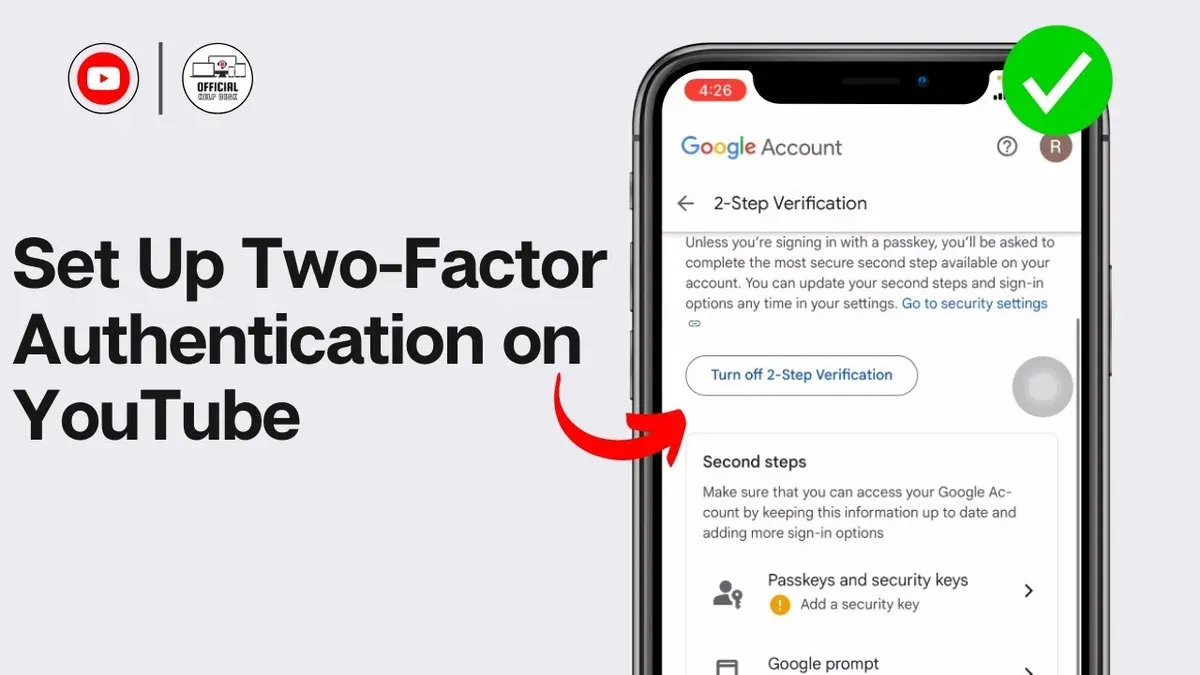
This guide explains how to turn on two-factor authentication on YouTube to secure accounts and channels effectively.
Two-factor authentication (2FA) adds a layer of security by requiring a verification code after entering the password. Although YouTube uses Google accounts, its 2FA setup involves specific steps, especially for channel management and YouTube TV access. This article covers the exact process to enable 2FA on YouTube, how to disable it if needed, and addresses common missteps users encounter.
Understanding these details prevents confusion between general Google 2FA settings and those unique to YouTube, ensuring the security measures work as intended without locking users out.
Before you start: What is needed to enable two-factor authentication on YouTube
Two-factor authentication (2FA) on YouTube requires a linked Google account since YouTube uses Google’s security infrastructure. Ensure the YouTube channel is connected to a Google Account with access credentials ready. A smartphone or another device capable of receiving verification codes is necessary. These codes can be delivered via SMS or generated by an authentication app.
Authentication apps compatible with Google’s two-step verification include Google Authenticator, Microsoft Authenticator, Authy, and other Time-based One-Time Password (TOTP) apps. Devices supporting these apps typically run iOS, Android, or have access to app emulators. Verification codes usually arrive within seconds but may take a few minutes depending on network conditions.
A reliable backup method is essential to avoid lockout. Backup options include printed backup codes available in the Google Account’s security settings, an alternate phone number for SMS codes, or a secondary authentication app installed on a separate device. Familiarity with navigating Google Account security menus helps streamline the process.
- Verify the YouTube channel is linked to a Google Account. The account profile icon should appear when signed in.
Expected result: Access to Google Account settings from YouTube. - Prepare a smartphone or device with an installed authentication app or SMS capability.
Expected result: Ability to receive a test SMS or generate a test code. - Set up backup options in the Google Account under Security > 2-Step Verification > Backup options.
Expected result: Backup codes saved or alternate phone number confirmed. - Confirm basic knowledge of Google Account security navigation to find two-step verification settings.
Expected result: Ability to reach the 2-Step Verification menu without assistance.
Tip: Printing backup codes or saving them securely offline prevents losing access if the primary device is unavailable.
How do I turn on two-factor authentication on YouTube
- Sign in to the Google Account linked to the YouTube channel. The Google Account homepage will appear after successful login.
- From the Google Account homepage, select Security from the left-hand menu. This opens the security settings page.
- Scroll down to the Signing in to Google section and locate 2-Step Verification. Click on it to proceed to the setup page.
- Click the Get Started button. Google will prompt for the account password again to confirm identity.
- Choose a verification method. Options include the Google Authenticator app, receiving codes via SMS text message, phone call, or using a physical security key. Select the preferred method and follow the prompts specific to that choice.
- After setting up the chosen verification method, Google will send a test code to confirm functionality. Enter the received code to verify.
- Once verified, a confirmation screen will display stating that 2-Step Verification is turned on. This means two-factor authentication is active for the Google Account, which protects the linked YouTube account from unauthorized access.
Activating two-factor authentication adds a second layer of security beyond passwords. Even if the password is compromised, the attacker cannot access the YouTube account without the second verification step.
How to turn on 2 step verification on YouTube channel
Two-step verification (2SV) for a YouTube channel is controlled through the Google Accounts of each channel manager, not via YouTube channel settings directly. To secure a channel, every manager with access must enable 2SV on their individual Google Account. This ensures that anyone accessing the channel has an added layer of authentication beyond just a password.
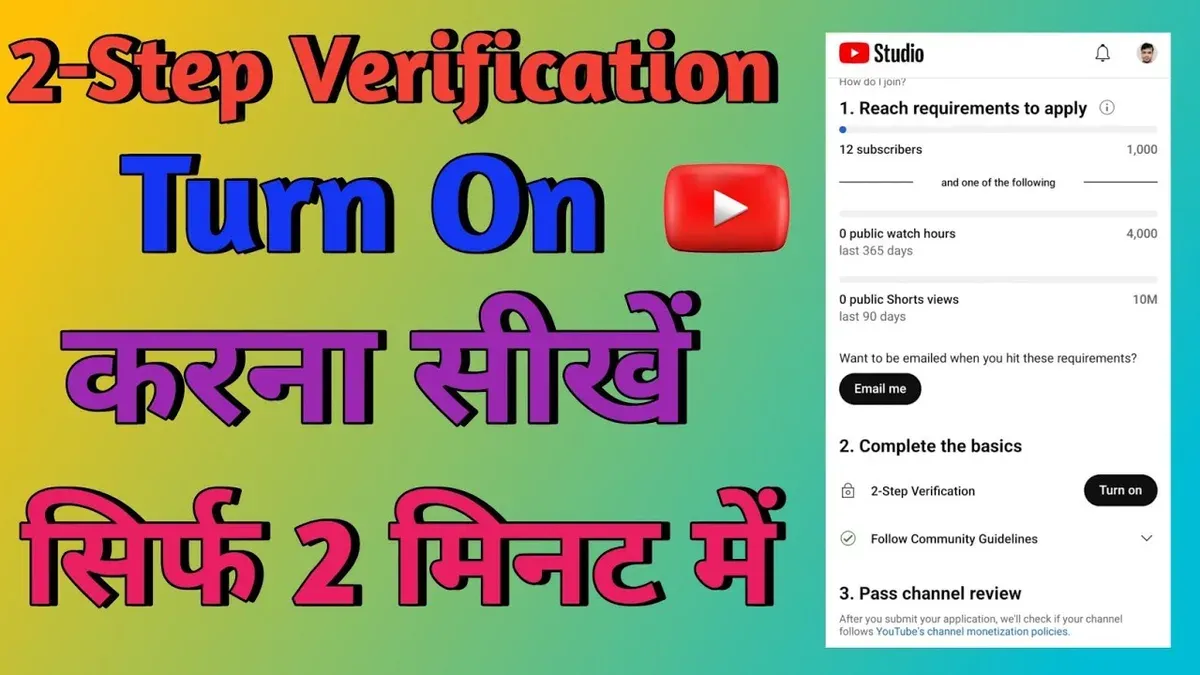
Channel managers hold different roles—Owner, Manager, or Communications Manager—with varying permissions. For example, Owners can add or remove managers, while Communications Managers primarily handle comments and messages. The 2SV status of each manager affects their ability to sign in and perform their assigned tasks. Without 2SV enabled, a manager’s account remains more vulnerable, potentially compromising channel security.
Beyond 2SV, channel owners should review permissions regularly, limiting roles to only those necessary for each user. This reduces risk if an account is compromised. Owners can check and adjust permissions under YouTube Studio > Settings > Permissions.
- Sign in to each Google Account linked to the YouTube channel. Upon successful login, navigate to Security in the Google Account settings and select 2-Step Verification. The 2SV setup page should appear.
- Follow the prompts to enable 2SV, choosing a preferred verification method such as text message codes, authenticator apps, or security keys. Successful setup shows a confirmation screen.
- Repeat the process for all channel managers. Confirm that all accounts have 2SV active to maintain consistent channel security.
- Review channel manager roles on YouTube Studio > Settings > Permissions to ensure only trusted users have elevated permissions. Adjust roles if necessary.
- Inform managers that with 2SV enabled, login requires both password and verification code, which may slightly slow access but significantly improves security.
Tip: When adding new managers, require 2SV activation before granting access to prevent gaps in channel security.
How to turn off two factor authentication on YouTube
Disabling two-factor authentication (2FA) on YouTube requires turning off 2FA on the linked Google Account because YouTube uses Google Account security settings. This action removes the extra verification step during sign-in, but it also lowers the overall security of the account.
Warning: Accounts without 2FA are significantly more vulnerable to unauthorized access. Industry reports consistently show that accounts lacking two-step verification experience higher rates of breaches and unauthorized logins.
Turning off 2FA might be necessary if the authentication device is permanently lost, or if a user cannot access backup methods and must regain account control. However, it is advisable to set up alternative security measures before disabling 2FA.
- Open a web browser and go to the Google Account page at myaccount.google.com/security. The Security section should be visible.
- Locate the "Signing in to Google" panel and click on "2-Step Verification." A page describing the current 2FA status will open.
- Click the "Turn off" button. A confirmation dialog will appear asking to confirm the choice.
- Confirm by clicking "Turn off" again. The page will update to show that 2-Step Verification is disabled.
- Sign out and sign back into the Google Account to verify that only the password is required for access.
After disabling 2FA, the YouTube account will rely solely on the password for security. This increases the risk of account compromise, especially from phishing or password reuse. Always ensure a strong, unique password is used if 2FA must be disabled.
How to turn off two factor authentication on YouTube TV
YouTube TV relies on the same Google Account settings for two-factor authentication (2FA) as other Google services. Disabling 2FA specifically for YouTube TV is not possible; it must be managed at the Google Account level. Users should be aware that any changes to 2FA settings affect all Google services linked to that account, including YouTube TV.
To turn off 2FA access for YouTube TV, follow these steps to disable two-step verification on the Google Account used for signing into YouTube TV:
- Sign in to the Google Account at https://myaccount.google.com/security. The Security page will display.
- Locate the "Signing in to Google" section and click on "2-Step Verification." The 2-Step Verification settings page opens.
- Click the "Turn off" button at the top of the page. A confirmation prompt appears.
- Confirm by selecting "Turn off" again. Two-step verification will be disabled for the entire Google Account, including YouTube TV.
Tip: Disabling 2FA reduces account security and should be done only if necessary, with alternative protections in place.
Users often report repeated 2FA prompts on YouTube TV devices, especially on smart TVs or streaming boxes. This usually happens when the device does not handle 2FA token entry smoothly or when the session expires frequently. To troubleshoot, remove the account from the YouTube TV app, clear the app cache, then sign in again after disabling 2FA if needed.
The 2FA experience on YouTube TV differs from mobile or desktop because TV apps lack direct interfaces for entering verification codes easily. This can cause inconvenience, making management on a separate device necessary. Unlike on mobile or desktop, where the prompt can be handled instantly, TV users rely on external devices for code generation and entry.
Troubleshooting common issues when turning on two-factor authentication on YouTube
Verification codes may not be received or arrive late due to network delays or carrier issues. When the "Enter verification code" prompt shows no code received, confirm the phone number on the Google Account is correct and retry sending the code. Switching from SMS to the Google Authenticator app or voice call can resolve delivery problems.
If the authenticator app does not sync or generate codes, check that the device's date and time settings are set to automatic. Incorrect time settings cause code mismatches and errors like "Invalid code." Resync the app by removing and re-adding the Google Account in the authenticator app.
Lost access to the primary 2FA method, such as a lost phone, triggers the need to use backup codes or alternative verification options. Backup codes can be printed or saved from the Google Account security settings and used one-time each to regain access. Without backup codes, account recovery may require identity verification through Google's recovery process.
Accounts can lock after multiple failed 2FA attempts displaying messages like "Too many attempts. Try again later." Wait 24 hours before retrying or use backup codes to bypass the block. Persistent lockouts necessitate contacting Google Support for assistance.
- Go to the Google Account Security page and select "2-Step Verification." The 2FA status page should load.
- Under "Authenticator app," verify time sync and try generating a new code. A valid 6-digit code should appear.
- If SMS codes are delayed, click "Try another way" and select voice call or the authenticator app.
- If the phone is lost, use previously saved backup codes by clicking "Enter one of your 8-digit backup codes." A confirmation message on successful login should show.
- If locked out, wait 24 hours or initiate account recovery by clicking "Try another way" and following Google's prompts. Successful recovery returns access to account settings.
Tip: Keep backup codes in a secure, accessible location to avoid lockout situations.
What two-factor authentication on YouTube does and does not protect against
Two-factor authentication (2FA) adds a critical security layer to YouTube accounts by requiring a second verification step beyond the password. This step typically involves a code sent via SMS, generated by an authenticator app, or provided by a hardware security key. As a result, 2FA effectively blocks unauthorized access even if a password is stolen or guessed, significantly reducing risks from common hacking techniques.
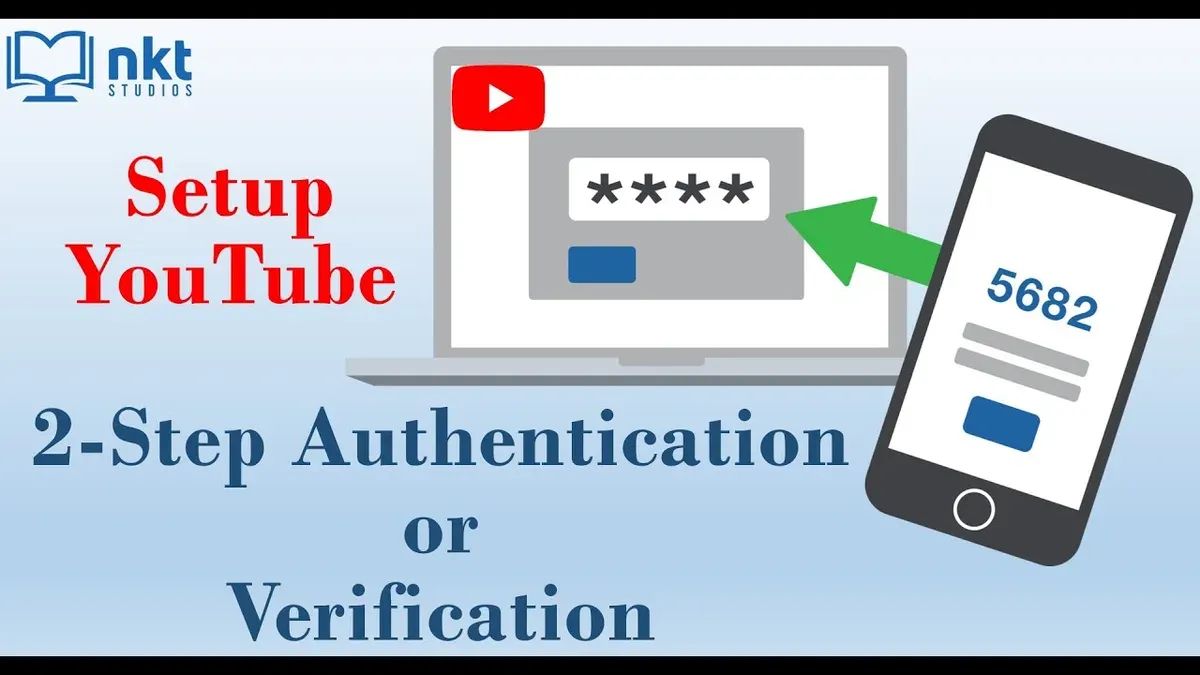
However, 2FA is not a catch-all solution. Attackers can still use phishing to trick users into revealing their 2FA codes in real time, bypassing this protection. Additionally, social engineering or fraud targeting account recovery processes can allow unauthorized access without triggering 2FA prompts. Security experts emphasize that these vulnerabilities mean 2FA must be combined with cautious behavior and other safeguards.
Complementary measures include monitoring account activity regularly, setting up recovery options carefully, and being vigilant about suspicious emails or messages. Using hardware security keys instead of SMS codes can reduce interception risks. Case studies of account breaches show that attackers often exploit human error or recovery weaknesses rather than technical 2FA flaws.
Tip: Treat 2FA as a significant hurdle for attackers, not an impenetrable barrier; staying alert to social engineering attempts is essential for maintaining YouTube account security.
Frequently asked questions
How to turn on two factor authentication on youtube?
Access the Google Account settings linked to the YouTube channel. Navigate to the Security tab, then select "2-Step Verification." Follow the prompts to add a phone number or authenticator app. Once enabled, this protects the YouTube account with an extra verification step during sign-in.
How to turn on 2 factor authentication on youtube?
The process is the same as enabling 2-Step Verification via Google Account settings. Locate the Security section in the Google Account, choose "2-Step Verification," and complete the setup by verifying a phone number or authentication app. This setting applies to the entire Google account, including YouTube access.
How to turn on two step verification on youtube?
Go to the associated Google Account's Security page and click on "2-Step Verification." Follow the setup wizard to link a phone number or authenticator app. This adds a second layer of security when signing into YouTube or any Google service.
How to enable two factor authentication on youtube?
Enable it through the Google Account settings by selecting "Security" then "2-Step Verification." Complete the verification process by choosing a preferred method, such as text message codes or an authenticator app. This ensures that YouTube sign-ins require more than just a password.
How to turn on two factor authentication?
Activate 2FA by visiting the Security settings of the Google Account tied to YouTube. Select "2-Step Verification," then follow the instructions to add a verification method. This setup is managed at the account level and affects access to YouTube and other Google services.
What this advice does not cover
This guide does not cover advanced enterprise-level YouTube account security or Google Workspace administrator controls. Two-factor authentication enhances account protection but is not foolproof against all threats. It does not prevent phishing attacks that trick users into revealing verification codes or passwords. Maintaining strong, unique passwords and remaining vigilant about suspicious emails and links remain essential parts of overall account security.
For organizations managing multiple YouTube channels or Google accounts, using Google Workspace security features or consulting IT security professionals is recommended for more comprehensive protection beyond basic two-factor authentication.
The most useful next step after enabling two-factor authentication is to verify backup options like backup codes or an alternate phone number. This ensures uninterrupted account access if the primary 2FA method becomes unavailable. Regularly reviewing and updating these backup methods prevents lockouts and maintains secure access to the YouTube account.
See also: How to Turn On Two-Factor Authentication on WhatsApp: A Step-by-Step Guide · How to Turn On Two-Factor Authentication on Snapchat: A Clear Step-by-Step Guide · How to Turn On and Off Two-Factor Authentication on Instagram



