
How to Secure Your YouTube Account: Step-by-Step Guide
This guide shows how to secure your YouTube account by protecting the linked Google account with actionable security measures.

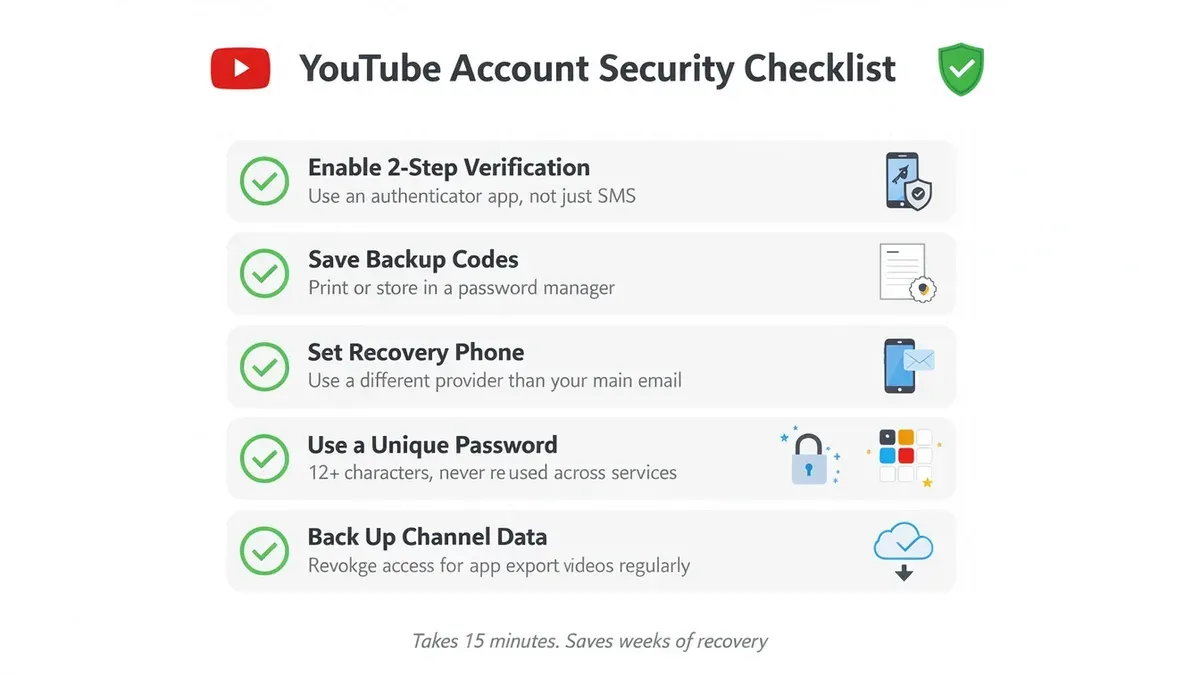
This guide explains how to secure your YouTube account by focusing on the connection between a YouTube channel and its underlying Google account. Since YouTube accounts operate through Google accounts, protecting the latter is essential to safeguarding the channel. Basic password settings are not enough; this article covers practical, actionable steps to lock down access and preserve privacy without reducing usability.
Understanding how to create, access, and manage the Google account linked to YouTube is the foundation. Then, the guide moves into specific security features like two-factor authentication, app permissions, and activity monitoring. These measures help prevent unauthorized access and impersonation, as well as assist in troubleshooting common security issues that users often overlook.
How to have a YouTube account
Creating a YouTube account starts with having a Google account because YouTube uses Google credentials for sign-in. If a Google account does not exist, it must be created first. A Google account provides access to all Google services, including YouTube.
- Visit the Google Account creation page at accounts.google.com/signup. After entering personal information such as name, birthdate, and phone number, click “Next.” A confirmation code sent via SMS verifies the phone number. Once verified, the Google account is active and usable.
- Go to youtube.com and click the “Sign In” button at the top right. Enter Google account credentials (email and password). Successful sign-in will display the YouTube homepage with the user’s profile icon in the top right corner.
- Having a Google account signed in on YouTube does not automatically create a YouTube channel. To upload videos, comment, or customize the channel, creating a YouTube channel is necessary. Click the profile icon, then select “Create a channel.”
- Follow the prompts to set the channel name and verify identity if requested. After completion, the YouTube channel is active and linked to the Google account. The channel can now be managed separately within YouTube Studio.
Tip: A Google account can manage multiple YouTube channels by adding channel accounts through YouTube settings.
How to access your YouTube account
Accessing a YouTube account requires signing in through the linked Google account using established authentication methods. The primary login options include entering the Google account password and completing two-factor authentication (2FA) if enabled. The YouTube app and website both use the same Google sign-in flow, ensuring consistent access across platforms.
- Navigate to the YouTube homepage or open the YouTube app and click the Sign In button. The Google sign-in screen should appear.
- Enter the Google account email address associated with the YouTube channel and click Next. The password entry screen will follow.
- Input the correct password and click Next. If 2FA is active, an additional verification step will prompt for a code via SMS, authenticator app, or security key.
- Upon successful verification, the YouTube homepage will load with the account signed in, showing the user’s profile icon at the top right.
If login fails, use the Forgot password? option on the Google sign-in page. Account recovery uses registered recovery email addresses, phone numbers, or answers to security questions to verify identity. Recovery success rates vary but are generally high when recovery information is current.
Common access issues include forgotten passwords, disabled accounts, incorrect recovery information, or 2FA device loss. Resolving these typically involves following Google's account recovery flow carefully and updating recovery options once access is regained.
Tip: Keep recovery email and phone number updated to improve chances of regaining access if locked out.
How to lock your YouTube account
Locking a YouTube account means securing the underlying Google account to prevent unauthorized access. The most effective step is enabling two-factor authentication (2FA) in the Google account settings. This adds a verification step beyond the password, drastically reducing the risk of breaches.
- Go to Google Account settings and select Security. You should see the 2-Step Verification option near the top.
- Click Get Started and follow prompts to link a phone number or authenticator app. Successful setup shows a confirmation and 2FA status as On.
- Review connected devices under Security > Your devices. Remove any devices no longer in use by selecting Sign out. This limits active sessions and potential unauthorized access.
- Set a strong, unique password by visiting Security > Password. Change it regularly and avoid reusing passwords from other services. A strong password typically has 12+ characters, combining letters, numbers, and symbols.
- Enable Security alerts to receive notifications about suspicious activity or new sign-ins. These alerts appear via email or phone, enabling quick responses.
Before widespread 2FA adoption, account breaches due to stolen passwords were common. After enabling 2FA, unauthorized access incidents dropped significantly because attackers need the second verification factor, making breaches far less likely.
Tip: Periodically check Google Account Security Checkup to review your security settings and update them as needed.
How to manage your YouTube account
Managing a YouTube account involves navigating both YouTube-specific settings and overarching Google account privacy controls. Start by visiting the YouTube Studio dashboard, then open the Settings menu found at the bottom left. Here, users can adjust channel settings including video visibility and comment moderation. Privacy controls for uploaded videos allow choosing between Public, Unlisted, and Private, affecting who can view content immediately.
Comment controls enable options such as holding potentially inappropriate comments for review or disabling comments entirely on selected videos. Under the "Privacy" tab in YouTube settings, there is also an option to keep liked videos and saved playlists private, reducing public data sharing.
Managing connected apps and permissions is done through the Google Account dashboard under "Security" > "Third-party apps with account access." Revoking unnecessary app permissions limits external access to YouTube and Google data.
For creators managing multiple channels, YouTube allows adding and switching channels under the same Google account. This is done by clicking the profile icon, then "Switch account," followed by "Add account" to create or link additional channels without signing out. This centralizes management but requires attention to each channel’s individual privacy and notification settings.
- Go to YouTube Studio and select Settings to open channel controls; the settings window will appear.
- Click Channel then Advanced settings or Upload defaults to set default video visibility and comment moderation; changes save automatically.
- Visit the Privacy section in settings to toggle options like hiding liked videos and subscriptions; toggles update instantly.
- Open the Google Account Security page, find Third-party apps with account access, and review or remove apps; removed apps disappear from the list.
- To manage multiple channels, click the YouTube profile icon, select Switch account, then Add account; new or existing channels link and appear in the account list.
Tip: Regularly review connected apps and channel privacy settings to maintain control over shared data and audience reach.
How to make your YouTube account secure
Maintaining YouTube account security requires ongoing attention beyond initial setup. Start by regularly reviewing and updating recovery options in the Google Account settings under "Security > Ways we can verify it's you." Ensure phone numbers and secondary email addresses are current to facilitate account recovery if needed. Neglecting this step can lock users out in critical moments.
Phishing scams targeting YouTube and Google users often arrive via emails or messages pretending to be from official sources, requesting login credentials or prompting to click suspicious links. Users have avoided compromise by verifying sender addresses, avoiding links in unsolicited messages, and accessing accounts only through official Google and YouTube sites.
Use a reputable password manager to generate and store complex, unique passwords for the Google account. This reduces risks from reused or weak passwords and simplifies frequent password changes. Most password managers also flag reused or compromised passwords.
Keep all software up to date, including browsers, operating systems, and the YouTube app. Updates often patch security vulnerabilities that attackers exploit. Enable automatic updates when possible to avoid delays in applying critical patches.
- Open Google Account security settings and navigate to "Ways we can verify it's you." Update recovery phone and email. A confirmation message appears when saved successfully.
- Check email sender details carefully for phishing attempts. Never enter credentials from links in suspicious emails. Access accounts only via official sites. Avoid suspicious messages to prevent phishing.
- Set up a password manager and import or create a strong, unique password for the Google account. Confirm password manager records the entry accurately.
- Enable automatic updates for the device and browser running YouTube. Verify the latest version is installed via settings or about pages.
Tip: Regularly audit connected apps and devices in Google Account settings to revoke access no longer needed, reducing potential security gaps.
How to connect YouTube accounts
YouTube channels are linked to Google accounts, but managing multiple channels involves understanding personal accounts, brand accounts, and channel managers. A personal account is tied directly to an individual, while a brand account allows multiple users to manage a YouTube channel without sharing Google account credentials. Brand accounts separate channel ownership from personal Google accounts, enabling shared access and management.
To add or remove managers on a brand account, access the Google Account settings via Settings > Account > Account Settings > Manage your Google Account. Then navigate to People & sharing > Managers. Adding a manager grants them specific permissions, such as uploading videos, managing comments, and viewing analytics, but not full ownership rights. Owners have full control, including adding or removing managers. Removing a manager revokes all access immediately.
Switching between multiple YouTube or Google accounts on desktop or the YouTube app happens via the profile icon in the top-right corner. Selecting Switch account shows all signed-in accounts for quick toggling. This keeps personal and brand accounts separate but accessible.
Worked example: Adding a manager to a brand account
- Sign in to YouTube and click the profile icon, then select Settings. The channel linked to the brand account appears.
- Click Permissions under Account Settings. A list of current managers and owners appears.
- Click Invite, enter the email address of the new manager, and select the role Manager. Click Done.
- The invitee receives an email and must accept to gain access.
- Once accepted, the manager can perform most channel actions but cannot remove owners or delete the account.
Security considerations: Grant manager access only to trusted individuals. Regularly review permissions and remove inactive managers promptly. Avoid sharing Google account passwords; use brand account roles instead.
How to protect your YouTube account from hacks and impersonation
Recognizing account compromise or impersonation is critical to swift action. Signs include unexpected changes to channel details, unfamiliar uploads or comments, sudden loss of access, or alerts from Google about suspicious sign-ins. Impersonators may create channels mimicking your brand or identity to deceive viewers.
To report impersonation or a hacked account, use YouTube's dedicated reporting tools. Navigate to Help & Feedback > Report a Problem > Hacked Account or Impersonation. Submit detailed information and any evidence to expedite review. YouTube typically responds within days but monitor email for updates.
Recovering a hacked account involves these steps:
- Use Google's Account Recovery page. Enter the email or phone number linked to the account and follow prompts. Successful recovery results in regaining access with options to reset the password.
- Immediately review and update the password to a strong, unique one. The password change confirmation message should appear.
- Check connected apps and remove any unfamiliar permissions under Google Account > Security > Third-party apps with account access.
- Review and update recovery options such as phone number and secondary email under Google Account > Personal info > Contact info. Confirmation notices should display.
- Re-enable two-factor authentication if disabled during the hack.
Security measures have limitations. Advanced phishing or targeted attacks may bypass protections. If repeated breaches occur or account recovery fails, escalate by contacting YouTube support directly through the Help Center or via social media channels. Document all communications and changes made.
Case studies show that channels hacked without prompt response often suffer subscriber loss and brand damage. Conversely, accounts recovered quickly with full security reviews regain control with minimal disruption.
Troubleshooting common YouTube account security issues
When 2FA codes are not received or lost
- Check the device’s network connection and signal strength to ensure it can receive SMS or authenticator app notifications; successful check means connectivity is stable.
- Open the Google Account Security page and select '2-Step Verification' to access backup options; seeing backup codes or alternate phone numbers confirms access.
- Use backup codes from the saved list or select 'Try another way' on the 2FA prompt to receive codes via email or alternate phone; receiving a code confirms recovery route works.
- If no access to backup codes or devices exists, initiate account recovery at https://accounts.google.com/signin/recovery and follow the prompts; successful recovery leads to password reset or 2FA reconfiguration.
Handling account lockouts or suspicious activity warnings
- Review the email from Google or YouTube about suspicious activity and follow the provided link to the Security Checkup page; seeing recent activity logs confirms account status.
- Change the Google account password immediately via account settings; confirmation of password update is essential.
- Revoke access for unknown devices or apps under 'Security' > 'Your devices' and 'Third-party apps with account access'; confirmation appears when devices/apps are removed.
- Enable security alerts to receive future notifications promptly.
Resolving conflicts between Google and YouTube account settings
- Verify the Google account currently signed in on YouTube by clicking the profile icon; the displayed email should match the intended account.
- Sign out and sign back in to the correct Google account if mismatched; seeing the desired account email confirms success.
- Check YouTube channel settings under 'Settings' > 'Account' to ensure correct channel association; the displayed channel name should be expected.
Dealing with unauthorized connected apps or devices
- Navigate to Google Account's 'Security' tab, then 'Third-party apps with account access'; a list of connected apps appears.
- Identify and select apps or devices that are unauthorized or unknown; selecting an app highlights options.
- Click 'Remove Access' to revoke permissions; confirmation appears when access is removed.
- Change the Google account password immediately after removal to prevent re-access.
Tip: Regularly review connected devices and apps to catch unauthorized access early.
Frequently asked questions
How to secure youtube account?
Securing a YouTube account requires protecting the underlying Google account. Enable two-step verification in the Google Account settings under Security > 2-Step Verification. Regularly update the password with a strong, unique one and review connected devices and third-party app access. Adjust YouTube privacy settings to control who can see subscriptions and playlists.
How to get an account on youtube?
To get a YouTube account, sign up for a Google account at accounts.google.com/signup. Once the Google account is created, it automatically grants access to YouTube with the same login credentials. Create a YouTube channel by clicking the user icon and following prompts to start uploading or managing videos.
How to make your YouTube account secure?
Make a YouTube account secure by linking it to a Google account with two-factor authentication enabled. Regularly check and revoke suspicious device access in Google Account settings. Use the YouTube Privacy and Security settings to limit who can comment or view content, and avoid sharing login details or using public computers without logging out.
How to get an account on YouTube?
Getting an account on YouTube involves creating or using an existing Google account to sign in at youtube.com. After signing in, set up a channel if needed by selecting “Create a channel” from the profile menu. No separate YouTube account registration exists; it is always tied to a Google account.
How to protect your YouTube account?
Protect a YouTube account by securing the Google login with strong passwords and two-step verification. Regularly review account activity and remove unfamiliar devices or apps. Keep recovery information current and be cautious with email links or messages requesting account details to avoid phishing.
What this guide does not cover
This guide does not cover advanced enterprise-level security solutions such as hardware security modules or corporate identity management systems. It also does not address legal recourse options for account theft or impersonation, which require professional legal assistance. Users managing high-risk or high-profile YouTube channels should consult specialized security experts or legal advisors to implement tailored protections beyond the scope of this general guide.
The single most useful next step is to enable two-factor authentication (2FA) on the associated Google account. This setting, found under Google Account > Security > 2-Step Verification, provides a critical layer of protection by requiring a second verification step when signing in. Enabling 2FA significantly reduces the risk of unauthorized access, even if the password is compromised, and is a security feature often overlooked during initial account setup.
See also: How to Secure Your X (Twitter) Account: Step-by-Step Guide · How to Secure Your Twitch Account: A Step-by-Step Guide · How to Secure Your Snapchat Account: A Step-by-Step Guide



