
How to Log Out of YouTube on All Devices: Step-by-Step Guide
Learn how to log out of YouTube on all devices remotely to protect your account and manage active sessions effectively.

This article explains how to log out of YouTube on all devices, covering both app and web interfaces to secure accounts effectively. Managing active sessions across multiple devices is essential for maintaining account privacy and control, especially when devices are shared or lost. This guide covers the exact steps for logging out remotely, including from phones, computers, and YouTube TV, ensuring no device remains connected unintentionally.
Understanding the distinctions between logging out on a single device versus all devices at once helps avoid confusion. The process often involves accessing the Google Account settings linked to YouTube rather than just the YouTube app itself. Follow this step-by-step guide for clear instructions on how to log out of YouTube on all devices, minimizing risks from unauthorized access.
Before you start: What is needed to log out of YouTube on all devices
Logging out of YouTube on all devices requires access to the Google account that manages YouTube sessions. Since YouTube login is tied to the Google account, controlling device access happens through Google account security settings. This means YouTube itself does not offer a standalone logout for all devices; instead, managing active sessions occurs via Google account controls.
Access to a device with a stable internet connection, such as a smartphone, tablet, or computer, is essential. This device will be used to sign into the Google account and access security settings. Understanding the differences between the YouTube app, the YouTube website, and YouTube TV is important, as each platform may have slightly different logout procedures or interfaces.
Before proceeding, confirm the Google account credentials are available and working. Without proper access, logging out remotely from all devices is not possible. Also, be prepared to confirm any security prompts or two-factor authentication challenges that may arise when managing account sessions.
- Open a browser or YouTube app and sign in to the Google account linked to YouTube. Successful sign-in will show the user profile icon or account name.
- Navigate to the Google Account page, typically via the profile icon > Manage your Google Account. Access to this page confirms control over account security settings.
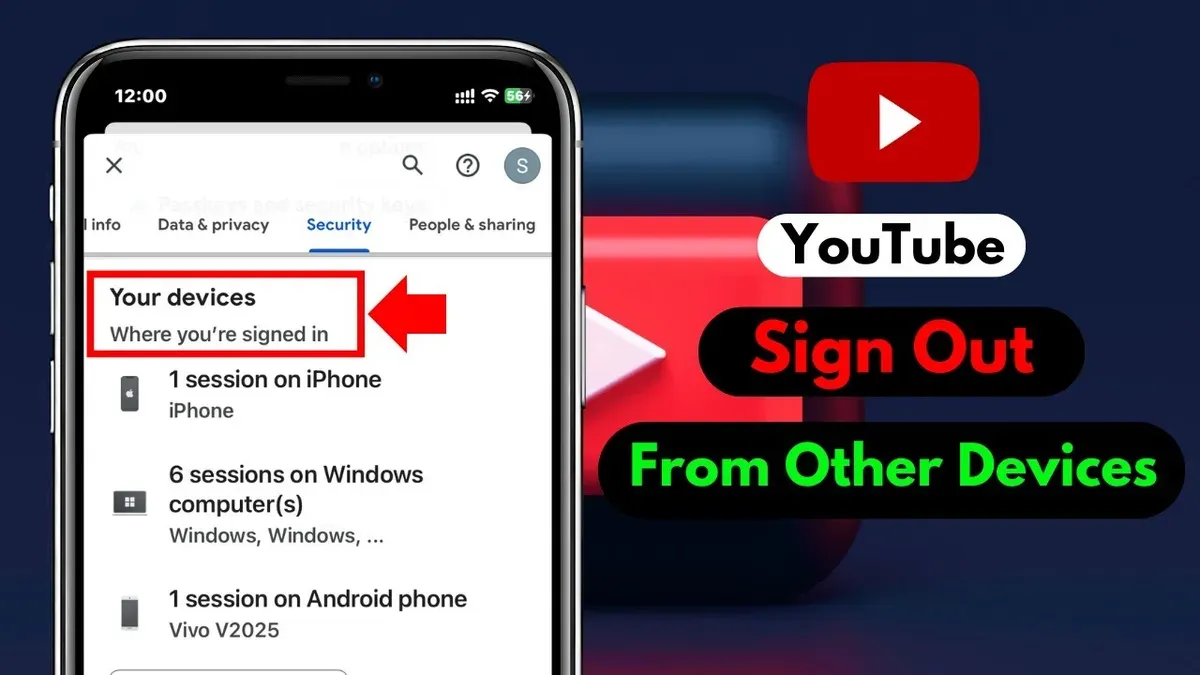
- Locate the 'Security' section and then 'Your devices' or 'Manage devices' option. This area displays all active sessions where the Google account is signed in.
- Review device details to verify familiarity. This step helps identify unknown or unauthorized sessions before logging out remotely.
Tip: Have your account recovery options (phone number, backup email) updated before managing devices to avoid lockouts.
How to log out of YouTube
Logging out of YouTube on the current device is straightforward but differs slightly between the website and mobile apps. On the YouTube website using a desktop browser, the log out option is located within the account menu. On mobile apps, it is found in the settings section. Logging out only affects the YouTube app or website session, not the entire Google account, which requires a separate sign-out process.
Logging out via the YouTube website on desktop
- Click on the profile icon in the upper-right corner of the YouTube homepage. This reveals a dropdown menu.
- Scroll down in the dropdown and select Sign out. The page will refresh to the YouTube homepage with the sign-in button visible, confirming logout.
Logging out via the YouTube app on Android and iPhone
- Open the YouTube app and tap the profile icon in the top-right corner.
- Tap Manage your Google Account to open account settings, then tap the back arrow to return to the YouTube app's profile menu.
- Tap Switch account, then select Use YouTube signed out or tap Sign out if presented. The app interface will return to the signed-out state.
Note: Logging out from YouTube does not sign out the Google account from the device. Signing out of Google requires navigating to the device’s Google settings and removing or signing out of the account there.
How to logout YouTube from other devices
YouTube does not provide a direct way to remotely log out from other devices within the app itself. Instead, this action is managed through the Google Account settings where all device activities linked to the account are visible. The Google Account Device Activity page lists devices currently signed in, including those with active YouTube sessions highlighted under the app or service details.
To remotely sign out of YouTube on other devices, use the Google Account device management interface. This allows the user to revoke access for specific devices, effectively logging out YouTube and other Google services on those devices.
- Open the Google Account page and navigate to the Security section. The Security tab displays recent device activity and the devices where the account is signed in.
- Click on Manage devices to see a detailed list of all devices with current or recent access to the account, including phones, tablets, and computers.
- Identify the device from which to log out. Devices often show the last activity time and location, helping confirm the session's relevance.
- Click the More details or three-dot menu on the chosen device, then select Sign out. This action revokes Google account access on that device, including YouTube sessions.
- Confirm the sign-out request if prompted. The device will no longer have active access to YouTube or other Google services until signed in again.
Tip: If the device is suspicious or lost, also change the Google Account password to ensure all sessions are terminated promptly.
Note that the YouTube app itself does not offer a remote logout option, so managing device access via Google Account settings is the only effective method to log out from other devices remotely.
How to log out of YouTube on all devices at once
To log out of YouTube on every device simultaneously, use the Google Account's device and app access management features. This process revokes active YouTube sessions across all signed-in devices by removing app permissions or signing out remotely.
- Go to the Google Account security page at myaccount.google.com/security. The page displays all devices currently signed in with the Google account.
- Under the "Your devices" section, select "Manage devices" to see a detailed list of all active sessions. The count here reflects devices where YouTube access is active.
- Click on a device you want to sign out from, then choose "Sign out". Repeat for each device to manually log out, or proceed to the next step for a global sign-out.
- Return to the Security page and locate "Third-party apps with account access". Click "Manage third-party access".
- Find YouTube or any related Google apps and select "Remove Access". This revokes app permissions, forcing YouTube to require a fresh login on all devices.
- After removal, refresh the "Your devices" list to verify that session counts have decreased or devices show signed-out status.
Note: Signing out or removing access affects all Google services on those devices, not just YouTube. Users will need to log in again for Gmail, Drive, and other Google apps.
Tip: Regularly reviewing device access helps maintain account security and ensures no unauthorized sessions remain active.
How to see devices logged into YouTube
To identify where a YouTube account is active, use the Google Account device activity page. This page lists all devices currently signed in with the Google account, including those accessing YouTube and other Google services. Each entry shows the device name, approximate location based on IP address, and the last time the device was active.
- Go to the Google Account page at https://myaccount.google.com/device-activity. The Device activity & security events section will open.
- Review the list of devices signed into the Google account. Entries include smartphones, tablets, laptops, and other devices.
- Look for devices marked with "YouTube" or those that accessed Google services recently. The last active time appears below each device name and location.
- Click on a device to see more details, such as the device model, operating system, and exact time of last activity.
- For example, a device named "John's iPhone" in New York may show last active as "2 hours ago," indicating recent YouTube or Google use on that device.
This method helps confirm which devices currently have YouTube access and detect any unfamiliar sessions that may require logout.
How to log out of YouTube on all devices from phone
Managing YouTube logouts across devices is possible directly from a mobile device using the Google account settings. This process involves accessing the Google Account security section through a mobile browser or the Google app, where device activity can be reviewed and sessions can be remotely terminated.
- Open a mobile browser and go to myaccount.google.com/security, or open the Google app and tap your profile picture, then select Manage your Google Account.
- Navigate to the Security tab. Scroll down to the Your devices section, which lists devices currently signed into the Google Account.
- Tap Manage devices to see all active sessions with details such as device type and last activity.
- To log out of YouTube on a specific device, tap the device entry, then select Sign out. Confirm the action if prompted. The device will be removed from the list and signed out of all Google services, including YouTube.
- Repeat the sign-out process for each device that should no longer have access. This forces fresh sign-ins on those devices.
Tip: Using the mobile browser for device management can provide the full interface and options, sometimes more comprehensive than the Google app.
How to log out of YouTube TV on all devices
YouTube TV device management differs from standard YouTube by focusing on the app and subscription access rather than general Google account sessions. Logging out of the YouTube TV app on the current device is the first step, followed by using Google account controls to remove access on other devices.
Sign out from the YouTube TV app
- Open the YouTube TV app on the device to be signed out.
Look for the profile icon in the top right corner. - Tap the profile icon to open the account menu.
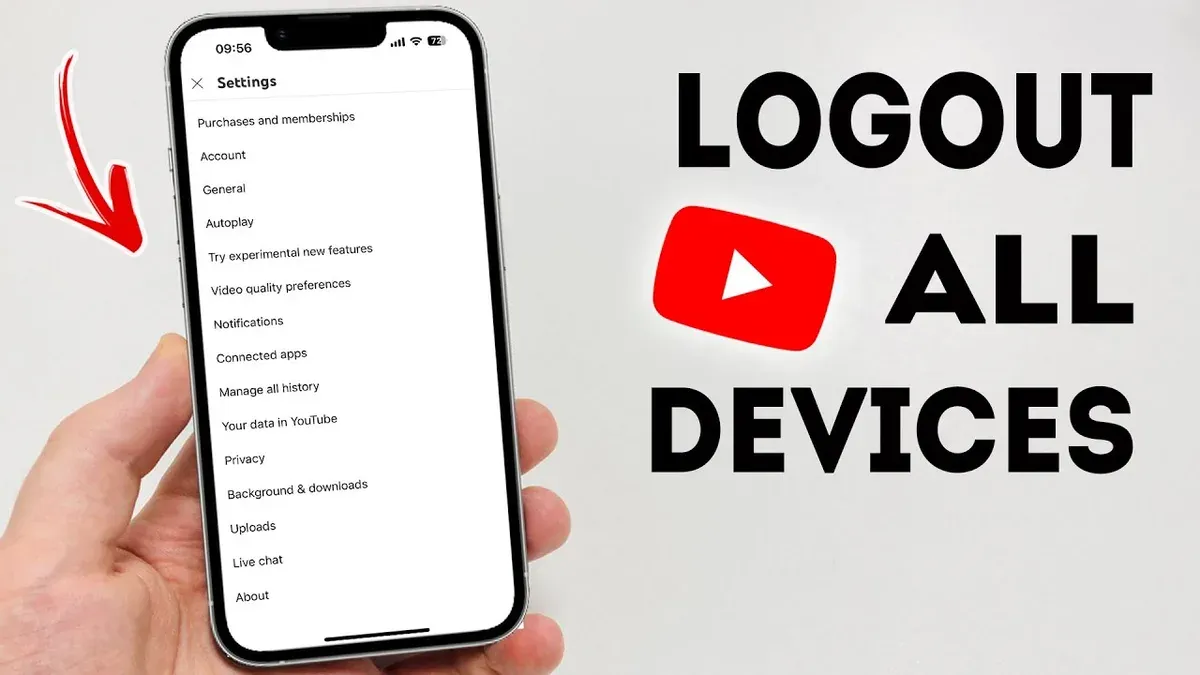
The account details and settings options appear. - Select "Settings" from the menu.
The Settings screen shows various options including account and device settings. - Scroll down and tap "Sign out".
The app will confirm the sign-out and return to the login screen.
Remove YouTube TV access on other devices via Google Account
Because YouTube TV uses the Google account for subscription and authentication, revoking device access through Google Account settings effectively logs out all YouTube TV sessions remotely.
- Go to Google Account Device Activity and sign in if necessary.
The page lists all devices with Google account access. - Find devices associated with YouTube TV usage, identifiable by recent activity or device type.
Devices used for YouTube TV will be among the active sessions. - Click on a device, then select "Sign out" or "Remove access".
This revokes the device’s authentication tokens. - Repeat for all devices where YouTube TV access is to be revoked.
Each removed device will require re-authentication to use YouTube TV again.
Tip: Removing devices from Google Account manages access not only for YouTube TV but all Google services on those devices.
Troubleshooting common issues when logging out of YouTube on all devices
Sometimes YouTube sessions persist after signing out due to cached data or delayed synchronization across devices. Clearing the browser cache or app data can resolve this. If devices still appear logged in on the Google Account device activity page, the session might not have fully terminated. Revoking device access again or signing out manually on each device may be required.
Users reporting the error "Account keeps logging out" often face sync conflicts or app glitches. Updating the YouTube app to the latest version or reinstalling it can eliminate these errors. Disabling and re-enabling sync in Google account settings also helps stabilize session persistence.
If unauthorized access or persistent login issues arise, resetting the Google account password forces all devices to reauthenticate, effectively logging out all sessions. Enabling two-factor authentication adds a security layer to prevent unauthorized logins and session persistence.
Step-by-step resolution for persistent login issues
- Clear cache and cookies on the browser or clear app data on mobile devices. Afterward, sign back into YouTube and verify if the session ends properly when logging out.
- Visit Google Account > Security > Your Devices and select "Sign out" on any devices still listed as active. Confirm removal to force logout.
- If the issue continues, reset the Google account password via Google Account > Security > Password. This action will sign out all devices and require fresh logins.
- Enable two-factor authentication in Google Account > Security > 2-Step Verification to enhance account security and prevent unauthorized access.
- Update or reinstall the YouTube app on all devices to fix sync or app-related errors that can cause login loops or session persistence.
Frequently asked questions
How to log out of youtube app?
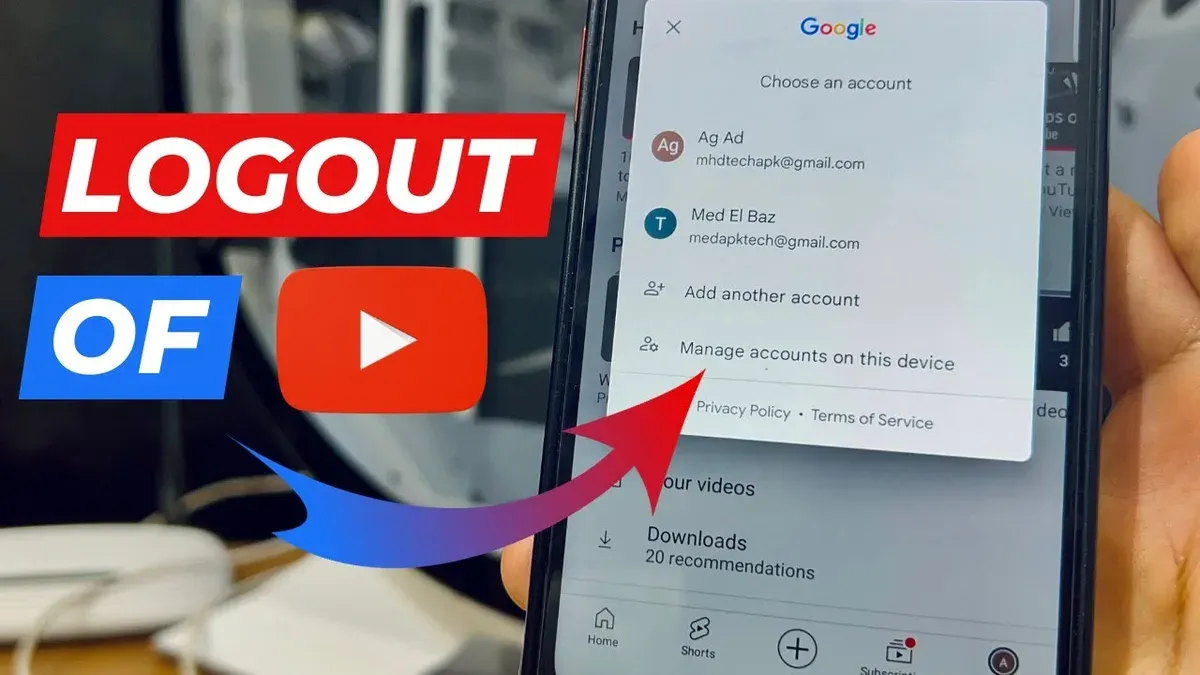
Open the YouTube app and tap the profile icon in the top right corner. Select "Manage accounts on this device" or "Switch account" depending on your app version. Tap "Remove from this device" next to the account to log out. This signs out the account from the app without affecting other devices.
How to log out of YouTube app
Navigate to the profile icon, then open "Settings" and choose "Sign out" or "Manage accounts". Removing the account from the device logs out the user from YouTube app. Note that simply switching accounts does not log out completely.
How to log out of YouTube on all devices iPhone
Use a web browser on the iPhone to visit the Google Account security page. Under "Your devices," select "Manage devices," then choose devices to sign out remotely. Alternatively, change the Google account password to force sign out on all devices linked to that account.
How to log out of YouTube on all devices remotely
Access the Google Account security settings on any web browser. Under "Your devices," select "Manage devices" and sign out from individual devices or all devices at once. This method logs out YouTube sessions because YouTube uses Google account authentication.
How to logout YouTube account from other devices
Go to the Google Account page and open the "Security" tab. Under "Your devices," click "Manage devices," then select the device to remove and click "Sign out." This immediately revokes access to YouTube on those devices.
What this guide does not cover
This guide does not cover logging out of YouTube without access to the linked Google account credentials. If the account password or recovery options are unavailable, regaining control requires account recovery steps through Google. Logging out remotely via Google account settings will sign out all Google services linked to that account, not only YouTube. For some third-party apps, smart TVs, or streaming devices, manual sign out or device unlinking might be necessary beyond Google account management.
The most effective next step after logging out of YouTube on all devices is to review and update Google account security settings, including changing the password and enabling two-factor authentication. This ensures that unauthorized access is minimized and all active sessions are properly controlled across all connected services.
See also: How to Log Out of X (Twitter) on All Devices: Complete Step-by-Step Guide · How to Log Out of Instagram on All Devices: Complete Step-by-Step Guide · How to Log Out of TikTok on All Devices: Complete Step-by-Step Guide · How to Log Out of Twitch on All Devices: Complete Step-by-Step Guide



