
How to Turn On Two-Factor Authentication on WhatsApp: A Step-by-Step Guide
This guide shows how to enable two-factor authentication on WhatsApp to secure your account with a six-digit PIN and reduce unauthorized access risks.

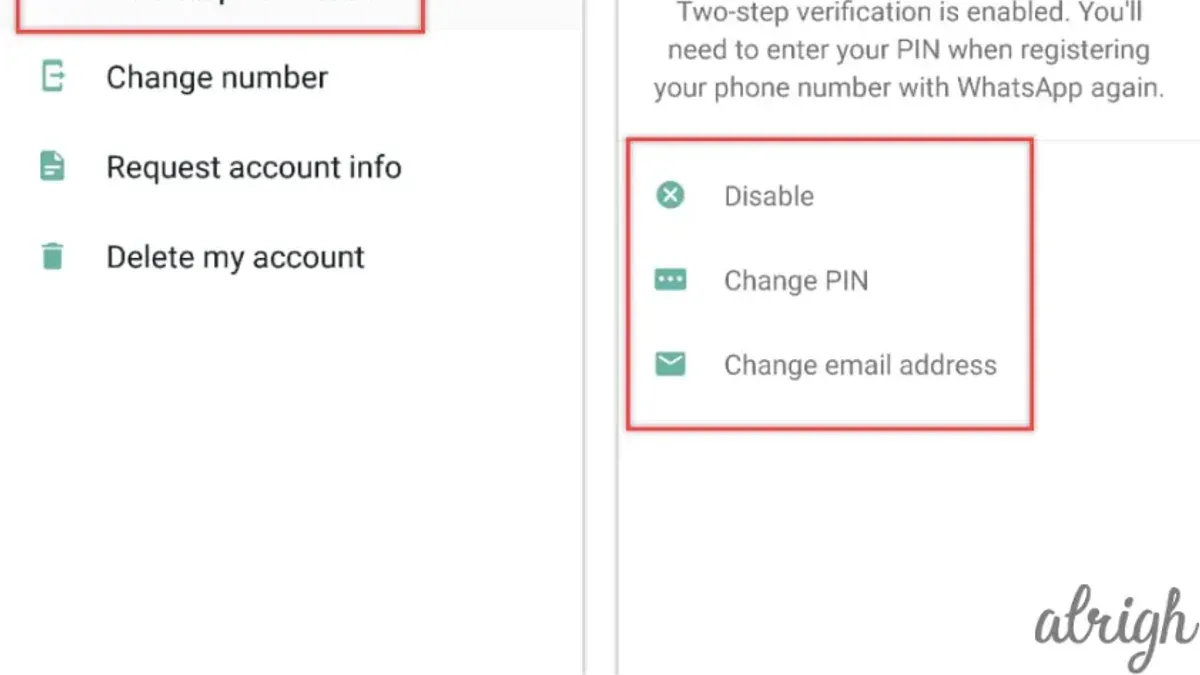
This guide explains how to turn on two-factor authentication on WhatsApp to add an extra layer of security to the account. Two-factor authentication (2FA) requires a six-digit PIN in addition to the usual verification code, reducing the risk of unauthorized access. WhatsApp’s 2FA setup is straightforward and can be managed entirely within the app.
Before enabling 2FA, ensure the WhatsApp app is updated to the latest version. The feature is located under Settings > Account > Two-step verification. This article covers activating 2FA, disabling it, troubleshooting repeated code requests, and clarifies that WhatsApp’s 2FA is separate from Facebook’s security settings.
Before you start: What is needed to enable two-factor authentication on WhatsApp
Enabling two-factor authentication (2FA) on WhatsApp requires a few essentials to ensure the process runs smoothly. First, an active WhatsApp account must be set up on a smartphone. The app should be updated to the latest version, as older versions may lack 2FA features or contain security vulnerabilities. Access to the phone number linked to the WhatsApp account is necessary, since verification codes and recovery options depend on it. Users must be prepared to create and remember a six-digit PIN, which is the core of WhatsApp’s 2FA system. Optionally, providing an email address helps recover the PIN if forgotten, preventing lockout from the account.
Generally, a significant portion of WhatsApp users keep their apps updated regularly, which supports a secure environment but always check the app version under Settings > Help > App info. Two-factor authentication has been shown to prevent many types of account compromises by adding an extra security layer beyond SMS verification.
- Verify the WhatsApp app is updated by opening the app, going to Settings > Help > App info, and confirming the version matches the latest available in the app store. If outdated, update the app; the app info screen will show the current version number.
- Confirm the phone number linked to WhatsApp is accessible. Open Settings > Account > Privacy > Phone number to view it. Receiving SMS or calls on this number must be possible.
- Prepare a six-digit PIN that can be easily remembered but not easily guessed by others. This PIN will be required when enabling 2FA and during certain account actions.
- Optionally, add an email address for PIN recovery by navigating to Settings > Account > Two-step verification > Add email address. This step is not mandatory but recommended to avoid permanent lockout.
How do I turn on two-factor authentication on WhatsApp?
- Open WhatsApp and tap the Settings icon located at the bottom-right corner on iOS or top-right corner on Android. The Settings screen will appear.
- Navigate to Account and then select Two-step verification. This opens the two-factor authentication setup page.
- Tap Enable. A prompt to create a six-digit PIN will appear.
- Enter a six-digit PIN. Use a combination that is easy to remember but not obvious, for example, avoid sequential digits like 123456 or repetitive ones like 111111. This PIN will be required when registering the phone number with WhatsApp again.
- Confirm the six-digit PIN by entering it a second time. After confirmation, the setup will proceed.
- Optionally, add an email address for PIN recovery. This step is recommended to reset the PIN if forgotten. Enter the email and tap Next, then confirm it by re-entering and selecting Save. If skipped, the user will not be able to reset the PIN via email.
- After completing these steps, a confirmation screen will indicate that two-step verification is enabled. WhatsApp will now ask for the PIN occasionally to verify identity.
Tip: Choose a PIN that is unique and not used for other accounts to maximize security.
How to switch on two factor authentication on WhatsApp if previously disabled
To re-enable two-factor authentication (2FA) on WhatsApp after it has been turned off, first confirm that the WhatsApp app is updated to a version supporting 2FA. If the app is outdated, update it via the appropriate app store before proceeding.
- Open WhatsApp and go to Settings.
- Select Account from the menu.
- Tap Two-step verification.
- Choose Enable. The screen will prompt to create a six-digit PIN.
- Enter the desired six-digit PIN and confirm it on the next screen.
- Optionally, add or update a recovery email address to help reset the PIN if forgotten. Confirm the email when prompted.
- Once completed, a confirmation message appears stating two-step verification is enabled.
This process mirrors the initial activation steps, allowing the user to secure their account again with a fresh PIN and recovery email setup. For example, a user who disabled 2FA for convenience can follow this procedure to restore it promptly, ensuring account protection.
Tip: Regularly verify the recovery email is current to avoid lockouts during PIN recovery.
How to turn off two factor authentication on WhatsApp
Disabling two-factor authentication (2FA) on WhatsApp removes the extra layer of security that protects the account from unauthorized access. Users should be aware that turning off 2FA increases the risk of account compromise since only the phone number verification will remain as protection.
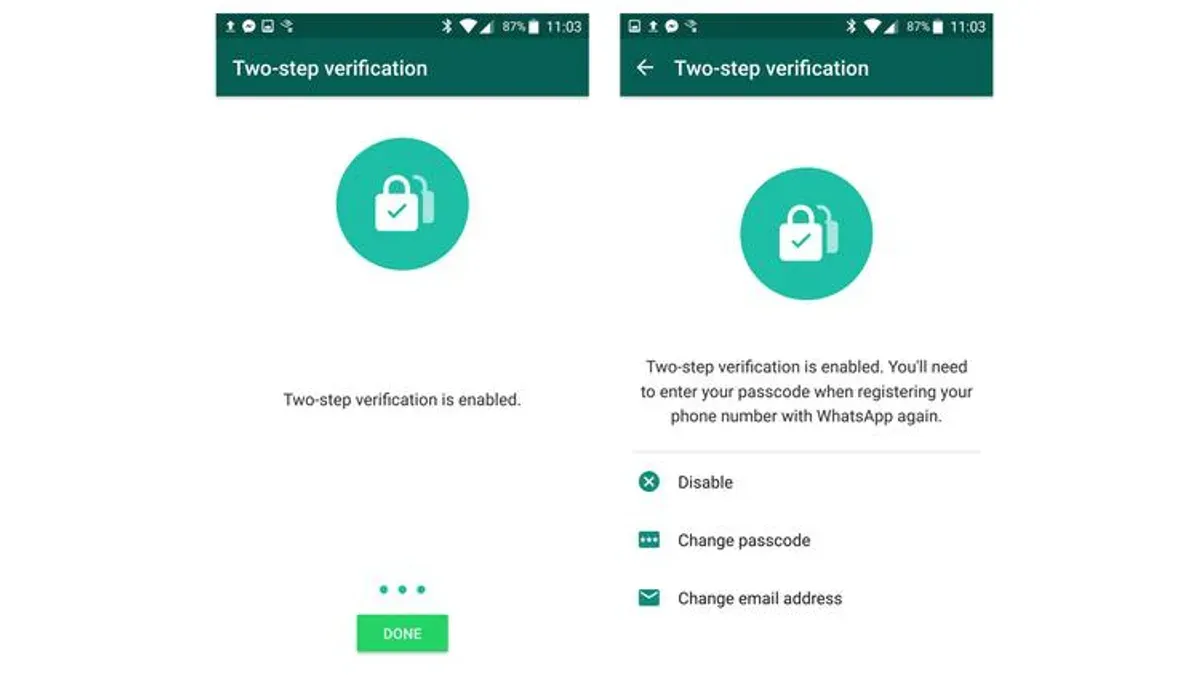
- Open WhatsApp and go to Settings.
- Select Account from the settings menu.
- Tap on Two-step verification.
- Choose the Disable option.
- Enter the six-digit PIN previously set up for two-step verification when prompted.
- After confirming the PIN, the two-step verification will be turned off, and a confirmation message will appear.
Before disabling 2FA, consider that without it, only SMS or call-based verification protects the account, which can be more vulnerable to SIM swapping or interception. Keeping 2FA enabled is recommended for maintaining a higher security standard on WhatsApp accounts.
How to enable two factor authentication on WhatsApp without linking to Facebook
WhatsApp two-factor authentication (2FA) operates independently from Facebook’s 2FA system. Enabling 2FA on WhatsApp does not require a Facebook account or any connection between the two platforms. This means securing a WhatsApp account with 2FA is a standalone process confined entirely to WhatsApp settings.
Facebook’s 2FA applies only to Facebook accounts and services directly linked to Facebook login credentials. It activates additional login verification when accessing Facebook or apps using Facebook login. It does not extend to WhatsApp, even though Facebook owns WhatsApp.
To enable WhatsApp 2FA without involving Facebook, follow these steps:
- Open WhatsApp and go to Settings.
- Select Account from the menu.
- Tap on Two-step verification.
- Choose Enable and enter a six-digit PIN when prompted.
- Optionally add an email address for PIN recovery to secure access if the PIN is forgotten.
- Confirm the setup by re-entering the PIN; the app will show a confirmation message indicating 2FA is active.
Tip: Treat WhatsApp 2FA and Facebook 2FA as separate security measures; enabling one does not enable the other.
Diagram:
| WhatsApp Account | Facebook Account |
|---|---|
| Independent 2FA system | Separate 2FA system |
| Set via WhatsApp Settings > Account > Two-step verification | Set via Facebook Settings > Security > Two-Factor Authentication |
| Protects WhatsApp login only | Protects Facebook login and connected apps |
Why does WhatsApp 2 step verification keep asking for code and how to fix it
Repeated requests for the two-step verification PIN often stem from forgotten PINs, app reinstallation, or switching devices. WhatsApp prompts for the PIN every seven days to verify identity, but users who forget their PIN or reinstall the app without disabling 2FA can face frequent code requests. Device changes without proper setup may also trigger repeated prompts.
If the PIN is forgotten, it can be reset using the recovery email provided during setup. This process allows users to regain access without disabling 2FA permanently. Without a recovery email, the only option is to wait seven days before resetting the PIN, which can be inconvenient.
- Open WhatsApp and enter the requested PIN when prompted. If the PIN is forgotten, tap on "Forgot PIN?". This should open the option to reset via recovery email if set.
- Check the recovery email inbox for the reset link. Follow the instructions to create a new PIN. Successful reset leads to normal app access without repeated prompts.
- If no recovery email was set, wait the mandatory seven-day period after the last use before WhatsApp allows PIN reset. After this period, open WhatsApp and follow the on-screen instructions to reset.
- To avoid repeated prompts, regularly use WhatsApp within seven-day intervals and keep the recovery email updated in Settings > Account > Two-step verification > Email address.
Tip: Enabling a recovery email during setup minimizes disruption caused by forgotten PINs.
User reports suggest repeated code requests occur mostly after app reinstalls or device changes, highlighting the importance of recovery options and regular app use.
Best practices for managing two-factor authentication on WhatsApp
Choosing a strong, memorable PIN is essential for effective two-factor authentication. A PIN that combines numbers difficult to guess, such as a unique date or a random sequence, is stronger than simple patterns like “123456” or repetitive digits. Experts recommend avoiding easily obtainable information like birthdates or common sequences, as weak PINs compromise account security.
Keeping the recovery email up to date ensures swift PIN reset if the original PIN is forgotten. Without a valid recovery email, WhatsApp requires a waiting period before allowing PIN reset, which can delay account access. Regularly verifying the recovery email in Settings > Account > Two-step verification prevents avoidable lockouts.
Regularly reviewing account security settings helps identify unauthorized changes and keeps protection current. Users should check Settings > Account > Privacy and Security sections periodically to confirm two-factor authentication status and update contact details. This practice also helps detect if the account is linked to unfamiliar devices.
Two-factor authentication protects access to the WhatsApp account by requiring the PIN during re-registration but does not secure the content of messages stored on devices or backups. Understanding this limitation is crucial to setting realistic expectations for account security and encourages additional measures like encrypted backups and device security.
Tip: Use a PIN not used elsewhere to minimize risk if other accounts are compromised.
Frequently asked questions
How to turn on two factor authentication on whatsapp?
Open WhatsApp and go to Settings > Account > Two-step verification. Tap Enable, then create a six-digit PIN code. Optionally, add an email address for PIN recovery and confirm it. This secures the account with an extra verification step during registration.
How to make two factor authentication on whatsapp?
Two-factor authentication on WhatsApp is enabled by setting a PIN via the two-step verification menu. Navigate to Settings, then Account, followed by Two-step verification. Choose Enable and follow the prompts to create a PIN and optionally add an email for backup.
How to turn on two factor authentication facebook without whatsapp?
Facebook’s two-factor authentication is separate from WhatsApp. To enable it on Facebook, go to Settings & Privacy > Settings > Security and Login > Use two-factor authentication. Choose your preferred method such as authentication app, text message, or security key, and follow the setup steps.
How to turn on two factor authentication?
The general process involves accessing the security or account settings of the app or service. Locate two-factor authentication or two-step verification, enable it, and select a method like an authenticator app or SMS. Follow the instructions to complete setup, including creating any required PINs or backup options.
How to make 2 factor authentication on whatsapp?
Activate two-factor authentication on WhatsApp by opening Settings > Account > Two-step verification. Tap Enable, set a six-digit PIN, and optionally add a recovery email. This adds a verification code requirement when registering the phone number with WhatsApp.
What two-factor authentication on WhatsApp does not cover
Two-factor authentication (2FA) on WhatsApp secures account access by requiring a PIN when registering the phone number on a new device. However, it does not encrypt message backups stored on cloud services like Google Drive or iCloud. These backups remain vulnerable unless separately encrypted. Additionally, 2FA does not protect against SIM swap attacks, where a malicious actor takes control of the phone number itself.
Users with higher security needs, such as journalists, activists, or those handling sensitive information, should consider additional measures. These include using end-to-end encrypted backup options, enabling device-level security features like biometric locks, and contacting their mobile carrier to add protection against SIM swaps.
Next step: Keep the two-factor authentication PIN secure and updated
The most practical next step after enabling two-factor authentication is to choose a memorable yet strong PIN and update it regularly within WhatsApp settings under Settings > Account > Two-step verification > Change PIN. Avoid using easily guessed numbers like birthdays or repetitive sequences. Secure the recovery email to ensure the ability to reset the PIN if forgotten. This habit minimizes lockouts and keeps the account protected from unauthorized access.
See also: How to Turn On Two-Factor Authentication on Telegram: Step-by-Step Guide · How to Turn On Two-Factor Authentication on Signal: A Clear Step-by-Step Guide · How to See Where You're Logged Into WhatsApp: A Clear Step-by-Step Guide



