Facebook Login From Different Country: What To Do
See why a Facebook sign-in can look different abroad and how to confirm the right account without getting stuck in a warning loop.

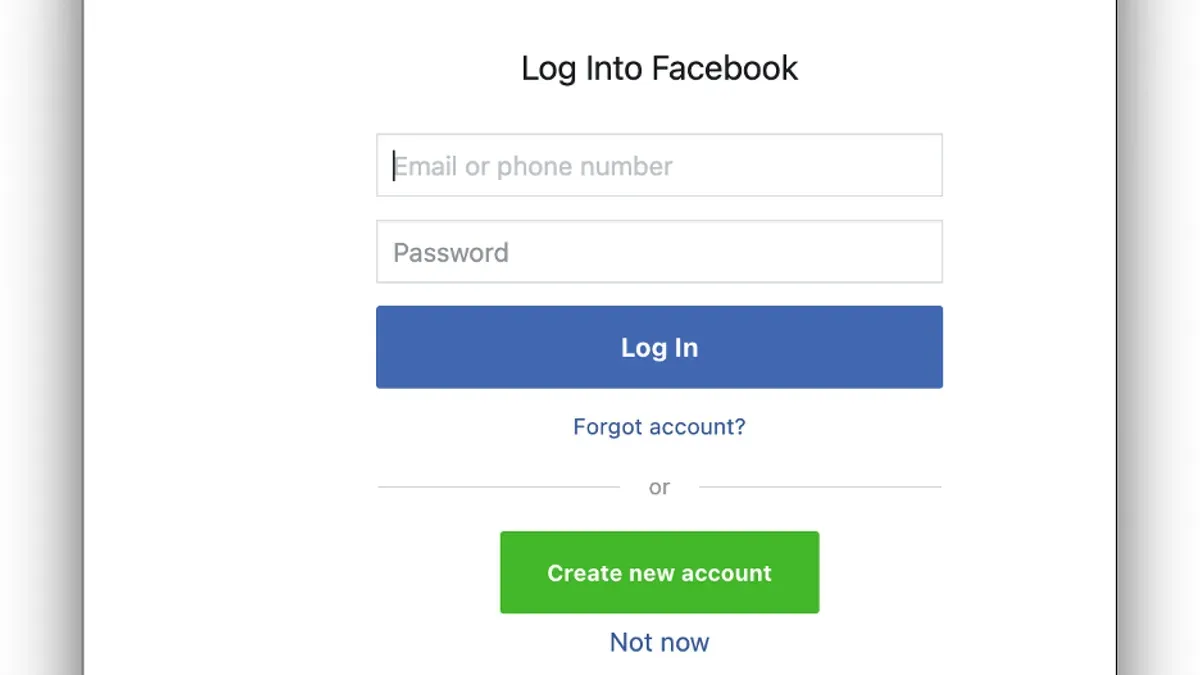
A person opens Facebook on a trip and sees a login screen that looks different from usual. Another device, another country, and the warning can make facebook login from different country look like a hack even when it is only a security check.
Get that order wrong, and the login flow keeps circling back to the same warning.
Every limit and setting name below comes from Meta / Facebook About, Avast, Kaspersky (full list at the end), as of November 2026.
How to log into different Facebook account?
The first check is simple: this may be a different-account problem, not a country problem. Meta allows different Meta Accounts for different apps or devices, so a second sign-in is not automatically suspicious. A Meta Account can centralize Facebook, Instagram, Messenger, Threads, Meta AI, AI glasses, and Meta Quest headsets, with WhatsApp optional. The Meta Account model matters when one login is meant to cover several products.
Country changes and security settings do not solve a sign-in that points to the wrong Facebook account. The decision is between keeping one Meta Account across supported products or using different Meta Accounts for different apps or devices. That choice determines the next step.
Choose the path that matches the account goal
| Situation | Best fit | What decides it |
|---|---|---|
| One login should cover Facebook plus other Meta products | Use one Meta Account | Meta says a single Meta Account can manage multiple supported apps and devices |
| Separate apps or devices should stay separate | Use different Meta Accounts | Meta says different Meta Accounts are allowed for different apps or devices |
| The screen opens the wrong Facebook profile | Switch accounts | The issue is identity, not location or security |
For the wrong-account case, sign out of the profile that opened and select the intended one on the login screen. If no saved account appears, add the correct account only in the sign-in flow tied to that product. This applies when the goal is access, not recovery or location verification. If the account already appears under the right Meta Account, the login worked; the remaining job is to move into the correct profile, not to change settings.
When a person wants one central login across supported Meta products, the account structure should stay unified. When the devices or apps must remain separate, split the accounts on purpose.
Why does Facebook login look different?
A different-looking sign-in screen does not automatically mean the account is compromised. Facebook shapes login-related services with signals from the device and the session, so the page can shift without any change to account state. The main inputs are IP address, browser or operating system information, cookies, and device identifiers, all of which can alter what the person sees at sign-in. Login signals affect the display, not just the back end.
What changes the screen
| Signal | Visible result |
|---|---|
| IP address | Can trigger region-sensitive behavior, including a different language display or extra verification prompts. |
| Browser or operating system information | Can make the login flow render differently on desktop, mobile, or a different browser. |
| Cookies | Can change whether Facebook recognizes the session and restores a familiar sign-in path. |
| Device identifiers | Can make the page treat the device as known or unfamiliar. |
Browser language can also shift because Facebook handles some services based on IP address. The account itself may still be intact; only the presentation has changed.
- Open the same Facebook sign-in in a browser with the expected language and on a stable connection.
- Check whether the page language, prompts, and layout return to the usual version.
- If the page still shows a foreign-language or unusual flow, treat it as a security check instead of a cosmetic change.
The sign that this worked is simple: the login page stops switching language or layout from one attempt to the next, and the next step matches the device and location being used.
What does Facebook want when the sign-in comes from another country?
When a login comes from an IP address in a different country, Facebook may stop the sign-in and ask for extra questions. The signal is simple: different-country IP first, extra verification next. Only after that should the sign-in be judged as normal or suspicious.
That is why the first response should be to treat the screen as a security flow, not as a country-setting problem. A login from abroad can be real and still look unusual to Facebook. The company uses the extra check to confirm that the person signing in is the account holder, not a stranger borrowing credentials or forcing access from a new location. Facebook’s explanation is that cross-country IPs can trigger this kind of challenge.
Facebook also sends alerts when it detects unusual login behavior that could point to compromise. One asks for verification during access; the other warns after suspicious behavior is detected. Both should be read as security signals first, not as country or language settings gone wrong.
- Start with the verification prompt. Complete the requested check only if the sign-in is expected.
- If the prompt appears during a real travel login, continue with the security step rather than switching accounts or changing profile settings first.
- If the prompt appears for an unexpected login, stop and treat the account as possibly exposed.
The check has worked when Facebook lets the sign-in continue without repeating the same challenge and the account opens normally. If Facebook keeps asking for more verification, the login still looks abnormal and the flow is not finished.
How long does the login warning mean the account was hacked?
Facebook has used alerts for unusual login behavior that could indicate compromise, and the pattern can look like one location against another, such as London versus Sydney. That kind of alert is a signal to verify, not proof that the account is already lost.
Check the account from inside Facebook, not from the alert
Kaspersky advises checking the sign-in from account settings instead of following the notification itself, because the alert can be a phishing lure. The warning may be real, but the link inside it still does not deserve trust.
- Open Facebook directly in the app, or type the site address into the browser.
- Go to account settings and review recent logins or active sessions.
- Look for a location, device, or browser that does not belong to the account holder.
- Log out anything unfamiliar and tighten security if the session list shows a real intruder.
This applies when the warning feels suspicious, especially if it arrives as a message that pressures an immediate tap. It also applies when the login notice names a country that does not match the current trip or device use. The check is complete when Facebook opens normally and the session list matches the real devices and places in use. If the warning was fake, the alert stops being the action point and the manual check becomes the only reliable proof.
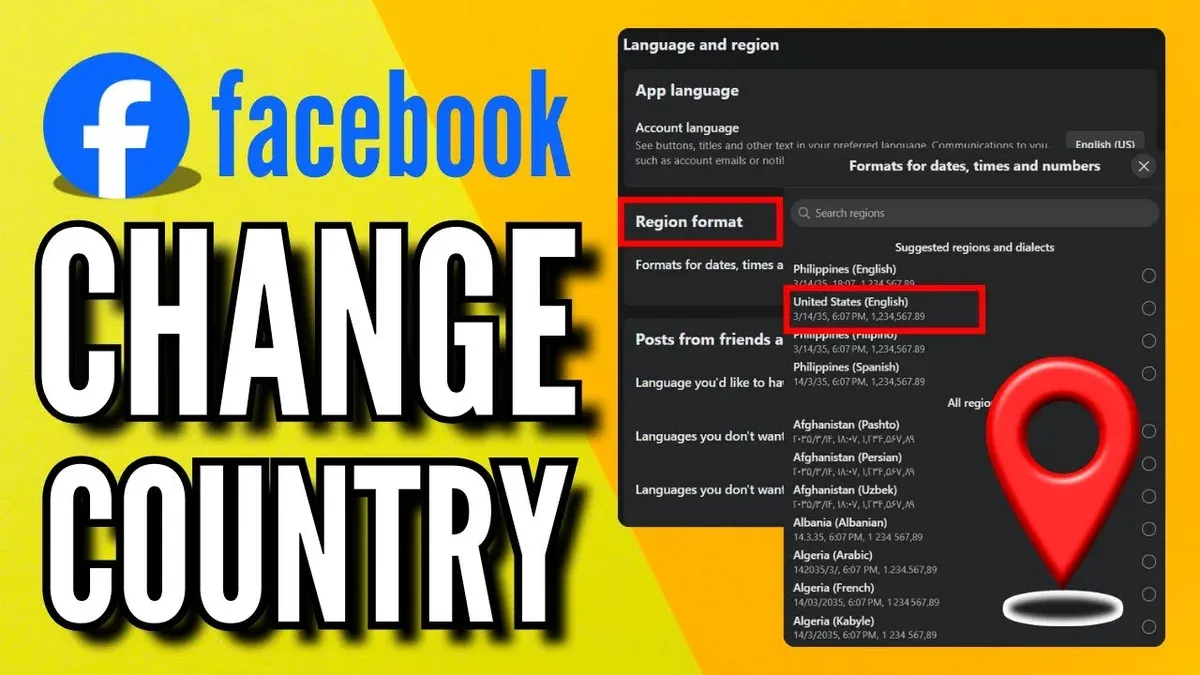
How to change country on Facebook account?
There is no simple country toggle that fixes a login warning. A sign-in from an IP address in another country can trigger extra questions, but that is a verification step, not a country setting on the account. The useful response is to finish the check, then review the controls that actually affect access: security settings, devices, and alerts. Facebook says it may ask for extra questions when it sees a sign-in from a different-country IP, and it also uses IP address, browser or operating system information, cookies, and device identifiers to keep login services working. Facebook’s login signals
| Situation | What applies | What it changes |
|---|---|---|
| A login from another country triggers extra checks | Security verification flow | Confirms the sign-in attempt |
| The account needs cleaner access control | Security settings | Changes trusted devices and alerts |
| The login screen looks region-specific | Browser and device signals | Changes the page language or challenge format |
If the login flow looks tied to region, the better fix is not to hunt for a country field. The browser, device, and cookie signals can change what Facebook shows, even when the account itself has not changed. That is a display and verification issue, not a country profile issue.
- Complete the verification prompt shown on the login screen.
- Open account security settings after access is restored.
- Review logged-in devices and remove anything unfamiliar.
- Turn on login alerts so future unfamiliar-device sign-ins produce a notification or email.
The fix has worked when the account opens normally, the login challenge stops repeating, and future sign-ins produce the expected security alerts instead of another country-style prompt. If the screen keeps changing because of browser or device signals, the next check belongs in those settings, not in a country search.
How do login alerts help after a different-country sign-in?
Facebook sends them by notification or email when it sees a login from an unfamiliar device or browser. That makes them useful after the account has been cleaned up, not before.
They belong inside Security Checkup, not as a separate fix. The sequence matters: remove devices that no longer belong, then switch on alerts. Skipping the cleanup step leaves stale sessions active and can keep the account exposed.
If a different-country sign-in has already happened, this is the right order:
- Open Security Checkup and review active devices.
- Log out of devices that are no longer in use.
- Turn on login alerts so future unfamiliar logins trigger a notification or email.
This applies after the account owner has access again and wants a warning system for the next unusual login. Security Checkup and login alerts work together here. The setup has worked when future sign-ins from an unfamiliar device or browser produce an alert, while known devices continue normally.
Login alerts do not fix a compromised password by themselves. They flag the next suspicious attempt and give a chance to act fast. That is the point: early warning, not cleanup.
What mistakes keep people stuck here?
The same four errors turn a routine security check into a dead end. The symptom usually looks serious: a login warning, a country mismatch, or a device prompt that refuses to settle. The fix is usually simple, but only if the response matches the actual cause. A bad response makes the warning look bigger than it is.
| Symptom | Mistake | Safer correction |
|---|---|---|
| A warning message appears after a foreign login | Clicking the alert link itself | Open Facebook directly in the app or by typing the address manually. Kaspersky warns the alert can be part of a phishing attempt: open it safely. |
| Country-related verification appears | Assuming the account was hacked | Treat the prompt as extra verification first. Facebook says a different-country IP can simply trigger more checks. |
| The account keeps resurfacing on another device | Ignoring old sessions on shared or forgotten devices | Review active sessions and remove devices no longer in use. Security Checkup includes logout controls for that exact problem. |
| Activity still looks traceable while using a VPN | Believing the VPN makes the session invisible | Assume Facebook can still connect activity to the account login. A VPN changes the network path, not the account state. |
- If the alert link looks suspicious: close it, open Facebook directly, and sign in from the normal app or site. It has worked when the warning still appears only inside the original notification and not inside Facebook itself.
- If the issue is a country mismatch: continue the verification flow instead of resetting everything. It has worked when Facebook accepts the check and the login completes.
- If old devices are involved: remove stale sessions in Security Checkup. It has worked when the unfamiliar device disappears from the active-login list.
- If a VPN is active: do not rely on it for privacy from Facebook. It has worked only when the login state is secured, not when the VPN is switched on.
Old sessions and fake alert links cause the most wasted time. Remove those variables first.
What if the login is coming from a VPN or a different network?
A VPN changes the IP address Facebook sees. It does not hide the Facebook login itself, and it does not erase the account trail attached to that sign-in. That is why a different network can trigger a challenge without meaning a different account is being used. The network changed; the identity did not.
Facebook can also weigh other signals beyond IP address. Browser fingerprinting can include language settings, browser version, and extensions, so the same account can still look familiar or suspicious depending on the device profile. A login from a hotel Wi-Fi, work network, or VPN exit node can therefore prompt extra checks even when the account details are correct.
When the VPN is the reason the check appears
If the login screen appears after a VPN is turned on, the fix is to remove the location mask long enough to complete verification. VPNs do not hide Facebook logins, so the safest move is to let Facebook see a stable connection while the account is confirmed.
- Turn off the VPN or switch to the normal network used for that account.
- Open Facebook directly and complete the verification prompt there.
- After access returns, review recent logins and security alerts inside the account.
The result is clear when the prompt stops repeating and the session stays active on the trusted network. If the same warning returns only while the VPN is on, the network is what changed. If the warning follows the account across networks, the problem is not anonymity. It is the account state that still needs attention.
What does not carry over to every device or Meta product?
A Facebook login prompt does not automatically mean the same recovery path applies to a Portal device, a different app, or another Meta service. It is not a general account recovery playbook.
| Product type | Available setting | Limit |
|---|---|---|
| Meta Account | Shared security settings for multiple Meta apps and devices | One central place for sign-in and account management |
| Portal devices marketed in the US and Canada | Country Code Selection | Disabled |
| Portal devices marketed in the US and Canada | Channel selection | Only channels 1 through 11 |
For Portal setup or display limits, the fix belongs on the device itself, not in Facebook account settings. The path is Settings → About → Regulatory. That is where the device-specific limits are surfaced. For the country code or channel restrictions, account recovery steps will not change the result.
- Open the Portal device settings.
- Go to About, then Regulatory.
- Check whether Country Code Selection is disabled and whether channels are limited to 1 through 11.
- If the device is a US or Canada market Portal, stop trying Facebook account changes to fix those settings.
The check worked if the device shows the regulatory details and the available options match the market limits. If the issue is still account access, the problem sits in Facebook sign-in or security, not in the Portal device menu.
How the same sign-in screen turns into different problems
Facebook login from different country can mean three different things at once: a real security check, a normal account switch, or a device problem. The fast way through it is to decide which one is happening before any recovery step starts. A different country alone does not prove compromise. It only tells Facebook that the sign-in looks unusual enough to ask for more proof.
When the account belongs to someone else, the right move is account switching, not recovery. When the device, browser, or network is the odd part, the fix is often to verify the sign-in and then check alerts and device history. When Facebook asks extra questions after an IP address from another country, the correct response is to complete the security check first and only then deal with country settings or app access.
How to log into different Facebook account?
| Situation | Best option | What decides it |
|---|---|---|
| A family member, coworker, or client account needs access on the same device | Switch accounts inside Facebook instead of treating it as a security problem | The account is intentional, and Meta allows different Meta Accounts for different apps or devices |
| A sign-in prompt appears after moving to another country or using travel Wi‑Fi | Complete the extra verification request | The login came from an IP address in a different country |
| The browser or app keeps rejecting the same account on a new device | Check whether the device is unfamiliar, then use login alerts and account security tools | Facebook may be flagging a new device or browser rather than the account itself |
| A Meta device or product has separate setup limits | Use the device’s own account or country settings, if available | Some Meta products do not share the same country and channel options |
Which security check should happen first?
The first step is to verify the login challenge that Facebook shows. If the account is on a different-country sign-in path, extra questions come before any other settings change. Skipping that step and going straight to account switching or country editing can leave the sign-in blocked because Facebook still sees an unresolved risk signal.
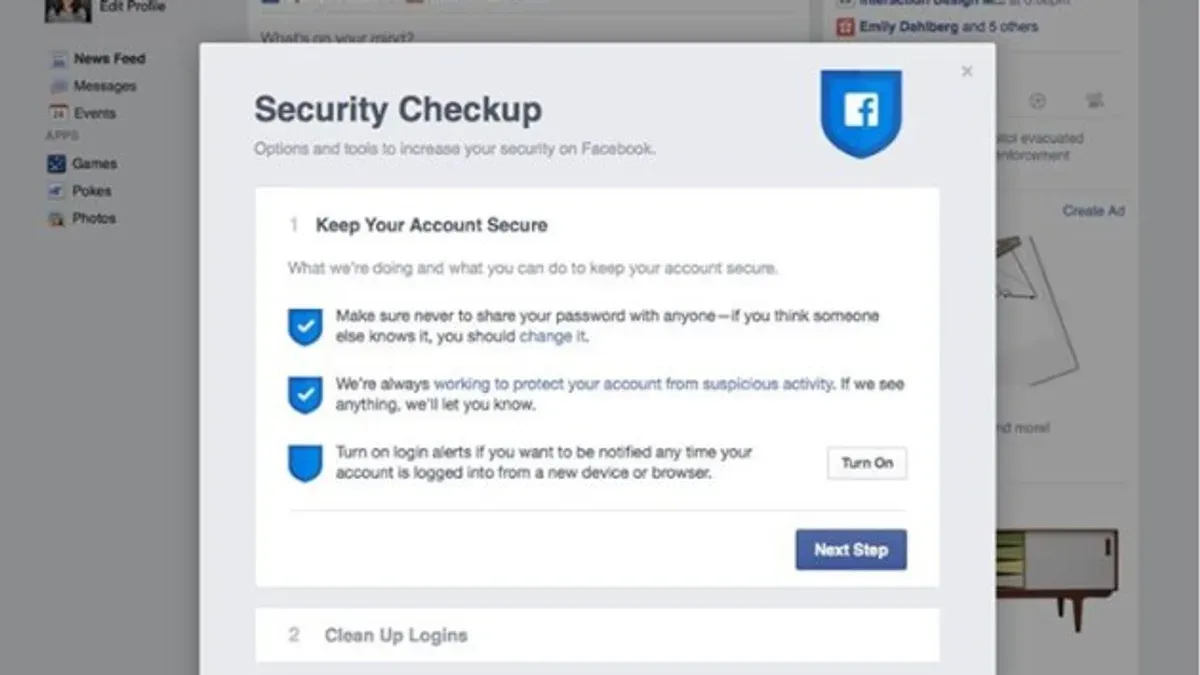
After the challenge is cleared, login alerts become the next check. Those alerts arrive by notification or email when Facebook sees a login from an unfamiliar device or browser. If the alert matches a known travel login, the path stays in the normal security flow; if it does not match, the account needs a tighter review before any further use.
What mistakes keep people stuck here?
- Symptom: A different-country prompt appears, and the account owner jumps straight to profile settings. Cause: The security challenge was not finished. Fix: Complete the sign-in verification first.
- Symptom: The same warning returns on a new browser. Cause: The browser is unfamiliar to Facebook. Fix: Use the device or browser tied to the alert, then review login alerts.
- Symptom: A person assumes every Meta product uses the same country options. Cause: Product rules differ. Fix: Check the device-specific limit before changing setup.
- Symptom: A VPN login keeps triggering extra checks. Cause: The IP address is coming from a different country. Fix: Turn off the VPN or use a stable network before trying again.
What does not carry over to every device or Meta product?
| Product or setup | What changes | Exact limit or rule |
|---|---|---|
| Meta Accounts across apps or devices | Separate accounts can be used | Meta says different Meta Accounts are allowed for different apps or devices |
| Portal products marketed in the US and Canada | Country Code Selection | Not allowed |
| Portal channel selection in those products | Available channels | Only channels 1 through 11 can be used |
This does not cover full account recovery after confirmed compromise, payment issues, or help for non-Facebook Meta products beyond the limited device and account-management facts listed here. A person who cannot clear the login challenge after the normal checks should move to the product’s recovery path rather than keep repeating the same sign-in attempt.
When the sign-in is tied to travel, verify the challenge first. When it is clearly a different account, switch accounts instead of forcing recovery. When the alert points to an unfamiliar browser or device, trust the alert, check the session, and only then decide whether the login was legitimate.
Sources and further reading
- Hard Questions: What Data Does Facebook Collect When I'm Not Using Facebook, and Why? — Meta / Facebook About
- Improving Location Settings on Android — Meta / Facebook About
- Enhancing Security with a Quick Checkup — Meta / Facebook About
- Meta Account: The Simpler Way to Access Your Apps and Devices — Meta / Facebook About
- Can You Be Tracked With a VPN? What Is (and Isn’t) Visible — Avast
- What to do if someone tries to hack your Facebook or Instagram account — Kaspersky
- Portal Regulatory Information — Facebook / Meta
See also: How to See Where You're Logged Into Facebook: A Step-by-Step Guide · How to Fix Facebook Two-Factor Authentication Code Not Working · How to Turn On Two-Factor Authentication on Facebook: Step-by-Step Guide