
How to Fix Facebook Two-Factor Authentication Code Not Working
This guide helps you troubleshoot and fix Facebook two-factor authentication code not working issues to regain secure access to your account.

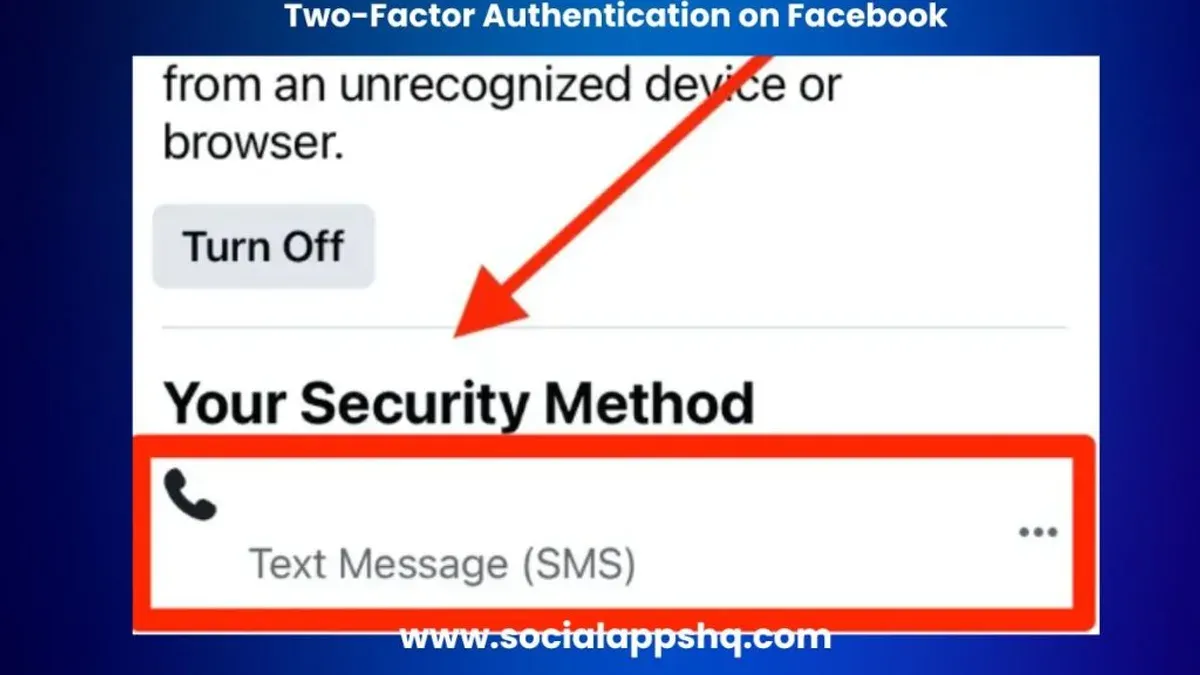
This article provides a clear troubleshooting guide for users encountering the issue of Facebook two-factor authentication code not working. It helps identify the problem, explains common causes, and discusses practical solutions while weighing security considerations.
Two-factor authentication (2FA) adds a critical security layer by requiring a code after entering a password. When the code fails to work, users can get locked out or face delays accessing their accounts. Recognizing the signs—such as not receiving codes via SMS or app, or codes being rejected—can help determine the next steps.
Understanding the nuances of Facebook's 2FA methods is essential. These include codes sent via text messages, generated by authentication apps like Google Authenticator, or received through security keys. Each method has distinct failure points and security implications, influencing the choice of fix.
Tip: Always verify the time and date settings on devices, as incorrect settings can cause authentication code mismatches.
How to recognize when Facebook two-factor authentication codes are not working
Users typically encounter problems with Facebook two-factor authentication (2FA) codes when the codes fail to arrive, are rejected upon entry, or experience significant delays. These symptoms can cause confusion as they may resemble other login issues like incorrect passwords or account lockouts. However, 2FA code problems are distinct and usually accompanied by specific error messages from Facebook.
Common signs include receiving no SMS or authenticator app prompts, repeated "Invalid code" errors after entering a code, or notifications stating that the 2FA code is incorrect or expired. Facebook often displays messages such as "The code you entered is incorrect" or "Unable to verify code". These errors confirm a 2FA-specific issue rather than a password or account access problem.
When 2FA codes are not working, users should first verify their network connectivity and device time settings, as incorrect time synchronization is a frequent cause of code rejection. To confirm the issue and attempt a fix:
- Check the device’s date and time settings, enabling automatic updates if disabled.
- Ensure the phone or authenticator app has network access to receive codes.
- Attempt to request a new 2FA code via SMS or the authenticator app.
- Enter the new code promptly, noting any error messages displayed.
- If the code is accepted, the problem is resolved; if not, further troubleshooting is needed.
Tip: Pay close attention to Facebook’s specific error messages as they guide the troubleshooting process effectively.
Common causes of Facebook two-factor authentication code issues
Two-factor authentication (2FA) codes on Facebook can fail due to several technical and user-related factors. SMS delivery issues are frequent, often caused by carrier delays, network congestion, or mobile providers blocking messages perceived as spam. These delays can vary by region and carrier, making SMS less reliable. App-based authenticator problems are another common source of errors, particularly when the device’s time settings are incorrect. Since apps like Google Authenticator rely on precise time synchronization, even minor discrepancies can cause codes to be invalid.
Network connectivity issues or restrictive device settings can also prevent code reception. For example, airplane mode, disabled mobile data, or restrictive firewall settings may block messages or app notifications. Misconfigured Facebook account settings, such as an outdated phone number or disabled 2FA methods, can stop code delivery entirely. Additionally, Facebook may temporarily block code sending in response to suspected security incidents or unusual login attempts.
SMS-based 2FA is generally more prone to delivery delays or failures compared to authenticator apps, which generate codes locally. However, time synchronization errors in apps can be resolved by resyncing the device clock with network time.
How to fix time synchronization errors in authenticator apps:
- Open the authenticator app and locate the settings menu.
- Find the option labeled “Time correction for codes” or similar.
- Select “Sync now” or equivalent to resynchronize the app’s time with the device’s clock.
- Generate a new code and enter it on Facebook.
The fix is confirmed when Facebook accepts the new code without error.
How do I get my two factor authentication code for Facebook
Facebook offers several methods to obtain two-factor authentication (2FA) codes, each with varying speed and reliability depending on connectivity and setup.
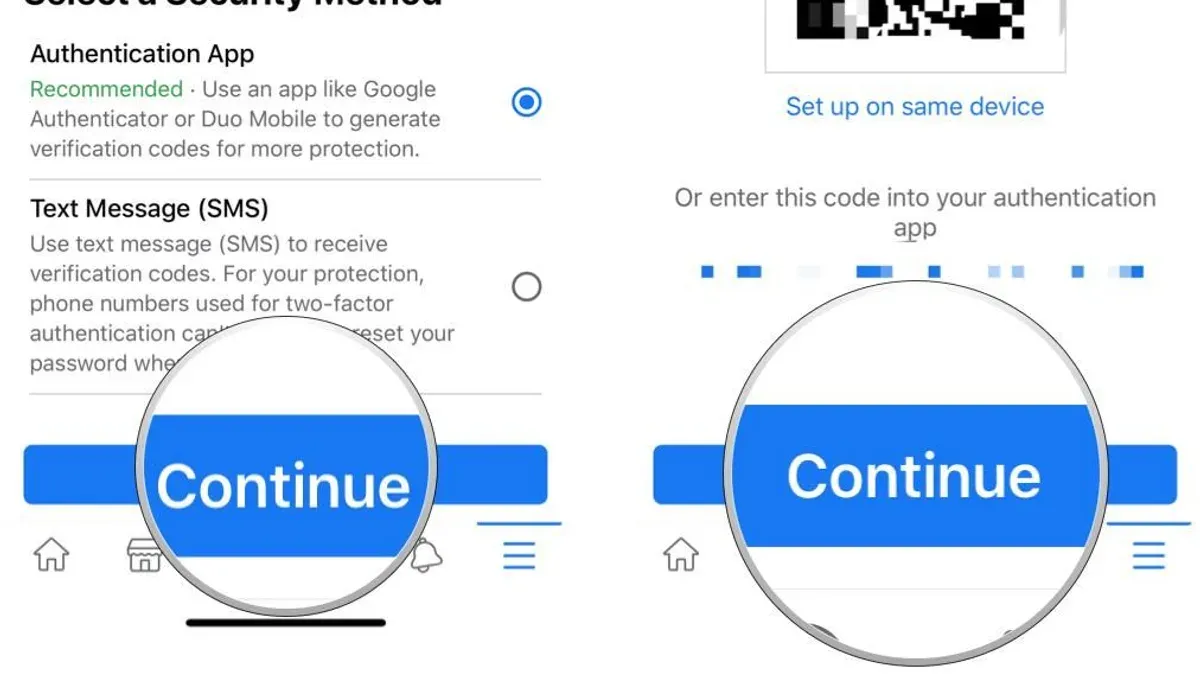
Using SMS code delivery
This method sends a code via text message to the phone number linked to the Facebook account.
- Ensure the phone has sufficient signal and can receive SMS messages.
- At Facebook’s login prompt, select the option to receive a code via SMS.
- Wait for the code to arrive, which typically occurs within seconds to a few minutes.
- Enter the received code into the login interface.
If the code does not arrive, check for network issues or carrier restrictions. Facebook’s interface will indicate if the SMS is delayed or undelivered.
Generating codes through authenticator apps
Facebook supports official and third-party authenticator apps like Google Authenticator or Microsoft Authenticator. These apps generate time-based one-time passwords (TOTPs) without relying on network connectivity.
- Open the authenticator app linked to the Facebook account.
- Locate the Facebook entry to view the current 6-digit code.
- Enter this code promptly, as it refreshes every 30 seconds.
This method is faster and often more reliable than SMS, especially in areas with poor cellular reception.
Using recovery codes
Recovery codes are unique single-use codes saved during 2FA setup for emergency access.
- Find the saved recovery codes, usually printed or stored securely.
- Enter one recovery code at the Facebook login prompt when prompted for a 2FA code.
This method applies when other code delivery methods fail, but codes must have been saved beforehand.
Requesting codes from trusted contacts
If configured, trusted contacts can provide access codes.
- Choose the option to get help from trusted contacts at login.
- Send each trusted contact a request to retrieve a code.
- Collect codes from contacts and enter them as prompted.
This method requires prior setup and trusted contacts to be responsive.
Checking device and app notification settings
For authenticator apps or Facebook’s official app notifications:
- Confirm that notifications are enabled under the device’s Settings > Notifications.
- Ensure background app refresh is allowed.
- Verify that Facebook or authenticator apps have not been restricted by battery optimization settings.
Proper notification settings can speed code delivery and alert users promptly.
Tip: Authenticator apps typically provide faster and more consistent code generation than SMS, especially in low-signal environments.
How do I get a two factor authentication code for Facebook
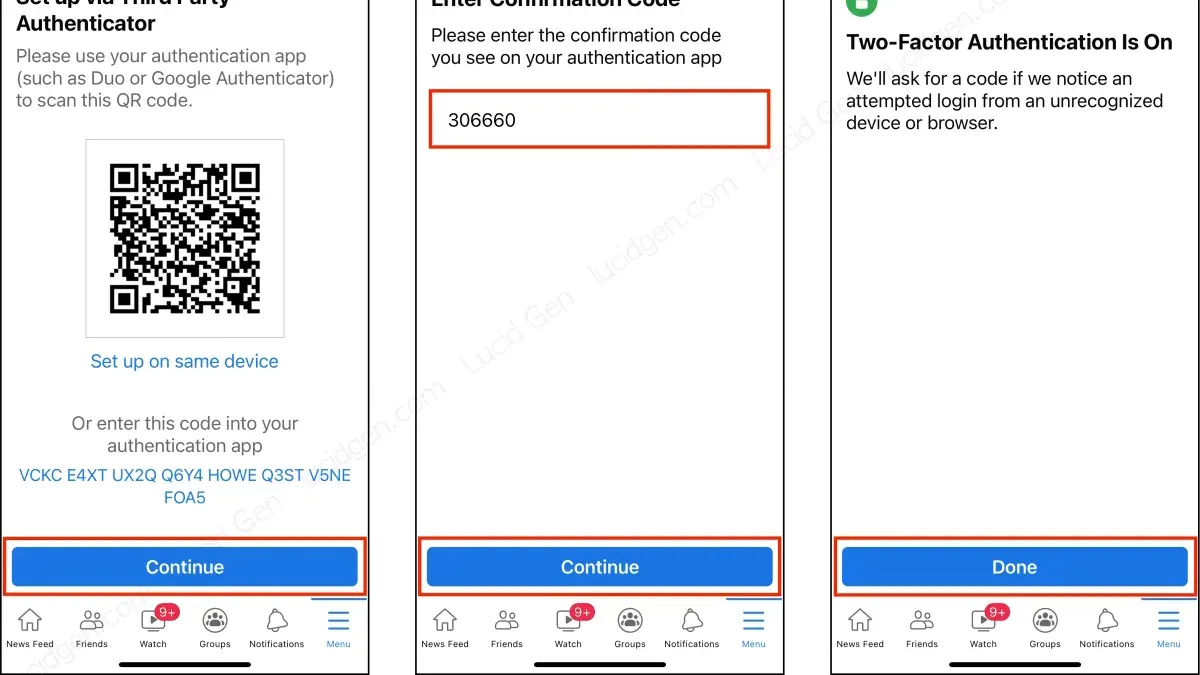
Setting up two-factor authentication (2FA) on Facebook involves choosing a method to receive codes, typically via SMS or an authenticator app. During the security setup, users navigate to Settings & Privacy > Settings > Security and Login > Use two-factor authentication. Here, selecting either text message or an authentication app prompts a guided process to link a phone number or scan a QR code respectively.
Best practices include saving the provided set of recovery codes in a secure location immediately after setup to prevent lockouts. These codes serve as a backup if primary methods become inaccessible.
It is crucial to keep the contact information, such as the registered phone number, current to ensure code delivery. Facebook’s security settings allow users to review and update these details under Two-Factor Authentication settings.
Step-by-step setup:
- Access Settings & Privacy > Settings > Security and Login.
- Click Use two-factor authentication and choose a preferred method (SMS or authenticator app).
- Follow on-screen prompts to confirm phone number or scan QR code.
- Save the recovery codes displayed at the end of setup.
- Confirm by attempting a login to verify receipt of 2FA codes.
Successful setup is evident when Facebook requests a 2FA code upon login and the chosen delivery method responds with the correct code. Users report that enabling an authenticator app reduces delays compared to SMS, but both require accurate device time settings.
Tip: Regularly review and update security settings to keep phone numbers and backup options current, minimizing future access issues.
Step-by-step fixes for Facebook two-factor authentication code problems
When Facebook two-factor authentication codes fail, start with the simplest solutions to minimize risk and effort.
Restart device and check network connection
Many 2FA code delivery issues stem from temporary glitches or connectivity problems.
- Turn off the phone or device completely and turn it back on.
- Ensure the device has a stable internet connection via Wi-Fi or cellular data.
- Test sending and receiving SMS or app notifications.
If codes arrive or authenticate successfully, the problem is resolved.
Verify phone number and app time settings
Incorrect phone numbers or device time settings can block or invalidate codes.
- Confirm the phone number linked to Facebook 2FA is current via Facebook settings.
- On the device, go to Settings > General management > Date and time (Android) or Settings > General > Date & Time (iOS).
- Enable automatic date and time or manually correct the time zone.
Working codes after correction indicate success.
Resync time on authenticator apps
Authenticator apps rely on time synchronization; drift causes code mismatches.
- In Google Authenticator, tap the menu > Settings > Time correction for codes > Sync now.
- For other apps, check for similar time sync or resync options.
When codes generated post-sync are accepted, the issue is fixed.
Clear app cache or reinstall Facebook app
Corrupted app data can hinder 2FA code processing.
- On Android, go to Settings > Apps > Facebook > Storage > Clear cache.
- If problems persist, uninstall and reinstall the Facebook app.
Successful login with new codes confirms resolution.
Use recovery codes or trusted contacts
If standard methods fail, recovery codes or trusted contacts provide alternative access.
- Retrieve a saved set of recovery codes from a secure location and enter when prompted.
- Alternatively, request help from trusted contacts to receive login codes.
Access regained via these methods indicates success.
Contact Facebook support when necessary
When all else fails, professional assistance may be required.
- Visit the Facebook Help Center and navigate to the two-factor authentication support section.
- Submit a detailed request including the troubleshooting steps already attempted.
Response from Facebook support that restores access completes the process.
Tip: Follow the troubleshooting steps in order to balance quick resolution with maintaining account security.
When to get professional help for Facebook two-factor authentication issues
Self-troubleshooting Facebook two-factor authentication (2FA) problems is effective in many cases, but professional help becomes necessary when signs of account compromise appear beyond failed 2FA codes. Indicators include unexpected password changes, unfamiliar login alerts, or suspicious posts. If backup methods like recovery codes or trusted contacts are lost, recovery options narrow significantly, making expert assistance crucial.
Users should avoid third-party services claiming to bypass or fix 2FA issues, as these often pose security risks or scams. Instead, contacting Facebook support through the official Help Center or the Facebook app’s “Report a Login Issue” feature is the safest approach. Expect a verification process that may take several days depending on the case complexity.
When professional help applies:
- Confirm unusual account activity or inability to access backup methods.
- Access Facebook Help Center at facebook.com/help or use the “Report a Login Issue” option.
- Submit required identity verification documents as prompted.
- Follow up on communications from Facebook support securely via official channels.
Success is indicated by restored access to the account with 2FA enabled or reset securely, without bypassing safety protocols.
Tip: Keep recovery codes and trusted contacts updated to reduce reliance on professional intervention.
Further reading
- How to Set Up Chase Two-Factor Authentication for Stronger Account Security
- How to Set Up Bank of America Two-Factor Authentication Securely
Frequently asked questions
How do I get my two factor authentication code for Facebook if I don’t receive SMS?
If SMS codes are not arriving, users can switch to alternative methods such as using an authenticator app (like Google Authenticator or Microsoft Authenticator) linked to their Facebook account. Another option is to use Facebook’s recovery codes, which should be saved in advance for such situations. Checking the phone’s message blocking settings and network connection may also resolve SMS issues.
What can I do if my Facebook two factor authentication code is not working on my authenticator app?
When codes from an authenticator app are invalid, ensure the device’s time and date settings are set to automatic or network-provided, as time discrepancies cause code mismatches. Re-syncing the app or removing and re-adding the Facebook account in the authenticator app can help. If problems persist, users may need to use backup codes or alternative verification methods provided by Facebook.
Why am I not receiving Facebook two factor authentication codes on my phone?
Failure to receive codes on a phone often results from carrier delays, poor network signal, or the phone blocking messages from unknown senders. Users should verify that their phone number is correctly registered and active in Facebook’s security settings. Additionally, disabling any SMS filtering or spam-blocking apps may allow the codes to come through.
How can I solve the Facebook two factor authentication code not received problem?
To solve code reception problems, users can try restarting their device, checking for software updates, and confirming that Facebook’s notifications and SMS permissions are enabled. Using an authenticator app or recovery codes are recommended fallback options. If none of these steps work, contacting Facebook support or using trusted contacts for account recovery is advised.
Limitations of this guide and when to seek specialized help
This guide does not cover scenarios where a Facebook account has been hacked and two-factor authentication settings have been maliciously changed. In such cases, users should seek Facebook's specialized account recovery assistance through their official help center. Additionally, users who no longer have access to backup codes, trusted contacts, or the original authentication device may face permanent lockout despite following the steps outlined here.
For most users facing issues with two-factor authentication codes, the single most useful next step is to verify and update the authentication method via Facebook’s Security and Login settings. This includes confirming the linked phone number for SMS codes, re-syncing time-based authentication apps like Google Authenticator, or generating fresh backup codes. Ensuring these elements are current and correctly configured often resolves code delivery and recognition problems while maintaining account security.



