
How to Set Up Bank of America Two-Factor Authentication Securely
This guide shows how to securely set up Bank of America two-factor authentication with clear steps for enhanced account protection.


This article explains how to complete a Bank of America two-factor authentication setup with clear, step-by-step instructions. Two-factor authentication (2FA) adds an extra security layer by requiring a second verification step beyond the password, helping protect accounts from unauthorized access.
Bank of America offers this feature to enhance account security, but enabling it involves several specific steps within the online banking platform or mobile app. While 2FA significantly reduces the risk of fraud, it can introduce usability trade-offs such as additional login time and potential hiccups with receiving verification codes.
Following this guide will help Bank of America customers decide whether to enable two-factor authentication, complete the setup correctly, troubleshoot common issues, and manage the authentication settings effectively.
Before you start two-factor authentication setup
Two-factor authentication (2FA) adds an extra security layer to Bank of America accounts by requiring a second verification step beyond the password. This significantly reduces the risk of unauthorized access, as data from multiple security sources confirm the user's identity. Banks following strong security protocols note that 2FA can greatly decrease account breaches.
To prepare for 2FA setup, ensure possession of an active Bank of America online account and access to a mobile phone capable of receiving SMS messages or running authentication apps like Microsoft Authenticator or Google Authenticator. Reliable internet connectivity is also necessary throughout the process.
Bank of America supports multiple 2FA methods, including SMS one-time passcodes and authenticator apps. Selecting the preferred method depends on balancing convenience and security preferences.
- Confirm access to the Bank of America online banking portal and log in successfully; this ensures account readiness for 2FA activation.
- Verify possession of a mobile device that can receive text messages or install an authentication app; the device will receive security codes during setup and future logins.
- Ensure a stable internet connection is available to complete the setup steps without interruption.
Tip: Keep backup contact options updated in the Bank of America profile to avoid lockouts if the primary 2FA method is unavailable.
How do I set up two-factor authentication on Bank of America
- Log into the Bank of America online banking portal at www.bankofamerica.com using the username and password. After successful login, the account overview page will appear.
- Navigate to the "Security Center" by clicking on the profile icon in the upper right corner, then selecting "Security Center" from the dropdown menu. The Security Center page displays various security options.
- Locate the "Two-Factor Authentication" or "Two-Step Verification" section and click on "Set Up" or "Manage". This opens the setup wizard for two-factor authentication.
- Choose the preferred 2FA method: either "Text Message (SMS)" or "Authentication App". Selecting "Text Message" prompts for a mobile phone number, while "Authentication App" guides through linking an app like Google Authenticator or Microsoft Authenticator.
- If selecting SMS, enter the mobile number and submit. Bank of America sends a verification code via text. Enter this code on the website to verify the number. If using an authenticator app, scan the displayed QR code with the app to add the Bank of America account, then enter the 6-digit code generated by the app on the website.
- Confirm activation of two-factor authentication. A confirmation message appears stating that 2FA is enabled. Some interfaces may prompt to save backup codes or set up alternative methods.
- Test the setup by logging out and logging back in. After entering username and password, the system will request the verification code via the chosen method. Enter the code correctly to complete the login process.
Tip: When using an authentication app, ensure the device's time settings are accurate to avoid code mismatches.
Does Bank of America have two-factor authentication
Bank of America officially offers two-factor authentication (2FA) as part of its online and mobile banking security measures. According to the bank’s security information pages, customers can enable additional verification steps beyond the password to protect their accounts from unauthorized access. This 2FA implementation typically involves receiving a one-time passcode via SMS or using an authenticator app, adding an extra layer of protection.
The 2FA system includes features such as device recognition and the ability to manage trusted devices within the online banking settings. This means users can reduce friction by marking personal devices as trusted, which limits how often they receive verification requests while maintaining security.
Compared to other major banks, Bank of America’s 2FA options align with industry standards. For example, Chase also offers SMS and authenticator app codes, while Wells Fargo provides push notification verification alongside SMS. Bank of America does not currently support biometric factors as part of 2FA for web login, but the mobile app supports biometric authentication for app access, which complements the 2FA process.
| Bank | 2FA Methods | Additional Features |
|---|---|---|
| Bank of America | SMS codes, authenticator app | Device recognition, trusted devices |
| Chase | SMS codes, authenticator app | Trusted devices |
| Wells Fargo | SMS codes, push notifications | Trusted devices |
Troubleshooting common issues with Bank of America two-factor authentication setup
If verification codes do not arrive via SMS, first confirm the registered phone number in the Bank of America profile is correct and has active service. Check for any network issues or message blocking by the carrier. If the error message "Code not received" appears, retry after a few minutes or select the option to resend the code.
Authenticator apps may occasionally fail to sync or generate codes due to incorrect device time settings or app configuration errors. Ensure the phone's date and time are set to automatic. If the app shows "Invalid code" or codes are rejected, try removing and re-adding the Bank of America account within the app.
If two-factor authentication locks access, use the Bank of America "Forgot your passcode?" or account recovery options on the login page to regain entry. Alternatively, contact Bank of America customer support at 1-800-432-1000 for identity verification and assistance.
- To update the registered phone number or authentication method, log into the Bank of America online account and navigate to Security Settings > Two-Factor Authentication.
- Select "Update phone number" or "Change authentication method" and follow prompts to enter new details.
- Complete verification by entering a test code sent via the new method to confirm the update.
Tip: Keep backup access methods, such as a secondary phone number or authenticator app, to avoid lockouts.
Managing and maintaining Bank of America two-factor authentication
After enabling two-factor authentication (2FA), ongoing management ensures continued account security and usability. Bank of America allows users to disable or reconfigure 2FA through their online profile settings. For example, navigating to Security & Settings > Two-Step Verification lets users update their phone number, switch between SMS and authenticator apps, or turn off 2FA, each action confirmed by an on-screen success message.
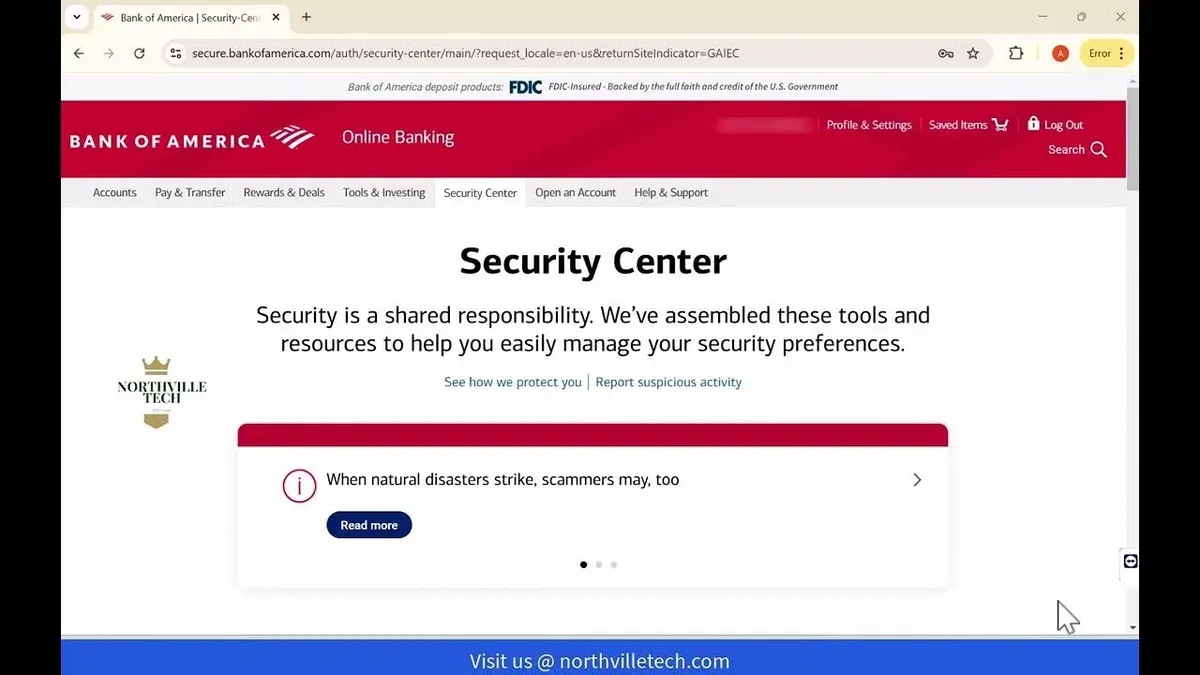
Keeping recovery options current is critical. Users should regularly verify that their registered phone number and email address are accurate to avoid lockouts. Updating these details promptly after changes helps ensure smooth 2FA operation.
Tip: Add a backup authentication method where possible to reduce risk of losing access.
While 2FA significantly improves security, it is not foolproof. Security experts highlight that sophisticated phishing attacks or SIM swapping can bypass 2FA protections. Bank of America customers should remain vigilant for suspicious emails or texts requesting credential or code disclosure.
Complementary security measures include monitoring account activity frequently and using strong, unique passwords. Together with 2FA, these practices form a layered defense against unauthorized access.
Further reading
- Understanding and Managing AT&T Port Out Protection
- How to Understand, Protect, and Recover an AOL Mail Account After Hacking
- How to Recognize, Respond to, and Recover from a WhatsApp Account Hack
- How to Understand, Prevent, and Recover from a Tumblr Account Hacked
Frequently asked questions
Does bank of america have two factor authentication?
Bank of America offers two-factor authentication (2FA) as an additional security layer for online and mobile banking. This feature helps protect accounts by requiring a second verification step, such as a code sent via text message or generated by an authentication app. Customers can enable this option to enhance their account security beyond just a password.
bank of america set up two factor authentication
To set up two-factor authentication with Bank of America, log in to the online banking portal and navigate to the Security Center or Profile & Settings section. From there, select the option for two-step verification or two-factor authentication and follow the prompts to choose a preferred verification method, often SMS or an authenticator app. Completing this process activates 2FA for future sign-ins.
2 factor authentication setup
Setting up two-factor authentication typically involves verifying a phone number or installing an authentication app. After entering the primary login credentials, the system sends a temporary code to the chosen device or app. Users must enter this code to confirm the setup and enable the additional security step for subsequent logins.
how do i enable two factor authentication for my bank of america account
Enabling two-factor authentication on a Bank of America account requires logging into the online banking platform and accessing the Security Settings. Within this section, select "Two-Step Verification," then opt for a preferred verification method such as receiving codes via text or using an authentication app. Follow the on-screen instructions to complete the activation.
what to do if i lose access to my two-factor authentication method with bank of america
If access to the registered two-factor authentication method is lost, contact Bank of America's customer service as soon as possible. Verifying identity through other means will be necessary to reset or update the 2FA settings. It is advisable to keep backup contact details or authentication options configured to minimize disruption.
Limits of this advice
This article does not cover Bank of America’s internal fraud detection systems beyond two-factor authentication or alternative advanced security measures like biometric authentication. Customers seeking protection against sophisticated account takeover attempts or interested in hardware security keys should consult Bank of America’s official support or security experts for tailored guidance.
For Bank of America customers ready to secure their accounts, the most useful next step is to enable two-factor authentication via the mobile app settings under "Security & Settings" > "Two-Factor Authentication." This setup adds a critical security layer that helps protect accounts from unauthorized access, balancing strong protection with straightforward usability.



