
How to Set Up Citi Two-Factor Authentication Securely and Smoothly
Learn how to set up Citi two-factor authentication smoothly to protect your account with clear, step-by-step instructions tailored for Citi users.

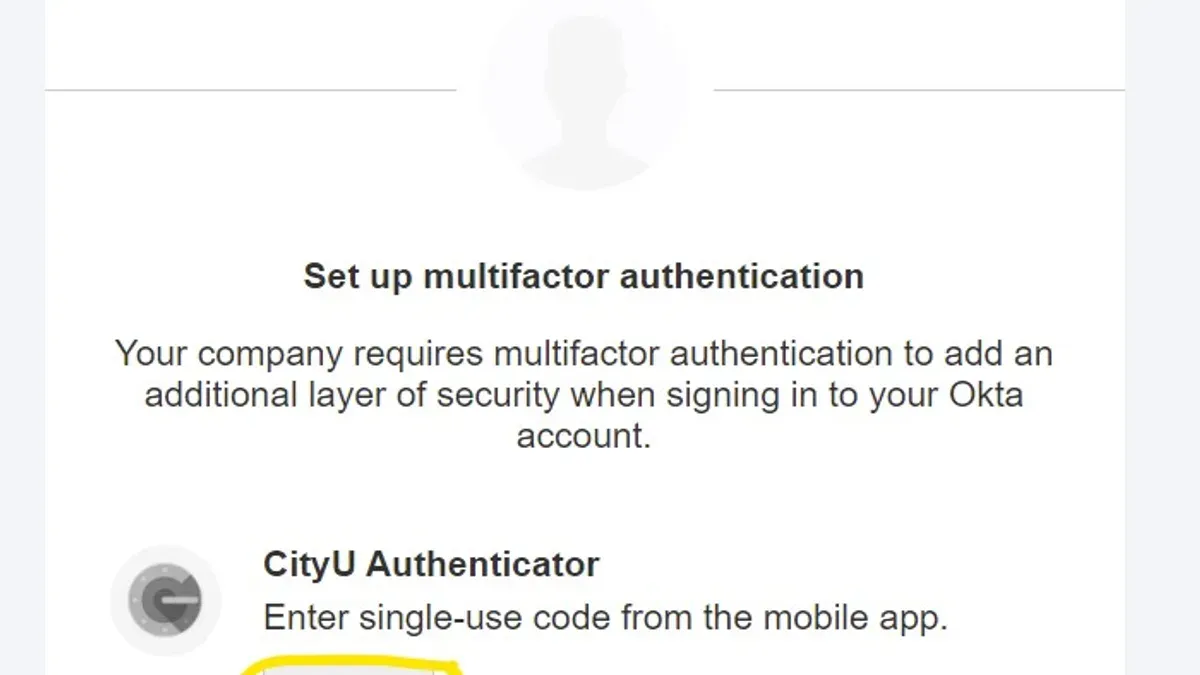
This article provides clear, step-by-step instructions for Citi two-factor authentication setup, designed to help Citi account holders enhance their security efficiently and with confidence.
Two-factor authentication (2FA) adds a crucial layer of protection by requiring a second verification step when accessing online accounts. Citi’s approach to 2FA involves specific settings within its online banking portal and the Citi Mobile® app, which may differ from generic banking security processes. Understanding the exact Citi-specific steps and common hurdles—such as device registration issues or code delivery delays—can prevent frustration and improve the setup experience. The following sections outline the necessary preparations, detailed setup procedures, methods to receive authentication codes, essential settings adjustments, and practical troubleshooting tips tailored to Citi’s system.
Before you start: what’s needed for Citi two-factor authentication setup
Setting up two-factor authentication (2FA) with Citi requires some preparation to ensure a smooth process. First, an active Citi online banking account is essential; without it, 2FA setup cannot proceed.
Next, access to a compatible device is necessary. This typically includes smartphones running iOS or Android that support the Citi Mobile® app or can receive SMS messages for one-time passcodes (OTPs). Common compatible devices include recent models from Apple (iPhone 8 and later) and Android phones from brands such as Samsung, Google Pixel, and others capable of running Citi’s mobile app.
Users must also have valid contact information linked to their Citi account. This means a current phone number for SMS or call verifications and an accurate email address for receiving notifications or backup codes.
Citi supports several 2FA methods: OTPs sent via SMS, push notifications through the Citi Mobile® app, and, in limited cases, hardware tokens. Understanding these options helps in choosing the best method based on device availability and personal preference.
- Confirm an active Citi online banking login. Upon success, the online dashboard becomes accessible.
- Verify the phone number and email address on file under 'Profile & Settings' > 'Contact Information.' A confirmation message or updated details should appear.
- Ensure the smartphone or device intended for authentication can install and run the Citi Mobile® app (available on the Apple App Store or Google Play Store). Installing the app without errors indicates compatibility.
- Review the 2FA method options in the security settings section to become familiar with available choices.
Tip: Keeping contact information up to date in Citi’s system is critical, as outdated details can block receiving verification codes during setup.
How to set up 2 factor authentication on Citi online banking
- Log into the Citi online banking website using a secure browser. After entering the user ID and password, the account dashboard should appear.
- Navigate to the "Profile & Settings" menu, typically found in the upper-right corner or under the main navigation bar. When opened, look for the "Security & Privacy" section.
- Within "Security & Privacy," select the option labeled "Two-Factor Authentication" or "2FA Settings." The page should display available authentication methods.
- Choose the preferred 2FA method: either SMS code, authenticator app, or Citi Mobile® app verification. Each option will have a brief description and a "Select" button to initiate setup.
- For SMS code, enter the mobile phone number where codes will be received. For authenticator app, the system will display a QR code to scan with a compatible app like Google Authenticator. For Citi Mobile® app verification, a prompt will guide through linking the app to the account.
- After providing the required information, click "Confirm" or "Enable". A confirmation message will appear, indicating the 2FA is pending verification.
- Test the 2FA by logging out and attempting to sign back in. Depending on the chosen method, either a code will be sent via SMS, generated by the authenticator app, or a push notification will appear in the Citi Mobile® app.
- Enter the received or generated code on the login screen to complete authentication. Successful entry will grant access and confirm the two-factor authentication is active.
Tip: Keep backup access methods updated in your profile settings to avoid lockouts if the primary 2FA method is unavailable.
How to enable two-factor authentication using the Citi Mobile® app
Enabling two-factor authentication (2FA) through the Citi Mobile® app leverages the app’s built-in authentication features for enhanced security and convenience. The process begins by downloading and installing the Citi Mobile® app from the Apple App Store or Google Play Store. Once installed, the device must be registered within the app for authentication purposes.
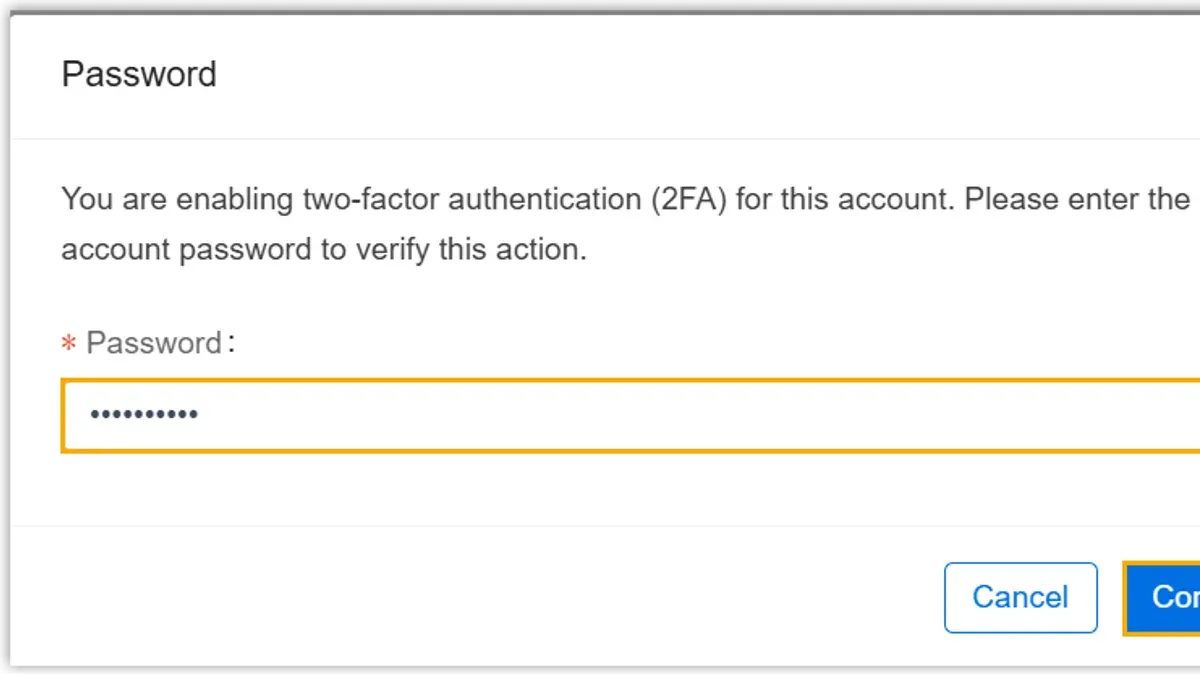
- Open the Citi Mobile® app and log in using the usual username and password. Upon successful login, navigate to the menu and select "Settings" followed by "Security Preferences." The screen should display options related to two-factor authentication.
- Choose "Enable Two-Factor Authentication via Citi Mobile® app." The app will prompt to register the current device by linking it to the user’s Citi account. Confirmation of device registration should appear.
- Enable push notifications within the device settings and the Citi Mobile® app to receive 2FA approval requests. A test notification may be sent to verify functionality.
- After device registration and push notification setup, the app will either generate time-based one-time passcodes (TOTPs) or receive push-based authentication prompts for login approval. The app automatically refreshes codes every 30 seconds if using TOTPs.
- Complete the setup by confirming receipt of a successful authentication code or approval prompt during a login attempt. The app is now ready for Citi two-factor authentication.
The Citi Mobile® app’s 2FA method offers faster authentication and improved security compared to SMS or email codes, which can be delayed or intercepted. Push notifications reduce manual code entry and lower the risk of phishing attacks.
| Feature | Citi Mobile® App 2FA | SMS 2FA |
|---|---|---|
| Speed | Instant push notifications or time-based codes | Potential delays due to network or carrier issues |
| Security | Codes generated locally or push approval reduces interception risk | Susceptible to SIM swapping and message interception |
| User Experience | One-tap approval via push or auto-refreshing codes | Manual code entry required |
Tip: Ensure push notifications are enabled both in the mobile device settings and within the Citi Mobile® app to avoid missing authentication requests.
How to get two factor authentication codes for Citi
Citi provides several ways to receive or generate two-factor authentication (2FA) codes, each designed to enhance security while accommodating user preferences and device capabilities.
Receiving codes by SMS text message
- When prompted during sign-in, select the option to receive a code via SMS text message to the registered mobile number.
Expected result: A 6-digit numeric code appears in a text message within seconds. - Enter the code exactly as received on the Citi authentication screen.
Expected result: Successful verification if the code is valid and timely.
The SMS-delivered codes typically consist of six digits and are valid for approximately 5 minutes before expiring. If the code expires, a new one must be requested. SMS codes rely on mobile network availability and can be delayed or blocked in some situations.
Generating codes from authenticator apps
Citi supports the use of third-party authenticator apps like Google Authenticator or Microsoft Authenticator for generating 2FA codes. These apps generate time-based one-time passwords (TOTP) that refresh every 30 seconds.
- During setup, scan a QR code provided by Citi or enter a setup key into the authenticator app.
Expected result: The app begins displaying a 6-digit code that changes every 30 seconds. - Enter the current code from the app on the Citi verification page.
Expected result: Authentication succeeds if the code matches Citi's server within the time window.
This method does not require cellular service or Wi-Fi once configured, improving reliability. However, device time must be accurate for correct code generation.
Using Citi Mobile® app push approvals and code retrieval
- When signing in, choose the option to receive a push notification on the Citi Mobile® app.
Expected result: A notification appears on the registered mobile device prompting approval. - Open the Citi Mobile® app and approve the sign-in request.
Expected result: Immediate authentication without needing to enter a code manually. - Alternatively, if a code is requested, the app's security settings provide an option to display a one-time 6-digit code.
Expected result: Displayed code can be entered on the Citi website or app.
Push approvals streamline the process but require internet connectivity on the mobile device. The app-generated codes function similarly to authenticator app codes, refreshing regularly and expiring quickly.
Security best practices: Always ensure codes are entered promptly due to their limited validity, avoid sharing codes with anyone, and use secure and private devices to prevent interception. If a code is not received or appears invalid, request a new code rather than reusing old ones.
Setting up two-factor authentication settings that matter on Citi accounts
Customizing two-factor authentication (2FA) settings within Citi accounts helps balance security with convenience. Key options include updating contact information, selecting default authentication methods, managing trusted devices, adjusting notifications, and handling temporary 2FA disables or resets.
Updating contact details for 2FA
- Log in to Citi Online Banking and navigate to the “Profile & Settings” tab.
- Select “Security Center” then “Manage Contact Information.”
- Update the phone number or email address used for receiving 2FA codes and save changes.
- Expect a confirmation message indicating successful update; new codes will be sent to the updated contact.
Choosing default 2FA method and fallback options
- Within the “Security Center,” choose “Two-Factor Authentication Preferences.”
- Set the preferred 2FA method, such as Citi Push Notification, SMS, or authenticator app.
- Assign a fallback method in case the primary option is unavailable, for example, SMS fallback if push notifications fail.
- Save preferences and look for confirmation that settings are active.
Managing trusted devices
- Go to “Security Center” and select “Manage Trusted Devices.”
- Add a frequently used device to reduce repeated 2FA prompts on that device.
- Remove any unused or lost devices to maintain security.
- After changes, subsequent logins on trusted devices may bypass some 2FA steps, improving access speed.
Adjusting notifications and alerts
- Access “Security Center” and open “Notification Settings.”
- Enable or disable alerts related to 2FA activity, such as login attempts or code requests.
- Choose delivery methods for alerts, including email or push notifications.
- Confirm changes by saving preferences and observing an on-screen success message.
Temporarily disabling or resetting 2FA
- In “Security Center,” select “Two-Factor Authentication” and find options for temporary disable or reset.
- Follow prompts to verify identity, often requiring password and a current 2FA code.
- Select the option to disable or reset 2FA; expect a confirmation once process completes.
- Be aware that disabling 2FA reduces account security, so re-enable as soon as possible.
Tip: Regularly review and update 2FA settings to ensure contact details and trusted devices remain current, minimizing access issues while maintaining security.
How to troubleshoot common issues during Citi two-factor authentication setup
Many users encounter difficulties while setting up or using Citi two-factor authentication (2FA). Common problems include not receiving SMS or email codes, authenticator app syncing issues, push notification failures in the Citi Mobile® app, and account lockouts. Understanding typical causes and solutions can help resolve these issues efficiently.
Not receiving SMS or email codes
Failure to receive verification codes often results from network delays, incorrect contact details, or carrier filtering. Users should first verify that the phone number or email address registered in Citi’s security settings is accurate. Checking for blocked numbers or spam filters on the device can also resolve delivery problems.
- Confirm the contact information under Account Settings > Security > Two-Factor Authentication contact methods.
- Ensure the mobile device has network coverage and is not in Do Not Disturb mode.
- Check the SMS inbox and spam or junk email folders.
- If issues persist, try switching to an alternate delivery method, such as receiving codes via the Citi Mobile® app push notification.
Authenticator app codes not working or syncing
Authenticator apps depend on accurate time synchronization. If codes are rejected, users should verify the device’s time settings are set to automatic or network-provided time. Resynchronizing the app or re-adding the Citi account within the authenticator can fix persistent problems.
- Set the device time to automatic in Settings > Date & Time.
- Within the authenticator app, use the resync or time correction feature if available.
- If necessary, remove and re-setup Citi 2FA in the authenticator app following Citi's 2FA setup instructions.
Problems with Citi Mobile® app push notifications
Push notifications may fail due to app permission restrictions, background data limits, or connectivity issues. Ensuring the Citi Mobile® app has notification permissions and background data enabled improves reliability.
- Go to device Settings > Apps > Citi Mobile® > Notifications, and enable all notification types.
- Check Settings > Apps > Citi Mobile® > Data usage to allow background data.
- Restart the device and open the Citi Mobile® app to re-establish connection.
Locked out due to 2FA failure and regaining account access
Account lockouts can occur after multiple failed 2FA attempts. Citi provides recovery options such as using backup codes, verifying identity via phone support, or resetting 2FA through the online help portal. It is important to have backup verification methods set up in advance.
- Attempt to use any saved backup codes available in the 2FA settings.
- If backup codes are unavailable, use the “Forgot 2FA” or “Trouble logging in?” link on the Citi login page.
- Follow prompts to verify identity via phone or email.
- Contact Citi customer support if self-service options are insufficient.
When to contact Citi support for 2FA problems
If troubleshooting steps fail, contacting Citi’s dedicated support line for online banking and security issues is recommended. Support can provide account-specific assistance, verify identity securely, and guide users through advanced resolution steps.
Tip: Keep Citi’s customer support number handy before beginning 2FA setup to quickly address unexpected issues.
Implementing two-factor authentication beyond Citi: best practices for strong banking security
Two-factor authentication (2FA) is a fundamental defense against unauthorized access, significantly reducing online banking fraud by requiring a second verification step beyond a password. Citi’s 2FA options, including push notifications, SMS codes, and authenticator apps, align with industry standards, offering comparable security to major banks such as Bank of America and Chase, which also emphasize multifactor authentication methods.
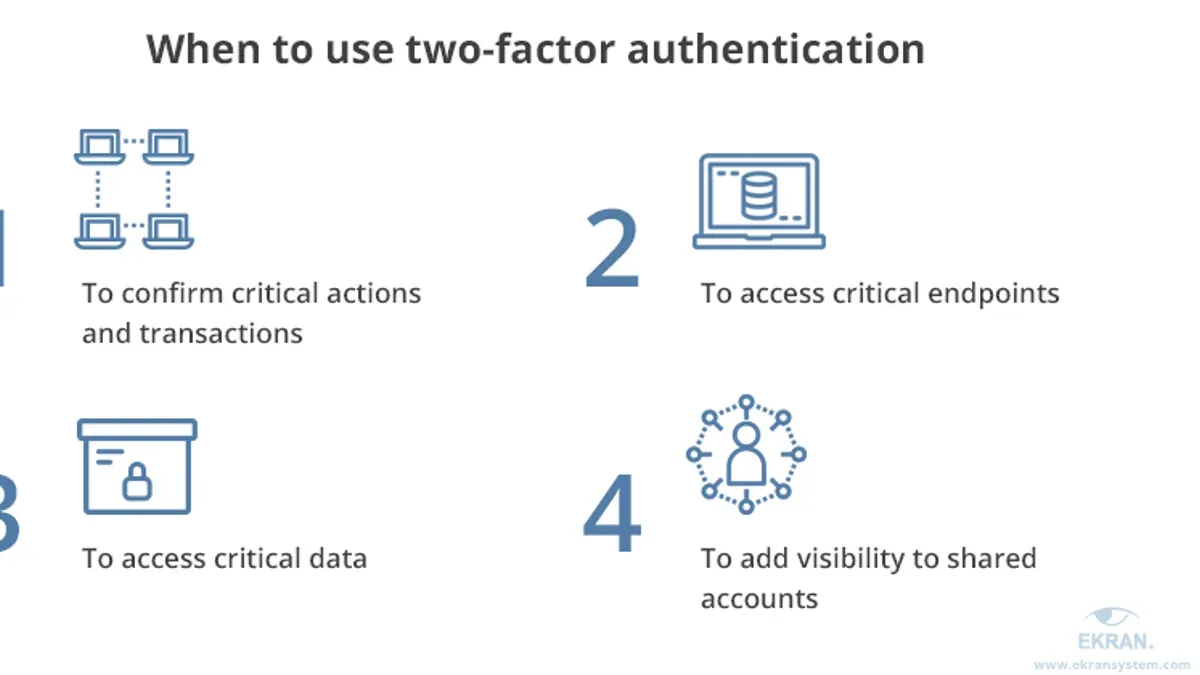
While 2FA substantially lowers risk, it is not foolproof. Users should consider additional protective measures such as regular password updates, monitoring account activity, and enabling biometric authentication where available. Employing a strong, unique password remains essential alongside 2FA.
Phishing attacks increasingly use sophisticated tactics to bypass 2FA, including interception of SMS codes or deceiving users into revealing authentication details. Vigilance against unsolicited communication, careful verification of URLs, and use of hardware security keys can further secure accounts.
Citi’s security notices highlight that accounts with 2FA enabled experience fewer fraud incidents, reinforcing the value of adopting layered security. Combining Citi’s 2FA with these wider best practices strengthens protection against evolving cyber threats.
Frequently asked questions
How to set up two-factor authentication?
To set up two-factor authentication (2FA) for Citi accounts, log in to Citi Online® and navigate to the Security Center under profile settings. Select the option to enable 2FA and choose a preferred verification method such as SMS, email, or the Citi Mobile® app. Follow the prompts to register the device or phone number and confirm the setup by entering a received code.
How to setup two factor authentication?
Setting up two-factor authentication involves accessing the Citi account’s Security Settings, selecting Two-Factor Authentication, and activating it by linking a phone number or the Citi Mobile® app. The system will then send a verification code to the chosen method, which must be entered to complete the process.
How to turn on two-factor authentication?
Turning on two-factor authentication requires signing into the Citi Online® account, going to the Security Center, and enabling the 2FA feature. After selecting the authentication method, confirm the choice by entering a one-time code sent via SMS or generated by the Citi Mobile® app.
How to get 2 factor authentication?
Two-factor authentication codes for Citi accounts can be obtained through the Citi Mobile® app’s built-in authenticator or via SMS if that option is selected during setup. The app generates time-sensitive codes, while SMS codes are sent directly to the registered phone number whenever a login attempt requires verification.
How to get 2 factor authentication code?
To get a two-factor authentication code, open the Citi Mobile® app and access the authentication section to view the current code, or wait for a code sent by SMS to the registered phone number. These codes are typically valid for a short period and must be entered promptly to complete verification.
Limits of this guide and when to seek further help
This guide does not cover physical hardware token setups, which Citi rarely uses and requires special enrollment through Citi customer service. Two-factor authentication significantly improves security but does not eliminate all risks, including phishing attempts or SIM swapping attacks that can bypass SMS-based codes.
Account holders should avoid disabling two-factor authentication even temporarily without fully understanding the increased vulnerability this causes. For advanced security needs, such as corporate accounts or users wanting hardware tokens, contacting Citi directly for specialized support is recommended.
For most Citi account holders, the most useful next step is to log into Citi Online® and immediately access the Security Center under the profile settings to activate two-factor authentication. This ensures the account gains an added layer of protection with Citi’s official process and verified code delivery methods, reducing exposure to unauthorized access.



