
How to Set Up Capital One Two-Factor Authentication Securely
This guide explains how to complete a secure Capital One two-factor authentication setup with step-by-step instructions and tips.


This article explains how to complete a Capital One two-factor authentication setup, offering a practical guide tailored to Capital One’s specific security features. Two-factor authentication (2FA) adds an extra layer of protection by requiring a second verification step beyond the password, helping to secure accounts against unauthorized access.
Capital One’s two-step authentication typically involves receiving a one-time code via SMS or using an authenticator app, but setup details and options can vary. Understanding the exact process, including where to find settings in the Capital One app or website and how to manage backup methods, is key to a smooth experience.
The following sections provide clear step-by-step instructions, highlight common setup issues, and explain both advantages and limitations of Capital One’s two-factor authentication approach.
Before you start: What is needed for Capital One two-factor authentication setup
To set up two-factor authentication (2FA) for a Capital One account, several prerequisites must be met. First, an active Capital One online account with valid login credentials is essential. Without access to the account, enabling 2FA is not possible.
Next, a mobile device is required to receive authentication codes or notifications. This device can either receive SMS text messages or run authenticator apps such as Google Authenticator or Microsoft Authenticator. Having the Capital One mobile app or access to the Capital One website is also necessary for managing 2FA settings.
Authentication methods supported by Capital One
- SMS Text Messages: Sends a code via text. Pros: Simple, no app required. Cons: Potential security risks from SIM swapping and delayed messages.
- Authenticator Apps: Generates time-based one-time codes. Pros: More secure than SMS, works offline. Cons: Requires installing and setting up an app.
- Push Notifications: Sends approval requests through the Capital One app. Pros: Quick approval with one tap, secure. Cons: Requires smartphone with app and internet access.
- Ensure the Capital One online account username and password are available. Successful login to the account management page should be possible.
- Confirm possession of a mobile device capable of receiving SMS or running authenticator apps. The device should be operational and connected if using push notifications.
- Install the Capital One mobile app from the official app store or ensure access to the Capital One website via a browser.
- Decide on the preferred 2FA method based on convenience and security needs, understanding the trade-offs of each.
Tip: Having backup authentication options ready can prevent lockouts if the primary method becomes unavailable.
Does Capital One have two factor authentication?
Capital One provides two-step verification as a security feature to protect customer accounts. This feature is part of the broader account security measures designed to prevent unauthorized access. Capital One refers to this as "two-step verification" rather than explicitly using the term "two-factor authentication," but the concept aligns with industry standards for multi-factor authentication (MFA).
Capital One supports several verification methods. These include receiving a one-time code via SMS text message, using authenticator apps that generate time-sensitive codes, and receiving push notifications through the Capital One mobile app. Customers can select their preferred method based on convenience and device compatibility.
Compared to typical MFA implementations, Capital One’s approach offers flexibility by allowing multiple verification modes. While SMS codes are widely used, authenticator apps and push notifications provide additional layers of security and ease of use. Capital One’s documentation emphasizes that two-step verification adds a critical security layer beyond just a password, helping to reduce the risk of account compromise.
From Capital One’s security information: “Two-step verification helps keep your account safe by requiring a second step to confirm it’s really you when you log in.”
Tip: Enabling push notifications can streamline the authentication process compared to manually entering codes.
How to set up 2 factor authentication Capital One: step-by-step guide
- Log in to the Capital One mobile app or access the online banking portal at capitalone.com. Upon successful login, the dashboard or account overview page will display.
- Navigate to the account settings by selecting the profile icon in the app’s top-right corner or clicking the username dropdown on the website. From the menu, choose "Security Settings" or "Account Security." This opens the security preferences page.
- Locate the "Two-Step Verification" or "Multi-Factor Authentication" option within the security settings. Click or tap "Manage" or "Set Up" to begin configuring two-factor authentication.
- Select the preferred verification method. Options typically include receiving codes via SMS text messages, using an authenticator app (such as Google Authenticator or Microsoft Authenticator), or enabling push notifications through the Capital One app.
- Follow the prompts to complete the chosen verification method setup. For SMS, enter the mobile number to receive codes; for an authenticator app, scan the displayed QR code with the app; for push notifications, ensure notifications are enabled on the device.
- Enter the verification code sent via SMS or generated by the authenticator app to confirm the setup. The system will prompt for this code to validate the chosen method.
- Once verified, activate two-factor authentication by toggling the corresponding switch or clicking "Enable." A confirmation message or status indicator will confirm that two-step verification is active on the account.
Tip: If using an authenticator app, keep backup codes or a recovery method handy in case the mobile device is lost or reset.
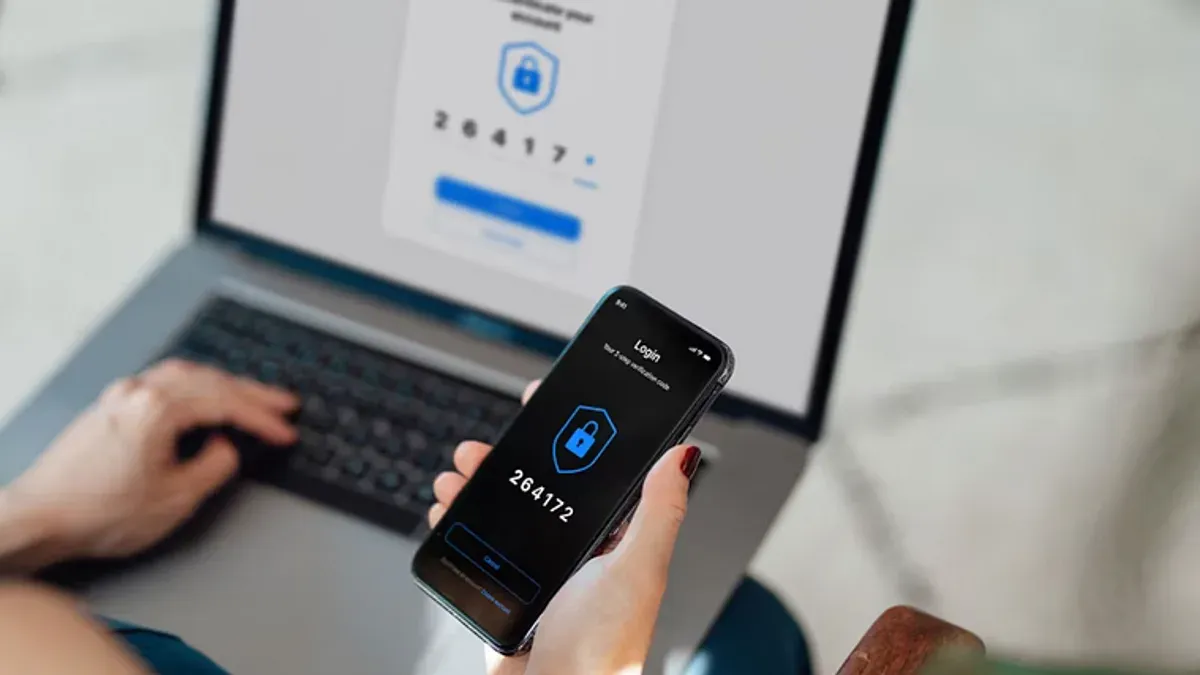
Capital One two-factor authentication troubleshooting
When verification codes are not received via SMS, first check the mobile device's signal strength and ensure the correct phone number is registered in the Capital One profile. Delays or failures may occur due to carrier issues or network congestion. If codes still do not appear, request a new code after waiting at least one minute.
For problems with authenticator apps or push notifications, confirm the app (such as Google Authenticator or Microsoft Authenticator) is time-synced correctly and that notifications are enabled for the Capital One app. Restarting the device or reinstalling the app may resolve glitches.
If locked out due to two-factor authentication, use the recovery options provided, such as backup codes previously saved or the option to verify identity through email or phone. When these options are unavailable, Capital One's customer support can assist with identity verification to restore access.
Common error messages include “Invalid code” or “Code expired.” These typically indicate incorrect entry or delayed input; ensure codes are entered promptly and exactly as shown.
- Verify the phone number or email linked to two-factor authentication is current; update if necessary. Successful update is confirmed by receiving a test code.
- Check the authenticator app's time settings; resync if out of sync. A correct time sync will generate valid codes accepted during login.
- Use backup codes if primary methods fail. Access is regained when a backup code is accepted.
- Contact Capital One support via phone or secure messaging if access remains blocked. Successful contact leads to guided identity verification steps.
Tip: Save backup codes securely when setting up two-factor authentication to prevent lockouts.
Understanding the benefits and limits of Capital One two-step authentication
Capital One’s two-step authentication significantly reduces the risk of unauthorized account access by requiring a second verification factor, typically a code sent via SMS, a push notification, or an authenticator app. This additional layer helps prevent intrusions even if login credentials are compromised.

Tip: Using an authenticator app generally offers faster and more reliable code delivery than SMS, which can be delayed or intercepted.
Despite its strengths, two-step authentication depends on access to a mobile device. If the device is lost, stolen, or offline, receiving verification codes may be challenging. Additionally, delays in code delivery or temporary outages can cause frustration or lockouts.
Users with higher security needs, such as those managing large balances or sensitive business accounts, might consider additional measures like hardware security keys or monitoring for suspicious activity beyond Capital One’s built-in protections.
Two-step authentication does not prevent all threats. For example, it offers limited defense against phishing if users are tricked into revealing both their password and the verification code. Security experts emphasize that combining two-factor authentication with cautious online behavior and device security is essential for comprehensive protection.
Further reading
- How to Recognize, Prevent, and Recover a Hacked Call of Duty Account
- How to Understand, Protect, and Recover an AOL Mail Account After Hacking
- Understanding and Resolving WeChat Account Hacking Risks
- How to Understand, Prevent, and Recover from a Tumblr Account Hacked
Frequently asked questions
Does capital one have two step verification?
Yes, Capital One offers two-step verification as part of its security measures. This process adds an extra layer of protection by requiring a verification code sent to a registered device or email after entering the password.
Does capital one have 2 factor authentication?
Capital One supports two-factor authentication (2FA) to enhance account security. Users can enable it through their online account settings, which typically involves receiving a one-time code via SMS or an authentication app.
does capital one have two step verification
Capital One does provide two-step verification to secure user accounts. This feature requires a secondary verification step, such as a text message or email confirmation, after entering the login credentials.
does capital one have 2 factor authentication
Yes, two-factor authentication is available with Capital One accounts. It is designed to prevent unauthorized access by combining a password with a separate verification method like a code sent to a mobile device.
capital one dual factor authentication
Capital One’s dual factor authentication involves two layers of security: something the user knows (password) and something the user has (a code sent via text or generated by an authentication app). This reduces the risk of unauthorized access even if the password is compromised.
Limits of this guide and alternative options
This guide focuses on setting up two-factor authentication for individual Capital One personal accounts via the Capital One mobile app or website. It does not cover advanced enterprise authentication solutions, such as integrating Capital One accounts with third-party identity providers like OneLogin or other Single Sign-On (SSO) platforms. Businesses requiring centralized or multi-user management of authentication policies should consult specialized IT services or Capital One business banking support.
While enabling two-factor authentication significantly increases account security, it does not protect against all types of fraud or phishing attacks. Users should maintain strong password hygiene, regularly review account activity, and remain vigilant against suspicious communications.
The most useful next step is to access the Capital One mobile app or website, navigate to the Security Settings menu, and enable two-step verification using the preferred method—either SMS codes or an authenticator app—to start protecting the account immediately.



