
How to See Where You're Logged Into Facebook: A Step-by-Step Guide
Discover how to check where you're logged into Facebook across devices to manage active sessions and enhance your account security.

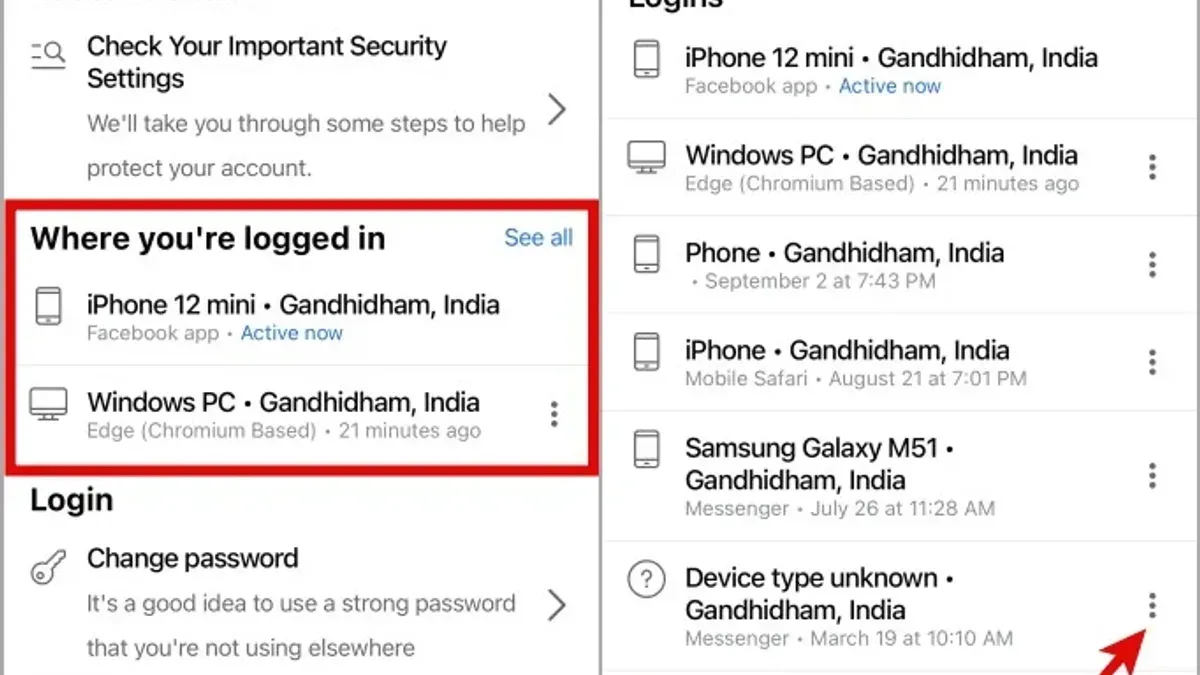
This article explains how to see where you're logged into Facebook, enabling verification of all active sessions across devices and locations. Checking active sessions helps identify unauthorized access or forgotten logins on devices no longer in use.
Facebook stores session information separately for the main Facebook app, Facebook Messenger, and desktop browsers, making it necessary to check each platform individually. The process varies slightly between iPhone, Android, and desktop, especially in navigating menus and settings.
Follow the step-by-step instructions to locate active sessions on desktop and mobile apps. Each section clarifies the exact menu paths and options, ensuring users can quickly find and manage logged-in devices for improved account security.
Before you start: What is needed to see where you're logged into Facebook
Access to the Facebook account credentials or an already logged-in device is essential to view active sessions. Without logging in, the account’s active devices and locations cannot be checked. The process varies depending on the platform used—Facebook’s main app, Messenger app, or desktop/browser access.
A stable internet connection is necessary, along with a device such as a smartphone, tablet, or computer. Understanding the differences between the apps and platforms helps in navigating to the correct settings. For example, the Facebook app and desktop site provide detailed session information, while Messenger’s options are more limited.
| Platform | App Used | Session Details Available |
|---|---|---|
| Desktop | Facebook via web browser | Full session list including device, location, and login time |
| Mobile | Facebook app (iOS/Android) | Comprehensive session overview similar to desktop |
| Mobile | Messenger app (iOS/Android) | Limited information; primarily device name and last active time |
Steps before starting:
- Ensure access to the Facebook account by having the correct username and password or an already logged-in device. Successful access will allow navigation to account settings.
- Confirm the device (phone, tablet, or computer) is connected to the internet. When connected, the Facebook or Messenger app or website will load without errors.
- Identify which platform will be used to check sessions: desktop browser, Facebook app, or Messenger app. Locating the correct app interface prepares for the next steps.
- Understand that session management options differ slightly by platform, so follow platform-specific instructions carefully for accurate results.
How to see where you are logged into Facebook on desktop
- Log in to Facebook using a desktop web browser. After successful login, the homepage should appear.
- Click the downward arrow icon at the top-right corner of the screen to open a dropdown menu.
- Select Settings & Privacy from the dropdown, then click Settings. The Settings page will open.
- In the left sidebar, click Security and Login. This section displays security-related options.
- Scroll down to the Where You're Logged In section. This area lists all active sessions, showing the device type, approximate location, and last active time.
- Review the listed sessions carefully. Look for unfamiliar devices, locations, or login times that do not match known activity.
- To log out of a suspicious session, click the three-dot menu next to that session and choose Log Out. The session will be terminated remotely.
Tip: If a session shows a vague location or device type, cross-check your own devices and recent activity before logging out to avoid unnecessary disruptions.
Screenshot examples typically display a list with device icons (such as computer, smartphone), city or region names, and timestamps like "Active now" or "2 hours ago". This visual confirmation helps quickly identify irregular sessions.
How to see where you are logged into Facebook on the mobile app
- Open the Facebook app on the iPhone or Android device. The home screen with the news feed should appear.
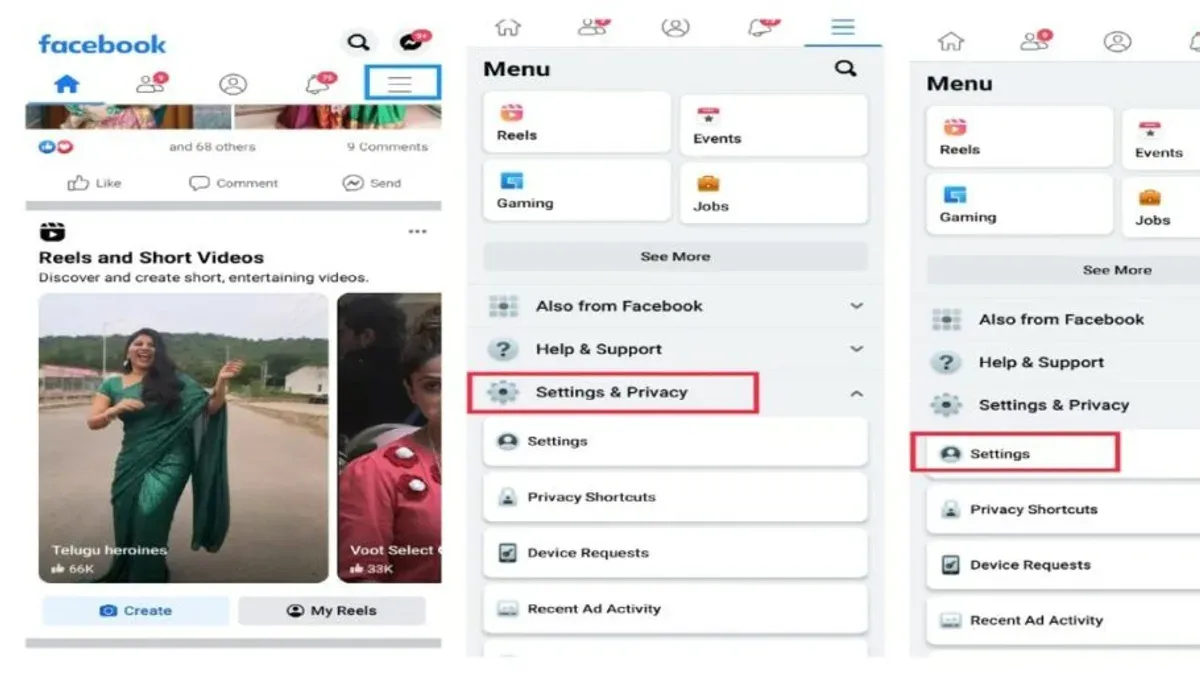
- Tap the Menu icon, typically represented by three horizontal lines, located at the bottom right on iPhone or top right on Android. This opens the main navigation menu.
- Scroll down and select Settings & Privacy, then tap Settings. This leads to the account settings page.
- Under the Security section, tap Security and Login. This opens the login and session management screen.
- Locate the Where You're Logged In section. It displays a list of active sessions including device type, approximate location, and last active time, similar to the desktop view.
- To log out from any session, tap the three-dot menu next to the session entry and select Log Out. The session will end, securing the account from that device.
Tip: If a session shows an unfamiliar device or location, logging out immediately helps protect the account.
How to see where you're logged into Facebook Messenger
Facebook Messenger uses the same login credentials as the Facebook account, but session management is handled through Facebook's Security and Login settings. The Messenger app itself does not provide a dedicated session overview; users must access Facebook's account settings to view active sessions, including Messenger logins.
- Open the Messenger app and tap your profile picture in the top left corner to access settings. A settings menu will appear.
- Scroll down and select Account Settings. This action opens the Facebook settings page, often in a web view within Messenger or the default browser.
- On the Facebook Settings page, tap Security and Login. This section lists all active sessions linked to the Facebook account.
- Review the list under Where You're Logged In. Sessions that include Messenger access will appear alongside desktop, mobile, and other device sessions, showing device type, location, and last active time.
- To end any Messenger session, tap the three-dot menu next to the session entry and select Log Out. This logs out the Messenger session on that device.
Tip: Since Messenger sessions are managed via Facebook account sessions, regularly reviewing the Facebook Security and Login page ensures all Messenger logins are accounted for and helps spot unauthorized access.
How to see where you're logged in on Facebook on iPhone
- Open the Facebook app on the iPhone. The app icon is a white "f" on a blue background.
- Tap the menu icon, which appears as three horizontal lines stacked at the bottom right corner. This opens the main menu.
- Scroll down and tap Settings & Privacy to expand the submenu.
- Select Settings from the expanded options to open the account settings page.
- Scroll to the Security section and tap Security and Login. This page shows security-related options.
- Under the Where You're Logged In section, review the list of active sessions. Each session displays the device type (e.g., iPhone, Windows computer), approximate location based on IP, and the last active time.
- To log out from any session, tap the three vertical dots next to that session and select Log Out. This ends the session on that device.
- If an unknown device or location appears, immediately select Log Out for that session and consider changing the account password from the Security and Login settings.
Tip: Sessions marked as "Active now" indicate currently active devices; log out from any session not recognized to secure the account promptly.
How to see where you're logged in on Facebook mobile (general guidance)
On mobile devices other than iPhone, such as Android phones and tablets, the process to view active Facebook sessions is similar but can vary slightly by app version. Begin by opening the Facebook app and tapping the menu icon, typically three horizontal lines. Navigate to "Settings & Privacy," then select "Settings."From there, scroll to "Security and Login" to find "Where You're Logged In," which lists active sessions with device type, approximate location, and last active time.
Session details may differ in format depending on the operating system and app version. Newer versions of the app tend to provide more precise location information and clearer device identifiers, while older versions might show less detail. Keeping the Facebook app updated ensures access to the latest security features and more accurate session data.
When reviewing sessions, note any unfamiliar devices, locations, or recent activity times. Sessions labeled with generic device names or locations far from usual access points may signal unauthorized access and warrant a logout or password change.
- Open the Facebook app on the mobile device and tap the menu icon (three horizontal lines). You should see a list of options including "Settings & Privacy."
- Tap "Settings & Privacy," then select "Settings." This opens a comprehensive settings menu.
- Scroll down and tap "Security and Login." The page displays security options and login details.
- Under "Where You're Logged In," review the list of active sessions showing device types, locations, and last active times. Select any session to see more details or to log out.
Tip: Regularly updating the Facebook app improves session detail visibility and security management options.
Troubleshooting: What to do if sessions don’t appear or can’t log out
When active sessions fail to display or log out options are unresponsive, start by checking the internet connection to ensure it is stable. An outdated Facebook app or browser version often causes display errors; update to the latest version available. Clearing the app cache or browser cookies can resolve anomalies preventing session details from loading properly.
Verify that the correct Facebook account is logged in, especially if multiple accounts are used on the device. Users sometimes report error messages like "Unable to load sessions" or "Logout failed," which commonly stem from connectivity or software issues.
If sessions cannot be managed and there is suspicion of unauthorized access, immediately reset the Facebook password via Settings & Privacy > Security and Login > Change Password. This action logs out most devices and secures the account.
For persistent problems after these steps, contact Facebook Support through the Help Center. Provide details such as error messages, device type, and app version for faster resolution.
- Check internet connectivity; confirm pages load correctly outside Facebook.
- Update the Facebook app or browser to the latest version; verify the update installed successfully.
- Clear app cache or browser cookies; reopen Facebook and navigate to Security and Login settings.
- Confirm that the active Facebook account is the one intended; switch accounts if necessary.
- If unable to log out suspicious sessions, reset the password under Security and Login > Change Password; the confirmation screen should show password updated.
- If issues remain, visit Facebook Help Center and submit a support request detailing the problem and device information.
How to interpret the session details to protect your account
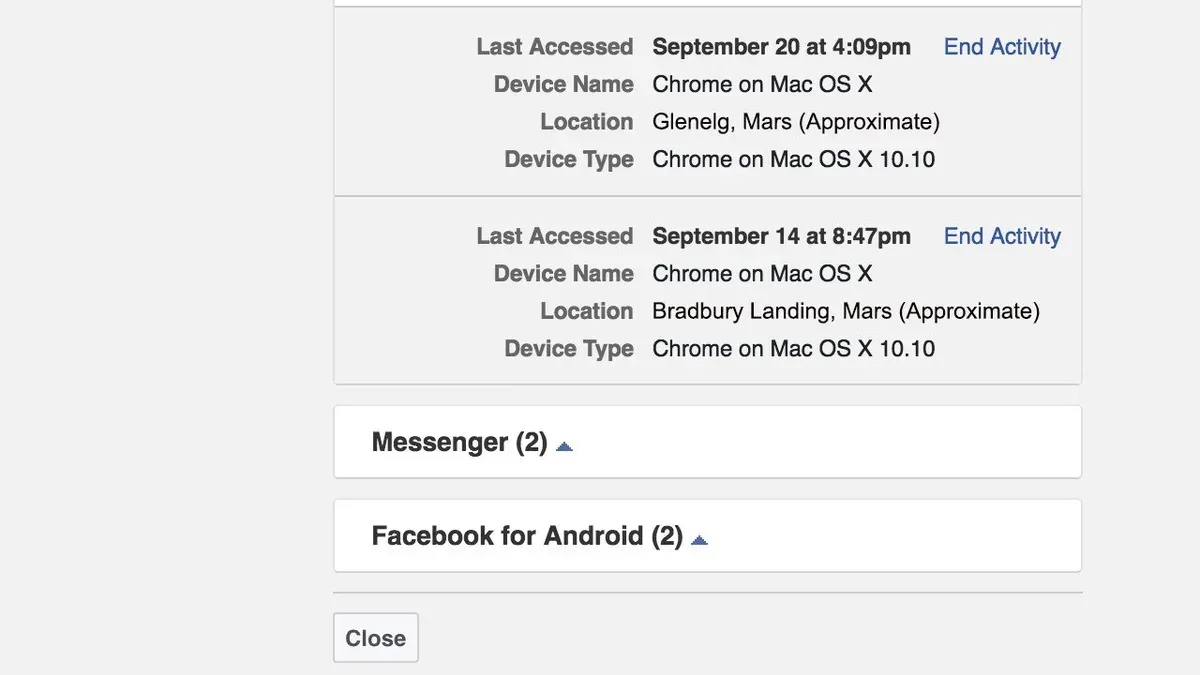
Each active session shows a device type, an approximate location, and the last active time. Device types range from browsers (like Chrome or Firefox) to mobile phones, tablets, or desktop apps. Locations are approximate and based on IP addresses, so they may not be perfectly accurate. The last active time indicates when the session was last used, helping identify recent activity.
Suspicious sessions often involve unrecognized devices, unfamiliar locations, or activity at odd times. For example, a session showing a Windows PC in a different country that was active late at night could be suspicious if the account owner only uses a phone in their home city during the day. In contrast, a session labeled "Chrome on Windows" from the home city with activity a few minutes ago is likely legitimate.
Recommended actions: If suspicious sessions are identified, log out of those sessions individually or use "Log Out Of All Sessions" to reset all active logins. Enabling two-factor authentication (2FA) adds an extra layer of security by requiring a verification code on login attempts from new devices.
Keep in mind location accuracy depends on the IP address and device naming conventions can be vague or generic, so use judgment rather than relying solely on these details. Regularly reviewing sessions helps maintain account security.
- Review the list of active sessions under Security and Login settings. Identify device types, locations, and last active times.
- Compare listed sessions with known devices and typical locations. Mark any that are unfamiliar or unexpected.
- For any suspicious session, select "Log Out" next to it. Confirm the session disappears from the list.
- To secure the account further, go to "Security and Login" and enable two-factor authentication. Follow prompts to set up 2FA with a phone number or authentication app.
Example: A user sees a session from "Firefox on Windows" in a foreign city active 2 hours ago, but the user only accesses Facebook via "Chrome on Android" from their home city. This session should be logged out immediately and 2FA enabled for protection.
Frequently asked questions
How to see where you re logged in on facebook on iphone?
Open the Facebook app and tap the three horizontal lines at the bottom right. Scroll down to Settings & Privacy, then tap Settings. Under Security, select Security and Login, where a list of active sessions shows devices, locations, and login times.
How to find where you're logged into facebook?
Access Facebook Settings and navigate to Security and Login. There, under the section named "Where You're Logged In," all current devices and locations appear. This can be checked on both desktop and mobile apps.
How to see where you're signed in on facebook?
In Facebook's Security and Login settings, the "Where You're Logged In" area displays all active sessions. Each session lists device type, approximate location, and last active time to help identify unfamiliar access.
Where am i logged in on facebook?
To view all logged-in locations and devices, go to Facebook Settings > Security and Login > Where You're Logged In. This shows current sessions on desktop, mobile, and Messenger, allowing management of each session.
How to find where you’re logged into Facebook?
Locate this information in Facebook's Security and Login section, found within Settings. The "Where You're Logged In" panel provides detailed session data including device names, locations, and login timestamps.
What this guide does not cover and other important considerations
This guide does not cover advanced forensic account investigations or details about third-party apps connected to Facebook beyond the Facebook and Messenger apps themselves. The location data shown in session listings is approximate and may not accurately reflect the exact physical location of a device. Users should not rely solely on reviewing session listings for complete account security. Enabling two-factor authentication and regularly monitoring overall account activity remain essential steps to protect the account.
The most useful next step is to enable two-factor authentication in Facebook’s Security and Login settings. This adds a critical layer of protection by requiring a second verification method beyond the password, significantly reducing the chance of unauthorized access even if login credentials are compromised.
See also: How to See Where You're Logged Into Discord: Step-by-Step · How to See Where You're Logged Into Bumble: Step-by-Step Guide · How to See Where You're Logged Into Bluesky: Step-by-Step · How to Report Impersonation on Facebook: Step-by-Step Guide



