
How to See Where You're Logged Into Bumble: Step-by-Step Guide
Discover how to check where you're logged into Bumble and manage your sessions to protect your account and privacy effectively.

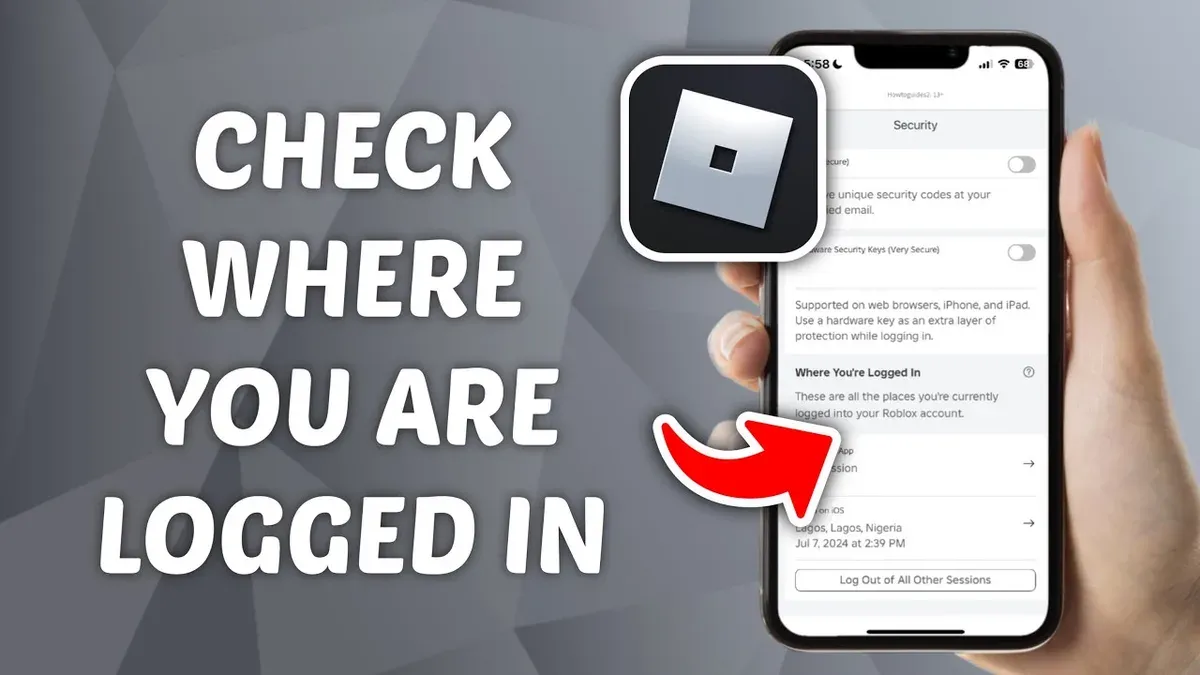
This article explains how to see where you're logged into Bumble and manage active sessions across devices and platforms. Knowing active login locations helps maintain account security and control. Bumble does not offer a direct feature showing all active sessions with device details, but users can review connected devices and session status through linked accounts and app behavior.
Start by confirming login credentials and platforms used, such as iOS, Android, or desktop web. Accessing Bumble through Facebook or Apple ID may affect session management options. Understanding Bumble’s location settings and profile discovery features clarifies what is visible to others and what relates strictly to login activity.
Following this guide provides a clear path to verify account access points, log out remotely if needed, and adjust location preferences to control profile visibility.
Before you start: What is needed to check Bumble login locations
Checking where a Bumble account is logged in requires access to either the Bumble app or the Bumble web login page. The user must have valid Bumble account credentials, such as an email address, phone number, or a linked social login like Facebook or Apple ID. Without these, it is impossible to access the account settings needed to review active sessions.
Understanding the types of devices where Bumble might be logged in helps interpret session information. Commonly, users log in from smartphones (iOS or Android), tablets, and web browsers on desktops or laptops. These devices show up differently in session lists, so recognizing them aids in identifying unfamiliar or unauthorized logins.
Device diversity is common among active Bumble users. Many maintain simultaneous sessions on mobile apps and browser tabs, especially when switching between personal and work devices. Knowing this pattern helps avoid confusion when multiple active sessions appear.
- Open the Bumble app or navigate to the Bumble website login page.
Result: The login screen appears, prompting for credentials. - Enter valid account credentials.
Result: Access to the Bumble account dashboard or main interface. - Locate the settings or account management section.
Result: Options related to security, sessions, or devices become visible.
Tip: Ensure the latest version of the Bumble app is installed for up-to-date security features and session management tools.
How to log in to Bumble account on different platforms
Accessing Bumble requires signing in either through the mobile app on iOS and Android devices or via the Bumble web interface. The app provides the most comprehensive user experience, while the web version offers convenience without installation.
Logging in on iOS and Android
- Download and open the Bumble app from the App Store (iOS) or Google Play Store (Android). The launch screen will present the option to sign up or log in.
- Select the “Log In” button to proceed to the login options. Users will see choices to continue with Facebook, Apple (iOS only), or phone number.
- Choose the preferred method. For Facebook login, tap “Continue with Facebook” and enter Facebook credentials if prompted. Successful login will redirect to the main Bumble interface.
- To log in with a phone number, enter the registered number and verify via the SMS code sent. Upon correct code entry, the Bumble home screen appears.
Accessing Bumble on the web
- Navigate to bumble.com in a web browser.
- Click on “Log In” at the top right corner. The login screen offers the same options: Facebook, Apple (if on Safari and Apple device), or phone number.
- Use the preferred login method, entering credentials or verification codes as required. A successful login directs to the Bumble web dashboard.
Tip: If using multiple login methods, ensure the phone number or Facebook account is linked to the same Bumble profile to avoid creating duplicate accounts.
How to see where you're logged into Bumble
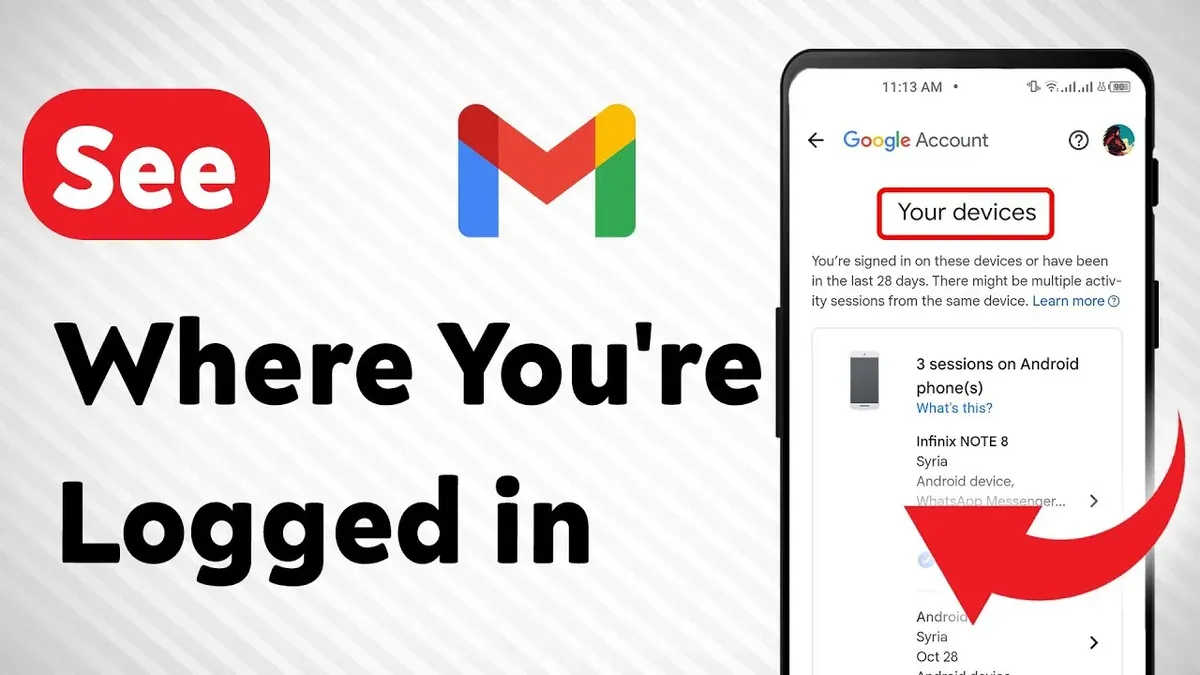
Bumble does not provide a dedicated feature within its app or web interface for viewing all active sessions or devices currently logged into an account. However, users can check recent login activity indirectly through connected platforms or by monitoring account notifications.
- Open the Bumble app and tap the profile icon in the bottom-left corner; this leads to account settings.
- Scroll down and select "Privacy & Safety"; review any security notifications or alerts about unusual login attempts. If suspicious activity occurred, Bumble may notify here.
- Check email inbox linked to the Bumble account for login alerts or security messages from Bumble regarding new device sign-ins.
- For users logged in via Facebook, navigate to Facebook's Security and Login settings on the Facebook app or website. Under "Where You're Logged In," review active sessions involving Bumble's login.
- Similarly, if phone number authentication is used, verify recent login activity through phone service notifications or app access logs if available.
Limitations: Bumble does not show a direct list of devices or session timestamps inside its app, which limits full visibility. Reliance on connected platforms or email notifications is necessary for session monitoring.
Tip: Regularly changing the Bumble account password and enabling two-factor authentication, if available, enhances security given the lack of native session management tools.
How to log out of Bumble on other devices remotely
Bumble does not provide a direct feature within the app or web interface to remotely log out from other devices. Unlike some platforms that list active sessions with options to revoke access, Bumble requires alternative methods to secure the account when suspicious activity is detected or old devices need to be disconnected.
To effectively revoke access on all devices, follow these steps:
- Change the Bumble account password or, if using social login, change the password on the linked Facebook or Apple account. This invalidates active sessions tied to the old credentials.
- Unlink or disconnect any connected social accounts within Bumble's settings to prevent automatic sign-ins from those platforms.
- Check for any suspicious email notifications from Bumble about new logins. If found, act quickly by updating passwords and enabling additional security measures on linked accounts.
Tip: Regularly updating login credentials is the most reliable way to end unauthorized sessions since Bumble lacks native session management controls.
Other dating apps and platforms often provide explicit session lists and remote logout options, making account management more straightforward. Until Bumble adds similar features, password changes and unlinking social accounts remain the primary tools to control device access.
How to set location in Bumble and how does Bumble location work
Bumble uses location data to display potential matches within a specified radius. Location settings directly impact which profiles appear during swiping and who can discover the user. Location can be set automatically via device GPS or manually updated through Bumble's settings.
- Open the Bumble app and tap the profile icon in the lower-left corner. The profile screen appears.
- Tap the settings gear icon in the top-left to access account settings.
- Scroll to the "Location" section. Here, the current detected location is shown.
- To update location manually, tap "Set Location" or "Change Location." A search field or map interface appears.
- Enter the desired city or region or select a point on the map, then confirm the choice. The new location updates instantly on the profile.
- Adjust the "Distance" slider below location to set the match radius, typically from 1 to about 100 miles. This controls how far Bumble searches for matches.
Tip: Manual location updates override GPS temporarily but may revert when the app refreshes or location permissions change.
Bumble does not display exact user coordinates to others, only approximate areas based on the set location and radius. Location sharing is limited to profile visibility and does not expose device-specific location history. Users concerned with privacy can restrict location permissions in their device settings, but this may reduce match accuracy.
How to find someone on Bumble and how to search someone on Bumble
Bumble does not offer a traditional profile search function. Users cannot enter a name or other details to locate a specific person directly within the app. Instead, Bumble relies on a swipe-based discovery system paired with an algorithm that suggests profiles based on location, preferences, and activity.
Profiles appear in the swipe queue according to factors such as proximity, shared interests, and user activity. Matches happen when both parties swipe right. Because there is no direct search, finding a specific individual requires seeing their profile in the swipe feed or using external information like profile photos or shared contacts.
To increase visibility and improve chances of finding certain profiles, adjusting settings like match distance and age range helps. Being active regularly and completing the profile with photos and prompts also boosts algorithmic priority. Bumble’s official support clarifies that the absence of a search bar is intentional to foster organic matches rather than targeted browsing.
- Open the Bumble app and navigate to the swipe queue where profiles appear one at a time.
- Adjust distance and age filters by tapping the filter icon to broaden the pool of visible profiles.
- Swipe right on profiles of interest to initiate a potential match; mutual right swipes create a match.
- Check the Match Queue tab to see profiles that have matched and start conversations.
- Regularly update profile information and remain active to maintain visibility within the algorithm.
Tip: Sharing Bumble profiles via social media or messaging outside the app can help locate specific users if direct search is impossible.
What are must see profiles on Bumble and can you see matches in Bumble
Bumble highlights certain profiles as “Spotlight” or “SuperSwipe” to increase visibility. These are paid promotional features that make profiles more prominent to potential matches for a limited time. The app does not label these as “must see” explicitly, but users often recognize them by the visual cues and priority placement in swipe queues.
Matches appear in the “Matches” tab accessible from the Bumble main screen. Here, paired users can view each other’s profiles and start conversations. The list updates in real time as new matches occur. Both free and premium users can see matches, but premium subscriptions offer additional perks.
Viewing Who Liked You
Free Bumble users see incoming likes only when they swipe right on a profile. Bumble Premium and Bumble Boost subscribers can view a grid of profiles that have already liked them, allowing selective matching without random swiping. This feature is often called the “Beeline.”
Tip: Access the Beeline by tapping the yellow heart icon on the swipe screen; this feature is exclusive to paid plans.
Feature Comparison Table
| Feature | Free | Premium (Boost/Premium) |
|---|---|---|
| See Matches | Yes | Yes |
| See Who Liked You (Beeline) | No | Yes |
| Use Spotlight to Promote Profile | No | Yes |
| SuperSwipe to Highlight Interest | No | Yes |
Direct screenshots of the Matches tab and Spotlight prompts show a list interface with clear profile thumbnails and notification badges. The Beeline grid displays multiple profiles with options to match or pass. Spotlight and SuperSwipe confirmation screens appear after purchase.
Troubleshooting common issues with Bumble login and session visibility
If Bumble does not display active sessions or login history, it is because the app does not provide this feature natively. Users expecting a session list will find no such option. Instead, verify login activity by reviewing connected accounts (Facebook, Apple ID, Google) and checking email notifications for new logins. If no alerts appear, the account is likely secure.
Login errors often arise from incorrect credentials, network issues, or app glitches. Common messages include "Incorrect phone number or password" and "Network error, please try again." To resolve these, confirm the login method matches the original setup, reset the password if necessary, and ensure a stable internet connection. Updating the app to the latest version can also fix bugs causing login failures.
For failed sign-in attempts flagged as suspicious, Bumble may temporarily lock the account or require verification. Follow on-screen prompts to complete CAPTCHA or verify via email or phone. If access remains blocked, clear the app cache or reinstall Bumble.
When to contact Bumble support
Contact Bumble support when unauthorized login activity is suspected, or account recovery tools fail. Examples include receiving login alerts for unknown devices or inability to reset a locked account. Use the in-app Help section or visit Bumble’s official support site to submit a request. Provide detailed information about the issue and any error messages encountered to expedite response.
Tip: Keep contact email and phone number updated in account settings to ensure prompt communication from Bumble regarding security events.
Frequently asked questions
How to find a bumble account?
Finding a Bumble account typically requires the person to be within your set location radius since Bumble uses location-based matching. There is no global search by username or email. To locate an account, use the app’s swipe feature or adjust your location settings to broaden the search area.
How does bumble work reddit?
Reddit users discuss Bumble as a location-based dating app where women make the first move in heterosexual matches. The app combines standard swipe mechanics with features like Bumble BFF and Bumble Bizz for friendship and professional networking. User experiences vary, and Reddit threads often cover tips, complaints, and updates.
Can you search people on bumble?
Bumble does not offer a traditional search function to find specific profiles directly. Instead, users discover others by swiping through profiles within a selected location and age range. Profile visibility depends on location, preferences, and activity.
Can you search people on Bumble?
Searching for people by name or other identifiers is not supported on Bumble. The platform’s design focuses on discovery through matching rather than direct searching. Adjusting location and filters can help find a broader range of profiles.
How does Bumble location work?
Bumble uses GPS-based location to show profiles within a user-defined radius, typically up to 100 miles. Location updates occur when the app is opened or refreshed. Users can manually set a location via Bumble’s Travel feature if they have a premium subscription.
What This Guide Does Not Cover and When to Seek Other Help
Bumble currently does not provide a comprehensive active session or login location dashboard like some other platforms. This limits the ability to see every device or browser where the account is logged in. Users cannot view detailed IP addresses, exact login times, or full session histories.
For users who suspect unauthorized access or account compromise, relying solely on the app’s limited session visibility is insufficient. In such cases, immediately changing the Bumble password and contacting Bumble support for assistance is recommended. Enhanced security measures like two-factor authentication are not available, so vigilance is key.
Tip: Regularly review connected social media accounts or phone number associations linked to Bumble to spot unusual activity.
To maintain control over the account, the most practical next step is to routinely log out from devices no longer in use and monitor notifications from Bumble for any login alerts or suspicious changes. This proactive approach helps mitigate risks when detailed session management tools are unavailable.
See also: How to See Where You're Logged Into Bluesky: Step-by-Step · How to See Where You're Logged Into BeReal: Step-by-Step Guide · How to Log Out of Snapchat on All Devices: Clear Step-by-Step Guide



