
How to See Where You're Logged Into Bluesky: Step-by-Step
This guide shows how to see where you're logged into Bluesky and manage active sessions to protect your account.

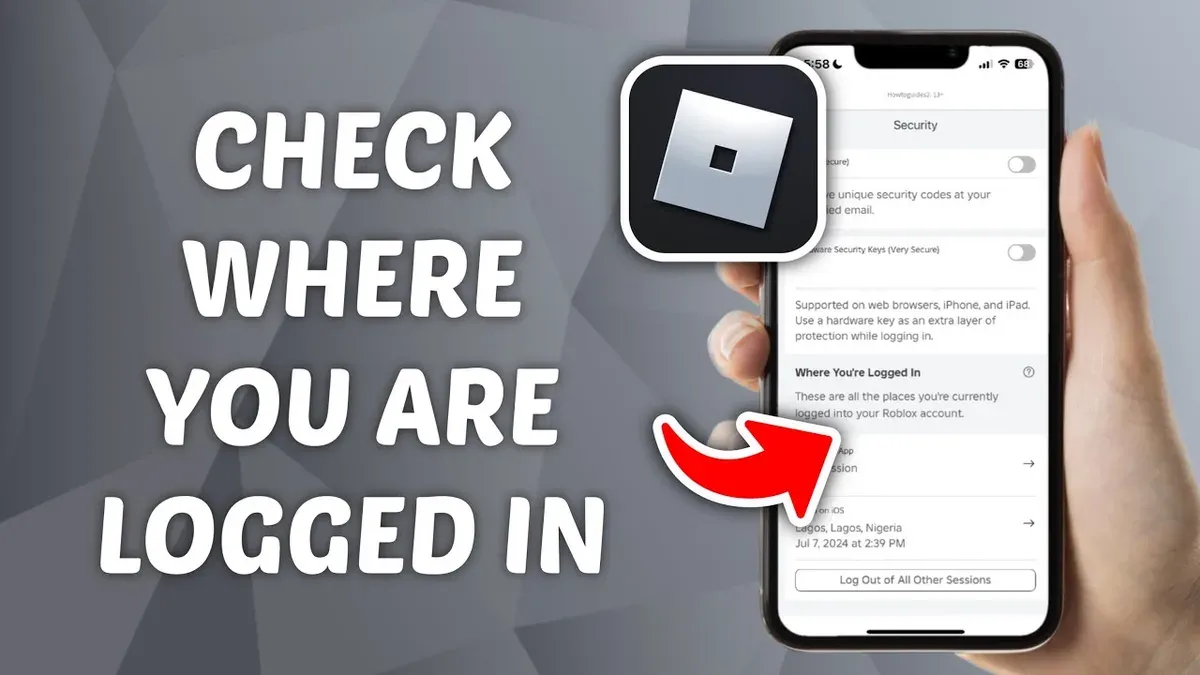
This article explains how to see where you're logged into Bluesky and manage active sessions effectively. It covers the exact steps to access the session settings within the Bluesky app or website, helping users identify devices currently logged in. Understanding active logins is crucial for maintaining account security and controlling access.
Beyond session management, the guide outlines how to log in, set up the account, post content, and use Bluesky's search features to find user posts. It also addresses common login and session troubleshooting to resolve typical issues. This comprehensive approach equips both new and existing Bluesky users with the knowledge to control their presence and activity on the platform.
Before you start: What is needed to check active Bluesky logins
To view active login sessions on Bluesky, a valid Bluesky account with current login credentials or an active session is essential. Access must be through the Bluesky app available on iOS or Android, or via the web interface at blueskyweb.xyz, where session details are displayed. A basic understanding of the importance of account security helps in interpreting session information and deciding which sessions to keep or terminate.
Active sessions are typically found within the account settings under a section labeled "Security" or "Sessions." Here, users can see device names, locations, and timestamps for each login. Screenshots of this interface usually show a list of devices with options to log out remotely.
Before proceeding, ensure the app or browser is updated to the latest version for accurate session data. Without proper access or an active login, session information will not be available.
- Open the Bluesky app or go to blueskyweb.xyz and log in with valid credentials. The home screen or profile icon should become accessible.
- Navigate to the profile icon in the upper right corner, then select "Settings" from the dropdown menu. The settings page should appear.
- Within settings, locate and click the "Security" or "Sessions" tab. A list of active sessions with device details and login times should display.
How to log in to Bluesky
- Open the Bluesky app on a mobile device or visit the official website at blueskyweb.xyz. The home screen presents options to create an account or log in.
- Tap or click the "Log in" button to reach the sign-in page. This page offers fields for email and password entry, as well as alternative sign-in options.
- Enter the registered email address and password associated with the Bluesky account. Upon successful entry, a "Log in" button becomes active. Select it to proceed.
- If preferred, select a third-party login option such as "Continue with Google". This redirects to the Google authentication interface to verify credentials. After approval, the browser or app returns to Bluesky's main interface logged in.
- Once logged in, the Bluesky home or feed screen appears. This confirms a successful login and grants access to account features, including session management.
Tip: If the password is forgotten, use the "Forgot password?" link on the sign-in page to reset it through the registered email.
How to see where you're logged into Bluesky
- Open the Bluesky app or web interface and ensure the account is logged in. Access the main menu by selecting the profile icon or hamburger menu in the top corner. The account settings option should be visible here.
- Navigate to Settings & Privacy, then select Security. This section contains all options related to login and account access management.
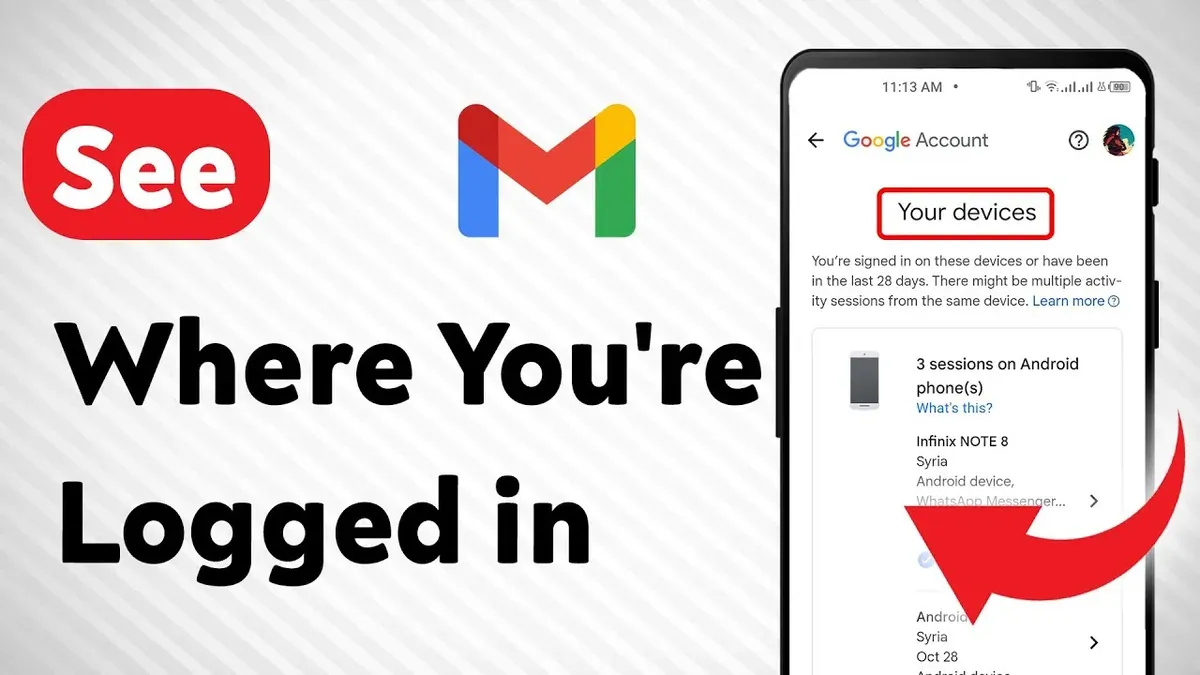
- Find and tap on Active Sessions or Logged In Devices. A list will appear showing all current sessions associated with the account.
- Review session details including device type (e.g., iPhone, Chrome browser), approximate location based on IP address, and the last activity timestamp. For example, a session might read: "Chrome on Windows - New York, Last active 2 hours ago."
- To log out from any session remotely, select the specific session and click Log Out. Confirm the action if prompted. This ends access from that device without affecting the current session.
Tip: Regularly reviewing active sessions helps identify unauthorized access and maintain account security.
How to set up Bluesky and post content
- Complete the profile setup by selecting the profile icon in the top-right corner and choosing Settings & Privacy. Navigate to Profile and add a profile picture, display name, and bio. Successful completion shows updated profile details on the main page.
- To post content, tap the New Post button, usually a pencil or plus icon. A text box appears where the post content is entered. After typing, a preview of the post shows with options to edit or cancel.
- Tag users by typing @ followed by the username in the post text. A dropdown with matching usernames helps select the correct user. Once posted, tagged users appear as clickable links directing to their profiles.
- Tag topics by typing # followed by the keyword without spaces. Suggested topics appear in a dropdown to choose from. Posted hashtags become clickable, leading to related posts.
- Submit the post by selecting Post. The new post appears at the top of the timeline with any tags active and visible.
Tip: Use clear and concise language in posts to enhance engagement and ensure tags are accurate for better reach.
How to search on Bluesky and find user posts
Bluesky’s search bar is the primary tool for locating users, posts, and hashtags. It is accessible at the top of the app or web interface. Enter a username, keyword, or hashtag to see relevant results grouped by People, Posts, and Tags. For example, searching @exampleuser will show that user’s profile and recent posts, while #technews returns posts tagged accordingly.
To perform a targeted search, type the exact username with the @ prefix or a hashtag with the # prefix. Partial names or keywords without prefixes typically yield broad matches across posts and profiles. If the search returns no results, verify spelling or try alternative keywords.
When the search function is unresponsive, refreshing the app or clearing the browser cache often resolves temporary glitches. Logging out and back in can also help. Bluesky’s search may not index very recent posts instantly, causing a delay in appearance.
Compared to other platforms, Bluesky search offers fewer filters and no advanced Boolean operators. This limits complex query construction and deep content filtering. Users relying on intricate searches should expect a simpler, more straightforward experience.
Troubleshooting common Bluesky login and session issues
If active sessions do not appear in the security settings, first verify that the app or browser is fully updated. Clear cache and restart the app or browser to refresh session data. If the problem persists, log out completely and log back in; this often restores visibility of active sessions.
For login failures, start by resetting the password using the "Forgot password?" link on the login page. Follow the email instructions carefully. If the account recovery email is not received, check spam folders or try an alternate email if registered. Persistent login issues may require contacting Bluesky support for identity verification and account recovery.
Login problems via Google or other third-party providers usually stem from permission or authentication errors. Confirm that the third-party account is active and linked to Bluesky. Revoke and reauthorize Bluesky access from the third-party account settings if necessary. Additionally, ensure that pop-up blockers or security extensions are not interfering with the OAuth process.
- Update the Bluesky app or browser to the latest version, then open the app or site; the active sessions should appear under Settings > Security > Active Sessions.
- If login fails, click "Forgot password?" and complete the reset steps; a successful reset leads to a login confirmation screen.
- For third-party logins, check the linked account’s permissions and reauthorize Bluesky access; successful reauthorization brings the user to the Bluesky home screen.
Frequently asked questions
How to get on bluesky?
Access Bluesky by downloading the app from the Apple App Store or Google Play Store. After installing, open the app and log in if an account exists, or proceed to sign up for a new account. Bluesky requires either an invitation or joining a waitlist for new users, depending on current platform availability.
How to sign up for bluesky?
Sign up by opening the Bluesky app and selecting the sign-up option on the login screen. Provide a valid email address, create a username, and set a password. Confirm the email address through a verification link sent to the inbox, then complete any additional profile setup steps prompted by the app.
How to get verified on bluesky?
Verification on Bluesky typically involves submitting identification or official credentials through the app’s verification request process. Navigate to the account settings, find the verification section, and follow instructions to upload required documents. Approval depends on meeting Bluesky’s verification criteria, which may include public figure status or brand representation.
How to tag on bluesky?
Tagging users on Bluesky is done by typing the @ symbol followed by the username in the text field when composing a post. The app will suggest matching user accounts as typing continues. Select the desired user to create a clickable tag that notifies the tagged account.
How to post on bluesky?
Create a post by tapping the compose button, usually represented by a pencil or plus icon. Enter text, add images or links as desired, then tap the post or share button to publish. Posts can include hashtags to improve discoverability and mentions to engage other users.
What this guide does not cover and when to seek other help
This guide does not cover advanced security practices like two-factor authentication setup, which may not yet be fully supported by Bluesky. Users seeking enhanced account protection should monitor Bluesky updates for new security features or consult official Bluesky support channels. Bluesky’s interface and features can update frequently, so some steps might differ slightly depending on whether the app or web version is in use. For troubleshooting complex login or session problems beyond basic fixes, contacting Bluesky support or reviewing official help documentation is recommended.
Tip: Regularly review active sessions to spot unauthorized access early and log out of any unfamiliar devices promptly.
The most useful next step after managing active sessions is to familiarize oneself with Bluesky’s account privacy settings and notification preferences. This helps maintain control over personal information and stay informed of account activities, reinforcing both security and user experience.
See also: How to See Where You're Logged Into BeReal: Step-by-Step Guide



