
How to Secure Your Bluesky Account: Step-by-Step Guide
This guide provides clear steps to secure your Bluesky account, covering setup, privacy controls, and troubleshooting to keep your data safe.


This guide explains how to secure your Bluesky account with clear, direct steps covering setup, privacy controls, and troubleshooting. It walks through creating an account, configuring privacy and security settings, managing sign-ins, and handling account deletion or reactivation.
Securing a Bluesky account starts with understanding the essential requirements: a verified email or phone number, a strong password, and enabling two-factor authentication (2FA). These foundational steps prevent unauthorized access and protect personal data. The guide also highlights common mistakes, such as neglecting session management or ignoring suspicious login alerts, to maintain ongoing account safety.
Each section focuses on actionable instructions, from adjusting visibility settings under "Privacy & Safety" to navigating account recovery when access is lost. This approach ensures users maintain control and privacy without unnecessary complexity.
Before you start: What is needed to secure a Bluesky account
Securing a Bluesky account begins with having the right tools and understanding key requirements. First, a valid email address from a reputable provider like Gmail, Outlook, or Yahoo is necessary for account creation and recovery. A verified phone number may also be required for two-factor authentication, enhancing account security.
The Bluesky app is compatible with devices running iOS 14 or later and Android 10 or above. Using an up-to-date app version ensures access to the latest security features and bug fixes. Always check the app store for updates before proceeding.
Strong passwords are critical. Use a minimum of 12 characters combining uppercase, lowercase, numbers, and symbols. Avoid common words or predictable patterns. Consider using a trusted password manager to generate and store complex passwords securely.
Bluesky operates on a decentralized protocol, meaning account data isn’t held by a single entity but spread across a network. Understanding this helps users grasp why controlling personal keys and secure authentication matters more than traditional centralized platforms.
- Prepare a valid email account from a recognized provider and verify access. Successful verification allows account registration.
- Ensure the device runs iOS 14+ or Android 10+ and download the latest Bluesky app version. The app should open without compatibility errors.
- Create a strong, unique password or prepare to use a password manager. The password must be accepted during account setup without weak password warnings.
- Familiarize with Bluesky’s decentralized model basics by reviewing official documentation or help resources. This knowledge aids in understanding security settings later.
How to make a Bluesky account
- Download the official Bluesky app from a trusted app store or visit the official Bluesky website at blueskyweb.xyz. On opening the app or site, the sign-up screen will appear, prompting for basic details.
- Enter a unique username that is easy to remember but hard to guess. Avoid using full names or common words. The system will immediately indicate if the username is available or taken.
- Create a strong password using a combination of uppercase and lowercase letters, numbers, and symbols. Password strength meters integrated into the sign-up form will display feedback, turning green for strong passwords. Aim for at least 12 characters to resist brute-force attacks.
- Provide a valid email address or phone number for account verification and recovery. After submitting, a verification code will be sent via email or SMS. Enter this code on the verification screen to confirm ownership.
- Review and accept Bluesky’s terms of service and privacy policy. On successful registration, the app or website will redirect to the main dashboard or welcome page, confirming account creation.
Tip: Use a reputable password manager to generate and store strong passwords securely during sign-up.
How to set up Bluesky account privacy and security settings
Bluesky offers control over account visibility to balance privacy and reach. By default, accounts are public, allowing posts to be seen by anyone, which can increase follower count and engagement. Switching to a private account limits visibility to approved followers only, reducing exposure but restricting reach and discovery.
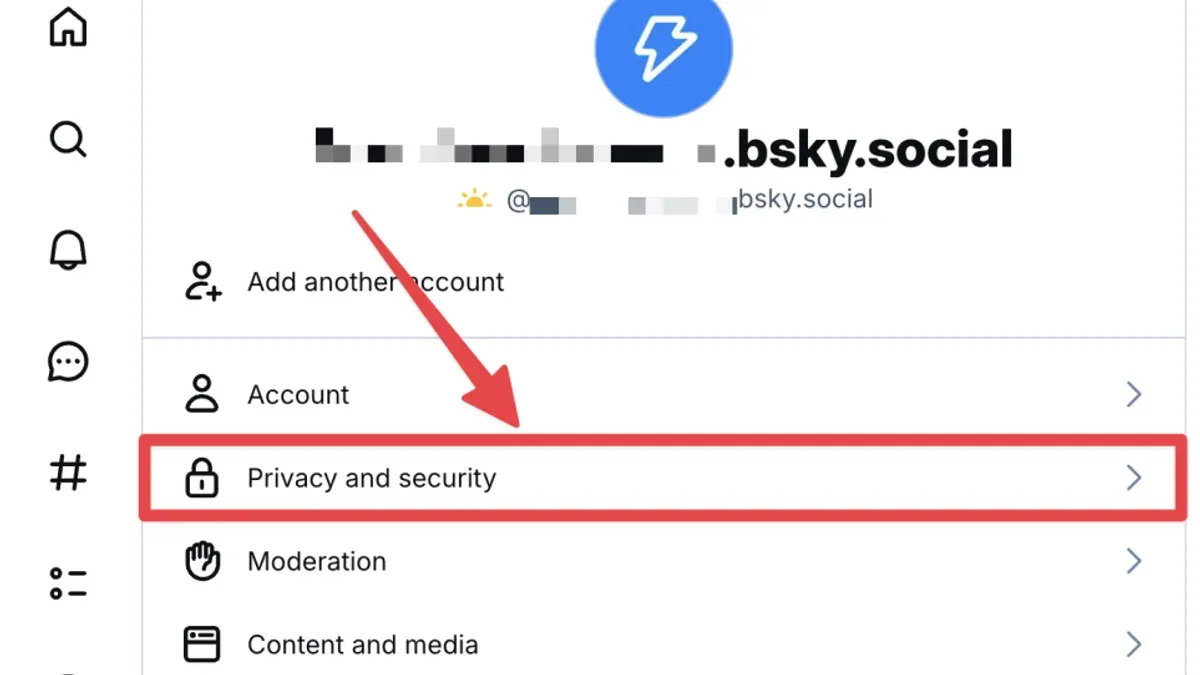
- Open the Bluesky app and tap the profile icon to access Settings.
- Select Privacy & Security to find visibility options. Choose Private Account to restrict posts to followers only. A confirmation message confirms the change.
- Under Follower Permissions, review pending follow requests and approve or deny as needed. This controls who can see private content.
- Use the Blocked Accounts list to add unwanted contacts by entering their username. Once blocked, those accounts cannot view or interact with posts.
- Enable two-factor authentication (2FA) by selecting Security then Two-Factor Authentication. Follow prompts to link an authenticator app or phone number. Successful setup is confirmed by receiving a 2FA code upon login.
- Review Connected Devices and App Permissions to revoke access from unknown or unused devices and third-party apps, minimizing exposure to account compromise.
Tip: Enabling 2FA significantly reduces unauthorized access risk by requiring a second verification step beyond the password.
How to sign in and manage your Bluesky account securely
Always access Bluesky through its official sign-in page at https://blueskyweb.xyz/login or the official app. Avoid clicking links in unsolicited emails or messages, as phishing attempts often mimic Bluesky’s branding to steal credentials. Common phishing tactics include fake login pages asking for username and password, or prompts to enter verification codes. If the URL looks suspicious or the page requests unusual information, close it immediately.
- Open the official Bluesky app or navigate to the official website login page. When the login form loads, confirm the URL is correct and secure (https with padlock icon).Successful: The login form appears without warnings from your browser.
- Enter your username and password. Use a password manager like Bitwarden, 1Password, or LastPass to generate and autofill complex passwords.Successful: Credentials populate correctly and securely without manual typing.
- Complete two-factor authentication if enabled, using an authenticator app rather than SMS when possible.Successful: Access granted after code entry.
- Immediately review active sessions and connected devices in Settings > Security > Active Sessions. Log out of any unrecognized devices.Successful: Only current device sessions remain active.
- Regularly update your password and check account activity logs for unusual logins or actions.Successful: No suspicious activity detected.
Recognize phishing by checking URLs carefully and never entering credentials on pages reached through unsolicited links. If suspicious activity occurs, change the password immediately and revoke all sessions.
Tip: Use a dedicated password manager app to avoid weak or reused passwords and to detect phishing sites through autofill warnings.
How to delete or cancel a Bluesky account
Deleting or canceling a Bluesky account requires deliberate steps through the app or website to ensure the process completes properly. Before proceeding, back up any important data, including posts, messages, or contacts, as account deletion is irreversible and will remove all associated content. Review any linked services or third-party integrations, as these will lose access once the account is deleted.
- Open the Bluesky app or visit the official Bluesky website and sign in using the secure login process. Successful login shows the user dashboard or feed.
- Navigate to the Settings section, usually accessible via the profile icon or menu sidebar. The settings page should load displaying account options.
- Locate the Account tab or menu item, then select Delete Account or Cancel Account. This option often appears at the bottom of account settings.
- Follow the prompts to confirm account deletion. This includes re-entering the password and acknowledging that deletion is permanent. A confirmation message should appear indicating the request was successful.
- After confirmation, the account enters a deactivation state for a limited grace period during which reactivation is possible. Upon expiry, Bluesky permanently deletes all data as per its data retention policy. Users will no longer have access or visibility to the account or content.
Official Bluesky policy states that account data is removed permanently after the grace period, but some backups may retain data temporarily to comply with legal or operational needs. Reported user experiences confirm that once the grace period lapses, accounts and all content are fully removed from the platform.
How to reactivate a Bluesky account
Reactivation is possible for accounts deactivated by the user or dormant for a limited time. If an account was deleted permanently, reactivation is not available. Reactivation restores access without losing data or connections if done within the allowed timeframe.
- Open the Bluesky app or visit the official website login page. The login interface should appear.
- Enter the username or email associated with the deactivated account. If the account is eligible for reactivation, a prompt or link labeled "Reactivate Account" will appear.
- Click "Reactivate Account" and follow the verification steps, such as confirming email or phone number via a code sent to the registered contact.
- Create a new password if prompted, ensuring it meets security requirements. A confirmation message should confirm successful reactivation.
- Log in with the reactivated credentials. The account dashboard or home feed should display as normal.
Tip: If the "Reactivate Account" option does not appear, the account may be permanently deleted or outside the reactivation window.
Common errors include “Account not found” or “Reactivation period expired.” In these cases, contacting Bluesky support with account details can clarify status or next steps. Case studies show successful reactivation often hinges on timely action within weeks of deactivation and accurate verification.
Troubleshooting common Bluesky account security issues
Users often encounter issues such as forgotten passwords or lost access to recovery options. When password recovery is needed, initiating the "Forgot Password" flow on the login screen sends a reset link or code to the verified email or phone. If these recovery methods are unavailable, account recovery success rates decrease significantly, requiring direct support contact, which may delay resolution.
In cases of hacked or compromised accounts, immediate action involves changing the password via the settings or recovery process and revoking active sessions under "Settings > Devices & sessions." If suspicious activity persists, users should enable two-factor authentication and review connected apps for unauthorized access.
Login failures or app errors often display specific error codes like 401 (Unauthorized), 403 (Forbidden), or 503 (Service Unavailable). A 401 error typically indicates incorrect credentials; resetting the password usually resolves it. A 403 error suggests account restrictions or temporary blocks, requiring waiting or contacting support. A 503 error points to server issues; retry after some time.
- Attempt login with correct credentials; a successful login leads to the Bluesky home feed.
- If login fails, select "Forgot Password" and follow prompts; receiving the reset email or code means recovery options are intact.
- If recovery options are lost, access the Bluesky support page to submit an account recovery request; awaiting support response confirms submission.
- For suspected hacking, immediately change the password in "Settings > Password." Successful changes return to the account dashboard.
- Review and revoke all sessions in "Settings > Devices & sessions" to log out unknown devices; confirmation shows only current device active.
- Enable two-factor authentication if not active; setup success shows confirmation message.
- Note any error codes during login; refer to Bluesky help articles or support with code details for targeted fixes.
How to view or search Bluesky content without an account
Bluesky allows non-account holders to access a limited range of public content. Users can browse public posts and profiles, but interactive features such as posting, following, or viewing private content remain restricted. This level of access is suitable for casual browsing or verifying content before deciding to create an account.
To search Bluesky content without signing in, use the official Bluesky web interface or the app's public search tool available on the login page. Enter keywords or hashtags in the search bar to retrieve public posts matching the query. The results display posts, profiles, and relevant hashtags, but filtering and advanced search options are limited compared to signed-in users.
Browsing Bluesky without an account has clear limitations. Private posts, direct messages, and follower-only content are inaccessible. Additionally, search results may not reflect personalized relevance or recent updates. The experience prioritizes public transparency while encouraging users to register for full access.
- Navigate to the official Bluesky web page or open the Bluesky app without logging in. The login screen with a search bar should be visible.
- Type a keyword or hashtag into the search bar and press Enter or tap the search icon. Public posts and profiles related to the search term will load.
- Click or tap any public post or profile to view its content. Limited interaction options appear, such as viewing posts but not commenting or following.
Tip: Use specific keywords or popular hashtags to improve search result relevance when browsing without an account.
Frequently asked questions
How to create a bluesky account?
To create a Bluesky account, download the official Bluesky app or visit the Bluesky website. Click on the sign-up option and provide a valid email address or phone number. Follow the prompts to verify the contact method and set a strong password. Completing the profile setup and agreeing to terms finalizes the account creation.
How to make my bluesky account private?
Set the account to private by navigating to Settings > Privacy & Safety > Profile Privacy. Toggle the option to make the profile private, which restricts content visibility to approved followers only. Review and approve follow requests manually to maintain control over who sees posts.
How to sign up for bluesky?
Signing up for Bluesky involves selecting the sign-up button on the app or website, entering a valid email or phone number, and verifying it via a code sent. Then, create a password that meets security requirements. Optional profile details can be added before completing registration.
How to delete a bluesky account?
Delete a Bluesky account by going to Settings > Account Management > Delete Account. Confirm the deletion by entering the password when prompted. Note that deletion is irreversible and removes all data permanently from Bluesky servers.
How to cancel bluesky account?
Canceling a Bluesky account is the same as deleting it. Access Settings > Account Management > Delete Account and confirm the choice. Account cancellation immediately disables access and removes personal data after a short retention period.
What this guide does not cover and who should seek other solutions
This guide does not cover advanced security measures beyond those currently supported by Bluesky, such as hardware security keys, multi-factor authentication via third-party apps, or decentralized identity management outside the app’s native features. Users requiring enterprise-grade protection or specialized privacy setups should consider dedicated security tools or professional advice. Additionally, this article does not address content moderation, platform-wide policy enforcement, or account recovery options that rely on Bluesky’s support team beyond basic reactivation steps.
The single most useful next step is to regularly review the "Security" and "Privacy" sections within the Bluesky app settings to ensure all options remain up to date with any new features or changes. Staying proactive with these settings will maintain account protection and help avoid common security lapses caused by outdated configurations.
See also: How to Report Impersonation on WhatsApp: A Clear Step-by-Step Guide · How to Report Impersonation on TikTok: A Step-by-Step Guide · How to Report Impersonation on Snapchat: A Clear Step-by-Step Guide · How to Report Impersonation on Instagram: A Clear Step-by-Step Guide



