
How to Report Impersonation on Instagram: A Clear Step-by-Step Guide
This guide provides clear steps to report impersonation on Instagram and protect your identity effectively.

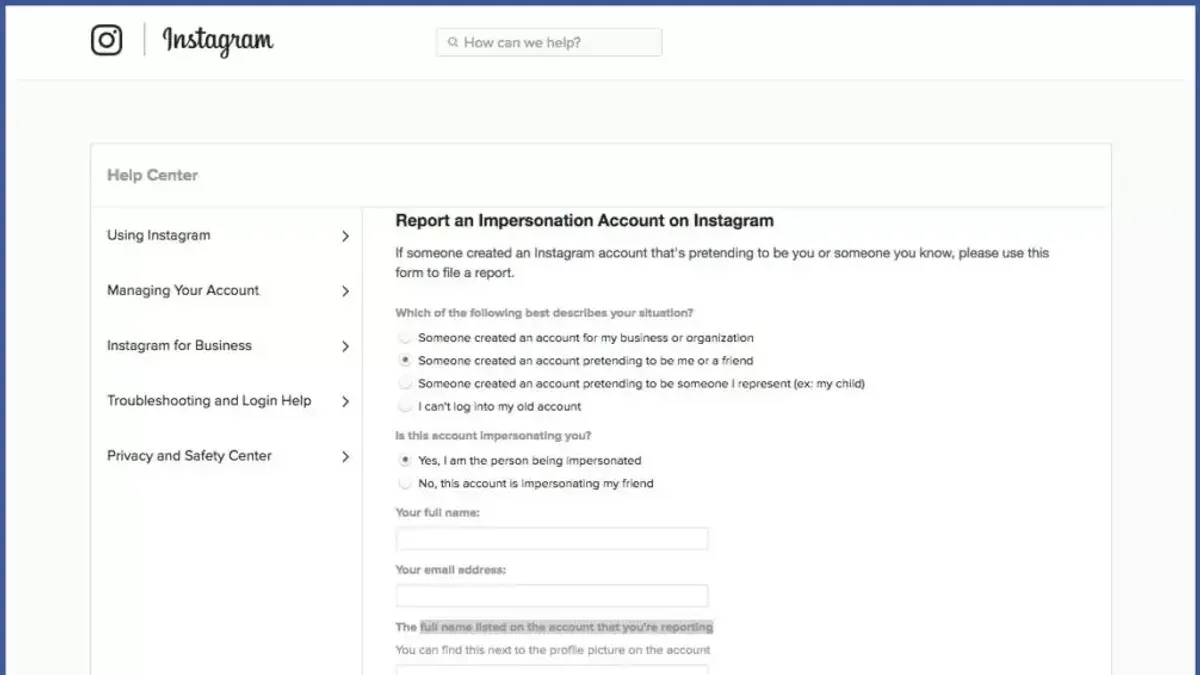
This guide explains how to report impersonation on Instagram with clear, actionable steps. Impersonation involves someone pretending to be another person or entity, which can harm reputation and security. Instagram provides specific tools to report impersonation, but the process can get confusing when linked accounts or email impersonation are involved.
Understanding the exact procedures within Instagram’s app or website is critical for a successful report. This article clarifies the differences between Instagram impersonation reports and related platforms like Facebook, outlines how to use Instagram’s dedicated impersonation report form, and addresses common issues users face when reporting. Follow this step-by-step guide to navigate the process efficiently and increase the chances of prompt action by Instagram.
Before you start: What is needed to report impersonation on Instagram
Gathering all necessary information and materials before starting the impersonation report streamlines the process and increases the chances of a successful resolution. The first requirement is clear evidence of the impersonation. This often includes the URL of the impersonating profile or screenshots that clearly show the fake account’s username, profile picture, and any posts or interactions that demonstrate the impersonation.
Proof of identity is mandatory to verify the reporter’s claim. For individuals, a government-issued photo ID such as a passport, driver’s license, or national ID card is required. Businesses or public figures should provide official documents like business licenses or tax filings that confirm their identity or association with the brand or person being impersonated.
Details about how the impersonation impacts the affected party help Instagram understand the severity of the issue. This can include reports of harassment, lost followers, or damage to reputation. Familiarity with Instagram’s impersonation policy clarifies what qualifies as impersonation: pretending to be another person or entity to deceive or mislead others.
Examples of acceptable proof of identity include a clear scan or photo of an ID showing name and photo, or official business registration documents. Screenshots should capture the entire profile page, including username and bio, to provide complete context.
- Locate the impersonating Instagram profile. Confirm its URL (e.g., instagram.com/fakeprofile). When correct, the URL appears in the browser or app address bar.
- Take screenshots of the impersonating profile, ensuring username, profile photo, and posts are visible. Check that screenshots are clear and legible.
- Prepare a copy or photo of official ID proving personal or business identity. Ensure the ID is valid and the photo is clear.
- Write a brief summary of how the impersonation affects the individual or business. This can include specific incidents or general consequences.
- Review Instagram’s impersonation policy on the Help Center to confirm the case meets their criteria. The policy should be accessible and understandable.
How to report someone on Instagram for impersonation
- Open the Instagram app and navigate to the profile of the account suspected of impersonation. The profile should be clearly identified before proceeding.
- Tap the three-dot menu icon in the upper-right corner of the profile screen. This opens a set of options related to that account.
- Select Report from the menu. This initiates the reporting process within the app.
- Choose Report Account to specify the reason for the report.
- Select It’s pretending to be someone else from the list of report reasons. This option targets impersonation specifically.
- Indicate who the account is impersonating by selecting either Me or Someone else. If choosing someone else, Instagram may prompt for additional details.
- Follow any subsequent prompts to provide additional information or evidence, such as screenshots or links. This step is optional but recommended for clarity.
- Submit the report by confirming the final prompt. Instagram will acknowledge the report submission and may provide follow-up information.
Tip: Reporting directly through the impersonating profile’s menu ensures the report is linked to the correct account and speeds up Instagram’s review process.
How to report impersonation using the Instagram impersonation report form
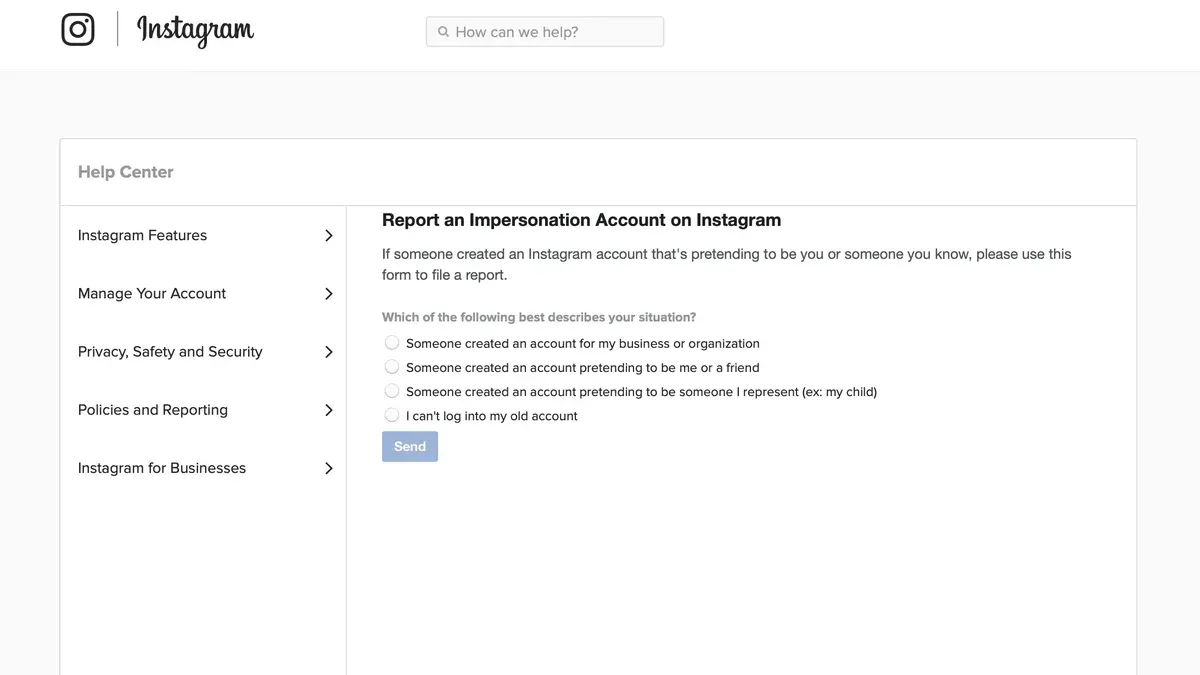
Instagram provides a dedicated online impersonation report form for serious or business-related cases that may require more detailed information than the in-app report allows. This form is accessible via Instagram’s official Help Center website. It is designed to collect specific details about the impersonation, including the impersonated account, the impersonator’s account, and evidence such as screenshots or links.
- Go to Instagram’s official impersonation report page by navigating to https://help.instagram.com/contact/636276399721841. The page should display the “Report Impersonation” form.
- Fill in all required fields: provide the full name of the person or business being impersonated, the exact Instagram username of the impersonator, and a valid email address for contact. The form will also ask whether the impersonated account is a business or an individual.
- Upload a clear, government-issued photo ID or official business documents to verify the identity of the impersonated party. This step is mandatory to prevent misuse of the reporting system.
- Include any additional evidence such as screenshots of the impersonating profile or messages. This helps Instagram assess the case thoroughly.
- Review the information for accuracy and completeness, then submit the form. A confirmation message should appear indicating successful submission.
Instagram typically responds to impersonation reports submitted through this form within a few days, though complex cases may take longer. The response will come via the email provided and may include requests for further information.
Tip: Ensure the ID image is clear and all text is legible to avoid delays in verification.
Why did Instagram ban me for impersonation? Understanding Instagram’s policies
Instagram defines impersonation as creating an account that misleads others by pretending to be someone else. This includes using someone’s name, photos, or personal information without permission, especially to deceive or harm others. The platform strictly prohibits such behavior under its Community Guidelines, aiming to protect users’ identities and maintain trust.
Instagram detects impersonation through user reports, automated systems, and manual reviews. Once a report is verified, the offending account may be disabled or removed. Common banned behaviors include creating fake profiles of celebrities or acquaintances, using stolen photos to mislead followers, or pretending to represent a business or organization without authorization.
If an account is banned, Instagram sends a notification with basic information about the action. Users who believe their ban was a mistake can appeal by following these steps:
- Open the Instagram app and navigate to the login screen. A message about the ban should appear with an option to "Learn More" or "Appeal." Successful step: access to the appeal form.
- Submit a formal appeal by providing any requested identification or proof of identity to confirm authenticity. Successful step: confirmation that the appeal was received.
- Wait for Instagram’s review, which can take several days. Users will receive an update via email or app notification. Successful step: receiving a decision on the appeal.
Tip: Appeals rarely succeed without clear proof of identity and explanation, so prepare documentation carefully.
How to report identity theft on Instagram
Identity theft on Instagram occurs when someone uses another person’s personal information, such as photos, videos, or credentials, to create or manipulate an account without permission. Examples include hacked accounts posting unauthorized content or fraudulent profiles claiming access to private data. This differs from impersonation, which involves pretending to be someone else, as identity theft often involves unauthorized use of personal data or account takeover.
To report identity theft, Instagram requires clear evidence such as screenshots, links to the offending content, and proof of account ownership or personal identity. Documentation like a government-issued ID or official correspondence may be necessary to verify the claim.
- Go to Instagram’s Help Center and navigate to the “Report Identity Theft” section. The page typically includes a form specifically designed for identity theft cases.
- Complete the form by providing the affected Instagram username, a detailed description of the identity theft incident, and attach required evidence like photos or documents. Submitting a government-issued ID is often requested to confirm ownership.
- Submit the form. A confirmation message should appear indicating the report has been received. Instagram will review the submission and may reach out via email for further information.
- Monitor email for updates or requests for additional information. Instagram’s response time varies but generally involves account recovery steps or removal of stolen content once verified.
Example: A user discovered their account was hacked and used to post false information. They submitted the identity theft form with a government ID and screenshots of unauthorized posts. Instagram verified the claim, disabled the hacker’s access, and restored the user’s control over the account.
How to report email impersonation and Gmail account impersonation linked to Instagram
Email impersonation often appears as phishing attempts designed to steal Instagram login credentials or personal information. These emails may mimic official Instagram or Google messages but contain suspicious links or requests for sensitive data. Recognizing these scams is crucial to protect both the Instagram account and the associated email.
To report Gmail account impersonation, use Google's dedicated Gmail impersonation report form available through Google’s support site. Submitting this form with details such as the sender's email address and the offending message helps Google investigate and take action against malicious accounts. Email impersonation contributes significantly to phishing incidents, which remain a common vector for account compromise.
If email impersonation is suspected, securing the Instagram account immediately is critical. Steps include changing the Instagram password, enabling two-factor authentication, and reviewing connected apps and devices. Also, check the Gmail account for any unauthorized forwarding or recovery email changes that could grant attackers access.
- Open the suspicious email and note the sender’s address and message content. This confirms the impersonation attempt.
Result: Clear identification of the phishing or impersonation email. - Navigate to Google’s Gmail impersonation report form at https://support.google.com/mail/contact/impersonation.
Result: Access to the official reporting tool for Gmail impersonation. - Complete the form with all requested information, including copied email headers and screenshots if possible.
Result: Submission of a detailed impersonation report to Google. - On Instagram, immediately change the account password and enable two-factor authentication under Settings > Security.
Result: Enhanced account security reduces risk of unauthorized access. - Review Gmail settings for suspicious forwarding or recovery options under Settings > Forwarding and POP/IMAP and Settings > Accounts and Import.
Result: Detection and removal of unauthorized email access points.
Tip: Never click links or download attachments from suspicious emails claiming to be from Instagram or Google without verifying the sender's authenticity first.
Does Instagram tell you who reported you for impersonation?
Instagram does not disclose the identity of users who report impersonation. This confidentiality is part of Instagram’s privacy policy designed to protect reporters from retaliation or harassment. By keeping reports anonymous, Instagram encourages users to report violations honestly and without fear.
When an impersonation report is submitted, Instagram reviews the case based on the evidence provided, not the identity of the reporter. If the reported account is found to violate Instagram’s impersonation policies, it may face actions such as content removal, temporary restrictions, or a permanent ban. The reported user receives notification of the action taken but never learns who filed the report.
Official Instagram guidelines emphasize that all reports are confidential to maintain user safety and integrity of the reporting process. This system helps maintain trust in Instagram’s enforcement mechanisms while protecting both parties involved.
Troubleshooting common issues when reporting impersonation on Instagram
When the impersonation report form is unavailable or unresponsive, clear the browser cache or switch to a different device or browser. Instagram's form may also be temporarily offline due to maintenance. Persistence and retrying after some time often resolves the issue.
If Instagram does not act promptly on a report, ensure all required information and clear evidence were submitted. Follow up by submitting the report again or using Instagram’s Help Center to escalate the issue. Response times can vary depending on report volume.
When the impersonator operates on linked platforms like Facebook, use Facebook’s dedicated impersonation reporting tools found under Settings & Privacy > Help & Support > Report a Problem > Something Isn’t Working. Reporting on both platforms increases chances of timely action.
Escalate to legal authorities or law enforcement if impersonation leads to harassment, threats, or significant financial harm. Provide all documentation including Instagram’s responses and report evidence. This step is necessary when platform-based reporting does not stop the impersonation or when criminal activity is involved.
- Clear browser cache or try a different device/browser
Expect the form to load without errors. - Verify all report fields are complete with clear evidence
Submission confirms successfully. - Submit reports on both Instagram and Facebook if impersonation spans platforms
Receive confirmation on each platform. - Contact Instagram Help Center to escalate if no response after multiple reports
Receive acknowledgement or further instructions. - Gather all documentation and contact local law enforcement if impersonation involves threats or fraud
Secure legal acknowledgment or case number.
Frequently asked questions
How to report a gmail account impersonation?
To report a Gmail account impersonation, use Google's dedicated abuse form at support.google.com/accounts/contact/impersonation. Provide clear details about the impersonation, including the impersonator's email address and how it affects the Instagram account if relevant. Google reviews each report and takes action based on policy violations.
How to report imposter on instagram?
Open the impersonator's Instagram profile, tap the three dots menu, select "Report", then "Report Account", and choose "It's pretending to be someone else." Follow the prompts to specify whether it’s impersonating a friend, celebrity, or business. This route ensures Instagram correctly categorizes the report for faster review.
How to report impersonation account on instagram?
Navigate to the impersonation account, select the menu icon, then tap "Report." Choose "Report Account" followed by "Impersonation." Instagram may ask to submit proof of identity, such as a government-issued ID, to verify the claim. Using the official reporting flow helps avoid delays or rejection.
What is an impersonation scam?
An impersonation scam involves someone creating a fake profile pretending to be another individual or entity to deceive others. The goal is often to steal personal information, gain trust, or commit fraud. This type of scam can occur across platforms like Instagram, email, and social networks.
How to report impersonation?
Reporting impersonation depends on the platform. On Instagram, use the in-app report feature under the impersonator’s profile. For connected issues like email or Facebook, use their specific reporting forms. Providing accurate details and proof of identity speeds up resolution.
What this advice does not cover
This article does not cover legal advice or how to pursue impersonation cases outside Instagram’s platform, which may require professional counsel. Users facing severe harassment, threats, or complex identity theft involving multiple platforms should consider consulting a lawyer or law enforcement. This guide focuses solely on the procedures within Instagram’s reporting system and related support options.
For impersonation issues involving other platforms like Facebook or email providers, users must follow those platforms’ specific reporting processes separately. Although Instagram’s reporting forms cover many impersonation types, they do not replace formal investigations or legal actions.
The single most useful next step is to gather all relevant evidence before submitting a report, such as screenshots, links to the impersonating account, and any direct messages or emails. Organized documentation increases the chances of Instagram quickly taking appropriate action.
See also: How to Download Your Instagram Data: Complete Step-by-Step Guide · How to Log Out of Instagram on All Devices: Complete Step-by-Step Guide



