
How to See Where You're Logged Into Discord: Step-by-Step
This guide shows how to see where you're logged into Discord across devices to manage active sessions and detect unauthorized access.

This article explains how to see where you're logged into Discord across different devices and platforms. Discord users often need to verify active sessions to identify unauthorized access or manage device connections. The process varies slightly between the desktop, web, and mobile apps, and native Discord features have limits in displaying login history.
Checking active sessions involves accessing Discord’s settings and security menus. This guide walks through exact steps to locate current device logins, interpret available login data, and understand the gaps in Discord’s logging features. It also covers cross-checking suspicious activity using additional tools within Discord.
Before you start: What is needed to check Discord login locations
Checking where a Discord account is logged in requires having the correct tools and account access prepared. A valid Discord account with login credentials must be ready to use. Access is best achieved through the Discord desktop app or the web version, as the mobile app provides limited information on active sessions and login history.
Ensure a stable internet connection to allow the app or web client to fetch real-time session data. Basic familiarity with navigating Discord’s settings menus is necessary, specifically knowing how to access user settings and security sections.
Discord supports several platforms: Windows, macOS, and Linux for the desktop app; any modern browser for the web version; and iOS or Android for the mobile app. Note that the desktop and web versions share most interface features related to account security, while the mobile app offers reduced visibility of login locations.
- Open the Discord desktop app or visit the Discord website and log in using your credentials; a successful login shows the main Discord interface.
- Confirm that the user interface loads fully, indicating a stable connection; menus such as "User Settings" should be accessible.
- Familiarize with the gear icon near the bottom left (desktop/web) to access account settings, as this is where login sessions can be reviewed.
Tip: Using the desktop or web version is recommended for comprehensive session tracking since the mobile app’s session information is limited.
How to see where your Discord is logged in using the desktop or web app
- Open Discord on the desktop or in a web browser and log into the account.Look for the gear icon near the bottom left corner next to the username to access User Settings.
- Click the gear icon to open User Settings.This opens a menu of options on the left side of the screen.
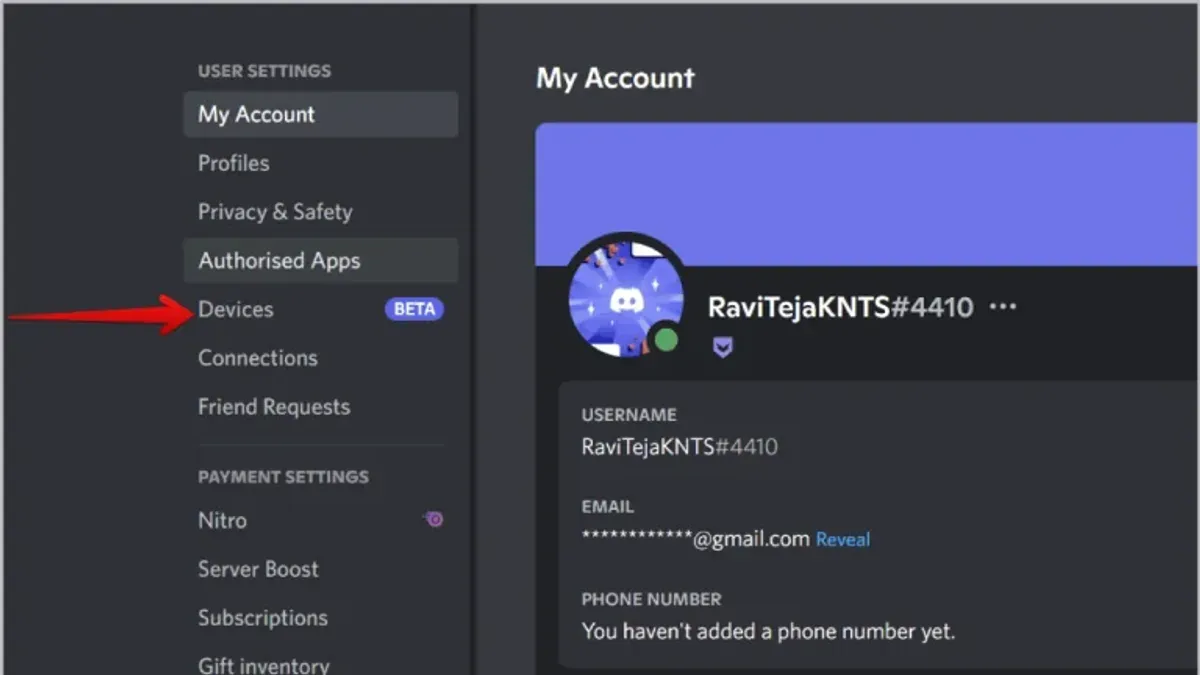
- Scroll down and locate the section labeled either "Devices" or "Authorized Apps."The exact name depends on recent Discord interface updates; look for any section related to connected devices or sessions.
- Select the "Devices" or "Authorized Apps" section.A list appears showing all devices currently logged into the Discord account.
- Review each listed device, noting the device type (such as Windows PC, iPhone, or Web Browser) and the approximate location if available.Locations are often derived from IP addresses and may show the city or region. Check for any devices or locations unfamiliar or unexpected.
- Use the session details to determine the session status, such as active or recently active, and the login time.Sessions that have not been used for extended periods may be listed but considered inactive.
Tip: If a device appears suspicious or unfamiliar, consider logging out of that session immediately from this interface to secure the account.
How to see what devices you're logged into on Discord mobile app
The Discord mobile app offers limited options for viewing active sessions compared to the desktop or web versions. While it allows access to some account settings, it does not provide a detailed list of all devices currently logged into the account. Users can navigate to account settings to check certain security details but will find no comprehensive session overview.
- Open the Discord mobile app and tap the profile icon in the bottom right corner to access User Settings.
- Scroll down and select Privacy & Safety or Security depending on the app version.
- Look for any available login or session information; typically, this section only shows options related to two-factor authentication or password changes, not detailed device lists.
Since the mobile app lacks a dedicated active sessions page, users wanting a full view of where their account is logged in must use the desktop or web app. Those platforms provide a clearer picture of all active devices and locations, which is essential for detecting unauthorized access.
Tip: Use a desktop or web browser for thorough session management because the mobile app does not display active device lists or detailed login history.
How to see Discord login history and logs
Discord does not offer a dedicated login history or detailed access logs within the user interface. Users cannot view a comprehensive timeline of every login or device used. Instead, Discord provides limited security notifications, such as email alerts for new logins from unfamiliar devices or locations, and two-factor authentication (2FA) activity logs if enabled.

To check for suspicious login activity, review email notifications from Discord for alerts about new sign-ins or security changes. These emails typically include the login time, approximate location, and device type. This is the primary native method for tracking recent access attempts.
Some third-party bots or external tools claim to track Discord login history, but using these carries privacy and security risks. They often require granting broad access to account data, which can compromise account safety. Discord’s official documentation advises caution and recommends relying on built-in security features instead.
How to review Discord login notifications via email:
- Open the email account associated with the Discord account. This is where security alerts are sent.
- Search for emails from "Discord" with subjects like "New Login" or "Suspicious Login Attempt."
- Open recent security alert emails to view details about login time, IP address, and device information.
- If any login appears unauthorized, immediately change the Discord password and enable 2FA.
How to check where you are logged in on Discord via account security settings
Discord’s security settings offer tools to monitor and control active sessions, enhancing account protection. Two-Factor Authentication (2FA) is a key feature that requires a second form of verification for login, preventing unauthorized access even if the password is compromised.
- Open Discord and go to User Settings by clicking the gear icon near the bottom left.
- Select "My Account" from the sidebar, then scroll to the "Password and Authentication" section. Here, check if 2FA is enabled. If it is not, enable it by following the prompts to link an authenticator app. Once enabled, the account gains an additional security layer.
- To log out from all devices remotely, navigate to "Devices" under the "My Account" or "Security" section (if available) and select "Log Out of All Sessions." Confirm the action. This will terminate all active sessions except the current one, forcing reauthentication on other devices.
- Review "Authorized Apps" in the same settings area. Revoke any suspicious or unused third-party apps by clicking "Revoke Access." This blocks those apps from maintaining session connections or account access.
- If suspicious activity is detected, reset the password immediately. In "My Account," click "Change Password," enter the current password, then set a new strong password. This invalidates existing sessions except the current one and forces re-login with the new credentials.
Tip: Regularly reviewing authorized apps and logging out of all sessions after password changes reduces risk from unnoticed account access.
How to see your Discord ID and why it matters for login tracking
The Discord ID is a unique numerical identifier assigned to every user, server, and message. It does not directly disclose login locations or sessions but is useful when contacting Discord support for account-related issues, including unauthorized access.
To find the Discord ID, enabling Developer Mode in settings is necessary. This mode allows copying the exact ID of a user or object within Discord, which support teams can use to identify accounts precisely.
- Open Discord and click the gear icon labeled User Settings near the bottom left.
- In the left sidebar, scroll to Advanced under App Settings and click it.
- Toggle on Developer Mode. This enables ID copying features throughout the app.
- Navigate to the user profile or message for which the ID is needed.
- Right-click on the username or message, then select Copy ID from the context menu.
- Paste the copied ID where needed, such as in a support ticket or security inquiry.
Tip: Developer Mode can be toggled off after copying the ID to avoid cluttering menus.
Providing the Discord ID when reporting suspicious account activity helps the support team verify the exact account in question. However, the ID alone does not reveal device or login session details; it is a reference tool rather than a security log.
How to see server logs on Discord and what they include
Server logs on Discord, often referred to as the Audit Log, track user actions within a server such as message deletions, member joins, bans, role changes, and channel modifications. This log helps server administrators monitor activity and identify suspicious behavior but does not provide login locations or device information related to account access.
Access to server logs requires the "View Audit Log" permission, typically granted to server administrators or moderators. Without this permission, the Audit Log will not be visible. This permission can be checked or assigned in the server settings under Roles.
- Open the Discord desktop or web app and select the server to review.
- Click the server name at the top-left to open the dropdown menu.
- Select "Server Settings" from the menu.
- In the left sidebar, click on "Audit Log." The log entries will display recent actions like "User X deleted a message in #channel" or "User Y was banned."
- Review the entries for dates, times, and the responsible users to detect any unusual activity.
Tip: The Audit Log does not track login sessions; use account security settings to manage login activity.
Troubleshooting: What to do if login locations don’t appear or seem incorrect
Session information on Discord may not update instantly, causing login locations to appear outdated or missing. Logging out and back in often forces the app to refresh session data, showing the current active devices accurately. This is the simplest fix for many users encountering stale or absent session details.
If login locations remain inaccurate, check for updates to the Discord app on desktop or mobile. Using the web app at discord.com can help determine if the issue is platform-specific. Some users report that switching platforms resolves display problems with active session lists.
Clearing the app cache or reinstalling Discord is recommended when session data completely disappears or seems corrupted. This process removes temporary files that might interfere with fetching login sessions. After reinstalling, the login locations should reflect current activity correctly.
In cases where suspicious account activity is suspected but login information does not confirm it, contacting Discord Support is necessary. Provide any security alerts received and a detailed description of concerns. Support can assist with deeper account investigation and potential unauthorized access.
- Log out of Discord completely; then log back in. The active sessions list should update to show current devices.
- Check for app updates or use the Discord web app. If the problem resolves on a different platform, the issue is likely with the original app installation.
- Clear cache or reinstall Discord. After reinstalling, verify that session data loads correctly.
- If suspicious activity persists without visible login evidence, submit a ticket to Discord Support including all relevant details and email alerts.
Tip: Regularly logging out from all devices via Security Settings can help reset sessions and improve session list accuracy.
Frequently asked questions
How to see where you're logged in on discord?
To view active login locations, open Discord on desktop or web, go to User Settings > My Account > Devices. This section lists currently logged-in devices with approximate location data and last active time. If this option is unavailable, check your email for recent login alerts sent by Discord.
How to see what devices are logged into discord?
On the desktop or web app, navigate to User Settings > My Account, then select Devices. This shows all devices that have active sessions. Mobile apps have limited visibility into logged-in devices; it is best to verify via desktop for full details.
How to see logs on discord?
Discord does not provide detailed login logs within the app. Users can check email notifications for login alerts or review server audit logs if managing a server. For personal account activity, Discord’s native tools are limited to device sessions and security notifications.
How to check log in discord?
To check login activity, review the Devices section under User Settings > My Account for active sessions. Additionally, check the email linked to the account for security alerts about new logins. Server owners can consult audit logs for user actions but not for personal login history.
How to see my discord id?
Enable Developer Mode in User Settings > Advanced, then right-click the username or message and select Copy ID. This unique numerical ID helps identify accounts for support or moderation but does not show login activity directly.
What This Advice Does Not Cover
Discord does not provide users with a detailed or comprehensive login history, including full IP addresses or precise geolocation data. The information accessible through the app and web interface is limited to active sessions and basic device details. Users who require forensic-level analysis of account activity or suspect serious unauthorized access should contact Discord Support directly. External security software or network monitoring tools may be necessary for advanced tracking beyond Discord's native capabilities.
Tip: Regularly review active sessions and enable two-factor authentication to reduce the risk of unauthorized access.
For most users, the best immediate action after verifying current login locations is to secure the account by changing the password and enabling two-factor authentication if not already active. This step provides the most effective protection against potential unauthorized access detected through the available session data.
See also: How to Download Your Discord Data: A Clear Step-by-Step Guide



