
How to Report Impersonation on Facebook: Step-by-Step Guide
This guide explains how to report impersonation on Facebook with clear steps to protect your identity and remove fake accounts.

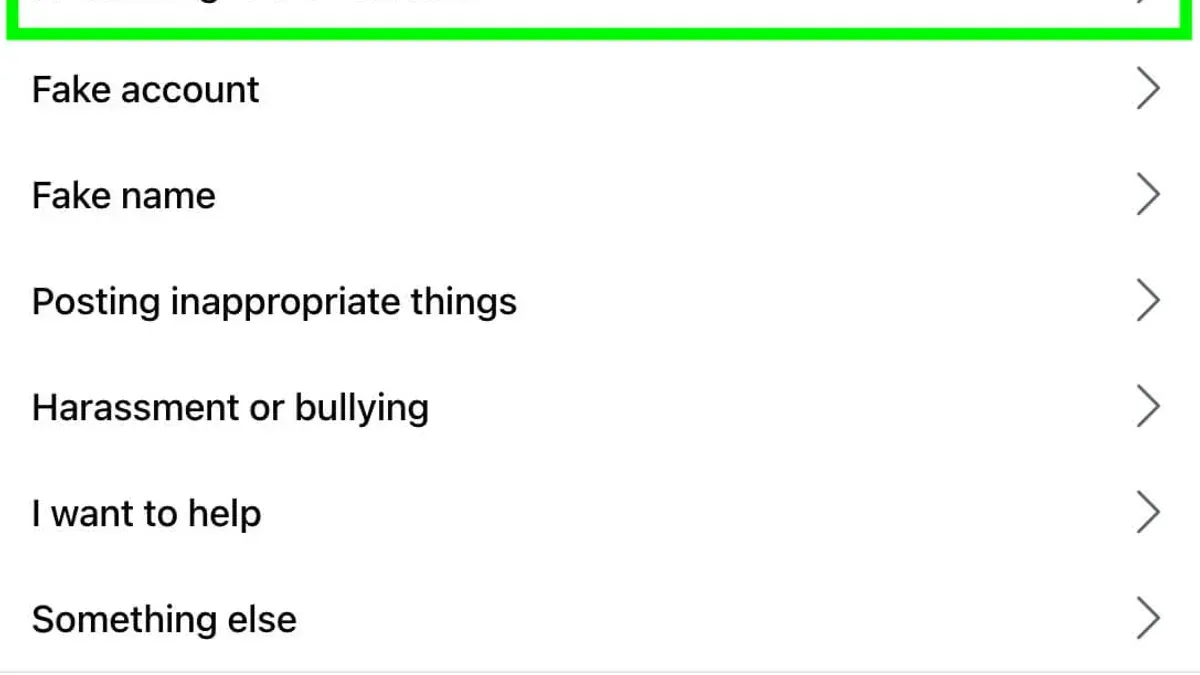
This article explains how to report impersonation on Facebook with clear, step-by-step instructions to protect personal identity or a brand. Impersonation can appear as fake profiles, pages, or accounts pretending to be someone else. Prompt and accurate reporting helps remove these accounts and prevent misuse.
Facebook has specific tools for reporting impersonation, but users often overlook details like selecting the correct impersonation type or submitting valid ID for verification. This guide also covers related impersonation issues on Instagram and email, providing a comprehensive approach for those facing identity theft or fraudulent activity across platforms.
Detailed steps show how to navigate Facebook’s reporting interface, what evidence to gather, and how to escalate the issue if initial reports do not result in removal. Understanding these processes reduces the chance of delays and improves the chances of action by Facebook.
Before you start: What is needed to report impersonation on Facebook
Reporting impersonation on Facebook requires specific information and materials to ensure a smooth process. A verified proof of identity is essential, such as a government-issued ID (passport, driver’s license, national ID card) or official documents like a birth certificate. These confirm the authenticity of the person or entity being impersonated. Additionally, the URL or direct profile link of the impersonating account or page must be available to precisely identify the offending profile.
Gathering evidence that demonstrates impersonation behavior is critical. Screenshots showing identical profile pictures, copied posts, or direct messages from the fake account help establish the claim. Access to the Facebook account or page being impersonated simplifies reporting but is not mandatory. Familiarity with Facebook’s impersonation policies aids in understanding what qualifies as impersonation and what information Facebook requires during the review process.
Example accepted ID types include a passport, driver’s license, or government-issued national ID card. A sample screenshot may show a fake profile using the original profile’s photos and name, with messages from the impostor to other users.
- Locate and save the URL of the impersonating Facebook account or page. Upon success, the URL is ready to be pasted into the report form.
- Take clear screenshots that highlight the impersonation, such as copied profile details or posts. Confirm that these images are saved and accessible.
- Prepare a digital copy or photo of an accepted government-issued ID. Ensure the ID is valid and clearly readable.
- Review Facebook’s impersonation policy page to understand definitions and reporting criteria. Once read, proceed with confidence.
How to report someone who is impersonating me on Facebook
- Navigate to the Facebook profile that is impersonating the individual. Confirm it is the correct account by reviewing profile pictures, posts, and friend lists.
- Click the three-dot menu button located on the cover photo section of the impersonating profile. A dropdown menu appears with several options.
- Select the Report option from the dropdown. This opens the Report Profile interface with multiple reporting reasons.
- Choose Pretending to Be Someone as the reason for reporting. Facebook will then ask for more details to specify the impersonation.
- Follow prompts to upload a valid government-issued ID or other official documents verifying the identity of the person being impersonated. This step is crucial for Facebook to authenticate the claim.
- Attach any additional evidence supporting the impersonation, such as screenshots or links, if prompted. This can strengthen the report.
- Submit the report. Facebook will display a confirmation message indicating the report was received and is under review.
- Expect a response from Facebook within a few days to a week. The platform may reach out for more information or notify once action is taken.
Tip: Keep a record of the impersonating profile URL and any correspondence from Facebook for follow-up purposes.
How to report a Facebook account for impersonation
Impersonation on Facebook can target individuals or businesses. Signs include copied profile photos, similar usernames, or posts pretending to be the original account. Reporting differs slightly between personal and business accounts, so accuracy in the report form is essential.
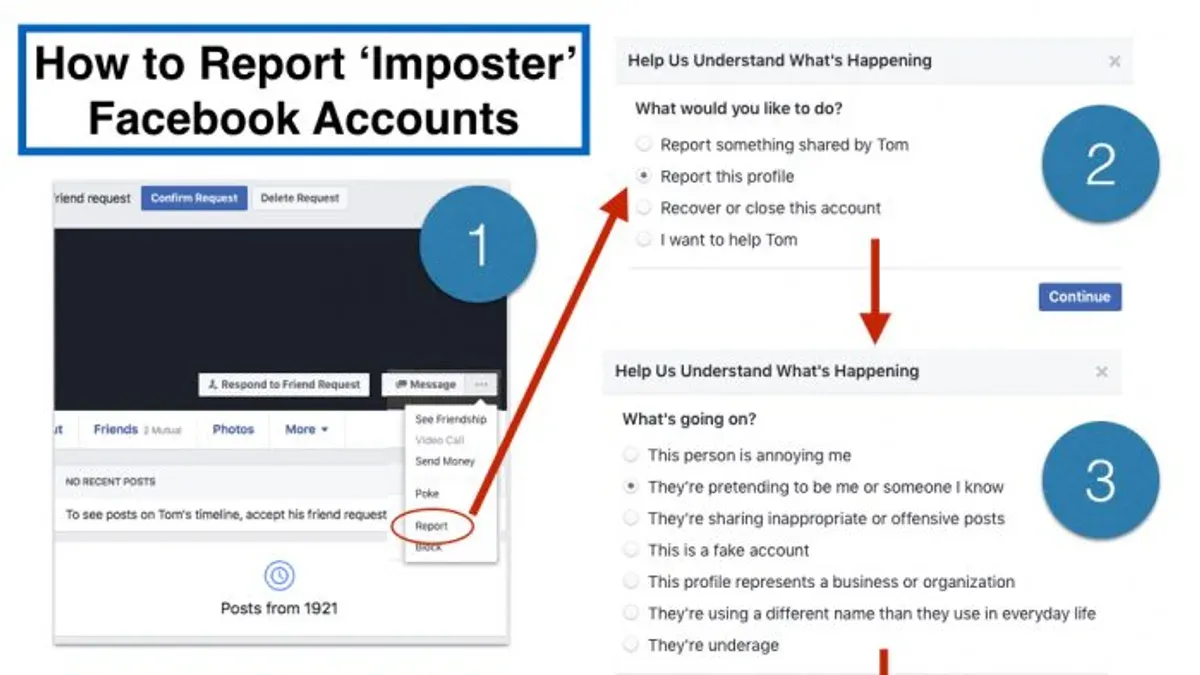
- Go to the impersonating account's profile and click the three-dot menu next to the Message button. A dropdown menu appears.
- Select "Find Support or Report Profile." A support window opens with reporting options.
- Choose "Pretending to Be Someone" and then select whether the impersonated account is a "Friend," "Someone Else," or "A Business or Organization." Different options tailor the report accordingly.
- Fill out the impersonation report form with precise details. For business pages, include official documentation or links proving ownership.
- Submit the report. Facebook will acknowledge receipt and may request additional information via email or notifications.
- Monitor the reported account. If impersonation persists after a reasonable period, follow up through the Help Center or the support inbox to escalate the issue.
Tip: When reporting business impersonation, attaching proof like a business license or trademark registration speeds up verification.
| Step | Personal Account Impersonation | Business/Page Impersonation |
|---|---|---|
| 1 | Report via profile menu: "Pretending to Be Someone" → "Friend" or "Someone Else" | Report via profile menu: "Pretending to Be Someone" → "A Business or Organization" |
| 2 | Submit basic identification info if requested | Provide official business documentation or website links |
| 3 | Wait for Facebook review, then monitor for removal | Follow up more actively if impersonation continues |
How to report impersonation on Facebook page
To report a Facebook Page impersonating a brand or public figure, first locate the impersonating page's URL. This URL is essential for submitting a precise report. Navigate to the impersonating page, then copy the web address from the browser's address bar.
Next, use Facebook’s dedicated Page impersonation reporting form found at facebook.com/help/contact/1280439701975125. This form is specifically designed for impersonated Pages. Paste the copied URL, provide a clear description of the issue, and attach proof of ownership or trademark if available, such as business registration or trademark certificates.
For verified Pages, include verification details to strengthen the claim. Verified Pages often experience faster resolution times. Facebook typically reviews these reports within a few days but may take longer depending on the case complexity.
- Go to the impersonating Facebook Page and copy its URL from the browser.
- Visit the Facebook Page impersonation report form at facebook.com/help/contact/1280439701975125.
- Paste the impersonating Page URL into the required field.
- Provide proof of ownership or trademark if applicable by uploading relevant documents.
- Submit the report and wait for Facebook’s response, which usually arrives within several days.
Example: A clothing brand discovered a fake Facebook Page selling counterfeit merchandise. After submitting a report with proof of trademark, Facebook removed the impersonating Page within a week.
How to report impersonation on Instagram
Impersonation on Instagram can affect personal identities and brands just like on Facebook. To report an impersonating account, first locate the impersonator's profile by searching their username or accessing the direct profile URL. Instagram’s reporting system is built into the app and website, allowing users to flag impersonation quickly.
- Go to the impersonating Instagram profile. Once there, tap the three-dot menu icon (⋯) at the top right of the profile screen.
- Select Report. Then choose Report Account followed by It's pretending to be someone else.
- Choose the option that matches your case, such as Me or Someone else. Instagram will prompt for additional information to verify the claim.
- Submit a government-issued ID or official documentation when requested. This step helps Instagram confirm the true identity of the person or entity being impersonated.
- After submission, Instagram reviews the report. The review process typically takes a few days, but timing may vary based on volume.
Tip: Keep monitoring the impersonating profile after reporting. Instagram may notify you about the outcome or takedown status.
Instagram handles millions of reports annually, including impersonation, and applies strict policies to protect user identities. While the exact response time depends on caseload, most users see action within a week.
How to report email impersonation and Gmail impersonation
Email impersonation often precedes or accompanies social media scams, making early detection crucial. Signs include unexpected requests for personal information, emails from addresses that closely mimic legitimate ones, urgent language, and suspicious links or attachments. A common phishing email example might claim to be from a trusted source asking to verify account details with a link that leads to a fake login page.
Reporting impersonation on Gmail involves submitting the suspicious email to Google's abuse team using the built-in reporting tools. Collect the full email headers and any supporting evidence to strengthen the case. Email headers reveal the path the email took and can show if it originated from a fraudulent source.
- Open the suspicious email in Gmail.
Verify the email content and sender. - Click the three-dot menu in the top-right corner of the email.
A dropdown menu appears. - Select "Report phishing" from the menu.
A dialog box opens to confirm the report. - Click "Report Phishing Message" to submit.
Gmail confirms the report submission. - For detailed evidence, click "Show original" in the three-dot menu to access the full email headers.
A new tab with raw email data opens. - Copy the headers and attach them if submitting the report through Google’s web form at https://support.google.com/mail/contact/abuse.
Google’s abuse team receives full details to analyze the impersonation. - Immediately change the Gmail password and enable two-factor authentication (2FA) under "Security" settings.
Account security is strengthened to prevent unauthorized access.
Tip: Save phishing emails and screenshots before reporting, as they provide critical evidence for investigations.
How to report identity theft on Facebook
Identity theft on Facebook occurs when someone uses another person's personal information, such as name, photos, or other details, without permission to commit fraud or other crimes. Unlike impersonation, which typically involves creating a fake profile pretending to be someone else, identity theft often includes misuse of personal data beyond simple representation. Examples include opening accounts, requesting money, or conducting scams using stolen identities.
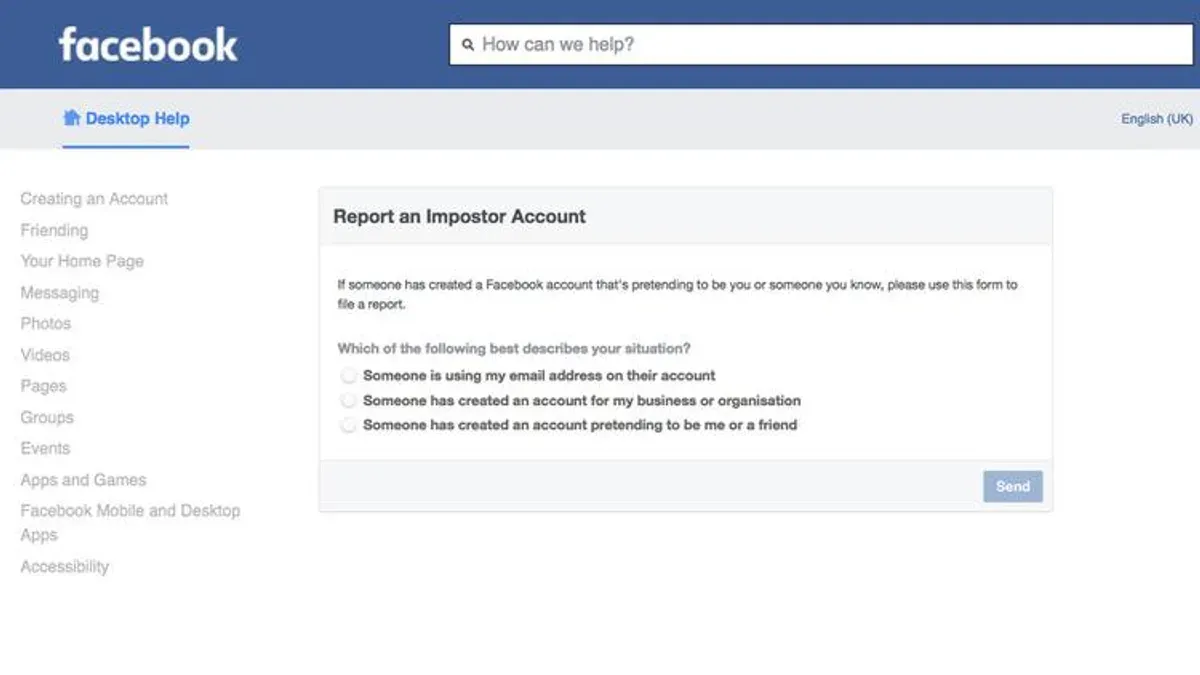
To report identity theft, Facebook provides a dedicated channel separate from impersonation reports. Begin by visiting the Help Center and selecting the "Report Identity Theft" option. Facebook may ask for legal documents or police reports to verify the claim, especially in severe cases involving fraud or criminal activity. Submitting such documentation can speed up the review process and improve the chances of account removal or restriction.
Facebook can disable accounts involved in identity theft and remove related content but cannot recover lost funds or provide legal remedies. Users should also contact local law enforcement and financial institutions as needed. Identity theft reports form a smaller portion of Facebook's security cases, with resolution times varying based on the complexity of evidence provided.
- Go to Facebook's Help Center and select "Report Identity Theft." A form labeled "Impersonation or Identity Theft" will appear.
- Fill in the requested details, including the name of the person whose identity was stolen and the URL of the offending profile or content. The form will confirm submission with a message indicating the next steps.
- Upload any required legal documents or police reports when prompted. After uploading, the system will show a confirmation that the evidence was received.
- Submit the report and wait for Facebook’s investigation, indicated by an email or notification acknowledging receipt and outlining expected response times.
Tip: Keep copies of all submitted documents and correspondence for follow-up if the impersonation escalates or Facebook’s response is delayed.
Troubleshooting: What to do if Facebook does not remove the impersonation
Facebook may deny or delay impersonation removal reports due to insufficient evidence, unclear identity claims, or if the impersonating profile doesn’t violate Facebook’s impersonation policy explicitly. Users should review the rejection notice carefully to understand the reason. Often, adding clearer or additional proof such as government-issued ID or business verification documents can strengthen the case.
Appealing Facebook’s decision involves resubmitting the report with enhanced evidence and a detailed explanation. Use Facebook’s “Report a Problem” feature or the Help Center to find the appeal option. A user successfully appealed after Facebook initially rejected their report by submitting a notarized affidavit alongside their ID, which Facebook accepted as valid proof and removed the impersonating account.
If appeals do not work, contacting Facebook support through Business Help Center or official Facebook channels may help, though direct support can be limited. Legal options include sending a cease and desist letter or filing a complaint under applicable identity theft or trademark laws, especially if impersonation causes significant harm.
- Resubmit the impersonation report with additional evidence such as notarized documents or clearer ID; upon success, the impersonating account will be flagged for review again.
- Use the Facebook Help Center’s “Report a Problem” to submit an appeal; a confirmation message should indicate the appeal was received.
- Contact Facebook support via Business Help Center if available; expect a response or case number for follow-up.
- If Facebook still does not act, consult legal advice to consider formal action; this step may result in legal notices sent to Facebook or the impersonator.
- Implement preventative measures like enabling two-factor authentication, monitoring account activity, and regularly updating privacy settings to reduce future risks.
Tip: Keep detailed records of all correspondence and submissions to Facebook for reference during appeals or legal processes.
Frequently asked questions
How to report a gmail account impersonation?
To report a Gmail account impersonation, use Google's dedicated phishing and impersonation report page. Provide the email address of the impersonator, details of the impersonation, and any relevant emails received. Google reviews reports and may suspend or remove the offending account if it violates policies.
How to report someone on facebook?
To report someone on Facebook, visit their profile, click the three dots button next to the Message option, and select "Find support or report profile." Choose the reason for the report, such as harassment or impersonation, and follow the prompts to submit.
How to report imposter on facebook?
Reporting an imposter on Facebook involves navigating to the impersonator’s profile, selecting "Find support or report profile," then choosing "Pretending to be someone" as the reason. Submit the report and, if possible, provide proof of identity to expedite review.
How to report someone on Facebook for impersonation?
Visit the impersonating profile, click the three-dot menu, select "Find support or report profile," then choose "Pretending to be someone". Facebook will prompt for whose identity is being impersonated and may request official identification for verification.
How to report Facebook page impersonation?
To report impersonation of a Facebook page, go to the impersonating page, click the three dots under the cover photo, select "Find support or report Page," then choose "Scams and Fake Pages" or "Impersonation." Follow the instructions to submit the report, including proof of ownership if possible.
What this guide does not cover and who should seek other help
This guide does not cover legal actions outside Facebook’s platform or cases where impersonation involves criminal identity theft requiring law enforcement intervention. If the impersonation leads to financial fraud, harassment, or other crimes, contacting local authorities or a legal professional is necessary. This article also does not address impersonation on platforms beyond Facebook, Instagram, or email, nor does it cover comprehensive digital security measures beyond reporting.
For anyone dealing with repeated or severe impersonation that Facebook does not resolve, consulting legal advice or specialized identity protection services is recommended.
Reporting impersonation effectively starts with gathering clear evidence and using Facebook’s built-in reporting tools precisely. The single most useful next step is to access the impersonating profile or page, use the "Find support or report profile" option found under the profile’s three-dot menu, and select "Pretending to be someone" to initiate a formal report. This direct approach ensures Facebook reviews the case promptly, improving the chances of removal or corrective action.
See also: How to Recover a Messenger Account Without Phone Number or Email · How to Download Your Instagram Data: Complete Step-by-Step Guide



