
How to Secure Your Messenger Account: Step-by-Step Guide
This guide offers clear steps to secure your Messenger account and protect it from unauthorized access and privacy breaches.

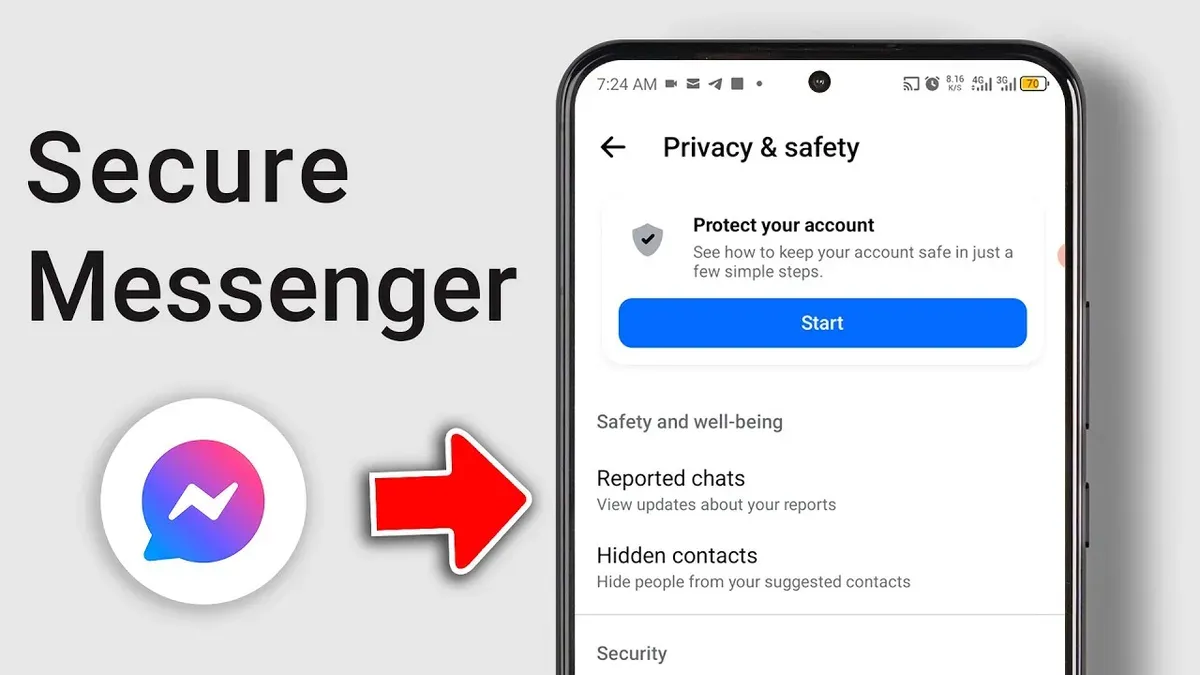
This guide explains how to secure your Messenger account with clear, step-by-step instructions. It covers essential settings and actions to protect the account against unauthorized access and privacy breaches. Messenger users often misunderstand the platform’s security features and limits; this article clarifies those points while focusing on practical setup and ongoing protection.
Starting with the basics, securing a Messenger account requires a strong password and enabling two-factor authentication (2FA). Additional measures include managing login alerts, reviewing active sessions, and understanding Messenger’s encryption scope. This foundation helps prevent common vulnerabilities and prepares users to handle any security issues that may arise.
Before you start: What is needed to secure a Messenger account
Securing a Messenger account requires having access to the Messenger app or the associated Facebook account. The app itself is separate from Facebook but often shares login credentials and security settings. It is essential to have a verified phone number or email linked to the account; this enables easier recovery if access is lost. Accounts without verified contact information face significantly lower chances of successful recovery after being locked or hacked.
Understanding the difference between Messenger and Facebook app security is crucial. Messenger does not offer end-to-end encryption on all messages by default, unlike some specialized messaging apps. Security settings such as two-factor authentication (2FA) are managed through the Facebook account and affect both platforms. Basic knowledge of 2FA and how to create strong, unique passwords forms the foundation of account protection.
Weak passwords remain one of the primary causes of account breaches. Using a password manager or creating complex passwords that combine letters, numbers, and symbols reduces this risk. Accounts with 2FA enabled show a much lower incidence of unauthorized access, which highlights the importance of understanding and enabling this feature before starting.
- Verify access to the Messenger app or the linked Facebook account; successful access means the app opens without password or login errors.
- Confirm a verified phone number or email is associated by checking Settings > Personal Information in Facebook or Messenger; verified contacts show as confirmed in account info.
- Review the differences in security by navigating to Settings > Security & Login on Facebook; identify the 2FA setup section.
- Familiarize with two-factor authentication basics by enabling it in Facebook Settings > Security & Login > Two-Factor Authentication; a prompt to enter a code upon login confirms correct setup.
- Create or update passwords to meet complexity standards; successful update is confirmed by a notification that the password has changed.
Tip: Keep recovery options updated and test login procedures periodically to avoid surprises during security incidents.
How to create a Messenger account securely
- Download the Messenger app only from official sources such as the Apple App Store or Google Play Store. When the app opens, a clean interface without ads or suspicious prompts indicates a legitimate version.
- Start the sign-up process by entering a strong, unique email address or phone number not previously used for online accounts. This avoids risks tied to reused credentials.
- Create a password for the linked Facebook account if applicable. Use a unique combination of at least 12 characters including uppercase letters, lowercase letters, numbers, and symbols. For example, G7r$2vLp!qX9 is strong and hard to guess.
- After account creation, immediately access Messenger's privacy settings by tapping your profile picture, then selecting Privacy. Adjust Message Delivery to limit who can send message requests and set People on Facebook to control who can find the account.
- Confirm changes by observing that the settings reflect the chosen restrictions, reducing unsolicited contact and improving security posture from the start.
A key difference is that new Messenger accounts default to stricter privacy controls compared to older accounts, which may allow broader contact unless updated.
Tip: Avoid simple or reused passwords; consider a password manager to generate and store unique credentials securely.
How to log into my Messenger account securely
Log in only through the official Messenger app or the official website messenger.com. Avoid using third-party apps or links from emails or messages claiming to be login portals. Phishing attempts often use fake login pages mimicking Messenger’s interface to steal credentials. Typical signs of phishing pages include misspelled URLs, unsecured HTTP connections, and unexpected requests for personal information beyond login credentials.

Never sign in on shared or public devices. If access from such a device is unavoidable, use a private or incognito browser window and log out completely when finished. Also, clear browsing data after the session to remove saved credentials or cookies that could be exploited.
Enable two-factor authentication on the linked Facebook account to add an extra layer of protection during login. This requires a second verification step, usually a code sent via SMS or generated by an authenticator app, making unauthorized access significantly harder.
Phishing messages often contain urgent language pushing for immediate login or password reset. If a login prompt arrives unexpectedly, verify its authenticity by navigating directly to the official Messenger site rather than clicking embedded links. Suspicious attempts can be reported to Facebook to help protect others.
- Open the official Messenger app or visit messenger.com. A Messenger login screen should appear.
- Enter the verified email or phone number and password associated with the account. Upon successful entry, the Messenger home screen or chat list should display.
- If two-factor authentication is set up, enter the verification code sent to the chosen device or app. Access is granted only after this step completes successfully.
- Confirm the device is set as trusted if prompted, reducing future login verification steps on that device.
- Log out after use on any device that is not personal. Ensure no session remains active on devices accessed temporarily.
How to enable secure storage on Messenger
Secure Storage in Messenger encrypts message data locally on the device, adding a layer of protection beyond basic app security. This feature, sometimes labeled as App Lock or Secure Folder depending on the platform, ensures that message contents are inaccessible without an additional authentication step. It complements end-to-end encryption for secret conversations by protecting stored messages even if the device is accessed without permission. However, Secure Storage does not control account access or login security, so it should be used alongside other security measures.
- Open the Messenger app and tap the profile picture icon in the top left corner to access Settings. The Settings menu will appear.
- Scroll down and select "Privacy." This opens privacy-related options.
- Find and tap on "App Lock" or "Secure Storage," depending on the device. A screen explaining the feature will display.
- Toggle the switch to enable the feature. Messenger may prompt to authenticate using the device’s biometric method (fingerprint, face recognition) or device passcode.
- After successful authentication, a confirmation message will appear confirming Secure Storage is active.
- Test the feature by closing Messenger and reopening it. The app should require biometric or passcode authentication before displaying messages.
Tip: Secure Storage protects message data on the device but does not prevent unauthorized login to the Messenger account itself.
Without Secure Storage, messages stored on the device can be accessed if the phone is unlocked or compromised. With it enabled, Messenger encrypts the local message database, requiring authentication to view conversations. This adds a critical defense against local data breaches but does not replace strong passwords or two-factor authentication for account security.
How secure is Messenger and Facebook Messenger
Messenger offers two main modes of communication with differing security levels. Regular chats use standard encryption in transit and at rest but are not end-to-end encrypted, meaning Facebook servers can access message content. Secret Conversations, however, provide end-to-end encryption, ensuring that only the sender and recipient can read messages. This mode uses the Signal Protocol, a widely respected encryption standard.
Security features beyond encryption include two-factor authentication (2FA) for login protection and login alerts that notify users of unrecognized device access. These tools reduce the risk of unauthorized entry but depend on users enabling them properly.
Past security incidents have included vulnerabilities in Messenger’s integration with Facebook and issues with data leaks, mostly addressed promptly after discovery. For example, in previous years, security audits revealed some weaknesses in data handling, but ongoing updates have improved the platform’s defenses.
| App | End-to-End Encryption | Encryption Protocol | Default Mode |
|---|---|---|---|
| Messenger (Regular Chats) | No | Transport Layer Security (TLS) | Yes |
| Messenger (Secret Conversations) | Yes | Signal Protocol | No |
| Yes | Signal Protocol | Yes | |
| Signal | Yes | Signal Protocol | Yes |
Compared to other messaging apps, Messenger’s default security level is lower because end-to-end encryption is not enabled by default for all conversations. Apps like Signal and WhatsApp provide end-to-end encryption by default, offering stronger privacy protections out of the box. Users prioritizing maximum security should use Secret Conversations or consider alternative apps specialized in privacy.
How to unlock a Messenger account if locked or disabled
Messenger accounts may be locked or disabled due to suspicious activity, repeated policy violations, or automated security flags. Regaining access requires verifying identity to prove account ownership. Follow these steps to recover a locked or disabled Messenger account.
- Go to the Facebook Help Center page for disabled accounts at https://www.facebook.com/help/105487009541643. This page guides through recovery options and explains reasons for disabling.
- Submit an appeal form by providing valid identification as requested, such as a government-issued ID. After submission, expect a confirmation message that the request was received.
- Check the email linked to the Messenger account regularly for updates from Facebook or Messenger support. Approval usually takes a few days but can vary.
- Once identity is verified and the appeal is approved, the account status updates to active, allowing normal login. If rejected, the Help Center will provide next steps or alternative contact methods.
- To avoid future locks, review Messenger's community standards and ensure account activity complies with policies. Enable two-factor authentication and monitor login alerts under Settings > Security & Login.
Tip: Using the exact name and photo on identification documents during verification improves success rates of unlocking accounts.
Statistics from user reports indicate that identity verification via official ID is the most effective method for regaining access, with a majority of appeals resolved positively when documentation is clear and accurate. Alternative methods, such as email or phone verification, have lower success if suspicious activity is severe.
How to get help on Messenger privacy and security issues
Messenger provides built-in tools and official resources to address privacy and security concerns efficiently. Access the Help Center within the Messenger app by tapping your profile picture, then selecting "Help & Support" followed by "Help Center." This section offers detailed guides and FAQs tailored to privacy settings and security features.
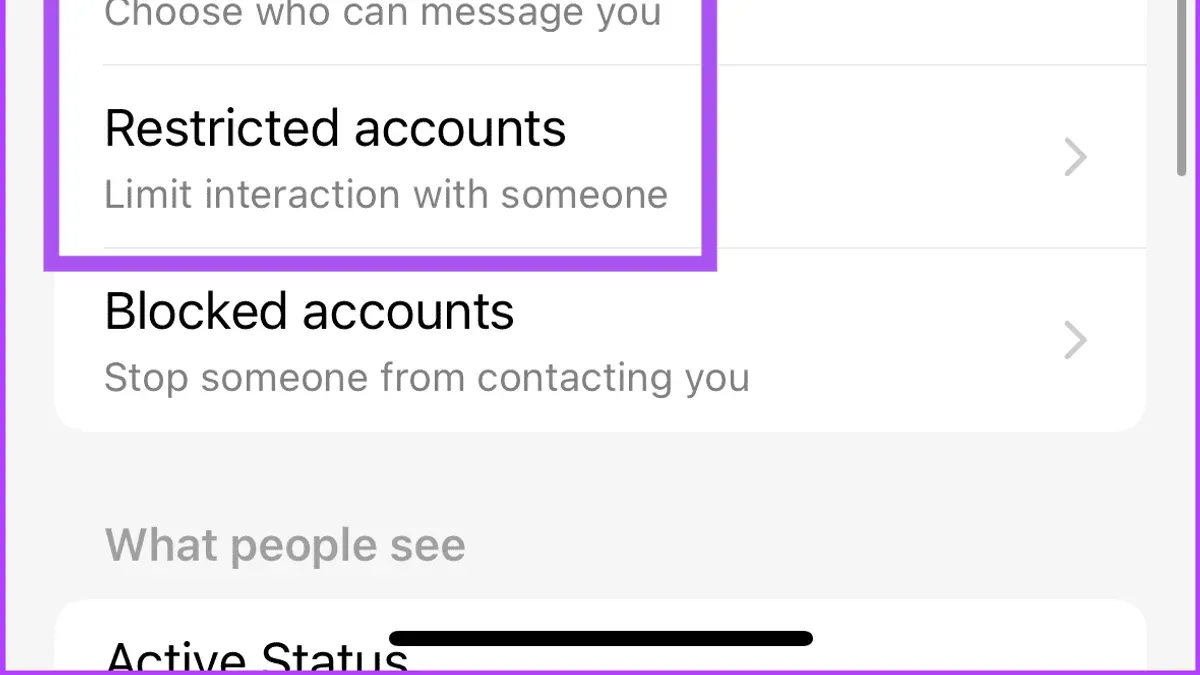
To report suspicious messages, impersonation, or privacy breaches, use the "Report" feature directly from the message or profile in question. Selecting "Report" prompts options like "Spam," "Harassment," or "Fake Account." Properly reporting triggers reviews by Facebook’s security team, often resulting in account warnings, content removal, or account suspension for offenders.
Additional support is available through Facebook’s dedicated online security and privacy help pages at facebook.com/help/security, which include step-by-step instructions and troubleshooting tips. Community forums like the Facebook Help Community offer user-shared experiences and solutions but verify advice against official sources to avoid misinformation.
Common reports include unauthorized message access, phishing attempts, and identity impersonation. Support responses typically involve guidance to reset passwords, enable two-factor authentication, or escalate serious cases to Facebook’s security analysts. User satisfaction with Messenger’s privacy support varies, often reflecting promptness of response and clarity of instructions.
- Open the Messenger app and tap the profile picture icon in the top left corner; the "Settings" menu should appear.
- Tap "Help & Support," then select "Help Center;" a searchable support page will load within the app.
- To report a problem, long-press the suspicious message or open the user’s profile, and tap "Report;" choose the most relevant issue type and follow prompts.
- Visit facebook.com/help/security from a browser for detailed privacy guides and security tools.
- Use the Facebook Help Community to browse or post questions, ensuring to cross-check answers with official help pages.
Tip: Always report suspicious activity immediately to prevent potential breaches and receive targeted support from Facebook security teams.
Troubleshooting common Messenger security issues
Messenger mode not secure: what it means and how to fix it
When Messenger indicates "Mode not secure," it usually means end-to-end encryption is not active. This happens when Secret Conversations are not enabled or the chat is not set to Secret mode. To fix this, start a Secret Conversation by opening a chat, tapping the contact’s name, and selecting "Go to Secret Conversation." The screen should then show a lock icon, confirming encryption.
Issues turning on Secure Storage or App Lock
Problems enabling Secure Storage or App Lock often stem from outdated app versions or device compatibility. Ensure Messenger is updated to the latest version through the app store. If the option remains unavailable, check device security settings—App Lock requires device-level authentication methods like PIN or biometrics to be active. Enabling these unlock methods in device settings usually resolves the issue.
Problems logging in with two-factor authentication enabled
Login failures with two-factor authentication (2FA) often occur due to incorrect codes or device synchronization issues. Confirm the authentication app or method used is correctly synced with the device’s time settings. If codes are rejected, use backup codes generated during 2FA setup or request a login link via email. Persistent issues may require resetting 2FA through Facebook’s security settings.
Steps to open or access Messenger account when stuck on login screens
- Clear Messenger app cache and data via device settings; successful clearing shows Messenger app data reset.
- Restart the device; the device should reboot normally.
- Ensure a stable internet connection; check by opening a website or another app that requires internet.
- Attempt login again using correct credentials; the login screen should proceed past the stuck point.
- If stuck persists, uninstall and reinstall the Messenger app; upon reinstall, the app should prompt for login.
Tip: Regularly updating Messenger and device software reduces the chance of encountering these common security issues.
Frequently asked questions
How to make a messenger account?
Download the Messenger app from the official app store. Open the app and select "Create New Account." Enter a valid phone number or email address, then follow the on-screen prompts to set up a username and password. Verify the phone number or email to complete the registration.
How secure is session messenger?
Session Messenger uses end-to-end encryption and avoids storing personal metadata, enhancing privacy compared to many mainstream messaging apps. It operates without phone numbers or emails, reducing tracking risks. However, no messaging app is completely immune to vulnerabilities, so maintaining device security remains essential.
How to unlock messenger account?
If a Messenger account is locked, use the prompts within the app to verify identity, typically involving confirming recent activity or entering a security code sent by email or SMS. If the account was disabled, visit Facebook’s Help Center to submit an appeal providing the requested identification. Account recovery depends on the reason for locking and compliance with Messenger’s policies.
How secure is facebook messenger?
Facebook Messenger supports optional end-to-end encrypted "Secret Conversations" for private chats, but standard messages are not fully encrypted. The app uses encryption in transit and at rest but retains message metadata. Users should enable two-factor authentication on their Facebook accounts to improve security.
How to create messenger account?
To create a Messenger account, install the Messenger app and select "Create New Account." Provide a phone number or email address and set a strong password. Complete the verification process by entering the code sent via SMS or email to activate the account.
What this guide does not cover and who should do something else
This guide does not cover advanced hacking or forensic recovery techniques and assumes users can access their linked email or phone number for account verification. If the linked contact information is lost or the account is severely compromised, professional help from Facebook support or cybersecurity experts is necessary. Messenger’s security depends partly on the overall security of the Facebook account it is linked to; securing Messenger alone will not protect against all risks if the Facebook account is compromised. Users managing business pages or handling sensitive data should consider additional enterprise-level security measures beyond this guide.
Focus next on reviewing and updating Facebook’s broader security settings, such as two-factor authentication and login alerts, because Messenger shares account credentials with Facebook. Ensuring these protections are active is the most effective step to maintain overall account security and prevent unauthorized Messenger access.
See also: How to Secure Your LinkedIn Account: Step-by-Step Guide · How to Secure Your Discord Account: A Step-by-Step Guide · How to Secure Your Kik Account: A Step-by-Step Guide · How to Secure Your Bluesky Account: Step-by-Step Guide



