How to Block Spam Calls on Metro by T-Mobile: Clear, Practical Steps
This guide shows how to block spam calls on Metro by T-Mobile using carrier features, phone settings, and apps to reduce unwanted calls successfully.

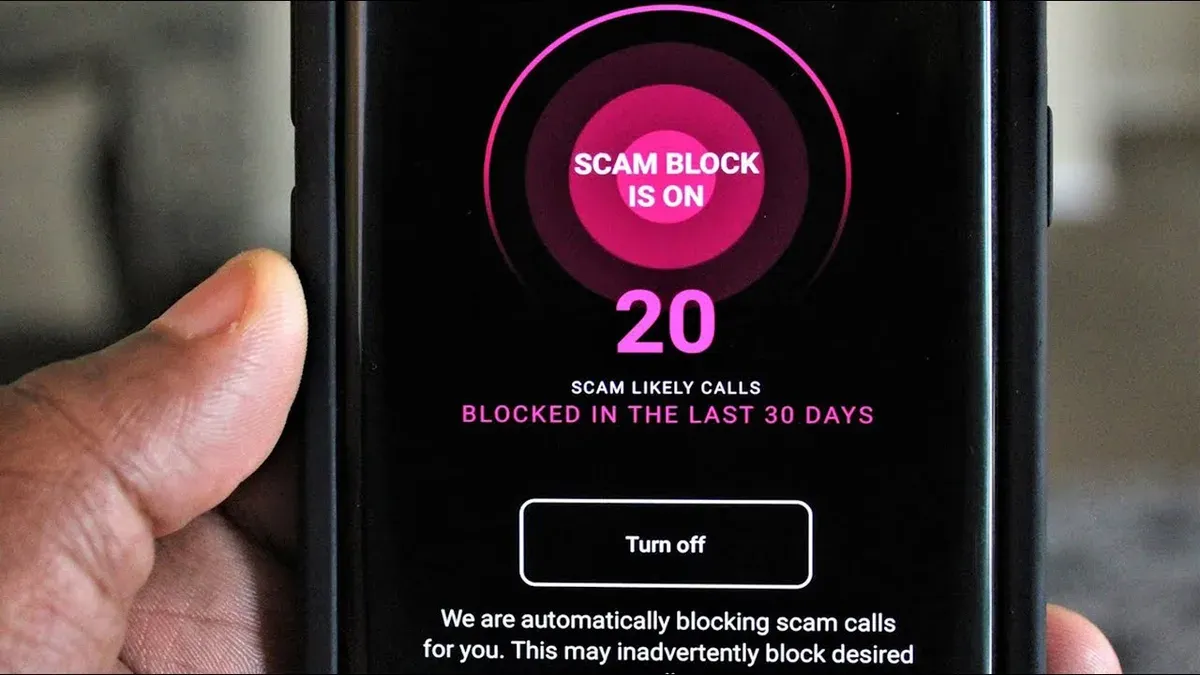
This article explains how to block spam calls on Metro by T-Mobile using a combination of carrier services, phone settings, and third-party apps. Metro by T-Mobile offers Spam Shield, a free tool that identifies and blocks many spam calls automatically. However, relying solely on Spam Shield often leaves gaps, especially with new or sophisticated spam numbers.
Blocking spam calls effectively requires activating Metro’s Spam Shield, configuring built-in phone features like call blocking and filtering, and, if needed, adding reputable third-party apps. Understanding which methods work best for specific phone models and Metro service plans avoids common mistakes and improves call security.
Following step-by-step instructions ensures users reduce unwanted calls without blocking legitimate contacts or missing important calls.
Before you start: What is needed to block spam calls on Metro by T-Mobile
Blocking spam calls on Metro by T-Mobile requires an active Metro service plan and a compatible phone. Metro supports a wide range of devices, including most unlocked GSM phones and Metro-specific models running Android or iOS. The phone must be activated on Metro’s network to access carrier features like Spam Shield. Users should verify device compatibility on Metro’s official website or through their account portal.
Basic familiarity with phone settings is necessary to enable built-in call blocking features or to install third-party apps. Access to the Metro by T-Mobile account portal helps manage spam settings tied to the service plan. Smartphones running Android 8.0 or later, or iOS 13 or later, generally support advanced call filtering and app installations.
- Confirm the Metro by T-Mobile account is active and in good standing. The account portal should display current plan status.
- Check phone compatibility via Metro’s Device Compatibility page or by ensuring the phone is listed as Metro-certified. Compatible phones will show Metro service signal and allow network features.
- Access the phone settings to confirm the operating system version. For Android, go to Settings > About phone > Android version; for iPhone, go to Settings > General > About > Software Version.
- Optionally, prepare to install third-party call blocking apps by enabling app installation from the app store and ensuring sufficient storage space.
A typical successful setup involves a Metro-activated Samsung Galaxy or iPhone with updated software, access to Metro’s account portal, and the ability to configure device and carrier spam filters.
How to block spam calls Metro by T mobile using Metro’s Spam Shield
Metro’s Spam Shield is a built-in feature that automatically detects and labels potential spam calls to reduce interruptions. It identifies likely spam based on known spammer databases and caller behavior, marking these calls with warnings or blocking them according to user settings. This tool helps filter a significant portion of unwanted calls before reaching the phone.
To activate Spam Shield, use either the Metro app or the customer portal online. The feature is free but may not catch all spam calls, so combining it with other blocking methods is recommended.
- Open the Metro app or log in to the Metro customer portal at metrobyt-mobile.com/account. You should see an account dashboard.
- Navigate to the “Spam Shield” section, usually under “Manage Services” or “Call Settings.” The Spam Shield status and options will be displayed.
- Toggle Spam Shield to “On.” A confirmation message or indicator should confirm activation.
- Customize settings by choosing whether to block all suspected spam calls automatically or simply label them with a warning. Adjust preferences to fit call handling style.
- Save changes and exit. The phone will now receive spam call notifications or blocks as configured.
Tip: Check Spam Shield settings regularly, especially after app or system updates, to ensure the feature remains active and properly configured.
How to block spam calls on a cell phone using built-in phone features
Blocking spam calls directly on the cell phone offers an additional layer of control independent of Metro’s services. Smartphones allow users to block specific numbers manually and enable system-level spam detection and filtering.
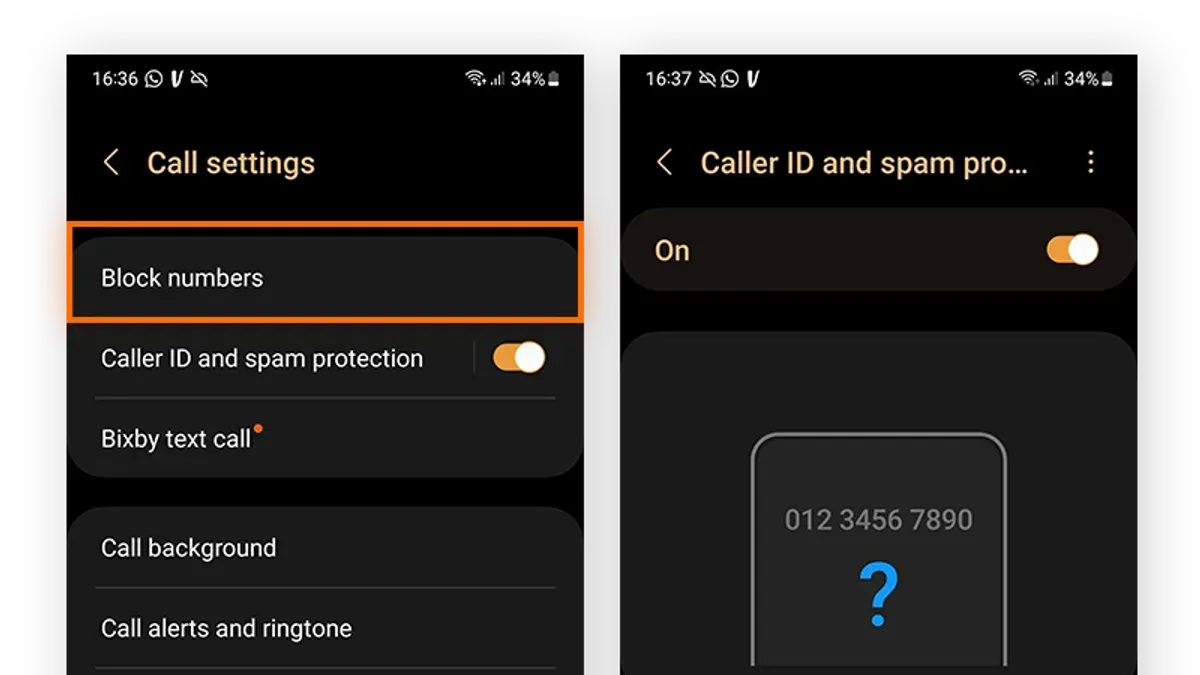
- To block a number manually on iOS, open the Phone app, tap Recents or Contacts, select the number or contact, scroll down, and tap "Block this Caller." A confirmation appears once blocked.
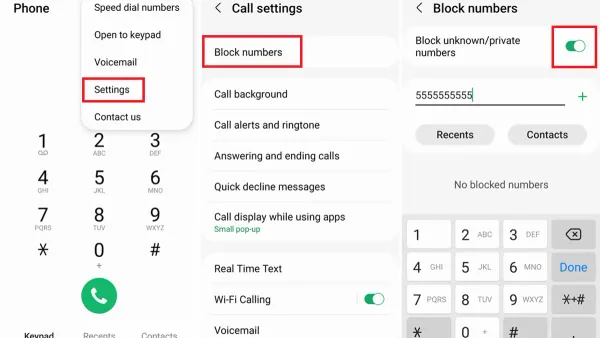
- On Android, open the Phone app, tap Recents or Contacts, press the number or contact, then tap "Block number" or "Block/report spam." A confirmation message shows the number is blocked.
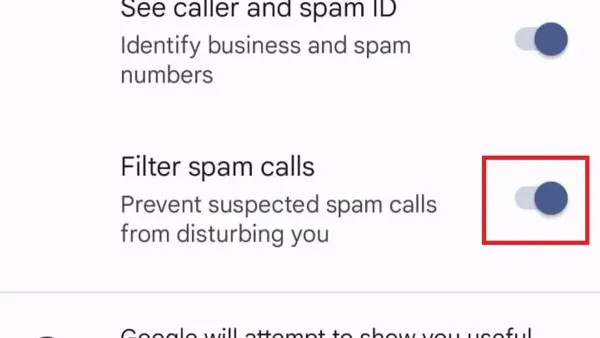
- Enable spam call warnings on iOS by going to Settings > Phone > Silence Unknown Callers or toggle "Call Blocking & Identification" apps. Android users can activate caller ID and spam protection under the Phone app’s Settings > Caller ID & Spam.
- Use Do Not Disturb (DND) modes to allow calls only from contacts or favorites. On iOS, configure this under Settings > Do Not Disturb > Allow Calls From. Android devices have similar options in Sound & Vibration or Do Not Disturb settings.
- Call filtering features vary by OS: iOS flags suspected spam calls with a label, while many Android phones provide an option to send suspected spam directly to voicemail.
Tip: Blocking a number on the phone stops calls and texts from that number but does not prevent new spam numbers; combine this with carrier tools for best results.
How to stop spam calls Metro PCS: Using third-party apps and codes
Third-party spam-blocking apps offer an additional layer of protection beyond Metro’s tools and built-in phone features. Popular apps like Hiya, Truecaller, and RoboKiller are compatible with most Metro phones and have strong user ratings for identifying and blocking spam calls. These apps maintain extensive spam databases and provide caller ID services, but they may require permissions that some users find intrusive, and some features might require a subscription.
Metro and T-Mobile support shortcodes for quick spam reporting and blocking. Dialing *SPAM (#7726) from the Metro phone allows users to report spam numbers directly to the carrier. This helps improve spam detection network-wide. To block a specific number instantly, use the phone’s built-in block feature or a third-party app’s block option, as there is no universal carrier shortcode for immediate blocking.
- Download and install a reputable spam-blocking app like Hiya or Truecaller from the Google Play Store or Apple App Store.
- Open the app and follow on-screen prompts to grant necessary permissions; this enables real-time spam detection and caller ID.
- To report spam numbers to Metro, open the dialer and enter *SPAM (#7726), then press call; a confirmation message should confirm the report was received.
- Use the app or phone settings to block persistent spam numbers manually for immediate effect.
Pros: Third-party apps often have larger spam databases and can identify unknown numbers more effectively. Cons: They can consume battery and data, and some features may require payment. Combining these apps with Metro’s Spam Shield and phone settings offers the most comprehensive spam defense.
How long does it take for T-Mobile to block spam calls after reporting?
When a spam call is reported to Metro by T-Mobile, the information is processed through T-Mobile’s network-wide spam detection system. This system analyzes patterns and phone numbers flagged by multiple users to identify and block spam sources. Typically, it can take anywhere from a few hours up to several days for a reported number to be reviewed and blocked across the entire network.
Some delay occurs because the network must verify reports to avoid false positives that could block legitimate callers. Additionally, blocking at the network level differs from device-level blocking, which happens instantly on the handset but only affects that specific phone. Network-wide blocking ensures the number is flagged before reaching any Metro customer’s device.
Despite reporting, some spam calls may still get through during this review period or if the spam number rotates frequently. Persistent spam calls often require continued reporting and combining device-level blocks with Metro’s tools for maximum effectiveness.
- Report the spam number using the Metro app or by forwarding the spam text or call details to 7726 (SPAM). After this, a confirmation message or notification typically appears.
- Wait 24 to 72 hours for the network to analyze and update its spam filters. During this time, some spam calls may still come through.
- Check if the spam number starts appearing labeled as spam or blocked on your device or other Metro phones. This indicates network-level blocking is active.
- If spam calls continue, consider repeating the report and reviewing device-level blocking settings to reinforce protection.
Troubleshooting: What to do if spam calls keep getting through on Metro by T-Mobile
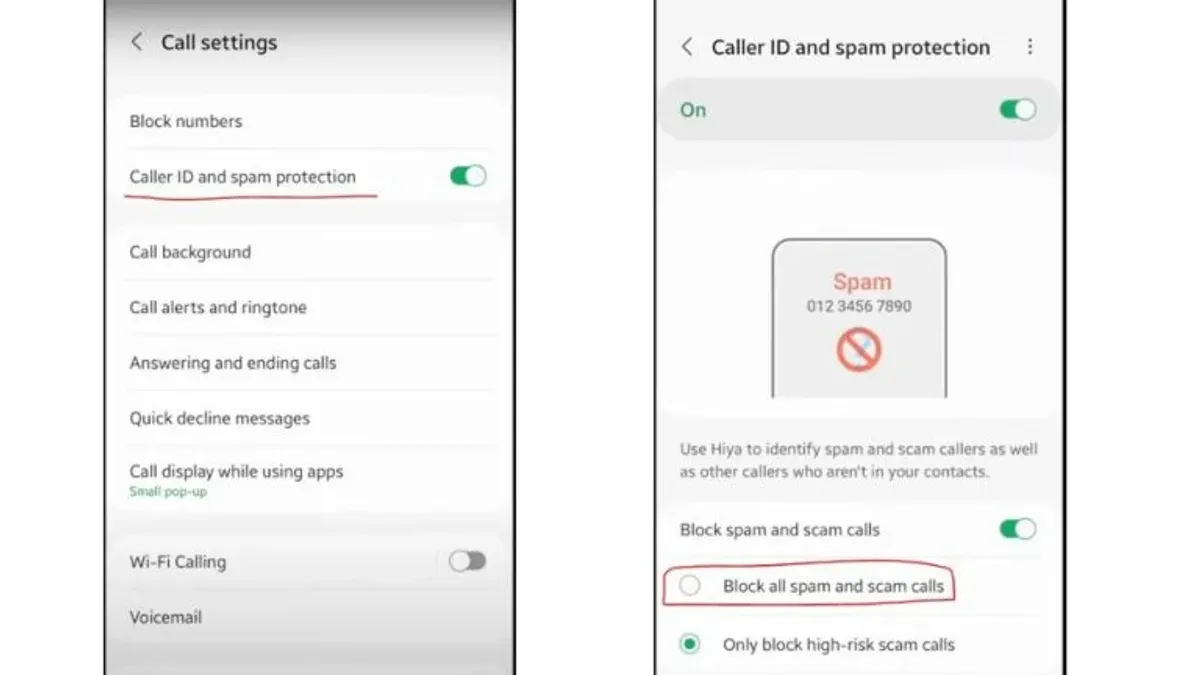
If spam calls persist despite using Metro’s Spam Shield and device blocking, first verify that all relevant features are enabled. Check the Metro app or customer portal to confirm Spam Shield is active and set to block or warn about spam calls. On the phone, review the blocked numbers list and spam call filter settings in the device’s call or phone settings menu to ensure they are operational.
Next, confirm the phone’s operating system and Metro app are updated to the latest versions. Outdated software can cause blocking features to malfunction or lag in spam detection. Updating these can improve compatibility and security.
If spam calls continue, contact Metro customer support. Clearly state that Spam Shield and device blocks are enabled but ineffective. Ask if there are known network issues or if the account requires a plan upgrade for enhanced blocking services. Sample request: “Please verify my Spam Shield status and advise on advanced blocking options to stop persistent spam calls.” Many customers find support escalation helpful in resolving stubborn spam call issues.
Tip: Some users overlook toggling Spam Shield off and on again to reset the service, which can resolve glitches.
- Open the Metro app or portal and confirm Spam Shield is enabled; a green toggle or active status should display. If not, enable it and check for immediate spam call reduction.
- Go to phone settings > Phone > Call Blocking & Identification (iOS) or Settings > Calls > Blocked Numbers (Android) to verify blocked contacts are listed and spam filters are on.
- Check for software updates via Settings > General > Software Update (iOS) or Settings > System > System Update (Android) and update if available; also update the Metro app from the app store.
- Contact Metro support at 1-888-8metro8 or via the Metro app chat, explain the issue, and request account-level spam blocking diagnostics or plan recommendations.
- Consider switching to Metro’s advanced blocking plans if recommended by support for persistent spam call control; confirm plan terms before switching.
Frequently asked questions
How to block spam calls on t mobile?
Use T-Mobile’s Scam Shield app to block spam calls effectively. It offers automatic scam identification and the ability to block or send suspect calls to voicemail. Additionally, report unwanted numbers directly through the app or dial *662# to activate Scam ID and Scam Block features on compatible phones.
How to block spam on t mobile?
Activate T-Mobile’s built-in spam protection by dialing *662# or installing the Scam Shield app. These tools flag potential spam calls and allow users to block or send them to voicemail. Combining carrier features with phone-level call blocking increases effectiveness.
Does t mobile block spam calls?
Yes, T-Mobile provides automatic spam call detection and blocking through its Scam Shield service. This service identifies suspected spam and scam calls, displaying warnings and offering automatic blocking options. Users can customize settings for blocking or filtering calls.
Does T Mobile block spam calls automatically?
T-Mobile’s Scam Shield includes automatic spam detection and can block calls marked as likely spam. However, users may need to enable Scam Block or adjust settings to activate full automatic blocking. Without activation, calls may only be labeled but still ring through.
What is the T Mobile code to block spam?
Dial *662# to enable Scam ID and Scam Block on compatible Metro by T-Mobile devices. This code activates network-level spam detection and blocking features. Users should also verify blocking settings within their phone’s call or security menus for best results.
What Blocking Spam Calls on Metro by T-Mobile Does Not Cover
This advice does not guarantee complete elimination of spam calls due to continuously evolving caller tactics and inherent network limitations. Some spammers use number spoofing and rapid call rotation, which can bypass carrier and device filters. Users with non-smartphones or prepaid plans may find fewer features available for blocking or filtering calls. Additionally, this guide does not cover legal or regulatory actions against spam callers, which require official complaints to authorities or the FCC.
The single most effective next step is to enable Metro’s Spam Shield if it is not already active. This carrier-level service catches the majority of spam calls before they reach the phone. Combining Spam Shield with built-in phone call blocking settings and selective third-party apps maximizes protection without sacrificing legitimate calls.
See also: How to Block Spam Calls on Cricket Wireless Phones: A Step-by-Step Guide · Verizon Port Out Protection: How It Works and How to Manage It · Understanding Google Fi Port Out Protection: How It Works and Why It Matters