How to Block Spam Calls on US Mobile: Clear, Effective Steps
This article shows how to block spam calls on US Mobile using carrier features, device settings, and third-party apps for better call management.

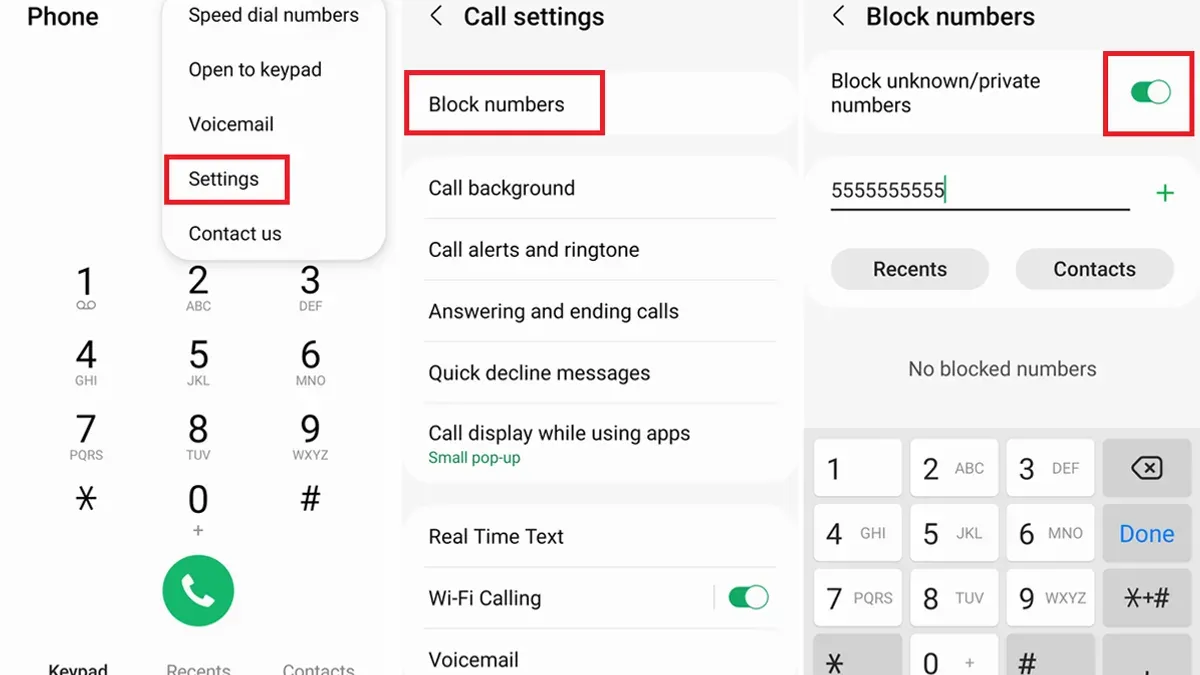
This article explains how to block spam calls on US Mobile using clear, effective steps tailored to the carrier's tools and common device settings. US Mobile customers often face frequent unwanted calls, and blocking them requires understanding both the carrier's features and additional options available on smartphones or landlines.
Blocking spam calls starts with verifying account settings on the US Mobile app or website, where basic call blocking features can be activated. Beyond this, device-specific settings on iOS and Android provide further control, including native call-blocking and spam identification functions. Third-party apps offer more aggressive filtering but come with trade-offs like false positives and subscription costs.
Landline users connected through US Mobile have distinct options to consider, often requiring external devices for effective spam blocking. This guide covers automatic blocking techniques to reduce manual intervention and addresses common issues customers may encounter when managing call blocking on US Mobile.
Before you start: What is needed to block spam calls on US Mobile
Blocking spam calls on US Mobile requires access to the user account and compatible devices. The US Mobile platform offers limited carrier-level spam blocking; most blocking must be done on the device or through third-party apps. It is essential to have account login credentials ready to enable any available US Mobile spam filtering features.
Knowing the phone model and operating system version is necessary to navigate device-specific blocking options effectively. US Mobile supports both Android and iOS devices, but blocking steps differ between them. For landline users, spam blocking usually involves external call-blocking devices or services since US Mobile’s mobile-focused tools do not apply.
Third-party apps like Hiya, Truecaller, and RoboKiller provide advanced spam blocking beyond what US Mobile offers. Some of these apps require subscriptions for full features. Users should weigh the trade-offs between free carrier/device blocking and paid app services for more comprehensive spam call protection.
- Log in to the US Mobile account dashboard. Successful login confirms access to carrier tools.
- Identify the phone make and model along with the operating system version. This information is found in device settings under About Phone or General > About.
- Check if the phone’s native spam blocking settings are available and compatible with the current OS version.
- Decide whether to use third-party apps for additional blocking. Prepare to download and install from the official app store.
- If using a landline, acquire a call-blocking device compatible with the phone line, as US Mobile’s mobile blocking options do not apply.
How to block spam calls on phone using US Mobile's built-in features
US Mobile offers carrier-level spam protection and caller ID features designed to reduce unwanted calls. These tools identify potential spam and telemarketing calls before the phone rings, allowing users to screen calls more effectively. Activation is straightforward but requires navigating the account dashboard or mobile app, where users can enable spam call filtering.
- Log in to the US Mobile account online or open the US Mobile app.
Once logged in, locate the settings or security section related to call features. - Find the option labeled "Spam Call Protection" or "Caller ID and Spam Blocking".
Toggle the feature on; a confirmation message should appear confirming activation. - To report a spam call, use the provided reporting tool within the app or website.
This helps US Mobile update its spam database for all users.
While US Mobile’s native spam blocking reduces many nuisance calls, it may not catch all spam numbers, especially new or spoofed ones. Compared to larger carriers, US Mobile’s spam filtering is effective but somewhat limited by its smaller network scale and fewer proprietary data sources. Users often supplement it with device-level blocking or third-party apps for more comprehensive protection.
Tip: Regularly reporting spam calls to US Mobile improves the system’s accuracy over time.
How to block spam calls on your cell phone using device settings
Blocking numbers and enabling spam filters on iPhone
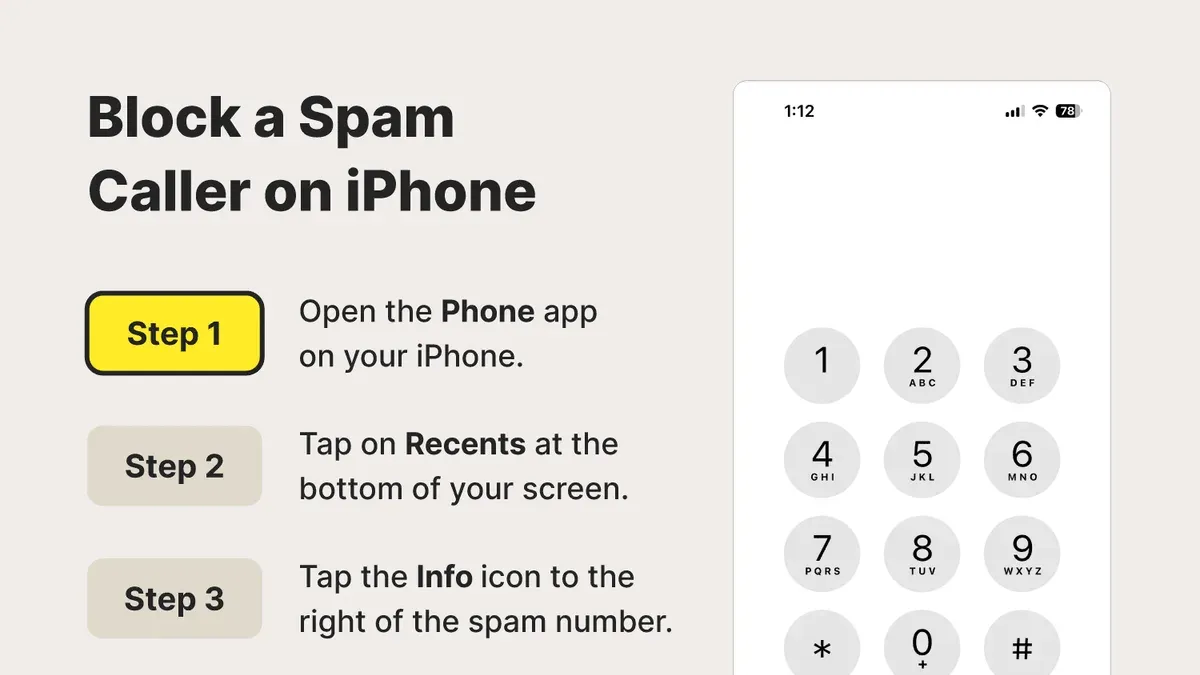
- Open the Phone app and go to the Recents tab to find the unwanted number. Tap the info (i) icon next to it.
- Scroll down and tap "Block this Caller." A confirmation appears confirming the number is blocked from calls, messages, and FaceTime.
- To enable spam filtering, open Settings, select Phone, then tap "Call Blocking & Identification." Toggle on apps that provide spam detection, or enable "Silence Unknown Callers" to send calls from unknown numbers to voicemail.
- When "Silence Unknown Callers" is on, calls from numbers not in contacts, recent calls, or Siri Suggestions are silenced but visible in the Recents list.
Using Android’s native spam protection and call blocking
- Open the Phone app and tap the three-dot menu in the upper-right corner. Select Settings, then Caller ID & Spam.
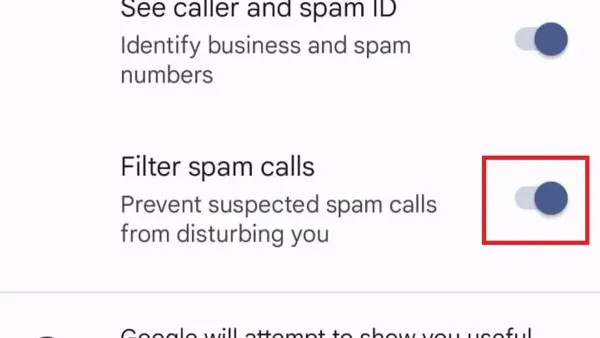
- Toggle on "Filter spam calls" or "Spam protection" to block or warn about suspected spam calls. The interface may vary by manufacturer but is generally under Call Settings.
- To block a specific number, open Recents, tap the number, then tap Block/Report Spam. Confirm the block.
- For unknown numbers, enable "Block unknown callers" if available; this blocks calls from numbers not in the contacts or recent calls.
Handling unknown or private numbers
Both iOS and Android allow silencing or blocking unknown or private numbers but this can block legitimate calls. Use "Silence Unknown Callers" on iPhone or "Block unknown callers" on Android to reduce spam calls without manually blocking each number.
Tip: Regularly check the blocked calls list to ensure no important contacts are mistakenly blocked and adjust settings accordingly.
How to block unwanted spam calls permanently with third-party apps
Third-party spam-blocking apps offer enhanced protection that often surpasses US Mobile’s built-in tools and device settings. When selecting an app, prioritizing compatibility with US Mobile, high user ratings, and regular updates is essential. Popular options like Truecaller, Hiya, and RoboKiller are widely compatible and offer both free and paid versions with varied blocking features.
Tip: Verify app permissions to ensure privacy and minimize unnecessary data access.
To install and configure a spam-blocking app, follow these steps:
- Download the app from the official Google Play Store or Apple App Store. After installation, open the app and grant the requested permissions to access calls and contacts. Successful permission setup will enable the app to identify and block spam calls.
- Activate the app’s spam-blocking feature, usually found under settings labeled “Call Blocking,” “Spam Detection,” or similar. Once enabled, a notification or status indicator should confirm the feature is active.
- Customize blocking preferences, such as blocking unknown numbers, robocalls, or specific area codes. Changes should save automatically and reflect in the app’s dashboard or status screen.
- Enable caller ID and spam alerts if available. This feature will notify when incoming calls are flagged as potential spam, allowing users to decide whether to answer.
App-based blocking offers extensive call identification and community-sourced spam lists but can impact battery life due to background operation. Privacy concerns may arise since some apps collect call data; reviewing privacy policies before installation is recommended. User ratings generally highlight increased spam detection accuracy but note occasional false positives.
| App | Free Version Features | Paid Version Features | User Rating (Approx.) | Battery Impact | Privacy Notes |
|---|---|---|---|---|---|
| Truecaller | Basic spam blocking, caller ID | Advanced blocking, ad-free experience | 4.5/5 | Moderate | Collects call and contact data |
| Hiya | Spam detection, caller ID | Call blocking customization, premium support | 4.4/5 | Low to moderate | Data used for spam database |
| RoboKiller | Trial only | Advanced blocking, answer bots | 4.3/5 | Moderate to high | Data used for call analysis |
How to block spam calls on landline phones connected through US Mobile
Blocking spam calls on landlines linked to US Mobile, often via VoIP, presents unique challenges since traditional carrier-level spam filters may not apply. US Mobile typically offers limited direct spam filtering for VoIP landlines, so hardware solutions become essential. Call-blocking devices connect between the phone and the wall jack to screen or block unwanted calls before they reach the handset.
Popular hardware options include the CPR V5000, Panasonic KX-TG9541S, and Sentry Call Blocker. These devices use databases of known spam numbers and user-generated blacklists to block or screen calls. Success rates vary by product and updates frequency, but many users report significant reductions in unwanted calls.
To set up a call blocker with a US Mobile landline:
- Unplug the landline phone from the wall jack.
- Connect the call blocker device into the wall jack.
- Plug the landline phone into the call blocker device.
- Follow the device’s setup instructions to activate spam blocking features; this usually involves programming blocked numbers and enabling automatic blocking modes.
- Test by calling the landline from a known spam number or using the device’s test function; blocked calls should be silenced or redirected to voicemail.
US Mobile may offer basic VoIP call controls through their customer portal or app, such as call forwarding or Do Not Disturb, but these do not specifically target spam calls. Using hardware blockers remains the most effective method to reduce spam on US Mobile landline services.
Tip: Regularly update the call blocker’s internal spam database to maintain blocking effectiveness.
How to block spam calls automatically without manual intervention
US Mobile and most smartphones offer automatic spam filtering that identifies and blocks suspected spam calls with minimal user effort. Activating these filters routes suspected spam directly to voicemail or blocks them outright, reducing interruptions without manual input. However, the accuracy varies, and some legitimate calls may be mistakenly blocked.
- Open the US Mobile app or website and navigate to the Spam Protection settings. Toggle on the automatic spam filter. When enabled, the system will flag and block calls identified as spam, reducing unwanted calls without requiring manual blocks.
- On iOS devices, go to Settings > Phone > Silence Unknown Callers and turn it on to silence calls from numbers not in contacts, mail, or messages. The phone will send these calls straight to voicemail, limiting interruptions while allowing calls from known contacts.
- On Android devices, open the Phone app, tap Settings > Caller ID & Spam > See Caller ID & spam, and enable Filter spam calls. This setting automatically blocks or flags suspected spam callers based on Google’s spam detection.
- Set up Do Not Disturb mode with exceptions by going to Settings > Do Not Disturb and allowing calls only from favorites or contacts. This limits calls to trusted numbers while silencing others automatically.
- Regularly review blocked or silenced calls to whitelist trusted contacts mistakenly flagged as spam, preventing future blocks. Adding these numbers to contacts or favorites helps reduce false positives.
Automated call blocking can cut down spam significantly but requires occasional oversight to address false positives. User feedback indicates that while most spam calls are caught, some legitimate calls may be missed if numbers are not whitelisted.
Tip: Combine automatic filters with a trusted whitelist to balance blocking efficiency and ensuring important calls are never missed.
Troubleshooting common issues when blocking spam calls on US Mobile
If spam calls continue despite activating blocking features, verify that all settings are correctly enabled. US Mobile’s spam protection must be active in the app under Settings > Spam Protection. If the toggle is off, spam detection won’t function.
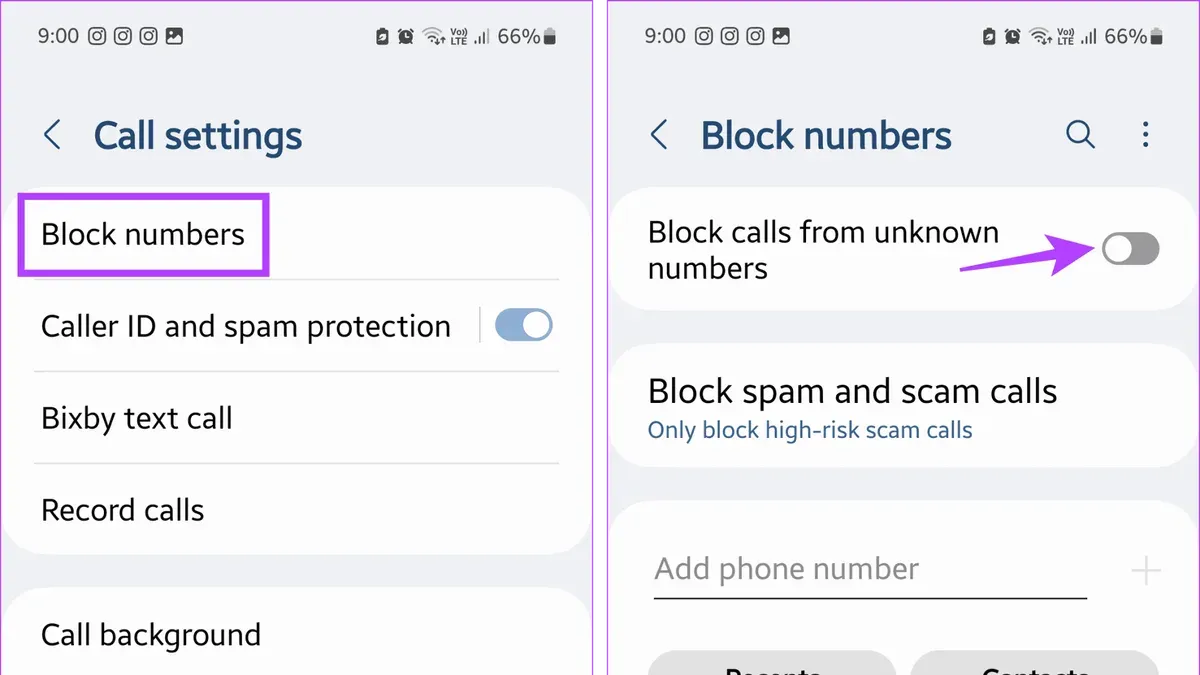
Device settings can override carrier features. Confirm that call blocking and spam filtering are enabled on the phone itself, usually found under Settings > Phone > Call Blocking & Identification on iOS or Settings > Calls > Spam & Call Screen on Android. Mismatched configurations often cause calls to bypass filters.
When spam calls persist, check for software or app updates. Outdated versions of the US Mobile app or device OS can cause blocking failures. Restarting the phone after updates can also refresh blocking rules.
If problems persist, contact US Mobile support via their official website or app. Response times vary but are generally prompt during business hours. Support can verify account-level settings and escalate unresolved issues.
Users frequently overlook whitelist management. Adding trusted numbers prevents accidental blocking but failing to update the whitelist may cause confusion about blocked calls. Review the whitelist in both device and US Mobile app settings.
- Open the US Mobile app and navigate to Settings > Spam Protection. Ensure the toggle is turned on. A green or active indicator confirms it is enabled.
- Go to the phone’s call blocking settings. On iOS, open Settings > Phone > Call Blocking & Identification and verify spam filter status; on Android, check Settings > Calls > Spam & Call Screen. Confirm all spam blocking options are enabled.
- Update the US Mobile app and device software. After updating, restart the device. Post-restart, test by calling from a known spam number to check if it’s blocked.
- If spam calls continue, contact US Mobile support with account details and specific issues. Support should confirm configuration and suggest next steps or escalate to technical teams.
- Review and adjust the whitelist in both the US Mobile app and device settings to ensure important contacts are not blocked unintentionally.
Tip: Regularly review and update blocking settings and whitelists to maintain effective spam protection.
Frequently asked questions
How to completely block spam calls?
Completely blocking spam calls requires combining multiple methods. Use US Mobile's built-in features like the spam call filter, enable device-level blocking options, and install third-party call-blocking apps for broader coverage. Regularly update contact lists and blocking settings to adapt to new spam numbers, as no single method guarantees 100% blocking.
How to block cell phone spam calls?
Start with US Mobile's spam filter feature accessible through the US Mobile app or account dashboard. Additionally, activate call blocking in the phone’s settings—on iOS, use Settings > Phone > Silence Unknown Callers; on Android, enable Caller ID & Spam protection in the Phone app. For persistent spam, add numbers manually to the block list or use reputable third-party apps.
How to block spam calls permanently?
Permanently blocking spam calls involves maintaining an updated block list and employing apps that automatically screen and block known spam numbers. US Mobile's spam detection works continuously but should be supplemented with device settings and apps that update their databases frequently. Note that spammers often change numbers, so vigilance is necessary.
How do you block spam calls from your phone?
Blocking spam calls directly from the phone typically involves accessing the recent calls or contacts list, selecting the unwanted number, and choosing the Block option. On iOS, tap the info icon next to the number and select Block this Caller. On Android, open the call log, tap the number, and choose Block/report spam. This method prevents future calls from that specific number.
How to block spam calls for free?
Free spam blocking options include enabling US Mobile’s built-in spam filter and using native phone features like Silence Unknown Callers on iOS or Caller ID & Spam Protection on Android. Many third-party apps also offer free tiers with basic blocking functions. Combining these tools provides effective spam call reduction without additional cost.
What this advice does not cover and who should do something else
This advice does not guarantee 100% spam call elimination. Scam tactics evolve constantly, and both carrier and device blocking features have inherent limits. Users with older phones or unsupported devices may find some blocking options unavailable or less effective. Some third-party apps require extensive permissions that can affect privacy or battery life, which may not suit everyone’s preferences.
For persistent spam calls that bypass these methods, consider contacting US Mobile support for account-specific solutions or exploring advanced call filtering services offered by third-party providers. Businesses or users with critical needs might require dedicated hardware or network-level filtering solutions beyond typical consumer tools.
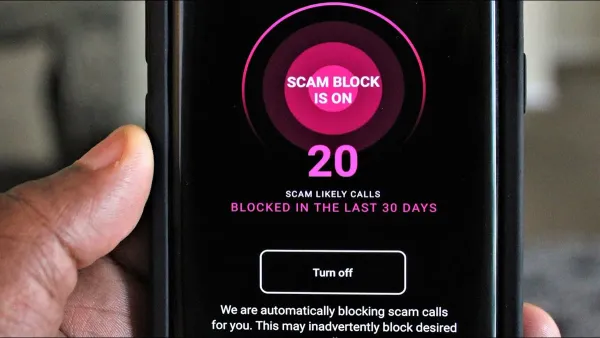
The most effective next step is to enable US Mobile’s Scam Block feature in the account dashboard and combine it with the phone’s native spam filtering settings. This dual approach reduces unwanted calls significantly with minimal manual effort.
See also: How to Block Spam Calls on Metro by T-Mobile: Clear, Practical Steps · How to Block Spam Calls on Google Fi: A Clear Step-by-Step Guide · How to Block Spam Calls on Cricket Wireless Phones: A Step-by-Step Guide