
How to Turn On Two-Factor Authentication on Quora: A Clear Step-by-Step Guide
This guide shows how to turn on two-factor authentication on Quora with clear steps to enhance your account security and avoid common mistakes.


This article explains how to turn on two-factor authentication on Quora with clear, precise steps tailored to the platform's current interface. Two-factor authentication (2FA) adds a critical layer of security by requiring a verification code in addition to the password when logging in. Quora’s 2FA setup includes specific menus and recovery code management that users often overlook or misunderstand, leading to setup failures or lockouts.
Before enabling 2FA, a verified email address or phone number linked to the Quora account is necessary. The process involves navigating through Account Settings to the Security section, where users activate 2FA and choose their preferred verification method. This guide highlights the exact button labels and screens to expect, plus common errors like ignoring recovery codes or misconfiguring authenticator apps.
Before you start: What is needed to enable two-factor authentication on Quora?
Enabling two-factor authentication (2FA) on Quora requires a verified account with full access to the account settings menu. Without this, the 2FA options will not be accessible. A smartphone with an authenticator app installed is essential for the most secure setup. Popular authenticator apps compatible with Quora include Google Authenticator, Authy, Microsoft Authenticator, and LastPass Authenticator. Alternatively, a phone number capable of receiving SMS messages can be used for 2FA codes, though this method is less secure.
Access to the email address linked to the Quora account is necessary to receive verification codes during setup or account recovery. Users must also prepare backup options, such as saving recovery codes provided by Quora or setting a secondary email or phone number for emergencies. Gathering these items typically takes only a few minutes if the authenticator app is already installed.
- Confirm that the Quora account is verified and that the login credentials are ready. Successful login to Quora with full access to the profile and settings page should be possible.
- Install an authenticator app on the smartphone if not already done. Opening the app should show the option to add a new account or scan a QR code.
- Verify the linked email address or phone number is accessible. Receiving a test email or SMS code confirms this.
- Prepare to save recovery codes once generated during the 2FA setup process, usually by downloading or writing them down securely.
Tip: Using an authenticator app is recommended over SMS for better security and reliability in receiving codes.
How to access the two-factor authentication settings on Quora?
- Log into the Quora account on a desktop browser or the mobile web version. The desktop interface offers more straightforward navigation but the mobile web is similar.
- Click the profile icon in the upper-right corner of the desktop screen or tap the profile picture at the top on mobile. This opens a dropdown menu.
- Select Settings from the dropdown menu. On desktop, this is near the bottom; on mobile, it may require scrolling within the menu.
- Within the Settings page, find and click on the Security & Login tab. This is where Quora groups login credentials, password changes, and two-factor authentication options.
- On the Security & Login page, look for the Two-Factor Authentication section. Terminology may vary slightly, but this label is consistent in the current interface.
Tip: On mobile, the Settings menu sometimes reloads slowly; wait a moment before tapping sections to ensure the page fully loads.
Desktop navigation shows the profile dropdown clearly labeled and the Security & Login tab is a visible horizontal menu item. Mobile web requires tapping profile, then Settings, then scrolling to find Security & Login within a vertical list.
Quora’s interface may update terminology or menu placement, but the two-factor authentication settings remain under the Security & Login category inside account Settings.
What are the step-by-step instructions to enable two-factor authentication on Quora?
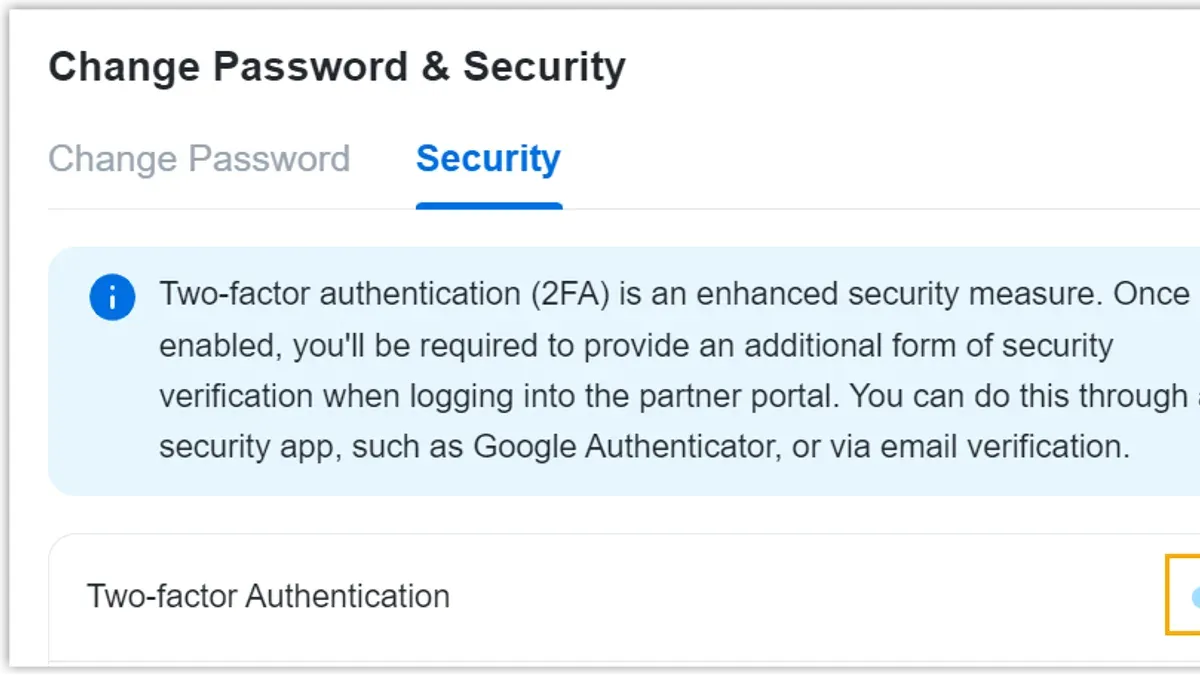
- Select the preferred two-factor authentication method: either an authenticator app or SMS. Quora presents these options clearly under the 2FA settings.On choosing the authenticator app, a QR code and a secret key appear on screen.
- Open the chosen authenticator app (such as Google Authenticator or Authy). Scan the QR code displayed on Quora’s setup page. If scanning fails, manually enter the secret key into the app.Once added, the app generates a 6-digit verification code that refreshes every 30 seconds.
- Enter the current 6-digit code from the authenticator app into the verification field on Quora and submit.A successful entry prompts a confirmation message indicating 2FA is enabled.
- Alternatively, if SMS is selected, enter the phone number. Quora sends a 6-digit code via text. Input this code in the verification field to confirm.
- After confirming the 2FA method, Quora provides recovery codes. These are single-use codes to regain access if the primary method is unavailable.Tip: Store recovery codes offline in a secure place; screenshots or cloud storage are risky.
- Confirm storage of recovery codes by clicking the acknowledgment button. Quora then activates two-factor authentication fully.Future logins will require the 2FA code after the password step.
How to manage and use recovery codes on Quora?
Recovery codes are unique single-use backup keys that allow account access if the primary two-factor authentication method is unavailable. They are critical to prevent being locked out, especially if the authenticator app is lost or the phone number changes. Many account lockouts across platforms occur because users fail to save or securely store these codes.
To find and save recovery codes on Quora, follow these steps:
- Log in to Quora and go to the Security & Login tab within Settings; recovery codes are listed under the two-factor authentication section. Upon selecting to view recovery codes, a set of 10 codes will be displayed.
- Download or copy these codes immediately; Quora will warn that codes are shown only once. Failure to securely store them risks permanent lockout.
- Store the codes offline in a secure place, such as a password manager with offline access, a locked physical safe, or a printed document kept separately from the device used for authentication.
- If a recovery code is used, mark it as used and do not reuse it; after multiple uses or expiration, generate a new set through the same Settings menu.
Tip: Avoid saving recovery codes in cloud-synced notes or emails, as these can be compromised remotely.
If recovery codes are lost and the primary 2FA method cannot be used, recovering the account typically requires contacting Quora support and providing identity verification, a process that can be time-consuming and is not guaranteed.
What are the common issues when enabling two-factor authentication on Quora and how to fix them?
Authenticator apps sometimes fail to accept codes due to time synchronization errors. Apps like Google Authenticator require the device clock to be accurate; if the code is rejected, syncing the app’s time correction in settings usually resolves the issue. Users may see error messages such as "Invalid code" or "Code expired."
SMS codes might not arrive because of network or carrier restrictions. Ensure the phone number is correct, has a stable network connection, and is not blocking short-code messages. If SMS fails repeatedly, switching to an authenticator app is recommended.
Recovery code problems typically stem from lost or improperly stored codes. Without these, account lockout is likely if 2FA devices are unavailable. Quora support forums advise saving recovery codes offline in a secure location immediately after generation.
If two-factor authentication malfunctions, disabling and re-enabling it can reset the setup. To do this, go to Settings > Security & Login > Two-Factor Authentication, select "Disable," confirm the action, then follow the setup steps again. This process clears configuration errors and restores proper function.
- Open Quora and navigate to Settings > Security & Login > Two-Factor Authentication.
Expected result: Access to 2FA management options. - Click "Disable Two-Factor Authentication" and confirm.
Expected result: 2FA is turned off, and login reverts to password-only. - Restart the device to clear cached authentication states.
Expected result: Device is refreshed. - Return to the 2FA settings page and select "Enable Two-Factor Authentication."
Expected result: 2FA setup process begins. - Follow prompts to choose the verification method and verify via code.
Expected result: 2FA is reactivated and working correctly.
How does two-factor authentication on Quora improve account security?
Two-factor authentication (2FA) adds a critical layer of security by requiring a second verification step beyond the password. On Quora, this means that even if a password is compromised, unauthorized access is prevented unless the attacker also has access to the second factor, typically a code from an authenticator app or SMS.
2FA effectively protects against phishing and credential stuffing attacks, which are common threats where attackers use stolen or reused passwords. By requiring a time-sensitive code, Quora’s 2FA significantly reduces the risk of unauthorized logins from these attacks.
However, 2FA is not without limitations. When SMS is used as the second factor, accounts remain vulnerable to SIM swapping attacks, where attackers hijack phone numbers to intercept codes. Using an authenticator app reduces this risk substantially.
Tip: Combine Quora’s 2FA with strong, unique passwords and regularly update them to maximize account security. Avoid SMS 2FA when possible and prefer authenticator apps for stronger protection.
Frequently asked questions
Can two-factor authentication be enabled on Quora mobile apps or only on the website?
Two-factor authentication on Quora must be enabled via the website; the mobile apps do not currently support setting up 2FA. After enabling it on the website, the mobile apps will prompt for the 2FA code during login. This means initial setup requires access to a desktop or mobile browser.
What should be done if the phone with the authenticator app is lost?
If the phone with the authenticator app is lost, the recovery codes saved during 2FA setup are crucial for account access. These codes should be used to log in and then update the authentication method. Without recovery codes, contacting Quora support is necessary, but account recovery may be difficult.
Is SMS-based two-factor authentication secure on Quora?
Quora does not offer SMS-based two-factor authentication; it relies on authenticator apps for 2FA. Authenticator apps generate time-based codes that are generally more secure than SMS, which can be vulnerable to interception or SIM swapping attacks.
Can two-factor authentication be disabled once enabled on Quora?
Yes, two-factor authentication can be disabled at any time by accessing the Security & Privacy settings on the Quora website. Users must provide their password and a current 2FA code to turn it off, ensuring that disabling 2FA requires proper verification.
What this guide does not cover and who should look elsewhere
This guide focuses exclusively on enabling and managing two-factor authentication for individual Quora user accounts through the standard web interface. It does not address advanced enterprise security configurations, multi-user administration, or developer API security settings on Quora. Users seeking protection for organizational accounts or those requiring integration with third-party identity providers should consult specialized resources or Quora’s dedicated enterprise support.
The single most useful next step is to enable two-factor authentication immediately after confirming access to a reliable authentication app or device. This action significantly reduces the risk of unauthorized access, and keeping recovery codes secure ensures continued account access if authentication devices are lost or unavailable.
See also: How to Turn On Two-Factor Authentication on Mastodon: Step-by-Step Guide · How to Turn On and Off Two-Factor Authentication on LinkedIn · How to Turn On Two-Factor Authentication on Kik: A Step-by-Step Guide



