
How to Turn On Two-Factor Authentication on Mastodon: Step-by-Step Guide
Learn how to enable two-factor authentication on Mastodon with a simple step-by-step guide to enhance your account security across instances.

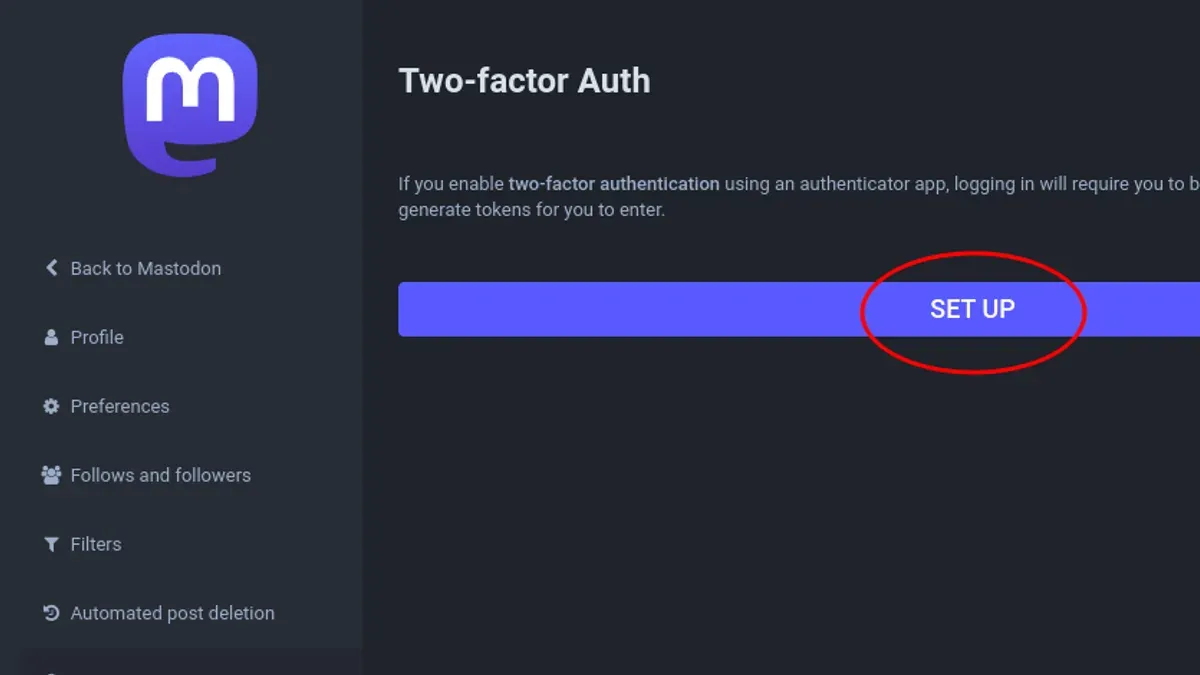
This guide explains how to turn on two-factor authentication on Mastodon, focusing on its decentralized structure and how it impacts account security. Unlike centralized platforms, Mastodon operates across multiple independent servers called instances, each managing its own user authentication. This distinction means enabling two-factor authentication (2FA) requires instance-specific steps and awareness of how the feature behaves across instances.
Understanding Mastodon's federated environment is crucial before activating 2FA. Each instance has separate login credentials, so users must enable 2FA individually on every instance they use. This guide provides a clear, step-by-step approach to locate and activate two-factor authentication on Mastodon, plus tips for managing 2FA when active on multiple instances.
Before You Start: What Is Needed to Enable Two-Factor Authentication on Mastodon?
Two-factor authentication (2FA) on Mastodon requires preparation to ensure a smooth setup. First, a Mastodon account on any instance with access to either the web interface or a supported mobile app is essential. Not all Mastodon instances support 2FA, so confirming that the chosen instance offers this feature is necessary before proceeding.
A compatible 2FA app installed on a mobile device is required. Popular options include Google Authenticator, Authy, and other TOTP (Time-Based One-Time Password) apps. Google Authenticator offers straightforward use but lacks multi-device sync, while Authy enables backup and multi-device support, which can be helpful for managing access across devices.
Basic familiarity with Mastodon’s interface, particularly the account settings menu, is also needed. Users should know how to navigate to security settings where 2FA options reside. Common Mastodon instances like mastodon.social, pawoo.net, and fosstodon.org generally support 2FA, but it’s best to check the instance’s documentation or settings before starting.
Where to Find Two-Factor Authentication Settings on Mastodon?
- Log in to the Mastodon web interface or open the mobile app and sign in. After successful login, the user menu will be accessible, typically represented by an avatar or profile icon in the top-right corner on web and bottom-right on mobile.
- Click or tap the user menu to reveal a dropdown or sidebar menu. Select Preferences on the web or Settings in the mobile app. This action opens the main account configuration area.
- Within Preferences or Settings, locate the Security or Account section. This section contains options related to login credentials and authentication methods, including two-factor authentication.
- On most Mastodon web clients, 2FA settings appear under Security as Two-Factor Authentication or Two-Step Verification. On mobile apps, the exact wording may vary but is usually under Account or Security as well.
- Note that some Mastodon instances customize their interface, so the location might shift slightly. If 2FA settings are not visible, verify that the instance supports 2FA or check for app updates, as older versions might lack full 2FA management.
Tip: If the 2FA option doesn’t appear, try accessing the web interface directly even if primarily using the mobile app, since some instances limit 2FA controls to the web version.
How to Enable Two-Factor Authentication on Mastodon: Step-by-Step
- Log into the Mastodon instance and navigate to Preferences > Security or Account settings, then select Enable Two-Factor Authentication. A QR code and a manual secret key will appear.
- Open the chosen TOTP app (such as Google Authenticator or Authy) and scan the QR code displayed on Mastodon. If scanning fails, manually enter the secret key into the app. The app will start generating six-digit codes at regular intervals.
- Enter the current six-digit code from the TOTP app back into Mastodon's verification field and submit. A confirmation message like "Two-factor authentication enabled" should appear, indicating successful setup.
- Download or copy the displayed recovery codes and save them securely offline. These codes typically appear as a list of 8-character alphanumeric strings (for example, 4F7G-H9JK) and can be used if the 2FA device is lost or inaccessible.
Tip: Store recovery codes in a password manager or printed backup to avoid lockout.
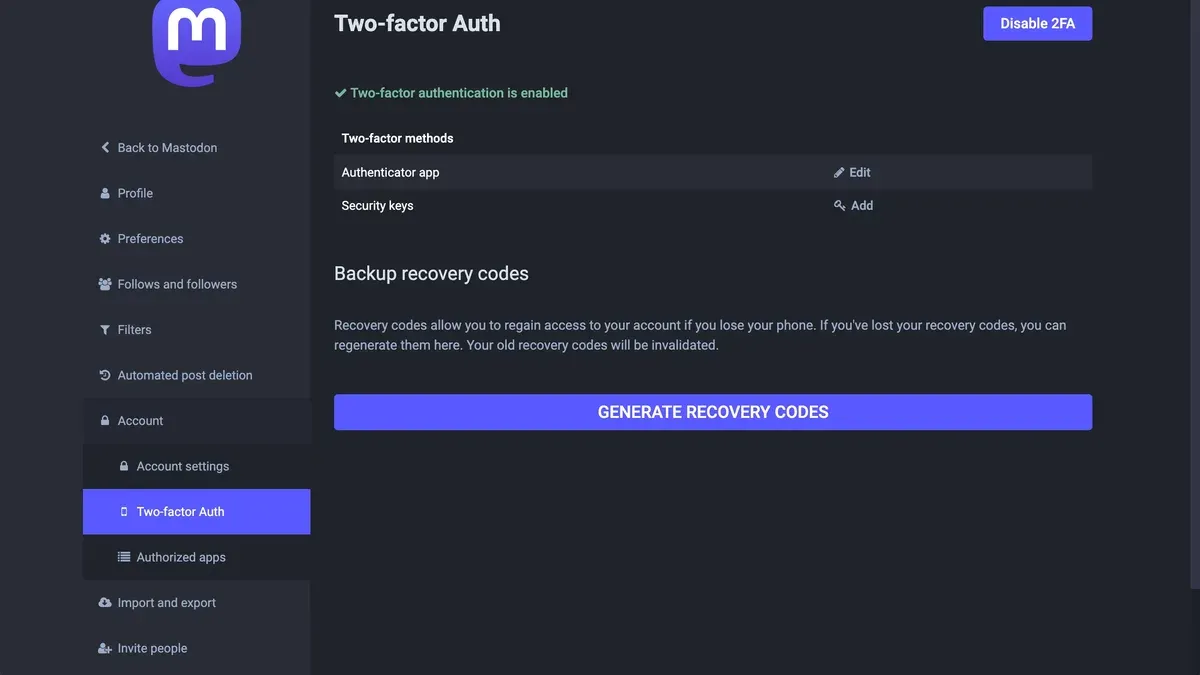
How to Manage and Use Two-Factor Authentication on Multiple Mastodon Instances?
Two-factor authentication (2FA) on Mastodon is instance-specific. Each Mastodon account on a different instance requires 2FA to be enabled and configured independently. This means setting up 2FA separately for each account, even when using the same authentication app.
Using a single TOTP app to manage multiple Mastodon accounts is efficient but requires clear labeling. When scanning the QR code for each account, label the entry with the instance name and username, for example, "mastodon.social - @username" or "techhub.instance - @user". This prevents confusion and ensures the right code is used for login.
When switching between instances or migrating an account, 2FA settings do not transfer automatically. Re-enablement on the new or target instance is necessary. Backup recovery codes for each account separately and store them securely to avoid lockout across multiple accounts.
| Aspect | Single Mastodon Account | Multiple Mastodon Accounts |
|---|---|---|
| 2FA Setup | Enable once per account | Enable separately for each instance account |
| Authenticator App Usage | One entry per account | Multiple entries; label clearly per instance and username |
| Account Migration | Not applicable | Must re-enable 2FA on new instance |
| Recovery Codes | Save once per account | Save and manage distinct codes for each account |
Tip: Use descriptive labels in the authenticator app to quickly identify codes for each Mastodon instance and account.
What to Do If Two-Factor Authentication Fails or Is Lost on Mastodon?
When two-factor authentication (2FA) fails, the first step is to use the recovery codes saved during setup. Entering a recovery code in place of the TOTP code should grant access. If recovery codes are lost, contacting the Mastodon instance administrator is necessary; they can verify identity and assist with account recovery.
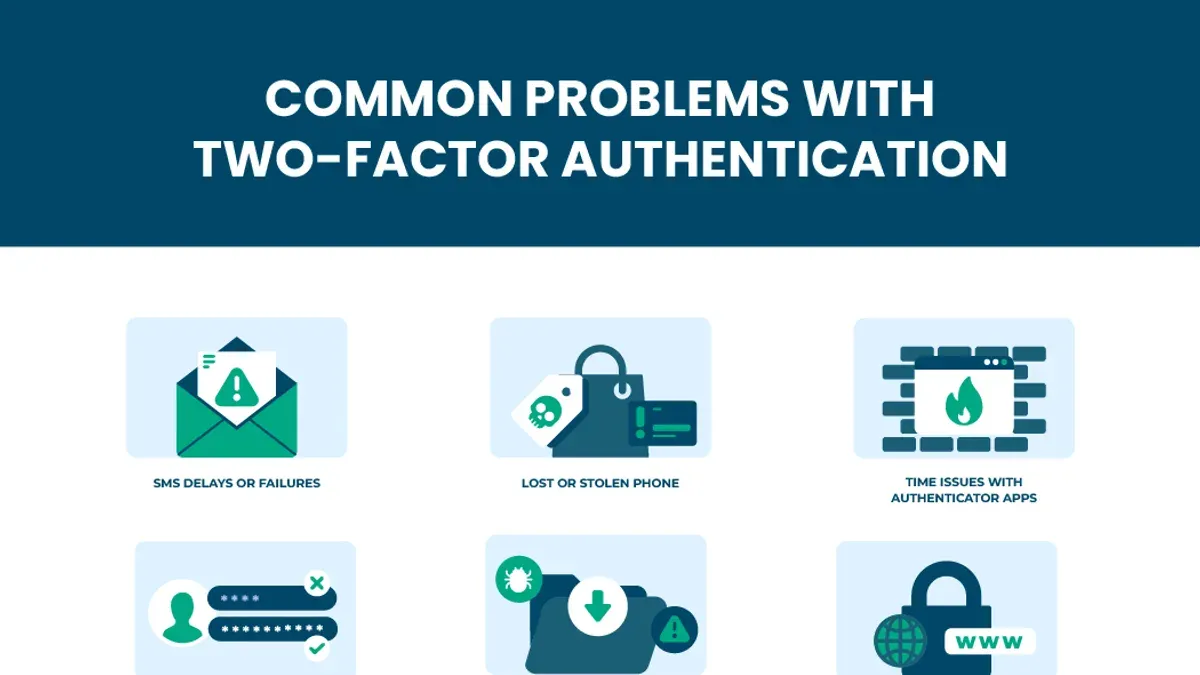
Common 2FA errors include "Invalid code" or "Code expired." These issues often stem from time synchronization problems between the device and the instance. To fix this, ensure the device running the TOTP app has automatic time settings enabled or manually sync the time.
If the Mastodon instance does not support 2FA or employs a custom 2FA implementation, users might face inconsistent prompts or failures. In such cases, reviewing the instance’s help documentation or reaching out to administrators for guidance is recommended.
- Locate and enter one of the saved recovery codes on the 2FA prompt; successful entry grants login access.
- If recovery codes are unavailable, find the contact information for the instance administrator, typically on the instance’s website or About page.
- Reach out to the administrator with proof of account ownership and request account recovery support.
- Verify device time settings to fix invalid or expired code errors; enable automatic time sync or adjust manually.
- Consult instance-specific resources or support channels if 2FA behaves unusually or is unsupported.
Typical error messages and fixes:
- "Invalid code": Check device time sync, use recovery codes.
- "Code expired": Ensure prompt entry after code generation.
- "2FA not supported": Confirm instance capabilities or contact admin.
How Secure Is Mastodon’s Two-Factor Authentication Compared to Other Platforms?
Mastodon employs TOTP-based two-factor authentication, relying on time-synchronized one-time passwords generated by apps like Google Authenticator. This method is widely recognized for strengthening account security beyond passwords alone by requiring a temporary code that changes every 30 seconds. Security experts consider TOTP a robust standard, though it depends on the security of the user’s device and the proper setup of time synchronization.
The decentralized nature of Mastodon means each instance operates independently, creating distinct trust boundaries. Unlike centralized platforms such as LinkedIn, Instagram, or Discord, where 2FA settings and enforcement are uniform, Mastodon users must enable and manage 2FA on each instance separately. This decentralization can reduce the risk of a single point of failure but also requires more user vigilance and careful management of recovery options.
Compared to centralized platforms, Mastodon’s 2FA offers similar cryptographic security but lacks unified account recovery processes, which can complicate access restoration. Like all TOTP 2FA implementations, Mastodon’s 2FA does not fully prevent phishing attacks that trick users into revealing codes, nor does it protect against device loss or compromise. Users should maintain strong device security and store recovery codes securely.
| Feature | Mastodon | Discord | ||
|---|---|---|---|---|
| 2FA Method | TOTP (Authenticator apps) | TOTP + SMS options | TOTP + SMS options | TOTP + SMS options |
| Account Scope | Per instance (decentralized) | Centralized account | Centralized account | Centralized account |
| Recovery Options | Recovery codes, instance admin help | Email, phone, support | Email, phone, support | Email, phone, support |
| Phishing Protection | Standard TOTP limitations | Same | Same | Same |
| Single Point of Failure Risk | Lower (distributed instances) | Higher (centralized) | Higher (centralized) | Higher (centralized) |
Frequently asked questions
Can two-factor authentication be enabled on all Mastodon instances?
Not all Mastodon instances support two-factor authentication (2FA). The availability depends on the instance administrator enabling the feature in the server settings. Users should check their instance's security options under Settings > Security > Two-factor authentication to confirm if 2FA is offered.
What happens if the 2FA app is lost or reset?
If the authentication app is lost or reset, access to the Mastodon account is at risk. Users should save recovery codes provided during 2FA setup, which allow bypassing the app. Without these codes, contacting the instance administrator for account recovery is necessary, but success depends on the instance’s support policies.
Are there alternatives to app-based 2FA for Mastodon?
Most Mastodon instances support app-based 2FA using time-based one-time passwords (TOTP) generated by apps like Authy or Google Authenticator. Some instances may allow U2F hardware keys, but this is less common. SMS-based codes are generally not supported due to Mastodon's privacy-focused design.
Does enabling 2FA affect login on third-party Mastodon clients?
Enabling 2FA may require additional steps when logging in through third-party Mastodon clients. Some clients prompt for the 2FA code after entering the password, while others might not fully support 2FA and could require generating application-specific passwords if the instance allows it. Verify client compatibility and instance documentation for proper handling.
What This Guide Does Not Cover
This guide does not cover hardware security keys or passkey-based authentication, which some Mastodon instances might not support yet. Users requiring these advanced methods should verify their instance’s compatibility and consult specialized resources. Additionally, this guide assumes access to the Mastodon web or official mobile apps and does not address third-party clients or API-based authentication workflows.
For organizations managing multiple instances or requiring enterprise-grade security, integrating centralized identity providers or custom authentication solutions may be necessary beyond the scope of this article.
The single most useful next step is to enable two-factor authentication on each Mastodon instance used and securely store recovery codes immediately after setup. This prevents lockouts and ensures account security across Mastodon’s decentralized environment.
See also: How to Turn On Two-Factor Authentication on Bluesky: Step-by-Step · How to See Where You're Logged Into Mastodon: Step-by-Step Guide



