
How to Turn On Two-Factor Authentication on Pinterest: A Clear Guide
Learn how to enable two-factor authentication on Pinterest with clear steps to enhance your account security and prevent unauthorized access.

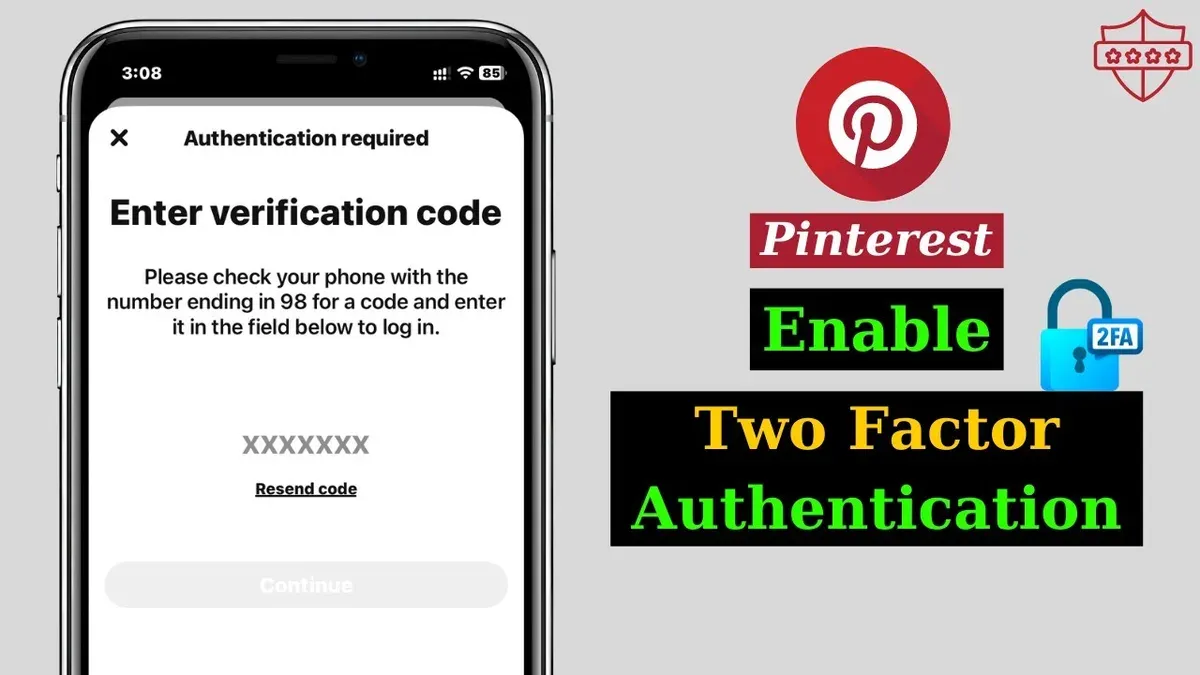
This article explains how to turn on two-factor authentication on Pinterest with clear, practical steps. Two-factor authentication (2FA) adds an extra layer of protection by requiring a verification code in addition to a password, reducing the risk of unauthorized access.
Enabling 2FA on Pinterest involves accessing the security settings within the account menu and choosing between authentication methods such as SMS or an authenticator app. This guide covers the full setup process, how to disable 2FA if needed, and common troubleshooting tips when codes don’t arrive or fail to verify.
Understanding the security benefits and limitations of Pinterest’s 2FA helps users make informed decisions about account protection. The instructions focus on straightforward navigation and precise actions to ensure users can confidently manage two-factor authentication on their accounts.
Before you start: What is needed to enable two-factor authentication on Pinterest
Two-factor authentication (2FA) on Pinterest requires preparation to ensure a smooth setup process. The first requirement is access to the Pinterest account credentials—username and password—since logging in is necessary to change security settings. Next, a smartphone capable of receiving SMS messages or running an authenticator app like Google Authenticator or Authy is essential. These apps generate verification codes required during login, providing the second layer of security beyond the password.
Basic familiarity with Pinterest’s settings menu helps locate the 2FA options quickly. Users should understand that enabling 2FA means an additional verification step is needed after entering the password, either by entering a code sent via SMS or generated by an authenticator app.
Research shows that two-factor authentication significantly reduces the risk of unauthorized access. While Pinterest has addressed numerous account breach attempts through enhanced security measures, 2FA remains one of the most effective defenses against hacking.
- Ensure access to the Pinterest account by logging in with username and password. Successful login leads to the Pinterest homepage.
- Confirm possession of a smartphone with SMS capability or an authenticator app installed. The device should be ready to receive codes or generate them offline.
- Navigate to the Pinterest settings menu by clicking the profile icon, then selecting "Settings" followed by "Security and login." The security settings page should appear.
- Review the 2FA options available to prepare for the setup method: via SMS or authenticator app. The interface will display these choices under the two-factor authentication section.
How do I turn on two-factor authentication on Pinterest
- Log in to Pinterest using a desktop browser or the mobile app. After successful login, access the account menu by clicking on the profile icon.
- Navigate to Settings, then select Security and Login from the sidebar or menu options. The security settings page will appear.
- Locate and click on the Two-Factor Authentication option. This opens the 2FA setup interface.
- Choose the preferred 2FA method: Text message (SMS) or Authenticator app (such as Google Authenticator or Authy). Selecting SMS prompts for a phone number; selecting authenticator app shows a QR code.
- If SMS is chosen, enter the phone number and wait for a verification code via text. If using an authenticator app, scan the displayed QR code with the app to generate a code.
- Enter the received or generated code into the verification field on Pinterest and submit. The system confirms successful activation of 2FA.
- Download or copy the provided backup codes and store them securely. These codes allow account access if the primary 2FA method is unavailable.
Tip: Backup codes are critical for recovery; save them in a secure location outside your phone.
How to turn off two-factor authentication on Pinterest
- Log in to the Pinterest account and go to the profile icon in the top-right corner. Select Settings from the dropdown menu. The Settings page should appear.
- In the left sidebar, click Security and login. This opens security-related options, including two-factor authentication.
- Locate the Two-factor authentication section. It will show if 2FA is currently enabled.
- Click the option to Turn off two-factor authentication or Disable. A prompt requesting confirmation will appear.
- Verify identity by entering the Pinterest account password or inputting a 2FA verification code sent to the registered device. Upon success, 2FA will be disabled, and the setting will indicate it is off.
Disabling two-factor authentication reduces the security level of the Pinterest account. Without 2FA, access depends solely on the password, increasing the risk of unauthorized entry if the password is compromised. Two-factor authentication adds a second layer of protection by requiring a verification code, which significantly improves security against hacking attempts.
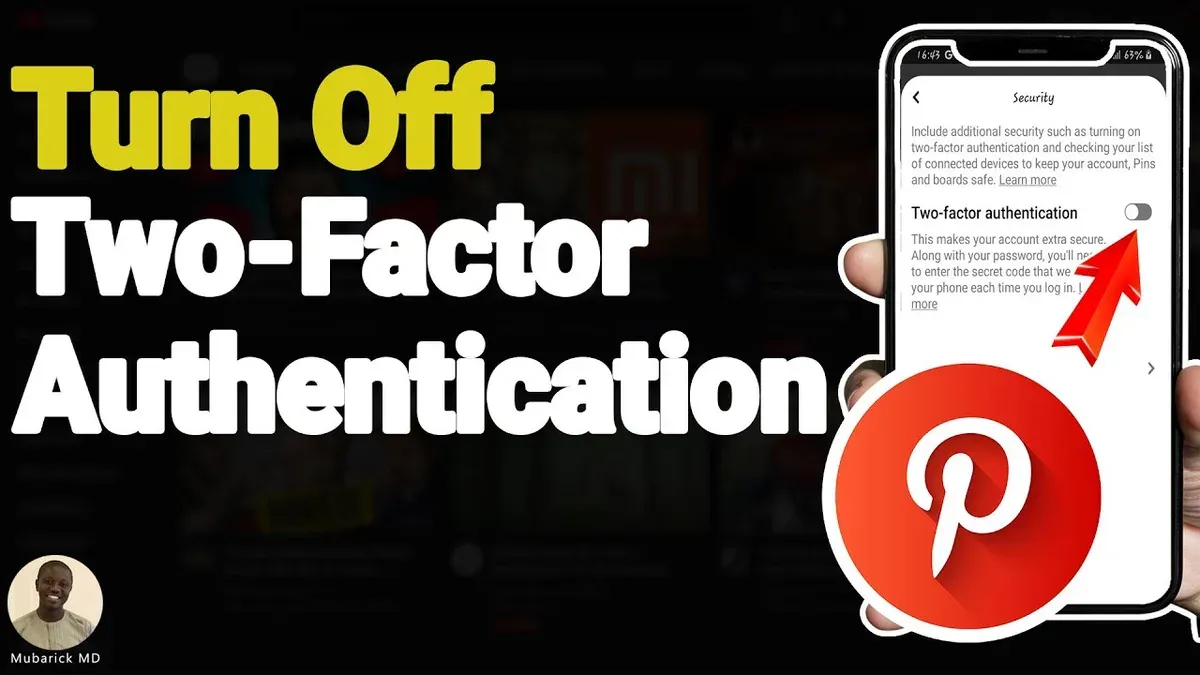
Tip: If disabling 2FA, ensure the account password is strong and unique to mitigate elevated security risks.
Troubleshooting common issues when enabling or using two-factor authentication on Pinterest
Not receiving SMS codes often results from incorrect phone numbers or carrier delays. Verify the phone number listed in Pinterest's Security and Login settings. Contact the mobile carrier if SMS delivery is persistently slow or failing.
Authenticator app codes may fail due to time synchronization errors or app incompatibility. Ensure the device's clock is set to automatic and matches network time. Using popular apps like Google Authenticator or Authy reduces compatibility problems.
Lost access to the authenticator app or phone can block login attempts. In such cases, use previously saved backup codes found in the two-factor authentication settings. If backup codes are unavailable, Pinterest’s account recovery process must be initiated promptly to regain access.
When Pinterest does not accept verification codes, retry entering the code carefully. Codes expire quickly, so generating a new one is often necessary. Persistent rejection may require clearing browser cache, trying a different device, or contacting Pinterest support for assistance.
- Verify the phone number in Pinterest settings matches the device receiving SMS; success means receiving the next code promptly.
- Check and correct device time settings; successful sync allows authenticator codes to be accepted.
- Use backup codes if the authenticator app or phone is lost; logging in confirms recovery.
- Clear browser cache and retry code entry; acceptance confirms resolution.
Tip: Always save backup codes securely when enabling 2FA to avoid lockout scenarios.
Security benefits and limits of two-factor authentication on Pinterest
Two-factor authentication (2FA) adds a strong layer of protection by requiring a second form of verification beyond the password. This prevents unauthorized logins even if the password has been compromised through guessing, data breaches, or reuse. By requiring a time-sensitive code or authentication app confirmation, 2FA effectively blocks most automated or remote hacking attempts targeting passwords alone.
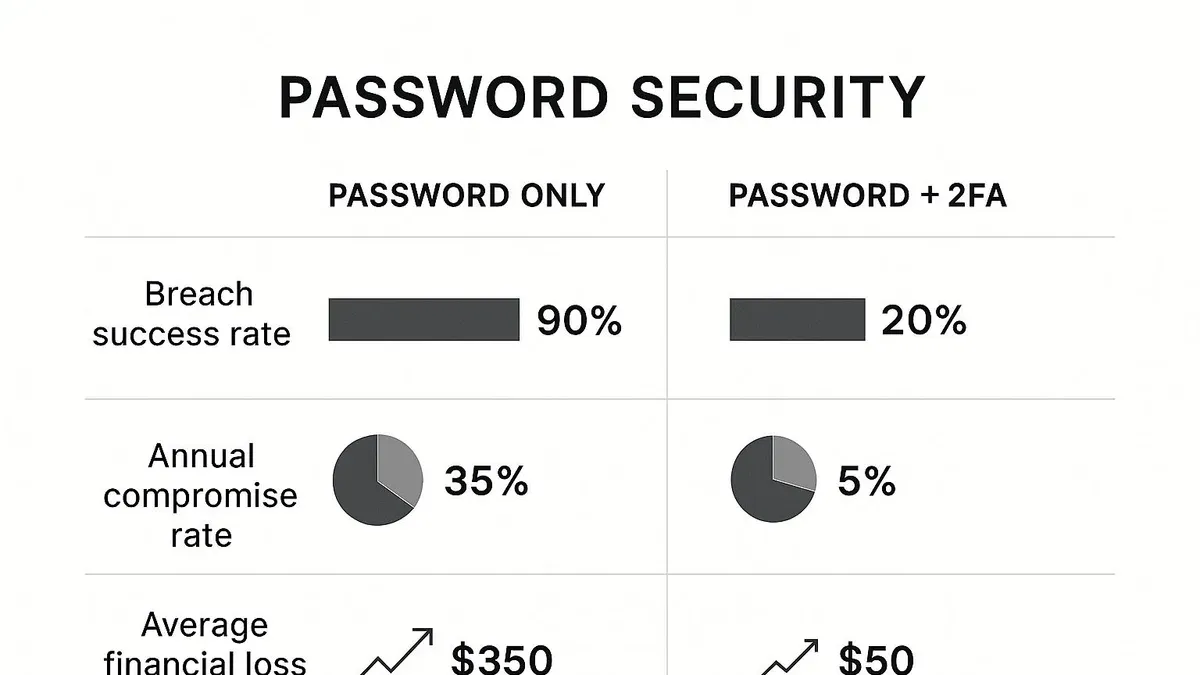
However, 2FA is not infallible. It does not fully protect against phishing attacks that trick users into revealing both their password and 2FA code. Similarly, SIM swapping attacks can intercept SMS-based 2FA codes if mobile carrier security is weak. Because of these vulnerabilities, experts recommend using authenticator apps over SMS for 2FA when possible.
Combining 2FA with strong, unique passwords is crucial. Relying on 2FA alone without good password hygiene reduces overall security. Additional measures like monitoring account activity, enabling login alerts, and securing the email linked to Pinterest further reduce risks. Users should consider 2FA a critical but partial defense within a broader security strategy.
Frequently asked questions
How to turn off two factor authentication on pinterest?
To turn off two-factor authentication on Pinterest, access the account settings, then navigate to the Security section. Locate the two-factor authentication option and select to disable it. Confirm the choice by entering the account password if prompted.
How do I turn off two factor authentication on Pinterest?
Open Pinterest and go to Settings > Security > Two-factor authentication. Toggle off the feature and follow any verification steps required, such as entering a password or receiving a confirmation code. This will deactivate two-factor authentication for the account.
How do I turn on two-factor authentication?
Go to Pinterest Settings, then Security. Select the option to enable two-factor authentication and choose a method, typically via an authentication app or SMS. Complete the setup by entering the verification code sent to the chosen method.
What devices can I use for Pinterest two-factor authentication?
Pinterest supports two-factor authentication using smartphones or tablets that can run an authenticator app like Google Authenticator or Authy. SMS-based verification works on any mobile phone capable of receiving text messages. Desktop or laptop devices are used to enable the feature but not for receiving codes.
What should I do if I lose access to my two-factor authentication method on Pinterest?
If access to the two-factor authentication method is lost, use backup codes provided during setup to log in. If backup codes are unavailable, Pinterest’s account recovery process can help regain access by verifying identity through linked email or phone number. It is essential to update or reset two-factor authentication once access is restored.
What this guide does not cover and who should consider other options
This guide does not cover advanced enterprise-level security settings or third-party app integrations beyond Pinterest’s native two-factor authentication (2FA) options. Users managing multiple accounts professionally or requiring custom authentication workflows should explore dedicated security solutions or consult IT specialists. Additionally, 2FA on Pinterest primarily protects login access but does not secure other vulnerabilities such as compromised devices or phishing attacks outside the app.
For most Pinterest users, enabling 2FA through the app’s Settings > Security > Two-factor authentication menu is sufficient to add a strong layer of protection. The single most useful next step is to verify the chosen 2FA method immediately after setup by logging out and logging back in. This confirms the setup works as expected and avoids lockout risks. Keeping backup codes securely stored also ensures access recovery if the primary 2FA device is unavailable.
See also: How to Turn On and Off Two-Factor Authentication on Instagram · How to Turn On Two-Factor Authentication on Facebook: Step-by-Step Guide



