
How to Secure Your Pinterest Account: Step-by-Step Guide
This guide provides clear steps to secure your Pinterest account, covering login security, privacy settings, and recovery options.

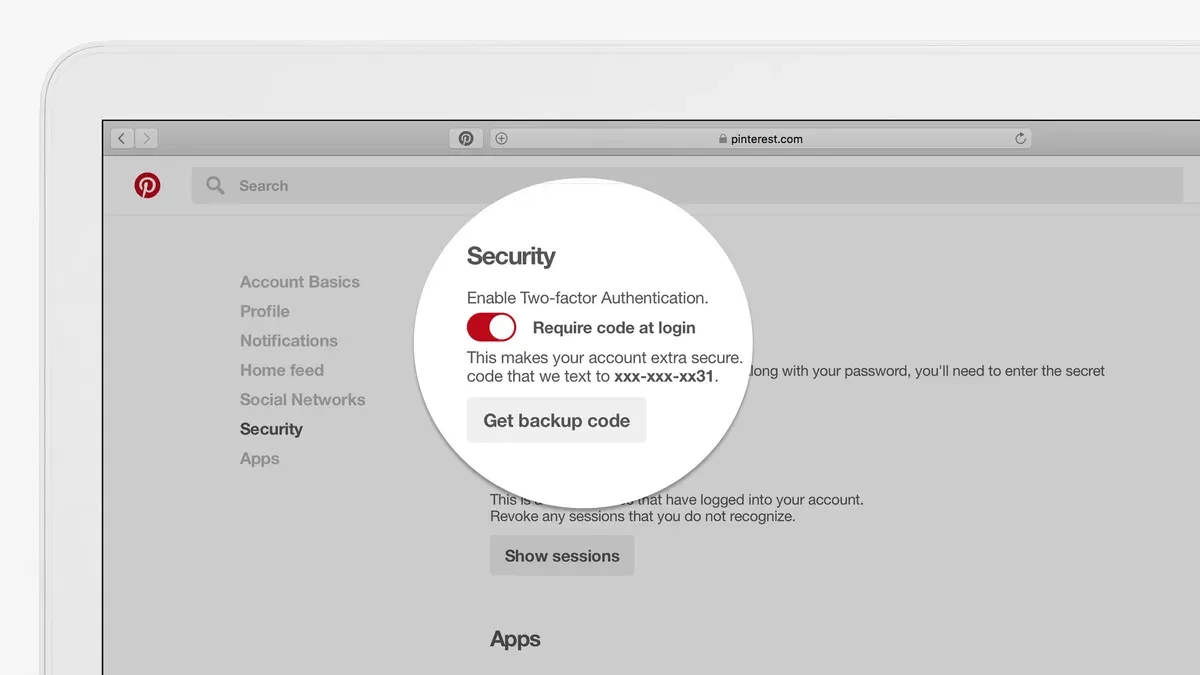
This guide explains how to secure your Pinterest account with clear, actionable steps for both personal and business users. It covers account creation, login security, privacy settings, and recovery options to prevent unauthorized access and data breaches. Practical instructions include enabling two-factor authentication, managing app permissions, and adjusting visibility controls to safeguard information.
Securing a Pinterest account involves more than choosing a strong password; it requires configuring settings within the Pinterest app and website. Users should regularly review the "Security and login" section under Account Settings to monitor active sessions and connected apps. This approach helps control access and limits potential hacking risks effectively.
Before you start: What is needed to secure a Pinterest account
Securing a Pinterest account requires certain prerequisites to be in place. Start with a verified email address or phone number linked to the account. Pinterest uses these for important notifications and recovery, so this contact information must be current and accessible.
Access to the Pinterest app or website should occur only on a secure device. This means using a device free from malware and with updated security patches. Avoid public or shared computers when managing account security settings to prevent unauthorized access.
Understanding the difference between personal and business accounts is essential. Business accounts offer additional tools and settings that can affect security and privacy, so know which type is being secured to apply the appropriate measures.
Prepare a strong, unique password following Pinterest’s guidelines: use a minimum of eight characters combining uppercase and lowercase letters, numbers, and symbols. Avoid common words or predictable sequences. This password will either be set or updated during the securing process.
- Verify that the account email or phone number is current by checking the “Settings” > “Account Settings” > “Account Basics” section. A verified contact will show a confirmation status.
- Confirm access to Pinterest via the official app or website on a trusted device, ensuring the device's operating system and browser are up to date.
- Identify the account type by navigating to “Settings” > “Account Settings” > “Account Type.” Note if it is personal or business to choose relevant security features later.
- Prepare a strong password ready to be created or changed under “Settings” > “Account Settings” > “Password.” Pinterest recommends at least eight characters with a mix of letters, numbers, and symbols.
Tip: Keep a secure password manager handy to generate and store complex passwords safely.
How to create a Pinterest account
- Go to pinterest.com/signup on desktop or open the Pinterest app on a mobile device. The signup page prompts for basic details including email, password, and age.
- Choose between a personal or business account. Personal accounts suit casual users focused on interests and inspiration. Business accounts provide analytics and advertising tools for brands or professionals. Select the appropriate option to tailor features and security settings.
- Enter a valid email address and create a strong password. Use a mix of uppercase, lowercase, numbers, and symbols. Avoid common passwords or simple phrases. A password strength meter appears during entry, turning green when the password is secure.
- Click or tap the "Continue" button. Pinterest may request verification via email or phone number to confirm the account. Complete this step to enable recovery options.
- Set initial privacy preferences. By default, Pinterest accounts are public. To limit visibility of personal information, adjust settings under "Privacy and data" in the account menu immediately after signup.
Tip: Use a password manager to generate and store complex passwords instead of creating memorable but weaker ones.
How to log in to Pinterest account securely
Logging into a Pinterest account safely involves avoiding phishing risks, using secure networks, and enabling enhanced authentication methods. Phishing attacks targeting social media logins remain common, making it crucial to use official Pinterest apps or access the website strictly through pinterest.com. Bookmarking the official login page prevents accidental visits to fraudulent sites designed to steal credentials.
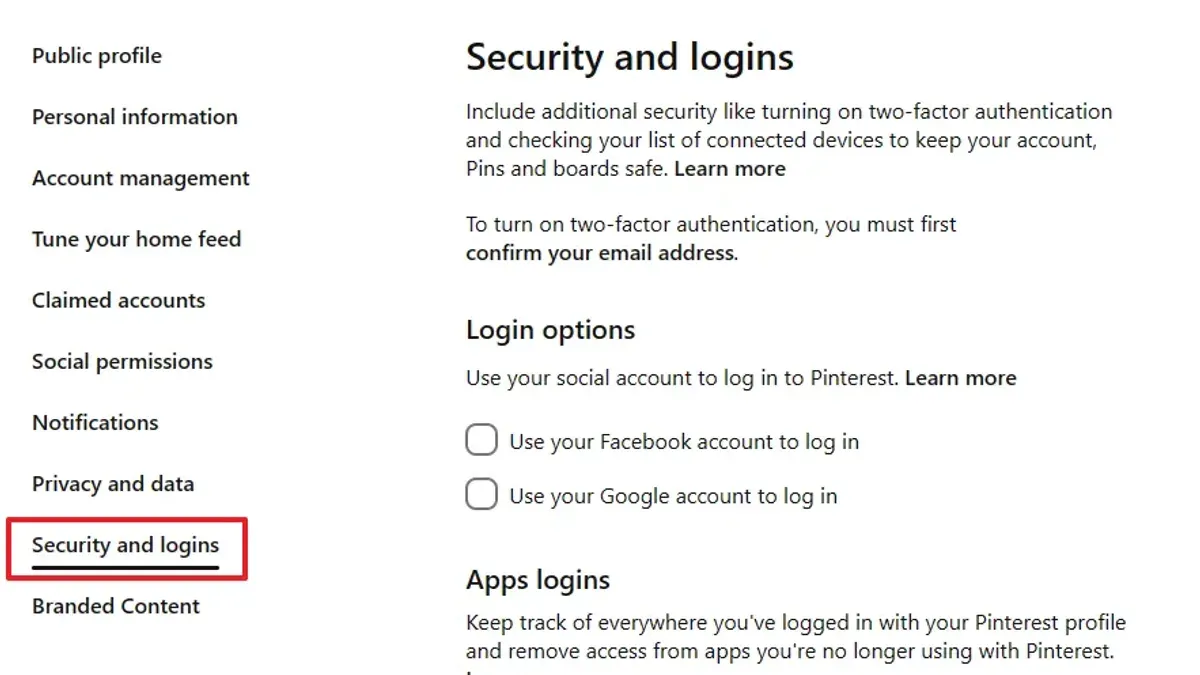
Enabling two-factor authentication (2FA) significantly reduces unauthorized access risks. Pinterest offers 2FA via authentication apps or SMS codes, adding a second verification step beyond the password. Users who activate 2FA experience a substantial decrease in account compromise attempts, as attackers require the physical device or code to proceed.
- Open the official Pinterest app or navigate to https://www.pinterest.com/login. The login page with email and password fields should be visible.
- Enter the registered email address and password. Successful entry leads to either the home feed or a prompt for two-factor authentication if enabled.
- If 2FA is active, input the code from the authentication app or received via SMS. Access is granted only after correct code submission.
- To manage saved passwords, use a reliable password manager rather than browser autofill, reducing risks on shared or public devices. Confirm the manager autofills only on pinterest.com to avoid phishing traps.
- Avoid logging in over public Wi-Fi unless connected through a trusted VPN service. Unsecured networks increase the chance of credential interception.
- If login credentials are forgotten, select the "Forgot password?" link, enter the registered email, and follow the instructions sent to reset the password securely. The reset link expires shortly to prevent misuse.
Tip: Regularly review active sessions in Pinterest’s account settings to identify and log out of unfamiliar devices promptly.
How to access my Pinterest account if locked or hacked
Recognizing signs of account compromise is critical. Unfamiliar activity such as unexpected password changes, unrecognized logins, or sudden loss of access indicates potential hacking. Pinterest may lock accounts automatically to prevent further damage.
- Go to the Pinterest login page and select Forgot your password?. Enter the email address or phone number linked to the account. A password reset link or code should arrive shortly, confirming communication lines are intact.
- If the reset link doesn’t arrive or access to the recovery email/phone is lost, use the Pinterest Help Center to submit a Report a hacked account request. Provide any requested information to verify identity, such as account creation date or recent activity. Pinterest support typically responds within a few days.
- Once access is regained, immediately change the password to a strong, unique one. Navigate to Settings > Security > Password and update it. This step stops unauthorized access.
- Review and revoke suspicious login sessions. Under Settings > Security > Login activity, check all devices and locations. Remove any unrecognized sessions to prevent further intrusion.
Tip: Enabling two-factor authentication right after recovery significantly reduces risks of repeated breaches.
How to make your Pinterest account private
Pinterest does not offer a fully private account option; instead, privacy control centers on managing secret boards and profile visibility. Secret boards keep pins hidden from everyone except invited collaborators, while public boards are visible to all users and search engines. Adjusting profile settings can limit how much personal information appears in searches and on the platform.
To set boards to secret and restrict pin visibility, follow these steps:
- Open the Pinterest app or website and navigate to your profile. You should see your boards listed.
- Select the board to make secret or create a new board by clicking the plus (+) icon.
- Click or tap the pencil icon to edit the board settings.
- Find the “Keep this board secret” toggle and switch it on. When enabled, the board’s pins become invisible to anyone except invited collaborators.
- Save changes. The board will now be marked as secret with a lock icon.
For profile privacy controls:
- Go to Settings > Privacy > Profile Visibility.
- Disable options such as “Allow others to find your profile using your email address” and “Allow search engines to index your profile.”
- Save these changes to reduce your profile’s discoverability outside Pinterest.
Note that hiding all pins requires setting every board to secret; there is no global account privacy switch. Public boards remain visible to anyone, so consider carefully what content to pin publicly.
Tip: Use secret boards to organize sensitive or personal content without exposing it to the public while maintaining public boards for general sharing.
How to make your Pinterest account public
Making a Pinterest account public increases visibility and engagement, especially for business users and creators aiming to grow their audience. Public boards and profiles allow content to be discovered through Pinterest’s recommendation algorithms, boosting reach beyond followers. However, balancing openness with privacy requires thoughtful selection of which boards to share publicly and understanding that all public content is accessible to anyone.
- Open Pinterest and go to the profile by clicking the profile picture in the top-right corner. The profile page should appear.
- Navigate to the board to make public by selecting "Boards" and clicking the desired board. The board page will load.
- Click the pencil icon (Edit) on the board. The board settings window will appear.
- Locate the "Visibility" option and uncheck "Keep this board secret." The board will now be public.
- Click "Done" to save changes. The board is visible to all Pinterest users and searchable in Pinterest’s algorithm.
- For the profile, ensure no privacy settings limit profile visibility by going to Settings > Privacy > Profile Visibility and confirming the profile is set to "Public." The profile will be fully accessible.
Public accounts generally experience higher engagement rates due to improved content discoverability. This is beneficial for branding and marketing but requires careful management of sensitive information. Users should avoid sharing personal details or content they prefer to keep private on public boards.
Tip: Regularly review public boards to ensure content aligns with visibility goals and privacy preferences.
Pinterest business vs personal account: Which is more secure?
Pinterest business accounts offer additional features tailored for brand management and analytics, which influence their security posture. These accounts provide access to Pinterest Analytics, enabling tracking of engagement and audience behavior, but also require careful handling of team permissions to avoid unauthorized access.
Security settings unique to business accounts include the ability to assign specific roles with limited access under "Account Settings > People". This role-based access control helps restrict sensitive actions such as password changes and billing updates to account owners or trusted admins only. Personal accounts lack this granular multi-user management, making business accounts preferable when multiple team members collaborate.
Choosing a business account enhances security when managing multiple contributors or integrating Pinterest with marketing tools. It also supports branding needs while allowing controlled access, reducing risks from shared credentials. However, personal accounts remain simpler for individual users who do not require team collaboration.
| Feature | Business Account | Personal Account |
|---|---|---|
| Multi-user access management | Yes, via role assignments with limited permissions | No, single user only |
| Access to Pinterest Analytics | Yes | No |
| Integration with marketing tools | Supported | Limited or none |
| Control over billing and ads | Yes, restricted to admins | No applicable billing |
Tip: Use role-based access in business accounts to assign the least privilege necessary, minimizing security risks from team collaboration.
Troubleshooting common Pinterest account security issues
Login errors and password reset failures often stem from incorrect credentials or outdated recovery options. Users should verify the entered email and password, then confirm that the recovery email or phone number linked to the account is current. If password reset emails do not arrive, check spam or junk folders and ensure no email filters block Pinterest communications.
Unauthorized account activity is a critical issue. Users noticing unfamiliar pins, messages, or settings changes must immediately change their password and review active sessions under Settings > Security > Access from other devices. Revoking all unknown sessions helps prevent further access by unauthorized parties.
Two-factor authentication (2FA) setup problems frequently involve incorrect time settings on authenticator apps or failure to save backup codes. To fix 2FA setup, disable and re-enable it from Settings > Security > Two-factor authentication, ensuring the authenticator app is synced correctly. Save backup codes securely for account recovery.
Impersonators or suspicious accounts should be reported and blocked through the profile menu by selecting Report > Report Account and choosing impersonation or spam. Pinterest recommends providing detailed information in the report to expedite review. Blocking prevents the account from interacting or viewing the user’s content.
- For login errors, confirm correct email and password entry; successful login directs to the Pinterest home feed.
- If password reset fails, verify recovery contact details and check email spam folders; receiving a reset email confirms success.
- To address unauthorized activity, change password, then navigate to Settings > Security > Access from other devices and revoke unknown sessions; only recognized devices should remain.
- Fix 2FA by disabling then re-enabling it under Settings > Security > Two-factor authentication with a properly synced authenticator app; successful setup shows a confirmation message and backup codes.
- Report suspicious accounts by visiting the profile, selecting Report > Report Account, and following prompts; blocking is confirmed when the account no longer appears in searches or interactions.
Frequently asked questions
How to get a pinterest account?
Visit pinterest.com or download the Pinterest app. Click on "Sign up" and enter an email address, create a password, and provide your age. Alternatively, sign up using a Google or Facebook account for quicker access. Follow the prompts to select interests and complete the setup.
How to private your pinterest account?
To make a Pinterest account private, create secret boards instead of public ones. Navigate to the board, click the pencil icon to edit, then toggle "Keep this board secret." Pinterest does not allow full account privacy, so only specific boards can be hidden from public view.
How to make pinterest account?
Go to the Pinterest website or app and select "Sign up." Enter a valid email, a strong password, and your age. Choose topics of interest to personalize the experience, and verify the email if prompted. The account will be ready to use for both personal and business needs.
How to open a pinterest account?
Opening a Pinterest account requires visiting pinterest.com or installing the app, then selecting "Sign up." Provide an email address, create a password, and fill in the requested personal information. Confirm the registration via email to activate the account fully.
How to create pinterest account?
Start by selecting "Sign up" on Pinterest's homepage or app. Enter an email address, set a password, and input your age. Optionally, use Google or Facebook credentials for faster registration. Choose interests to tailor the feed and complete the setup process.
What This Guide Does Not Cover and Who Should Do More
This guide focuses specifically on securing a Pinterest account through settings and recovery options within the platform. It does not address device-level security such as antivirus protection, operating system updates, or securing email accounts linked to Pinterest. Broader social engineering attacks, including phishing beyond Pinterest-specific scenarios, are also outside its scope.
Users with high-risk profiles—such as public figures, business owners with sensitive data, or those who have experienced targeted attacks—should consider additional measures. These include hardware security keys, dedicated security software, and consulting cybersecurity professionals to implement comprehensive defenses.
The most effective next step is enabling two-factor authentication in Pinterest’s settings under Account Settings > Security > Two-Factor Authentication. This adds a critical layer of protection by requiring a verification code on each login attempt, significantly reducing the risk of unauthorized access.
See also: How to Secure Your Messenger Account: Step-by-Step Guide · How to Secure Your LinkedIn Account: Step-by-Step Guide · How to Secure Your Discord Account: A Step-by-Step Guide



