How to Block Spam Calls on Google Fi: A Clear Step-by-Step Guide
This guide explains how to block spam calls on Google Fi using built-in features and device settings to reduce unwanted interruptions.

This article explains how to block spam calls on Google Fi using the service’s built-in tools and device-specific settings. Google Fi offers several features to identify and block unwanted calls, but the approach differs between Google Pixel phones and other Android devices. Understanding the exact menus and options in the Google Fi app, Android Phone app, and device settings helps users reduce interruptions from spam. The guide also covers additional measures beyond Google Fi’s scope, such as blocking calls on Google Voice and managing spam through Gmail filters. Step-by-step instructions clarify how to enable spam protection, block specific numbers, and troubleshoot common issues when spam calls slip through.
Before you start: What is needed to block spam calls on Google Fi
Blocking spam calls on Google Fi requires an active account with spam protection enabled. Google Fi’s built-in spam detection identifies likely spam and robocalls, alerting users or automatically filtering these calls. The effectiveness of this feature depends on having the latest version of the Google Fi app and updated system software on a compatible device.
Compatible devices primarily include Android phones such as Google Pixel and Samsung Galaxy models. These devices allow integration with Google Fi’s spam protection settings directly through the phone’s native dialer and system settings. Non-compatible devices may have limited or no access to these specialized spam blocking tools.
To prepare, ensure the Google Fi app is installed and updated via the Google Play Store. System updates should be applied through the device’s Settings app under “System” or “Software update.” Google Fi’s spam protection toggle is found within the Google Fi app under Settings > Spam Caller ID & Call Screen.
- Open the Google Fi app. The home screen appears.
- Tap Settings (gear icon). The Settings menu opens.
- Scroll to “Spam Caller ID & Call Screen” and tap it. The spam settings page displays.
- Ensure the “Filter suspected spam calls” toggle is turned on. When enabled, suspected spam calls will be flagged or blocked.
Tip: Google Fi’s spam detection is regularly updated to improve accuracy, but some spam calls may still slip through or legitimate calls may be flagged, so review call logs periodically.
How to stop Google spam calls using Google Fi’s built-in features
Google Fi provides native spam call blocking and screening tools that leverage network data and the Google Phone app’s capabilities. To activate these protections, users must enable spam call protection within the Google Fi app settings and use the Google Phone app for call management. Google Fi identifies spam calls by analyzing call patterns and reports from its network, offering a more precise filter than generic Android spam settings.
- Open the Google Fi app and tap the menu icon (three horizontal lines) in the top-left corner. Navigate to Settings > Spam Caller ID. Toggle on Filter suspected spam calls. When successful, a confirmation message appears, and suspected spam calls will be automatically filtered or labeled.
- On supported devices, enable Call Screen by opening the Google Phone app. Tap the three-dot menu in the top-right corner, select Settings > Spam and Call Screen > Call Screen. Turn on options such as Screen calls from unknown numbers. When active, incoming calls from unknown numbers will be screened by Google Assistant before ringing.
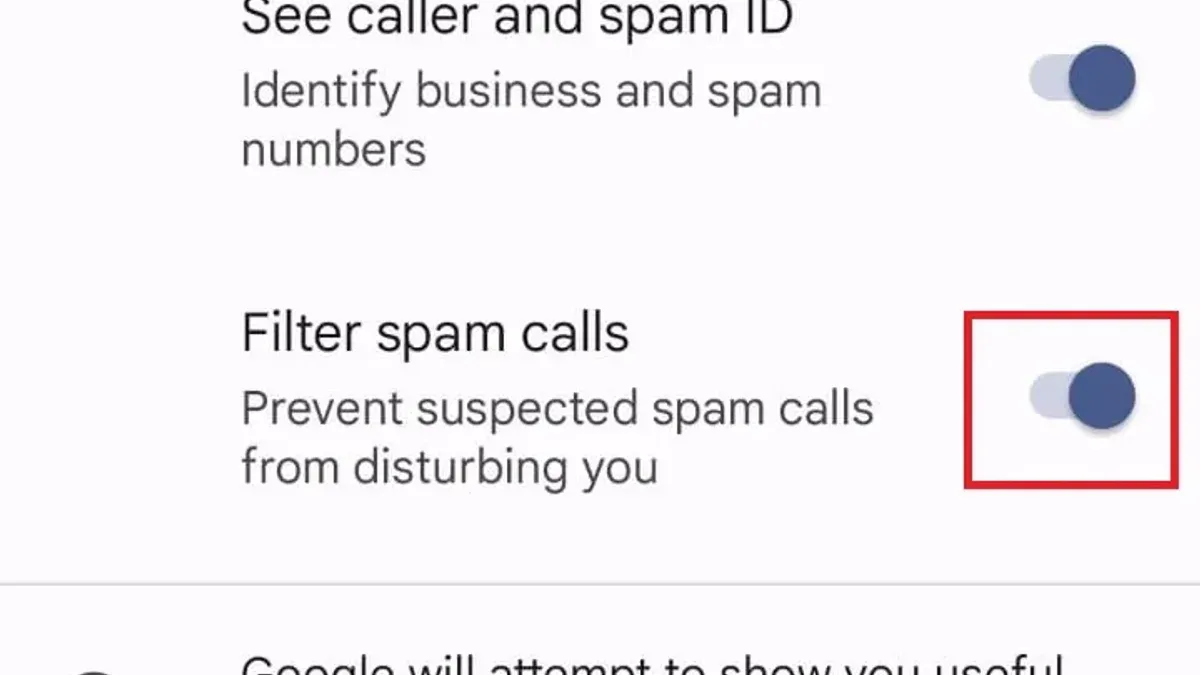
- Use the Google Phone app’s built-in spam filtering alongside Google Fi’s network protection. Open the Phone app, navigate to Settings > Caller ID & Spam, and enable Filter spam calls. This integration improves detection by combining local and network data.
Tip: Call screening is most effective on Pixel and other supported devices and may not be available on all Android phones.
Combining these settings allows Google Fi users to reduce spam call interruptions significantly. Google Fi’s network-level identification often outperforms standard Android spam filters, providing more accurate spam detection and fewer false positives.
How to block spam calls on Google Pixel and other Android devices with Google Fi
Blocking spam calls on Google Pixel and Samsung Galaxy phones with Google Fi involves device-specific features that complement Google Fi’s network protections. Users can block numbers directly from recent calls, configure messaging app settings, and adjust Android’s Do Not Disturb and caller ID options to reduce interruptions.
- Open the Phone app and go to the Recent calls or Call log screen. Tap the number or contact suspected of spam.
- On Pixel, tap Details, then select Block number. A confirmation appears, and the number is immediately added to the blocked list.
- On Galaxy devices, tap More (three dots), then Block number. The device confirms the block and the number does not ring again.
- Open the Google Messages app to block spam texts and related calls.
- Tap and hold the spam message thread, then select Block & report spam. This prevents both calls and texts from that number.
- Customize Android’s Do Not Disturb (DND) to limit spam call interruptions.
- Go to Settings > Sound > Do Not Disturb.
- Set Calls to allow calls from Contacts only or Starred contacts to silence unknown or suspected spam calls.
- Enable caller ID and spam protection within device settings.
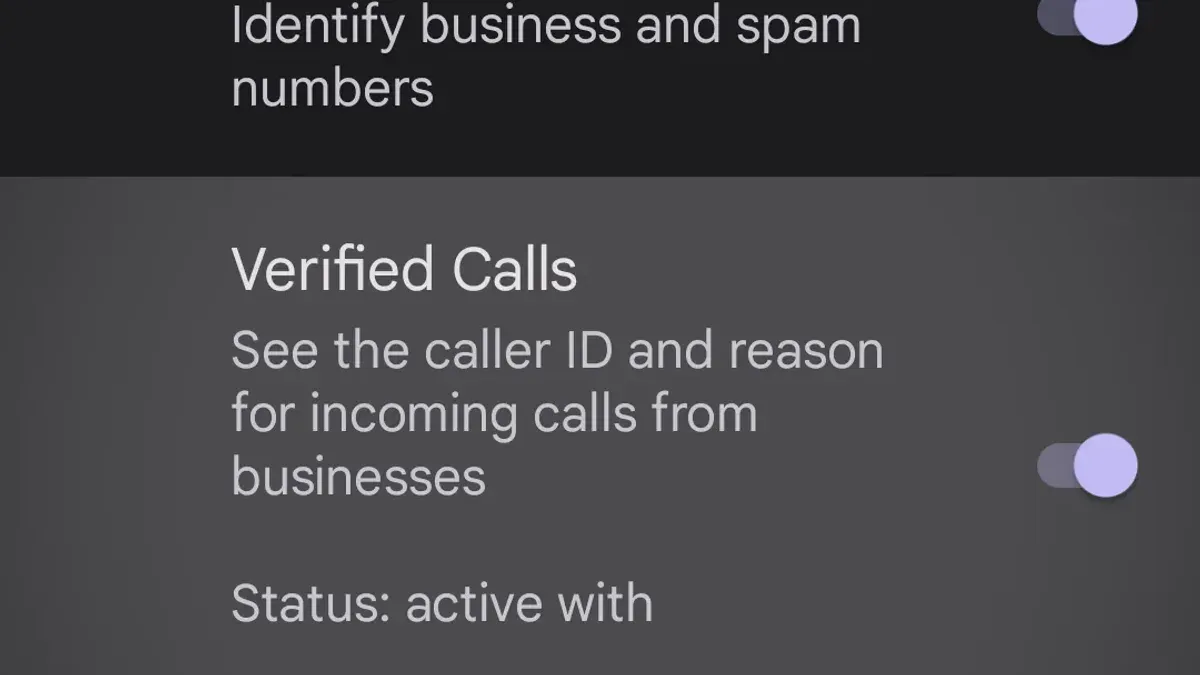
- On Pixel, navigate to Phone app > Settings > Caller ID & spam and toggle on See caller ID & spam warnings.
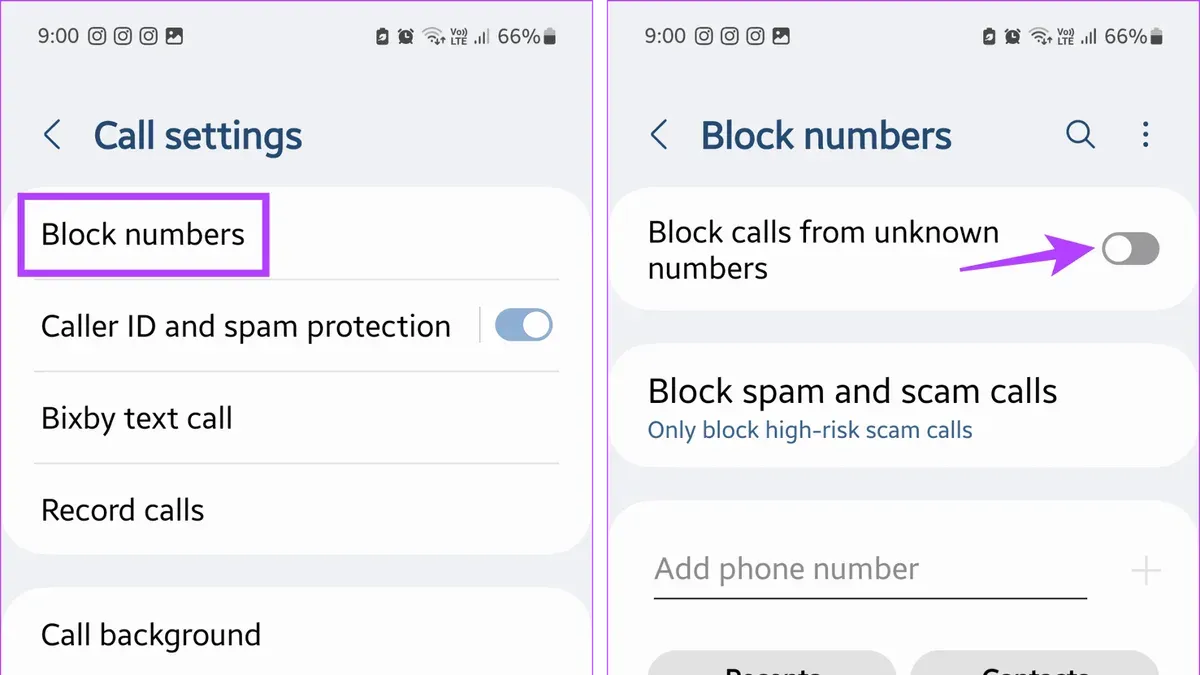
- On Galaxy, open Phone app > Settings > Caller ID and spam protection, then toggle it on to receive alerts about suspected spam calls.
Tip: Regularly review the blocked numbers list in the Phone app settings to manage or unblock contacts mistakenly blocked.
| Feature | Google Pixel | Samsung Galaxy |
|---|---|---|
| Block number from call log | Details > Block number | More (three dots) > Block number |
| Block spam texts and calls | Google Messages: Block & report spam | Google Messages: Block & report spam |
| Do Not Disturb call exceptions | Allow calls only from contacts or starred contacts | Allow calls only from contacts or starred contacts |
| Caller ID & spam protection | Phone app > Settings > Caller ID & spam | Phone app > Settings > Caller ID and spam protection |
How to block spam calls on a cell phone beyond Google Fi’s tools
Google Fi’s built-in spam protection is effective but can be supplemented with additional methods to further reduce unwanted calls. One option is to use third-party spam blocking apps that offer advanced filtering, caller identification, and community-reported spam lists. Popular apps compatible with Google Fi include Truecaller, Hiya, and RoboKiller. These apps scan incoming calls and provide customizable block lists, often backed by large user communities and frequent updates.
To set up a third-party spam blocker app, download it from the Google Play Store, follow the installation prompts, and grant necessary permissions such as access to call logs and contacts. The app should then start identifying spam calls and provide options to block or report them. Look for apps with high user ratings (generally 4 stars or above) and positive reviews citing effective spam detection and minimal false positives.
Another approach is to enable carrier-level spam blocking services if available. Some carriers offer network-based spam filters that work independently of device settings. Google Fi itself does not currently provide a separate carrier-level spam blocking service beyond its integrated features, so third-party apps or carrier services from another provider may be needed if using a different SIM or dual SIM setup.
Comparing Google Fi’s spam blocking to third-party solutions reveals trade-offs. Google Fi uses network data combined with device features for seamless integration and low false positives. Third-party apps may offer more aggressive filtering and additional features like call recording or SMS spam blocking, but they require more permissions and can impact battery life. Compatibility issues sometimes arise, especially when multiple call screening apps are active simultaneously.
Comparison of Features and Compatibility with Google Fi
| Feature | Google Fi Spam Protection | Truecaller | Hiya | RoboKiller |
|---|---|---|---|---|
| Network-level blocking | Yes | No | No | No |
| Caller ID and spam lists | Yes | Yes | Yes | Yes |
| Custom block lists | Limited | Yes | Yes | Yes |
| SMS spam blocking | No | Yes | Yes | Yes |
| Call recording | No | No | No | Yes |
| Battery impact | Minimal | Moderate | Moderate | Moderate |
| Compatibility with Google Fi | Fully integrated | Generally compatible | Generally compatible | Generally compatible |
Users should choose third-party apps carefully, considering permissions and battery trade-offs. Running multiple spam blockers simultaneously can cause conflicts or missed calls. Testing one app at a time is recommended to find the best fit.
How to block spam in Google Mail and Gmail to reduce spam business calls
Gmail’s spam filters reduce the volume of marketing emails that often lead to unwanted business calls. Many spam callers obtain phone numbers from email sign-ups and marketing communications. Managing spam in Gmail can indirectly lower the number of spam calls linked to Google services.
Blocking spam senders in Gmail prevents them from contacting via Google Chat and other Google communication tools linked to that email. This step does not block calls on Google Fi directly but helps cut off spam sources connected to the Google ecosystem.
- Open Gmail and select an unwanted email from a spam or marketing sender.
Look for consistent senders that trigger unsolicited contact. - Click the three-dot menu in the top-right corner of the email.
Options menu appears. - Select Block "Sender Name".
The sender is blocked, and future emails from this address go to Spam. - To further reduce calls, access Google Business Profile settings at business.google.com.
Manage business phone visibility and messaging preferences. - Adjust phone call preferences by disabling public display of the business phone number or enabling call screening features.
This limits exposure to spam calls through Google Business listings.
Note: Blocking spam in Gmail targets email and Google account contacts, whereas blocking spam calls on Google Fi stops phone calls at the network or device level. Using both together offers broader protection against spam.
Tip: Regularly review and update blocked senders in Gmail and Google Business Profile to maintain control over unwanted contacts.
How to block spam calls on Google Voice linked to Google Fi
Google Voice users who forward calls to their Google Fi number can improve spam call management by configuring Google Voice’s spam filtering and blocking features. These settings operate independently from Google Fi’s spam protection but work alongside it to reduce unwanted calls.
- Open voice.google.com and sign in with the Google account linked to the Google Voice number. The Google Voice dashboard appears.
- Click the gear icon (Settings) in the top right corner to open the settings menu. The settings page loads.
- Scroll to the Spam section and ensure Filter spam calls is checked. This setting automatically sends suspected spam calls to voicemail and marks them as spam.
- To block a specific number, go to the Calls tab on the left menu, then select Call history. Find the unwanted number, click the three-dot menu next to it, and choose Block number. This prevents future calls from that number.
- On the Google Voice mobile app, tap the menu icon, select Spam, and review spam calls. Block or unblock numbers as needed using the options next to each call.
Tip: Google Voice spam filtering complements Google Fi’s system by catching spam calls before they reach the phone, but forwarding calls from Voice to Fi may occasionally let some spam calls slip through due to differing spam detection algorithms.
Users should periodically review blocked numbers in Google Voice to ensure legitimate contacts are not unintentionally blocked. While Google Voice can reduce spam effectively, it does not replace the need for Google Fi’s built-in spam protections.
How to troubleshoot when spam calls are not blocked on Google Fi
When spam calls bypass Google Fi’s blocking measures, start by verifying that spam protection is enabled. Navigate to the Google Fi app, tap Settings > Spam Caller ID & Spam Protection, and confirm both options are active. Users often miss that updates to these settings require a device reboot to take effect. After enabling, reboot the device and observe if spam calls decrease.
Next, check that the device software and Google Fi app are up to date. Outdated software can cause spam filtering to malfunction. Go to Settings > System > System Update to install any available updates. In the Google Play Store, update the Google Fi app. Once updated, spam blocking features typically restore proper function.
Conflicting third-party apps can interfere with Google Fi’s spam blocking. Apps that manage calls or messages might override Google Fi’s settings. To identify conflicts, temporarily disable or uninstall recently added call-blocking or messaging apps. If spam calls reduce, adjust app permissions or settings to prevent interference or choose to rely solely on Google Fi’s tools.
If spam calls persist despite these steps, contact Google Fi support. Provide details of the issue, including any error messages like “Spam protection unavailable” or “Call screening failed.” Support can verify account settings, check network-side filters, and escalate unresolved cases. Documented fixes include remote profile resets and network refreshes, which often resolve persistent spam call problems.
- Open the Google Fi app, go to Settings > Spam Caller ID & Spam Protection, and ensure spam protection is enabled. A confirmation toggle should be visible and active.
- Update device software via Settings > System > System Update. After installation, the device should show the latest version number.
- Update the Google Fi app in the Google Play Store. The app page should indicate the current version is installed.
- Temporarily disable third-party call management apps from Settings > Apps. Confirm spam calls decrease or stop during this period.
- If issues persist, contact Google Fi support through the app or website. Expect confirmation of account status and possible further troubleshooting.
Frequently asked questions
How to block spam calls on galaxy?
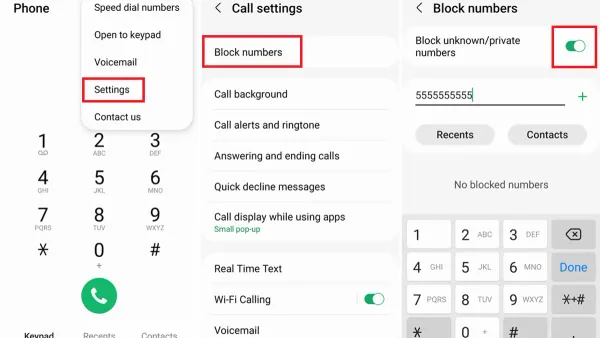
On Samsung Galaxy devices, open the Phone app, tap the three-dot menu, and select Settings. Navigate to Block numbers, then enable "Block unknown callers" or add specific numbers to the block list manually. Additionally, Samsung's Smart Call feature can identify and filter suspected spam calls automatically.
How to block spam on gmail?
To block spam in Gmail, open the unwanted email, click the three-dot menu next to the reply button, and select "Block [sender]." Also, use Gmail’s Spam filter by marking suspicious emails as spam, which helps train the filter to catch similar messages in the future. Creating filters to automatically delete or archive emails from persistent spam senders can further reduce spam.
How to stop google business spam calls?
Google Fi users should enable the Spam Caller ID and Scam Block features within the Fi app to detect and block suspected business spam calls. Registering with the National Do Not Call Registry can also reduce telemarketing calls. For persistent calls, manually block the numbers through the Phone app or use third-party call-blocking apps that specialize in business spam filtering.
How to block spam calls on android?
On Android devices with Google Fi, open the Phone app, go to Settings > Caller ID & Spam, and turn on "Filter spam calls." This feature automatically sends suspected spam calls to voicemail. For added control, use the "Block numbers" option to add specific callers or enable "Block unknown/private numbers" to stop calls without caller ID.
Is there a way to block spam calls?
Yes, Google Fi provides built-in spam protection by identifying and filtering suspected spam calls. Users can also block individual numbers manually or enable options to block calls without caller ID. For enhanced protection, third-party apps and carrier-level services offer additional spam filtering tailored to specific needs.
What this advice does not cover and who should do something else
Google Fi’s spam call blocking is effective but not foolproof; some spam calls may still get through due to constantly changing caller tactics. Users who experience persistent spam despite these steps may need to consider additional layers of protection or contact Google Fi support for account-specific issues. Third-party spam blocking apps vary widely in effectiveness and may conflict with Google Fi’s native features, potentially causing missed calls or notification problems. This guide does not cover spam call blocking for non-Google Fi carriers or landline phones, which require different tools and settings.
The single most useful next step is to ensure that all built-in spam protection settings in the Google Fi app and device call settings are enabled and regularly reviewed. Maintaining these active gives the best chance to minimize unwanted calls while preserving legitimate communications. Regularly updating the device’s software and Google Fi app can also help keep spam blocking features functioning optimally as Google improves them over time.
See also: How to Block Spam Calls on Cricket Wireless Phones: A Step-by-Step Guide · Understanding Google Fi Port Out Protection: How It Works and Why It Matters · How to Identify, Respond to, and Prevent Google Pay Account Hacks