How to Block Spam Calls on Visible: Clear, Effective Steps
This guide explains clear steps to block spam calls on Visible, using built-in features and additional tools for effective call protection.

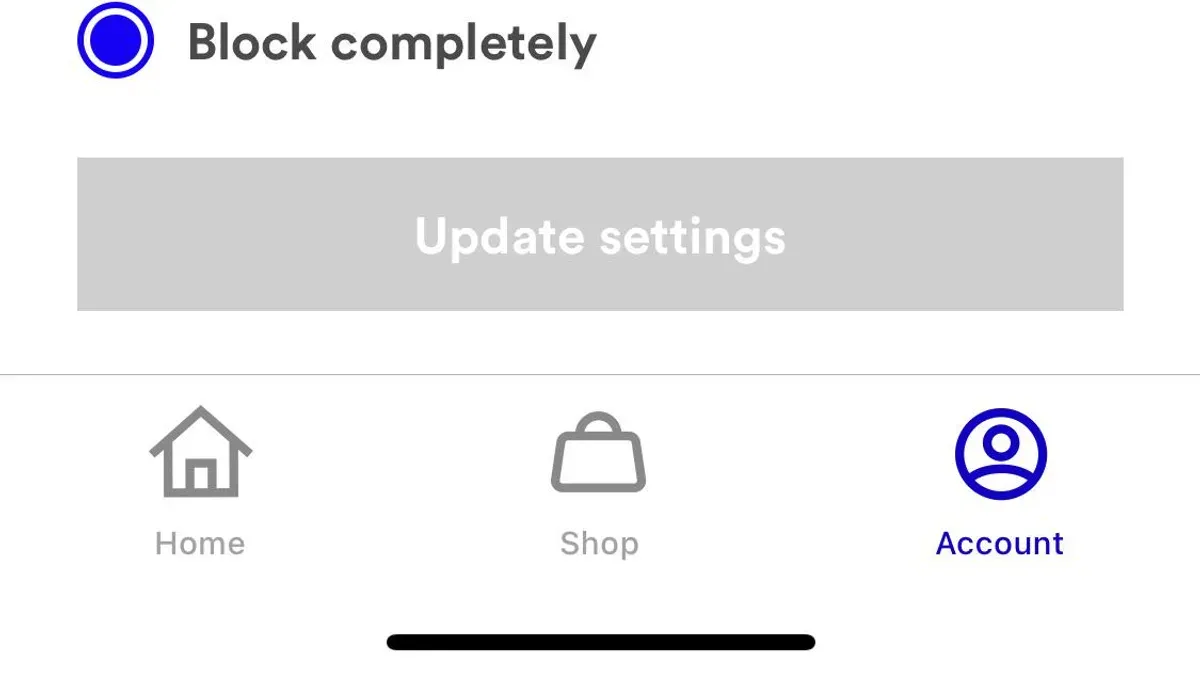
This article explains how to block spam calls on Visible using specific methods tailored to the Visible network and phones. Visible wireless customers face frequent spam calls that standard blocking options may not fully address. Visible offers built-in spam detection and blocking features through its app and network, but these have limitations requiring additional steps.
Blocking spam calls on Visible starts with enabling the app’s spam protection and adjusting phone settings for call blocking and identification. Third-party apps can supplement these measures for a more permanent solution. Practical troubleshooting tips help resolve common issues like blocked calls still getting through or legitimate calls being flagged incorrectly.
Following a step-by-step approach ensures effective control over unwanted calls and reduces interruptions without losing important contacts. This guide focuses on Visible’s unique tools and restrictions rather than generic advice.
Before you start: What is needed to block spam calls on Visible
Blocking spam calls on Visible requires a few prerequisites to ensure the methods work effectively. First, the phone must be actively using Visible wireless service with an assigned Visible phone number. Without an active Visible account, spam call blocking features tied to the network will not function.
The phone’s operating system should be updated to a version that supports Visible’s spam call detection and blocking capabilities. For Android, this generally means Android 10 or later; for iPhone, iOS 13 or later is recommended. Outdated OS versions may lack necessary settings or compatibility.
The Visible app must be installed and updated to the latest version available on the Google Play Store or Apple App Store. Visible frequently updates the app to improve spam call detection algorithms and user controls, so using an older app version can limit functionality.
Basic familiarity with the phone’s call and blocking settings is necessary. This includes knowing how to access the Phone app settings menu, call blocking options, and permissions for apps that handle calls. Without this, configuring the blocking methods may be confusing or incomplete.
Understanding Visible’s spam call detection features helps set realistic expectations. Visible automatically flags suspected spam calls with a warning, but its blocking options are limited to blocking individual numbers or relying on user-installed third-party apps for advanced filtering. There is no network-level automatic blocking beyond these warnings.
- Verify the phone is registered with an active Visible wireless service; the Visible app should indicate service status. Successful verification shows the account and phone number in the app.
- Update the phone’s operating system to at least Android 10 or iOS 13. After updating, the phone settings should reflect the new OS version under About Phone or General settings.
- Install or update the Visible app to the latest version (at minimum version 3.7.0). Opening the app after update should display the latest features and no pending updates.
- Familiarize with the Phone app settings: open the dialer, access Settings > Blocked Numbers or Call Blocking. The list should be accessible and editable.
Tip: Regularly check for Visible app and OS updates, as enhancements to spam call detection and blocking are released periodically.
How to block incoming spam calls on Visible using built-in phone settings
Blocking spam calls using a phone’s native features works directly with Visible service but has limitations, especially since automatic spam detection varies by device. Both iOS and Android provide tools to manually block numbers, silence unknown callers, and apply Do Not Disturb modes tailored to reduce interruptions from unwanted calls.
On iOS devices
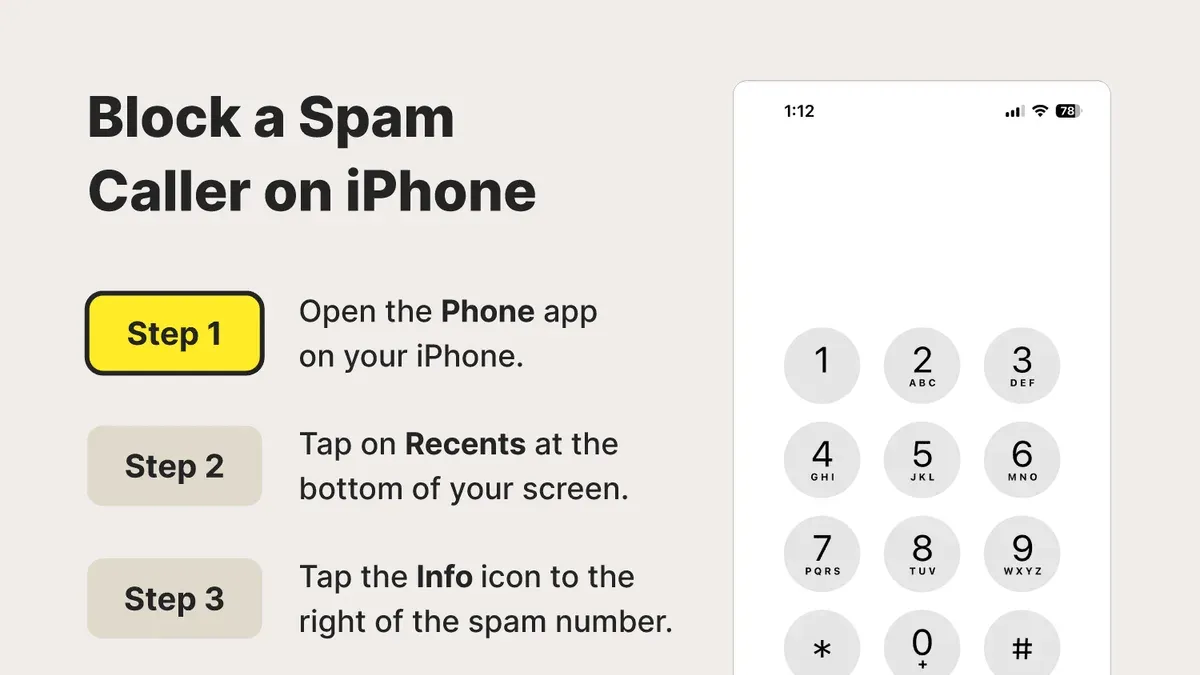
- Open the Phone app, then tap Recent to view call history. The recent calls list displays numbers that can be blocked.
- Find the number to block, tap the information icon (ⓘ) next to it, then scroll down and select "Block this Caller." A confirmation message appears when the number is blocked.
- To silence unknown callers, go to Settings > Phone > Silence Unknown Callers and toggle it on. This sends calls from numbers not in contacts, recent calls, or Siri Suggestions to voicemail.
- Do Not Disturb can be accessed via Settings > Focus > Do Not Disturb. Customize allowed calls to friends or favorites only, but note this silences all other calls, not just spam.
On Android devices
- Open the Phone app and tap Recent. Long-press the number to block, then select Block number or Block/report spam.
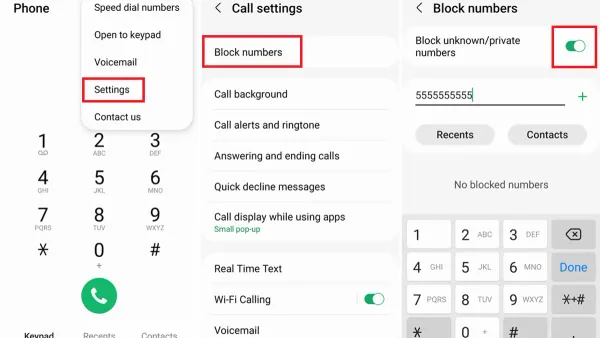
- Alternatively, open the Phone app’s menu (three dots), go to Settings > Block numbers, and add numbers manually or enable "Block unknown callers" to reject calls from numbers not in contacts.
- Use Do Not Disturb from Settings > Sound > Do Not Disturb. Customize exceptions to allow calls only from contacts or starred contacts, which reduces spam interruptions but blocks all others.
Limitations: Native blocking relies on identifying specific numbers, which spammers frequently change. Silence Unknown Callers on iOS and Block Unknown Callers on Android prevent calls from unknown numbers but can also block legitimate calls from new contacts or businesses. Neither platform offers full spam detection integration with Visible’s network-level spam filters, so some spam calls may still get through.
Tip: Regularly review blocked numbers to remove any mistakenly blocked contacts and keep the list current.
How to block suspected spam calls on Visible with the Visible app
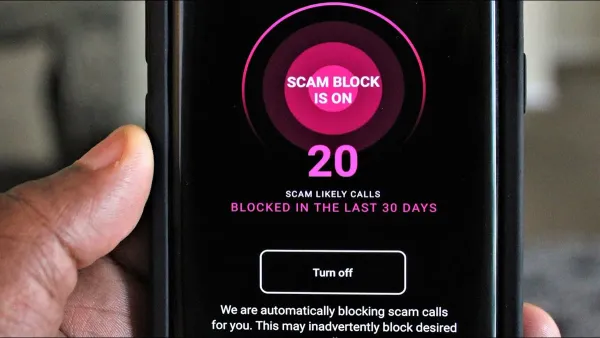
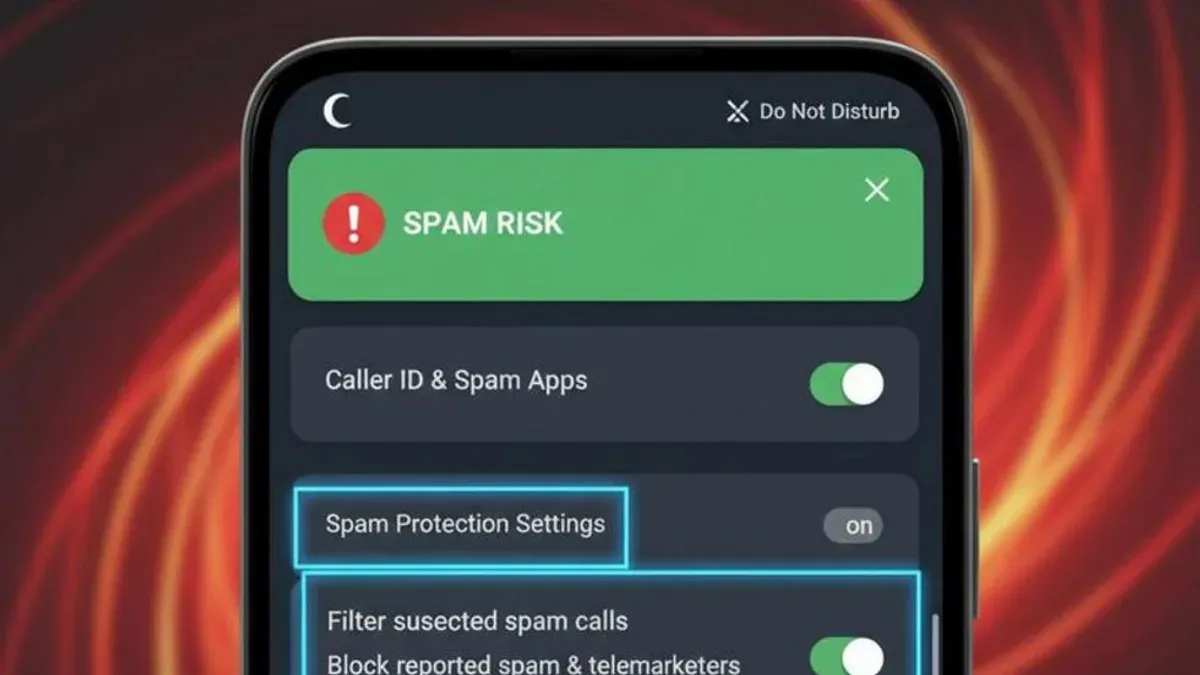
The Visible app includes a built-in spam call detection feature designed to identify and filter suspected spam calls before they reach the user. This system relies on Visible’s network data and user reports to flag numbers commonly associated with spam or robocalls. When enabled, the app can automatically silence or block these calls, reducing interruptions.
To activate spam call filtering in the Visible app, follow these steps:
- Open the Visible app and tap the profile icon in the top right corner. The settings menu will appear.
- Select "Spam Call Protection" from the list. This opens the spam call filtering options.
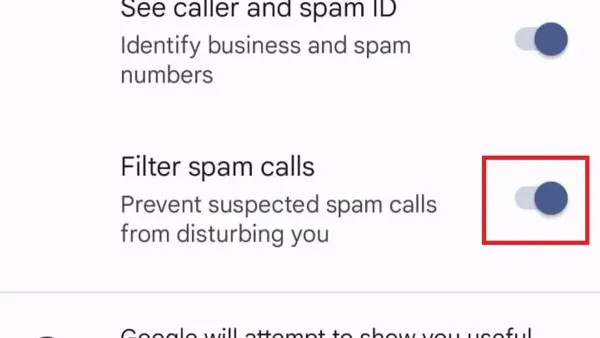
- Toggle on "Filter Suspected Spam Calls." Once enabled, the app will begin identifying and managing suspected spam calls automatically.
- Optionally, enable "Send Unknown Calls to Voicemail" to have calls from numbers not in contacts or trusted lists routed directly to voicemail.
- Return to the home screen; a message confirming that spam call filtering is active should appear near the dialer.
When a suspected spam call is detected, the Visible app either blocks the call outright or sends it to voicemail, depending on the chosen settings. The app also flags these calls in the recent calls list with a "Spam" label for easy identification.
Pros: The integration with Visible’s network data allows the app to detect many spam numbers quickly and update its database regularly. The convenience of automatic filtering reduces the need for manual blocking.
Cons: Some legitimate calls may be flagged incorrectly, and the app’s spam detection is not foolproof. It does not prevent all spam calls, especially from new or frequently changing spam numbers. Reliance on the app alone can leave gaps in protection.
Tip: Regularly update the Visible app to ensure the latest spam detection improvements are applied.
How to block spam calls permanently on Visible with third-party apps
Visible users seeking more robust spam call blocking can install third-party apps that specialize in identifying and filtering spam calls beyond Visible’s built-in capabilities. Popular options include Hiya, Truecaller, and RoboKiller. These apps use extensive databases and user reports to flag and block spam calls more aggressively and often provide customizable filtering rules.
| App | Key Features | User Ratings (App Store/Google Play) | Cost | Privacy Considerations |
|---|---|---|---|---|
| Hiya | Caller ID, spam detection, automatic blocking, reverse phone lookup | 4.5 / 4.4 | Free with optional premium features | Collects call data, offers privacy policies compliant with major standards |
| Truecaller | Spam blocking, caller ID, contact management, community spam reports | 4.3 / 4.4 | Free with ads; premium removes ads and unlocks features | Requires phonebook access; data shared per privacy policy |
| RoboKiller | Spam blocking, answer bots, call recording, predictive blocking | 4.6 / 4.3 | Subscription-based, with free trial available | Data collected for spam detection; transparent policies |
Setting up these apps generally involves downloading from the App Store or Google Play, granting necessary permissions, and enabling the app as the primary call blocker in phone settings.
- Download the chosen app and open it; an introductory setup guide should appear.
- Grant permissions for calls, contacts, and notifications as requested; the app will confirm access.
- Navigate to Phone Settings > Calls > Call Blocking & Identification (iOS) or Phone app settings > Caller ID & Spam Protection (Android) and enable the app as a call blocker; the app should indicate it is active.
- Configure filtering options within the app, such as blocking all suspected spam or only known scam numbers; confirmation usually appears as toggles or saved settings.
- Test by monitoring incoming calls; spam calls should be identified or blocked per the app’s filtering.
Tip: For best results, combine third-party apps with Visible’s spam detection to maximize coverage and reduce false positives.
Compared to Visible’s built-in tools, third-party apps offer more frequent database updates and customizable blocking but may impact battery life and require sharing call data, raising privacy concerns. Costs vary from free to subscription, so weigh features against budget and privacy preferences.
Is there a way to block potential spam calls on Visible beyond blocking numbers?
Visible employs network-level spam detection and filtering to reduce the volume of spam calls reaching customers. This system relies on analyzing call patterns and known spam sources across the carrier network to identify and block suspicious calls before they connect. While this approach helps reduce spam calls broadly, it does not guarantee complete protection for individual users due to the dynamic nature of spam tactics and the limitations of automated filtering.
Visible partners with parent company Verizon and regulatory bodies to support industry-wide initiatives aimed at curbing spam calls. These efforts include participation in STIR/SHAKEN protocols, which authenticate caller ID information to prevent spoofing, and cooperation with the Federal Communications Commission’s guidelines to block illegal robocalls. Such measures have contributed to a noticeable decline in spam calls on the network overall.
Network-level spam blocking is an essential layer but cannot replace user-level controls. Individual users cannot directly configure or customize network filters. Instead, Visible encourages customers to report spam calls through the Visible app or customer support. Reporting helps improve the network’s spam detection algorithms and updates the database of blocked numbers.
How to report spam calls to Visible:
- Open the Visible app and navigate to the "Help" or "Support" section.
Expected result: Access to options for reporting issues including spam calls. - Select "Report a Spam Call" or similar option.
Expected result: A form or prompt to enter details about the spam call. - Enter the phone number and any relevant call details, then submit.
Expected result: Confirmation that the report was received.
These reports aid in refining Visible’s network spam filters, enhancing protection for all users. However, due to the scale and complexity of spam operations, Visible advises using multiple blocking methods in combination for the best results.
How to block spam calls on phone and cell effectively: Combining methods
Blocking spam calls on Visible works best when multiple methods are layered. Begin by enabling the Visible app’s automatic spam filtering to catch network-identified spam. Next, activate native phone settings like “Silence Unknown Callers” on iOS or “Block Unknown Callers” on Android to reduce unsolicited calls from numbers not in contacts.
Adding a reputable third-party spam blocker further enhances protection by using extensive databases and user reports. However, some legitimate calls may be mistakenly blocked. Regularly review blocked numbers in phone settings and third-party apps to whitelist important contacts if false positives occur.
Keep all apps and the phone’s operating system updated to maintain access to the latest spam detection algorithms and features. Periodic maintenance of block lists is necessary as spam callers frequently change numbers. Balancing usability involves adjusting app sensitivity and native settings to avoid excessive call blocking while minimizing interruptions.
- Enable the Visible app’s spam filter: Open the Visible app, navigate to Settings > Call Settings > Spam Call Protection, and toggle it on. Incoming spam calls identified by Visible should now be automatically blocked or flagged.
- Activate native spam call blocking: On iOS, go to Settings > Phone > Silence Unknown Callers and enable it; on Android, open Phone app > Settings > Block numbers & spam > Block unknown callers. This silences or blocks calls from numbers not stored in contacts.
- Install a third-party spam blocker: Choose an app like Hiya or Truecaller, grant necessary permissions, and configure its blocking preferences. The app will screen additional spam calls missed by Visible’s network filtering.
- Review and manage blocked calls weekly: Check blocked call logs in your phone’s settings and third-party app to identify any legitimate calls wrongly filtered. Add trusted numbers to the whitelist to prevent future blocking.
- Keep software updated: Regularly update the phone’s OS, Visible app, and any third-party spam apps to ensure optimal spam detection and compatibility.
Tip: Combining Visible’s network filtering with phone settings and third-party apps creates a multi-layered defense that adapts better to evolving spam tactics.
Troubleshooting common issues when blocking spam calls on Visible
Blocked calls ringing through often result from incomplete blocking configurations or missed settings. Confirm that number blocking is active in both the phone’s native settings and the Visible app. Check that the "Silence Unknown Callers" option is enabled on iOS under Settings > Phone or use the "Block unknown callers" toggle on Android's Phone app settings. If calls still ring, restart the device to apply changes fully.
The Visible app may fail to detect spam calls if it lacks the latest updates or necessary permissions. Ensure the app is updated via the app store and that it has access to call logs and phone permissions under the device’s settings. Clearing the app cache and reinstalling can resolve persistent detection failures.
Third-party spam blocking apps sometimes stop working due to revoked permissions or conflicts with Visible’s app. Verify that these apps have all required permissions, including access to phone calls and contacts. Disable battery optimization or background restrictions for these apps to maintain functionality. Rebooting the phone after changes often restores proper operation.
Spoofed or frequently changing spam numbers create ongoing challenges. Since spammers use random or familiar-looking numbers, manual blocking is less effective. Reporting these numbers to Visible through the app’s report feature helps improve network-level filtering over time.
If legitimate calls are blocked, check the blocked numbers list in both phone settings and the Visible app. Remove any incorrect entries immediately. Temporarily disabling spam filters can help identify if false positives are causing missed calls. Adjust third-party app sensitivity settings if available to reduce over-blocking.
- Open the Visible app and verify spam call filtering is enabled; if not, toggle it on and observe if spam calls reduce.
- Review the phone's blocked numbers list; remove any mistakenly blocked contacts.
- Check app permissions in Settings > Apps > Visible (or third-party app); ensure all call-related permissions are granted.
- Restart the phone to refresh system processes and apply changes.
- If issues persist, uninstall and reinstall the Visible app or third-party apps, then reconfigure blocking settings.
Frequently asked questions
How to completely block spam calls?
Completely blocking spam calls requires using a combination of phone settings, carrier features, and third-party apps. No single method guarantees total blockage due to the constant change of spam numbers. Using call blocking and spam detection on the device, enabling carrier-specific spam filters, and installing trusted third-party blocking apps together minimize unwanted calls effectively.
How to block spam calls on cell?
Blocking spam calls on a cell phone typically involves accessing the call or phone app settings and using the block or spam filter options. Most smartphones allow blocking numbers directly from the recent calls list or contact details. For enhanced protection, enabling carrier spam protection and using third-party apps can help filter unknown or suspicious calls.
How to block a spam calls?
To block a spam call, locate the number in the phone's recent calls or call log, tap the information icon, and select the block option. This prevents future calls and texts from that number. Additionally, marking the call as spam in the phone or carrier app can improve spam detection for other users.
How to block spam caller?
Blocking a spam caller involves adding the number to the phone's blocked contacts list or activating the network's spam filtering features. On Visible, using the Visible app’s spam call reporting and blocking tools provides additional control. Combining device-level blocking with carrier filters enhances effectiveness.
How to completely block spam calls on Visible?
Visible does not offer an absolute spam call block but provides a spam call filter within its app that identifies and labels suspected spam calls. Blocking specific numbers manually on the phone and using third-party spam blockers supplements Visible’s tools. Regularly updating the Visible app and phone software ensures access to the latest spam blocking features.
What this advice does not cover and who should do something else
This guide does not guarantee complete elimination of spam calls. Spammers frequently change phone numbers, caller IDs, and tactics, which means some unwanted calls may still get through despite applying all recommended blocking methods. Visible’s spam call filtering relies heavily on network-level detection that can miss new or less common spam numbers. Users requiring near-total spam call protection might consider specialized services with advanced call analytics or switching to carriers with more comprehensive spam filtering technologies.
For businesses or users receiving high volumes of targeted spam calls, investing in professional call management solutions or VoIP services with built-in spam prevention may be necessary. Visible’s current tools focus on general user-level blocking rather than enterprise-grade filtering.
The most useful next step
Start by enabling Visible’s built-in spam call filtering in the Visible app settings and activating your phone’s native call blocking features. Combining these two layers maximizes the chances of stopping most unwanted calls right away. From there, add trusted third-party call blocker apps if spam calls persist, adjusting settings carefully to avoid missing important calls.
See also: How to Block Spam Calls on US Mobile: Clear, Effective Steps · How to Block Spam Calls on Metro by T-Mobile: Clear, Practical Steps · How to Block Spam Calls on Cricket Wireless Phones: A Step-by-Step Guide