Is RuntimeBroker.exe a Virus? What It Is and How to Know
Learn whether RuntimeBroker.exe is a virus, its legitimate role, and how to detect malicious copies to protect your system.

This article explains whether RuntimeBroker.exe is a virus, clarifying its legitimate purpose and how to identify malicious impersonations. RuntimeBroker.exe is a genuine Windows system process that manages app permissions, but users often ask, "is RuntimeBroker.exe a virus" when they notice unusual activity or errors linked to it.
Understanding the role of RuntimeBroker.exe and recognizing signs that it might be malware are essential for maintaining system security. This article outlines how the process functions, why errors occur, and practical methods to verify its authenticity and troubleshoot problems without relying solely on generic antivirus alerts.
Is RuntimeBroker.exe a Virus?
RuntimeBroker.exe is not a virus; it is a legitimate Windows system process designed to manage permissions for Universal Windows Platform (UWP) apps. According to official Microsoft documentation, RuntimeBroker.exe acts as a broker between apps and system security settings, ensuring that apps only access resources they are authorized to use.
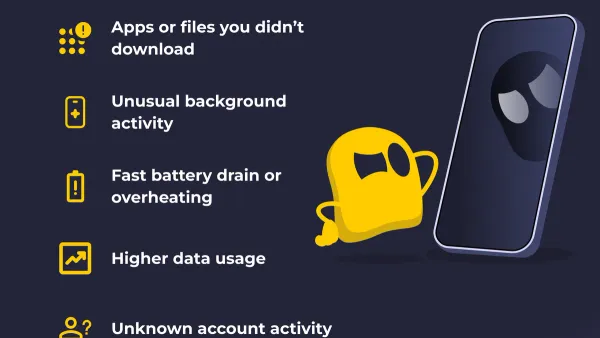
Despite its legitimate role, malware can sometimes disguise itself using the name RuntimeBroker.exe to evade detection. Such impersonation is a known tactic among certain types of malware, making it essential to verify the file’s location and behavior. The genuine RuntimeBroker.exe is typically located in the C:\Windows\System32 folder, while suspicious copies may appear outside this directory or consume abnormal system resources.
Tip: Checking the file location and monitoring unusual activity can help distinguish between the authentic RuntimeBroker.exe and potential malware.
What Is RuntimeBroker.exe and What Does It Do?
RuntimeBroker.exe is a core Windows process responsible for managing app permissions and ensuring that Universal Windows Platform (UWP) apps behave securely. It acts as an intermediary between apps and system resources, monitoring app requests to access sensitive data or system features like the microphone, camera, or location.
By verifying that apps only use permissions they have been granted, RuntimeBroker.exe helps protect user privacy and system integrity. It typically runs with minimal resource usage and activates noticeably when UWP apps request access to protected functions, causing brief spikes in CPU or memory usage.
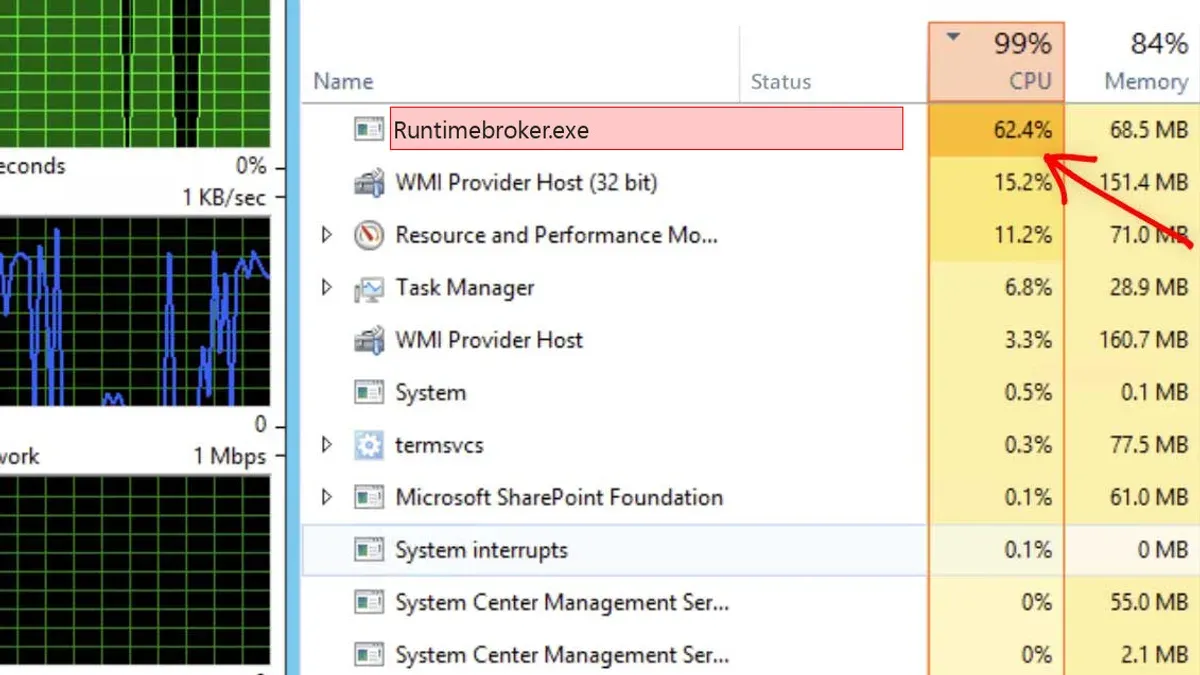
Performance monitoring through Task Manager or Resource Monitor often shows RuntimeBroker.exe as inactive or using very low resources, except during these permission request events. This behavior aligns with its design in Windows system architecture to provide a secure execution environment for modern apps without continuous overhead.
What Is RuntimeBroker.exe Used For in Windows 11?
RuntimeBroker.exe in Windows 11 continues to serve as a permission broker that manages and enforces app access to sensitive system features. Its core function remains unchanged from previous Windows versions, including Windows 10, focusing on monitoring app capabilities and ensuring compliance with security policies.
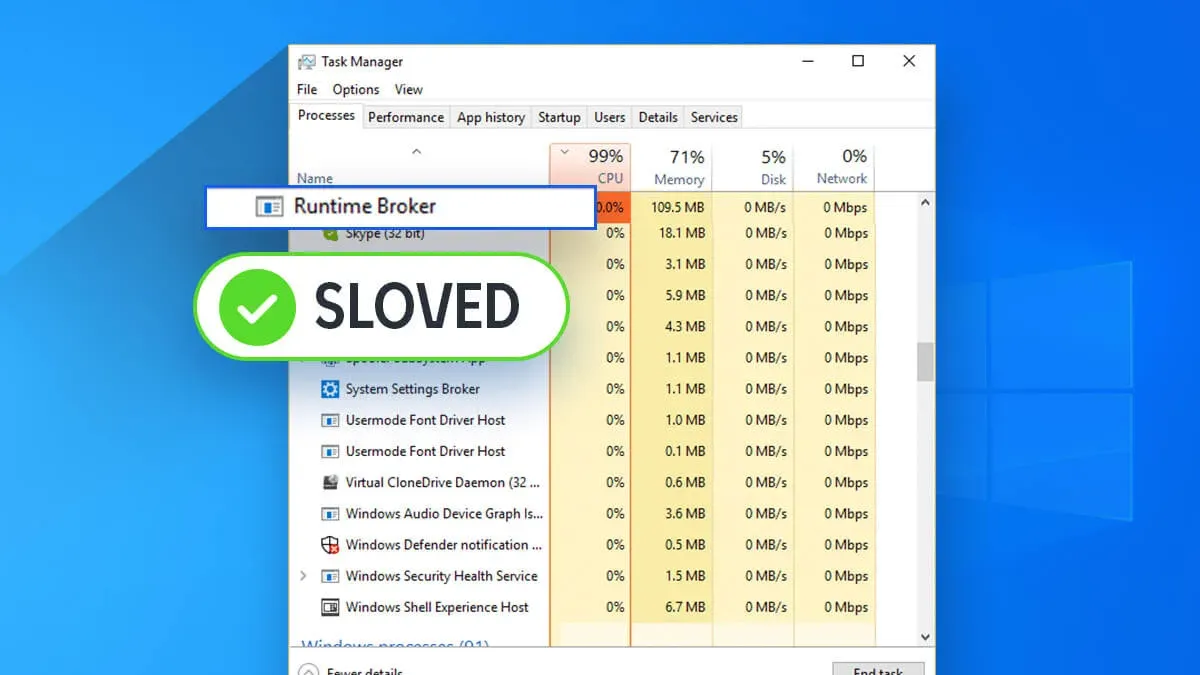
Windows 11’s interface and app ecosystem emphasize Universal Windows Platform (UWP) apps more heavily, which often require dynamic permission handling. As a result, RuntimeBroker.exe becomes active primarily when UWP apps or Microsoft Store apps request access to resources such as the microphone, camera, or location. This process helps maintain system security by allowing permissions only when appropriate and revoking them when no longer needed.
User reports indicate that RuntimeBroker.exe behavior in Windows 11 is largely consistent with Windows 10, though it may occasionally show increased activity due to new or updated apps utilizing enhanced permission requests. Overall, its presence supports the security model of Windows 11’s app environment rather than indicating any issue.
Why Does RuntimeBroker.exe Crash or Cause Errors?
RuntimeBroker.exe crashes or errors often stem from corrupted system files or problematic behavior in Universal Windows Platform (UWP) apps that it manages. When these apps malfunction or request excessive permissions, RuntimeBroker.exe may consume high CPU or memory resources, leading to system slowdowns or error messages such as "RuntimeBroker.exe has stopped working" or "RuntimeBroker.exe encountered a problem and needs to close."
Conflicts with third-party software, including poorly optimized antivirus or system utilities, can also trigger RuntimeBroker.exe errors. Malware infections mimicking RuntimeBroker.exe may cause crashes or irregular behavior, complicating diagnosis.
For example, users troubleshooting RuntimeBroker.exe crashes have found that resetting or reinstalling the problematic UWP app often resolves high resource usage. Checking system integrity with tools like the System File Checker (sfc /scannow) can repair corrupted files causing crashes. Monitoring Task Manager for unusually high RuntimeBroker.exe CPU or memory use helps pinpoint misbehaving apps or software conflicts.
Tip: Use the Windows Event Viewer under "Windows Logs > Application" to identify specific RuntimeBroker.exe error codes and related app failures for targeted troubleshooting.
How to Verify If RuntimeBroker.exe Is Safe or Malware
The safest way to verify RuntimeBroker.exe is legitimate is by checking its file location and monitoring its behavior for unusual activity.
First, open Windows Task Manager by pressing Ctrl + Shift + Esc and locate RuntimeBroker.exe under the Processes tab. Right-click it and select Open file location. The genuine RuntimeBroker.exe is always stored in the C:\Windows\System32 folder. Any instance running from a different directory is suspicious and likely malicious.
Next, review RuntimeBroker.exe’s CPU and network usage in Task Manager. Legitimate RuntimeBroker.exe typically consumes minimal resources except during app permission checks. Continuous high CPU or network activity may indicate malware impersonation.
Additionally, running a full system antivirus scan can help detect malicious versions of RuntimeBroker.exe. Use reputable antivirus software to complement manual checks.
Tip: Use Task Manager’s Details tab to right-click RuntimeBroker.exe, choose Properties, and verify the digital signature under the Digital Signatures tab to confirm it is signed by Microsoft.
What to Do If RuntimeBroker.exe Causes Problems
If RuntimeBroker.exe causes issues, start by restarting the computer or ending the process through Task Manager to temporarily reduce resource use.
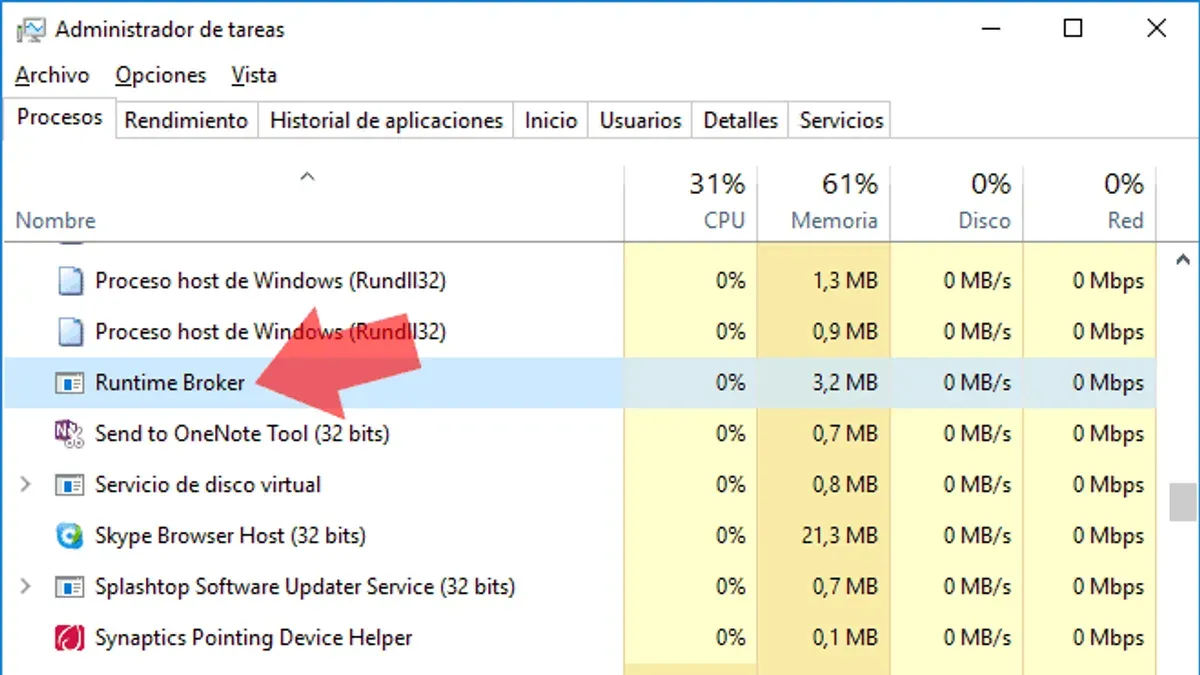
To end the process, press Ctrl + Shift + Esc, locate RuntimeBroker.exe under the Processes tab, select it, and click "End Task." This often resolves temporary spikes but is not a permanent fix.
Next, update Windows and installed apps by opening Settings > Update & Security > Windows Update and clicking "Check for updates." Updating can fix compatibility problems that trigger RuntimeBroker.exe errors.
Running system file checks helps identify corrupted files. Open Command Prompt as administrator and enter sfc /scannow. The tool will repair corrupted files if found, improving stability.
Perform a full malware scan using reputable antivirus software to ensure no malicious software is impersonating RuntimeBroker.exe.
If a specific app causes RuntimeBroker.exe spikes, consider resetting or reinstalling that app. To reset, go to Settings > Apps > Apps & features, find the app, select "Advanced options," and click "Reset." This often resolves app-related permission or resource issues.
Warning: Disabling or deleting RuntimeBroker.exe is not recommended, as it is integral to Windows security and app permission management.
Further reading
- Is explorer.exe a Virus? Facts About Windows Explorer’s Safety
- Is dwm.exe a Virus? Understanding Its Role and Safety
- Is dllhost.exe a Virus? Understanding Its Role and Risks
- Types of Cyber Attacks: A Comprehensive Explainer Guide
Frequently asked questions
Is runtime broker a virus?
Runtime Broker is not a virus; it is a legitimate Windows process that helps manage app permissions. However, malware can disguise itself using a similar name. To confirm safety, check the file location—genuine RuntimeBroker.exe resides in the System32 folder.
What is runtime broker.exe?
RuntimeBroker.exe is a Windows system process that monitors app permissions and ensures that apps behave according to set permissions. It acts as a broker between apps and user privacy or security settings.
What is runtimebroker.exe windows 11?
In Windows 11, RuntimeBroker.exe continues its role as a security and permission management process for Universal Windows Platform (UWP) apps. It helps maintain app compliance with user privacy settings and system security.
What does runtimebroker.exe do?
The process verifies that apps only access allowed resources like location, microphone, or camera. It also manages permissions dynamically, enabling apps to function securely without granting excessive access.
Is runtimebroker exe a virus?
RuntimeBroker.exe itself is not a virus. However, if it consumes excessive resources or causes errors, it may indicate malware mimicking the process or system issues. Verifying the file path and scanning with reputable antivirus software can help detect threats.
Limits of This Advice and When to Seek Professional Help
This article does not cover advanced malware removal techniques or situations where RuntimeBroker.exe issues may be symptoms of a deeper system compromise. Users experiencing persistent errors, system instability, or signs of infection beyond simple RuntimeBroker.exe activity should consider consulting professional IT support or cybersecurity experts. Additionally, complex cases involving rootkits, ransomware, or other sophisticated threats require specialized tools and expertise beyond the scope of basic troubleshooting steps.
The most useful next step is to verify the RuntimeBroker.exe file location by checking its path in Task Manager. A legitimate RuntimeBroker.exe runs from the Windows\System32 folder. If the file appears elsewhere, especially in unusual or temporary folders, it could indicate malware posing as RuntimeBroker.exe. Confirming this detail helps prioritize whether to proceed with routine troubleshooting or to escalate to a security scan or expert assistance.