Is explorer.exe a Virus? Facts About Windows Explorer’s Safety
This article explains whether explorer.exe is a virus and how to distinguish the legitimate Windows process from malware disguises.

This article clarifies common concerns about the process explorer.exe and addresses the question: is explorer.exe a virus? It explains the legitimate functions of this essential Windows system file, which manages the desktop, taskbar, and file browsing interface.
While explorer.exe itself is not a virus, malware can disguise itself using the same filename to avoid detection. Differentiating the authentic explorer.exe from malicious imitators involves examining the file’s location, digital signature, and behavior within the system.
Understanding these distinctions helps users and IT enthusiasts identify potential threats early and take appropriate action to maintain system security and stability.
What is explorer.exe in Windows?
Explorer.exe is the executable file responsible for Windows Explorer, the graphical user interface that allows users to interact with files and folders on their computer. It manages essential elements such as the desktop, taskbar, Start menu, and the file browsing windows, forming a core part of the Windows operating system's user experience.
According to Microsoft documentation, explorer.exe typically resides in the system directory at C:\Windows\explorer.exe. This file must run for normal Windows operation, as it provides the interface for navigating the file system and launching applications. Without explorer.exe, users would lose access to the desktop environment and visual navigation tools.
Is explorer.exe a Virus? Understanding the Risks
Explorer.exe itself is not a virus when it runs from its legitimate location, typically C:\Windows\explorer.exe. This file is a core component of the Windows operating system, responsible for managing the desktop and file browsing interface.
However, some malware authors exploit the name "explorer.exe" to disguise malicious programs. These impostors often reside in unusual directories, such as temporary folders or user profile paths, rather than the genuine Windows system folder. This tactic helps malware evade casual detection by users and some security tools.
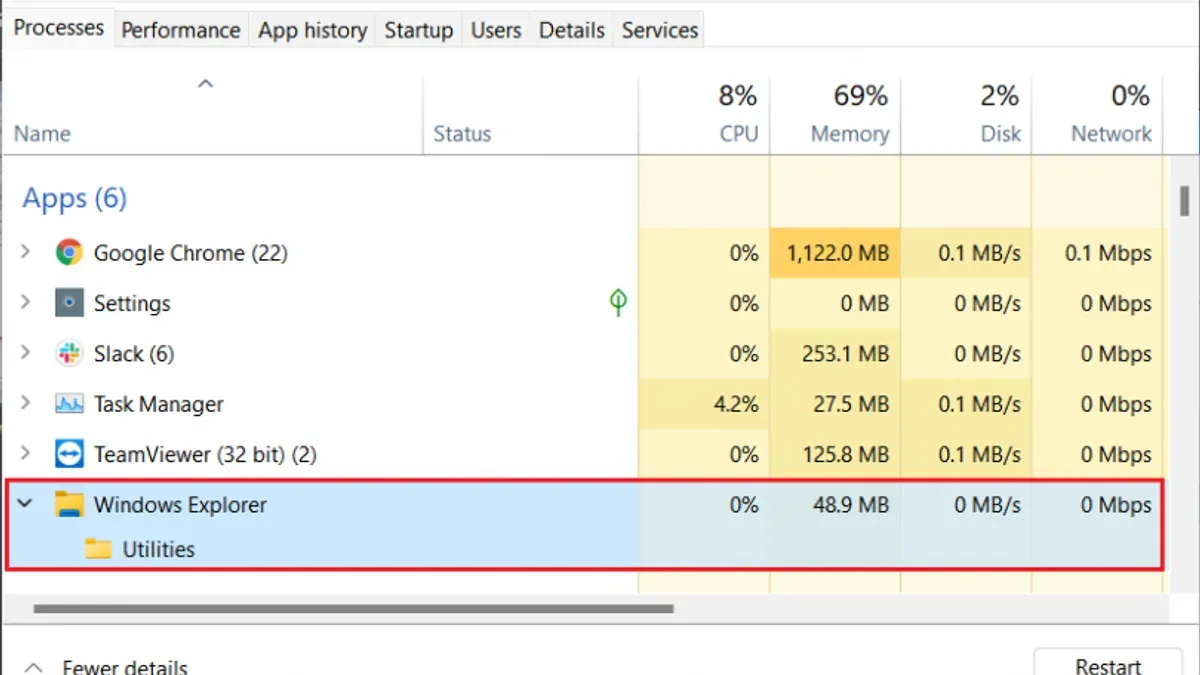
Signs of a compromised explorer.exe include unusually high CPU or memory usage, multiple explorer.exe processes running simultaneously, or unexpected system behavior like frequent crashes or the taskbar disappearing. Checking the file path via Task Manager's Details tab or right-clicking the process and selecting "Open file location" can reveal if the file is legitimate.
Malicious explorer.exe copies often differ in file size and lack a valid Microsoft digital signature, unlike the authentic executable, which is typically around 1.2 to 2.5 MB and digitally signed by Microsoft Windows.
Tip: Use reputable antivirus software to scan suspicious explorer.exe files and verify their origin before taking action.
Common explorer.exe Errors and What They Mean
Common errors involving explorer.exe include crashes, freezes, and failure to load the desktop or taskbar. These issues often indicate corrupted system files, conflicting software, or malware interference.
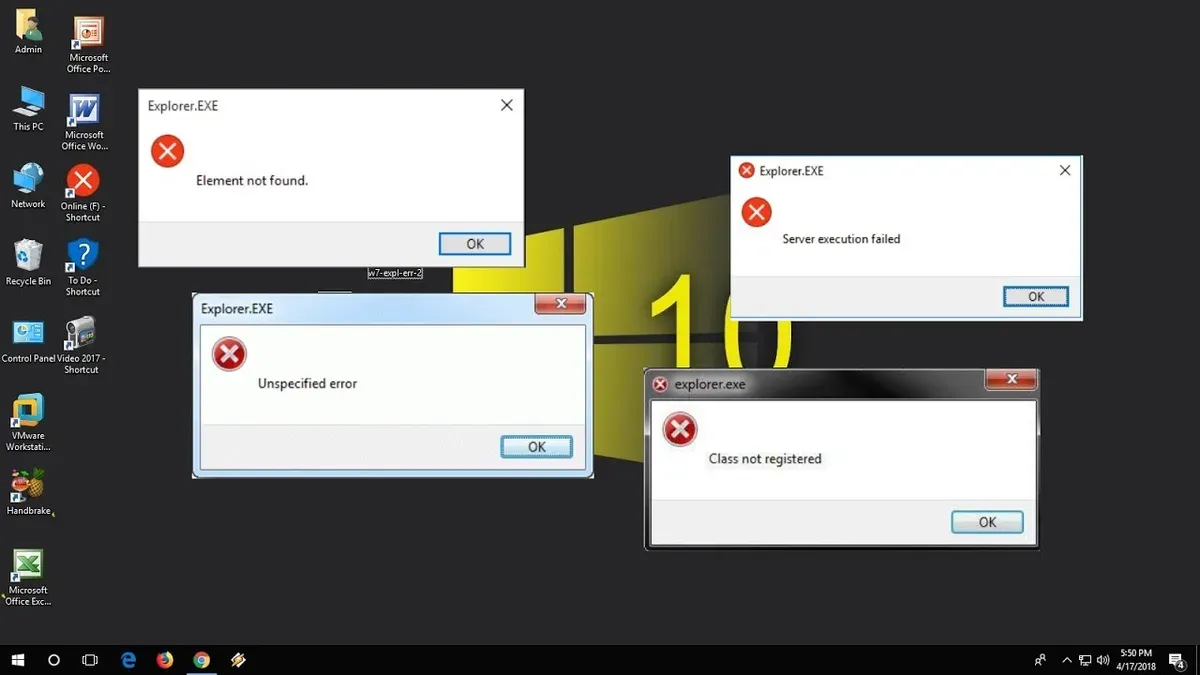
For example, an explorer.exe crash might be logged in the Event Viewer under Windows Logs > Application, showing error codes related to the faulting module. Running the System File Checker (sfc /scannow) can identify and repair corrupted Windows files that cause instability.
Some errors arise from malware masquerading as explorer.exe in unauthorized locations, leading to abnormal behavior such as repeated crashes or high CPU usage. Diagnosing the source involves checking the file path of explorer.exe in Task Manager; legitimate files reside in the C:\Windows folder.
Understanding specific error messages and correlating them with system events helps distinguish between benign system corruption and malicious activity, guiding appropriate troubleshooting steps.
Tip: Use Event Viewer and System File Checker early in troubleshooting to pinpoint whether explorer.exe errors stem from system issues or potential malware.
How to Check If an.exe File Is a Virus
The primary method to verify if an.exe file is a virus is to inspect its file location, size, digital signature, and running behavior.
First, locate the file using File Explorer. The legitimate explorer.exe file resides in the C:\Windows\explorer.exe directory. Files with the same name found elsewhere, such as in user folders or temporary directories, are suspicious. Checking the file size can also help: the authentic explorer.exe typically ranges around 1.5 to 2 MB; significantly smaller or larger files might be malicious.
Next, verify the digital signature. Right-click the file, select Properties, then open the Digital Signatures tab. The genuine explorer.exe is signed by Microsoft Windows. Absence of this signature or an untrusted signer indicates a potential threat.
Running antivirus scans with Windows Security or reputable third-party tools adds an extra layer of verification by detecting known malware signatures.
Finally, monitor the process using Task Manager or Microsoft’s Process Explorer. Legitimate explorer.exe runs under the user's session with expected resource usage. Multiple explorer.exe processes or unusual CPU and memory consumption can signal malware impersonation.
Tip: Use Process Explorer to right-click a suspicious process and select Properties to view detailed file origin and digital signature information.
Removing explorer.exe Virus or Malware Impostors Safely
Removing malware impersonating explorer.exe requires using trusted antivirus and antimalware programs to scan and eliminate threats without risking system stability. Running a full system scan with reputable tools such as Windows Defender, Malwarebytes, or similar software helps detect and quarantine malicious files hiding under the explorer.exe name.
Avoid manually deleting explorer.exe files unless their legitimacy is confirmed, as removing the genuine system file can cause critical Windows functionality issues. Instead, rely on security software outputs to guide removal decisions.
If the legitimate explorer.exe has been corrupted or replaced by malware, restoring it from original Windows files is essential. Using the System File Checker (SFC) tool by running sfc /scannow in an elevated Command Prompt will scan protected system files and automatically repair or replace explorer.exe if needed.
Tip: After malware removal, compare antivirus scan results before and after cleanup to ensure all impostors are eliminated and run SFC to restore system integrity.
Differences Between File Explorer and Internet Explorer’s.exe Files
Explorer.exe is the executable file responsible for managing Windows File Explorer, while Internet Explorer uses a different executable named iexplore.exe. These two files serve distinct purposes and are located in separate system folders, which helps distinguish their functions and avoid confusion.
Explorer.exe typically resides in the C:\Windows\explorer.exe path and handles file system navigation, desktop interface, and taskbar management. In contrast, Internet Explorer’s iexplore.exe is found in C:\Program Files\Internet Explorer\iexplore.exe and runs the web browser application. Understanding these file locations and process names is essential to correctly diagnosing issues or potential infections.
Microsoft has officially deprecated Internet Explorer in favor of Microsoft Edge, with support for IE ending for most Windows versions. Despite this, File Explorer remains a core component of Windows, actively maintained and updated. Confusing explorer.exe with iexplore.exe can lead to incorrect assumptions about system behavior or malware presence.
Tip: Use Task Manager’s Details tab to check process names and file locations to confirm whether explorer.exe or iexplore.exe is running.
Further reading
- Is dwm.exe a Virus? Understanding Its Role and Safety
- Is dllhost.exe a Virus? Understanding Its Role and Risks
- Types of Cyber Attacks: A Comprehensive Explainer Guide
- Types of Encryption: A Clear Guide to Algorithms and Applications
Frequently asked questions
What is explorer.exe error?
An explorer.exe error occurs when the Windows graphical shell process encounters issues, such as crashes or freezes. These errors can be caused by corrupted system files, incompatible software, or malware impersonating the legitimate process. Resolving these errors often involves running system file checks or scanning for malware.
What is windows explorer.exe?
Windows explorer.exe is the executable file responsible for the graphical user interface in Windows, including the taskbar, desktop, and file management. It enables users to browse folders, launch applications, and manage files. This process is essential for normal system operation and typically runs from the System32 folder.
What is the exe for file explorer?
The executable for File Explorer is explorer.exe. This file manages the file browsing interface in Windows, allowing users to navigate drives, folders, and files. It is distinct from other executables with similar names and should reside in the Windows System32 directory.
What is explorer exe computer problem?
An explorer.exe computer problem usually refers to issues with the Windows shell process, such as unresponsiveness, crashes, or high CPU usage. Causes can include corrupted system files, conflicts with third-party software, or malware disguising itself as explorer.exe. Diagnosing involves checking the file location and running security scans.
Is app explorer a virus?
App Explorer is not inherently a virus; it is often a legitimate program related to software management or web browsers. However, some malware may use similar names to deceive users. Verifying the file origin and scanning with trusted antivirus software helps determine if it is safe.
Limits of This Advice and When to Seek Expert Help
This article does not cover deep malware removal techniques for advanced persistent threats, which require professional cybersecurity tools and expertise. Users facing persistent, sophisticated infections or rootkits should consult specialized security professionals or use dedicated antivirus and anti-malware solutions with advanced scanning capabilities.
The most effective next step for most users concerned about explorer.exe-related issues is to verify the file’s location and digital signature. Ensure that explorer.exe is running from the legitimate Windows system directory (typically C:\Windows\explorer.exe) and check its signature via file properties under the Digital Signatures tab. If the file is located elsewhere or lacks a valid Microsoft signature, further investigation or malware scanning is warranted.
Tip: Use the Task Manager’s “Open file location” option on explorer.exe to quickly confirm the file path before proceeding with scans.