
How to Secure Your Viber Account: Step-by-Step Guide
This guide provides clear steps to secure your Viber account, covering authentication, privacy settings, and recovery options.

This guide explains how to secure your Viber account with clear, practical steps tailored to Viber’s specific features. It covers everything from creating an account safely to managing privacy settings, blocking contacts, and recovering access if locked out. Viber users managing personal or business accounts will find straightforward instructions to protect their data and communications effectively.
Securing a Viber account starts with strong authentication methods and understanding privacy controls available in the app. Users often overlook enabling two-step verification or fail to review active devices, leaving accounts vulnerable. This article addresses those common pitfalls and guides through essential settings under More > Settings > Privacy and Account menus.
Following these steps will help maintain control over account access, minimize risks from unauthorized use, and ensure safe communication on Viber.
Before you start: What is needed to secure a Viber account
Securing a Viber account begins with having the right tools and knowledge in place. A smartphone with the latest Viber app installed is essential to access the newest security features and fixes. Using an outdated app version can lead to vulnerabilities and functionality issues, which are common causes of account problems.
An active phone number is required for account activation and ongoing verification. Without it, account recovery becomes difficult, increasing the risk of permanent lockout. Many users overlook this and encounter access issues due to inactive or changed phone numbers.
Understanding app permissions and privacy settings is necessary to control what information Viber can access and share. This includes permissions for contacts, location, and notifications. Proper management prevents unintended data exposure.
Access to a registered email or phone number for verification and recovery steps is crucial. It enables two-step verification and receiving security codes. Missing this access often results in failed recovery attempts after account compromise.
- Ensure the smartphone has the latest Viber version by visiting the app store and checking for updates. Success is indicated by the “Open” button replacing “Update.”
- Confirm the phone number intended for Viber activation is active and able to receive SMS or calls. Verification messages should arrive promptly.
- Review app permissions in the device settings under Apps > Viber > Permissions, confirming contacts, SMS, and notifications are enabled as needed. Proper permissions allow full functionality without unnecessary access.
- Verify access to the linked email or phone number used for recovery by sending a test message or email. Receiving this confirms readiness for account verification procedures.
Tip: Regularly updating the Viber app and verifying contact information minimizes risks of account lockout and unauthorized access.
How to create a Viber account securely
- Download Viber only from the official app store, such as the Apple App Store or Google Play Store. This ensures the app is authentic and free from malware. After installation, the app will open to the registration screen.
- Register using a valid phone number that is regularly accessible. Enter the phone number in the international format and wait for the SMS verification code. Once entered correctly, the account will be linked to that number.
- Set a strong PIN code during the initial setup. Choose a numeric PIN that is not easily guessable, avoiding common sequences or repeated digits. The app will prompt to confirm the PIN, indicating successful setup once accepted.
- Immediately enable two-step verification from the Viber settings menu. Navigate to Settings > Privacy > Two-step verification and activate it by creating a separate 4-digit code. This adds a second authentication layer, preventing unauthorized access even if the phone number is compromised.
Accounts created without two-step verification are vulnerable to SIM swap attacks or number spoofing, allowing unauthorized access. Enabling this feature drastically reduces the risk by requiring a PIN in addition to the phone number, securing the account against common breaches.
How to make a Viber account private
Controlling privacy settings on Viber limits who can see activity and contact the user, reducing unwanted interactions. Adjusting these settings prevents privacy breaches such as unknown users viewing online status or adding the user to groups without consent.
- Open Viber and tap More (three horizontal lines) in the bottom-right corner. Select Settings > Privacy. The Privacy menu appears.
- Tap Last Seen. Choose either Nobody or My Contacts. Confirmation appears that the last seen status is hidden from undesired viewers.
- Return to Privacy and select Online Status. Set it to Nobody or My Contacts to control who sees when the user is active.
- Tap Groups and select Only Contacts can add me. This blocks unknown users from adding the user to groups, preventing spam or harassment.
- Open Blocked Contacts. Review the list and tap Add to block any suspicious contacts. Confirm each addition.
- In Privacy, enable Allow Calls from Contacts Only. This restricts incoming calls to saved contacts, blocking unknown callers and reducing interruptions.
Tip: Regularly review blocked contacts to maintain control over who can interact with the Viber account.
How to log out of a Viber account safely
Properly logging out of a Viber account prevents unauthorized access and session persistence, especially on shared or public devices. Viber does not have a traditional "Logout" button; instead, use the "Deactivate Account" option cautiously, as it removes the account from the device but does not delete the account globally. To securely end a session, revoke access from linked devices and clear local data on the device.
- Open the Viber app, go to More (three horizontal lines or the "More" tab), then select Settings.
- Navigate to Privacy > Desktop and Tablets. Review the list of linked devices and tap Deactivate next to any device that should no longer have access. Confirm the action; the device will be removed from the list, and the session terminated.
- On shared or public devices, clear the app cache and data through the device settings under Apps > Viber > Storage > Clear Cache and Clear Data. This removes residual session data locally.
- If uninstalling Viber, note that this does not automatically log out other devices or revoke sessions. Always revoke session access manually as described above to avoid session hijacking.
Worked example: A user left their phone logged into Viber on a public kiosk. By remotely deactivating the session from their primary device, they prevented a stranger from sending messages under their name, avoiding potential misuse.
How to block a Viber account or contact
Blocking a contact or account on Viber stops them from sending messages, calling, or viewing status updates. It improves security and privacy by cutting off communication with suspicious or unwanted contacts but does not notify the blocked party. Blocking does not delete previous messages or remove the contact from the list automatically.
- Open the chat with the contact or tap the contact’s name in the contact list. The contact info screen appears.
- Scroll down and select Block contact. A confirmation prompt appears.
- Confirm by tapping Block. The contact is blocked, and messages or calls from them will no longer be received.
- To unblock, go to Settings > Privacy > Blocked Contacts, find the contact, and tap Unblock. The contact can then communicate again.
- To report spam or abuse, select Report Spam or Report on the same screen when blocking. This assists Viber in addressing abusive accounts.
Blocking is a reliable way to reduce spam and scam attempts; many users report significant drops in unwanted messages after blocking suspicious contacts.
How to retrieve a Viber account after being blocked or locked
When a Viber account is blocked or locked, the first step is to check any official Viber notifications or emails that explain the reason for the restriction. This communication often includes details on the block type and recovery options. If no message is received, proceed with the recovery process using the app’s built-in tools.
- Open the Viber app and attempt to log in. If blocked, a message should appear with steps to recover the account.
- Use the phone number verification option: enter the registered phone number and complete SMS or call verification. Success will be indicated by access restored to the account or a prompt to reset security settings.
- If phone verification fails or is unavailable, use the email recovery option when prompted. A recovery link or code will be sent to the registered email address. Follow instructions carefully to regain access.
- If these automated methods do not work, contact Viber support through the official help center or app support section. Provide proof of account ownership such as phone number, last active date, and any linked email addresses.
- After recovery, review and update security settings: change the PIN, enable two-step verification, and review linked devices to prevent future blocks.
Case studies show that recovery timelines vary from immediate access after verification to several days if support intervention is needed. Success rates improve significantly when users provide complete information promptly.
How to add and manage multiple Viber accounts
Viber requires a unique phone number for each account, meaning users cannot log into multiple accounts simultaneously on the same device using a single number. To manage multiple accounts securely, each must be registered with its own phone number and device or use different app instances where supported. Viber Business accounts offer additional capabilities tailored for managing communications at scale, including message automation and analytics, which personal accounts do not provide.
Notifications and privacy settings should be configured separately for each account to prevent cross-account information leaks and ensure timely alerts. Users should regularly review linked devices within each account to maintain security and avoid unauthorized access. When switching between accounts, logging out of one before logging into another reduces session conflicts and security risks.
- Install Viber on a separate device or use a parallel app feature if available. The app should open with a login screen requesting a phone number.
- Register the new account using a different phone number. Upon verification, the new Viber account is ready to use on that device or app instance.
- Adjust notification settings under Settings > Notifications for each account individually to control alert preferences.
- Manage privacy settings via Settings > Privacy to customize who can contact or see the account’s activity separately for each account.
- For business users, access Viber Business features by setting up a Viber Business Profile through the Viber Admin Panel, which provides tools not available to personal accounts.
How to activate and verify a Viber account properly
- Enter the phone number associated with the Viber account when prompted. A verification SMS with a 6-digit code will be sent to this number. Successful entry of the code activates the account and grants full access to Viber features.
- Set up backup verification options by linking a recovery email or enabling trusted contacts in the "Account Settings" > "Privacy" > "Trusted Contacts." This allows account recovery if the phone number becomes inaccessible.
- Enable two-step verification via "Settings" > "Privacy" > "Two-step Verification". Choose a PIN code that will be required when registering the phone number on a new device, adding a critical security layer.
- If the verification SMS is delayed or not received, check for network issues, ensure the phone number is correct, and confirm that the device can receive international SMS. Resend the code after a short wait. If problems persist, consult Viber support or use backup verification methods.
Tip: Promptly entering the SMS code within minutes reduces activation failures caused by expired codes or network timeouts.
How to share a Viber account safely
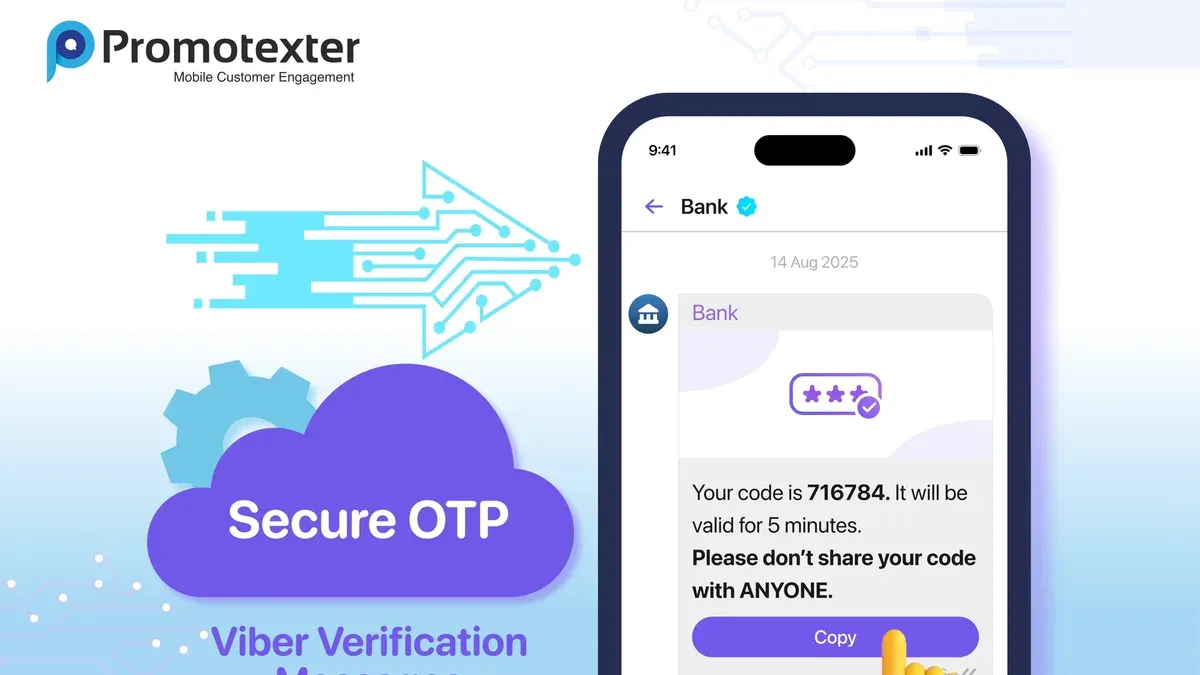
Sharing Viber contact details or group invitations requires caution to prevent unauthorized access or data leaks. Never share account credentials or PINs; this exposes the account to hacking and misuse. Instead, use Viber’s invite link feature, which allows sending group invites with expiration dates or restricted access, limiting potential abuse.
Adjust profile visibility by navigating to Settings > Privacy > Profile Info and limit who can see personal details. This reduces the risk of exposing sensitive information when sharing contacts or groups. For team collaboration, business accounts offer role-based access and activity logs, providing controlled sharing without compromising security.
Examples of security breaches include unauthorized group entry after sharing permanent invite links and account takeovers from leaked PINs. Following secure sharing practices mitigates these risks effectively.
- Generate a group invite link via the group info page and set an expiration time or limit the number of uses. The invite link should display with access controls applied.
- Share the invite link only through trusted channels; confirm recipients can access the group without issues.
- Review and adjust profile visibility settings in Settings > Privacy > Profile Info to restrict visible personal information; changes should apply immediately.
- For business accounts, assign roles under Management > Team Settings to control access levels; verify permissions reflect the intended restrictions.
Frequently asked questions
How to make viber account?
Install the Viber app and open it. Enter a valid phone number to receive a verification code via SMS. Input the code to verify the number and follow on-screen prompts to set up a profile with a name and optional photo.
How to private viber account?
Go to Settings > Privacy. Enable options like "Hide Online Status" and "Nobody" for "Who can see my online status." Turn off "Share 'Seen' Status" and restrict who can add the account to groups or see profile information.
How secure is viber?
Viber uses end-to-end encryption for messages and calls, ensuring that only participants can read or hear the content. Additional security features include two-step verification and the option to lock the app with a PIN or biometric authentication. However, users must actively enable privacy settings to maximize security.
How to create viber account?
Download the official Viber app and open it. Enter a phone number to receive a confirmation code. After entering the code, set a display name and optionally add a profile picture. The account is then ready for use.
How to log out in viber account?
Viber does not provide a traditional log-out button on mobile apps. To log out, clear app data or uninstall the app. On desktop, use the "Sign Out" option found under the menu in Settings or Preferences.
What this guide does not cover and when to seek specialized help
This guide does not cover device-level security such as malware protection, which is critical for overall account safety. Ensuring the mobile device itself is free from viruses and unauthorized access is a prerequisite to secure Viber usage. Users handling highly sensitive or confidential data should consider additional encryption tools beyond Viber’s built-in end-to-end encryption to enhance protection.
Account recovery procedures outlined here rely on access to the registered phone number or linked email. Losing access to these recovery options may prevent regaining control of the Viber account. In such cases, contacting Viber support directly or seeking professional cybersecurity assistance is recommended.
The single most useful next step is to enable Viber’s built-in PIN protection and two-step verification under Settings > Privacy > PIN code and Two-step verification. This adds a critical layer of security that prevents unauthorized access even if the phone is lost or stolen.
See also: How to Secure Your Signal Account: A Complete Step-by-Step Guide · How to Secure Your Snapchat Account: A Step-by-Step Guide · How to Secure Your Messenger Account: Step-by-Step Guide



