
How to Log Out of Viber on All Devices: Step-by-Step Guide
This guide shows how to log out of Viber on all devices, covering mobile and desktop platforms with practical, straightforward instructions.

This article explains how to log out of Viber on all devices, detailing the process across mobile and desktop platforms. Managing active sessions on Viber can be complex, as the app limits remote logout capabilities compared to other messaging services. Users often expect a universal 'log out from all devices' button, but Viber requires different steps depending on the device type and platform.
Understanding these nuances is crucial for securing accounts, especially when devices are lost or shared. This guide covers what is possible and what is not, showing how to log out on Windows, PC, Android, and other devices, plus troubleshooting common issues. The focus is on practical, straightforward instructions for controlling Viber sessions effectively.
Before you start: What is needed to log out of Viber on all devices
Logging out of Viber across all devices requires several key prerequisites. First, an active Viber account linked to a verified phone number is essential. This phone number is the primary identifier for the account and must be known to manage sessions effectively. Access to at least one device — mobile or desktop — where Viber is installed and logged in is necessary to initiate logout commands.
The Viber app or desktop client should be updated to the latest version. Older versions often lack centralized session management features, making remote logout from multiple devices impossible or inconsistent. Updated versions offer improved synchronization and clearer device management interfaces.
A stable internet connection is required on the device used to log out, ensuring that logout actions sync promptly across all active sessions. Without connectivity, logout commands will not propagate to other devices.
- Verify the linked phone number by checking Viber settings; confirmation ensures control over the account.
- Confirm access to at least one logged-in device, as logout commands cannot be sent remotely without it.
- Update Viber to the latest version through the App Store, Google Play, or official website; successful update is indicated by the app's version number matching the current release.
- Ensure the device is connected to the internet; test by opening a webpage or sending a message within Viber.
Tip: Without updating Viber, users may not see options to log out from other devices, limiting control to the current device only.
How to log out Viber on Windows
- Open the Viber desktop app by double-clicking its icon on the Windows desktop or selecting it from the Start menu. The main chat window should appear once the app loads.
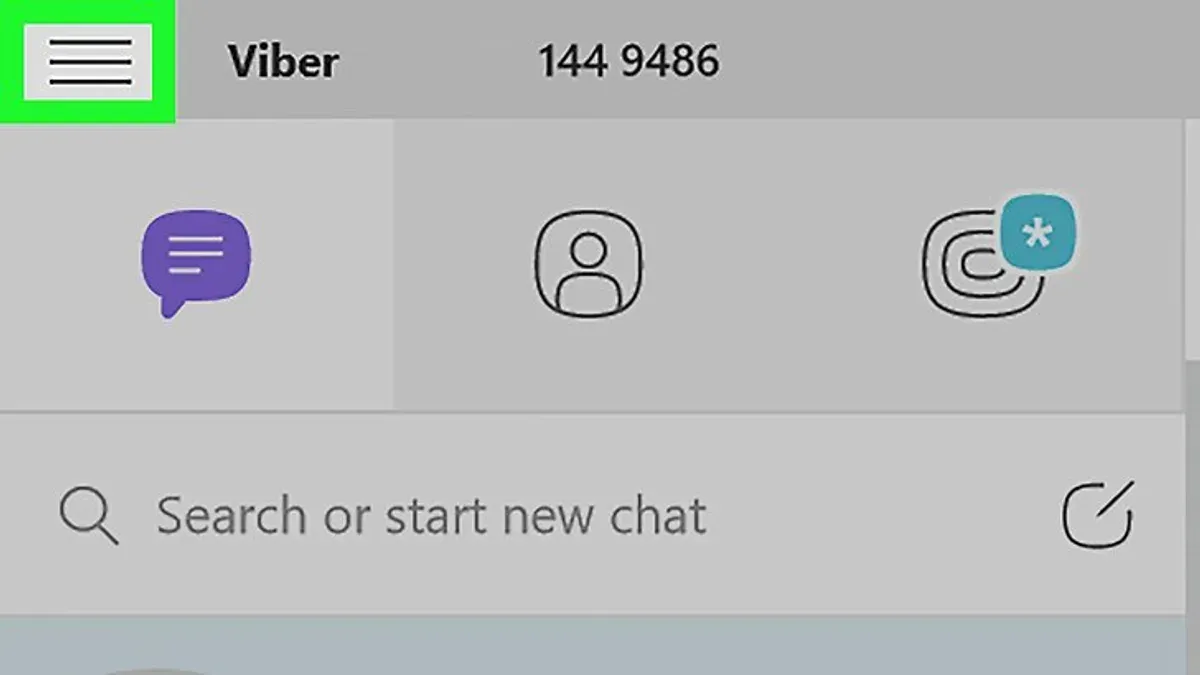
- Click on the "More" button represented by three horizontal lines or dots located at the top left corner of the app window. This opens the main menu.
- From the dropdown menu, select "Settings." The Settings window will open with multiple tabs.
- Navigate to the "Account" tab within Settings. Here, find the option labeled "Deactivate Viber on this computer" or "Sign out."
- Click on "Deactivate" or "Sign out." A confirmation prompt will appear asking to confirm the logout action. Confirm the choice.
- After confirmation, Viber will log out from the Windows device. The app will return to the login screen where credentials can be entered again or the app closed.
Logging out of Viber on Windows disconnects the device from the account, stopping message sync on that computer. However, the account remains active on other linked devices until they are also logged out or the account is deactivated entirely.
Tip: If the "Sign out" option is not visible, the app may require updating or restarting to display the latest interface options.
How to log out Viber on PC
Logging out of Viber on desktop platforms other than Windows, such as macOS, involves a slightly different process but achieves the same result: ending the active session to stop message syncing and notifications. On both platforms, simply closing the app does not log out the user; it only suspends the session temporarily. A full logout is necessary to prevent notifications and disable message access on that device.
| Action | Windows Viber | macOS Viber |
|---|---|---|
| Access logout option | Settings > Account > Log Out | Viber menu > Log Out |
| Confirm logout | Click Log Out button in dialog | Click Log Out in confirmation prompt |
| Effect on notifications | Notifications stop immediately after logout | Notifications stop immediately after logout |
| Effect on message access | Messages no longer sync or appear | Messages no longer sync or appear |
- Open Viber on the desktop device.Window or macOS app interface appears.
- On Windows, click the gear icon at the bottom left, then choose Account > Log Out. On macOS, click Viber in the top menu bar and select Log Out.
- Confirm the logout action in the prompt that appears.The app will close or return to the login screen.
- Verify that notifications for new messages stop and no new messages appear on the desktop app.
Tip: Always confirm logout via the app’s menu rather than just closing the window to ensure the session is fully terminated.
How to log out Viber on cellphone
Viber's mobile apps for Android and iOS do not offer a direct "logout" button, making the process different from desktop versions. To effectively log out, users must either delete their Viber account or uninstall the app, each with distinct consequences. Deleting the account removes all message history and disconnects the number from Viber, while uninstalling the app simply stops the device from receiving messages but keeps the account active.
- Open the Viber app on the Android or iPhone device and tap the More tab (three horizontal lines or the "More" label at the bottom right). You should see a menu with settings options.
- Tap Settings, then select Account. This screen displays options including privacy and account management.
- To delete the account, tap Deactivate Account (Android) or Delete Account (iPhone). Confirm the phone number and follow prompts to permanently remove the account and log out from all devices.
- If deleting the account is not desired, uninstall the Viber app: on Android, long-press the app icon and select Uninstall; on iPhone, long-press and tap the small X or use Settings > General > iPhone Storage > Viber > Delete App. This stops message delivery but keeps the account active and logged in elsewhere.
Tip: Uninstalling the app is a quick way to stop receiving messages on a device but does not log out the account, so it should be combined with managing active sessions on other devices if security is a concern.
How to logout Viber from other devices
Viber does not provide a universal “log out from all devices” button, which complicates remotely ending sessions on other devices. However, it offers some session management features accessible through the app’s settings. Users can view active devices linked to their account and revoke individual sessions to force logout on those devices.
- Open Viber on the currently logged-in device and go to Settings.
- Navigate to Privacy and select Devices or Logged-in Devices, depending on the app version.
- Review the list of devices currently connected to the Viber account, including device type and last activity timestamp.
- Choose the device or devices to log out remotely and tap Remove or Log out. The selected devices will lose access after the next sync.
If the device management option is unavailable or ineffective, changing the phone number linked to the account or uninstalling and reinstalling Viber can force all sessions to refresh, effectively logging out other devices. Note that changing the phone number affects the entire account and requires verification.
Tip: Regularly checking the logged-in devices list helps identify unauthorized access early and maintain account security.
How to log out Viber on other devices Android
Viber on Android allows users to review and manage active sessions on other devices, though this feature is somewhat limited compared to desktop versions. To see if active sessions on other devices can be viewed and terminated, the Android app's settings must be explored.
- Open the Viber app on the Android device.
- Tap the More menu (three horizontal lines or dots) in the bottom-right corner.
- Go to Settings > Privacy > Logged in Devices.
- If the "Logged in Devices" section is present, it will list all active sessions, including device type and last active time.
- Tap on any device entry to see the option to remove or log out that device.
- Confirm the removal; the session will be terminated remotely, and a notification may appear on the logged-out device.
If the "Logged in Devices" option is not visible or the session list is empty, Android users can force logout by reinstalling the app or clearing the app cache and data. This revokes all session tokens and requires re-verification on all devices.
- Go to Android Settings > Apps > Viber.
- Tap Storage > Clear Cache and Clear Data.
- Reopen Viber and log in; this will effectively log out all other sessions except the current device.
Tip: Regularly reviewing active sessions on Android can help detect unauthorized access early.
Troubleshooting common issues when logging out of Viber
Some users report that the logout option is missing or greyed out on certain devices, especially older versions of the app or unsupported hardware. Updating Viber to the latest version often resolves this, as the logout functionality depends on current app capabilities. If the option remains unavailable, reinstalling the app can restore missing features.
Logout actions may not sync properly across all devices, causing sessions to remain active elsewhere. This occurs because Viber does not provide a universal remote logout. To force session revocation, users can change their linked phone number or clear app data on the device in question, which usually triggers session refresh. Waiting several minutes after logout for synchronization is also necessary.
Persistent logged-in sessions despite account changes are commonly caused by cached credentials or delayed server updates. Clearing cache and app data on all devices and then re-logging in often solves this. If issues continue, contacting Viber support with device details and app versions is recommended for troubleshooting.
- Open Viber on the device where logout is problematic; check for the logout option under Settings > Account > Logout. If missing, update the app.
- If logout is greyed out, uninstall and reinstall the app; verify that the logout option is now accessible.
- On devices where sessions persist, go to Settings > Account > Logged in Devices and manually revoke sessions.
- If logout still does not sync, change the linked phone number in Settings > Account > Phone Number to force session resets.
- Clear cache and app data on devices with stuck sessions via device settings; relaunch Viber and confirm logout status.
Security considerations when logging out of Viber on multiple devices
Logging out of Viber on lost or shared devices is crucial to prevent unauthorized access. Since Viber sessions remain active until explicitly revoked, failing to log out can expose private conversations. Viber uses end-to-end encryption, which protects message content but does not automatically terminate active sessions when logging out elsewhere, so manual session management is necessary.
Viber’s session model allows multiple simultaneous logins tied to a single phone number. Unlike some messaging apps that offer a universal remote logout, Viber requires device-by-device session revocation. This means users must periodically check the 'Logged in Devices' section in Settings to review and remove unknown or unused sessions.
If a device is permanently lost or potentially compromised, changing the linked phone number or resetting the Viber account offers stronger security. Changing the phone number forces all sessions to disconnect, while a full account reset deletes all data and requires reactivation. These steps are recommended when device logout alone is insufficient.
- Open Viber on a trusted device and go to More > Settings > Privacy > Logged in Devices. Confirm the list of active sessions appears.
- Identify any unfamiliar or unused device sessions. Tap on the session and select Log Out. The session should disappear immediately.
- If the lost device remains accessible to others, consider changing the linked phone number via More > Settings > Account > Change Phone Number. Follow prompts to complete, which logs out all sessions.
- For maximum security, perform a full account reset by deleting the Viber account in More > Settings > Account > Delete Account. This removes all data, messages, and sessions but requires reactivation to use Viber again.
Tip: Regularly review the 'Logged in Devices' menu to ensure no unknown access remains active, especially after lending devices or installing Viber on new hardware.
Frequently asked questions
How to log out viber in all devices?
Viber does not offer a direct way to log out from all devices simultaneously. To secure the account, the best approach is to manually log out from each device or delete the Viber account, which removes active sessions everywhere. Alternatively, changing the account password does not log out sessions, so manual device management remains necessary.
How to log out viber mobile?
On a mobile device, logging out requires uninstalling the app or deleting the Viber account from the app settings. Unlike other apps, Viber lacks a dedicated 'log out' button on mobile. Clearing app data in system settings can also remove session information, but this is device-specific and not a remote action.
How to log out viber on mobile?
To log out on mobile, open Viber, go to More > Settings > Privacy > Delete Account. Confirming account deletion logs out Viber from the mobile device and all others. Otherwise, uninstalling the app is the only way to end the session locally.
How to log out viber in computer?
On desktop, open Viber and go to Tools (or the gear icon) > Settings > Privacy. There, users can see active sessions and choose to log out from specific devices. Logging out from desktop only affects that device; other devices remain logged in unless managed individually.
How to log out of viber on other devices?
To log out of other devices, use the desktop app's Privacy settings to view and remove active sessions. This method is not available on mobile apps. If access to the desktop app is not possible, uninstalling Viber or deleting the account are alternatives but affect all devices.
What this advice does not cover and who should do something else
Viber does not provide a universal "log out from all devices" feature that instantly disconnects every session. Some logout actions require uninstalling the app from specific devices or changing the linked phone number, which may not be practical or desirable for all users. Users seeking to remotely terminate all active sessions simultaneously may find these limitations frustrating. Additionally, Viber’s desktop and mobile apps handle session management differently, restricting full remote control of logouts.
Those needing to secure their account urgently after losing a device or suspecting unauthorized access should consider changing their linked phone number or contacting Viber support directly. This ensures the account is effectively locked down across all devices, even though it is more disruptive than a simple logout.
The single most useful next step is to regularly review and manage active devices in Viber’s settings under Privacy > Logged-in Devices. Removing unfamiliar or unused sessions promptly reduces risk and helps maintain control over where the account is accessed.
See also: How to Log Out of Telegram on All Devices: Clear Step-by-Step Guide · How to Log Out of Signal on All Devices: Step-by-Step Guide · How to Log Out of Snapchat on All Devices: Clear Step-by-Step Guide · How to Log Out of TikTok on All Devices: Complete Step-by-Step Guide



