
How to Open.xd Files on Mac: Clear, Practical Methods
Discover clear methods to open.xd files on Mac using Adobe XD or online viewers for quick and easy access.

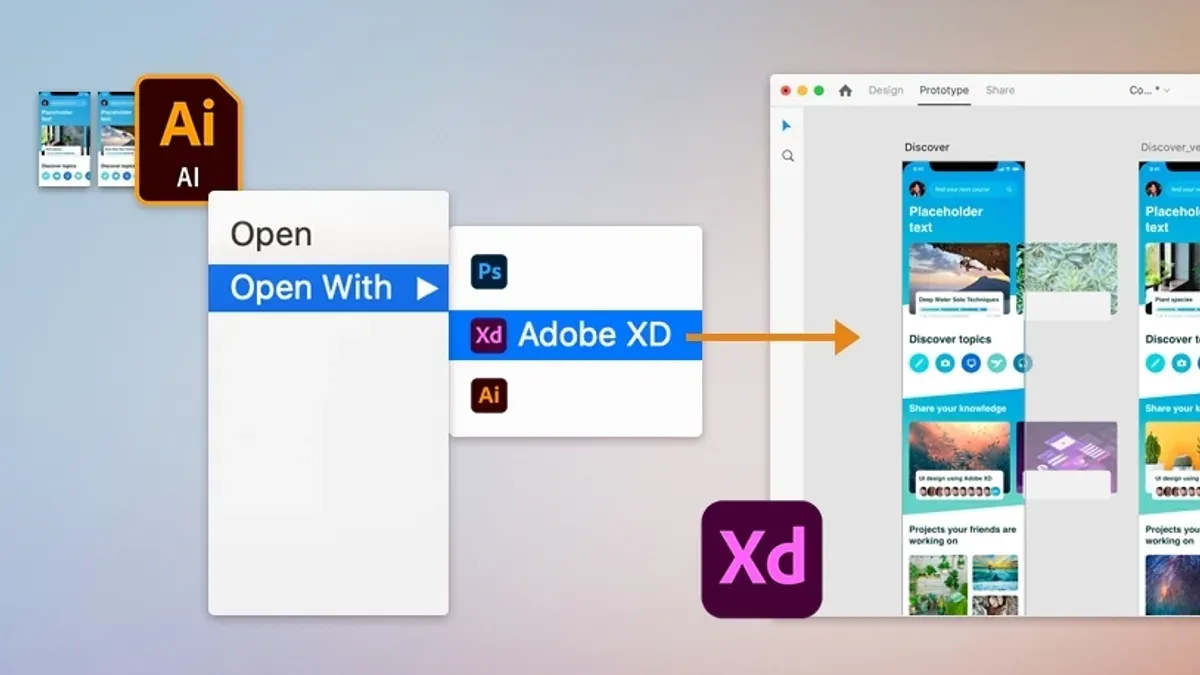
You have just received a.xd file on your Mac from a collaborator or designer, but you’re unsure how to open it. Maybe you don’t have Adobe XD installed, or you want to preview the file quickly without extra software.
This article guides you through how to open.xd file on Mac using Adobe XD and alternative online tools. It also clarifies what the.xd extension means, how it differs from similar file types like.xdm,.xsd, and.xfd, and how to handle common issues. Whether you want to install Adobe XD or explore quick online options, the step-by-step instructions here will help you view and work with these files efficiently.
Key takeaways
- You need Adobe XD installed on your Mac to fully open and edit.xd files.
- Online tools offer quick previews without Adobe XD but with limited functionality.
- The.xd extension specifically relates to Adobe XD design projects, distinct from.xdm,.xsd, and.xfd files.
- Adobe XD can be downloaded from the Adobe Creative Cloud app or Adobe’s website.
- Common issues include file corruption or version mismatches; troubleshooting steps can resolve most problems.
Before you start: What you need to open.xd files on Mac
A.xd file is a design project created with Adobe XD, a popular tool for UI/UX design. To open and work with these files on your Mac, you will need appropriate software or compatible viewers.
The primary method is using Adobe XD itself, which fully supports all features in.xd files. Alternatively, some online tools and viewers allow you to open and preview.xd files without installing Adobe XD, but these may have limitations.
To use Adobe XD on Mac, your system must run macOS 10.14 (Mojave) or later. The minimum Adobe XD version recommended to open most.xd files is version 54, as earlier versions may not support newer features in recent files.
If you choose online options, ensure you have a stable internet connection to upload and view files securely.
- Check your Mac's operating system by clicking the Apple menu and selecting About This Mac. You should see macOS 10.14 or newer.
- Confirm you have Adobe XD installed by opening your Applications folder and looking for Adobe XD. If installed, launch it and check the version via Adobe XD > About Adobe XD. The version number should be 54 or above.
- If you do not have Adobe XD, plan to use an online viewer. Prepare an internet connection and a modern web browser like Safari, Chrome, or Firefox.
How to open an xd file with Adobe XD on Mac
- Download Adobe XD from the official Adobe website or the Mac App Store. Once downloaded, run the installer and follow the on-screen instructions to complete the installation. After installation, launch Adobe XD from your Applications folder or Launchpad.
- Open Adobe XD and sign in with your Adobe Creative Cloud account. If you don’t have an account, create one to access cloud features that facilitate file management.
- To open your.xd file, click File in the menu bar, then select Open... Navigate to the location of your.xd file on your Mac and select it. The file will open in Adobe XD’s workspace, displaying artboards, layers, and design elements.
- Once opened, you can view, edit, and prototype within Adobe XD. The app provides tools to modify text, shapes, and interactions. Edits save directly to the.xd file format, preserving project integrity.
- Adobe Creative Cloud integration allows you to access your recent files through the Home screen or sync files across devices. This streamlines opening.xd files stored in the cloud without manual downloads.
Opening.xd files with Adobe XD ensures full compatibility and access to all design and prototyping features. Screenshots of the file opening process in Adobe XD typically show the file’s artboards and layers visible in the main window and the assets panel on the left.
How to open xd file online without Adobe XD
If you cannot or prefer not to install Adobe XD, several online viewers allow you to open and view.xd files directly in your web browser. These tools offer a convenient way to access Adobe XD projects without software installation, though they generally support viewing only, not editing.
To open an.xd file online, follow these steps:
- Visit a trusted online XD viewer website such as Avocode, XdViewer, or Zeplin. You should see an option to upload files.
- Click the upload or browse button and select your.xd file from your Mac. The platform will begin processing the file.
- Once uploaded, the viewer will display your design with layers and artboards visible. You can navigate the project but cannot modify it.
When using online viewers, consider these limitations and precautions:
- Most online tools provide viewing and inspection features only; editing requires Adobe XD.
- File upload speed depends on your internet connection and file size.
- Uploading sensitive or proprietary designs to third-party sites may pose security risks; verify the platform’s privacy policy before sharing.
| Online Viewer | Supports.xd Files | Editing | Free Tier | Security Notes |
|---|---|---|---|---|
| Avocode | Yes | No | Limited free trial | Uses encrypted uploads; commercial use requires subscription |
| XdViewer | Yes | No | Free | Open source, but files are uploaded to their server |
| Zeplin | Yes (via integration) | No | Free tier with limits | Secure cloud storage with access controls |
Understanding what a.xd file extension means
A.xd file is a proprietary file format created by Adobe for its Adobe XD software, designed specifically for vector-based design and prototyping. Unlike generic image files such as JPEG or PNG, which store static visuals,.xd files contain layered design elements, interactive prototypes, and user interface assets that can be edited and animated within specialized software.
Adobe introduced the XD format to streamline UI and UX design workflows, allowing designers to create, share, and test digital experiences in a single file. These files typically include vector graphics, text, artboards, and interactive links that define user flows, making them central to collaborative design projects.
File sizes for.xd files vary widely depending on the project's complexity, often ranging from a few megabytes for simple designs to tens of megabytes for extensive, multi-artboard prototypes. This format's rich content is why it requires Adobe XD or compatible viewers rather than standard image or document viewers.
How to open similar but different file types: xdm, xsd, and xfd files
Files with extensions.xdm,.xsd, and.xfd are often confused with.xd files but serve very different purposes and require different software to open.
Opening.xdm files
.xdm files are Adobe XD Manifest files that store metadata about Adobe XD projects but are not design files themselves. You typically do not open.xdm files directly. Instead, they are accessed automatically by Adobe XD when you open the corresponding project folder.
Opening.xsd files
.xsd stands for XML Schema Definition, used to define the structure of XML documents. These files are not related to design but to data validation. To open and edit.xsd files, you can use XML editors such as Visual Studio Code, Oxygen XML Editor, or Notepad++. Opening an.xsd file in a text editor should show readable XML schema code.
Opening.xfd files
.xfd files are typically associated with Adobe LiveCycle Designer and contain form templates. These files are not interchangeable with.xd files. To open.xfd files, use Adobe LiveCycle Designer or compatible PDF form editors. Opening the file should reveal editable form fields and layout elements.
In summary,.xdm files are tied to Adobe XD project metadata,.xsd files are XML schemas for data validation, and.xfd files are form templates unrelated to Adobe XD designs. Using the appropriate software ensures you can access the content correctly without confusion.
How to download and install Adobe XD on Mac
To open.xd files reliably, you need the official Adobe XD app installed on your Mac. Follow these steps to download and install it safely.
- Visit Adobe's official Adobe XD page. You should see an option to download or start a free trial. This ensures you get the authentic app.
- Click the download button to get the Adobe Creative Cloud installer. Once downloaded, open the installer; a window titled “Install Adobe Creative Cloud” should appear.
- Follow the on-screen instructions to complete the Creative Cloud installation. Upon completion, the Creative Cloud Desktop app launches automatically.
- In the Creative Cloud app, use the search bar or navigate to the “Apps” section and find Adobe XD. Click “Install” next to Adobe XD. You will see a progress bar indicating the download and installation status.
- Once installed, launch Adobe XD from the Creative Cloud app or your Applications folder. The app should open without errors, ready to open.xd files.
- Check system requirements before installing: macOS 10.14 or later and sufficient disk space. Adobe XD may require a subscription, but a free trial is often available.
- To keep Adobe XD updated, open the Creative Cloud app, go to the “Updates” tab, and click “Update” when a new version is available. This ensures compatibility and security improvements.
- Avoid downloading Adobe XD from unofficial sites or third-party vendors to prevent malware or outdated versions. Always verify you are on Adobe’s official website or using the Creative Cloud app.
How to find the Adobe XD file location on your Mac
Locating your.xd files on Mac can be straightforward if you know where to look and how Adobe XD manages file storage. Whether your files are saved locally or synced with cloud services, you can find them quickly using built-in macOS tools.
- Open Finder and click on the search bar in the upper-right corner.
- Type ".xd" and press Enter. Finder will display all Adobe XD files stored on your Mac, including those in common folders.
- Look in typical folders such as Downloads, Documents, and Creative Cloud Files for.xd files. These are default locations where you might have saved or synced your Adobe XD projects.
- Use Spotlight search (Cmd + Space) and enter ".xd" to quickly locate files across your entire system.
- If you use Adobe Creative Cloud syncing, check the Creative Cloud Files folder inside your home directory. Files saved here are synced to Adobe's cloud and accessible from other devices.
- To back up your.xd files, copy them from these folders to an external drive or a dedicated backup location. Regular backups help protect your work and manage version control.
An example Finder search for ".xd" files shows a list with file names, modification dates, and locations. A screenshot of the Creative Cloud Files folder typically shows synced project files with cloud status icons indicating upload or sync progress.
Troubleshooting common issues opening.xd files on Mac
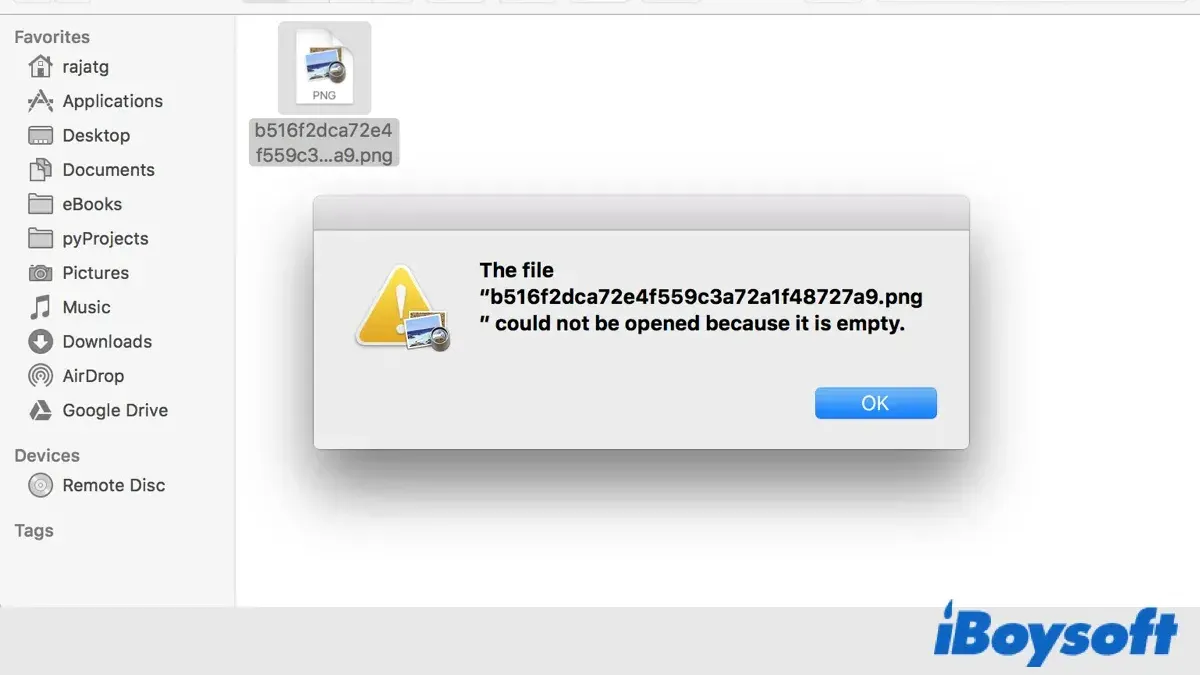
If your.xd file won’t open, it may be corrupted or not a valid Adobe XD file. Check the file extension and source. If you see an error like “Could not open file” or “Unsupported file format,” confirm the file ends with.xd and that it was exported from Adobe XD.
If Adobe XD crashes or fails to launch, try these steps:
- Quit Adobe XD completely via Adobe XD > Quit Adobe XD or Cmd + Q. Relaunch and check if it opens normally.
- Restart your Mac to clear temporary glitches. After reboot, open Adobe XD again.
- Update Adobe XD through the Creative Cloud app to ensure compatibility and bug fixes.
- If crashes persist, reset Adobe XD preferences by holding Shift + Option while launching the app. A reset confirmation should appear.
For online viewers not loading or showing errors, verify your internet connection and browser compatibility. Clear your browser’s cache or try a different browser. Some web viewers may require enabling cookies or allowing pop-ups.
File compatibility issues often occur when opening files created in newer Adobe XD versions on older software. If you see warnings like “File version not supported,” update your Adobe XD to the latest version. If you cannot update, ask the sender to export the file as a compatible version or share it via Creative Cloud.
- How to Open.sketch Files on Mac: Step-by-Step Methods
- How to Open a.PSD File on Mac: Step-by-Step Methods
- How to Open.dxf Files on Mac: Step-by-Step Methods and Tips
- How to Open.indd Files on Mac: Step-by-Step Methods
Frequently asked questions
What is.xd file extension?
The.xd file extension is used for Adobe XD project files. These files contain user interface designs, prototypes, and other design elements created with Adobe XD software. They are primarily used by designers for UX/UI projects and can only be fully edited with Adobe XD.
How to open xdm files?
XDM files are typically related to Adobe Experience Manager and not Adobe XD projects. To open an XDM file, you generally need software that supports Adobe Experience Manager data models or specialized XML editors. They are not compatible with Adobe XD or common design tools.
How to open a.xsd file?
A.xsd file is an XML Schema Definition used to define the structure of XML documents. You can open and edit.xsd files with text editors like TextEdit or specialized XML editors such as Oxygen XML Editor or Visual Studio Code with XML plugins. They are not design files and unrelated to Adobe XD projects.
What is xd file?
An XD file usually refers to an Adobe XD project file, containing design and prototype information for apps or websites. It is a proprietary format created and edited using Adobe XD software on Mac or Windows. Opening an XD file outside of Adobe XD requires compatible viewers or converters.
How to open an xfd file?
XFD files are associated with Microsoft InfoPath forms and are not related to Adobe XD. To open an XFD file, you need Microsoft InfoPath or compatible form software. These files cannot be opened with Adobe XD or standard design applications.
What this advice does not cover and who should look elsewhere
This article does not cover advanced editing or exporting of.xd files beyond initial opening and viewing. If you need to perform complex design modifications, prototyping, or export assets in various formats, using the full Adobe XD application with a licensed subscription is necessary.
Users without a licensed Adobe XD subscription may find their editing capabilities limited or unavailable. Additionally, online viewers or converters might not support all interactive features or layers in.xd files, and uploading sensitive designs to third-party services could expose your work to privacy risks.
The single most useful next step is to download and install the official Adobe XD app from the Adobe Creative Cloud website. This ensures full compatibility, reliable performance, and access to comprehensive design tools tailored for.xd files on your Mac.



