
How to Open a.PSD File on Mac: Step-by-Step Methods
Discover practical methods to open a.PSD file on Mac using Adobe Photoshop, Preview, free apps, and online tools for viewing and editing.

You receive a.PSD file from a client or download one from the web, and now you need to open it on your Mac. The.PSD format, native to Adobe Photoshop, contains complex layers that many standard image viewers can't handle fully.
This article explains how to open.psd file on Mac with a focus on practical, platform-specific methods. You'll learn how to use Adobe Photoshop for full editing capabilities, explore free options like Preview and alternative apps, and understand software choices for Windows users. It also covers merging and editing PSD files on Mac, common issues, and online tools—all to help you decide the best approach based on your needs.
Key takeaways
- Adobe Photoshop on Mac offers complete PSD support but requires a subscription.
- Preview on Mac can open PSD files for quick viewing but does not support layers.
- Free apps like GIMP provide editing functions but may have a learning curve.
- Windows users can use Paint.NET or Photoshop alternatives for PSD files.
- Online tools allow free PSD viewing and light editing without installation.
Before you start: What you need to open a.PSD file on Mac
A.PSD file is Adobe Photoshop’s native format, containing image layers, masks, adjustments, and other complex data. Because of this complexity, opening these files requires software that can interpret and display layered image data correctly. Simply using a generic image viewer may only show a flattened preview or fail to open the file altogether.
On Mac, you need to ensure your system meets basic requirements before attempting to open a.PSD file. Most modern macOS versions (such as macOS Catalina or later) support popular image editing apps that handle.PSD files, but some older versions might limit compatibility. You should also have enough free disk space—.PSD files can range from a few megabytes for simple images to hundreds of megabytes or more when they contain many layers and high resolution.
Understanding the nature of your.PSD file is crucial. If it is layered, you will want software capable of preserving and editing those layers. If it is flattened, even basic viewers can display the image. Additionally, clarify whether you need to just view the file or perform edits, as this will influence your choice of software.
- Locate the.PSD file on your Mac and check its file size in Finder by right-clicking and selecting "Get Info." You should see the file size—smaller files (under 50 MB) typically open faster and are easier to manage.
- Confirm your macOS version by clicking the Apple menu and selecting "About This Mac." Ensure your system is on a recent version to access the latest apps.
- Decide if you need to edit the file or only view it. Viewing can be done with simpler apps, but editing requires specialized software like Adobe Photoshop or compatible alternatives.
How to open a.PSD file on Mac using Adobe Photoshop
- Launch Adobe Photoshop from your Applications folder or Dock. The Photoshop loading screen will appear, indicating the program is starting.
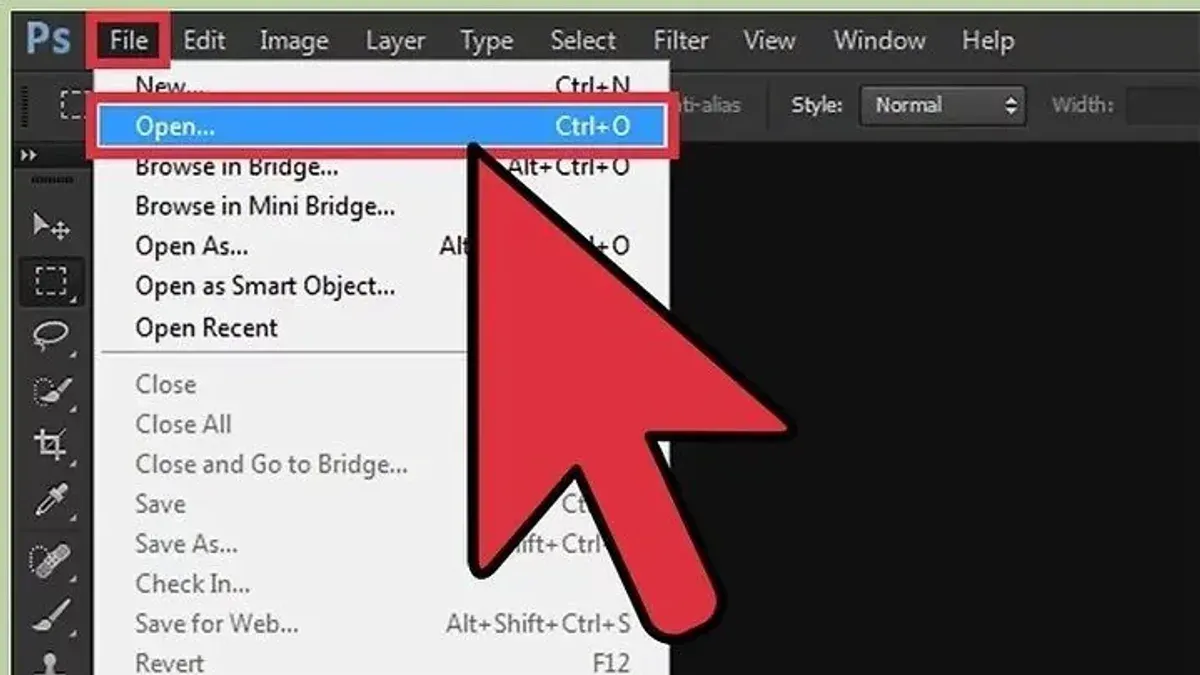
- Click File in the top menu bar, then select Open... from the dropdown. A file browser window will open.
- Navigate to the location of your.PSD file, select it, and click Open. Photoshop will begin loading the file, showing a progress bar if the file is large or complex.
- Once loaded, the.PSD file will appear with all layers intact in the Photoshop workspace. You can view, edit, or rearrange layers using the Layers panel typically located on the right side of the screen.
- For large or complex.PSD files, wait for Photoshop to finish rendering all layers and effects before editing to avoid performance issues. Consider closing other applications to allocate more system resources.
- To save edits, use File > Save or Save As if you want to keep the original file unchanged.
Adobe Photoshop requires an Adobe Creative Cloud subscription, which offers different plans depending on your needs, including single app or full suite access. Pricing details and plans can be found on Adobe’s official website.
Photoshop’s robust editing tools allow you to manipulate individual layers, apply effects, and work nondestructively with masks and smart objects, making it the most comprehensive solution for.PSD files on Mac.
How to open a.PSD file on Mac for free using Preview and alternative apps
You can open.PSD files on your Mac without Photoshop by using the built-in Preview app or free third-party tools like GIMP and Photopea. Each option offers different levels of viewing and editing capabilities.
Using Preview to open.PSD files
- Locate the.PSD file in Finder.
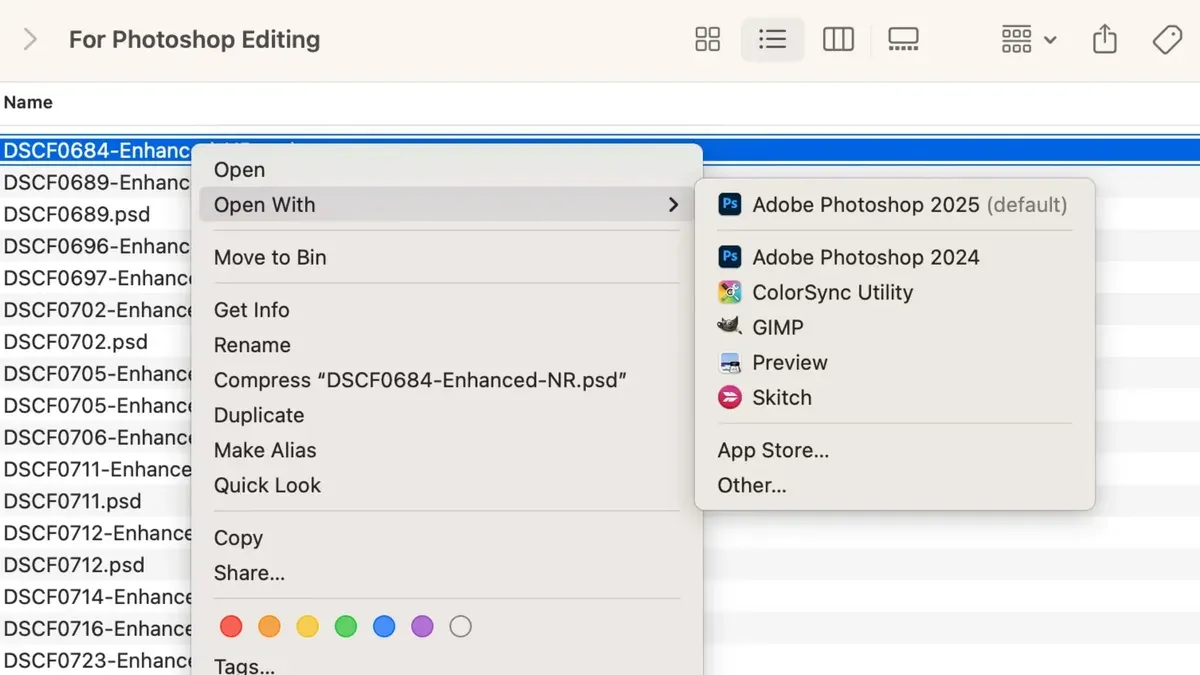
- Right-click the file, select Open With, then choose Preview.
- Preview will display a flattened version of the image without layers or advanced editing options.
Preview is best for quick viewing but does not support editing layers or complex adjustments.
Opening.PSD files with free apps
- GIMP (GNU Image Manipulation Program): Download and install GIMP from gimp.org.
- Open GIMP, click File > Open, then select your.PSD file.
- GIMP loads the file with layers intact, allowing you to edit images, apply filters, and export in various formats.
- Photopea (web-based): Go to photopea.com in your browser.
- Drag and drop the.PSD file into the Photopea window.
- Photopea shows a Photoshop-like interface with layers and advanced editing tools accessible without installation.
| Feature | Preview | GIMP | Photopea |
|---|---|---|---|
| Layer support | No | Yes | Yes |
| Editing tools | None | Extensive | Extensive |
| Installation required | No | Yes | No (web-based) |
| Ease of use | Very simple | Moderate learning curve | Familiar to Photoshop users |
| File size handling | Basic | Good | Good, but browser-dependent |
Example screenshots show Preview displaying a single-layer image, while GIMP presents layers and editing panels, illustrating the difference in functionality.
How to open a.PSD file on Windows 10 and Windows in general
Windows users have several options to open.PSD files, ranging from paid professional software to free alternatives and online editors.
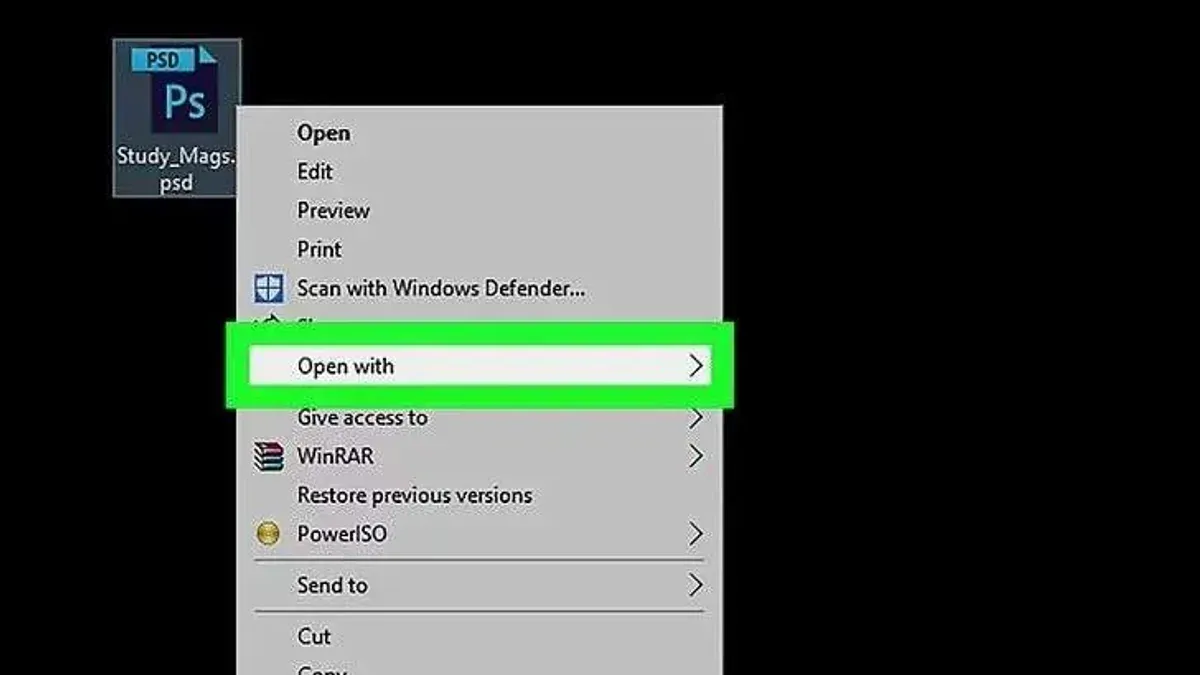
- Open Adobe Photoshop on your Windows PC. Click File > Open, navigate to your.PSD file, and select it. You should see the full layered file open, ready for editing if your subscription is active.
- For a free alternative, install GIMP (GNU Image Manipulation Program). Launch GIMP, go to File > Open, and select your.PSD file. GIMP supports layers but may not perfectly preserve all Photoshop effects.
- Another free option is Paint.NET with the PSD plugin. After installing both, open Paint.NET, click File > Open, and choose your.PSD file. Note that some advanced layer styles might not display correctly.
- Use the online editor Photopea by visiting photopea.com in any browser. Click File > Open, and upload your.PSD file. Photopea closely mimics Photoshop’s interface and supports layers, making it convenient for quick edits without installation.
Users report that Photoshop on Windows provides the most reliable and fully featured experience with.PSD files, including complex layer effects and adjustment layers. GIMP and Paint.NET are well-suited for basic editing but may struggle with advanced file features. Photopea offers a balanced option with no installation needed but depends on internet speed and browser performance.
Compared to Mac, Windows has a broader range of free software options with active PSD support, but Photoshop remains the premium choice on both platforms.
How to merge or edit PSD files on Mac
Merging or editing PSD files on Mac starts with understanding the capabilities of your software. Adobe Photoshop offers the most reliable method to combine multiple PSD files or layers while preserving all effects and layer properties.
- Open the first PSD file in Photoshop. You should see all its layers intact in the Layers panel.
- Go to File > Place Embedded and select the second PSD file you want to merge. It will appear as a smart object on top of the first file.
- Adjust the position and size as needed, then press Enter to confirm. The layers remain editable inside the smart object.
- To merge layers, select multiple layers in the Layers panel, right-click, and choose Merge Layers. The merged layer combines content but removes individual layer controls.
- Save the combined file with a new name to preserve originals.
Free alternatives like GIMP on Mac allow you to open and edit PSD files but have limitations. GIMP can import PSD layers but often flattens complex effects and layer styles during import.
- Open each PSD in GIMP, then copy layers between files using Edit > Copy and Edit > Paste. You can anchor pasted layers or create new layers.
- Perform basic edits such as cropping via Image > Crop to Content and color adjustments via Colors > Levels or Colors > Hue-Saturation.
- Export the result as a new XCF or flattened PNG/JPEG file; saving as PSD may lose some layer fidelity.
Basic edits common to both Photoshop and GIMP include cropping images, correcting colors, and adjusting brightness or contrast. In Photoshop, use Image > Adjustments for color correction. In GIMP, use the Colors menu.
Before merging or editing, always back up original PSD files to avoid losing layer data or effects. Photoshop retains full layer structure after merging smart objects, while free tools may simplify layers, impacting future edits.
Common issues when opening.PSD files on Mac and how to fix them
When a.PSD file won’t open or shows errors like "Could not complete your request because the file is corrupted," this often indicates file corruption or unsupported features created by newer Photoshop versions. To resolve this, try opening the file in the latest Photoshop update or use alternative viewers such as Photopea, which can handle a range of PSD variants.
Slow loading or crashing in Photoshop or other apps typically results from large file sizes or insufficient RAM. Closing other applications and increasing Photoshop's memory allocation under Photoshop Preferences > Performance can improve stability. If crashes persist, resetting Photoshop’s preferences (hold Cmd+Option+Shift at launch) can clear corrupted settings.
Missing fonts or linked assets cause incomplete rendering or warnings like "Missing Fonts". You can fix this by installing the required fonts via Font Book or relinking missing smart object files manually through Layer > Smart Objects > Relink to File. If assets are unavailable, flattening layers or exporting to a compatible format helps maintain appearance.
To convert PSD files to other formats, open the file and use File > Export > Export As to save as JPEG, PNG, or TIFF. This is useful when editing is not required or when sharing with users lacking PSD support. Be aware that conversion flattens layers and effects.
How to open.PSD files free with online tools on Mac and Windows
Online PSD viewers and editors offer a convenient way to open.PSD files without installing software, working well on both Mac and Windows through any modern web browser. Photopea is one of the most popular options, providing a Photoshop-like interface and supporting layered editing directly in your browser.
Follow these steps to open a.PSD file online using Photopea or similar tools:
- Go to https://www.photopea.com. The homepage loads a canvas and menu options.
- Click File > Open and select your.PSD file from your device. The file loads onto the canvas with layers visible on the right panel.
- View or edit your PSD file as needed. The interface allows basic to advanced edits similar to desktop apps.
- When finished, use File > Export As to save your work in various formats.
Privacy is a key consideration; Photopea's privacy policy states files are processed in-browser and not stored on servers long-term, but sensitive files should still be handled with caution. File size limits vary but very large PSD files may load slowly or cause browser crashes compared to desktop applications.
Compared to dedicated desktop software, online tools can have limitations such as slower performance, reduced support for complex effects, and occasional glitches. However, their platform independence and zero-installation convenience make them useful for quick access or light editing.
Choosing the right software to open PSD files on Mac based on your needs
Deciding which software to use for opening PSD files on Mac depends on your budget, editing requirements, file complexity, and privacy concerns. Adobe Photoshop remains the top choice for professionals who need full layer support, advanced editing features, and reliable performance. However, it requires a subscription and has a steeper learning curve.
Free apps like GIMP and Preview serve casual users who want basic viewing or simple edits without cost. Keep in mind free tools may struggle with complex PSDs, lose some layer effects, or load files slower. Online editors such as Photopea offer convenience and cross-platform access but can raise privacy issues and may not handle very large or detailed files smoothly.
Use this decision guide to choose:
- If you require precise layer manipulation, advanced editing, and work with large or complex PSD files, select Adobe Photoshop. You should see full layer fidelity and fast performance.
- If you only need to view or perform light edits on PSD files occasionally and prefer no cost, try GIMP or Preview. Successful use shows the file opening quickly with basic layer access.
- For quick edits across devices without installing software, use an online editor like Photopea. Confirm the file loads in your browser and basic editing tools are available.
- Avoid free or online tools if your PSD contains sensitive data or requires advanced color management and effects, as these methods may compromise security or fidelity.
- How to Open.dxf Files on Mac: Step-by-Step Methods and Tips
- How to Open.dwg Files on Mac: Step-by-Step Guide
- How to Open.docx Files on Mac: A Step-by-Step Guide
- How to Open.pptx Files on Mac: Simple Step-by-Step Methods
Frequently asked questions
How to open psd file in laptop?
To open a PSD file on a laptop, you can use Adobe Photoshop, the native software for PSD files. If you don't have Photoshop, free alternatives like GIMP or online tools such as Photopea allow you to view and edit PSD files. Ensure your laptop meets the software's system requirements for smooth performance.
How to open psd file on mac?
On a Mac, the easiest way to open PSD files is with Adobe Photoshop. If you prefer a free option, Preview lets you view PSD files but with limited editing capabilities. Third-party apps like GIMP or online editors like Photopea also work well for both viewing and basic editing.
How to open psd file in windows?
Windows users can open PSD files using Adobe Photoshop for full editing features. Free software like GIMP and online editors such as Photopea can open PSD files too, though complex layers or effects might not be fully supported. Windows Paint does not support PSD files directly.
How do i open a.psd file in windows 10?
In Windows 10, install Adobe Photoshop to open and edit PSD files with full functionality. Alternatively, download GIMP for a free solution or use browser-based editors like Photopea. Right-click the PSD file, choose 'Open with,' and select your installed program to open it.
How to open psd files in windows?
Opening PSD files in Windows requires compatible software such as Adobe Photoshop or free apps like GIMP. Online tools like Photopea also provide quick access without installation. For viewing only, some image viewers might support PSD previews, but editing requires dedicated software.
What this advice does not cover and who should do something else
This article does not cover professional-level PSD editing beyond basic merging and adjustments; users requiring advanced editing should rely on Adobe Photoshop. Online tools may not be suitable for highly confidential or large PSD files due to privacy and upload size limits.
The single most useful next step is to choose your software based on the complexity of your PSD file and your editing needs. If you only need to view or make minor edits, Preview or free alternatives may suffice. For deeper editing, installing Adobe Photoshop or a similar paid app ensures full compatibility and control over your PSD files.



