
How to Open.dwg Files on Mac: Step-by-Step Guide
Discover simple steps to open.dwg files on Mac using free viewers, paid editors, and online tools for smooth CAD file access and editing.

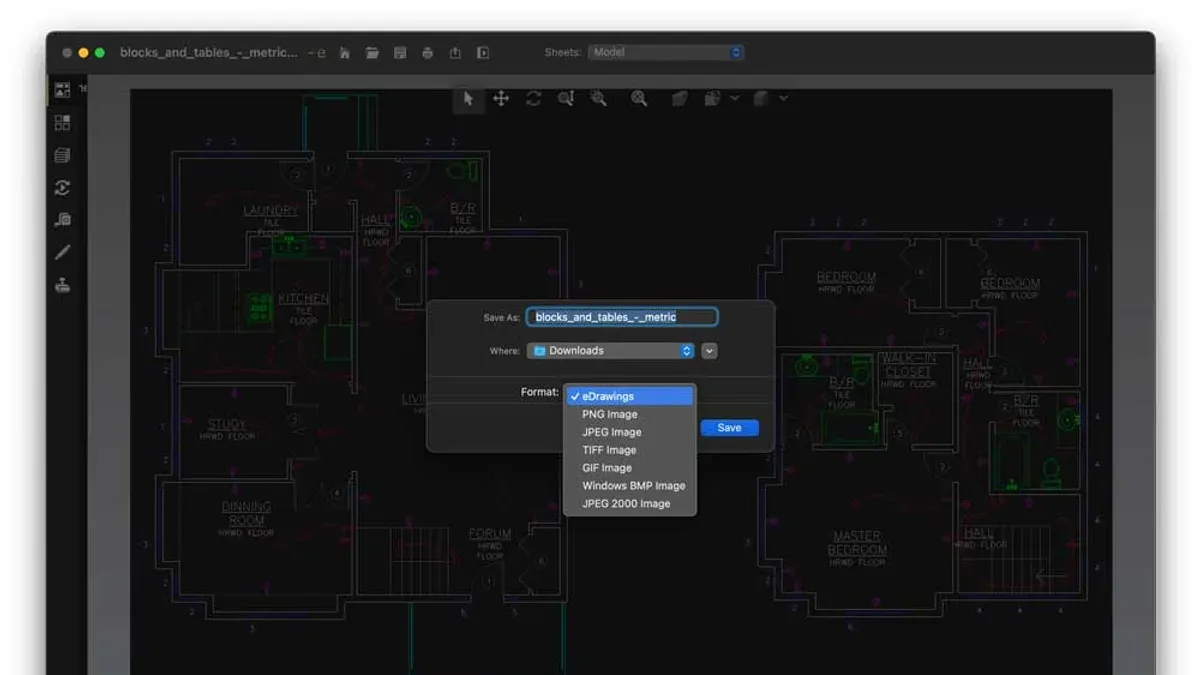
You’ve just received a.dwg file from a colleague or client, but you’re on a Mac and unsure how to access it. The.dwg format is widely used in CAD applications, yet macOS doesn’t natively support it, making it tricky to open or edit these files directly.
This article walks you through how to open.dwg file on Mac, offering clear, step-by-step instructions. You’ll learn about free and paid software options, ways to view and edit without AutoCAD, and practical tips for smooth file handling on your Mac. Whether you want a simple viewer or full editing capabilities, this guide helps you choose the right approach based on your needs.
Key takeaways
- Free DWG viewers like Autodesk DWG TrueView require a Windows emulator or alternative on Mac.
- Use apps like DraftSight or BricsCAD for full editing without AutoCAD on Mac.
- Mac App Store offers lightweight DWG viewers suitable for quick file access.
- Online DWG viewers and converters can open files without installing software but may limit editing.
- Common issues include file corruption and missing fonts; check file integrity and app settings.
Before you start: What you need to open a.dwg file on Mac
A.dwg file is a proprietary file format widely used in computer-aided design (CAD) for storing two- and three-dimensional design data. It is the native format for AutoCAD and other CAD software, commonly applied in architecture, engineering, and construction industries. Because of its complex structure, you cannot simply open a.dwg file with standard Mac applications like Preview or Quick Look.
To open a.dwg file on a Mac, you need compatible software that supports this format. Options range from free viewers to fully featured CAD editors. The choice depends on whether you only need to view the file or require full editing capabilities. Viewing-only applications generally use fewer system resources and are easier to use, while editing software demands more from your Mac’s hardware and usually involves a steeper learning curve.
Ensure your Mac is running a supported version of macOS for the software you choose. Most current DWG applications require macOS versions released in the past few years, and older hardware might struggle with large or complex files. Check official software websites for compatibility notes before installation.
- Confirm your Mac’s operating system version by clicking the Apple menu and selecting "About This Mac". You should see a version number that matches or exceeds the requirements stated by your chosen software.
- Identify whether you only need to view or also edit.dwg files. Viewing apps will open the file quickly and with minimal setup; editing apps will allow you to modify geometry, layers, and annotations.
- Download and install the compatible application suited to your needs. After installation, launch the app and open your.dwg file. If the file loads without error, the setup is correct.
How to open dwg file on Mac using free DWG viewers
Opening.dwg files on Mac without paid software is achievable using free DWG viewers and online tools, although editing capabilities are limited. Several free apps and web-based viewers can display your drawings reliably.
Using free DWG viewer apps for Mac
Because Autodesk DWG TrueView is Windows-only, Mac users can turn to alternatives like LibreCAD and ODA File Converter. LibreCAD is an open-source 2D CAD viewer that supports.dwg files but has limited support for newer DWG versions and no 3D capabilities.
- Download and install LibreCAD from the official website.
- Launch LibreCAD and select File > Open.
- Navigate to your.dwg file and open it; the drawing should render in the main window.
- Use zoom and pan tools to inspect the details; note that complex files may load slowly.
ODA File Converter allows batch conversion of.dwg files to older formats compatible with other free software.
Using online DWG viewers on a Mac browser
Online viewers like ShareCAD and Autodesk Viewer let you upload.dwg files directly from your browser without installation. This is convenient for quick views but requires a stable internet connection.
- Open your preferred web browser on Mac.
- Go to the ShareCAD website or Autodesk Viewer.
- Upload your.dwg file using the provided upload button.
- Wait for the file to render; then you can pan, zoom, and measure.
However, free viewers usually do not support editing and may have file size limits, often around 50 to 100 MB. Complex drawings or those with 3D data might not display fully or accurately.
How to open.dwg file without AutoCAD on Mac
If you do not have AutoCAD or prefer not to purchase it, several alternative DWG-compatible software options are available for Mac users. Popular choices include DraftSight, LibreCAD, and BricsCAD, each offering varying degrees of file fidelity and editing features.
DraftSight provides a user-friendly interface with good compatibility for 2D drawings and is suitable for moderate editing tasks. LibreCAD is a free, open-source option focusing on 2D CAD with basic editing capabilities but limited support for complex DWG features. BricsCAD offers a more comprehensive toolset closer to AutoCAD’s functionality but at a lower cost.
Here is a simplified comparison to help you understand their differences:
| Feature | AutoCAD | DraftSight | LibreCAD | BricsCAD |
|---|---|---|---|---|
| File compatibility | Full DWG support | High DWG fidelity | Basic DWG support (via DXF conversion) | High DWG fidelity |
| Editing capabilities | Advanced 2D & 3D | Advanced 2D, limited 3D | Basic 2D | Advanced 2D & 3D |
| User interface | Complex, professional | Intuitive, mid-level | Simple, beginner-friendly | Professional, AutoCAD-like |
| Cost | High | Moderate | Free | Moderate |
To open a.dwg file using DraftSight on Mac:
- Download DraftSight from the official Dassault Systèmes website and install it by following the on-screen instructions.
- Launch DraftSight and select File > Open from the menu bar.
- Navigate to your.dwg file location, select the file, and click Open. The file should load with its layers and entities visible.
- Use the editing tools in DraftSight’s toolbar to modify the drawing as needed; however, advanced 3D features may be limited compared to AutoCAD.
While these alternatives provide solid solutions for viewing and basic editing, complex DWG files with custom objects or 3D components may not render perfectly outside AutoCAD. Consider the trade-off between cost and required functionality when choosing your software.
How to open AutoCAD file on MacBook with full editing capabilities
If you need full editing access to.dwg files on your MacBook, using AutoCAD for Mac is the most straightforward option. Autodesk offers a native AutoCAD version designed for macOS, providing a familiar interface and comprehensive feature set.
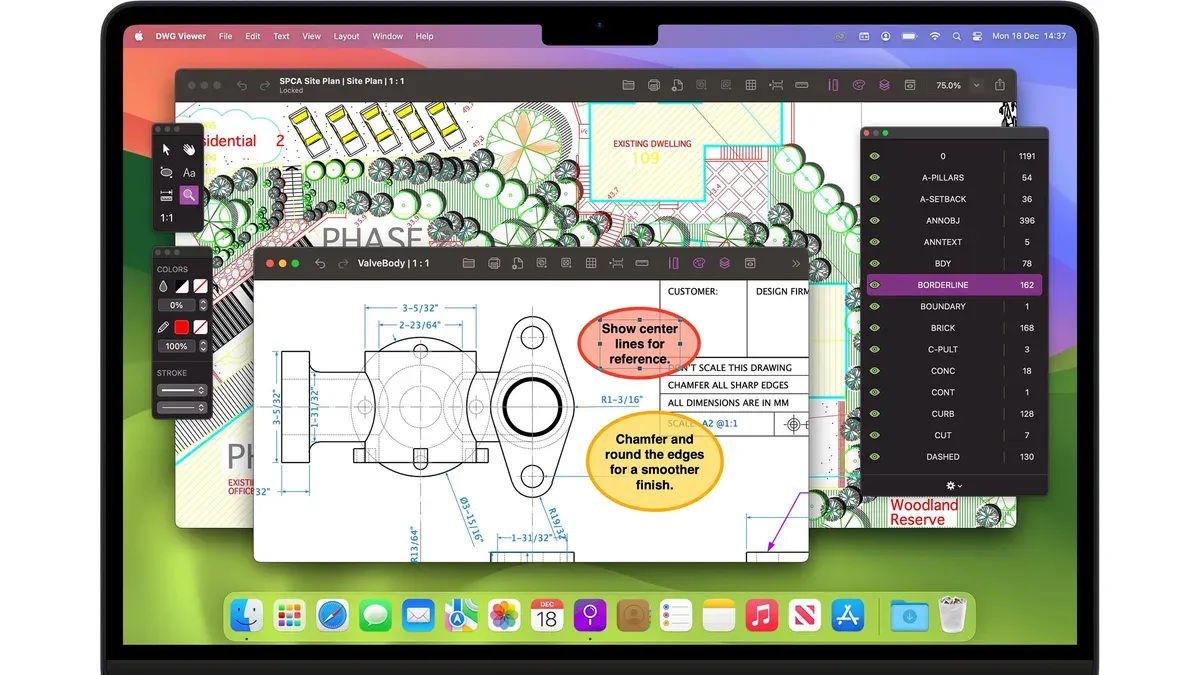
- Visit the Autodesk website and download the AutoCAD for Mac installer. Once downloaded, open the installer package and follow the on-screen instructions. After installation, launch AutoCAD from your Applications folder. You should see the welcome screen confirming the app is ready.
- Open your.dwg file by selecting "File" > "Open" in AutoCAD. The file will load with full editing tools available, including layer management, annotation, and 3D modeling features.
- Ensure your MacBook meets the system requirements: at least 8 GB RAM, a multicore Intel or Apple Silicon processor, and macOS version 10.14 or later. Performance is generally smooth on recent MacBooks, but very large or complex drawings may slow down.
If you require Windows-only AutoCAD versions or plug-ins, you can run AutoCAD for Windows on your MacBook via virtualization tools like Parallels Desktop or VMware Fusion, or through Apple's Boot Camp utility.
- Install virtualization software (e.g., Parallels Desktop) and set up a Windows virtual machine. Inside this VM, install the Windows version of AutoCAD. Launch AutoCAD and open your.dwg files with full functionality.
- Alternatively, use Boot Camp to create a Windows partition on your MacBook. Boot into Windows directly, then install and run AutoCAD as you would on a PC.
Native AutoCAD for Mac offers a seamless experience optimized for macOS, but some features and plugins available on Windows versions might be missing. Virtualized or Boot Camp Windows AutoCAD provides full functionality but requires more system resources and setup time, and may impact performance depending on your MacBook’s specs.
How to open DWG files on macOS using apps from the Mac App Store
The Mac App Store offers several convenient apps for opening and viewing DWG files, combining ease of use with the security of Apple's ecosystem. Popular options include DWG FastView, AutoCAD mobile app, and CAD Pockets.
DWG FastView is well-rated for its intuitive interface and supports both viewing and basic editing. User feedback highlights quick loading times and reliable display of complex drawings. It offers a free version with limited features and in-app purchases to unlock advanced tools.
AutoCAD mobile app provides a familiar environment for AutoCAD users, with strong file compatibility and cloud syncing. Reviews note its seamless integration with Autodesk accounts but mention that some editing features require a subscription.
CAD Pockets is praised for its lightweight design and simple navigation. It supports annotations and layering but some users report occasional crashes with very large files. The app is free with optional paid upgrades.
- Open the Mac App Store on your Mac.
- Search for "DWG viewer" or the name of a specific app like "DWG FastView." You should see a list of relevant apps with star ratings and reviews.
- Click Get or the price button, then Install. Once installed, open the app from your Applications folder.
- Within the app, use the Open or Import option—typically found in the File menu or main interface—to locate and select your DWG file.
- The file should load displaying the drawing with navigation tools visible. If the app offers in-app purchases, prompts may appear to upgrade for editing or exporting options.
Choosing Mac App Store apps offers a straightforward setup and better security assurances than third-party downloads. However, free versions often limit editing or export capabilities, so consider your needs before committing to in-app purchases or subscriptions.
How to open dwg file on Mac free with online converters and viewers
You can access.dwg files on your Mac without installing software by using online DWG viewers and converters. These web-based tools let you upload your file, view it directly in the browser, or convert it to more accessible formats like PDF.
- Visit a trusted online DWG viewer such as Autodesk Viewer or ShareCAD.
- Click the upload button and select your.dwg file from your Mac.
- Wait for the file to upload and process; most tools display a progress bar or notification.
- Once loaded, the DWG file will appear in the browser window, allowing you to zoom, pan, and inspect layers.
- To convert the file, look for an export or download option and choose PDF or another supported format.
- Download the converted file and open it with Preview or any PDF reader on your Mac.
When using online tools, be cautious about uploading sensitive or proprietary files, as data is sent to third-party servers. Check the privacy policy and prefer services with secure (HTTPS) connections and no retention of uploaded files.
Online converters vary in speed and output quality; some maintain vector details in PDFs better than others. For example, Autodesk Viewer tends to provide faster uploads and retains detailed layers, whereas simpler viewers may flatten drawings. If you encounter limits on file size or features, trying multiple services is advisable.
Troubleshooting common issues when opening.dwg files on Mac
If your.dwg file won’t open or displays errors, first check for common error messages such as "Unsupported file format" or "File corrupted." These often indicate version incompatibility or file damage.
To address corrupted or incompatible files, try opening the.dwg file with another app that supports different DWG versions, like BricsCAD or LibreCAD. If the file remains inaccessible, request a new copy from the sender.
Missing fonts or layers are frequent issues in DWG viewers. If layers don’t appear, verify that the layer visibility is enabled in the software’s layer manager. For missing fonts, install the required TrueType or OpenType fonts on your Mac or configure font substitution settings if available.
Updating your DWG software can resolve many compatibility problems. Check the app’s Help or About menu for update options and install the latest version. Also, review preferences or settings for file import options—enabling "Preserve Layer Properties" or "Load External References" can improve file fidelity.
- Open the DWG file and note any error messages you see. When you identify the message, search the software’s support forum or knowledge base for that exact error.
- If the file doesn’t open, try opening it in a different DWG-compatible app. Success here indicates an app-specific issue.
- Check the layer manager to ensure all layers are visible. When layers appear, you have resolved the visibility issue.
- Look up missing fonts required by the DWG file. Install those fonts on your Mac. After installation, reopen the file to confirm fonts display correctly.
- Update your DWG viewer or editor to the latest version via its About or Help menu. After updating, reopen the file to verify if issues persist.
How to choose the right DWG software for your Mac needs
Choosing the right DWG software depends on your specific workflow, budget, and technical skill level. Start by identifying whether you primarily need to view files occasionally or require full professional editing capabilities.
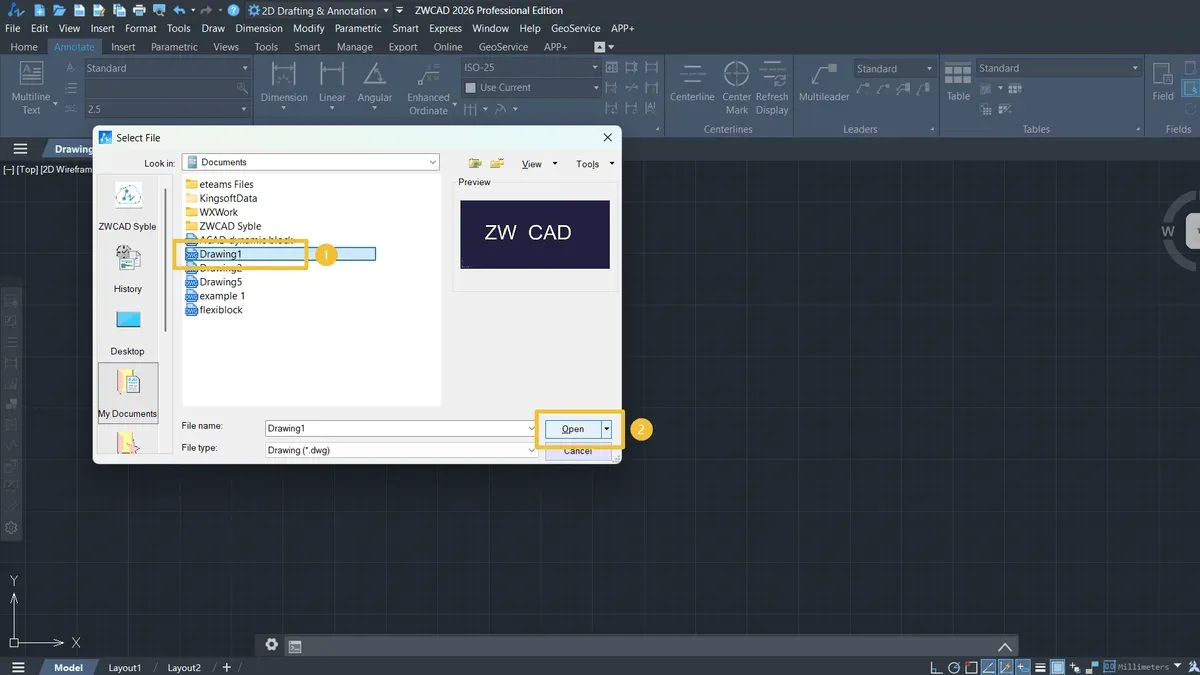
Consider cost versus features carefully. Free viewers are suitable for simple inspections but lack editing tools, while paid apps offer comprehensive functions with prices ranging from moderate subscriptions to one-time purchases. Some apps provide trial periods allowing you to test features before committing.
For beginners or users with minimal DWG needs, lightweight apps from the Mac App Store or free online viewers offer an easy entry with minimal setup. Advanced users who require detailed editing, layer management, and CAD precision should consider native AutoCAD for Mac or robust alternatives like BricsCAD, accepting their higher cost and steeper learning curve.
| Use Case | Recommended Software Type | Cost Range | Skill Level |
|---|---|---|---|
| Occasional Viewing | Free DWG viewers, Online viewers | Free | Beginner |
| Basic Editing | Mac App Store apps, LibreCAD | Free to low-cost | Beginner to Intermediate |
| Professional Editing | AutoCAD for Mac, BricsCAD | Moderate to high subscription or license fees | Intermediate to Advanced |
- Assess your typical DWG file usage to determine if viewing, basic editing, or professional CAD work is needed. You should be able to describe your workflow clearly.
- Compare software costs against your budget, noting free trials or freemium features. Successful step: you identify at least two options within your budget.
- Match your technical skill level with software complexity, ensuring you choose tools with user interfaces and support resources suited to your experience. Result: confidence in learning and using the software efficiently.
- Test shortlisted software with a sample DWG file. When it opens and supports your required tasks without significant issues, you have a suitable choice.
- How to Open.mpp Files on Mac: Step-by-Step Solutions
- How to Open.vsdx Files on Mac: Step-by-Step Methods
- How to Open.pub Files on Mac: Step-by-Step Solutions
- How to Open.pptx Files on Mac: Simple Step-by-Step Methods
Frequently asked questions
How to open cad file on mac?
To open a CAD file on Mac, you can use dedicated DWG viewers or editors such as Autodesk’s AutoCAD for Mac, which supports full editing. Alternatively, free apps like LibreCAD or online viewers allow you to open and view CAD files without installation. Make sure the software supports the specific CAD file format you have.
How to open dwg file on macbook?
Opening a DWG file on a MacBook involves using applications like AutoCAD for Mac, DraftSight, or free viewers such as Autodesk DWG TrueView through a virtual machine. You can also use online DWG viewers or converters to access the content without installing heavy software. Choose based on whether you need editing or just viewing.
How to open dwg file on macos?
On macOS, DWG files open with software designed for CAD drawings. AutoCAD for Mac is a robust option with full features, while free alternatives include LibreCAD or online tools. Installing apps from the Mac App Store like DWG FastView can also provide a balance of convenience and functionality.
How to open a.dwg file?
A.dwg file opens using CAD software such as AutoCAD, DraftSight, or free viewers like FreeCAD or LibreCAD. If you don’t want to install software, online DWG viewers let you upload and view the file in your browser. For editing, ensure the app supports DWG format editing capabilities.
How to open autocad file in macbook?
To open an AutoCAD file on a MacBook, install AutoCAD for Mac, which offers full compatibility and editing features. Alternatively, use third-party apps from the Mac App Store or free viewers for basic access. If you require extensive editing without AutoCAD, consider paid alternatives like BricsCAD or DraftSight that support macOS.
What this advice does not cover
This article does not cover professional CAD training or complex 3D modeling workflows that require advanced software licenses. If your work involves detailed parametric modeling, mechanical simulation, or collaboration on large-scale engineering projects, you should consider dedicated CAD packages like AutoCAD, SolidWorks, or Revit with proper training. This guide focuses on viewing and basic editing of DWG files on Mac using accessible tools.
The single most useful next step is to identify your primary need: viewing, light editing, or professional design. For straightforward viewing, start with free apps like Autodesk DWG TrueView alternatives or online viewers. If you need editing without AutoCAD, explore versatile apps like DraftSight or BricsCAD, which offer trial periods to test full functionality. This targeted approach saves time and ensures you invest only in software that matches your actual DWG file requirements.



