
How to Open.vsdx Files on Mac: Step-by-Step Methods
Discover simple methods to open and edit.vsdx files on Mac using online tools, apps, and file converters without extra software costs.

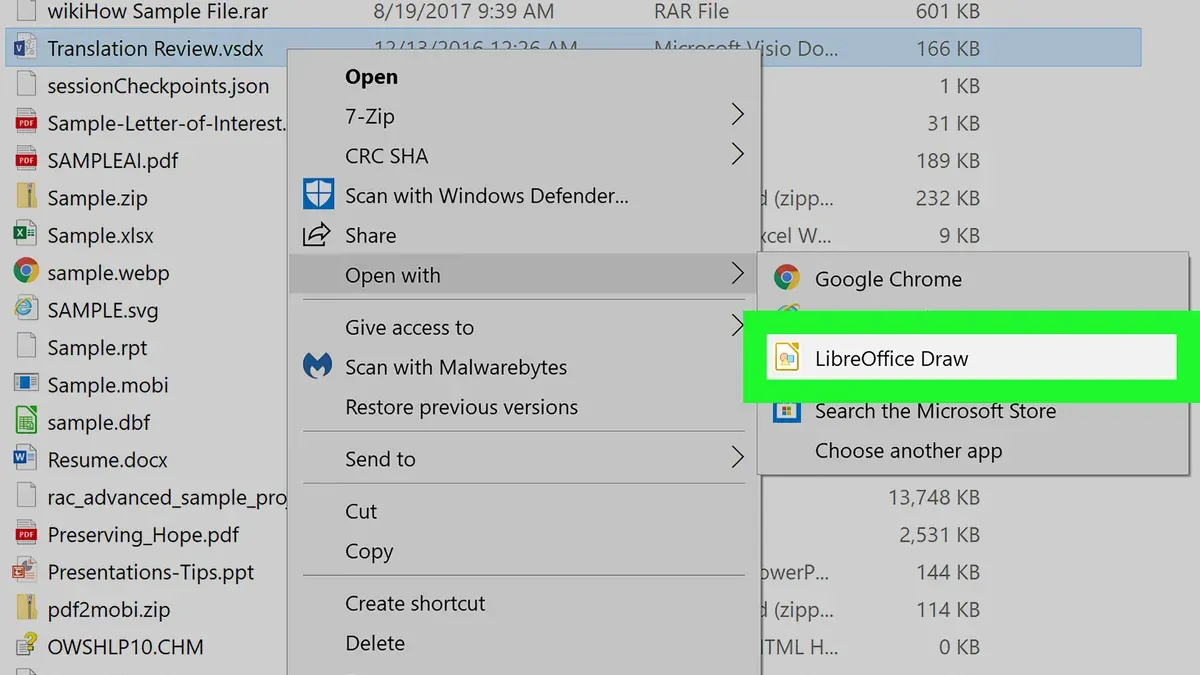
You receive a.vsdx file from a colleague or client, but when you try to open it on your Mac, nothing happens or you get an error message. Visio files are native to Windows, so opening them on a Mac can be confusing if you don’t have the right tools.
This article explains how to open.vsdx file on Mac using native options, cloud-based services like Microsoft Visio Online, and various third-party applications. You’ll learn step-by-step methods to view and edit.vsdx files without unnecessary software purchases, helping you choose the best approach based on your workflow and budget.
Key takeaways
- Microsoft Visio Online lets you view and edit.vsdx files on Mac without installing software.
- Third-party apps offer varying levels of compatibility, from simple viewing to full editing.
- File conversion tools can turn.vsdx files into PDFs or images for easy viewing.
- Running Visio on a Windows virtual machine is an option if you need full native features.
- Common issues include font mismatches and unsupported shapes; choosing the right method reduces these problems.
Before you start: What you need to open a.vsdx file on Mac
The.vsdx file format is Microsoft Visio’s XML-based diagram file type, introduced in 2013 to replace the older binary formats. It stores detailed vector graphics, flowcharts, and diagrams commonly used in business and technical environments.
Since Visio is designed primarily as a Windows application, Mac users cannot open.vsdx files natively without alternative solutions. This creates challenges like limited software compatibility and the need for workarounds.
To open a.vsdx file on a Mac, you generally need one of the following:
- A Microsoft 365 account with access to Visio Online, which lets you view and edit.vsdx files in a web browser.
- Third-party applications compatible with Mac that support.vsdx files, either for viewing or limited editing.
- File conversion tools that transform.vsdx files into formats like PDF or SVG for easier viewing on Mac.
- Access to a Windows environment via virtualization or remote desktop to run the full Visio software.
Understanding these basic requirements helps you choose the method that fits your workflow and whether you need to invest in subscriptions or software.
How to open a.vsdx file on Mac using Microsoft Visio Online
Microsoft Visio Online allows you to open, view, and edit.vsdx files directly in your web browser on a Mac without needing to install any software. You will need a Microsoft 365 subscription with access to Visio for the web to use the full editing features.
- Go to office.com and sign in with your Microsoft 365 account.
- Click the app launcher icon (nine dots) in the top-left corner and select Visio from the list of apps.
- In Visio Online, select Upload Diagram or click Open from OneDrive if your file is saved there.
- Browse to your.vsdx file and upload it. The diagram will open in the browser window.
- Use the toolbar to zoom, pan, and navigate the diagram. If you have editing rights, you can modify shapes, add text, and save changes.
The online version supports most common Visio features, including shape formatting, connectors, and layer visibility. However, some advanced desktop-only features like custom data graphics, certain stencils, or complex macros may not be available.
| Feature | Visio Online | Desktop Visio |
|---|---|---|
| View and basic edit | Yes | Yes |
| Advanced shape customization | Limited | Full |
| Macros and add-ins | No | Yes |
| Standalone app | No (browser-based) | Yes |
Keep in mind that without a Microsoft 365 subscription including Visio Online, you may only be able to view diagrams with limited interactivity.
How to open.vsdx files on Mac with third-party apps
Several native Mac applications support.vsdx files, offering alternatives for users without Microsoft 365. Popular options include Lucidchart, ConceptDraw DIAGRAM, and OmniGraffle. These apps enable you to open, view, and often edit.vsdx files directly or by importing them.
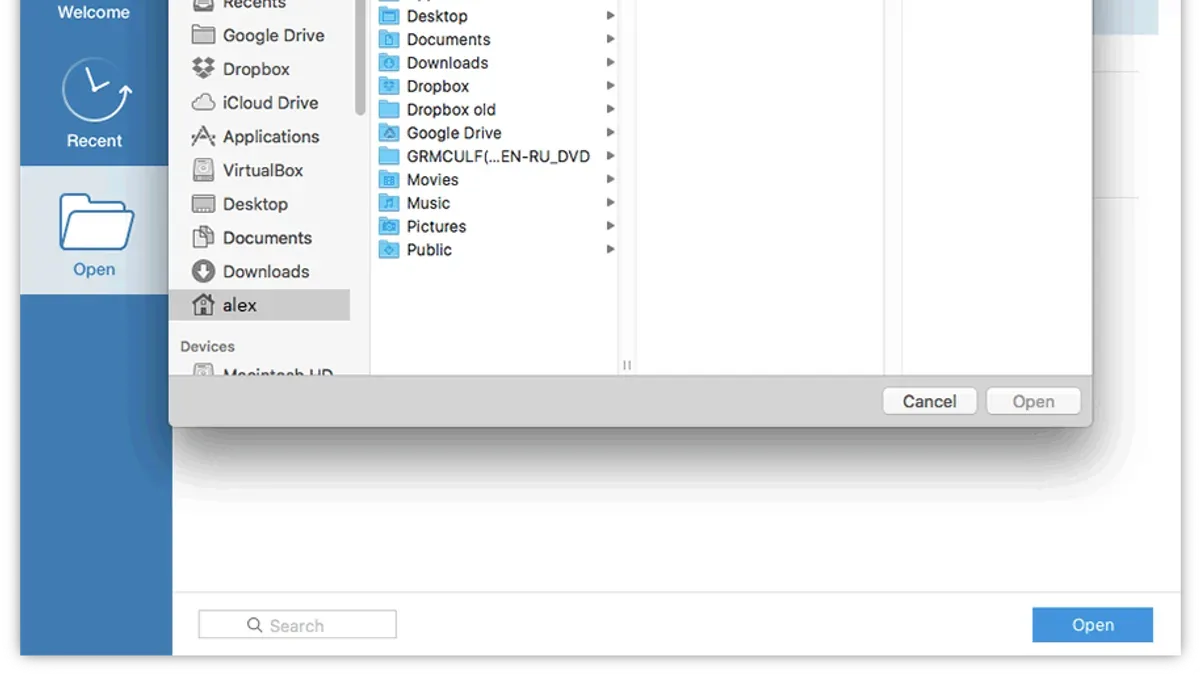
- Download and install your chosen app from its official website or the Mac App Store. For example, visit lucidchart.com for Lucidchart or conceptdraw.com for ConceptDraw DIAGRAM.
- Launch the app and use the File > Open menu to locate and open your.vsdx file. The file should display within the app's interface if supported.
- Explore editing tools or export options as needed. Most apps allow basic diagram adjustments and export to PDF or image formats.
Third-party apps vary in cost and features. Lucidchart offers a freemium model with limited free usage and subscription plans for full editing capabilities. ConceptDraw DIAGRAM requires a one-time purchase or subscription but provides strong fidelity to Visio diagrams. OmniGraffle supports.vsdx import with good diagram accuracy but can be expensive. Editing capabilities can range from basic shape adjustments to full diagram editing, depending on the app.
Below is a comparison of these apps based on supported features, pricing, and user ratings:
| App | Supports.vsdx Opening | Editing Capabilities | Pricing Model | User Rating (approx.) |
|---|---|---|---|---|
| Lucidchart | Yes (import/open) | Basic to advanced (subscription required) | Freemium with paid plans | 4.2/5 |
| ConceptDraw DIAGRAM | Yes (native support) | Full editing | One-time purchase or subscription | 4.0/5 |
| OmniGraffle | Yes (import) | Moderate editing | One-time purchase | 4.1/5 |
Using third-party apps can be a practical solution if you prefer a native Mac experience or want offline access without Microsoft 365. However, expect some differences in diagram fidelity and feature availability compared to Visio.
How to open.vsdx files on Mac using file conversion tools
Converting.vsdx files into Mac-friendly formats like PDF, SVG, or images allows you to view or edit them without specialized software. You can perform conversions either using Windows-based Visio export options or online converters that handle.vsdx files.
To convert a.vsdx file to PDF using an online converter, follow these steps:
- Open a trusted online converter website, such as CloudConvert or Zamzar.
- Upload your.vsdx file by clicking the upload button or dragging the file into the designated area; you should see the file listed once uploaded.
- Select PDF as the output format from the available options.
- Click the convert button and wait for the process to complete; a download link will appear when ready.
- Download the converted PDF file to your Mac.
- Open the PDF in Preview or another PDF viewer; the diagram should be visible, but interactive elements and layers will be flattened.
Desktop converters also exist but often require installation and may come with limitations or costs. Conversion results generally produce read-only files, meaning you cannot edit the diagram structure or access individual layers. The quality of graphics usually remains high, but complex Visio features like hyperlinks or embedded data will not transfer.
For example, after converting a.vsdx file to PDF and opening it in Preview, you can view the full diagram clearly, but you cannot manipulate shapes or text elements. This method suits users who need to review or share Visio diagrams without editing capabilities.
How to open.vsdx files on Windows for Mac users
.vsdx files open natively in Microsoft Visio on Windows, providing the most complete editing and viewing capabilities. If you have access to a Windows environment, you can open, edit, and convert.vsdx files before returning to your Mac.
There are several ways to run Windows on a Mac: Boot Camp allows dual-booting between macOS and Windows, virtualization software like Parallels Desktop or VMware Fusion runs Windows within macOS, and Remote Desktop connects to a Windows PC remotely. Each method lets you use Microsoft Visio as intended.
Here’s a typical workflow to handle.vsdx files using Windows:
- Transfer the.vsdx file from your Mac to the Windows environment via a shared folder, USB drive, or cloud storage. You should see the file accessible within Windows.
- Open Microsoft Visio on Windows and load the.vsdx file. The diagram should appear with full editing features.
- Export or save the file as a PDF or another compatible format by selecting File > Export > Create PDF/XPS Document. This creates a read-only version viewable on your Mac.
- Transfer the exported PDF back to your Mac through the same method used in step 1. The file will be ready for viewing in Preview or any PDF reader.
This approach guarantees full fidelity when opening.vsdx files but requires a valid Windows license and Visio installation. Boot Camp offers near-native performance but involves rebooting; virtualization is more convenient but needs sufficient system resources. Remote Desktop depends on network reliability and access to a Windows machine. Consider these trade-offs based on your workflow and technical comfort.
How to open.vsd files and.vsdx files without Visio on Mac
The.vsd file format is the older binary Visio format used before 2013, when Microsoft introduced the XML-based.vsdx format. Because.vsd is legacy, some modern apps support it less fully than.vsdx, requiring conversion or specialized viewers.
Several third-party apps and online viewers can open both.vsd and.vsdx files on Mac without Visio. Apps like Lucidchart and ConceptDraw DIAGRAM provide direct support for.vsd files, while online tools such as GroupDocs Viewer or CloudConvert allow you to upload and view these files in your browser.
Here is a comparison of support for.vsd versus.vsdx in common Mac-compatible solutions and conversion tools:
| App/Tool | .vsd support | .vsdx support | Conversion needed? |
|---|---|---|---|
| Lucidchart | Yes (import/edit) | Yes (import/edit) | No |
| ConceptDraw DIAGRAM | Yes (import) | Yes (import) | Sometimes for full editing |
| CloudConvert (online) | Yes (view/convert) | Yes (view/convert) | Yes (to PDF or SVG) |
| GroupDocs Viewer (online) | Yes (view) | Yes (view) | No |
- Choose a compatible third-party app or online viewer that supports.vsd files.
- If using an app like Lucidchart, open the app and select the option to import or upload a file, then select your.vsd file. You should see your diagram displayed for viewing or editing.
- If using an online viewer, visit the site, upload your.vsd file, and wait for it to render. You will be able to view the file but may have limited editing options.
- If you need full editing or compatibility, consider converting your.vsd file to.vsdx or PDF using an online conversion tool like CloudConvert before opening it in your preferred app.
Handling.vsd files requires awareness that some apps may only offer limited editing or require conversion, while.vsdx files generally have broader native support in modern tools.
Common problems when opening.vsdx files on Mac and how to fix them
Opening.vsdx files on Mac can lead to several common issues. One frequent problem is the file not opening or showing as corrupted. This often happens when the file was not fully downloaded or was damaged during transfer. To resolve this, verify the file source and try downloading the file again. If the file still won’t open, ask the sender to export a fresh copy.
Another issue is missing formatting or diagram elements. Non-Microsoft apps may display.vsdx files with altered or absent shapes, colors, or connectors due to limited support for Visio’s advanced features. If you notice these inconsistencies, try opening the file using Microsoft Visio Online or a recommended third-party app known for better compatibility.
Permissions or access problems can arise when using cloud services like OneDrive or SharePoint. Error messages such as "Access Denied" or "Permission Required" indicate you need to check your account privileges or ask the file owner to share the file with appropriate permissions.
To ensure compatibility, keep your software updated, including your browser and any third-party apps you use for.vsdx files. Using the latest versions reduces errors and improves file rendering.
- Confirm the.vsdx file is complete by re-downloading it; successful download means the file opens or previews without error messages.
- If formatting is off, try opening the file in Microsoft Visio Online; it should display all elements correctly.
- Check cloud service permissions by logging into the service’s website and verifying file sharing settings; you should be able to open the file without access errors.
- Update your apps and browser to the latest version via their official update menus; afterwards, reopening the.vsdx file should reduce glitches.
Choosing the best method to open.vsdx files on Mac based on your needs
Selecting the right approach depends on how often you open.vsdx files, your editing requirements, and your budget. Here is a decision matrix summarizing key factors:
| Method | Cost | Ease of Use | Editing Capability | Fidelity |
|---|---|---|---|---|
| Microsoft Visio Online | Requires Microsoft 365 subscription | High (browser-based) | Moderate (basic editing) | Good |
| Third-party Apps (Lucidchart, OmniGraffle) | Varies (free to moderate subscription) | Moderate (app installation needed) | Moderate to advanced | Good to very good |
| File Conversion Tools | Often free or low-cost | High (simple conversion) | None (read-only) | Variable (depends on format) |
| Windows Emulation/Boot Camp | Cost of Windows license plus potential virtualization software | Complex (setup involved) | Full (native Visio) | Excellent |
- Identify your usage frequency: if you only occasionally view.vsdx files, use file conversion tools to quickly convert files to PDF or images. You should see the file open in your preferred viewer.
- For regular editing with moderate complexity, try Microsoft Visio Online or a third-party app like Lucidchart. Upon successful login or installation, open your.vsdx file and confirm you can make edits.
- If you require full fidelity and advanced Visio features, consider running Windows on your Mac via virtualization or Boot Camp. After setup, launch Visio and open your file with complete functionality.
- Before committing to paid solutions, trial free versions or online demos to check compatibility and workflow fit. You should be able to open sample.vsdx files and test essential features.
- Evaluate trade-offs such as cost, setup time, and editing depth to select the method that balances convenience with your needs.
Choosing based on these criteria helps ensure you access your.vsdx files efficiently and with the desired level of interaction.
- How to Open.pub Files on Mac: Step-by-Step Solutions
- How to Open.pptx Files on Mac: Simple Step-by-Step Methods
- How to Open.xlsx Files on Mac: Easy Methods and Tips
- How to Open.docx Files on Mac: A Step-by-Step Guide
Frequently asked questions
How to open vsdx file on mac?
You can open a.vsdx file on Mac by using Microsoft Visio Online through a web browser, which offers full viewing and editing capabilities. Alternatively, third-party apps like Lucidchart or OmniGraffle support.vsdx files, though they may have limited features or require a subscription. File conversion tools can also convert.vsdx files to PDF or images for easy viewing.
How to view vsdx files on mac?
To view.vsdx files on Mac without full editing features, use Microsoft Visio Online or convert the file to PDF using online converters. Some third-party apps allow viewing but might restrict editing. Opening files in a browser via Visio Online is usually the most straightforward way to view.vsdx files clearly.
How to open vsdx file in windows?
On Windows, the native Microsoft Visio desktop application is the primary tool for opening.vsdx files with full editing and viewing functionality. You can also use Visio Viewer, a free tool from Microsoft, for viewing only. Third-party software supporting Windows may offer additional options depending on your needs.
How to open visio file on mac?
Visio files, including.vsdx and older.vsd formats, can be opened on Mac using Microsoft Visio Online or compatible third-party applications like Lucidchart. For offline access, converting the file to a supported format or running Windows via a virtual machine on your Mac are viable options. Native Mac apps do not directly support Visio files without these workarounds.
How to open vsd file on mac?
Opening.vsd files on Mac requires either using Microsoft Visio Online or converting the.vsd to.vsdx or PDF formats via online converters. Some third-party apps may support.vsd files but often with limited functionality. Running Windows on your Mac through Boot Camp or virtualization software allows access to the full Visio desktop app for.vsd files.
Limitations of these methods and when to seek alternatives
This article does not cover advanced Visio features such as complex macros, data-linked diagrams, or custom stencils, which may not be fully supported outside Microsoft Visio. If your.vsdx files rely heavily on these functionalities, the viewing and editing options described here might not preserve all elements accurately.
Likewise, users needing professional-grade editing capabilities should consider running the full Visio application on a Windows environment, either via Boot Camp, a virtual machine, or a dedicated PC, to ensure full compatibility.
For most users who only need to open, view, or make minor edits to.vsdx files on a Mac, trying Microsoft Visio Online first offers the clearest path without additional software costs or complex setups.



