
How to Open.pub Files on Mac: Step-by-Step Solutions
Discover practical methods to open.pub files on Mac, including apps, online converters, and virtualization, with clear instructions and troubleshooting tips.

You’ve received a.pub file but don’t have Microsoft Publisher installed on your Mac. Opening these files can be frustrating since Publisher is a Windows-only program, and the.pub format is not natively supported on macOS.
This article explains how to open.pub file on Mac with practical, tested options. You’ll learn about third-party apps designed for Mac, online conversion tools, and methods involving virtualization or remote Windows access. We also clarify the difference between Microsoft Publisher.pub files and SSH.pub key files to avoid confusion. Each method includes step-by-step instructions and troubleshooting tips to help you choose the best solution for your needs.
Key takeaways
- Third-party apps like LibreOffice and PUB Viewer offer straightforward ways to open.pub files on Mac.
- Online conversion tools can quickly convert.pub files to PDF or Word formats without software installation.
- Using virtualization or remote desktop access allows you to run Publisher on Mac if you have a Windows license.
- SSH.pub files are public key files unrelated to Microsoft Publisher documents.
- Common issues include formatting loss and unsupported elements that require manual adjustment after conversion.
Before you start: What you need to open.pub files on Mac
The.pub file extension commonly indicates a Microsoft Publisher document, a format not natively supported on Mac. However,.pub can also refer to SSH public key files, which serve a completely different purpose. Identifying your file type is the first step before attempting to open it.
- Check the file origin and purpose. If your file came from desktop publishing or design work, it's likely a Microsoft Publisher file. If it's related to SSH access or encryption, it's a public key file.
- Prepare the right tools. For Publisher documents, you will need third-party Mac-compatible apps such as LibreOffice, Publisher Plus, or file viewers like PUB Viewer. Online conversion tools can also convert.pub files to PDF or Word format. For SSH public keys, the Mac Terminal and SSH client software are necessary.
- Understand file compatibility limitations. Microsoft Publisher files often include complex layouts and fonts that many apps only partially support. Conversion tools may have file size or complexity limits, so very large or graphically rich.pub files may not convert perfectly.
- Confirm your Mac system requirements. Most recommended apps require macOS Mojave 10.14 or later for optimal performance. Confirm your macOS version by clicking the Apple menu, selecting "About This Mac," and checking the version number.
By clarifying the.pub file type and having appropriate apps or conversion tools ready, you set the foundation for a smoother experience opening these files on your Mac.
How to open.pub files on MacBook using third-party software
Several third-party applications can help you open or convert.pub files on your MacBook without Microsoft Publisher. Popular options include LibreOffice, Publisher Plus, and various online converters. Each offers different balances of ease, formatting fidelity, and cost.
LibreOffice is a free, open-source suite that can open many.pub files, although complex layouts may not always render perfectly.
- Download LibreOffice from the official website and install it on your MacBook.
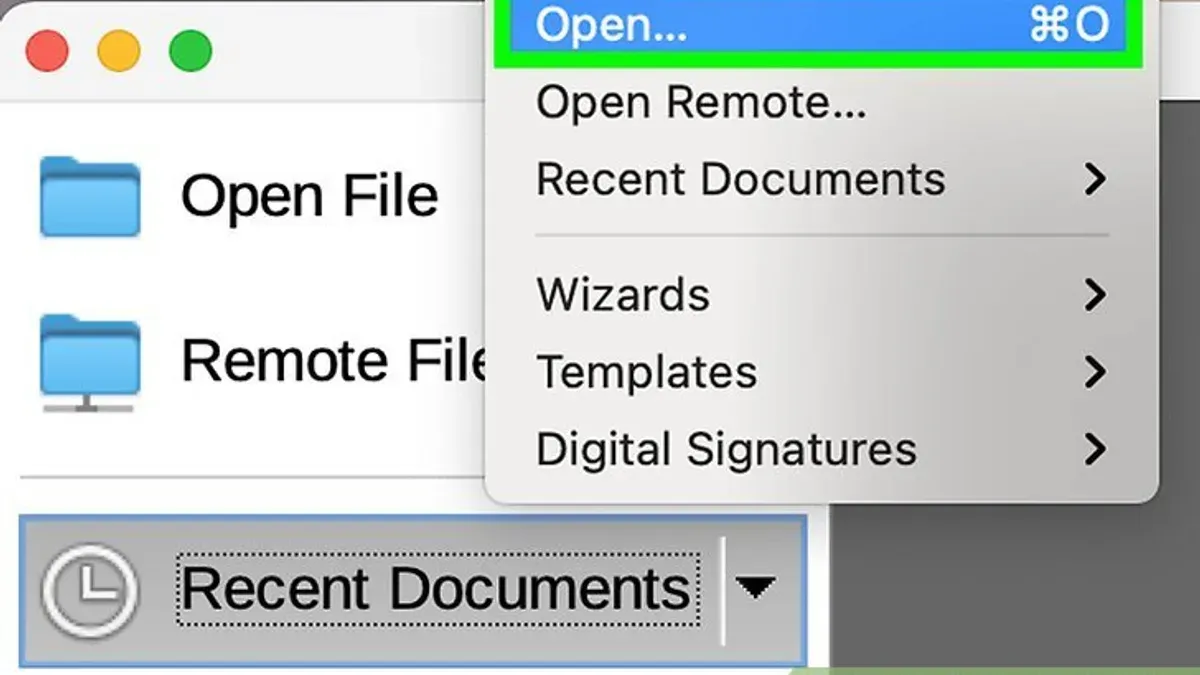
- Open LibreOffice and select File > Open.
- Navigate to your.pub file and open it; the file should display in LibreOffice Draw or Writer.
- If the layout looks off, try exporting the file as a PDF for easier viewing.
Publisher Plus is a Mac app designed specifically for.pub files and provides better formatting preservation but usually requires purchase or subscription.
- Purchase and install Publisher Plus from the Mac App Store.
- Launch the app, then open your.pub file directly.
- Check if all formatting and images appear as expected; the app supports editing and exporting to PDF.
Online converters offer quick.pub to PDF or Word conversions without software installation, but uploading files to third-party servers raises privacy and security concerns.
- Use a trusted converter website, then upload your.pub file.
- Choose the desired output format (PDF or DOCX) and start the conversion.
- Download the converted file and open it on your Mac.
| App | Cost | Formatting Fidelity | Ease of Use | Security Considerations |
|---|---|---|---|---|
| LibreOffice | Free | Moderate | Moderate | Local file handling |
| Publisher Plus | Paid | High | High | Local file handling |
| Online converters | Free or Freemium | Variable | High | Uploads files to servers |
Choose the option that best matches your need for format accuracy, security, and ease of access. For sensitive documents, prefer local applications over online services.
How to open Microsoft Publisher files on Mac without Publisher
If you don’t have Microsoft Publisher installed on your Mac, converting.pub files to more accessible formats is a practical alternative. Conversion websites and apps can change.pub files into PDFs, DOCX, or other formats compatible with native Mac apps like Preview or Pages.
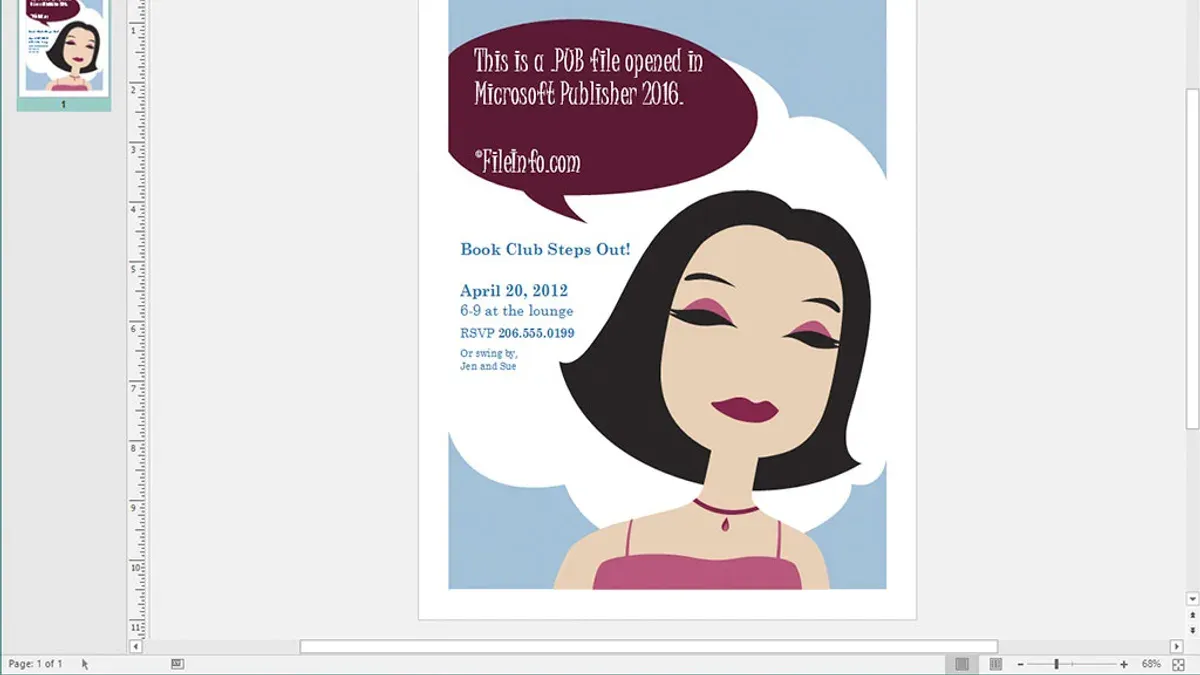
Here’s how to convert and open Publisher files on your Mac:
- Visit a reliable conversion website such as CloudConvert or Zamzar. These services support.pub to PDF or DOCX conversion with reasonable formatting retention.
- Upload your.pub file following the site’s instructions. Wait for the upload and conversion process to complete; this usually takes a few moments depending on file size.
- Download the converted file—typically a PDF or Word document.
- Open the converted PDF in Preview or the DOCX file in Pages. You should see most of the original content, including text and images, though complex layouts may shift.
- Review the document carefully for formatting changes, such as altered fonts, misplaced images, or disrupted text flow, which are common after conversion.
Among conversion services, CloudConvert is noted for preserving layout better, while Zamzar offers quick conversions with a simple interface. However, expect some loss of fidelity in fonts, text alignment, and graphic elements after conversion. For complex Publisher files, manual adjustments in Pages or Preview might be necessary.
Users have reported that converting to PDF is best for preserving visual fidelity, whereas DOCX conversion allows easier text editing but with more formatting shifts. Screenshots from user feedback show that while headings and paragraphs remain mostly intact, decorative elements and multi-column layouts often require fixing.
How to open.pub files on Mac using online conversion tools
Online conversion tools let you transform.pub files into Mac-compatible formats like PDF or DOCX without installing software. Popular services include Zamzar, CloudConvert, and Convertio, each offering straightforward upload and conversion processes.
Follow these steps to convert your.pub file online:
- Visit a reputable conversion site such as Zamzar, CloudConvert, or Convertio. You should see an option to upload your file on the homepage.
- Click the upload button and select your.pub file from your Mac. Once uploaded, the site will typically display your file name or thumbnail.
- Choose the output format, such as PDF or DOCX, from the provided format list. This ensures compatibility with macOS apps like Preview or Pages.
- Start the conversion by clicking the convert button. A progress bar or spinner usually indicates the ongoing process.
- Once conversion completes, download the converted file to your Mac. You should be able to open it immediately with the chosen app.
Be aware of file size limits, which commonly range between 50MB and 100MB per file, depending on the service. Larger files may require a paid plan or alternate methods.
Privacy is a key concern; avoid uploading sensitive documents since these services process files on external servers. Review each site’s privacy policy to understand how your data is handled.
Conversion speed varies with file size and server load; smaller files typically convert in under a minute. If frequent conversions are needed, consider desktop apps or virtualization options for faster, offline processing.
How to open.pub files on Mac using virtualization or remote Windows access
Running Microsoft Publisher on your Mac through virtualization or remote access lets you work with.pub files without losing formatting. Virtualization software creates a Windows environment on your Mac, while remote desktop connects you to a Windows PC with Publisher installed.
Using virtualization software
Popular virtualization options include Parallels Desktop and VMware Fusion. Both support the latest macOS versions and offer integration features, but they vary in cost and performance. Parallels Desktop provides a user-friendly setup and seamless macOS integration but requires a yearly subscription. VMware Fusion offers a one-time purchase option, though updates may be less frequent.
System requirements typically include at least 8 GB of RAM and ample disk space (around 50 GB) for Windows installation and Publisher software.
- Download and install Parallels Desktop or VMware Fusion from the official website. You should see the application launch successfully.
- Within the virtualization app, create a new virtual machine and install Windows using a valid license. After installation, Windows should boot within the virtual environment.
- Install Microsoft Publisher on the Windows virtual machine. Once installed, open Publisher and load your.pub file.
- Use Publisher within the virtual machine to edit or export your file. You should be able to view and modify.pub files as on a native Windows PC.
Using remote desktop access
If you have access to a Windows PC with Publisher, you can use Microsoft Remote Desktop to connect from your Mac.
- On your Mac, download Microsoft Remote Desktop from the Mac App Store and launch it.
- Set up a new connection by entering the Windows PC's IP address and your login credentials. A successful connection displays the Windows desktop.
- Open Microsoft Publisher on the remote PC and access your.pub files. Changes will save directly on the Windows machine.
Considerations: Virtualization demands significant system resources and may slow your Mac during use. It also involves costs for software licenses and Windows. Remote desktop requires a stable network and access to a Windows PC, with some latency possible. Both methods ensure full compatibility with.pub files but differ in setup complexity and ongoing expenses.
How to open SSH.pub files on Mac
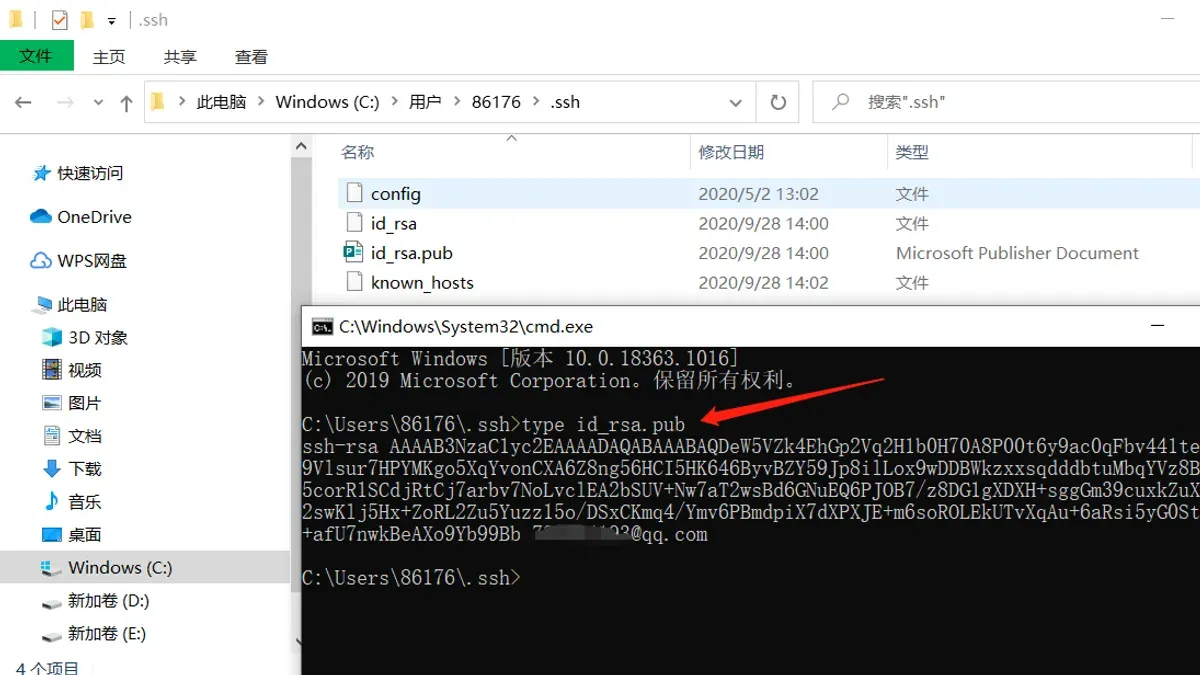
SSH.pub files are public key files used in secure shell (SSH) authentication, distinct from Microsoft Publisher document files. These files contain text-based keys that enable secure connections to servers or services like GitHub.
- View the SSH public key in Terminal: Open the Terminal app and type cat ~/.ssh/id_rsa.pub (replace
id_rsa.pubwith your specific.pub file name). You should see a long line starting withssh-rsaorssh-ed25519, representing your public key. - Open the.pub file with a text editor: Use a native editor like TextEdit. Right-click the.pub file in Finder, select Open With > TextEdit. The file content is plain text, showing the key and an optional comment, allowing easy copying.
- Add the SSH public key to the SSH agent: In Terminal, run ssh-add ~/.ssh/id_rsa (without.pub). This step loads the private key; the public key pairs with it to authenticate connections.
- Upload your SSH public key to GitHub or other services: Copy the entire content of the.pub file, then paste it into the SSH keys section of your GitHub account settings or server's authorized_keys file. This enables passwordless authentication.
Remember, SSH.pub files are not related to Microsoft Publisher documents despite sharing the.pub extension. Attempting to open SSH keys with publishing software will fail, so use text-based tools or Terminal commands for SSH.pub files.
Troubleshooting common issues when opening.pub files on Mac
If your.pub file opens as garbled text or is not recognized, it usually means the file is being opened with the wrong app or is corrupted. Ensure you use a compatible viewer or converter designed specifically for Publisher files. For text-based SSH.pub files, opening them in a plain text editor or Terminal should display the key correctly.
Loss of formatting is a frequent issue after converting.pub files. This happens because conversion tools may not fully support Publisher’s complex layouts and fonts. When using online converters, check if they preserve formatting by testing with a sample file before converting important documents.
Security warnings from online conversion sites are common due to file uploads. Always use reputable services with clear privacy policies, and avoid uploading sensitive documents. If uncertain, try offline converters or virtualization methods.
Virtualization software can sometimes cause performance issues or crashes when running Windows Publisher on Mac. These problems often relate to insufficient allocated RAM or CPU cores. Users have reported smoother performance by assigning at least 4 GB of RAM and 2 CPU cores in the virtualization settings. Updating both the virtualization app and Windows can also reduce crashes.
Confusion between Microsoft Publisher.pub files and SSH.pub files occurs because of the shared extension. Remember that SSH.pub files are text-based keys and should never be opened with document viewers. Misidentifying the file type can lead to errors or security risks.
- Confirm the file type by checking its source or opening with a text editor; you should see readable text for SSH keys or gibberish otherwise.
Success: Correct identification of file type. - Use a trusted conversion tool or app designed for.pub files to open or convert the document.
Success: File opens with preserved formatting or converts properly. - If using virtualization, allocate at least 4 GB RAM and 2 CPU cores in the settings.
Success: Windows Publisher runs smoothly without crashes. - For online conversions, verify the website’s security and privacy policies before uploading files.
Success: No security warnings or data concerns. - If formatting is lost, try an alternative converter or adjust conversion settings.
Success: Improved formatting retention.
- How to Open.pptx Files on Mac: Simple Step-by-Step Methods
- How to Open.xlsx Files on Mac: Easy Methods and Tips
Frequently asked questions
How to open.pub files windows?
On Windows, you can open.pub files directly using Microsoft Publisher, the native software for these files. If you don’t have Publisher, you can use free alternatives like LibreOffice Draw or third-party viewers such as PUB Viewer. You can also convert.pub files to PDF or DOCX using online converters for easier access.
How to open.pub file on macbook?
Since Microsoft Publisher is not available for Mac, you need to use alternative methods. Try opening.pub files on your MacBook with apps like LibreOffice Draw or online conversion tools that transform.pub files into PDFs or Word documents. Another option is to use virtualization software to run Windows on your Mac and access Publisher.
How to open publisher file on mac?
To open Publisher files on a Mac, use third-party software such as LibreOffice Draw or online converters that convert the file to a compatible format. You can also use virtualization tools like Parallels Desktop or Boot Camp to run Windows and Microsoft Publisher on your Mac. This approach allows full editing but requires a Windows license.
How to open pub file on mac?
Opening a.pub file on Mac involves either using third-party apps like LibreOffice Draw or converting the file online to formats like PDF or DOCX. If you need advanced editing, virtualization or remote access to a Windows PC with Publisher is necessary. Avoid confusing these files with SSH public key files, which have the same extension but different usage.
How to open ssh pub file in mac?
SSH.pub files are plain text files containing public keys used for authentication. On a Mac, you can open them using any text editor like TextEdit or via the Terminal using commands like cat ~/.ssh/id_rsa.pub. These files are not related to Publisher documents and are used solely in secure shell authentication.
What this advice does not cover and who should consider other options
This article does not cover editing.pub files natively on Mac, as Microsoft Publisher is only available for Windows. Users requiring extensive edits should consider virtualization options or using a Windows PC to access Publisher directly.
Online conversion tools can be useful for quick viewing, but they may not preserve complex layouts or formatting perfectly. Additionally, uploading sensitive documents to online converters can pose privacy risks.
Using virtualization or remote Windows access requires adequate system resources and may not be practical on older or less powerful Macs.
If your needs go beyond basic viewing or minor conversions, exploring virtualization or using a Windows machine is advisable.
The most straightforward next step for most users is to try a reliable third-party app like LibreOffice or a trusted online converter to open and view your.pub files. This approach balances ease of use with preserving as much of the original formatting as possible without requiring additional hardware or software purchases.



