
How to Open.mpp Files on Mac: Step-by-Step Solutions
Discover practical step-by-step solutions to open.mpp files on Mac without Windows or costly software, using cloud tools, apps, and converters.

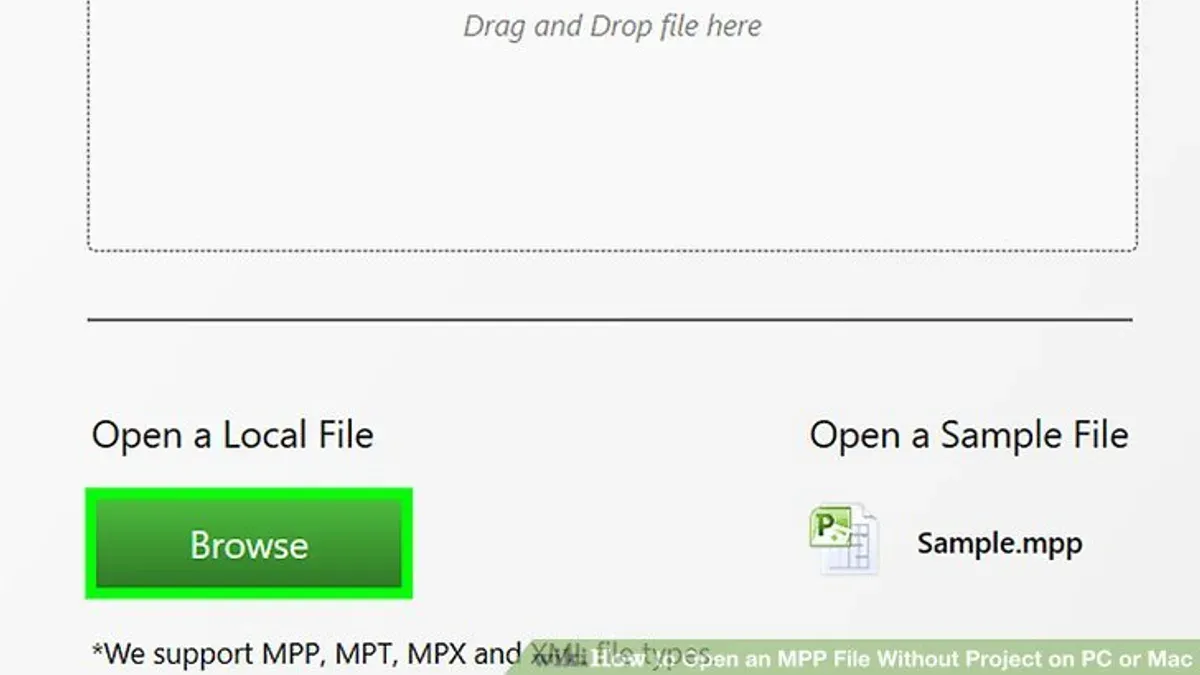
You’ve just received a Microsoft Project (.mpp) file from a colleague or client, but you’re using a Mac. Opening.mpp files on Mac can be tricky because Microsoft Project is not available as a native Mac app. If you’re wondering how to open.mpp file on Mac without installing Windows or purchasing expensive software, this article guides you through practical options.
Here, you’ll find step-by-step instructions covering cloud-based access through Microsoft Project Online, third-party Mac apps that can view or edit.mpp files, virtualization solutions, file conversion methods, and free viewers. This balanced approach helps you choose the best method suited to your needs and technical comfort level.
Key takeaways
- Microsoft Project Online allows you to view and edit.mpp files in a browser on your Mac.
- Third-party apps like Project Plan 365 or Merlin Project offer native Mac support for.mpp files but may have limitations or costs.
- Virtualization tools like Parallels Desktop enable running the Windows version of Microsoft Project on Mac.
- File conversion services can turn.mpp files into formats compatible with Mac apps like Excel or OmniPlan.
- Free viewers provide basic access to.mpp files without editing capabilities.
Before you start: What you need to open a.mpp file on Mac
An .mpp file is a project file created by Microsoft Project, a comprehensive project management tool primarily designed for Windows. These files store detailed project plans including tasks, timelines, resources, and dependencies. Because Microsoft Project is not available natively on macOS, your Mac cannot open.mpp files directly without additional tools.
To open and work with.mpp files on a Mac, you will need either compatible third-party software designed to read or convert these files, access to Microsoft Project through a cloud or remote desktop service, or conversion tools that transform.mpp files into formats your Mac can handle.
Keep in mind that the size, complexity, and Microsoft Project version of the.mpp file affect which solutions work best. Large files with multiple resources and custom fields may not display correctly in simpler viewers or converters. Additionally, newer.mpp file versions sometimes cause compatibility issues with older software.
| Project Complexity | Typical.mpp File Features | Best Opening Method |
|---|---|---|
| Simple | Basic tasks, few resources, no custom fields | Free viewers, basic third-party apps |
| Moderate | Multiple tasks, dependencies, resource assignments | Advanced third-party apps, cloud-based Microsoft Project Online |
| Complex | Custom fields, multiple baselines, detailed resource management | Microsoft Project Online, virtualization or remote Windows access |
Before proceeding, ensure you have one or more of these tools ready based on your file’s complexity and your editing needs.
How to open a.mpp file on Mac using Microsoft Project Online
Microsoft Project Online is a subscription-based cloud service that lets you view and edit.mpp files directly in a web browser on your Mac. This eliminates the need for Windows software while providing an official Microsoft environment for project management.
- Go to project.microsoft.com and sign in with your Microsoft 365 account that includes Project Online access. You must have an active subscription to use this service.
- Once logged in, select Projects from the sidebar, then click New Project or open an existing project workspace.
- To upload your.mpp file, click the Import Project button found in the project menu. A file selection dialog will appear; choose your.mpp file from your Mac.
- After uploading, the file will open in Project for the web interface. You will see your project tasks, timelines, and resources displayed in a simplified format.
- Use the toolbar to make edits or update tasks. Note that some advanced features available in desktop Microsoft Project, such as custom reports or detailed resource leveling, may not be present.
- Save your changes to keep the project updated in the cloud. You can also share the project with colleagues who have appropriate permissions.
Feature limitations: Project for the web supports core task and timeline management but lacks several advanced desktop-only tools, including complex Gantt chart customizations and VBA macros.
Pricing and subscription: Access requires a Microsoft 365 subscription plan that includes Project Online or Project Plan 3/5 licenses, which are typically available for business users.
Using Microsoft Project Online offers a seamless way to handle.mpp files on Mac without installing additional software, but it requires an active Microsoft subscription and internet access.
How to open a.mpp file without Project using third-party apps on Mac
If you don't have Microsoft Project, several native Mac apps can open or convert.mpp files. Popular options include ProjectLibre, Merlin Project, and MOOS Project Viewer. Each app offers different features and pricing, so consider whether you need full editing capabilities or just read-only viewing.
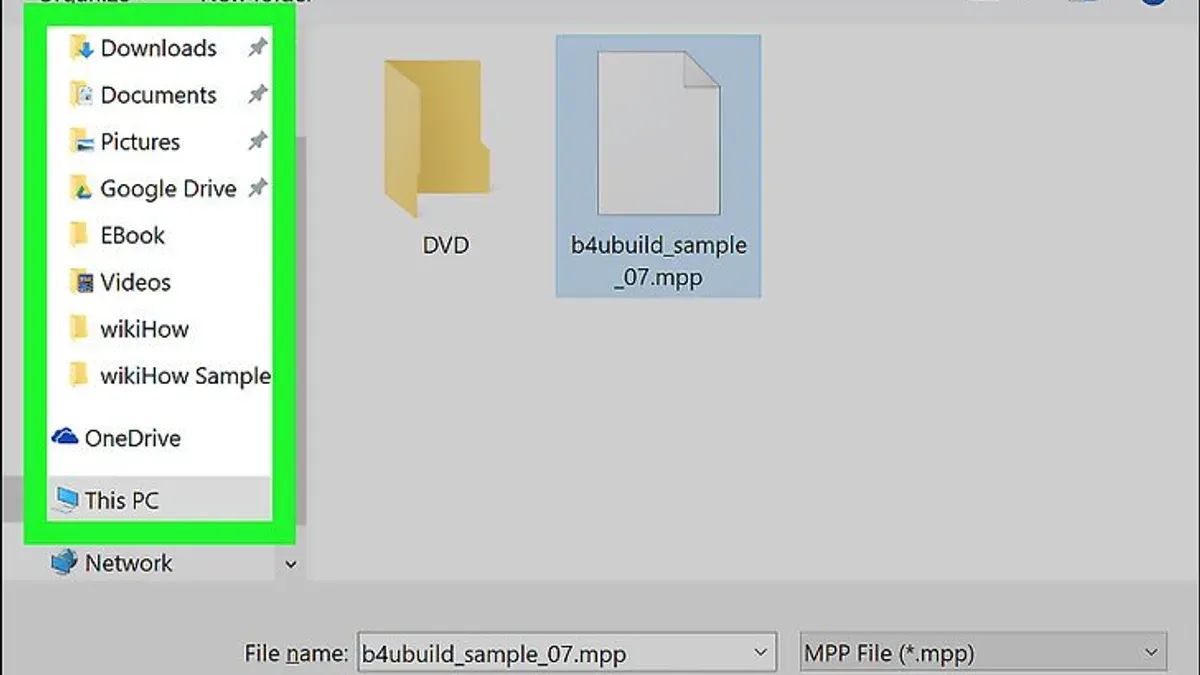
Using ProjectLibre
ProjectLibre is a free, open-source project management app that supports.mpp files with editing capabilities.
- Download and install ProjectLibre from the official website.
- Open ProjectLibre and select File > Open.
- Navigate to your.mpp file and select it.
- When the file loads, you should see the project tasks and timelines editable.
ProjectLibre allows you to edit and save changes but may not support all advanced Microsoft Project features perfectly.
Using Merlin Project
Merlin Project is a paid app with a free trial, designed for Mac users needing powerful project management tools and.mpp compatibility.
- Download Merlin Project from the Mac App Store or the developer’s website.
- Launch Merlin Project and go to File > Import > Microsoft Project (.mpp).
- Select your.mpp file; the project will import into Merlin’s interface.
- Check that your tasks, resources, and dependencies appear correctly; you can edit and export projects here.
Merlin Project offers comprehensive features but requires a subscription or one-time purchase after the trial ends.
Using MOOS Project Viewer
MOOS Project Viewer is a Mac-compatible app focused on read-only viewing of.mpp files, suitable if you only need to check project details without editing.
- Download MOOS Project Viewer from the official site or App Store.
- Open the app and choose File > Open, then select your.mpp file.
- The project will display with Gantt charts, task lists, and resources, but editing is not available.
This viewer is free for basic use, with paid options for advanced features.
Feature and Cost Comparison
| App | Editing | Pricing | Import Accuracy |
|---|---|---|---|
| ProjectLibre | Yes | Free | Good, some complex features limited |
| Merlin Project | Yes | Free trial, then subscription or purchase | High, supports complex projects well |
| MOOS Project Viewer | No (read-only) | Free basic, paid advanced | Accurate for viewing |
Choosing the right app depends on whether you need full editing, want a free option, or only require viewing. ProjectLibre is best for free editing, Merlin Project suits professional use with a budget, and MOOS Project Viewer fits those who only want to view.mpp files.
How to open MS Project file on Mac using virtualization or remote desktop
You can run the Windows version of Microsoft Project on your Mac by using virtualization software or remote desktop solutions. These methods enable full access to Microsoft Project's features without native Mac support.
Using virtualization software
Virtualization apps like Parallels Desktop and VMware Fusion create a Windows environment within macOS. After installing Windows and Microsoft Project on the virtual machine, you can open and edit.mpp files as if on a PC.
- Purchase and download Parallels Desktop or VMware Fusion.
- Install the virtualization software on your Mac.
- Use the software to create a new virtual machine and install a licensed copy of Windows.
- Install Microsoft Project within the Windows virtual machine.
- Open the.mpp file inside the Windows environment using Microsoft Project.
Performance is generally smooth, but resource-intensive projects may run slower depending on your Mac’s hardware. Expect to allocate at least 8GB RAM and sufficient CPU cores to the virtual machine for optimal performance. Software licenses for Windows, Microsoft Project, and virtualization add to total cost, which can be significant.
Using remote desktop access
Alternatively, you can remotely access a Windows PC with Microsoft Project installed via Remote Desktop Protocol (RDP) or third-party tools like TeamViewer.
- Set up Microsoft Project on a Windows PC accessible over the network.
- Enable remote desktop access on that Windows machine.
- Install a remote desktop client on your Mac, such as Microsoft Remote Desktop.
- Connect to the Windows PC from your Mac using the client.
- Open and edit.mpp files through the remote session.
This approach depends on network speed and the Windows machine’s availability. It avoids installing Windows locally but requires a separate machine with Microsoft Project. Performance is typically good on a fast connection but can lag on slower networks.
Summary of costs and complexity: Virtualization involves upfront costs for software and Windows licenses and requires some technical setup. Remote desktop requires access to a Windows PC with Microsoft Project but no local installation. Virtualization suits users needing frequent offline access, while remote desktop fits those with existing Windows systems accessible remotely.
How to open.mpp files on Mac by converting them to other formats
Converting.mpp files into formats like PDF, XML, or Excel can make them accessible on Mac apps that do not support Microsoft Project files natively. This method enables you to view or work with project data in familiar programs, though some details or formatting may be altered during conversion.
Popular conversion tools include online services such as ProjectPlan365's converter, Seavus Project Viewer, and Zamzar, which export.mpp files to PDF or Excel formats. These tools usually require you to upload the.mpp file and select the desired output format.
- Go to a reputable online.mpp converter website, for example, Zamzar (zamzar.com).
- Upload your.mpp file by clicking the upload button and selecting the file from your Mac.
- Choose the output format, such as PDF for easy viewing or XLSX for editing in Excel.
- Start the conversion and wait for the process to complete. You should see a download link or button once ready.
- Download the converted file to your Mac and open it with the corresponding app: Preview or Adobe Reader for PDFs, or Microsoft Excel or Numbers for spreadsheets.
Conversion pros include quick access without installing heavy software and compatibility with Mac-native apps. However, cons involve potential data loss, such as missing task dependencies, resource assignments, or complex formatting. XML exports allow importing data into other project management tools but may require technical knowledge to interpret.
Use conversion mainly if you only need to view or analyze project data rather than edit or manage the project fully. For extensive editing, native or virtualized Microsoft Project solutions are preferable.
User feedback often highlights that PDF conversions maintain a clean visual layout but lose interactive features, while Excel exports can become cluttered and require manual adjustment.
How to open.mpp file in MacBook using free viewers
If you only need to view.mpp files on your MacBook without editing, several free viewers can help. These tools focus on displaying project data clearly but often lack editing capabilities or full compatibility with complex files.
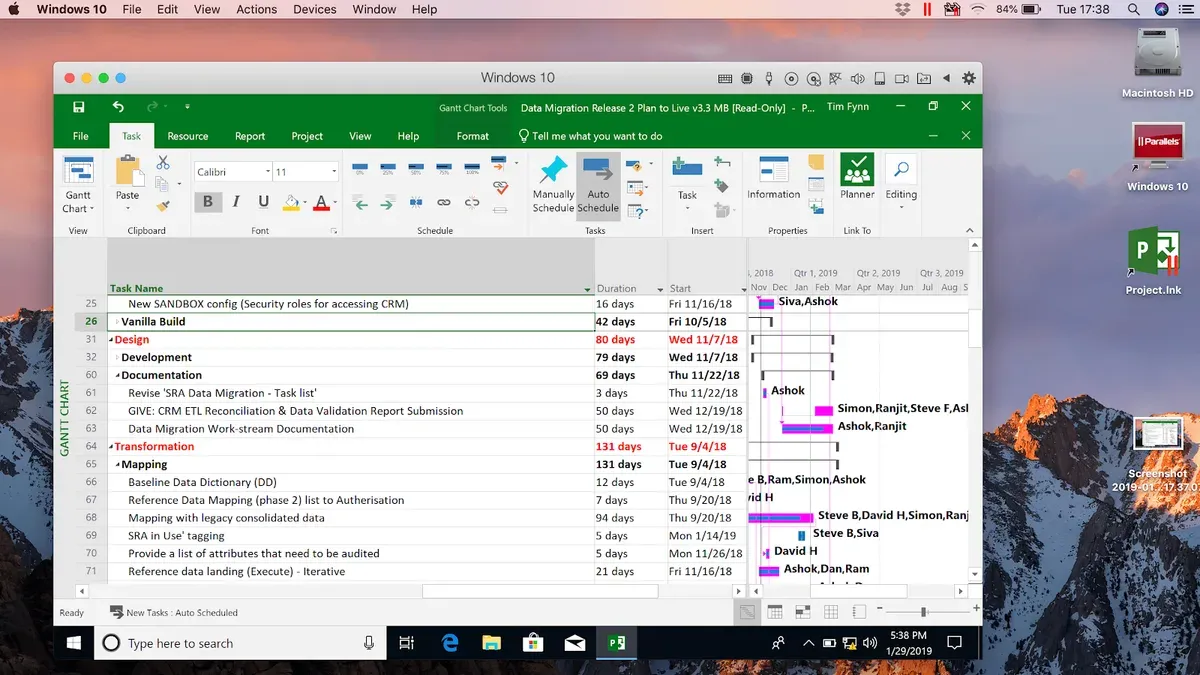
Reliable free.mpp viewers for Mac include:
- MOOS Project Viewer: A popular choice with a straightforward interface, it supports viewing most.mpp files. Available as a free download with basic features.
- Project Viewer 365 (Free version): Offers read-only access to.mpp files and supports some limited file navigation features.
- GanttProject: Though primarily a project management tool, it can import and display.mpp files for review.
Steps to install and use MOOS Project Viewer:
- Go to the official MOOS Project Viewer website and download the Mac version.
Once installed, the app icon appears in your Applications folder. - Open MOOS Project Viewer and click "Open" or drag your.mpp file into the window.
The project file should load, displaying tasks and timelines. - Use the navigation pane to browse through project phases and details.
The viewer shows Gantt charts and task lists for easy review.
Limitations of free viewers: These tools may not fully support advanced Microsoft Project features such as custom fields, complex dependencies, or resource management. Some.mpp files created with newer Project versions might not open correctly. Additionally, editing is generally disabled.
Security considerations: Download free viewers only from official or reputable sources to avoid malware risks. Check recent user reviews and ratings where available. Free software often has fewer updates or support options, so ensure your macOS version is compatible.
Troubleshooting common issues opening.mpp files on Mac
Opening.mpp files on a Mac can sometimes result in errors or unexpected behavior. Addressing these issues systematically helps ensure smooth access to your project data.
File won’t open or shows error messages
Errors like "File format not supported" or "Cannot open file" often indicate file corruption or compatibility problems. To troubleshoot:
- Verify the file integrity by opening it on a Windows PC with Microsoft Project or ask the sender to resend the file. Success here confirms the file is intact.
- Ensure your third-party app or viewer supports the specific.mpp version. Older apps may not open files created in newer Project releases properly.
- Try renaming the file extension to lowercase ".mpp" if uppercase is causing recognition issues. The app should then attempt to open it.
Missing or incorrect formatting after opening in alternative apps
Third-party apps may not fully replicate Microsoft Project’s formatting, leading to missing task dependencies, calendar settings, or custom fields.
- Check the app’s settings for import options that preserve formatting, such as "Import with full details".
- Compare key elements like task durations and resource assignments with the original file to identify discrepancies.
- Use file conversion to XML and re-import if the app offers better compatibility with XML formats, which sometimes retain more structure.
Performance lag in virtualization or remote desktop setups
Running Microsoft Project via virtualization or remote desktop can be slow due to resource constraints or network latency.
- Allocate more RAM and CPU cores to your virtual machine through your virtualization app’s settings. The virtual machine should respond faster.
- Ensure your Mac is connected over a stable, high-speed network when using remote desktop. Lag should reduce noticeably.
- Close unnecessary apps on both host and guest systems to free up resources.
Handling password-protected or encrypted.mpp files
Protected files require the correct password to open. Without it, access is blocked.
- Request the password from the file sender if you do not have it. Enter it when prompted by your app.
- If the app does not support password prompts, use Microsoft Project Online or a Windows installation via virtualization to enter the password.
- Note that there are no legitimate tools to bypass encryption; unauthorized access attempts risk data loss or corruption.
- How to Open.vsdx Files on Mac: Step-by-Step Methods
- How to Open.pub Files on Mac: Step-by-Step Solutions
- How to Open.pptx Files on Mac: Simple Step-by-Step Methods
- How to Open.xlsx Files on Mac: Easy Methods and Tips
Frequently asked questions
How to open mpp file on mac?
You can open an.mpp file on Mac by using Microsoft Project Online through a web browser, which requires a valid subscription. Alternatively, third-party apps like Project Plan 365 or MOOS Project support opening and editing.mpp files natively on Mac. If you prefer, virtualization software such as Parallels Desktop or remote desktop to a Windows PC with Microsoft Project installed also works.
How to open mpp file in mac?
Opening an.mpp file in Mac involves either cloud-based solutions like Microsoft Project Online or dedicated third-party applications compatible with macOS. You can also convert the file to formats like PDF or XML using online converters to view it without specialized software. Remember that native macOS does not support.mpp files directly without these tools.
How to open mpp file in macbook?
On a MacBook, your best options include accessing Microsoft Project Online via a browser or installing a compatible third-party app from the Mac App Store or developer websites. Virtualization tools or remote desktop connections to a Windows machine with Microsoft Project are alternatives if you require full editing capabilities. Free viewers can open.mpp files for basic viewing but typically do not support editing.
How to open mpp files on mac?
To open multiple.mpp files on a Mac, use Microsoft Project Online for browser-based access or apps like Project Plan 365 that can handle batch opening. Converting files to other common formats such as PDF or Excel can help when you only need to view content. Virtual machines or remote desktop software provide full access but require Windows and Microsoft Project licenses.
How to open microsoft project file on mac?
Microsoft Project files (.mpp) can be opened on Mac by subscribing to Microsoft Project for the web, which works in Safari or other browsers. Third-party software designed for Mac also supports opening these files, though editing features vary. For full functionality, running Windows on Mac via virtualization or remote desktop remains a reliable option.
What this guide does not cover
This guide does not cover advanced Microsoft Project editing features that only the Windows desktop app fully supports. If you need comprehensive project management capabilities such as detailed resource leveling, complex reporting, or integration with enterprise tools, using the native Windows version of Microsoft Project remains necessary. This article assumes you want practical access to open, view, or perform basic edits without investing in Windows or expensive software.
The single most useful next step is to try Microsoft Project Online if you have an existing Microsoft 365 subscription or can access a trial. It offers the closest experience to the desktop app with no installation required and works well within a Mac browser. This approach avoids compatibility pitfalls and ensures you can view and edit.mpp files with better fidelity than most third-party tools.



