
How to Open.dxf Files on Mac: Step-by-Step Methods and Tips
Discover simple methods to open.dxf files on Mac using free and professional software tailored for different skill levels and needs.


You receive a.dxf file from a client or colleague, but your Mac doesn't open it by default. You wonder which application can reliably open and edit this widely used CAD format without unnecessary expense or complexity.
This article guides you through how to open.dxf file on Mac using a variety of free and paid software options. You'll find step-by-step instructions tailored to different skill levels and budgets, comparisons between lightweight apps and professional CAD solutions, and insights on cross-platform and mobile alternatives. Whether you want to view, edit, or convert.dxf files, this guide helps you choose the right tool for your needs.
Key takeaways
- Use free apps like LibreCAD or Autodesk DWG TrueView for basic viewing and editing of.dxf files on Mac.
- Professional CAD software such as AutoCAD offers advanced features but comes with higher costs and resource demands.
- Mac App Store includes lightweight apps for quick.dxf viewing without installing full CAD suites.
- Windows has more native.dxf support, so cross-platform users may consider virtual machines or file conversion.
- Android apps like AutoCAD mobile provide convenient on-the-go access to.dxf files but have limited editing capabilities.
Before you start: What you need to open a.dxf file on Mac
A.dxf (Drawing Exchange Format) file is a CAD file type created by AutoCAD for sharing 2D and 3D design data across different software platforms. These files are widely used in architecture, engineering, and design to exchange detailed drawings.
.dxf files can vary significantly in size and complexity. Simple designs might be under 1MB, while intricate 3D models or layered architectural plans can reach hundreds of megabytes. This affects how smoothly the file opens depending on the software and Mac hardware.
To open or edit.dxf files on a Mac, you need compatible software or apps. Not all Mac programs support this format natively, so choosing software that fully supports the specific.dxf variant is essential.
The.dxf format has several versions and variants, including ASCII and binary encoding. Some older or newer versions might cause compatibility issues with certain apps, leading to incomplete rendering or errors. Ensure your chosen software supports the.dxf file’s version to avoid problems.
- Locate the.dxf file you want to open on your Mac. When successful, you should be able to view its file size and type under file info.
- Select software or an app that supports.dxf files, such as a free viewer or professional CAD program. When working correctly, the software will launch and allow you to import or open the file.
- Open the file in the chosen software. A fully compatible app will display the drawing accurately, with layers, colors, and dimensions intact.
How to open.dxf file on Mac using free software
Two reliable free options to open.dxf files on Mac are LibreCAD, a downloadable app, and Autodesk Viewer, a web-based tool requiring no installation. Both allow you to view.dxf files at no cost, but with some limitations in editing and performance.
Opening.dxf files with LibreCAD
- Visit the official LibreCAD website and download the Mac version installer. Once downloaded, open the installer and follow the prompts to install LibreCAD on your Mac.
- Launch LibreCAD from your Applications folder. You should see a clean interface with a drawing area and toolbars.
- Go to File > Open and select your.dxf file. The file will load into the workspace; complex files may take a few seconds.
- Use the zoom and pan tools to inspect the drawing. LibreCAD supports basic editing, but advanced CAD features are limited.
Using Autodesk Viewer online
- Open your preferred Mac web browser and navigate to the Autodesk Viewer website.
- Upload your.dxf file by clicking the "Upload" or "Select files" button. The file will be processed and displayed in the browser.
- Use the viewer’s navigation tools to zoom, pan, and measure. No installation or registration is required for basic viewing.
- Note that Autodesk Viewer is primarily for viewing; editing capabilities are minimal or unavailable.
While LibreCAD provides offline access and some editing, it may struggle with very large or complex.dxf files. Autodesk Viewer offers fast loading and cross-platform convenience but depends on internet speed and lacks editing features.
How to open.dxf file on Mac using professional CAD software
For advanced editing and professional features, paid CAD software like AutoCAD for Mac, Vectorworks, and CorelCAD offer robust solutions. These programs support detailed editing, layer management, and exporting to multiple formats, catering to architects, engineers, and designers.
| Software | Key Features | Trial Period | Pricing Model |
|---|---|---|---|
| AutoCAD for Mac | Comprehensive editing, layering, 3D modeling, DWG/DXF compatibility, export options | 30 days | Subscription-based, monthly or annual plans |
| Vectorworks | Advanced BIM tools, flexible design, strong 2D/3D capabilities, collaborative features | 14 days | Perpetual license or subscription |
| CorelCAD | Precision drafting, 2D/3D support, customization options, DWG/DXF support | 15 days | One-time purchase or subscription |
To open a.dxf file in AutoCAD for Mac, follow these steps:
- Launch AutoCAD for Mac; the welcome screen with recent files appears.
- Click File in the menu bar, then select Open.
- In the file dialog, navigate to your.dxf file and select it; click Open.
- The.dxf file loads into the workspace, showing all layers and entities.
- Use the Layer Properties Manager to view or edit layers as needed.
- For editing, select drawing tools from the toolbar; changes update in real time.
- To export, click File > Export and choose your desired format (e.g., PDF, DWG).
Trial versions let you explore full functionality before purchasing. Consider your budget and required features: AutoCAD is industry-standard but costly, Vectorworks suits BIM workflows, and CorelCAD offers a budget-friendly alternative with core tools.
How to open dxf files on Windows compared to Mac
Windows offers a broader range of native software options for opening.dxf files, including popular programs like AutoCAD and DraftSight, which often have more mature feature sets and interface designs tailored to Windows environments. These applications typically provide faster performance and smoother workflow due to optimized development for the platform.
On Mac, some Windows-only.dxf software is unavailable or limited, requiring users to rely on Mac-specific versions or alternatives that may have different interfaces or reduced functionality. To access Windows-specific.dxf programs on a Mac, you can use virtualization software such as Parallels Desktop or VMware Fusion, or set up Boot Camp to run Windows natively.
- Install virtualization software like Parallels Desktop or VMware Fusion on your Mac. Once installed, launch the software and create a new virtual machine.
- Install a licensed copy of Windows within the virtual machine. When completed, you should see the Windows desktop running inside a Mac window or full screen.
- Download and install your preferred Windows.dxf application (e.g., DraftSight) inside the virtual machine.
- Open your.dxf files within this Windows environment. The application should perform comparably to a native Windows PC, though resource-intensive tasks may run slower due to virtualization overhead.
- Alternatively, use Boot Camp to partition your Mac’s drive and install Windows for native performance. Restart your Mac and hold Option key to choose Windows at boot.
- Run Windows-only.dxf software directly with full hardware access, offering better performance but requiring a reboot to switch between macOS and Windows.
Virtualization offers convenience and easy switching between systems but can reduce graphics performance. Boot Camp provides maximum speed but lacks seamless app integration and requires rebooting. Your choice depends on your workflow, hardware capabilities, and whether you prioritize performance or convenience.
How to open CAD files and DWG files on Mac alongside.dxf files
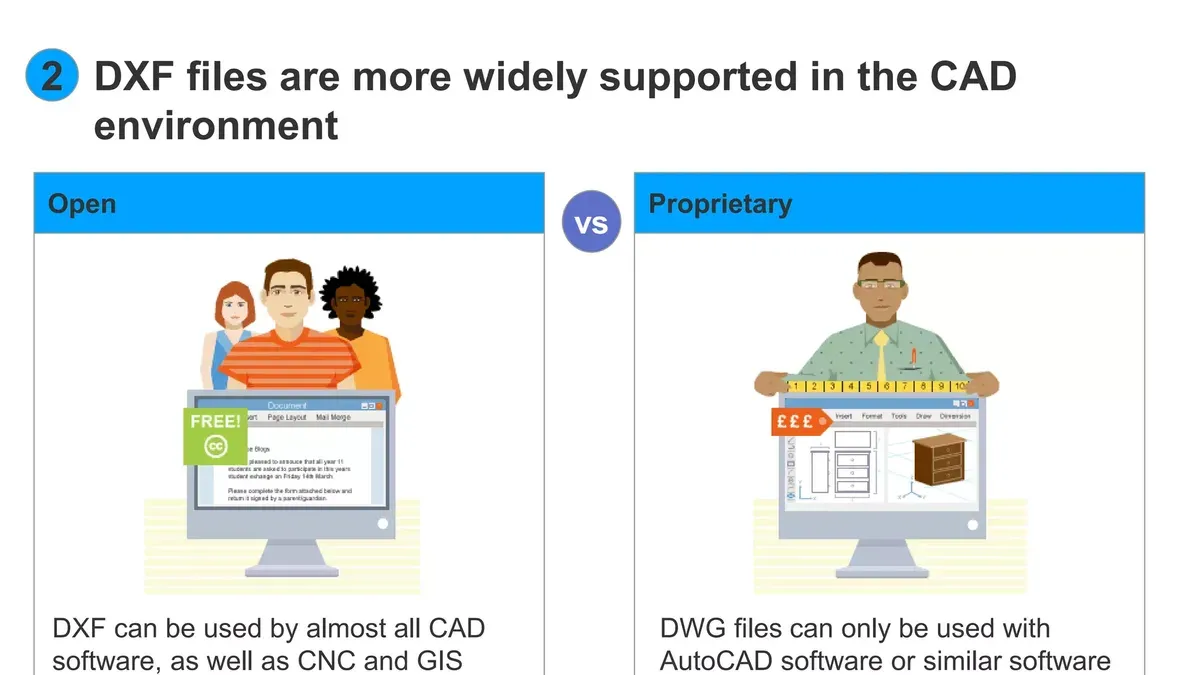
The.dxf and.dwg formats are both widely used in CAD workflows, with.dwg being the native file format for AutoCAD and.dxf designed as a more universal, text-based interchange format. On Mac, several applications support opening both file types, allowing you to manage your projects without switching platforms.
Software like AutoCAD for Mac, CorelCAD, and Vectorworks can open, edit, and save both.dwg and.dxf files. Free viewers such as Autodesk Viewer also accommodate these formats, though editing options may be limited. However, some features may not translate perfectly between the two formats due to differences in how they store data, so expect minor compatibility caveats such as missing layers or altered line types in complex drawings.
To open a.dwg file on your Mac:
- Launch your CAD software (e.g., AutoCAD for Mac).
- Click File > Open.
- Navigate to the folder containing your.dwg file and select it.
- Click Open. Your drawing should load in the workspace.
- Verify that all layers and annotations appear correctly.
For a seamless workflow when working with both.dxf and.dwg files, save your edits in the native format of the software to minimize data loss. When exchanging files with collaborators using different CAD programs, exporting to.dxf can enhance compatibility but review the resulting file to ensure fidelity.
How to open.dxf file on MacBook using apps from the Mac App Store
The Mac App Store offers several trusted apps that allow you to open and view.dxf files quickly on your MacBook. Options range from lightweight viewers to more comprehensive editors, giving you flexibility depending on your needs.
Popular apps include "DXF Viewer" and "CADintosh." DXF Viewer is a straightforward, free app focused on fast loading and easy navigation of.dxf files, favored for its simplicity and reliable performance. CADintosh offers more editing capabilities but uses an in-app purchase model for advanced features, reflected in its generally positive user ratings.
Installing an app is straightforward:
- Open the Mac App Store on your MacBook.
- Use the search bar to find apps by typing "DXF viewer" or "CADintosh." You should see the app icon and name in the results.
- Click "Get" or the price button, then authenticate with your Apple ID as needed. The app downloads and installs automatically.
- Launch the app from your Applications folder or Launchpad.
- Use the app’s File > Open menu or drag your.dxf file into the app window. The file should load with visible vector lines and layers if supported.
App reliability is high for basic viewing; user reviews often praise smooth performance and responsiveness. Lightweight apps rarely support complex editing but consume minimal system resources. Full editors provide tools like layer management and annotation but may require payment to unlock all features.
Review screenshots on the app page to confirm the interface matches your preference and workflow before installation.
How to open.dxf file on Android free and alternatives for mobile users
If you need to view.dxf files on an Android device without cost, several apps provide basic functionality. The AutoCAD mobile app and DWG FastView are popular free options that allow you to open, view, and lightly edit.dxf files on the go.
- Open the Google Play Store on your Android device. You should see the search bar at the top.
- Type "AutoCAD" or "DWG FastView" into the search bar and select the official app from Autodesk or Gstarsoft, respectively. Once selected, tap "Install." After installation, open the app.
- Within the app, use the menu option (often labeled "Open" or represented by a folder icon) to locate your.dxf file, which may be in your device storage or cloud services connected to the app.
- Tap the.dxf file to load it. The drawing should appear, allowing you to zoom, pan, and review details.
- For editing, note that free versions usually offer only limited tools, such as basic annotations or measurements; advanced modifications often require a paid subscription.
- To maintain workflow continuity, sync your.dxf files between your Mac and Android device using cloud storage services like Google Drive, Dropbox, or OneDrive, which these apps can access directly.
User feedback highlights that while these apps are convenient for quick viewing and minor edits, they may struggle with very large or complex.dxf files, and interface usability varies. The AutoCAD mobile app tends to have a more polished experience but may prompt for subscriptions, whereas DWG FastView is more straightforward but less feature-rich.
How to open.dxf file on AutoCAD and tips for best results
- Launch AutoCAD on your Mac or Windows computer. You should see the main interface with the command line and ribbon menus.
- Go to the "Application Menu" (the AutoCAD logo at the top-left) and select "Open." In the file dialog, choose ".dxf" from the file type dropdown to filter supported files.
- Select your.dxf file and click "Open." AutoCAD will import the file and display its contents in the drawing area if compatible.
- If you encounter an error such as "Unsupported DXF version" or missing entities, check the.dxf file version. AutoCAD supports versions from R12 through newer releases, but very old or corrupted.dxf files may fail to load properly.
- To optimize viewing and editing, open the "Options" menu under the "Tools" tab, navigate to the "Open and Save" tab, and set the "File Save Format" to the latest supported.dxf version to avoid compatibility issues when saving.
- Check import settings by typing "DXFIN" in the command line to open the DXF Import Options dialog. Adjust units and scale if your drawing appears too large or small.
- Once imported, review layers and line types, as these can sometimes change on import. Use the "Layer Properties Manager" to restore or modify as needed.
- To save or export the file for sharing, use "Save As" and select the desired.dxf version. Alternatively, export to other formats via "Export" in the Application Menu for compatibility with other CAD apps.
Common error messages include "File not found" (check file path and permissions) and "Entity not recognized" (may require cleaning the file in a different CAD app prior to import).
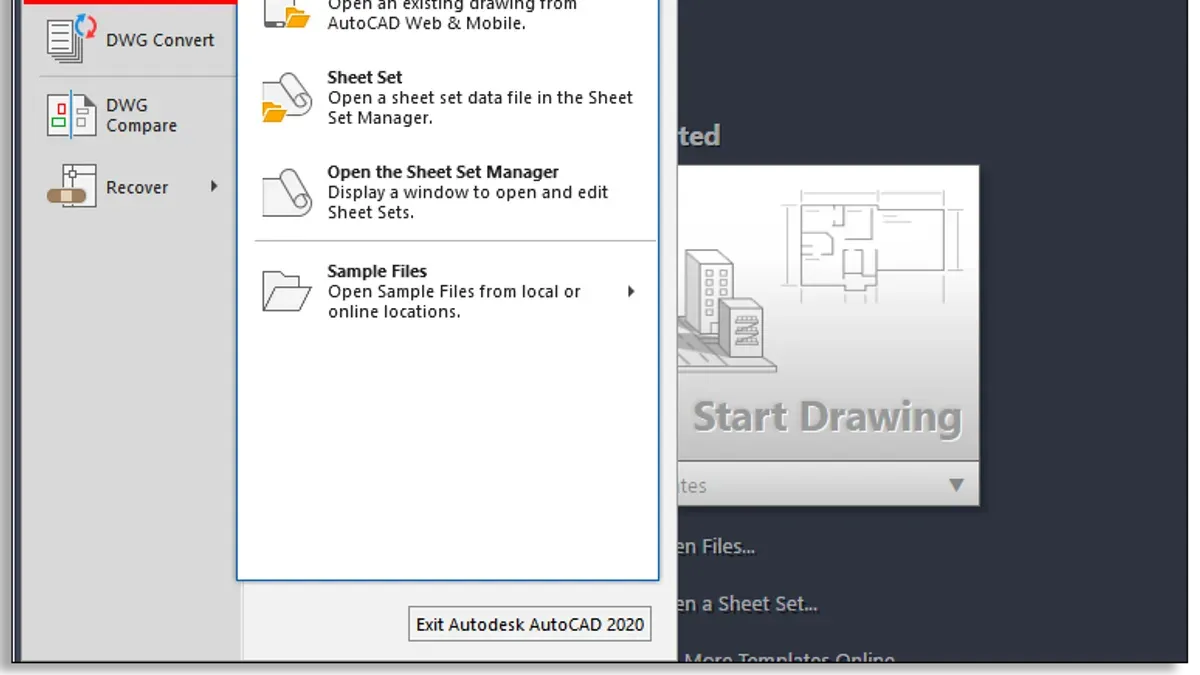
Following these steps ensures smooth import and editing of.dxf files in AutoCAD, helping you maintain file integrity and interoperability.
Troubleshooting common issues when opening.dxf files on Mac
If your.dxf file does not open or shows errors like "Unsupported file format" or "File corrupted," the issue may stem from incompatible or damaged file data. First, confirm the file extension is.dxf and try opening it with alternative software such as LibreCAD or Autodesk Viewer to isolate the problem.
Corrupt or unsupported.dxf versions can cause failures. Use dedicated file repair tools like DXF Repair Tool or online converters to attempt recovery. If layers or fonts are missing, check that the software you are using supports all entities in the file; some lightweight apps may omit complex objects or fonts.
Performance issues with large.dxf files can manifest as freezing or slow rendering. To alleviate this, try reducing file complexity by exporting a simplified version or splitting the file into smaller parts using CAD software.
If conversion is necessary, reliable tools like AnyConv or CloudConvert can convert.dxf files into formats better supported by your software.
- Open the.dxf file in a different viewer (e.g., Autodesk Viewer); if it opens, the file is likely intact.
- If errors persist, upload the file to a DXF repair tool; follow prompts to fix and download the repaired file.
- Test the repaired file in your CAD application; missing fonts can be addressed by installing required font libraries or substituting fonts in the software settings.
- For large files, export a simplified version from the original CAD software, then open the smaller file to check performance improvements.
- If all else fails, convert the.dxf file to another CAD format using a trusted converter and attempt to open that instead.
- How to Open.dmg Files on Mac: A Clear Step-by-Step Guide
- How to Open and Install.pkg Files on Mac: A Clear Step-by-Step Guide
Frequently asked questions
How to open dxf file on mac?
You can open a.dxf file on Mac using various software options. Free apps like LibreCAD or online viewers let you view and edit basic drawings, while professional CAD software such as AutoCAD or Vectorworks offers advanced features. To open the file, launch your chosen program, select File > Open, and navigate to your.dxf file.
How to open dxf file on mac free?
To open a.dxf file for free on Mac, use apps like LibreCAD or FreeCAD, both of which support.dxf viewing and editing without cost. Alternatively, you can use online.dxf viewers directly in your browser. Keep in mind that free options may have limited editing tools compared to paid software.
How to open dxf file on macbook?
Opening a.dxf file on a MacBook follows the same process as on any Mac. Install a compatible program such as QCAD or LibreCAD, then open the app, go to File > Open, and select your.dxf file. You can also use lightweight apps from the Mac App Store tailored for MacBook performance.
How to open cad files on mac?
CAD files come in various formats, including.dxf and.dwg. To open them on Mac, use CAD software that supports these formats like AutoCAD, DraftSight, or Fusion 360. Many apps allow you to import multiple CAD file types, so check the supported formats before choosing software.
How to open dwg file on mac?
Opening a.dwg file on Mac requires software capable of reading this format, such as AutoCAD, BricsCAD, or DraftSight. You can also use some free viewers like Autodesk’s DWG TrueView via virtualization or cross-platform apps. Always ensure your program supports the file version to avoid compatibility issues.
What this advice does not cover and who should look elsewhere
This article does not cover detailed CAD drawing creation or advanced editing workflows, which require specialized training and software beyond basic file opening. If you need to create complex 3D models, perform intricate layer management, or handle collaborative CAD projects, consider dedicated professional CAD platforms with comprehensive feature sets and formal training resources. Likewise, highly specialized industry-specific CAD applications may offer tools not discussed here.
For most users aiming simply to open, view, or perform light edits on.dxf files on a Mac, the options outlined here provide a solid starting point. To move forward effectively, try opening your.dxf file with one of the free or lightweight apps first, such as LibreCAD or a Mac App Store viewer. This will quickly confirm compatibility and your basic needs before investing in professional CAD software.



