
How to Open.indd Files on Mac: Step-by-Step Methods
Discover easy ways to open.indd files on Mac, whether you have Adobe InDesign or need free alternatives for viewing and converting.

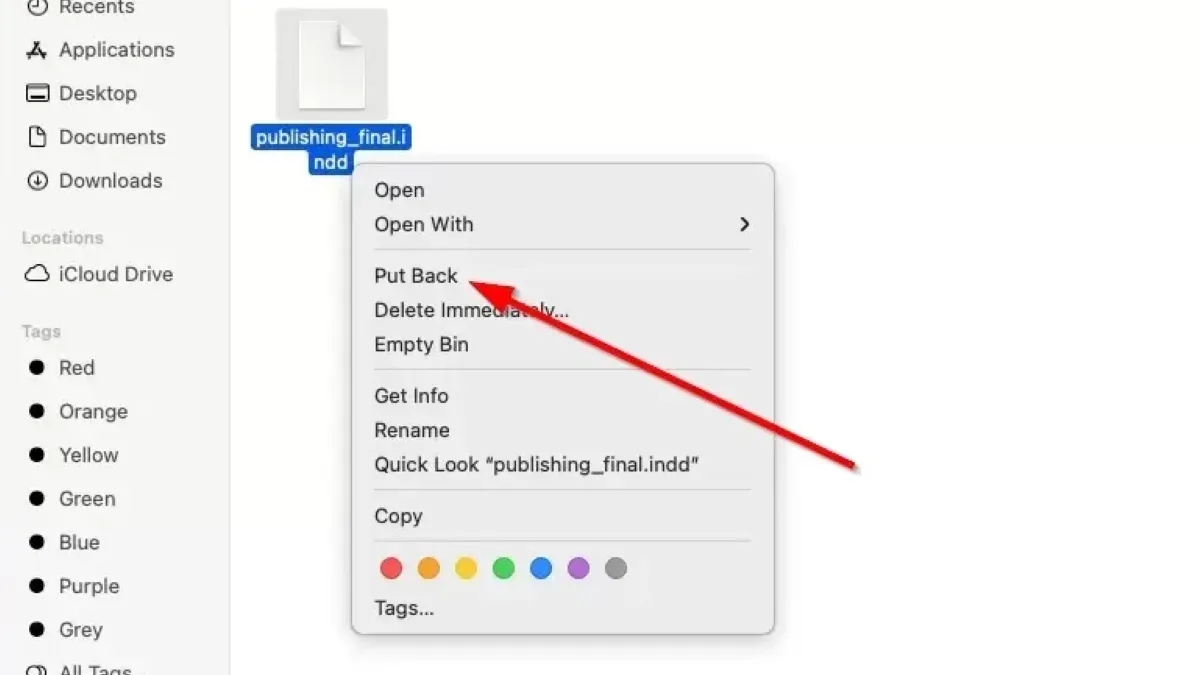
You’ve received a file with the.indd extension on your Mac, but you’re not sure how to open it. Maybe you don’t have Adobe InDesign installed, or you want to quickly view the content without a full design setup.
This article covers how to open.indd file on Mac with and without Adobe InDesign, including free online tools, alternative software, and file conversion methods. You’ll get clear, step-by-step instructions and learn the trade-offs of each approach so you can choose the best option based on your needs.
Key takeaways
- Adobe InDesign is the native, professional software for opening.indd files on Mac.
- Free viewers and online tools let you view.indd files but often with limited editing options.
- Alternative software can open or convert.indd files but may lose some formatting.
- Converting.indd files to PDF or IDML can improve compatibility for viewing or editing.
- Identifying the source program helps decide the best way to open or convert the file.
Before you start: What you need to open a.indd file on Mac
A .indd file is the native format used by Adobe InDesign, a professional desktop publishing software designed for creating page layouts like magazines, brochures, and books. Because this format stores complex layout, typography, and graphic data, it is not natively supported by Mac’s default applications.
Mac users often encounter difficulties opening.indd files without Adobe InDesign installed. This is because InDesign uses proprietary file structures that other programs cannot fully interpret. To work with.indd files on a Mac, you generally need access to Adobe InDesign, which provides full editing and viewing capabilities.
Adobe InDesign requires a Mac running macOS 10.15 (Catalina) or later, with a multi-core Intel processor or Apple Silicon, at least 8GB of RAM recommended, and sufficient disk space for installation. You also need an active Adobe Creative Cloud subscription or a trial to use InDesign.
Alternative tools that can open or partially view.indd files include Adobe InCopy, some third-party viewers, and conversion utilities that export.indd files to PDF or other formats. However, these alternatives often have limited support for interactive elements and complex layouts.
- Confirm your Mac meets InDesign’s system requirements: macOS 10.15 or later, sufficient RAM, and disk space. If it does, you can install Adobe InDesign from the Adobe Creative Cloud app.
- If you don’t have InDesign, identify whether you only need to view the content or edit it. For viewing, consider exporting the file to PDF using a collaborator with InDesign or an online conversion service.
- Check if you have alternative software like Adobe InCopy or third-party apps that support.indd files. Keep in mind these may not fully render all design elements.
- Understand that without Adobe InDesign, your options are limited to viewing or converting. Editing advanced layouts requires the full InDesign application.
How to open a.indd file on Mac using Adobe InDesign
Adobe InDesign is the native software for.indd files, providing full editing and viewing capabilities. To use it on your Mac, you first need to obtain an Adobe Creative Cloud subscription, which includes InDesign as part of the plan.
- Visit the Adobe Creative Cloud website and select a subscription plan that includes InDesign. Plans typically range from single-app subscriptions to full Creative Cloud access.
- Create an Adobe account or sign in if you already have one, then download the Creative Cloud desktop app.
- Open the Creative Cloud app, find InDesign in the list of available apps, and click "Install." Wait for the installation to complete.
- Launch Adobe InDesign from your Applications folder or the Creative Cloud app.
- To open a.indd file, click "File" in the menu bar and select "Open." Navigate to your.indd file, select it, and click "Open." The file will load into InDesign’s workspace.
- Use the Pages panel and toolbar to navigate through the document. You can zoom in or out and switch between different editing tools as needed.
- To save changes, choose "File" > "Save." To export your document to other formats like PDF, select "File" > "Export," then choose the desired format and options.
Adobe InDesign offers comprehensive control over.indd files, but requires an Adobe subscription and sufficient system resources on your Mac.
How to view an.indd file on Mac without Adobe InDesign
If you don’t have Adobe InDesign, viewing.indd files on a Mac is still possible but with some limitations. Adobe InCopy allows partial viewing and editing of.indd content, mainly useful if you have access through collaboration. However, it does not support full layout editing.
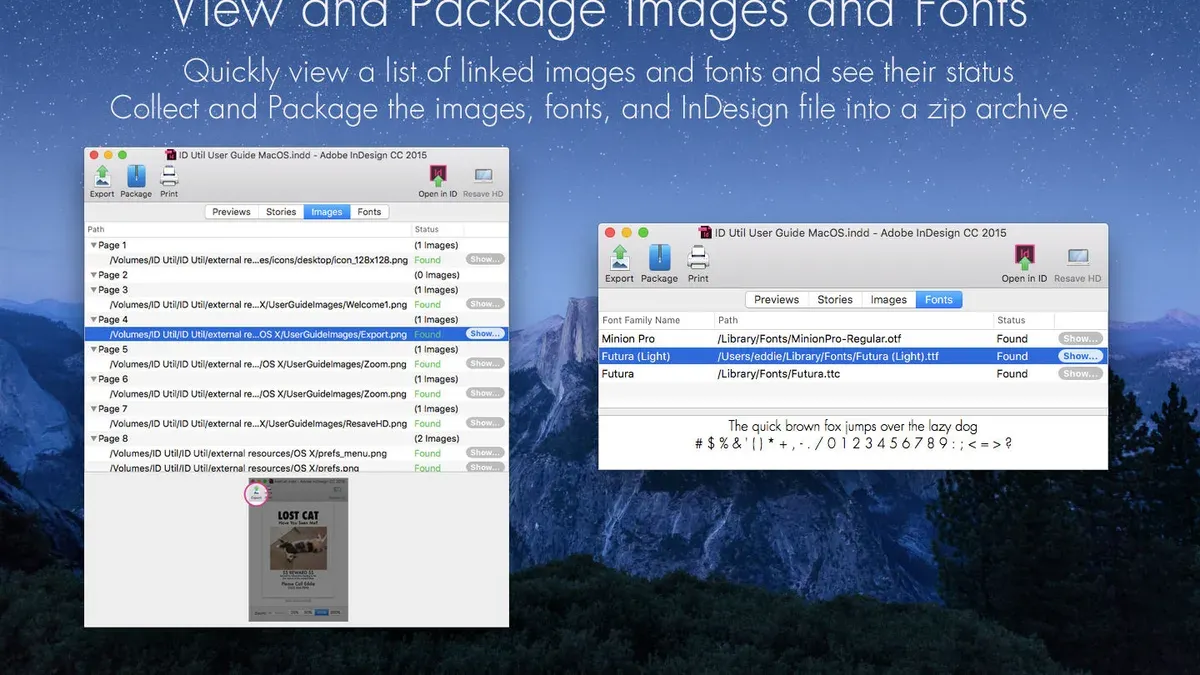
Free and trial viewers like Markzware’s IDMarkz offer.indd preview capabilities but often come with restrictions such as watermarking or limited page views. These tools can give a quick look but may not display all design elements accurately.
Online services that convert or preview.indd files can be convenient. Websites like CloudConvert or Zamzar can turn.indd files into PDFs or images, but conversion quality varies and may miss fonts, effects, or layered content. Uploading files online also raises privacy considerations.
If possible, ask the sender to export the.indd file as a PDF or IDML (InDesign Markup Language) format before sending. PDFs are widely supported and preserve most visual elements, while IDML files can be opened in alternative layout programs.
- Download and install Adobe InCopy if available; open the.indd file through File > Open to view editable text sections.
- Try a free trial of a third-party viewer like IDMarkz and open the file to preview layouts; check for watermarks or missing elements.
- Use an online conversion tool by uploading the.indd file and selecting PDF or image as the output; download and review the converted file for fidelity.
- Contact the file sender to request a PDF or IDML export if viewing quality or editing is insufficient.
How to open.indd files online free on Mac
Several online tools allow you to open or convert.indd files without installing software, making them convenient for quick access. Popular options include GroupDocs Viewer, Zamzar, and CloudConvert. These services let you upload your.indd file and either view it directly in a browser or convert it to formats like PDF or JPEG.
To use these tools, follow these steps:
- Visit the website of your chosen online converter or viewer, such as groupdocs.app/viewer/indd or zamzar.com. You should see an option to upload a file.
- Click the upload button and select your.indd file from your Mac. Once uploaded, the service will process the file.
- If the tool supports direct viewing, you will see the contents displayed in your browser. Otherwise, choose the output format (e.g., PDF) and start the conversion.
- Download the resulting file and open it with a compatible Mac program, such as Preview for PDFs.
Keep in mind, online tools have limitations. Complex layouts, fonts, and interactive elements may not render perfectly, causing differences from the original InDesign file. File size limits often apply, usually a few hundred megabytes at most.
Privacy policies vary but generally state that uploaded files are deleted after processing or within 24 hours. Avoid uploading sensitive or confidential files to these services to protect your data.
How to open a.indd file on Mac using alternative software
Several layout programs besides Adobe InDesign offer the ability to open or import.indd files, though with some limitations. Affinity Publisher, a popular alternative, can import.indd files via its “File” > “Open” command. However, users often report incomplete font rendering, missing effects, and altered layout details. This is because Affinity Publisher does not fully support all InDesign features, so complex documents may not appear accurately.
QuarkXPress also provides some import functionality for.indd files, typically through its “File” > “Import” options or by converting.indd files into formats it supports. While it can handle basic layouts, QuarkXPress may struggle with advanced typography, linked assets, and certain interactive elements.
Other software with partial.indd compatibility includes Scribus and various PDF-based editors. These often require exporting.indd files to intermediate formats like IDML or PDF before importing, which can cause loss of editability or layout fidelity.
You should consider alternative software when you do not have access to Adobe InDesign and the document’s complexity is moderate to low. For professional-grade editing or precise layout preservation, InDesign remains the most reliable choice.
- Open Affinity Publisher on your Mac.
- Select “File” > “Open” and navigate to the.indd file.
- Choose the file and open it; you should see the document load with most text and images.
- Review the layout for missing fonts, effects, or altered formatting.
- If fidelity is insufficient, try exporting the.indd file as IDML from InDesign (if possible) and reopen it in Affinity Publisher for better compatibility.
- For QuarkXPress, open the program and use “File” > “Import” or “Place” to bring in the file or its exported formats.
- Inspect the imported content carefully, noting any missing elements or formatting issues.
How to open a.indd file on Mac by converting it to another format
Converting a.indd file to a more common format can make it accessible without Adobe InDesign. The most reliable method is exporting from InDesign itself, but online and desktop converters offer alternatives if you lack the software.
Exporting directly from Adobe InDesign
- Open the.indd file in Adobe InDesign. You should see your full layout and design.
- Go to File > Export. In the dialog, choose Adobe PDF (Print) or IDML (InDesign Markup Language) as the format.
- Click Save. For PDF, adjust export settings if needed, then click Export. For IDML, the file will save immediately.
- Confirm the output file is created. PDFs preserve layout and are viewable on any Mac, while IDML files allow editing in other compatible apps but require InDesign or similar software.
Using online or desktop converters
- Find a reputable online.indd to PDF or JPG converter, such as CloudConvert or Zamzar.
- Upload your.indd file and select the desired output format.
- Start the conversion and wait for the process to complete.
- Download the converted file to your Mac and open it with Preview or an image viewer.
Conversion outside InDesign often reduces fidelity, especially with complex layouts or fonts, and converted files usually lose editability. For static viewing or sharing, PDF is generally the best trade-off. Conversion is ideal when you cannot use InDesign but still need to access the content, though it is not recommended if you require full editing capabilities.
Troubleshooting common issues when opening.indd files on Mac
Opening.indd files on Mac can sometimes result in errors due to various factors. One frequent issue is version incompatibility. For example, attempting to open a file created in a newer InDesign version with an older app often triggers an error like "File version is not supported." The solution is to update your Adobe InDesign to the latest version or ask the sender to save the file as an IDML file for backward compatibility.

Corrupt or incomplete.indd files may fail to open or cause crashes. Adobe’s official troubleshooting guides recommend restoring from backups or using the "Recover Text from Any File" feature under File > Open to salvage content. However, some layout elements might be lost.
Missing fonts or linked assets cause display issues, such as text reflow or missing images, accompanied by warnings about missing fonts or broken links. To resolve this, install the required fonts or relink missing assets via the Links panel.
Permission errors like "You do not have permission to open the file" happen if Mac file permissions are restricted. Fix this by selecting the file in Finder, pressing Command+I, and adjusting permissions under "Sharing & Permissions" to give your user Read & Write access.
To verify file integrity, use Finder’s Preview or Quick Look to check if the file shows a thumbnail. Also, keep your Adobe InDesign updated via the Creative Cloud app to avoid compatibility problems.
How to identify what program opens.indd files and related format questions
The.indd file extension is the native format used by Adobe InDesign, a professional desktop publishing software. Adobe InDesign remains the standard program for opening and fully editing.indd files because it supports all features, layers, and formatting embedded in the document. This is confirmed in Adobe's official documentation, which defines.indd as the project file format for InDesign.
It's important to distinguish.indd files from other Adobe publishing formats, such as.idml (InDesign Markup Language). The.idml format is XML-based and designed for backward compatibility and file interchange, allowing users to open newer projects in older versions of InDesign or other compatible software. However,.idml files lack some of the more advanced features and metadata present in.indd files.
Some confusion arises with extensions like.ppdf, which is unrelated to Adobe InDesign. The.ppdf extension is associated with proprietary or specialized PDF variants used in niche workflows and does not support InDesign project data or editing.
To verify a genuine.indd file on your Mac, check the file's metadata by selecting it and pressing Command+I for Get Info. The “Kind” field should say “Adobe InDesign Document,” and the file icon usually displays the InDesign logo. Avoid files with suspicious origins or renamed extensions, as these may not open properly.
- How to Open.cdr Files on Mac: Step-by-Step Methods
- How to Open.EPS Files on Mac: Step-by-Step Methods
- How to Open a.PSD File on Mac: Step-by-Step Methods
- How to Open.dxf Files on Mac: Step-by-Step Methods and Tips
Frequently asked questions
What program opens indd files?
The primary program that opens.indd files is Adobe InDesign, a professional desktop publishing software. Other than InDesign, some viewing or conversion tools can handle.indd files, but they often have limited functionality compared to the original software.
How to view an indd file?
You can view an.indd file by opening it in Adobe InDesign or by converting it to a PDF or other compatible format using online converters or third-party tools. Some free viewers exist but may not display the file with full fidelity.
What is a.indd file?
A.indd file is an Adobe InDesign Document file used for creating and formatting layouts such as magazines, brochures, and flyers. It stores text, images, styles, and layout information specific to InDesign projects.
How to open indd file on mac?
To open an.indd file on Mac, use Adobe InDesign. If you do not have InDesign, you can convert the file to PDF via online services or use alternative software that supports.indd files, though these alternatives might not fully preserve the original layout.
How to open indd file?
Open an.indd file by launching Adobe InDesign and selecting File > Open, then choosing your.indd file. If you lack InDesign, consider exporting the file to PDF from someone with InDesign or use online converters, keeping in mind that some formatting may be lost.
What this advice does not cover and who should do something else
This article does not cover editing.indd files on non-Adobe software beyond basic import or viewing; full editing requires Adobe InDesign or compatible professional software. If you need to make detailed design changes, use InDesign or another professional layout tool that fully supports the.indd format.
Online tools and converters can be helpful for quick previews or simple format changes, but they may compromise file layout or privacy. Avoid using these services for confidential or complex documents to prevent data leaks or formatting errors.
For users handling critical or sensitive files, working directly within Adobe InDesign remains the most reliable option.
The single most useful next step is to install Adobe InDesign if you plan to edit or work extensively with.indd files. If you only need to view or share these files occasionally, consider exporting PDFs from InDesign or using reliable preview tools on your Mac to maintain the intended layout without the full software.



