
How to Open.EPS Files on Mac: Step-by-Step Methods
Discover practical methods to open, view, and edit.EPS files on Mac using built-in apps, professional tools, and free alternatives.

You’ve just received a.EPS file on your Mac and aren’t sure how to open it. Whether it’s a graphic design project or a logo sent for review, knowing how to open.eps file on Mac efficiently is essential.
This article guides you through practical step-by-step methods to open, view, and edit.EPS files on your Mac. You’ll learn options available from built-in apps like Preview to professional tools such as Adobe Illustrator, as well as free alternatives and command line solutions. Alongside instructions, you’ll find advice on choosing the right approach based on your needs and software availability.
Key takeaways
- Preview can open.EPS files for quick viewing but has limited editing capabilities.
- Adobe Illustrator offers full editing support for.EPS files, ideal for designers.
- Free apps like Inkscape provide alternatives if you don’t have Adobe software.
- Command line tools can convert.EPS files if you prefer terminal use.
- Understanding your workflow helps pick the best method to open and work with.EPS files on Mac.
Before you start: what you need to open.EPS files on Mac
An.EPS (Encapsulated PostScript) file is a graphics format primarily used for vector images, including logos, illustrations, and print layouts. Unlike raster images that store pixel data,.EPS files often contain scalable vector graphics, which maintain quality at any size. However, some.EPS files may embed raster elements, so understanding the content type is useful for choosing the right software.
On Mac, opening an.EPS file requires software capable of interpreting PostScript data. Basic viewing can be done with built-in apps like Preview, but editing or advanced manipulation usually requires professional tools such as Adobe Illustrator or free alternatives with vector support.
Choosing the right tool depends on your goal: if you only want to view the file, lightweight apps suffice; for editing or converting, more robust vector graphic editors are necessary. Additionally, macOS compatibility is generally broad, but older versions might need updates or additional software installations.
| File Type | Typical Content | Mac Software Compatibility | Best For |
|---|---|---|---|
| .EPS | Vector graphics with optional raster | Preview, Adobe Illustrator, Inkscape, Affinity Designer | Viewing, editing, printing |
| .PNG/.JPG | Raster images | Preview, Photos, Photoshop | Viewing, basic editing |
| .SVG | Vector graphics | Adobe Illustrator, Inkscape, Safari | Editing, web use |
How to open.EPS file on Mac using Preview
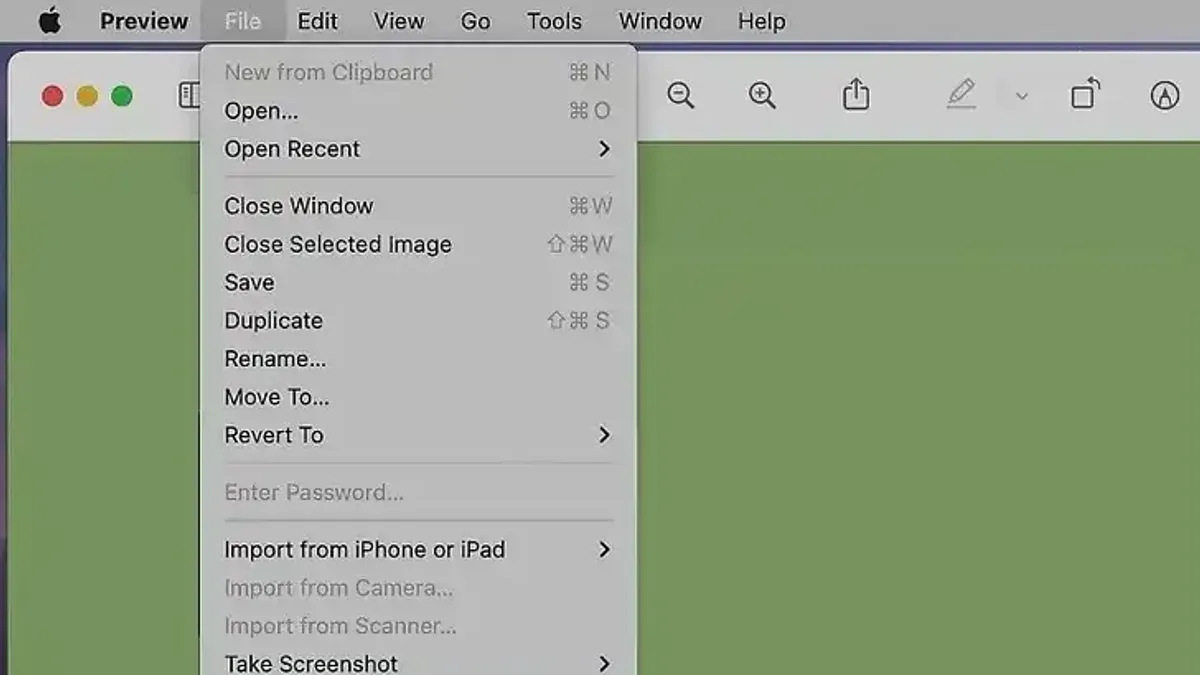
Preview is the simplest built-in application on Mac for viewing.EPS files without installing additional software. It allows you to quickly check the contents of a file, though it does not support advanced editing or full rendering of complex elements.
- Locate the.EPS file in Finder. Right-click (or Control-click) the file.
- From the context menu, select "Open With" and then choose "Preview." The file should open in a new Preview window displaying the artwork.
- Check the rendering of the image. You should see the vector graphic, but some transparency effects or gradients may appear flattened or missing.
- If the file does not open directly, launch Preview first, then select "File" > "Open" from the menu bar and navigate to your.EPS file.
Preview handles simple.EPS files well but may struggle with complex transparency or layered effects, displaying them as flattened images. If you notice missing details or incorrect colors, this is a limitation of Preview’s rendering engine.
For better transparency support, consider opening the.EPS file in a dedicated graphic editor. However, Preview remains a quick option for straightforward viewing and basic inspection.
For example, opening a simple logo.EPS file in Preview clearly shows the shapes and colors, but a complex illustration with drop shadows or blend modes will lose some visual fidelity.
How to open.EPS file on Mac with Adobe Illustrator
Adobe Illustrator is the industry-standard vector graphics editor widely used by graphic designers to open, edit, and export.EPS files with full fidelity. It supports advanced features like layers, transparency, and gradients that simpler viewers cannot handle.
- Launch Adobe Illustrator on your Mac. You should see the welcome screen or a blank canvas.
- From the top menu, click File > Open....
- Navigate to the folder containing your.EPS file, select it, and click Open. Illustrator will import the file, rendering all vector elements editable.
- Once opened, you can use Illustrator’s extensive toolset to modify shapes, colors, text, and more. Layers and effects will be preserved if present in the.EPS.
- To save your changes, go to File > Save As... and choose your desired format. You can save back as.EPS, AI (Illustrator’s native format), PDF, or export to other formats depending on your needs.
Illustrator offers superior compatibility and editing capabilities for.EPS files compared to free or basic apps, which often only allow viewing or limited edits. However, Illustrator requires a subscription, though Adobe provides a free trial period so you can test its features before committing.
For professional use or extensive editing, Illustrator remains the most reliable and versatile option on Mac.
How to open.EPS file on Mac using free or alternative apps
If you don’t have Adobe Illustrator, several free or lower-cost apps can help you open and edit.EPS files on your Mac. These alternatives vary in ease of use, feature depth, and reliability.
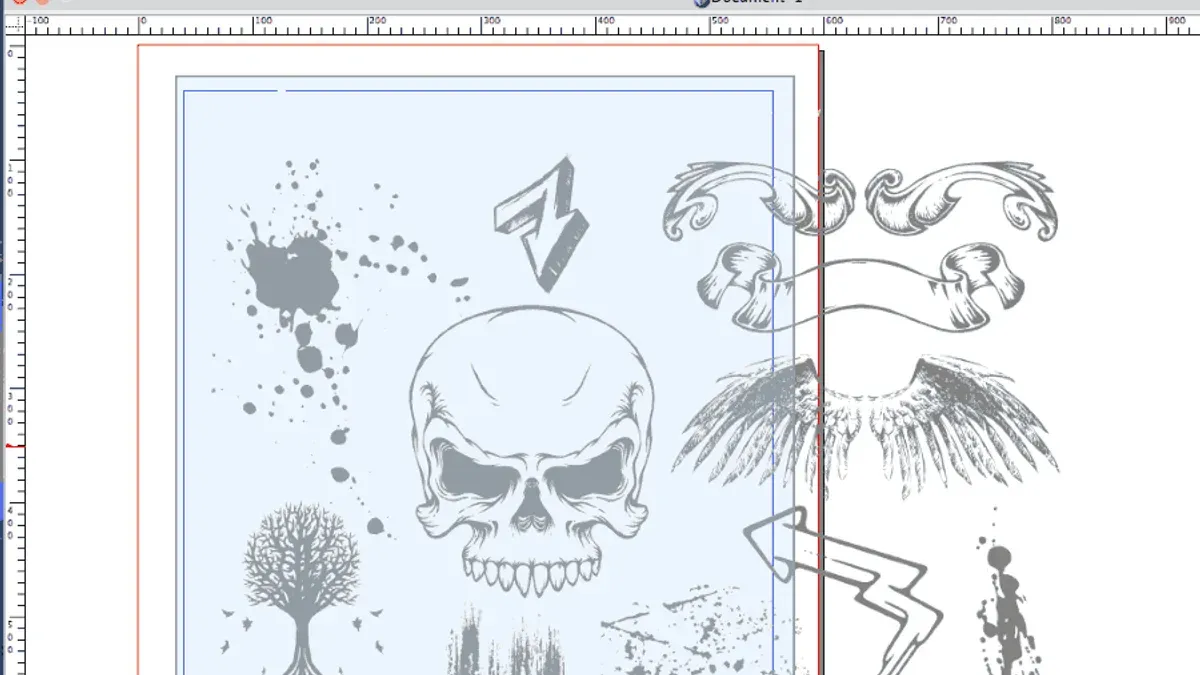
Using Vectornator for free vector editing
Vectornator is a free, user-friendly vector graphic design app available on the Mac App Store. It supports importing.EPS files with reasonable accuracy, making it suitable for casual editing and design tasks.
- Download and install Vectornator from the Mac App Store.
- Open Vectornator and select File > Import from the menu.
- Locate and select your.EPS file; it will appear on the canvas if successfully imported.
Vectornator excels at basic edits but may struggle with complex.EPS features like advanced gradients or clipping masks.
Opening.EPS files with Inkscape on Mac
Inkscape is a free, open-source vector editor recognized for strong.EPS support. Installation requires downloading the Mac DMG or using Homebrew, and it may need XQuartz installed for proper functionality.
- Download Inkscape from the official site or use Homebrew (brew install --cask inkscape).
- If prompted, install XQuartz to enable graphic display.
- Launch Inkscape, then choose File > Open to select your.EPS file.
- The file will load in Inkscape’s editor, allowing detailed modifications.
Users report Inkscape handles complex.EPS files better than many free apps but note that the interface can be less intuitive for beginners.
Using online converters and viewers safely
Online tools can convert.EPS files to more accessible formats like SVG or PDF without installing software. Sites like CloudConvert or Convertio are popular options.
- Visit a reputable online converter website.
- Upload your.EPS file using the provided interface.
- Select your desired output format (e.g., SVG, PDF).
- Download the converted file and open it with your preferred app.
Online tools are convenient for occasional use but raise privacy concerns for sensitive files and depend on internet speed.
Overall, free alternatives like Vectornator and Inkscape offer valuable editing capabilities with some limitations, while online converters provide quick format changes but less interactivity. Choosing the best option depends on your editing needs, file complexity, and comfort with software installation.
How to open.EPS file on MacBook and macOS using command line tools
For advanced users comfortable with the terminal, command line tools offer a fast and scriptable way to convert or preview.EPS files. Ghostscript is the primary utility used to handle.EPS files through commands.
First, install Ghostscript via Homebrew if not already present. Open Terminal and run:
brew install ghostscript– This installs Ghostscript; successful installation displays completion messages without errors.
To convert an.EPS file to PDF, use:
gs -dBATCH -dNOPAUSE -sDEVICE=pdfwrite -sOutputFile=output.pdf input.eps– This creates output.pdf in the current directory. The command completes quickly, usually within a second for small files.
To convert to PNG for raster preview:
gs -dBATCH -dNOPAUSE -sDEVICE=pngalpha -r144 -sOutputFile=output.png input.eps– Produces a 144 DPI PNG image named output.png. Conversion speed varies with image complexity but is generally under a few seconds.
Command line use is ideal when you need batch processing or automation beyond what graphical apps offer. It avoids GUI overhead but requires familiarity with terminal commands and parameters. Unlike Preview or Illustrator, command line tools do not provide interactive editing but excel in rapid format conversion and scripting workflows.
Typical output in Terminal after conversion ends with:
GPL Ghostscript X.XX (date)
Processing pages 1 through 1.
Page 1
Processing done.
Quitting.
Using these commands, you can efficiently integrate.EPS file handling into automated pipelines or advanced workflows on MacBook and macOS.
How to open.EPS file on PC and Windows alternatives
If you need to open.EPS files on a Windows PC, several options mirror or complement Mac tools. Adobe Illustrator remains the professional standard, offering robust editing and exporting features identical to its Mac version. For simpler viewing and conversion, IrfanView is a lightweight choice that supports.EPS files when combined with Ghostscript, enabling quick previews and basic format changes.
Windows tools differ from Mac counterparts primarily in interface and integration; for example, IrfanView is not available on Mac, while Preview is Mac-exclusive. Adobe Illustrator's cross-platform consistency makes it ideal for users working on both systems.
When transferring.EPS files between Mac and PC, ensure the files are saved in a compatible format and version to avoid corruption. Using cloud storage or USB drives is common, but double-check file integrity after transfer.
| Software | Platform | Functionality | Cost |
|---|---|---|---|
| Adobe Illustrator | Mac, Windows | Full editing and exporting | Subscription-based |
| Preview | Mac only | Simple viewing | Free |
| IrfanView + Ghostscript | Windows only | Viewing and basic conversion | Free |
| Inkscape | Mac, Windows | Editing, free alternative | Free |
How to use.EPS files after opening them on Mac
Once you open a.EPS file on your Mac, you can edit the vector elements or rasterize the image depending on your software. Editing preserves the scalability and quality of the graphic, while rasterizing converts it to a fixed pixel-based image suitable for web use or simpler applications.
Exporting.EPS files to other formats is common for compatibility and sharing. Most editors let you export to PNG for raster images, PDF for print-ready documents, and SVG for web-friendly vector graphics. For example, exporting a detailed.EPS file to PNG at 300 DPI results in a high-quality image but larger file size, whereas SVG exports retain sharpness with smaller file sizes but may not support complex effects.
You can incorporate.EPS files into design and publishing workflows by importing them into layout software like Adobe InDesign or Affinity Publisher. The vector nature of.EPS keeps graphics crisp in print and digital media. However, some modern workflows prefer PDF or SVG formats due to broader support and better handling of transparency and effects.
Keep in mind that.EPS files have limitations such as lack of native support for transparency and complex effects, which newer formats handle better. When working extensively with.EPS files, consider converting them to more versatile formats based on your project needs.
Troubleshooting common problems opening.EPS files on Mac
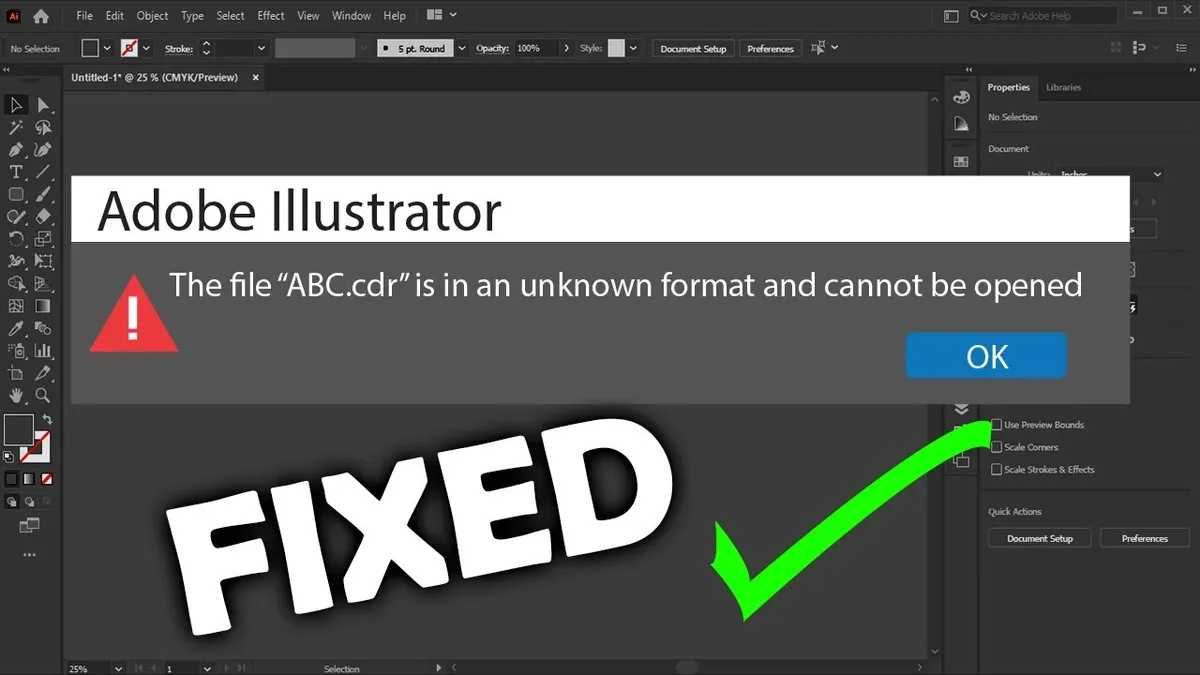
If your.EPS file won’t open or displays error messages like “Could not complete your request because the file is damaged” or “Unsupported file format,” start by verifying the file integrity. Files can become corrupted during download or transfer.
- Try opening the.EPS file with another application such as Preview or Vectornator to determine if the issue is app-specific. Successful opening here suggests the original app may have compatibility limitations.
- If the file remains unopenable, re-download or obtain a fresh copy from the source to rule out corruption. You should see the file open without errors in your chosen app.
- For broken or partially corrupted files, use online repair tools or convert the.EPS to PDF via Ghostscript on the command line to recover usable content. Successful conversion indicates recoverable data.
Color profile and font issues are common in.EPS files, causing distorted appearance or missing text. If you encounter warnings about missing fonts or color mismatches, install the required fonts or adjust color settings in your editing software.
Finally, if persistent errors or graphical glitches occur, consider requesting the file in an alternative format like SVG or PDF from the sender. Professional graphic designers or support forums can assist with complex.EPS issues beyond basic troubleshooting.
- How to Open a.PSD File on Mac: Step-by-Step Methods
- How to Open.dxf Files on Mac: Step-by-Step Methods and Tips
- How to Open.dwg Files on Mac: Step-by-Step Guide
- How to Open.pub Files on Mac: Step-by-Step Solutions
Frequently asked questions
How to open eps file on pc?
To open an EPS file on a PC, you can use applications like Adobe Illustrator or CorelDRAW, which fully support EPS formats. For basic viewing, free programs like IrfanView with the Ghostscript plugin or online converters can display EPS content. Windows Photo Viewer does not natively support EPS files, so dedicated software or plugins are necessary.
How to open eps file on mac?
On a Mac, you can open EPS files with Preview by simply double-clicking the file, which provides a quick view. For editing or more advanced use, Adobe Illustrator is the standard choice. Additionally, free apps like GIMP or Inkscape can open and edit EPS files, offering alternatives if you don't have Adobe software.
How to open.eps file on windows?
Windows users can open.EPS files using vector graphic editors such as Adobe Illustrator or CorelDRAW. For viewing without editing, installing the Ghostscript interpreter enables software like IrfanView to display EPS images. Alternatively, converting EPS files to PDF or SVG using online tools can help if you lack native support.
What programs can open.eps files?
Programs that open.EPS files include Adobe Illustrator, CorelDRAW, Inkscape, and GIMP for both viewing and editing. Preview on Mac can display EPS files for viewing, but not editing. Some raster image editors and viewers require additional plugins or converters to handle EPS formats properly.
How to open eps file on macbook?
To open an EPS file on a MacBook, double-click it to open with Preview for quick viewing. For editing, use Adobe Illustrator or free alternatives like Inkscape. Ensure you have the necessary software installed, as macOS doesn't include native editing tools for EPS beyond Preview's basic display.
What this advice does not cover and who should consider other options
This article does not cover creating.EPS files from scratch or advanced vector graphic design techniques, which require dedicated professional training and specialized software like Adobe Illustrator or CorelDRAW. If you need to produce high-quality vector artwork or perform complex editing tasks, relying solely on basic viewers or free apps may not meet your requirements.
For users focused on professional design work or commercial printing preparation, investing time in learning professional vector design tools and workflows is essential. Similarly, those needing batch processing of multiple.EPS files or integration into larger graphic projects should look beyond simple viewing and editing methods.
The single most useful next step is to choose the method that fits your current needs and software availability, then try opening your.EPS file following the detailed steps in this article. If your needs grow, consider upgrading to a professional vector editor to access comprehensive editing and creation capabilities.



