
How to Open.sketch Files on Mac: Step-by-Step Methods
Discover step-by-step methods to open.sketch files on Mac using the Sketch app and alternative tools for smooth design access.

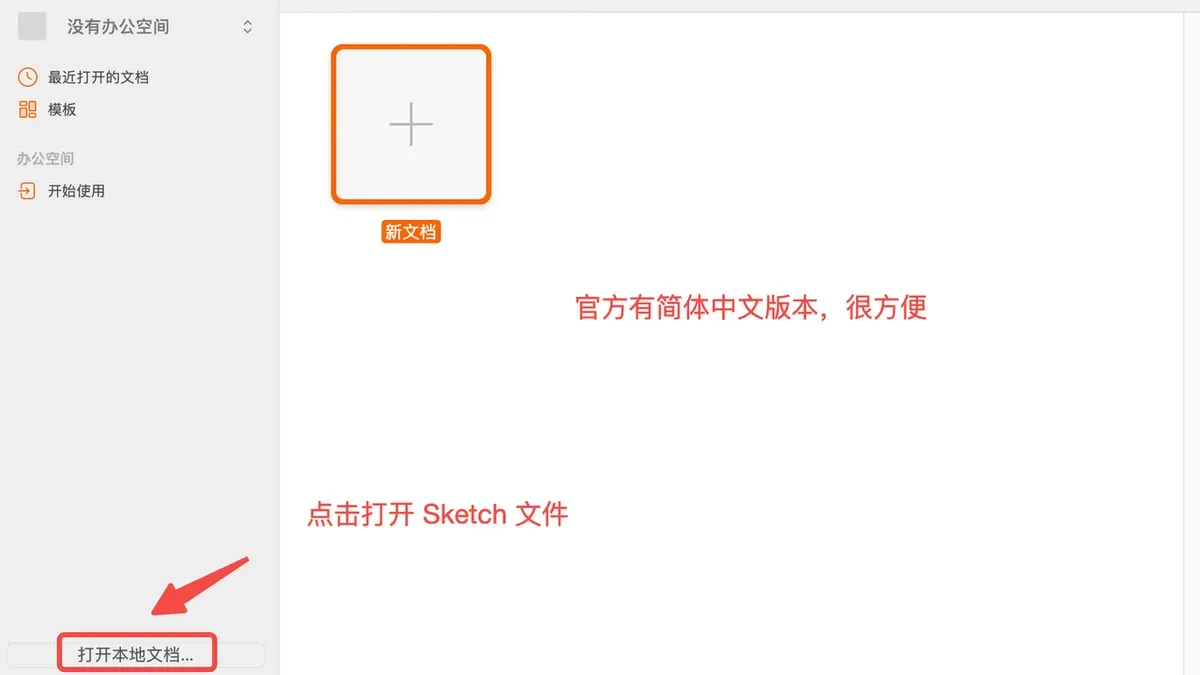
You have received a.sketch file from a collaborator or downloaded one from a design resource site, but you’re unsure how to open it on your Mac. Maybe you don’t have the Sketch app installed, or you need to work on a Windows PC instead. Understanding how to open.sketch file on Mac can be straightforward once you know the available options.
This article explains step-by-step methods for opening.sketch files on Mac using the native Sketch app, alternative software solutions, and workflows for Windows users. You will also learn how to convert.sketch files for other design tools and troubleshoot common issues. Additionally, the guide covers related file types like SketchUp, Draw.io, and IMG files, while offering tips to enhance your Sketch Mac Pro workflow with open-source software.
Key takeaways
- The Sketch app on Mac is the primary and most reliable tool to open.sketch files.
- Alternative Mac apps and online converters enable opening or exporting.sketch files without Sketch installed.
- Windows users can access.sketch content by converting files to compatible formats like SVG or PDF.
- Common issues include file version mismatches and corrupted files, solvable via updates or recovery tools.
- Related file types require different apps, such as SketchUp for.skp and Draw.io for.drawio files.
Before you start: What you need to open.sketch files on Mac
The.sketch file format is native to the Sketch app, a vector graphics editor designed exclusively for macOS. To open.sketch files, you need a Mac computer running a compatible version of macOS that supports the Sketch app. According to Sketch's official system requirements, macOS versions from Mojave (10.14) onward generally work with recent Sketch releases, though checking the exact app version compatibility is advised.
Before attempting to open a.sketch file, ensure you have the Sketch app installed or consider alternative applications capable of reading these files. Typical.sketch file sizes vary from a few megabytes to several hundred megabytes, depending on content complexity, so adequate disk space and memory are recommended for smooth operation.
It is important to distinguish.sketch files from other similarly named formats such as SketchUp (.skp) or Draw.io files, which require different software to open. The.sketch extension exclusively refers to files created by the Sketch vector design tool.
- Confirm your Mac is running a supported macOS version (usually 10.14 or newer). You can check this by clicking the Apple menu and selecting "About This Mac." A window will display your current macOS version.
- Verify you have the Sketch app installed by locating it in the Applications folder or searching with Spotlight (Command + Space). If installed, launching it will open the app window.
- Locate the.sketch file you want to open on your Mac. The file should have a ".sketch" extension visible in Finder.
- Double-click the.sketch file. If Sketch is installed correctly, the file should open in the app window without error.
- If the file does not open, ensure your Sketch app is updated to the latest version by opening Sketch and navigating to the "Sketch" menu, then selecting "Check for Updates." Installing updates can resolve incompatibility issues.
How to open a.sketch file using the native Sketch app on Mac
The most straightforward method to open a.sketch file on Mac is by using the official Sketch app, designed specifically for this file format. You can download Sketch from the official website at www.sketch.com. The app requires macOS 10.15 or later and offers a free trial before purchase.
- Download the Sketch installer from the Sketch website. Once downloaded, open the.dmg file to mount the installer.You should see a window with the Sketch app icon and an Applications folder shortcut.
- Drag the Sketch app icon into the Applications folder to install it.After copying, you will have Sketch available in your Applications folder.
- Open the Sketch app from your Applications folder or Launchpad.The welcome screen appears, offering options to create a new document or open existing files.
- Choose File > Open from the menu bar or press Command+O, then navigate to the location of your.sketch file.Select the file and click Open; the file will load in the Sketch interface.
- Once opened, review the file's layers and artboards in the sidebar to verify its integrity and content.Check for any missing fonts or linked resources indicated by warnings.
If the file does not open, it may be due to version incompatibility. Sketch files created in newer versions of the app may not open with older versions. In such cases, updating Sketch to the latest version via the Sketch website or Mac App Store is necessary.
Sketch release notes provide compatibility information that can help identify if your app version supports the file format used in your.sketch file.
How to open.sketch files on Mac without the Sketch app
If you cannot or prefer not to install the Sketch app, several alternatives exist for opening.sketch files on Mac, though they usually offer limited editing capabilities compared to Sketch.
Third-party apps like Lunacy, Figma, and Photopea support.sketch file viewing and basic editing. Lunacy, a free app by Icons8, lets you open and edit.sketch files natively on Mac. Figma is a cloud-based design tool that can import.sketch files for online editing with collaboration features. Photopea is a browser-based editor that opens.sketch files as layered images, suitable for quick edits.
Another option is converting.sketch files to PDFs or images using online converters or desktop tools. These conversions allow you to preview designs without Sketch but usually flatten layers and limit further editing.
Here is a comparison of popular alternatives:
| App/Tool | Supports Opening.sketch | Editing Features | Offline/Online | Limitations |
|---|---|---|---|---|
| Lunacy | Yes | Basic to moderate editing | Offline | Not as feature-rich as Sketch |
| Figma | Yes | Advanced cloud-based editing | Online | Requires internet, account |
| Photopea | Yes | Image layer edits only | Online | Limited vector editing |
| Online converters | Yes (via upload) | None, just viewing | Online | Potential privacy risks, quality loss |
To open a.sketch file using Lunacy:
- Download and install Lunacy from icons8.com/lunacy. The app is free and supports macOS.
- Launch Lunacy, then click File > Open and select your.sketch file. The file will load with editable layers visible.
- Make your desired edits or export assets using File > Export. You should see your design render correctly, with most layers intact.
Keep in mind that alternative apps often lack the full range of Sketch’s native features, such as advanced prototyping or certain plugins. For simple viewing or minor edits, these options are practical, but for complex work, the Sketch app remains superior.
How to open Sketch files on Windows and PC
Sketch is exclusively developed for macOS, meaning Windows users cannot run the native Sketch app. This exclusivity limits direct access to.sketch files on Windows but several alternatives bridge the gap.
Lunacy is a free native Windows app designed to open, edit, and export.sketch files. It supports most Sketch features including vector editing, symbols, and prototyping, making it a practical choice for Windows users. User reviews highlight Lunacy’s fast performance and frequent updates, though some advanced Sketch plugins may not be supported.
Figma
For compatibility with other Windows design apps, converting.sketch files is common. Exporting.sketch files to SVG, PDF, or PNG via Lunacy or online converters allows use in software like Adobe Illustrator or Photoshop. This method works well for static assets but loses layer and vector editability.
- Download and install Lunacy from icons8.com/lunacy. Open Lunacy and load your.sketch file, which should display your design with editable layers.
- Alternatively, visit figma.com, create an account, and use the import feature to upload your.sketch file. The design will appear on your Figma canvas for editing.
- If you require other formats, open your.sketch file in Lunacy and choose File > Export to save as SVG, PDF, or PNG. Open these files in your preferred Windows app.
Despite these options, Windows users face limitations such as occasional feature loss on import and lack of full parity with Sketch’s macOS capabilities. Choosing between Lunacy’s native support and Figma’s cloud platform depends on your workflow needs.
How to convert.sketch files for use in other design or image software
To use.sketch files in applications like Adobe Photoshop or Illustrator, conversion to compatible formats is necessary. The native Sketch app offers several export options that preserve quality and layers where possible.
- Open your.sketch file in the Sketch app. You should see your design ready for export.
- Go to File > Export or select layers/artboards and click Export at the bottom right.
- Choose the desired export format: PNG for raster images, SVG or PDF for vector formats suitable for Adobe Illustrator, or JPEG for photos.
- For Adobe Illustrator, select SVG format. Export the file and then open it in Illustrator. You should see vector paths preserved, although some effects like shadows or complex gradients may rasterize or appear differently.
- For Adobe Photoshop, export as PNG or PDF. Photoshop supports layered PDF files better, but layer fidelity depends on the complexity of the original Sketch file.
- If you need batch conversion, consider third-party tools like Sketch Measure or online converters such as CloudConvert. These can automate format changes but may reduce layer information.
- When preserving layers is critical, avoid exporting to flat formats like PNG or JPEG. Instead, use SVG or PDF and verify compatibility in your target software.
- Adobe Photoshop Sketch, a mobile app, is limited in opening.sketch files directly but can import exported assets. Its compatibility is limited compared to desktop Photoshop.
Overall, exporting to SVG and opening in Illustrator often yields the best balance of editability and fidelity, while Photoshop requires raster or PDF exports with some loss of layer structure.
How to troubleshoot common issues when opening.sketch files on Mac
If a.sketch file won’t open, the cause is often file corruption or an outdated Sketch app version. You might see error messages like “File could not be opened” or “Unsupported file format.” Updating Sketch to the latest version can resolve incompatibility issues.
File corruption can occur due to incomplete downloads or transfer errors. If you suspect corruption, try re-downloading or requesting the file again. Corrupted files may also trigger messages such as “Unexpected end of file.”
macOS security settings can block opening files from unidentified developers or unknown sources. If you get a warning about permissions or blocked files, go to System Preferences > Security & Privacy > General and click “Open Anyway” after selecting the file.
Large or complex.sketch files might cause Sketch to crash or become unresponsive. Splitting the file into smaller components or disabling plugins can help. Also, ensure your Mac has enough free RAM and disk space to handle the file.
Always verify the file’s origin to avoid malware risks. Avoid opening.sketch files from suspicious emails or untrusted websites, as these could contain harmful content.
- Update Sketch to the latest version via the Sketch menu > Check for Updates. You should see a prompt to install if an update is available.
- If the file won’t open, try opening another.sketch file to determine if the problem is file-specific. Successful opening indicates corruption or file-specific issues.
- Check macOS security settings: open System Preferences > Security & Privacy > General and confirm if the app or file is blocked; click “Open Anyway” if prompted.
- For large files, close other applications to free system resources and try reopening. Success means system resource limits were the cause.
- Scan the file with antivirus software if you suspect malware. A clean scan confirms the file is safe.
How to open related file types on Mac: SketchUp, Draw.io, and IMG files
Files with extensions like .skp, .drawio, and .img are often confused with.sketch files but differ significantly in format and usage. Understanding these distinctions is key to managing your workflow efficiently.
Difference between.sketch and SketchUp (.skp) files
.sketch files are vector design files native to the Sketch app, primarily for UI and graphic design. In contrast, .skp files belong to SketchUp, a 3D modeling software used for architectural and product design.
To open.skp files on Mac:
- Download and install the SketchUp Pro or use the free SketchUp Viewer from the SketchUp website.
- Launch the SketchUp app and select File > Open.
- Navigate to your.skp file and open it.
- You should see the 3D model rendered interactively.
Opening Draw.io files on Mac
Draw.io files usually have extensions like .drawio or .xml and store diagram data.
- Download the Draw.io desktop app from the official website or open the web version in a browser.
- In the app or web interface, select File > Open and locate your Draw.io file.
- The diagram should load fully editable.
Opening IMG files on Mac
IMG files are disk image files, not design files, and are unrelated to.sketch files.
- Locate the.img file in Finder.
- Double-click the file to mount it as a virtual disk on your desktop or in Finder's sidebar.
- Open the mounted disk to access its contents like any folder.
These distinctions matter because attempting to open these files with the wrong software can cause errors or confusion, slowing down your workflow. Knowing the correct applications and procedures ensures you open and edit files efficiently without risking data corruption.
How to enhance your Sketch Mac Pro workflow and use open source sketch software
To optimize your Sketch Mac Pro workflow, focus on streamlining file organization and enabling real-time collaboration. Use Sketch’s built-in Libraries feature to manage reusable assets, accessed via the Window > Libraries menu. This helps maintain consistency and speeds up your design process. Enable Cloud documents to sync changes automatically, visible through the File > Save to Cloud option, facilitating seamless teamwork.
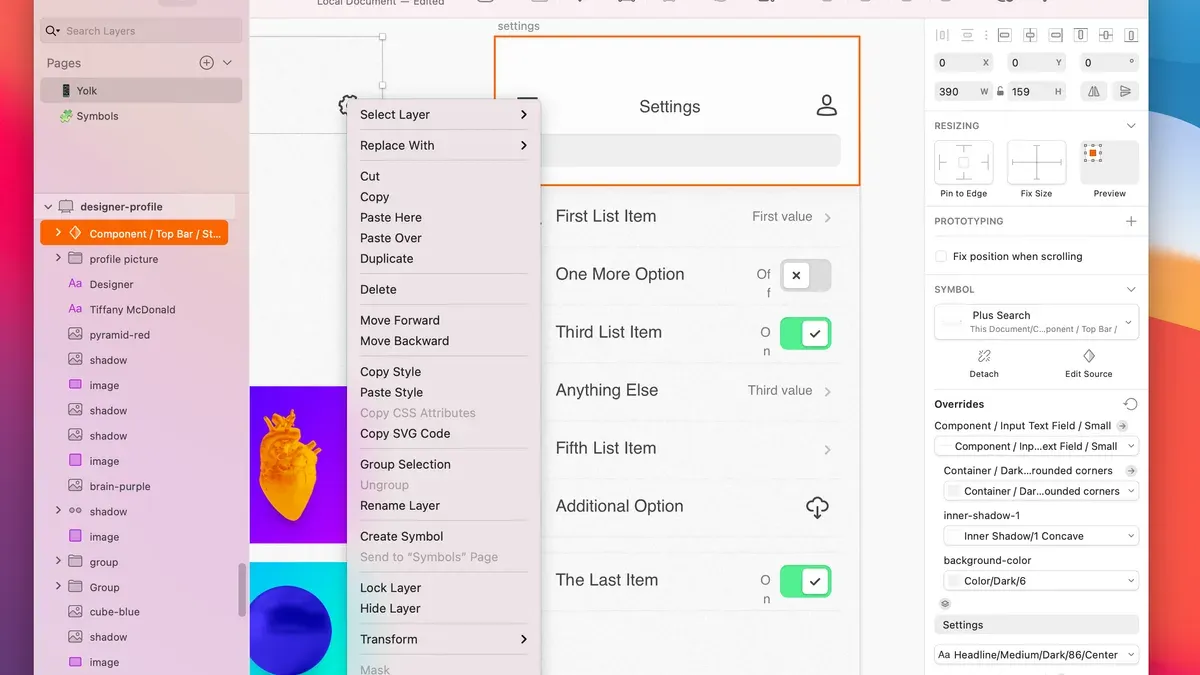
Popular open source sketch software compatible with Mac includes Penpot and Inkscape. Penpot offers vector design and prototyping with collaborative features, while Inkscape excels in detailed vector editing but lacks native Sketch file support. These tools provide cost-effective alternatives for users who prioritize open source solutions.
Integrate Sketch with other design tools by exporting assets in SVG or PDF formats. Use plugins like Sketch2React to bridge Sketch with web development workflows. For collaboration, tools like Figma can import Sketch files, allowing cross-platform editing.
Consider open source options when budget constraints exist or when you require platform independence and customization. Commercial Sketch software remains preferable for advanced features, extensive plugin ecosystems, and tighter macOS integration.
User feedback highlights faster project turnaround when using Sketch Libraries and Cloud syncing, while open source tools are valued for flexibility despite occasional format limitations.
- How to Open.indd Files on Mac: Step-by-Step Methods
- How to Open.cdr Files on Mac: Step-by-Step Methods
- How to Open.EPS Files on Mac: Step-by-Step Methods
- How to Open a.PSD File on Mac: Step-by-Step Methods
Frequently asked questions
How to open a sketch file?
To open a.sketch file on a Mac, the most straightforward method is to use the Sketch app, which is designed specifically for this format. Simply double-click the file or open it from the Sketch app's File menu. If you don’t have Sketch, you can use third-party viewers or convert the file to compatible formats like PDF or SVG for basic viewing or editing.
How to open sketch file in windows?
Windows does not natively support.sketch files. To open them, you can use online converters to transform the file into formats such as PNG or SVG, or use third-party apps like Lunacy, which is free and supports.sketch files on Windows. Alternatively, exporting the file from Sketch on a Mac into a more universal format before transferring it to Windows is another option.
How to sketch on windows?
To create or edit Sketch-style designs on Windows, you can use alternatives like Lunacy or Figma. Lunacy supports.sketch files and offers a similar interface to Sketch. Figma is a browser-based design tool that works well on Windows and supports importing Sketch files for collaborative work.
What is a sketch file?
A.sketch file is a vector graphic design file created by the Sketch app, mainly used for UI, UX, and web design projects. It stores layers, symbols, artboards, and other design elements in a proprietary format optimized for Mac environments and collaborative design workflows.
How to sketch a apple?
To sketch an apple, start by drawing a rounded shape for the body, slightly wider at the bottom. Add a small indentation at the top for the stem, then sketch the stem itself as a short, curved line. Use shading or color gradients to give it depth and highlight its roundness.
What this advice does not cover
This article does not cover professional-level file repair for severely corrupted.sketch files or advanced plugin usage within the Sketch app. If your.sketch files are heavily damaged or you require complex automation or plugin integration, consider consulting specialized services or the Sketch developer community for expert assistance.
For straightforward opening, editing, and converting of.sketch files on Mac and other platforms, the methods outlined here provide practical and accessible options.
The most useful next step is to install the native Sketch app from the official website if you have a Mac, as it offers the most complete and reliable support for.sketch files. If you do not have Sketch, explore alternative tools like Lunacy or Figma for cross-platform compatibility and basic editing needs.



