
How to Open.webp Files on Mac: Practical Step-by-Step Methods
Discover practical methods to open.webp files on Mac using Preview, Safari, third-party apps, and online converters.

You receive a.webp image file but aren’t sure how to open it on your Mac. The file doesn’t open with a double-click as expected, leaving you wondering what to do next.
This article explains how to open.webp file on Mac using built-in tools like Preview and Safari, as well as third-party apps and online services. You’ll learn step-by-step methods tailored to different technical comfort levels and needs, including viewing, converting, and creating.webp files.
Key takeaways
- Use Safari or Preview to view.webp files without extra software.
- Third-party apps like XnView MP offer extended support and batch operations.
- Online converters provide quick format changes without installing apps.
- Understanding browser compatibility helps when dealing with.webp images on the web.
- Simple troubleshooting tips resolve common issues opening.webp files.
Before you start: What you need to open.webp files on Mac
.webp is an image format developed for efficient web use, combining lossy and lossless compression. Although widely supported in browsers,.webp files may not open by default on all Mac apps because native support depends on your macOS version and software.
On Mac, Preview and Safari provide native options to open.webp files, but their compatibility varies. Preview started supporting.webp images in macOS Big Sur and later, while Safari has supported displaying.webp files for several versions. If your macOS version predates Big Sur, you may need third-party software or online converters.
Third-party apps such as XnView MP, GIMP, and GraphicConverter offer.webp viewing and editing capabilities. They have generally positive user ratings for ease of use and functionality, providing alternatives if native tools fall short. Online converters and viewers can also open and convert.webp files without installing software, although they require an internet connection and may have file size limits.
Hardware requirements are minimal since.webp is a lightweight image format. However, ensuring your Mac runs at least macOS Big Sur (11) or later improves native compatibility and security.
| macOS Version | Preview.webp Support | Safari.webp Support |
|---|---|---|
| macOS Monterey and later | Yes | Yes |
| macOS Big Sur (11) to Monterey | Yes | Yes |
| macOS Catalina (10.15) and earlier | No | Limited or No |
Popular third-party apps for.webp on Mac include:
- XnView MP — versatile image viewer, user rating generally high for format support.
- GIMP — free image editor supporting.webp, rated well for editing features.
- GraphicConverter — feature-rich, supports many formats including.webp, favored for batch processing.
How to open.webp files on Mac using Preview and Safari
macOS supports opening.webp files natively through Preview and Safari, providing quick access without extra software. However, these methods are best suited for viewing individual files, as they offer limited editing and no batch processing.
Opening.webp files in Preview
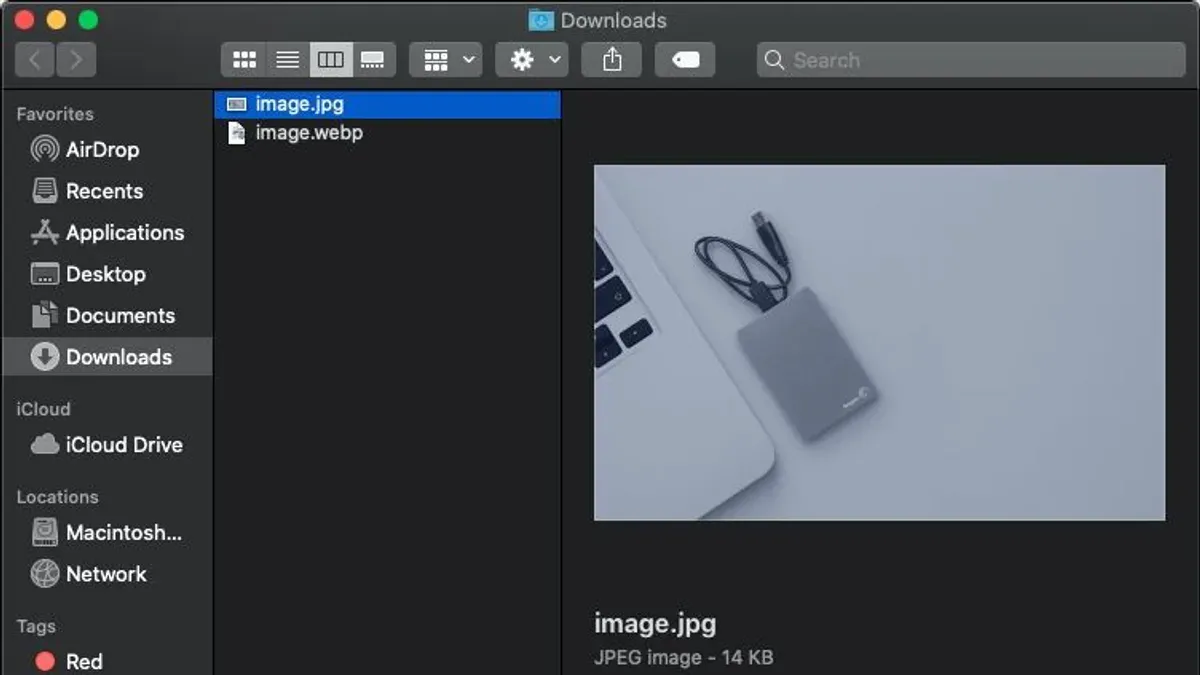
- Locate the.webp file in Finder. When you double-click it, Preview should open the image automatically if your Mac runs macOS Big Sur or later.
- If the file doesn’t open in Preview by default, right-click the file, select Open With, then choose Preview. The image will display with zoom and basic navigation controls.
- Once opened, you can view the image clearly but note that Preview does not support editing.webp files directly beyond basic annotations.
Preview displays.webp files crisply and loads them quickly, but it doesn’t allow format conversion or batch handling.
Opening and saving.webp files using Safari
- Open Safari and drag the.webp file into the browser window or use File > Open File to select the.webp file.
- The image will render in the browser, allowing you to view it at full resolution.
- To save it in a different format, right-click the image and select Save Image As... to save it as a.webp file. Safari itself does not convert formats, so you’ll need other tools for that.
Safari provides smooth rendering and is useful for quick viewing, but it lacks editing and conversion features. Both Preview and Safari handle single files well but do not support batch operations or advanced image manipulation.
How to open.webp files on Mac with third-party apps
If you need more than viewing—such as batch processing, editing, or converting multiple.webp files—third-party apps can provide these capabilities. Here are some popular options, both free and paid, that support.webp files on Mac.
| App | Cost | Key Features | Pros | Cons |
|---|---|---|---|---|
| XnView MP | Free | Batch conversion, viewing, basic editing | User-friendly interface, supports many formats, batch processing | Limited advanced editing tools |
| GIMP | Free | Advanced editing, supports.webp, layers, and filters | Powerful editing tools, open-source | Steeper learning curve, interface can be complex |
| Adobe Photoshop | Paid (subscription) | Professional editing, batch automation, plugins support | Industry standard, extensive features, reliable updates | Costly, resource-heavy |
To open.webp files with XnView MP:
- Download XnView MP from the official website and install it. When installed, launch the app and navigate to the folder containing your.webp files. You should see thumbnails of your images.
- Double-click any.webp file to open it in the viewer. Use the toolbar for zooming or simple edits. Successful opening displays the image clearly.
- For batch conversion, select multiple.webp files (Cmd+click or Shift+click), then choose Tools > Batch Convert. Select your desired output format and destination folder, then click Start.
For GIMP, after installation, open the app and use File > Open to select your.webp image. You can then use layers and filters for editing. Save or export your work to other formats if needed.
Photoshop users can open.webp files directly via File > Open. The app supports advanced editing and batch scripts for repetitive tasks, ideal for professional use. However, Photoshop requires a subscription and more system resources.
User reviews highlight XnView MP as excellent for batch tasks without cost, GIMP as powerful but with a learning curve, and Photoshop as feature-rich but expensive. Choosing the right app depends on your editing needs, budget, and comfort with software complexity.
How to convert.webp files to other formats on Mac
If you need to use.webp files in software that doesn’t support this format, converting them to JPEG, PNG, or TIFF is a practical solution. macOS’s built-in Preview app offers a straightforward way to convert individual files, while third-party converters and online tools provide more options for batch processing and format variety.
Using Preview to convert.webp files
- Open your.webp file in Preview by double-clicking it or right-clicking and selecting Open With > Preview. You should see the image displayed.
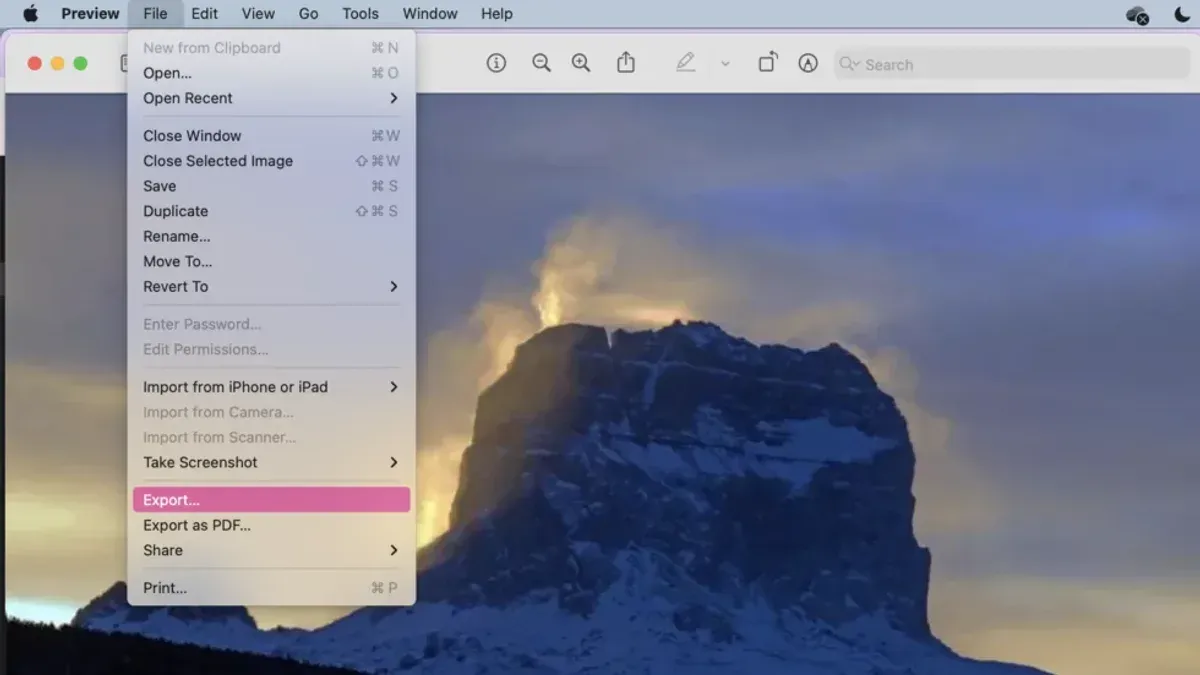
- Go to the menu bar and click File > Export. A dialog will appear with format options.
- Click the Format dropdown and select the desired format, such as JPEG, PNG, or TIFF. Choose JPEG for smaller file size with some quality loss, or PNG for lossless quality but larger files.
- Adjust the Quality slider if available to balance file size and image clarity.
- Choose the destination folder and click Save. The exported file should appear there with the new format extension.
Preview is convenient for single files but does not support batch conversion or advanced settings.
Third-party converters for batch processing
Apps like XnConvert or GraphicConverter let you convert multiple.webp files at once to various formats. These tools offer control over output quality, metadata retention, and resizing. They are ideal if you regularly convert large numbers of images and require automation or consistent settings.
Online converters: quick and easy but with precautions
- Search for reputable online converters that support.webp to your desired format.
- Upload your.webp files following the site’s instructions. Ensure the site uses HTTPS to secure your data.
- Select the output format, such as JPEG or PNG, and start the conversion.
- Download the converted files once ready.
Online tools are convenient for occasional use but uploading sensitive images carries privacy risks. Avoid uploading confidential material and review the site’s privacy policy before use.
File size and quality differences: Converting.webp to JPEG typically reduces file size but introduces compression artifacts. PNG preserves quality but results in larger files. Preview’s export shows file size in the save dialog, helping you gauge the trade-off before saving.
How to open.webp files on Mac in browsers and why it matters
Most modern browsers on Mac support opening.webp files directly, making them convenient tools for viewing these images without additional software. Browsers like Google Chrome, Mozilla Firefox, and Safari can display.webp images seamlessly, which is useful for quickly checking image quality or testing web content.
Chrome and Firefox have long supported.webp, allowing you to open a.webp file by simply dragging it into a browser window or using the File > Open File menu. Safari added full.webp support in macOS Big Sur, so on recent Macs, it handles these images natively as well.
Using a browser to open.webp files is especially helpful when you want to preview images as they would appear on websites or test web design elements. Additionally, browser developer tools provide a way to inspect.webp images embedded on pages, view their properties, and troubleshoot display issues.
- Open your preferred browser (Chrome, Firefox, or Safari).
- Drag the.webp file from Finder into the browser window or select File > Open File and choose your.webp image.
- The image should display fully rendered in the browser tab, confirming support.
- To inspect a.webp image on a website, right-click the image and choose Inspect Element (Chrome/Firefox) or Inspect Element in Safari.
- The developer tools will highlight the image source and allow you to check file type, dimensions, and other details.
While all three browsers support.webp, Chrome and Firefox have more mature development tools for image inspection. Safari’s integration is improving but may offer fewer options. Using browsers for.webp viewing is fast and requires no installation, making it ideal for casual users or web developers testing image assets.
How to create.webp files on Mac
If you want to create.webp images on your Mac for web use or efficient storage, you have several options ranging from built-in tools to command-line utilities and third-party apps.
Using Preview and third-party apps
- Open the image you want to convert in Preview.
- Go to the File menu and select Export.
- In the export dialog, select WebP from the Format dropdown menu.
- Adjust the quality slider to balance image quality and file size; a setting between 75 and 85 often works well for web use.
- Choose your save location and click Save. You should see the new.webp file in the chosen folder.
Third-party apps like Photoshop and GIMP also support exporting images as.webp, often with more advanced options such as lossless compression and metadata controls.
Using command-line tools
For advanced users, Google’s cwebp tool offers fine-grained control over.webp creation. After installing it (for example, via Homebrew with brew install webp), use a command like:
cwebp -q 80 input.jpg -o output.webp
This command compresses input.jpg to output.webp with 80% quality. Running this outputs:
"Input file: input.jpg Output file: output.webp Compression: lossy Quality factor: 80 Done"
This method suits batch processing and scripting workflows, providing consistent results and speed.
Best practices for.webp quality and compression
- For photographs, a quality setting between 75 and 85 balances clarity and file size.
- For graphics with sharp edges or transparency, consider lossless compression to preserve details.
- Test your images visually after conversion to ensure quality meets your needs.
- Remember that higher compression reduces file size but may introduce artifacts; adjust accordingly based on use case.
Troubleshooting common issues opening.webp files on Mac
If Preview cannot open a.webp file, you may see an error like "The file is damaged and cannot be opened." First, confirm the file isn't corrupted by trying to open it in another app or browser. If it opens elsewhere, the issue is likely with Preview or its settings.
Handling corrupted or unsupported.webp files
Corrupted files often cause error messages such as "The file is not recognized." To address this, try downloading or copying the file again. If the problem persists, the file may be damaged beyond repair.
Fixing file association issues
If.webp files don’t open with your preferred app, you might need to reset file associations:
- Right-click a.webp file and select "Get Info." You should see the file's info panel.
- In the "Open with" section, choose your desired app (e.g., Preview, Safari, or a third-party app) from the dropdown menu.
- Click "Change All…" to apply this setting to all.webp files.
- Confirm the prompt by clicking "Continue." The files should now open with the chosen app by default.
When to update or reinstall software
Persistent issues might require updating macOS or the app you use to open.webp files. Check the App Store or System Preferences under "Software Update" for available updates. If updating does not help, reinstalling Preview alternatives or third-party apps can resolve corrupted installations.
For further help, consult Apple’s official support page on Preview issues (https://support.apple.com/preview) or the support resources of your third-party app.
- How to Open.heic Files on Mac: Clear Step-by-Step Methods
- How to Open.EPS Files on Mac: Step-by-Step Methods
- How to Open a.PSD File on Mac: Step-by-Step Methods
- How to Open.sketch Files on Mac: Step-by-Step Methods
Frequently asked questions
How to open webp files on computer?
You can open WebP files on a computer by using browsers like Chrome, Firefox, or Edge that natively support this format. Alternatively, image viewers such as Windows Photos or Preview on Mac can open WebP files, though some older versions may require updates or plugins. Third-party apps like XnView MP or IrfanView also handle WebP files efficiently.
How to use webp files?
WebP files are used primarily for web images because they offer good compression with quality retention. You can use them on websites, in presentations, or for storing images where file size matters. To use them outside web environments, you may need to convert WebP files to JPEG or PNG formats for compatibility with certain programs.
What program opens webp files?
Programs that open WebP files include modern web browsers like Google Chrome and Safari, image viewers such as Preview on Mac, and editing tools like Adobe Photoshop with a plugin. Free apps like XnView MP, GIMP, and IrfanView also support WebP. Choosing a program depends on whether you want to view, edit, or convert the file.
How to open.note files on mac?
.note files are typically associated with specific note-taking apps and are not related to WebP images. To open a.note file on Mac, you need the app that created it, such as Microsoft OneNote or Samsung Notes. If you don’t have the app, try exporting the note from the original device or converting it to a more common format.
How to open webp file on mac?
On a Mac, you can open a WebP file directly in Preview by right-clicking the file, selecting "Open With," and choosing Preview. Safari also supports WebP files, so you can drag the image into a Safari window to view it. For more features, consider third-party apps like XnView MP or online converters if you need to change the format.
What this advice does not cover and who should do something else
This article does not cover professional-level image editing workflows in depth or specialized software beyond general user needs. Some third-party apps mentioned may require payment or have limited free functionality; you should review their terms and privacy policies before use. Additionally, online converters can pose privacy risks if you upload sensitive images, so consider this before proceeding.
If you need advanced image manipulation or batch processing beyond simple viewing and conversion, professional software like Adobe Photoshop or Affinity Photo might be more appropriate. For privacy-critical projects, relying on offline, trusted applications is advisable.
The single most useful next step is to experiment with Preview and Safari for your.webp files, as these built-in tools often provide the simplest way to open and view your images without extra installations. This approach helps you quickly assess whether you need more specialized apps or conversion tools based on your specific workflow.



