
How to Open.heic Files on Mac: Clear Step-by-Step Methods
Discover clear, step-by-step methods to open.heic files on Mac, including native support, third-party tools, and Windows solutions.

You receive a.heic image file from a friend or download photos from a recent iPhone, but your Mac doesn’t open them as expected. This can be frustrating, especially if you’re running an older Mac OS version or need to access the files on a Windows PC.
This article explains how to open.heic file on Mac across a wide range of Mac systems. You’ll find clear, step-by-step methods that cover native options for newer Macs, practical workarounds for older versions like El Capitan, and tips for handling.heic files on Windows when you only have a PC available. We also cover alternative workflows and troubleshooting common issues to help you view and manage your.heic images smoothly.
Key takeaways
- Newer Macs support.heic files natively in Preview and Photos apps without extra steps.
- Older Macs like those running El Capitan require additional software or conversion tools.
- You can open.heic files on Windows PCs using free converters or Microsoft’s HEIF Image Extensions.
- Alternative workflows include converting.heic files to JPEG for broader compatibility.
- Common issues often relate to outdated software or missing codecs, which can usually be resolved with updates or apps.
Before you start: What you need to open.heic files on Mac
.heic files are a modern image format that stores high-quality photos with efficient compression, commonly used by Apple devices and some smartphones. They save storage space while preserving image detail better than traditional JPEG files.
Mac computers running macOS High Sierra and later include native support for.heic files, allowing you to open and view them directly in Preview and Photos apps without additional software. However, Macs with older systems such as El Capitan do not support.heic files natively and require third-party apps or converters to access these images.
If you have.heic files but use a Windows PC, you will also need extra software or codecs to open them, as Windows does not support.heic files out of the box.
| Mac OS Version | Native.heic Support | Requirement on How to Open.heic Files |
|---|---|---|
| macOS High Sierra (10.13) and newer | Yes | Use Preview or Photos apps directly |
| OS X El Capitan (10.11) and older | No | Use third-party apps or convert files before viewing |
- Check your Mac’s OS version: Click the Apple menu and select "About This Mac." The version number appears in the window.
- If your version is High Sierra or newer, proceed to open.heic files natively.
- If older than High Sierra, prepare to use alternative software or convert your files.
- Ensure you have the Preview and Photos apps installed—they come preloaded on compatible macOS versions.
- If you plan to transfer.heic files to a Windows PC, research and install compatible apps or codecs beforehand.
How to open.heic file on Mac with native Preview and Photos apps
If your Mac runs High Sierra or a newer operating system, you can open.heic files directly using the built-in Preview and Photos apps. These apps allow you to view, organize, and even convert.heic images without extra software.
Opening.heic files with Preview
- Locate the.heic file in Finder.
- Double-click the file. It should open automatically in Preview.
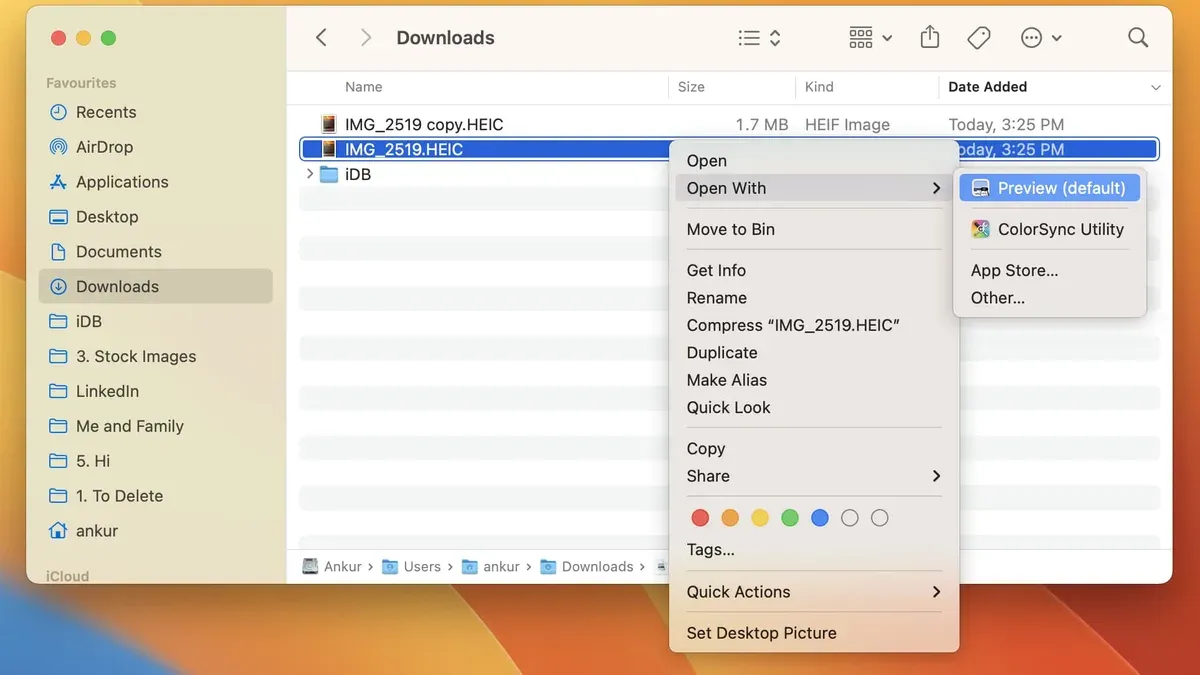
- If Preview is not the default app, right-click the.heic file, select Open With, then choose Preview.
- Once opened, you can view the image and use Preview’s editing tools if needed.
When the file opens in Preview, you should see the image clearly displayed with options like zoom and rotate available.
Importing and converting.heic files in Photos
- Open the Photos app on your Mac.
- Go to File > Import from the menu bar.
- Navigate to the folder containing your.heic files, select one or multiple images, and click Import.
- The images will be added to your Photos library for easy viewing and organization.
- To convert a.heic file to JPEG within Photos, select the image(s), then go to File > Export > Export 1 Photo (or the number of photos selected).
- In the export dialog, set Photo Kind to JPEG, choose your desired quality, and click Export.
- Choose the destination folder for the exported JPEG files.
This process preserves your original.heic files in Photos while creating JPEG copies for compatibility with other devices or software.
How to open.heic file on MacBook Pro and other newer Macs
Recent MacBook Pro models and other newer Macs running supported macOS versions have full native support for.heic files. You can open these files directly without additional software, using familiar methods like double-clicking or drag-and-drop.
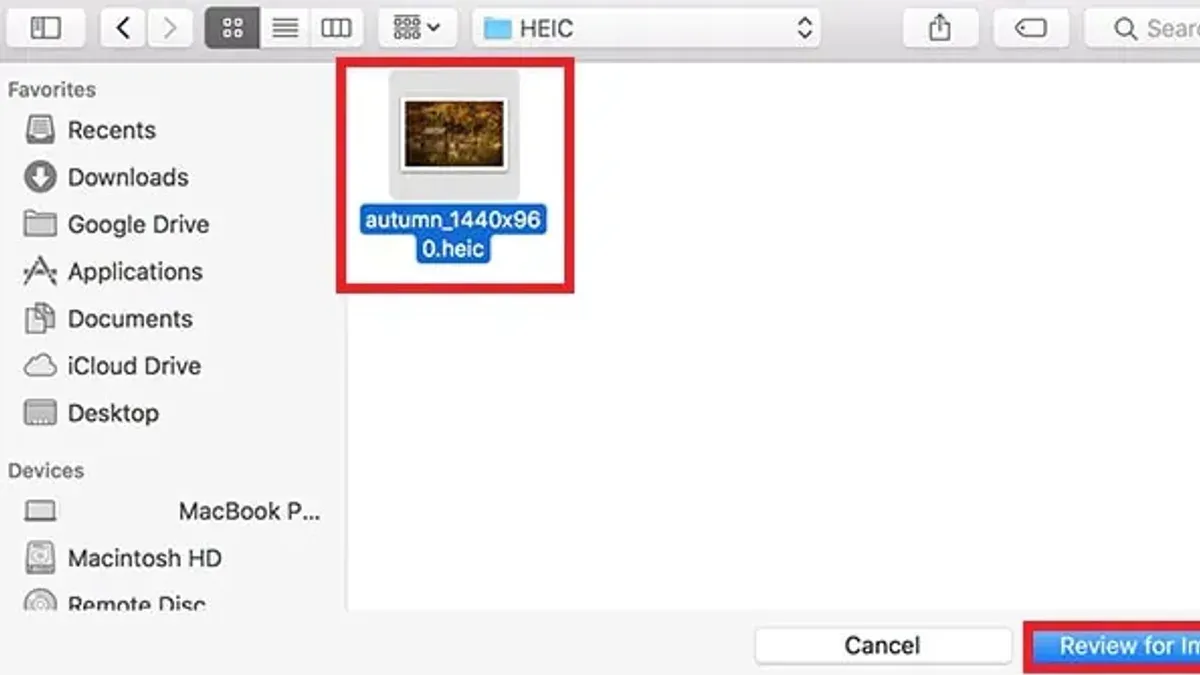
One convenient way to quickly view.heic images is with Quick Look, which lets you preview files without fully opening an app. This method is often faster and less resource-intensive than opening Preview, especially when browsing multiple images.
- Locate the.heic file in Finder. When you do, the file icon displays a thumbnail preview if thumbnails are enabled, confirming the system recognizes the format.
- Double-click the.heic file. This action opens the image in the Preview app by default, showing you the full resolution photo.
- Alternatively, select the file and press the spacebar. This triggers Quick Look to open a preview window. You can view the image instantly and close Quick Look by pressing the spacebar again or clicking outside the window.
- To open multiple.heic files quickly, select several files in Finder and press the spacebar. Quick Look will display them in a slideshow format, allowing fast navigation without launching Preview.
While Preview offers basic editing and exporting options, Quick Look excels in speed and ease for viewing. Choosing between them depends on whether you need to edit or simply glance at the images.
How to open.heic file on Mac El Capitan and other older Macs
Macs running El Capitan or earlier versions do not support.heic files natively because the High Efficiency Image File Format was introduced with macOS High Sierra. To view.heic files on these older systems, you need to rely on third-party applications or online converters.
Using third-party apps to open.heic files
Two widely recommended apps compatible with El Capitan are XnView MP and iMazing HEIC Converter. XnView MP is a versatile image viewer that supports.heic files and many other formats, offering reliable viewing and batch conversion options. iMazing HEIC Converter specializes in converting.heic files to JPEG or PNG with minimal quality loss.
- Download XnView MP from the official website and open the installer.
- Follow the installation prompts; once installed, launch XnView MP.
- Use the File > Open menu to select your.heic files; thumbnails and previews should appear if the app is working correctly.
- To convert.heic files, select the images, then go to Tools > Batch Convert, choose JPEG as the output format, and select a destination folder.
- For iMazing HEIC Converter, download and install the app from its official page.
- Open iMazing HEIC Converter, drag your.heic files into the window, select JPEG or PNG as the output, and click Convert.
Using online converters
If you prefer not to install software, online converters are a practical alternative. Websites like CloudConvert or HEICtoJPEG convert.heic files to more widely supported JPEG format.
- Open your web browser and navigate to a reputable online converter.
- Upload your.heic files through the site’s interface.
- Select JPEG as the output format.
- Start the conversion and wait for the process to finish.
- Download the converted JPEG files to your Mac.
The trade-off with online converters is privacy and file size limits, but they offer a quick solution without installation.
How to open.heic files on Mac if you only have a PC available
If you find yourself needing to open.heic files but only have access to a Windows PC, there are several options to consider. Windows 10 and 11 support.heic files through the HEIF Image Extensions available from the Microsoft Store, which enables native viewing in apps like Photos and File Explorer.
- Open the Microsoft Store app on your Windows PC.
- Search for "HEIF Image Extensions" and install the extension.
- Once installed, double-click a.heic file to open it in the Photos app.
This native support preserves the image quality and metadata better than many converters. However, Windows support lacks some macOS features such as seamless integration with editing apps.
Alternatively, third-party Windows applications like CopyTrans HEIC for Windows or IrfanView can open.heic files. CopyTrans HEIC integrates.heic support directly into Windows Explorer, allowing thumbnail previews and opening in standard image viewers. IrfanView requires an additional plugin but offers batch conversion options.
Online converters are another option if you prefer not to install software. Websites allow uploading.heic files and downloading JPEG or PNG versions. Keep in mind that online conversion might reduce image quality and strip some metadata.
Overall, Windows solutions can effectively open and convert.heic files, but they may not match the quality retention and metadata preservation found on Mac native support.
How to open.heic files on MacBook and older Mac computers: alternative workflows
If native support or third-party apps are not an option, cloud services offer a simple way to view and convert.heic files. Upload your.heic images to iCloud Photos or Google Photos; both platforms automatically generate JPEG previews accessible from any device.
Emailing.heic files to yourself is another straightforward method. When you receive the image in the Mail app, it often converts the file to JPEG format for easier viewing and sharing.
For users handling multiple.heic files, batch conversion using Automator or shell scripts can save time. Automator lets you create a workflow to convert.heic images to JPEG in bulk without additional software.
- Open Automator and select "Application" as the type of your new workflow. You will see a blank workflow window.
- Search for and add the action "Get Specified Finder Items". Click "Add" to include the.heic files you want to convert.
- Add the action "Change Type of Images". Set the output format to JPEG when prompted to add a copy action, choose "Add" to preserve originals.
- Save the workflow application to your desktop or preferred folder.
- Run the saved Automator application by double-clicking it. You should see JPEG versions of your.heic files appear in the same folder as the originals or where specified.
This approach can convert dozens of files in under a minute, depending on your Mac’s speed. Shell scripting with tools like sips or imagemagick provides similar batch processing power for advanced users comfortable with the Terminal.
Troubleshooting common issues opening.heic files on Mac
If a.heic file won’t open, first check if the file is corrupted or mislabeled. A common error message is “The document could not be opened.” Confirm the file extension is.heic and try opening other.heic files to isolate the issue.
If the app crashes or freezes while opening.heic files, update your macOS and related apps like Preview or Photos to the latest available versions. Clearing app caches can also help; for example, to reset Preview’s cache, quit the app, then delete files in ~/Library/Containers/com.apple.Preview/Data/Library/Caches/. Relaunch Preview and check for improved stability.
Poor image rendering or color issues often relate to color profile conflicts. To fix this, open the image in Preview, then go to the menu Tools > Assign Profile and select a standard profile like sRGB IEC61966-2.1. This adjustment usually corrects washed-out colors or unusual tints.
Permission errors such as “You don’t have permission to open the file” require adjusting file and folder permissions. Select the file in Finder, press Command + I to open the Info window, scroll to Sharing & Permissions, and ensure your user account has “Read & Write” access. If not, click the lock icon, authenticate, and modify permissions accordingly.
- Try opening the.heic file; if it fails, verify the extension and test another file to rule out corruption.
- If the app crashes, update macOS and relevant apps, then clear caches by deleting files in ~/Library/Containers/[app_bundle]/Data/Library/Caches/.
- For color problems, open the file in Preview, select Tools > Assign Profile, and choose sRGB IEC61966-2.1.
- If you see permission errors, select the file, press Command + I, adjust permissions under Sharing & Permissions, and ensure your account can read and write.
- How to Open.xd Files on Mac: Clear, Practical Methods
- How to Open.sketch Files on Mac: Step-by-Step Methods
- How to Open.indd Files on Mac: Step-by-Step Methods
- How to Open.dmg Files on Mac: A Clear Step-by-Step Guide
Frequently asked questions
How to open heic file on mac?
You can open HEIC files on Mac using the built-in Preview or Photos apps by simply double-clicking the file. These apps support HEIC natively on macOS High Sierra and later. If your Mac runs an older version, you may need to convert the file or update your software.
How to open heic file on macbook?
On MacBook models running macOS High Sierra or newer, double-clicking the HEIC file opens it in Preview or Photos automatically. If that doesn’t work, right-click the file, select "Open With," and choose Preview. For older macOS versions, converting the file with third-party tools may be necessary.
How to open heic file on mac el capitan?
macOS El Capitan does not natively support HEIC files. To open them, you can convert HEIC images to JPEG using an online converter or a third-party app like iMazing HEIC Converter. Alternatively, transfer the files to a newer Mac or iPhone that supports HEIC.
How to open heic files on macbook pro?
MacBook Pro models running macOS High Sierra and later can open HEIC files directly in Preview or Photos by double-clicking. If your MacBook Pro has an older OS, use third-party conversion tools or update the system software to gain native support.
How to open heic file on older mac?
Older Macs running versions before High Sierra require converting HEIC files to more compatible formats like JPEG. Use free online converters or apps such as iMazing HEIC Converter. Alternatively, transfer HEIC files to a newer device with native support for viewing.
What this advice does not cover and who should do something else
This article does not cover professional photo editing software compatibility with.heic files, which may require additional plugins or software updates specific to each application. Users working with extremely old Mac hardware might encounter performance issues or limited support even when using third-party apps designed to open.heic files.
For the smoothest experience, make sure your Mac system software is updated to a version that supports.heic natively or use reliable third-party converters that suit your hardware capabilities.
The single most useful next step is to verify your Mac’s current operating system version by clicking the Apple menu and selecting "About This Mac," then check if your built-in Photos or Preview apps support.heic files directly. If they do, open your.heic file with those apps first to avoid extra conversion steps.



