How to Manage Plenty of Fish Privacy Settings for Better Control
Discover how to control your Plenty of Fish privacy settings to protect your profile visibility and manage who can interact with you.

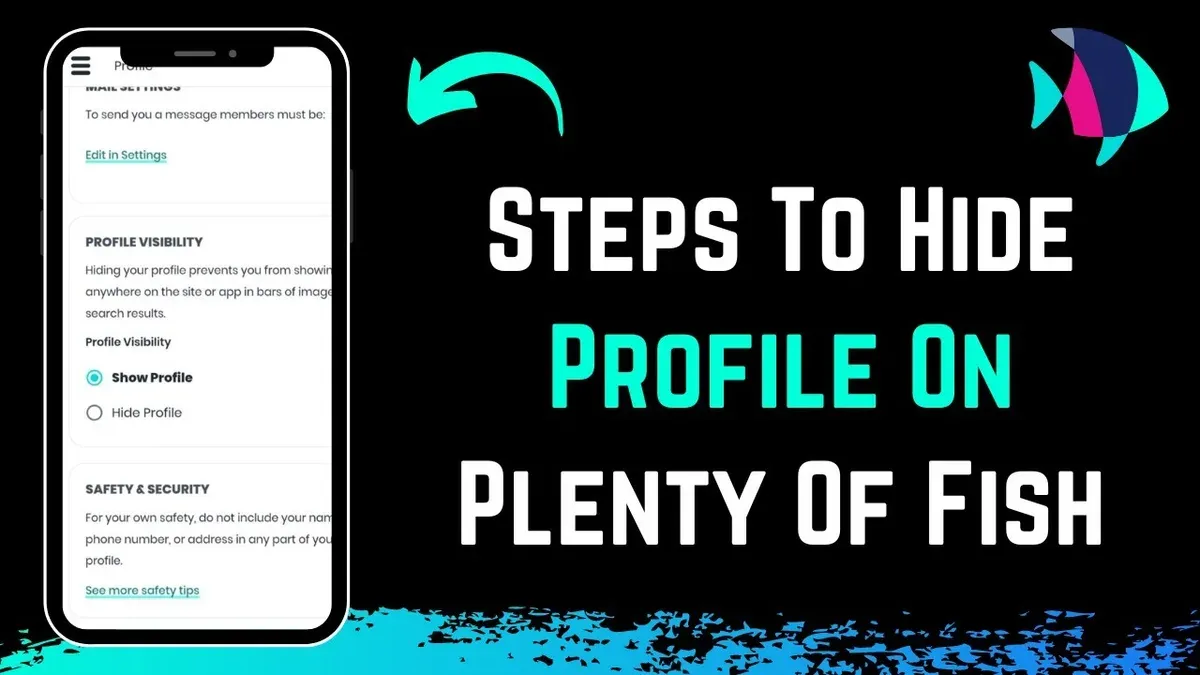
Plenty of Fish privacy settings let users control who sees their profile and how they interact on the platform. Hiding a profile removes it from search results and public galleries but still allows contacts, favorites, and message recipients to see it. The platform offers two unique modes, 'Take a Break' and 'Incognito,' which affect visibility differently and depend on region and platform availability. Deleting a profile removes it permanently but requires the account to be at least 24 hours old before that action is permitted.
Settings, menu paths and limits here were checked against wikiHow, Digital Footprint Check, Plenty of Fish in November 2026.
How to get to Plenty of Fish privacy settings
Accessing privacy settings on Plenty of Fish differs between the mobile app and the desktop website, with notable variations based on app version and region. On the POF mobile app, start by signing into the account, then tap either My Profile or the Menu icon. From there, navigate to Manage Account or Settings. Within this section, options such as Take a Break or other visibility controls appear, allowing profile hiding or adjustment of privacy settings. Confirming any changes requires saving or confirming the selection to apply it effectively.
On the desktop website, sign in at the POF homepage and proceed to either Profile or Account Settings. Visibility controls like Profile Visibility or Take a Break are found here. Alternatively, clicking Edit Profile at the top right may reveal a link labeled To hide your profile from others, click here, which leads directly to profile hiding options. Confirming changes ensures the profile is hidden from search results or other users as intended.
Menu names and feature availability, including the Incognito mode, vary by region and app version. For example, some regions may not have the Incognito option visible on the mobile app but might on the desktop version. Being aware of these differences helps in locating and using privacy controls accurately.
| Platform | Menu Path to Privacy Settings | Feature Availability Notes |
|---|---|---|
| Mobile App | Sign in → My Profile or Menu icon → Manage Account or Settings → Take a Break / Visibility controls → Save | Labels and options vary by app version and region; Incognito may be absent |
| Desktop Website | Sign in → Profile or Account Settings → Profile Visibility / Take a Break → Confirm changes Or: Sign in → Edit Profile → "To hide your profile from others, click here" | Features generally consistent; some visibility options differ by region |
For a concrete example, a user on the mobile app would tap the menu icon, select Manage Account, then choose Take a Break to temporarily hide their profile. On desktop, the same user might click Edit Profile, then use the provided link to hide the profile from search results. Both methods require confirming the change to take effect.
Can you hide your profile on Plenty of Fish and what that means
Hiding a Plenty of Fish profile removes it from search results and public image bars, but does not erase the account or profile data. Contacts, favorites, and users with existing message threads retain access to the hidden profile. This means the profile remains visible to a limited audience while becoming invisible to the general user base.
This is distinct from deleting the profile, which permanently removes the account and all associated data, with no option for recovery. Deletion is irreversible and requires the account to be at least 24 hours old before it can be processed.
Plenty of Fish also offers a 'Take a Break' mode that temporarily hides the profile from all other users without deleting the account. This mode suspends visibility completely but keeps the profile intact for reactivation. Another option, 'Incognito' mode, provides even stricter control over who can see the profile; however, this feature is not available in all regions.
For example, activating 'Take a Break' conceals the profile from everyone except the user themselves, while hiding the profile only blocks public visibility but allows contacts and favorites to continue seeing it.
How do I hide my Plenty of Fish account step-by-step
Hiding a Plenty of Fish account involves distinct processes on the mobile app and desktop website, each requiring a precise order to avoid errors. On the mobile app, first sign in and navigate to "My Profile" or tap the menu icon. Then open "Manage Account" or "Settings," where options like "Take a Break" or visibility controls are found. Select the option to hide the profile and confirm or save changes. Skipping confirmation leaves the profile visible.
On the desktop website, sign in and go to "Profile" or "Account Settings." Look for "Profile Visibility," "Take a Break," or similar settings. Alternatively, clicking "Edit Profile" at the top right reveals a link labeled "To hide your profile from others, click here." Selecting this hides the profile from search results after confirming the change. Missing the confirmation step or changing settings out of sequence can prevent the profile from hiding effectively.
These do not alter visibility and can create a false sense of privacy. The correct method requires using Plenty of Fish’s built-in settings through the app or website interfaces in the proper order. For example, attempting to hide the profile before signing in or failing to save changes will not work.
For instance, on the app, selecting "Take a Break" before accessing account settings will not activate profile hiding. Similarly, on desktop, clicking "Edit Profile" without following the link to hide the profile leaves it visible. Confirming every step ensures the profile is truly hidden according to Plenty of Fish’s system.
These steps represent the official and effective way to control profile visibility on Plenty of Fish. More details here.
What are Plenty of Fish privacy settings and how do they differ by platform
Plenty of Fish offers several privacy controls that vary by platform, app version, and region. The key settings include 'Take a Break', 'Incognito' mode, profile visibility toggles, and the option to delete the account. 'Take a Break' hides the profile from public search and browsing but keeps the account intact. 'Incognito' mode provides more restrictive visibility, showing the profile only to selected users, but it is not available in all regions.
| Feature | Mobile App | Desktop Website | Regional Variations |
|---|---|---|---|
| Take a Break | Available under Settings > Privacy | Available under Profile > Privacy Settings | Consistently available across regions |
| Incognito Mode | Available in some regions only; found under Settings > Visibility | Available in some regions only; menu named "Private Mode" in some versions | Not offered in all locations; where unavailable, users can only use Take a Break |
| Profile Visibility Toggles | Labels vary by app version; often under Privacy or Account Settings | Consistent naming but menu path may differ slightly by browser | Feature presence stable; minor label differences by region |
| Delete Account | Available but requires account to be at least 24 hours old; under Account Settings | Same conditions apply; accessed via Profile > Account Management | Same worldwide; irreversible action |
For example, a user in a region without 'Incognito' will find this option missing in both the app and desktop menus, forcing reliance on 'Take a Break' for profile invisibility. The mobile app may label visibility controls under "Privacy" or "Account," while the desktop site uses "Privacy Settings" or "Profile Settings," which can confuse users switching platforms. Understanding these distinctions is necessary for effective privacy management on Plenty of Fish.source
Why are Plenty of Fish privacy settings important for users
Plenty of Fish privacy settings exist to protect users from unwanted exposure and control how their personal information is shared. By managing profile visibility, users can prevent strangers from finding their account in public searches or browsing through public image bars, while still allowing access to trusted contacts, favorites, and existing conversations. This selective visibility reduces unsolicited messages and maintains a safer, more comfortable environment on the platform.
The 'Take a Break' mode enhances privacy by making the profile invisible to all other users without deleting the account, allowing a temporary retreat without losing data or connections. 'Incognito' mode offers even stricter control by limiting who can see the profile, but its availability depends on the user’s region. These privacy features align with the goal of controlling who can find and interact with the profile, balancing presence with discretion.
The platform gathers various personal and usage data including profile details, account activity, content shared, purchase history, and technical information. Adjusting privacy controls helps limit unnecessary exposure of this data to others on the site and curtails the reach of POF’s internal data processing where possible.
For example, hiding a profile removes it from public search results, preventing new users from discovering it, but still allows ongoing contacts to communicate. This setup ensures that current relationships remain intact while reducing exposure to unknown users. Such granular control over visibility and data sharing is essential for maintaining online privacy and user safety on Plenty of Fish.
How to permanently remove your Plenty of Fish profile
This process cannot be undone or reversed, and reactivating a deleted account is impossible. Users must ensure the account is at least 24 hours old before the deletion option becomes available; attempts to delete an account younger than this will be blocked.
To delete the profile, sign in on the POF desktop website. Locate the Help menu in the top right corner, then scroll towards the upper center area of the page to find the 'Delete Account' link. Following the prompts from this link will guide through the permanent removal process. The mobile app does not offer a direct delete option, making the desktop site the only method available.
Hiding removes the profile from public searches but retains all data and accessibility for reactivation. 'Take a Break' or 'Incognito' modes temporarily limit visibility without deleting the account. Deletion permanently erases the profile, making it the only choice to fully remove presence from Plenty of Fish.
For example, if a user created an account yesterday and wants to delete it immediately, they will need to wait at least one full day before the system permits deletion. Once accessed via the desktop Help menu, confirming deletion will erase all profile data and prevent any future logins using that account. This strict permanence requires careful consideration before proceeding.
Common pitfalls and what does not work when managing POF privacy
Attempting to hide a Plenty of Fish profile using browser extensions or unofficial workarounds fails to change the profile’s visibility status. These tools do not integrate with POF’s system and cannot override its privacy settings. For example, using a third-party tool claiming to make a profile invisible will leave it fully visible on POF, exposing the user to unwanted contacts despite the attempted workaround.
Confusing profile hiding with account deletion leads to unexpected outcomes. Hiding a profile only removes it from public searches and general visibility but retains all account data and access. Deletion permanently removes the account and cannot be undone. Treat these as separate actions; hiding is reversible and less drastic, while deletion requires waiting 24 hours after account creation and erases all profile information.
Many online tutorials or screenshots do not reflect the current POF interface. The platform changes menu labels, available options, and feature placements by region and app version. Relying on outdated instructions can cause users to navigate incorrectly or miss critical steps. For instance, a guide showing privacy settings under “Account” may no longer apply if the menu was renamed or moved in a recent update.
Failing to confirm privacy setting changes or skipping steps leaves the profile visible despite attempts to hide it. Confirmation prompts must be accepted, and the correct sequence of actions followed to activate modes like “Take a Break” or “Incognito.” Skipping verification or closing the app prematurely can result in no change. Always verify the new status by checking profile visibility from another account after making adjustments.
What This Guide Does Not Address
Privacy settings here control visibility and profile access but do not prevent hacking or unauthorized logins.
Choosing the Right Privacy Option
Selecting between 'Take a Break' and 'Incognito' modes depends on the desired visibility and regional availability. 'Incognito' mode hides the profile from all except users explicitly approved, ideal for selective visibility but not available in all regions or on every platform. 'Take a Break' temporarily hides the profile across POF but keeps it intact for later reactivation, suitable for users needing a pause without deletion. For permanent removal, account deletion is irreversible and requires the account to be at least 24 hours old. Understanding these differences ensures control over who can see the profile and when to use each setting based on privacy needs and platform constraints.
Sources
- How to Hide Your Plenty of Fish Profile (with Pictures) — wikiHow
- How to Hide Profile Pof: Stay Invisible — Digital Footprint Check
- Privacy policy - Plenty of Fish Free Dating - POF.com — Plenty of Fish
See also: How to Manage PlayStation Privacy Settings Effectively · How to Fix Nintendo Privacy Settings and Manage Data Sharing · How to Turn On Two-Factor Authentication on Plenty of Fish · How to Block Someone on Plenty of Fish: A Clear Step-by-Step Guide