How to Turn On Two-Factor Authentication on Plenty of Fish
Step-by-step guidance to enable two-factor authentication on Plenty of Fish, ensuring your account stays secure across all login methods.

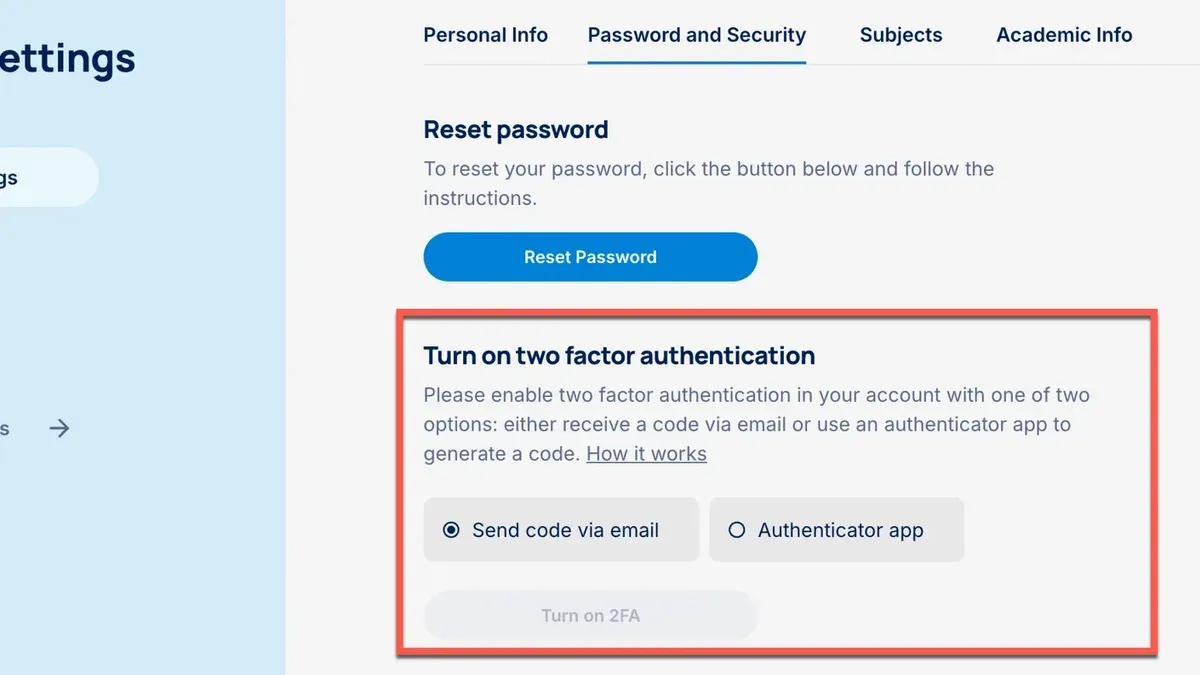
Yet confusion often arises because the desktop site and mobile app use different terms for signing in, affecting where 2FA settings appear.
Two-factor authentication on Plenty of Fish requires an active account at pof.com and works across three login methods: desktop browser, mobile app, and social login via Facebook or Google. Users must follow the exact sequence of steps specific to their platform to avoid setup failures. Missteps like mixing up ‘Sign In’ on desktop with ‘Log In’ on the app or skipping required menu navigation cause most users to miss enabling 2FA.
This article breaks down the necessary steps, highlights where users typically go wrong, and provides targeted troubleshooting tips to ensure the added security functions as intended.
Last verified November 2026 against insightdesk.uk.
What is needed to enable two-factor authentication on Plenty of Fish
To enable 2FA, an active account on Plenty of Fish is mandatory. Without a registered and active account at pof.com, 2FA cannot be set up or applied.
2FA protection extends across all login methods supported by Plenty of Fish. This includes the desktop website, the mobile app, and social login options through Facebook or Google. Regardless of the platform or login pathway, the second factor of authentication will be required once enabled.
The verification code may be sent via SMS or generated through an authentication app. Without this access, completing the 2FA process and logging in will be impossible.
- Have an active Plenty of Fish account ready to use. Proceeding without one will block 2FA setup.
- Confirm the preferred login method: desktop site, mobile app, or social login. Each supports 2FA but may differ in access points.
- Ensure the device or app intended for receiving 2FA codes is available and functional, as it is required to verify and complete the authentication setup.
How to turn on two-factor authentication on Plenty of Fish by platform
Enabling two-factor authentication (2FA) on Plenty of Fish requires following distinct navigation paths depending on the platform in use. The desktop site uses the term Sign In for entry, while the mobile app uses Log In, a difference that often causes user confusion. After signing in or logging in, the user must access security settings to activate 2FA.
Desktop Browser
- Click Sign In at the top-right corner of the Plenty of Fish website. The login window will appear.
- Enter login credentials and complete the sign-in process. The account dashboard will load.
- Navigate to Account Settings from the user menu or profile icon. The settings page will open.
- Select Security Settings in the sidebar or main settings area. Security options will be displayed.
- Find and click Two-Factor Authentication. The 2FA setup screen appears, allowing activation.
Mobile App (Android)
- Tap Log In on the Plenty of Fish app’s welcome screen. The login form will appear.
- Enter credentials and log in. The profile or main menu becomes accessible.
- Open the Profile or Menu tab, depending on app version. Navigation options show.
- Go to Settings, then Security. Security options appear.
- Select Two-Factor Authentication to proceed with enabling 2FA. The setup interface loads.
Users logging in via social platforms like Facebook or Google follow the same paths within the desktop site or mobile app after authentication. The critical factor is completing the initial sign-in or log-in step correctly to access security settings.
Incorrect assumptions about the difference between Sign In on desktop and Log In on mobile contribute to failure in enabling 2FA. The order of these steps must be respected; attempting to access security settings before signing in or logging in will not work.
Which login method to choose for enabling two-factor authentication
Each supports enabling two-factor authentication (2FA), but the steps and menu layouts differ slightly. Social login users must first switch to the standard Plenty of Fish interface after login to access 2FA settings.
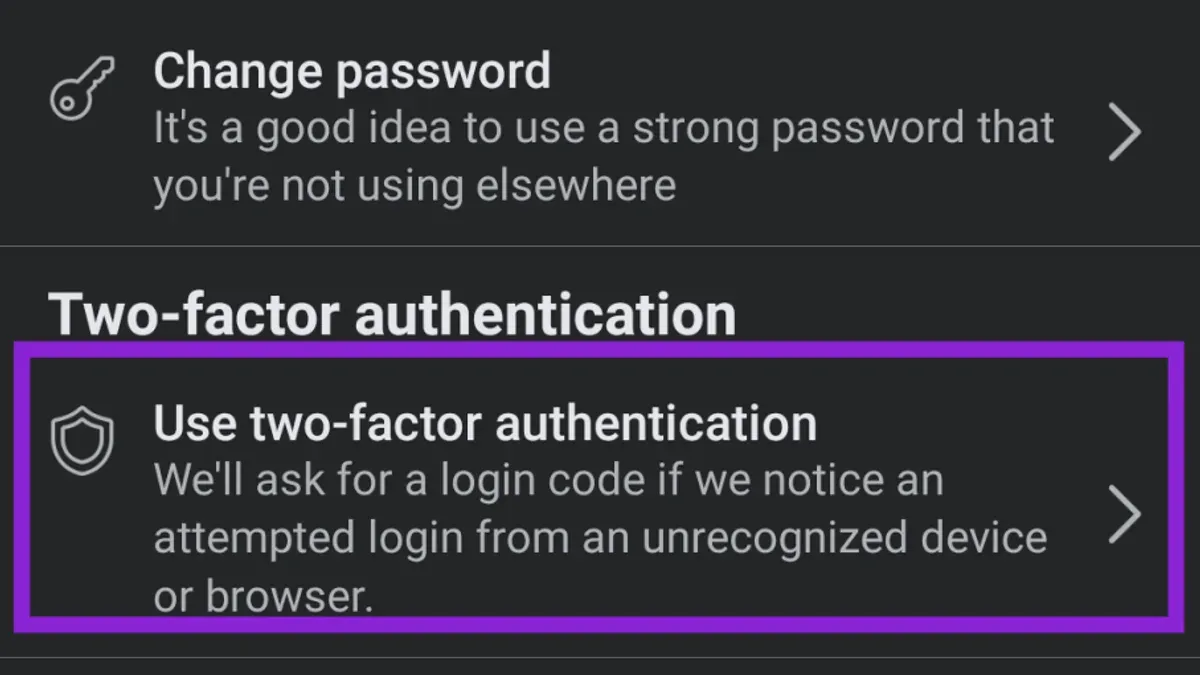
The desktop site uses the term 'Sign In' for entry and places security settings under the account menu after signing in. The mobile app uses 'Log In' terminology and has a different navigation structure, usually under the profile or settings tab. Selecting the platform most frequently used ensures familiarity and minimizes confusion when setting up 2FA.
Social login users experience an extra step because 2FA settings are not directly accessible via Facebook or Google login screens. Instead, they must log in with their social account, then access the Plenty of Fish interface to enable 2FA.
| Login Method | Entry Term | Where to Find 2FA Settings | Notes |
|---|---|---|---|
| Desktop Site | Sign In | Account menu > Security Settings | Direct access to 2FA settings post sign-in |
| Mobile App | Log In | Profile or Settings tab > Security Settings | Different menu structure, but full 2FA support |
| Social Login (Facebook/Google) | Log In via social platform | After login, access Plenty of Fish interface > Account or Settings > Security Settings | Requires switching to standard interface to enable 2FA |
This reduces the risk of missing steps or confusion caused by differing terminology and menu locations.
- Choose the platform most often used for logging in (desktop or mobile app).
- Sign in or log in using the chosen method; social login users must complete this via Facebook or Google first.
- Navigate to the account or profile section, then locate and select the Security Settings option.
- Enable two-factor authentication following the prompts specific to that platform.
Common pitfalls and login issues when turning on two-factor authentication
Plenty of Fish uses different terms for accessing accounts depending on the platform: the desktop site shows a Sign In button, while the mobile app uses Log In. Confusing these can direct users to incorrect areas, blocking access to the 2FA setup. Ensuring the correct entry point is essential to locate security settings and enable two-factor authentication properly.
This often results in failure to receive or trigger verification steps. Clearing the browser cache removes these conflicts and restores proper 2FA functionality.
Some networks or geographic areas may have limited access to Plenty of Fish’s verification servers, causing timeouts or missing codes. Using a VPN to simulate an allowed region or disabling VPN services can resolve these issues.
Users failing to check these folders may miss the code entirely, leading to repeated failed attempts. Confirming the code is not filtered out ensures timely entry and successful 2FA activation.
- Identify the platform and use the correct entry button: Sign In on desktop or Log In on the app. Successful navigation shows the security settings option.
- Clear the browser cache if 2FA prompts do not appear or fail. After clearing, reload Plenty of Fish to verify the 2FA prompt displays.
- Check email spam folders for 2FA codes if no code is received within a few minutes. Codes appearing there confirm this issue.
- If verification codes fail repeatedly, disable VPN or switch it to a region supported by Plenty of Fish. Confirm codes arrive correctly afterward.
How to confirm two-factor authentication is working and what to do if it isn’t
Upon the next login attempt, the system should prompt for a second verification step. This will be a code sent to the registered device or generated by the authentication app linked to the account. Successful prompting of this code confirms 2FA is active and operational.
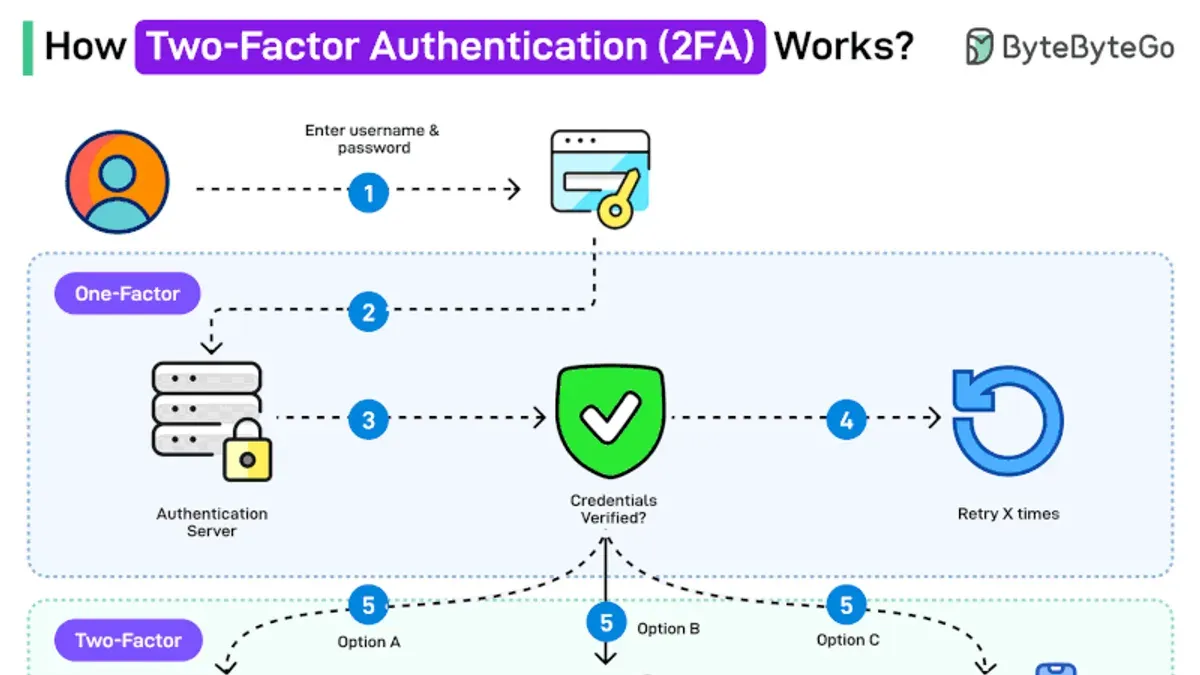
Cached cookies or outdated session data can block or delay 2FA verification steps. Next, verify the email inbox and spam folder for the verification code, as Plenty of Fish sends codes via email or app notifications.
Regional restrictions may block 2FA processes. If login issues persist after clearing cache and checking messages, try connecting via a VPN set to a supported region. This can resolve problems caused by geographic access limits. If these steps fail, contact Plenty of Fish support to resolve the issue directly.
- Log out after enabling 2FA, then sign in again; the system should request a verification code.
- Enter the received code; successful entry confirms 2FA is active.
- If no code appears or it’s rejected, clear browser cache and try again.
- Check email spam folders for verification codes if not received.
- Use a VPN if regional restrictions might block verification.
- Contact Plenty of Fish support if problems continue.