How to Manage PlayStation Privacy Settings Effectively
Discover how to adjust PlayStation privacy settings to control your account’s visibility and messaging permissions easily across all devices.

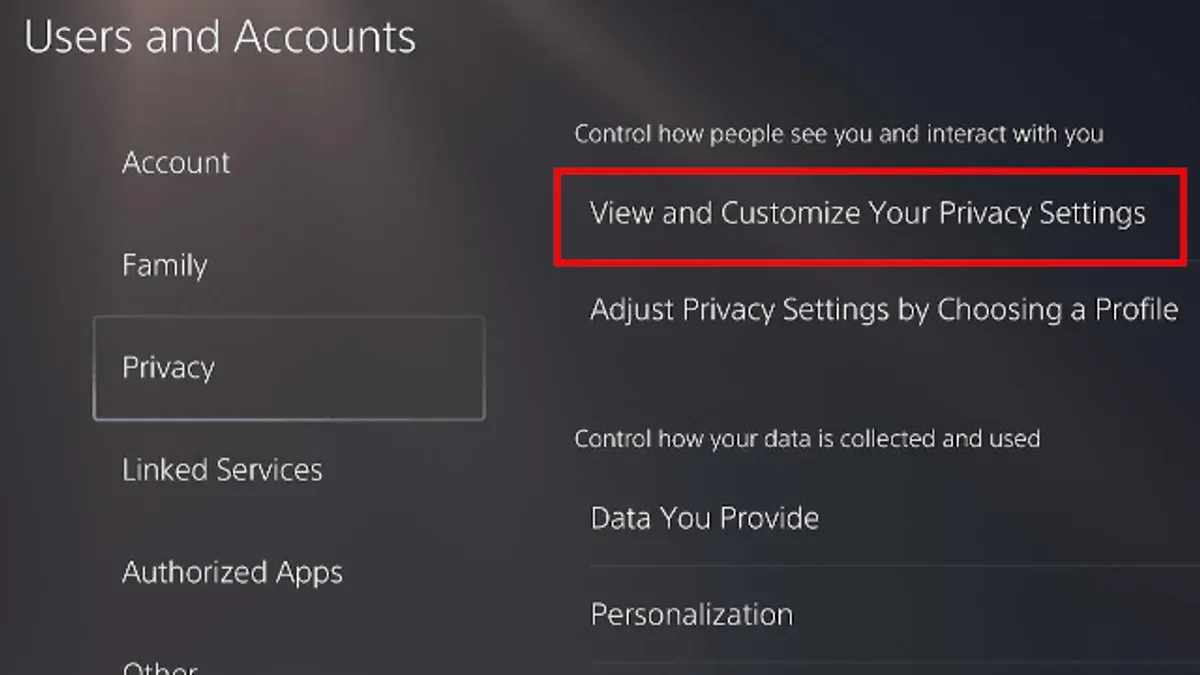
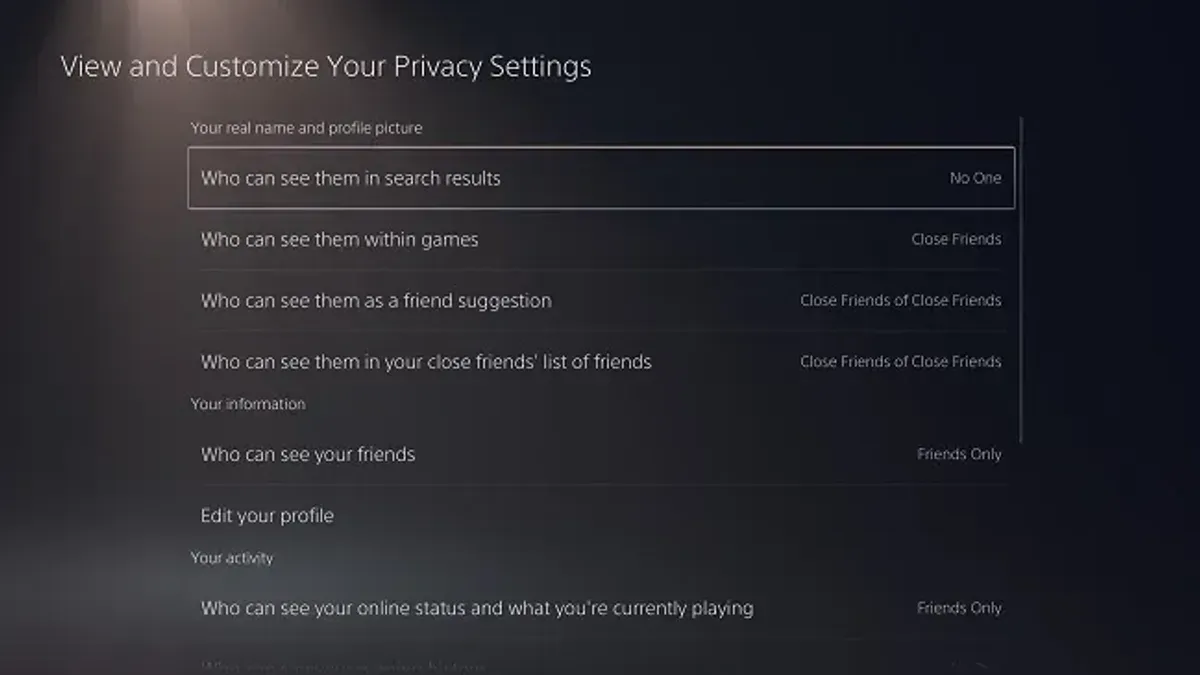
PlayStation privacy settings include four preset profiles ranging from completely open interaction to total privacy, alongside detailed categories such as gaming visibility, messaging permissions, and PlayStation Stars participation. Family managers also control child accounts through dedicated privacy profiles and monitoring tools in the Family app.
Last verified November 2026 against Sony Interactive Entertainment.
How to change privacy settings on PS5
To adjust privacy settings on the PS5, start by navigating to Settings from the main menu. Then go to Users and Accounts followed by Privacy. Here, it is possible to select from preset privacy profiles or review and customize individual settings for greater control.
This ensures the user’s identity is confirmed for security purposes. Once signed in again, changes can be saved and take effect immediately.
All privacy settings are linked to the PlayStation Network account itself. This means any modifications apply account-wide and synchronize across every device using the same account. For example, if a user tightens messaging permissions on the PS5, those restrictions will also be active when signed in on the PlayStation app or another console.
- Open Settings from the PS5 home screen.
- Select Users and Accounts.
- Choose Privacy to access privacy controls.
- Sign in again if prompted for re-authentication.
- Pick a preset profile or customize settings as needed.
- Save changes to apply them across all devices.
How to change PlayStation privacy settings online or via app
PlayStation privacy settings can be adjusted without using the console by accessing Account Management on the web or through the PlayStation app. Begin by signing in with the PlayStation Network account credentials. Once logged in, navigate to Privacy Settings within the account dashboard.
From there, select the specific privacy feature to edit, such as communication preferences or friend list visibility. Apply the desired changes directly in this interface.
For example, a user wanting to restrict who can send them messages can open the PlayStation app on a smartphone, go to Account Management, choose Privacy Settings, then adjust the messaging permissions.
- Sign in to PlayStation Account Management online or in the PlayStation app.
- Navigate to Privacy Settings.
- Select the privacy feature to modify.
- Make and save changes.
- Confirm changes sync across all devices.
Why isn't my PSN changing privacy settings?
This can cause confusion when changes seem not to take effect immediately or appear inconsistent between devices. For example, changing a setting on the PS5 will update it everywhere, but logging into another device before synchronization completes may show the old configuration temporarily.
Only family managers or guardians may adjust these controls. If a child attempts to modify privacy settings, the system will block the action, leading to the impression that changes cannot be made.
Accessing Settings > Account Management > Privacy Settings on the PS5 requires signing in again for security. Failure to complete this re-authentication step prevents any updates from being saved, which may appear as a blocked or ignored request.
| Symptom | Cause | Fix |
|---|---|---|
| Changes do not appear on other devices | Account-wide sync delay or not realizing settings apply everywhere | Wait a few minutes and refresh the device; remember changes apply account-wide |
| Child account cannot update privacy settings | Child accounts have restricted permissions controlled by family managers | Have a family manager change settings via family management |
| Settings page blocks changes | Re-authentication not completed | Sign in again when prompted to confirm identity |
What privacy profiles can be chosen on PlayStation and when to use each
The Open profile allows maximum visibility and interaction with all players. Friends of Friends limits access to a broader but still controlled circle. Friends Only restricts communication and visibility to confirmed friends. No One blocks all visibility and messaging from other players, including friends.
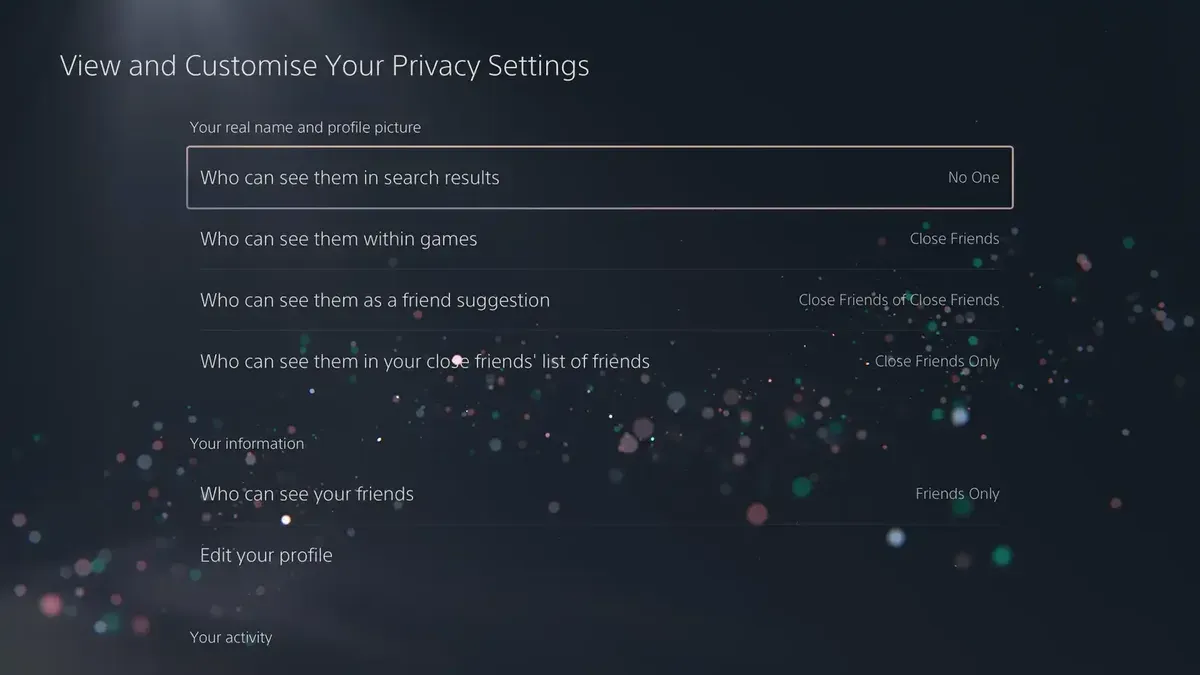
For example, a user wanting to avoid unsolicited messages but still connect with friends might pick Friends Only. However, when specific settings need to be tailored—such as allowing certain types of messages but restricting others—the user should select 'View and Customize Your Privacy Settings' to adjust individual options precisely.
Instead, guardians or family managers must manage their privacy settings through the PlayStation Family app, ensuring compliance with parental controls and age-appropriate restrictions.
| User Situation | Recommended Privacy Profile or Action | Deciding Factor |
|---|---|---|
| Needs fast setup without detailed customization | Choose one of the four preset profiles (Open, Friends of Friends, Friends Only, No One) | Speed and simplicity |
| Requires precise control over visibility and communication | Use 'View and Customize Your Privacy Settings' for granular adjustments | Detailed customization needs |
| Account belongs to a child family member | Privacy managed by guardian via PlayStation Family app | Child account restrictions |
For instance, a player who wants to share online status with friends but not with friends of friends should avoid presets and customize individual settings. This approach ensures the privacy setup matches the exact desired level of control rather than a broad preset. The preset profiles serve as a reliable starting point, but customization provides the flexibility required by users with specific privacy needs.
More on PlayStation privacy profiles
How to manage PlayStation privacy settings for child family members
These adults set privacy profiles and manage permissions through the PlayStation Family app, which provides tools to monitor activity and adjust restrictions remotely. Children have limited ability to change their own privacy settings, preventing unauthorized or accidental exposure of personal information.
For example, a parent acting as family manager can use the app to restrict who can view the child's profile or send messages, and review recent activity to ensure safe interactions. This centralized control helps enforce age-appropriate privacy safeguards while allowing parents to fine-tune settings as the child grows.
To manage a child account’s privacy:
- Open the PlayStation Family app and select the child’s profile.
- Adjust privacy profiles or customize specific settings like messaging and friend requests.
- Monitor activity logs to spot unusual behavior or privacy risks.
This structure ensures child accounts remain protected under adult supervision, maintaining consistent privacy controls across devices without confusion for younger users.
Common pitfalls and misunderstandings with PlayStation privacy settings
PlayStation privacy settings apply to the entire account and synchronize instantly across all devices where the account is used. Many users mistakenly believe settings are device-specific, leading to confusion when changes made on one console or app appear to revert or differ on another. For example, adjusting messaging visibility on a PS5 will immediately affect the same setting on the PlayStation App or any other connected device.
Another frequent issue arises with child accounts. Children often expect full control over their own privacy settings but cannot change them independently. These settings are managed exclusively by family managers through the Family app, which can frustrate younger users unaware of these restrictions.
Re-authentication is required when accessing Privacy Settings on a PS5. Failure to sign in again when prompted prevents changes from being saved, a common stumbling block for users attempting adjustments. This requirement exists to protect account security during sensitive modifications.
Understanding these points clears up most complaints about inconsistent or seemingly ineffective privacy changes. Remember, any adjustment on one platform takes effect everywhere immediately. Misinterpretations of this behavior and the management limits on child accounts cause most confusion and errors.
For more, see PlayStation privacy settings support.
What to do after adjusting PlayStation privacy settings
After changing privacy settings, verify they synced across all devices using the same account. Open the settings on a secondary device or via the PlayStation app to confirm the updated permissions are consistent. Messaging and visibility settings should be reviewed to ensure they reflect the intended level of exposure and communication controls.
For accounts with child family members, guardians must regularly monitor activity through the PlayStation Family App. This app allows family managers to track gameplay, messaging, and privacy settings, ensuring protections remain effective as usage evolves. Adjustments should be made if the child's privacy needs or usage patterns change over time.
Privacy settings can be undone or modified anytime, but consistent reviews prevent unwanted sharing or communication. For example, if a user notices unexpected friend requests or messages, revisiting visibility and messaging permissions within the account settings can quickly resolve the issue. Maintaining these checks lets users retain control and adapt privacy settings to their current situation.
- Confirm privacy settings on multiple devices for synchronization
- Review messaging and visibility permissions after changes
- Use the PlayStation Family App to monitor child accounts regularly
- Adjust settings as privacy needs or usage patterns change
PlayStation privacy settings are account-wide and managed through the Family app for child accounts.
Frequently asked questions
How to change psn privacy settings?
PSN privacy settings can be changed either on a PS5 console under Settings > Users and Accounts > Privacy or online through the PlayStation account management website and the PlayStation App. Changes apply account-wide and sync automatically across devices. For child accounts, adjustments must be made by the family manager through Family Management settings.
Final Checklist for PlayStation Privacy Settings
After adjusting privacy settings, the most effective next step is to test communication and visibility controls through a secondary account or a trusted family member. This confirms that the intended audience can or cannot interact according to the new preferences. Regularly revisiting these settings ensures they stay aligned with evolving use cases and family needs, especially when adding new users or devices to the account.
Pages this guide relies on
- How to change privacy settings on PlayStation — Sony Interactive Entertainment
See also: How to Fix Nintendo Privacy Settings and Manage Data Sharing · How to Manage Nextdoor Privacy Settings and Protect Your Local Presence · How to Manage Fortnite Privacy Settings and Game Preferences · Mastering Epic Games Privacy Settings: A Clear User Guide