How to Manage Nextdoor Privacy Settings and Protect Your Local Presence
Discover how to effectively manage Nextdoor privacy settings to protect your verified address and control what neighbors see.

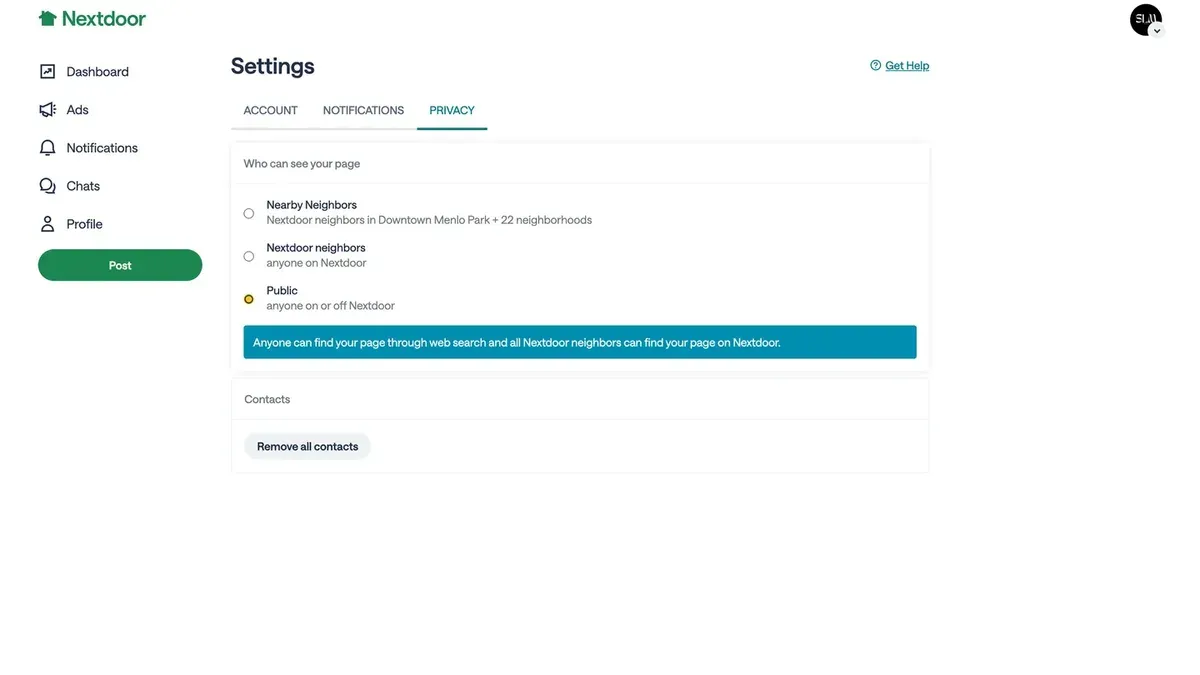
Nextdoor links every user’s digital identity to a verified home address, a step that creates a unique privacy dynamic. This verification is mandatory, making the platform distinct from most neighborhood apps. Nextdoor privacy settings therefore revolve around controlling how much of that verified address is visible to neighbors and the wider community.
By default, the platform may show the full address to the neighborhood, but this can be limited to just the street name through Settings → Privacy → Show address to my neighborhood → street name only. Understanding this setting is critical because while neighbors see your neighborhood name, the full address is always stored internally for verification, regardless of what is displayed.
However, many users misunderstand how their location data is shared and displayed, leading to unintended exposure. Managing Nextdoor privacy settings effectively means making deliberate choices about post visibility, address display, and account security features.
Settings, menu paths and limits here were checked against PrivacyOn, The Tools Trunk, Security Scientist in November 2026.
Does Nextdoor have privacy issues?
This verification is mandatory to join and ties the digital identity to a real-world location. However, the platform still stores the complete address internally for verification purposes.
Posts and profile details can inadvertently reveal more precise location information if users share specifics about their surroundings or activities. For example, mentioning unique landmarks or specific events near one’s home can disclose location beyond the neighborhood level. This risk increases because Nextdoor’s feed and recommendations rely on collected address and activity data, which the platform uses to personalize the user experience.
The privacy challenge is the balance between verified local presence and exposure through shared content. While the full address remains hidden from neighbors, the mandatory verification and data collection mean that the platform maintains detailed location records. Users must be cautious about what they reveal in posts or profile fields to avoid unintentionally exposing their exact residence despite the default privacy settings.
For users seeking to control their local presence, understanding that verification links online identity to a physical address is crucial. The default setting hides the full street address but does not eliminate all risks tied to location disclosure through user activity and platform data use. This setup creates inherent privacy trade-offs unique to Nextdoor’s verified-address system. Verified home address required
How to set neighborhoods on Nextdoor?
Neighborhood boundaries on Nextdoor are determined by verified home addresses. These boundaries dictate who can view posts and profile information, creating a localized social environment. Users control their post visibility through three main settings: Anyone, Your neighborhood, and Nearby neighborhoods. Each option changes the audience size and privacy level.
| Post Visibility Option | Who Sees Your Posts | Privacy Implications |
|---|---|---|
| Anyone | All Nextdoor users beyond neighborhood boundaries | Maximizes reach but exposes posts to a broader, less controlled audience |
| Your neighborhood | Only neighbors within the verified neighborhood boundary | Limits exposure to local residents, enhancing privacy and relevance |
| Nearby neighborhoods | Neighbors in adjacent verified neighborhoods | Expands reach moderately while still maintaining some geographic control |
For example, a user living in a defined neighborhood can choose to share a lost pet alert with just their neighborhood to keep the information relevant and avoid unnecessary wider exposure. Alternatively, selecting “Anyone” would broadcast the alert much farther, increasing the chance of finding the pet but also sharing details outside trusted circles.
Adjusting neighborhood post visibility is done via Settings → Privacy → Post Visibility Controls. Changes here immediately alter who sees new posts. This control balances engagement with privacy risks by letting users decide how far their content travels across Nextdoor’s verified neighborhoods. Post Visibility Controls provide the exact menu paths and options.
How to sign up for Nextdoor and log into the platform securely?
Use the registered email or username and password. Entering credentials in the correct order is critical: address verification first, then login. Trying to bypass address confirmation or resetting credentials before verification leads to errors or lockouts.
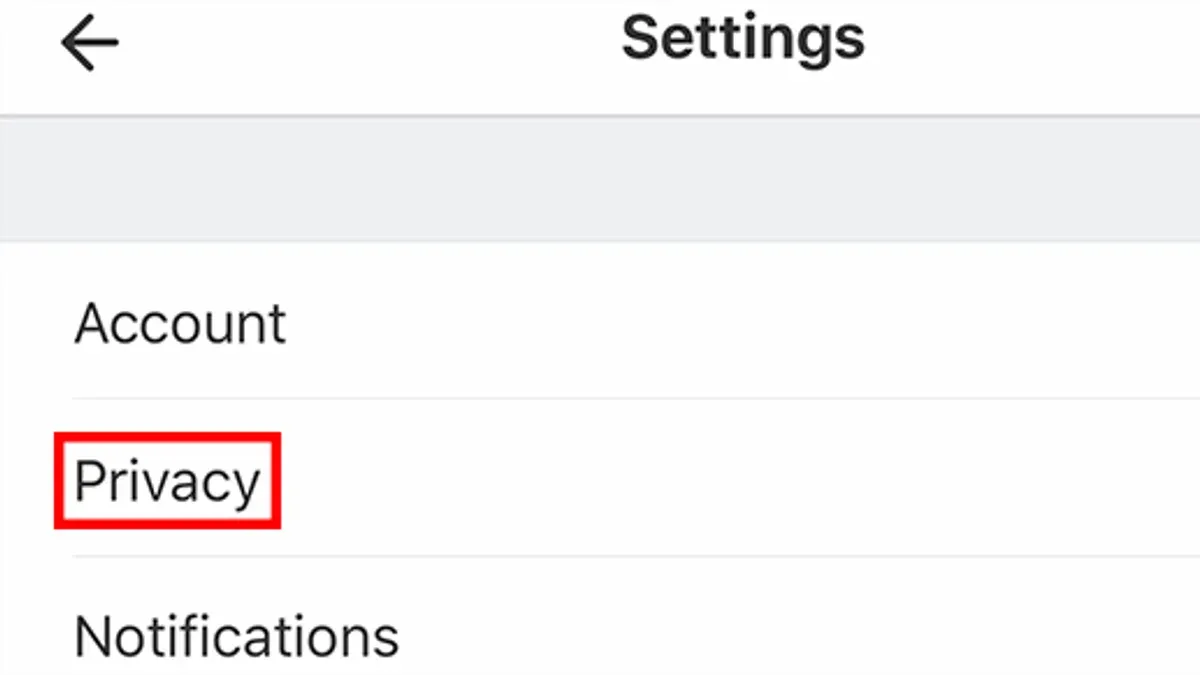
Securing the account starts immediately after login by enabling two-factor authentication (2FA). Navigate to Settings → Account → Two-Factor Authentication and activate it. This adds a second security layer, requiring a code from a phone app or text message during login, protecting against unauthorized access.
For example, a new user named Jane verifies her address by receiving a postcard with a code. She enters the code to confirm her neighborhood. Once logged in, Jane enables 2FA via the specified menu path to ensure her account cannot be accessed with just her password.
How to search on Nextdoor effectively?
Nextdoor’s search function filters content by keywords and neighborhood boundaries, letting users locate neighbors, posts, or services within specific areas. Search results are shaped by each post’s visibility setting: “Anyone,” “Your neighborhood,” or “Nearby neighborhoods.” This controls whether posts appear only to immediate neighbors or extend to a broader local audience.
Selecting the neighborhood filter narrows results to verified neighborhoods where the user has access. For example, searching “plumber” while set to “Nearby neighborhoods” displays services posted not only in the user’s neighborhood but also surrounding ones, if those posts are marked to be visible beyond the immediate area.
Privacy settings directly impact discoverability. A post limited to “Your neighborhood” won’t show up when searching in other neighborhoods, even if keywords match. Posts set to “Anyone” appear across the platform, increasing visibility but reducing privacy. Users must weigh the trade-off between wider reach and maintaining local control over shared information.
Exploring nearby neighborhoods requires permission granted either by the platform or through user settings. Without access, searches remain confined to the verified home neighborhood. This layered filtering prevents accidental exposure beyond intended zones.
Mastering keyword use and neighborhood filters optimizes search effectiveness without compromising privacy boundaries. Careful attention to post visibility ensures relevant results and protects the user’s local presence. Nextdoor’s post visibility controls govern these search dynamics.
How to advertise on Nextdoor for free and protect your privacy?
Nextdoor allows free advertising by posting items for sale or service requests visible to selected audiences. When creating a post, choosing the right visibility setting is crucial to balance reach and privacy. The platform offers three post visibility options: Anyone, Your neighborhood, and Nearby neighborhoods. Setting the post to “Your neighborhood” limits viewers to immediate neighbors, while “Nearby neighborhoods” broadens the audience without exposing posts citywide. Avoid “Anyone” unless maximum exposure is essential and privacy risks are understood.
Users should never include exact address details in public posts. Instead, general location information like a street name or neighborhood is sufficient. Sensitive details such as full addresses or contact information should be shared only through private messages after establishing trust. For example, when selling a couch, a post might say “Pickup available in the Elmwood area” without specifying a house number. Interested buyers can then request the address privately.
To manage these settings, navigate to the post creation area and select the visibility menu before publishing. Regularly review the audience scope to ensure it matches comfort with exposure. This control prevents oversharing personal location details while still engaging local buyers or service providers effectively. Following this approach safeguards privacy while leveraging Nextdoor’s verified neighborhood connections to advertise freely.[Post Visibility Controls]
Is there a Nextdoor in my neighborhood and how does that affect privacy?
Nextdoor neighborhoods are defined by precise geographic boundaries verified through users’ home addresses. To join, a user must confirm their actual residence, which ties their digital profile to a physical location. This verification ensures that membership is limited strictly to residents within that neighborhood’s borders.
Profiles display the neighborhood name rather than the full street address, maintaining a layer of privacy while confirming local presence. Neighbors see the community affiliation but not the exact home address. This setup balances participation in local conversations with protection from exposing sensitive location details.
For example, a resident of Maple Grove must verify their home address within the Maple Grove boundary to join that neighborhood. Once verified, their profile will show “Maple Grove” as the neighborhood, but any neighbor will not have access to their full street address. This allows participation in discussions and access to local services without revealing precise location details.
This system prevents outsiders from joining and accessing a neighborhood’s posts and member information. It also limits the visibility of personal address information to only what is necessary for community trust. Membership and content visibility strictly follow the confirmed geographic boundaries tied to verified home addresses.[source]
Is Nextdoor having issues with privacy or access?
Nextdoor maintains a clear privacy policy detailing what data it collects and how it is used. This transparency allows users to understand the platform’s practices and adjust settings accordingly. However, concerns about frequent email notifications exposing personal data are common. These notifications can be controlled by navigating to Settings → Notifications and toggling off unwanted emails, reducing unnecessary data exposure.
Users worried about ongoing privacy risks can permanently delete their accounts. The deletion process is straightforward: Settings → Account → Deactivate Account → Delete Account, followed by confirmation. This action removes personal data from the platform and ends all access, a necessary step for those prioritizing privacy over engagement.
For example, if a user receives daily emails about neighbor posts and events, they can disable these notifications to limit data sharing. If discomfort with data collection remains, account deletion is the final recourse. The platform’s design supports these choices without hidden obstacles, allowing control over privacy and access.
Common mistakes people make with Nextdoor privacy settings
Sharing location details in posts or photos is a frequent privacy slip. Even when the address display is restricted via Settings → Privacy → Show address to my neighborhood → street name only, revealing street names, house numbers, or easily identifiable landmarks in content exposes exact locations. For example, posting a picture of a unique mailbox with the street number visible defeats the purpose of hiding the full address.
Another common error is publicly announcing vacation or extended absence plans. Such posts signal to potential burglars that the home will be unoccupied, increasing security risks. It is safer to avoid posting absence details or share them privately if necessary.
Profiles with clear headshots or highly detailed bios inadvertently increase identifiability and personal exposure. Avoid using easily recognizable photos or sharing excessive personal information in the bio to maintain anonymity within the neighborhood.
Failing to enable two-factor authentication leaves accounts vulnerable to unauthorized access. Activating this security feature adds a required second step at login, substantially reducing the risk of account compromise. This step is critical to keep personal and neighborhood data safe.
- Showing full address instead of street name only: Selecting Settings → Privacy → Show address to my neighborhood without limiting to street name reveals exact addresses to neighbors. Avoid by choosing the "street name only" option to reduce exposure.
- Assuming neighborhood boundaries are fixed: Nextdoor lets users adjust neighborhoods but the verification system ties accounts to verified addresses. Misunderstanding this leads to sharing location beyond intended areas. Confirm neighborhood settings under Settings → Neighborhoods.
- Skipping verification step during signup: Creating an account without verifying the address blocks access to neighborhood features and may cause login issues. Complete address verification immediately after creating the account to avoid lockouts.
- Ignoring notification settings: Leaving default notifications on can leak activity patterns or personal info. Manage notifications via Settings → Notifications to control what and how often updates appear.
- Using weak passwords or repeating passwords: A poor password combined with verified address data increases risk if breached. Use unique, strong passwords and enable any available login protections.
Those prioritizing tight privacy should limit address visibility to the street name and carefully select neighborhood boundaries. Users seeking maximum neighborhood engagement might accept broader sharing but should remain vigilant about notification settings and account security. Understanding Nextdoor's verified-address system is key to balancing visibility and protection effectively.
Documentation used
- How to Protect Your Privacy on Nextdoor | PrivacyOn — PrivacyOn
- Can People On Nextdoor See Your Address? | What Shows — The Tools Trunk
- 12 Questions and Answers About nextdoor privacy — Security Scientist
See also: How to Identify, Recover, and Secure a Hacked Netflix Account · How to Secure and Manage a Nextdoor Account After a Hack · Mastering Reddit Privacy Settings: A Clear Guide to Control Your Data · Comprehensive Guide to WhatsApp Privacy Settings and How They Work