How to Complete a Readiness Check Before Launching New Software
Avoid costly delays by understanding key readiness check steps before launching new software, including handling permissions and updates.

This single quirk often causes synchronization and permission issues that ripple through shared environments.
Understanding this helps you avoid common readiness failures that occur when Microsoft 365 subscription sharing invitations expire after 48 hours, preventing users from accessing shared resources. Also, shared family calendars show up only in Outlook.com and Outlook mobile apps, not in other clients, which limits your ability to verify readiness across platforms.
These hidden constraints can cause costly delays and confusion if you don’t factor them into your readiness check process.
quick overview of readiness checks
- Knowing these limits helps you sequence readiness steps correctly and avoid common failures.
Last verified November 2026 against Microsoft, admin365.blog (full list at the end).
Why readiness checks before launching software often fail and how to avoid it
One common mistake is running readiness tools out of sequence, which can cause conflicts or incomplete scans. For example, if a required update is missing or not fully installed before a readiness check, the tool may report failures that are actually due to those gaps rather than the software itself.
User environment issues also block readiness checks. A key example is Microsoft 365 subscription sharing: if the intended recipient is still part of another family group, they must leave that group before accepting the sharing invitation. Failing to do so results in sharing failures that appear as readiness check errors.
Another subtle cause is the handling of shared calendar items. When calendar entries are moved to the Outlook.com family calendar using classic Outlook, these moved items become uneditable and undeletable. This quirk can mislead readiness checks about calendar management readiness. Instead, using Duplicate Event or Copy ensures the calendar items remain manageable and the readiness status reflects reality source.
They do not verify all user permission nuances or cross-platform compatibility issues, such as shared family calendars being visible only in Outlook.com and mobile apps, not across all clients. Expecting readiness checks to cover these will cause confusion.
This approach prevents misleading results and ensures readiness checks reflect true launch conditions.
How to run the system update readiness tool correctly
For Windows 11, use the Windows Update Troubleshooter available in Settings under Update & Security > Troubleshoot > Additional troubleshooters. For other Windows versions, download the System Update Readiness Tool (CheckSUR) from the Microsoft Update Catalog or official Microsoft support pages.
On Windows 11, launching the troubleshooter initiates an automatic scan and repair process. For standalone tools, execute the downloaded file and follow prompts, which typically include scanning system files and update components.
Review the output carefully. A successful run reports no issues detected or that problems were fixed. If the tool reports incomplete scans or errors, note the error codes and check the CBS (Component-Based Servicing) log files located in C:\Windows\Logs\CBS\CBS.log for detailed information.
Common errors arise from permission issues, corrupted update files, or pending restarts. To resolve these, restart the system and rerun the tool. If problems persist, manually clear the SoftwareDistribution folder by stopping the Windows Update service, deleting contents in C:\Windows\SoftwareDistribution, and restarting the service.
Beforehand, it confirms the system is prepared to receive updates without conflicts. After updates, it verifies that all components applied correctly and that no new issues emerged.
For example, if you plan a Windows 11 feature update, start by running the troubleshooter to detect baseline issues. After the update completes, run it again to catch any residual problems. This two-step approach prevents deployment failures and reduces downtime.
What checking system update readiness involves and why it matters
They confirm system file integrity, detect corruption, and assess compatibility with pending updates. These checks help identify if the operating system can apply patches or upgrades without breaking essential functions.
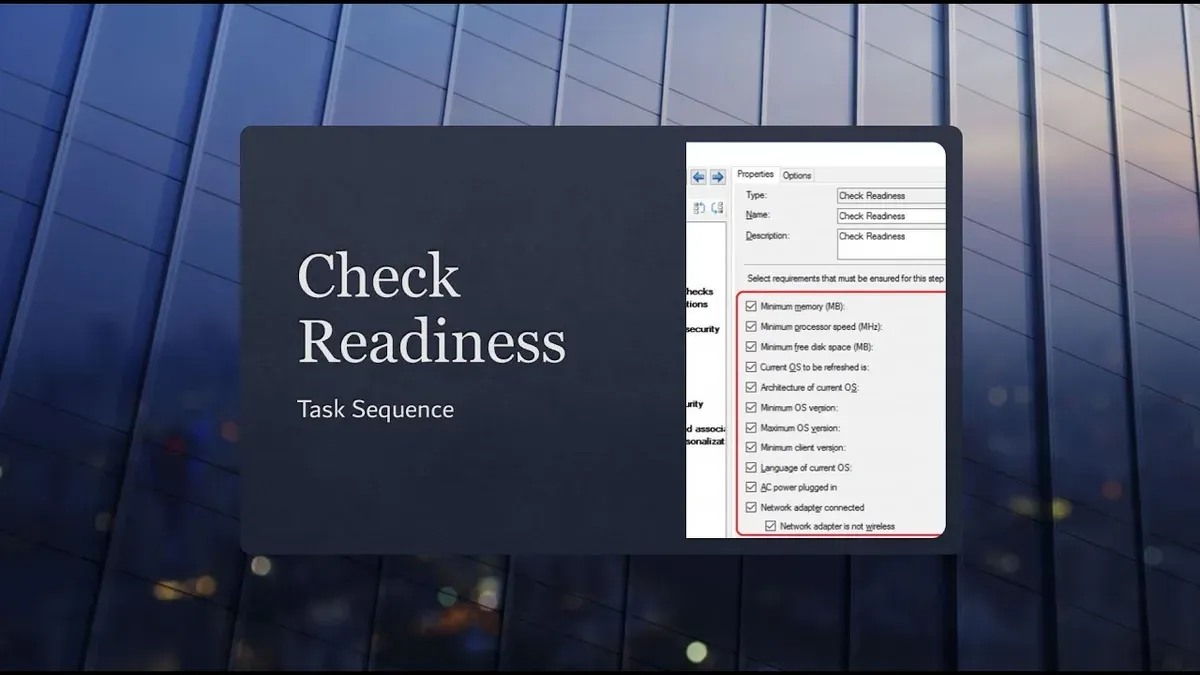
However, readiness checks do not examine user permissions or conflicts caused by third-party software. For example, a readiness tool will not flag if a user lacks administrative rights or if a security application blocks an update. These gaps require separate validation steps.
They reduce the risk of system-level failures, but they do not replace comprehensive pre-launch testing, which includes user environment validation, permission audits, and application compatibility tests.
Picture this: you run a readiness check before deploying a Microsoft 365 Family subscription sharing feature. The check confirms system files are intact and updates are compatible. Yet, if an invited family member does not accept the sharing invitation within 48 hours, access will fail despite a successful readiness status. Similarly, shared family calendars appear only in Outlook.com and Outlook mobile apps, so cross-platform calendar sharing readiness requires additional verification.
Understanding what readiness checks cover and what they omit lets you plan supplementary tests to fully prepare your environment for launch.
Which software production readiness checklist items you need before launch
Verify that the target devices meet minimum specifications and run supported OS versions. Skipping this leads to failures such as installation errors or runtime crashes that halt deployment.
Ensure that you have recent full backups and tested recovery procedures. Without these, a failed launch can cause irreversible data loss or prolonged downtime.
Confirm that all users have the correct rights to run the software and access necessary resources. For example, if your deployment includes Microsoft 365 Family subscription sharing, remember that invitations must be accepted within 48 hours to grant access. If invitees delay or are already members of another family group, they cannot access shared features, potentially blocking user workflows.
Network and security configurations also require validation. Ensure firewall rules, proxy settings, and security policies accommodate the new software’s communication needs. Overlooking these causes connectivity failures or security alerts that disrupt operation.
Consider the quirks in shared resource management. For instance, when migrating calendar items to an Outlook.com family calendar using classic Outlook, moved entries cannot be edited or deleted, complicating calendar management post-launch. Using Duplicate Event or Copy instead avoids this issue.
Missing any of these checklist items risks launch failures that can be costly and time-consuming to fix. Confirm compatibility, backups, permissions, and network readiness thoroughly to avoid common pitfalls and ensure a smooth software rollout.
How to handle readiness checks for Windows 11 upgrades specifically
Windows 11 upgrades require dedicated readiness tools that differ from those used for earlier Windows versions. The primary tool is the PC Health Check app, downloadable from the official Microsoft website. This tool evaluates hardware compatibility, system requirements, and upgrade readiness precisely for Windows 11.
Run the PC Health Check app before starting the upgrade process. It verifies processor compatibility, TPM version, Secure Boot status, and available storage. If the app reports an incompatibility, it usually points to unsupported hardware or disabled security features that must be addressed before proceeding.
These tools include their own readiness checks but rely on the initial hardware compatibility verified by the PC Health Check.
It is advisable to review vendor updates and compatibility lists before upgrading.
What to do after completing a readiness check
Once you complete a readiness check, start by carefully reviewing the report to identify any flagged issues. Prioritize fixes based on their impact on software launch stability and user access. For example, if the report highlights permission problems with shared Microsoft 365 resources, address those promptly to avoid access disruptions.
After applying fixes, verify that each issue is resolved by rerunning the readiness check. This ensures that the remediation steps were effective and no new problems have emerged. For instance, if you corrected calendar sharing permissions in Outlook Web, confirm the changes by checking calendar visibility on Outlook.com and mobile apps.
Post-launch, monitor system stability actively. Track user feedback and system logs to detect delayed failures or access issues. If problems arise, identify whether they relate to recent readiness fixes or underlying environment conflicts.
When necessary, undo changes that introduce instability or block access. For example, if sharing a Microsoft 365 subscription fails because an invitee is in another family group, retract the invitation and instruct the user to leave their existing group before re-inviting. Maintain clear rollback procedures documented in your deployment plan to revert settings safely.
Keep in mind that shared family calendars are only visible within Outlook.com and Outlook mobile apps, so ensure users confirm access there to validate readiness fully. Implement routine follow-up checks one day and one week after launch to catch any issues missed initially and maintain readiness over time.
How the order of operations affects readiness check success
Updates modify core system files and registry settings that readiness checks rely on to assess compatibility and integrity. Running readiness checks before updates can produce false failure messages or incomplete results because the system state does not reflect the latest changes.
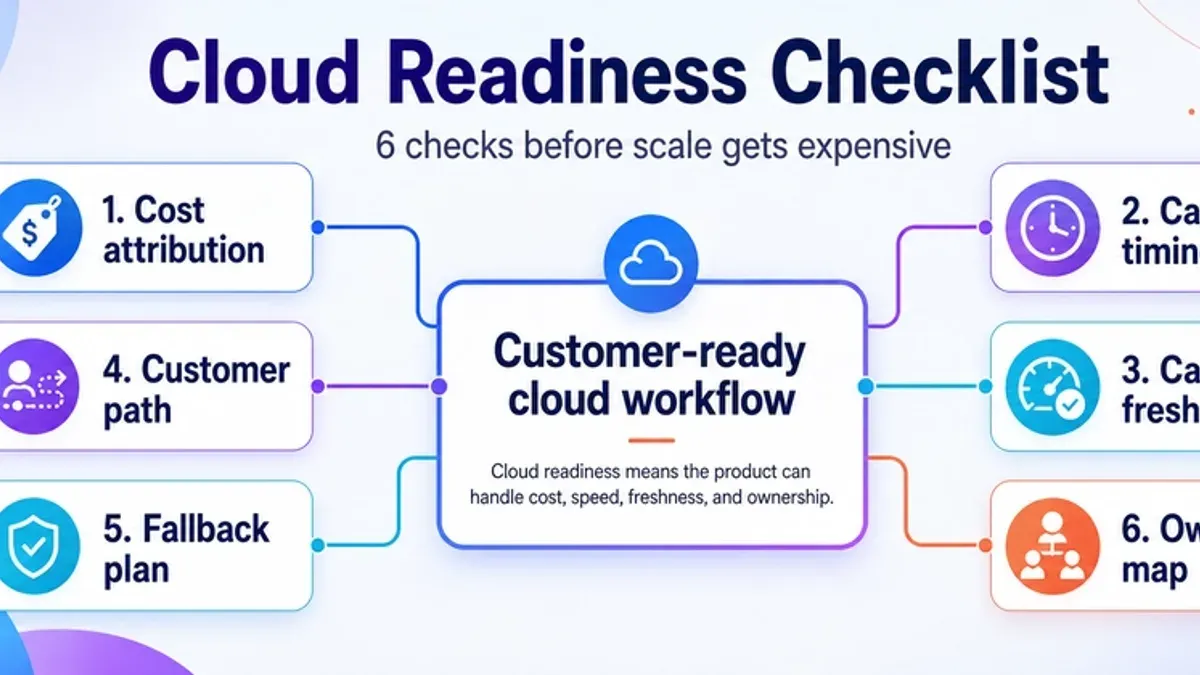
Next, perform software compatibility scans after system updates but before the final readiness check. These scans identify potential conflicts with third-party applications or drivers that system update readiness tools do not detect. Skipping this step or doing it out of order risks missing critical compatibility issues, leading to launch failures.
Consider the example of sharing Microsoft 365 subscription benefits. Checking subscription sharing readiness before ensuring the invitee has properly left a previous group results in misleading readiness success but actual deployment failure.
Similarly, with Outlook.com family calendars, moving calendar items via classic Outlook before verifying sharing permissions causes undetectable editing errors because moved items cannot be edited or deleted. This sequencing mistake leads to management problems after launch that readiness checks miss.
Changing this order—such as running readiness checks before updates or compatibility scans, or attempting resource sharing before clearing prerequisites—creates a cascade of false negatives and overlooked errors. Following the precise sequence avoids these pitfalls and ensures readiness checks reflect the true system and user environment state. More on Microsoft 365 sharing rules.
Common pitfalls and what does not work in readiness checks
One frequent mistake is attempting to share Microsoft 365 subscription benefits with users who have not accepted the invitation within 48 hours. If they miss this window, the invite expires, blocking access to shared resources until a new invitation is sent and accepted promptly. Additionally, users already part of another family group must leave it before joining a new one; otherwise, subscription sharing fails outright.
Another pitfall involves calendar management. When calendar items are moved to the Outlook.com family calendar using classic Outlook, these moved items become locked: you cannot edit or delete them. This creates management headaches and incomplete readiness assessments. Instead, use the Duplicate Event or Copy commands to preserve full editability of shared calendar entries.
Readiness checks often fail or yield incomplete results when performed on accounts with conflicting group memberships or unsupported tools. For example, family group calendars are visible only in Outlook.com and Outlook mobile apps; trying to view them in other Outlook clients does not work. Similarly, shared contacts don’t synchronize correctly in the new Outlook client, which can mislead your readiness evaluation.
Finally, using outdated or unsupported readiness tools can cause false positives or missed issues. Always verify that your tools are current and designed for the specific environment and software version you are launching.
| Symptom | Cause | Fix |
|---|---|---|
| Subscription sharing blocked or missing access | Invite not accepted within 48 hours or user still in another family group | Resend invitation promptly; have user leave previous family group before accepting |
| Cannot edit or delete shared calendar items | Moved calendar items copied via classic Outlook to family calendar | Use Duplicate Event or Copy instead of Move for shared calendar entries |
| Shared family calendar invisible in desktop Outlook client | Family calendars only supported in Outlook.com and Outlook mobile apps | Use supported Outlook clients or web app for viewing shared calendars |
| Shared contacts not syncing in new Outlook client | New Outlook client does not support shared contacts syncing | Manage shared contacts using supported clients or alternative methods |
Making the right readiness check choice for your situation
Choosing the correct readiness check depends largely on your environment size, collaboration needs, and the tools available. For individual IT pros or small teams, lightweight checks using built-in Windows readiness tools combined with manual verification of key shared resources are usually sufficient. These quick checks save time and avoid the complexity of full audits.
Full system audits with third-party software scanners can detect deeper issues across diverse configurations and user groups. However, these require more resources and expertise to interpret results correctly.
If you want to share Microsoft 365 subscription benefits with family members, use Microsoft 365 Family, Premium, or Pro subscriptions and send sharing invitations, making sure invitees accept within 48 hours to avoid expired invites disrupting readiness.
For small teams or individual shared calendar use, creating and sharing calendars through Outlook Web or Desktop with the right permission settings works best. For large organizations needing integrated collaboration, Microsoft 365 Groups automatically create shared calendars synced with Teams and Outlook, simplifying readiness management.
This method streamlines readiness checks by automating permission updates and reducing manual errors.
Using Microsoft 365 Groups for calendar sharing combined with built-in Windows readiness tools covers both collaboration and system checks. If multiple admins manage permissions, PowerShell scripts ensure consistency and speed.
| Situation | Recommended Readiness Check Approach | Deciding Factor |
|---|---|---|
| Sharing Microsoft 365 subscription benefits with family | Use Microsoft 365 Family, Premium, or Pro with timely sharing invitations | 48-hour invitation acceptance window |
| Small team or individual shared calendar use | Create and share via Outlook Web or Desktop with permissions | Direct calendar sharing needs |
| Large organization with integrated collaboration | Use Microsoft 365 Groups for automatic shared calendars | Need for Teams and Outlook sync |
| Admin managing calendar permissions at scale | Use PowerShell commands to assign/remove permissions | Efficiency in permission management |
Matching your readiness check approach to your exact scenario avoids wasted effort and missed issues. This targeted strategy helps ensure your environment is prepared without unnecessary complexity or overlooked collaboration quirks. For more detail on creating and managing shared calendars, see this guide.
After completing your readiness check, monitor system stability and shared resource access over the following days, especially Outlook.com family calendar interactions and Microsoft 365 subscription invitations. Maintain vigilance on calendar item edits, as those copied via classic Outlook cannot be modified or removed, potentially causing confusion. If needed, undo recent configuration changes systematically, documenting each step to avoid introducing new readiness issues.
Choosing the right readiness check depends on your environment's specifics: if you rely heavily on shared Microsoft 365 subscriptions, prioritize invitation acceptance within the 48-hour window. For systems integrating Outlook family calendars, confirm visibility is tested only in supported clients like Outlook.com and mobile apps. When upgrading to Windows 11, follow the prescribed readiness sequence strictly to avoid failures related to update tools and shared item quirks.
Sources checked
- Share your Microsoft 365 subscription | Microsoft Support — Microsoft
- How to Create and Manage a Shared Calendar in Microsoft 365 - Admin365.Blog — admin365.blog
- Share calendar and contacts in Microsoft 365 — Microsoft
- Use shared family calendars in Outlook.com | Microsoft Support — Microsoft