
Moving from Brightspace to Google Classroom: A Complete Checklist
This checklist guides educators and administrators through a smooth migration from Brightspace to Google Classroom with clear, actionable steps.

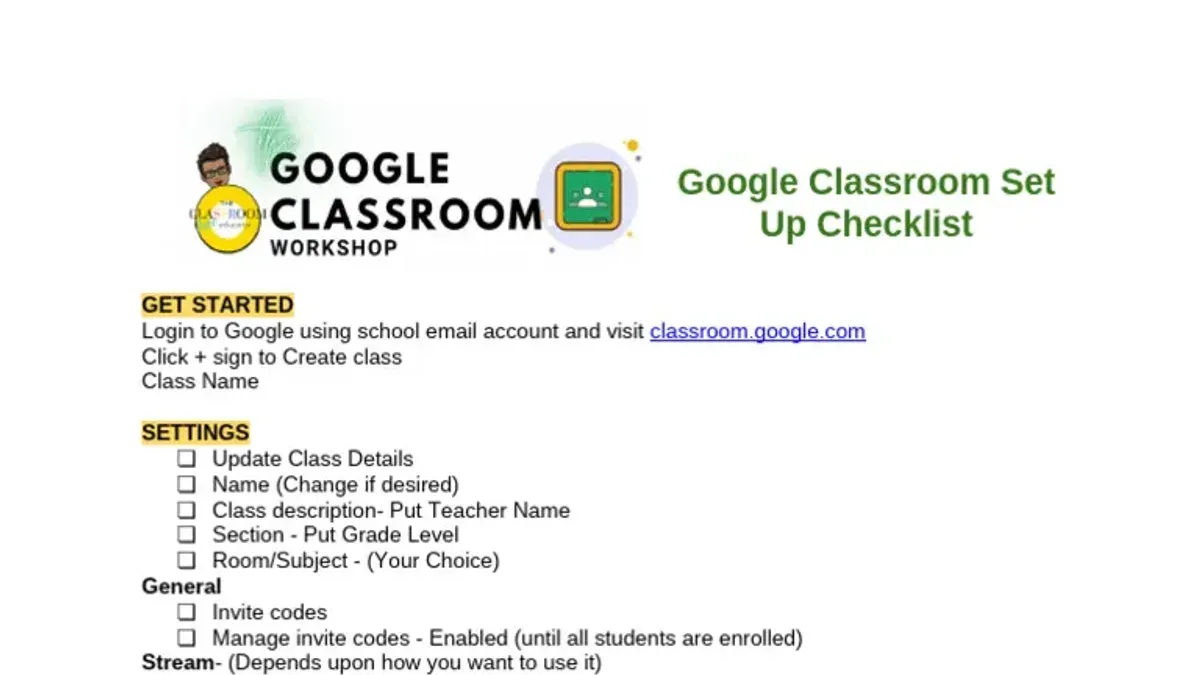
This article provides a clear, direct moving from Brightspace to Google Classroom checklist designed to guide school administrators, IT coordinators, and educators through the migration process. It outlines the key differences between both platforms, preparing institutions to assess implications for their workflows and data management.
The migration involves multiple phases, starting with data export from Brightspace, configuring Google Classroom settings, and integrating user accounts. Understanding the shift in features, such as assignment handling and grading workflows, is critical before executing the migration to avoid disruptions.
Following a systematic, step-by-step approach reduces risks of data loss or confusion among users. This guide offers actionable tasks and highlights common pitfalls to prevent delays and ensure a smooth transition to Google Classroom.
What are Brightspace and Google Classroom, and why consider switching?
Brightspace is a comprehensive learning management system (LMS) designed for large institutions requiring advanced features like adaptive learning paths, detailed analytics, and extensive content management. It supports complex course structures and integrations but can be costly and have a steeper learning curve.
Google Classroom offers a streamlined, user-friendly platform that tightly integrates with Google Workspace apps such as Docs, Drive, and Calendar. It prioritizes simplicity and ease of use, appealing especially to schools already invested in Google tools and seeking straightforward classroom management.
| Feature | Brightspace | Google Classroom |
|---|---|---|
| Course Complexity | Supports multi-layered courses with prerequisites | Basic course setup without prerequisites |
| Integration | Supports many third-party tools, requires configuration | Native Google Workspace integration |
| User Interface | Feature-rich but complex | Simple and intuitive |
| Cost | Higher licensing and maintenance costs | Typically lower or included with Google Workspace |
| Analytics | Advanced reporting and analytics | Basic progress tracking |
Surveys indicate that users often find Brightspace’s extensive features valuable but challenging to master, while Google Classroom scores higher in user satisfaction for ease of use. For example, a medium-sized school district using Brightspace struggled with training demands and opted to switch to Google Classroom to reduce costs and improve teacher adoption rates.
Tip: Evaluate whether the institution’s priorities lean more toward complex course management or seamless integration with existing Google tools before deciding.
How do the core features and workflows differ between Brightspace and Google Classroom?
Assignment creation in Brightspace involves configuring detailed criteria such as rubric alignment, availability dates, and release conditions through the Assignments tool under the Activities menu. Grading supports multiple schemes, inline annotations, and grade item linkage within the Gradebook. In contrast, Google Classroom streamlines assignment setup via the Classwork tab, focusing on quick attachment of files and due dates, with grading handled directly in the assignment interface without separate gradebook linkage.
Communication in Brightspace relies on integrated Discussions, Announcements, and Email tools, all accessible from the Communication menu, supporting threaded conversations and automated notifications. Google Classroom centers communication in the Stream, prioritizing real-time posts and comments but lacks threaded discussions, which can impact complex interactions.
Brightspace supports extensive third-party integrations through its LTI framework, allowing apps like Turnitin, Zoom, and publisher content to be embedded with granular permission controls. Google Classroom offers fewer built-in integrations but benefits from deep connectivity with Google Workspace apps; external tools often require manual linking or add-ons.
User roles in Brightspace include Instructor, Learner, Teaching Assistant, and Administrator, each with customizable permissions for content editing, grading, and user management. Google Classroom simplifies roles to Teacher, Student, and Guardian, with fewer permission layers, which may limit fine-grained access control in larger or more complex environments.
Example: Creating a graded group assignment in Brightspace can be done by setting release conditions and group restrictions within the assignment settings, while Google Classroom requires creating separate assignments per group or managing groups externally.
What are the essential steps to prepare for migration?
Start by conducting a thorough inventory of all existing Brightspace content, including course materials, assignments, quizzes, and user data like student enrollments and grades. Use Brightspace’s export tools found under Course Admin > Import/Export/Copy Components to extract data. Brightspace typically exports in.zip packages containing XML files and associated media, which require processing before import.
Next, plan how to map this data to Google Classroom’s structure. Google Classroom organizes content by classes, assignments, and topics, with simpler data fields. For example, convert Brightspace assignment formats into Google Classroom’s assignment templates, ensuring due dates and attachments align. Prepare a migration checklist that lists each course and its components, marking their export status and import readiness.
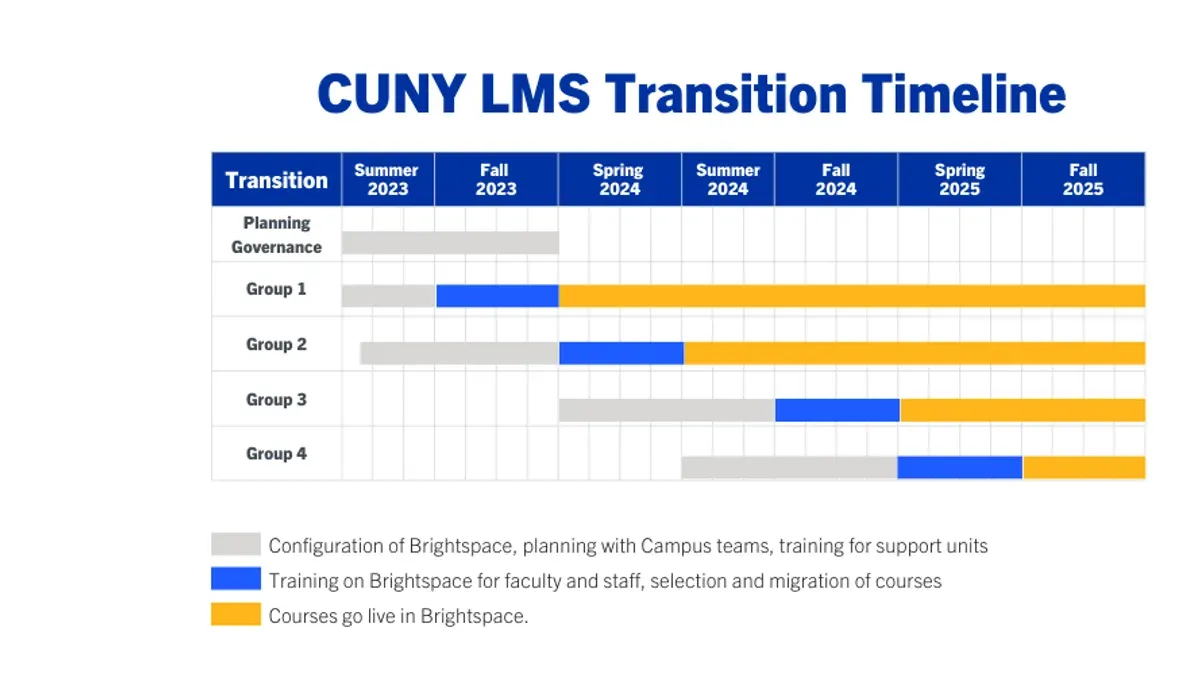
Communicate the migration timeline and new platform expectations clearly to all stakeholders—administrators, teachers, and students. Schedule training sessions on Google Classroom’s interface and workflows to minimize disruption. A typical timeline might allow 2 weeks for data export and validation, 1 week for import and testing, and ongoing training thereafter.
Tip: Export one pilot course first to identify data compatibility issues before full migration.
How to execute the migration from Brightspace to Google Classroom effectively?
Start by exporting course content from Brightspace via the "Export Course Package" option under Course Admin. This generates a ZIP file containing assignments, quizzes, and materials. Next, clean up this data by removing outdated or redundant files before import. For example, a sample course with 10 assignments and 3 quizzes typically produces a 150MB package.
Set up Google Classroom classes by creating new classes under the "Classes" menu, matching course names and sections exactly. Add rosters manually via the "People" tab or upload CSV files when supported, ensuring email addresses align with Google Workspace accounts.
Import assignments and materials manually by recreating them in Google Classroom or use third-party tools like Google Classroom API scripts for batch operations. Note that Brightspace quiz formats require manual conversion to Google Forms or alternative assessment tools. Allocate 2-3 hours for a medium-sized course migration including setup and verification.
Verify data accuracy by cross-checking assignment dates, attached files, and student enrollments. Test functionality by submitting sample assignments and reviewing grading workflows. Commonly missed steps include adjusting due dates for timezone differences and re-linking external resources.
Complete the process by scheduling training sessions for educators and students focused on Google Classroom navigation, assignment submission, and communication tools. Hands-on walkthroughs reduce resistance and accelerate adoption.
Tip: Maintain a migration log documenting each step and encountered issues to streamline troubleshooting and future migrations.
What common mistakes should be avoided during the migration?
One frequent error is failing to back up all Brightspace data before starting the migration. Missing backups can lead to permanent loss of course materials, grades, or student submissions if the export goes wrong. For example, a school district lost several weeks’ worth of quiz attempts because they skipped full data export and relied solely on partial CSV files.
Underestimating the time required for manual content recreation is another pitfall. Google Classroom lacks the detailed assignment settings of Brightspace, so recreating quizzes, rubrics, and differentiated assignments manually can take significantly longer than expected.
Ignoring differences in grading schemes or assignment settings causes mismatches in grade calculations. Brightspace’s weighted categories or grade schemes may not transfer directly, resulting in gradebook discrepancies if not adjusted carefully.
Not preparing users adequately for change leads to frustration and resistance. Without clear communication and training on Google Classroom’s workflow, educators and students often struggle with new processes.
Finally, overlooking integration needs with other tools used in Brightspace—such as plagiarism checkers or video platforms—can disrupt workflows. These integrations require separate setup in Google Classroom or alternative solutions.
Checklist of warnings:
- Always create a full backup of Brightspace courses and data before migration.
- Plan sufficient time for manual rebuilding of complex assignments and quizzes.
- Review and adapt grading settings to fit Google Classroom’s capabilities.
- Communicate changes and train all users thoroughly before go-live.
- Verify integration requirements and configure third-party tools accordingly.
How to maintain and optimize Google Classroom after migration?
Post-migration success depends on continuous user support and targeted training. Establish a schedule for regular training sessions accessible via Google Meet, and maintain a shared Google Drive folder containing step-by-step guides and video tutorials. Use Google Classroom’s built-in "People" tab to monitor user activity and identify instructors or students who may need additional help.
Leverage Google Classroom features such as Topics to organize content efficiently and use the Question feature to spur engagement beyond assignments. Enable grading categories in Settings to align assessments with grading policies, ensuring consistency across classes. Regularly review the Grades page and use the "Export" option to analyze grading trends over time.
Gather feedback through Google Forms linked in Classroom streams at the end of each term. Sample questions can include rating ease of navigation, clarity of assignments, and overall satisfaction. Analyze responses using Google Sheets to identify common issues or areas for enhancement.
Plan quarterly reviews of class content and settings. Update Topics, archive inactive classes, and adjust notification settings to reduce clutter. For example, disabling email notifications for comments can reduce overload while retaining in-app alerts.
Tip: Use the "Classroom Audit log" in the Google Admin console to monitor usage patterns and troubleshoot access issues promptly.
Frequently asked questions
Can all Brightspace course content be transferred to Google Classroom automatically?
Brightspace does not offer a direct, automatic export to Google Classroom. Course materials such as files and assignments typically require manual export and import. Some common file types, like PDFs and Word documents, can be downloaded from Brightspace and uploaded to Google Classroom, but quiz banks and grade items often need to be rebuilt or adapted manually.
What are the main challenges when moving student grades between these platforms?
Grades do not transfer seamlessly due to differences in grading scales and category structures. Brightspace uses weighted categories that Google Classroom does not natively support. Exporting grades as CSV files and importing to Google Classroom requires careful mapping and sometimes manual adjustment to avoid errors or data loss.
Is it possible to run Brightspace and Google Classroom simultaneously during transition?
Running both platforms concurrently is feasible but can cause confusion for students and staff. Coordination is needed to avoid duplicate assignments and inconsistent communications. It is advisable to set clear timelines and communicate which platform is the primary source for specific activities during the overlap.
What training resources exist for educators new to Google Classroom?
Google offers free training through its Google for Education Teacher Center, which includes video tutorials and step-by-step guides. Additionally, many school districts provide customized workshops or online sessions. Peer-led training and practice classes within the institution can also accelerate familiarity with Google Classroom’s interface and tools.
What this guide does not cover
This guide does not cover migration of large-scale institutional data integrations or custom Brightspace plugins that require specialized technical support. Institutions with complex data environments or extensive third-party tool dependencies should consult dedicated IT specialists or vendor support teams. Similarly, this checklist assumes a basic to moderate volume of course and user data; organizations with thousands of active users or courses may need tailored migration strategies beyond this scope.
For setups involving SIS integrations, grade sync automation, or custom API-driven workflows, professional services from Brightspace and Google Workspace support are recommended. This ensures data integrity and compliance with institutional policies during the transition.
The single most useful next step is to conduct a detailed inventory of all Brightspace courses, user roles, and active integrations. Documenting exact content types, grading schemes, and communication channels currently in use will clarify migration priorities and expose potential roadblocks before beginning the transfer process.
See also: Moving from Brightspace to Blackboard: A Practical Migration Checklist · Moving from Screencastify to Loom: A Practical Checklist


