How to Manage Minecraft Privacy Settings Across Platforms
This guide explains how to manage Minecraft privacy settings across platforms to control multiplayer and communication permissions securely.

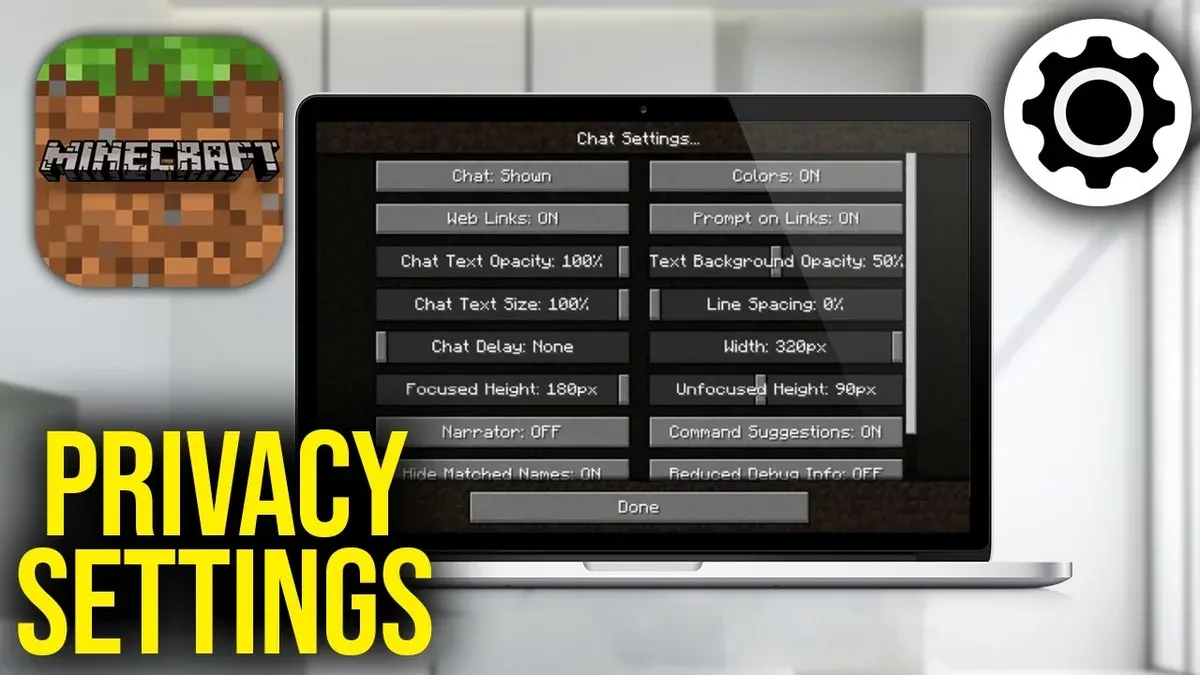
Minecraft Java Edition privacy is not adjusted within the game itself but through the Microsoft account privacy dashboard, which governs multiplayer and communication permissions. For Bedrock Edition, which supports cross-platform play, privacy settings are controlled via Xbox/Microsoft account settings, affecting multiplayer, communication, and content sharing. Nintendo Switch players must use both the Nintendo Switch Parental Controls app and the linked Microsoft account settings to manage privacy effectively.
Overview of Minecraft privacy settings
Checked in November 2026 against Minecraft.net, education.minecraft.net (full list at the end); details like these change, so the date matters.
How to change Minecraft privacy settings Java Edition
Minecraft Java Edition privacy controls are not adjustable within the game itself. Instead, these settings are managed through the Microsoft account associated with the Minecraft Launcher. The Launcher serves as the central platform to link the Microsoft account and launch the game, but it does not provide any in-game privacy configuration options.
To change privacy settings, start by signing in to the Microsoft account privacy dashboard on the web. From there, navigate to the Xbox settings section, where the privacy controls for Multiplayer & communication are located. These settings determine who can interact, communicate, and join multiplayer sessions in Java Edition.
For example, a user wanting to allow friends but block communication from strangers must adjust the Multiplayer & communication settings within the Xbox privacy controls. Changes made here immediately affect the Minecraft Java Edition experience once the user logs in through the Minecraft Launcher. No direct in-game menu exists to modify these options, so this web dashboard is the sole point of control.
The Minecraft Launcher only facilitates account connection and game launching but does not handle privacy settings directly.
Adjustments must be made on the Microsoft privacy dashboard under Xbox settings → Multiplayer & communication settings to control who can play or chat with the account holder.
Minecraft Java Edition privacy management
How to change Minecraft privacy settings on Nintendo Switch
Neither the game nor the console itself offers direct privacy settings for Minecraft. To manage multiplayer and communication permissions, adjustments must be made first in the Nintendo Switch Parental Controls app.
Begin by opening the Nintendo Switch Parental Controls app on a smartphone or tablet. Navigate to the user settings associated with the Nintendo Switch profile playing Minecraft. From there, locate the linked Microsoft account privacy settings. This step is crucial because Minecraft uses the Microsoft account to enforce multiplayer access and communication permissions on the Switch.
For example, to allow a child to join multiplayer sessions or chat with friends in Minecraft on Switch, the parent or guardian must enable these permissions through the Microsoft account privacy dashboard accessed via the Nintendo app. If these settings remain restricted, the child will be unable to use multiplayer features regardless of in-game options, since the game does not control these settings directly.
Changes made in the Nintendo Switch Parental Controls app affect only Minecraft on that console and its linked Microsoft account. Users must check both the app and the Microsoft account dashboard to ensure desired permissions are granted or revoked appropriately.
To summarize, the path to Minecraft privacy settings on Nintendo Switch is: Nintendo Switch Parental Controls app → User settings → Linked Microsoft account privacy settings. This combination governs multiplayer and communication permissions effectively without any in-game privacy control on the Switch itself.
How to access Minecraft privacy settings on Bedrock Edition
This centralized management applies to all Bedrock versions across consoles and Windows 10/11, since the game itself does not provide standalone privacy controls. Users must navigate to their Microsoft account settings to adjust multiplayer, communication, and content sharing permissions.
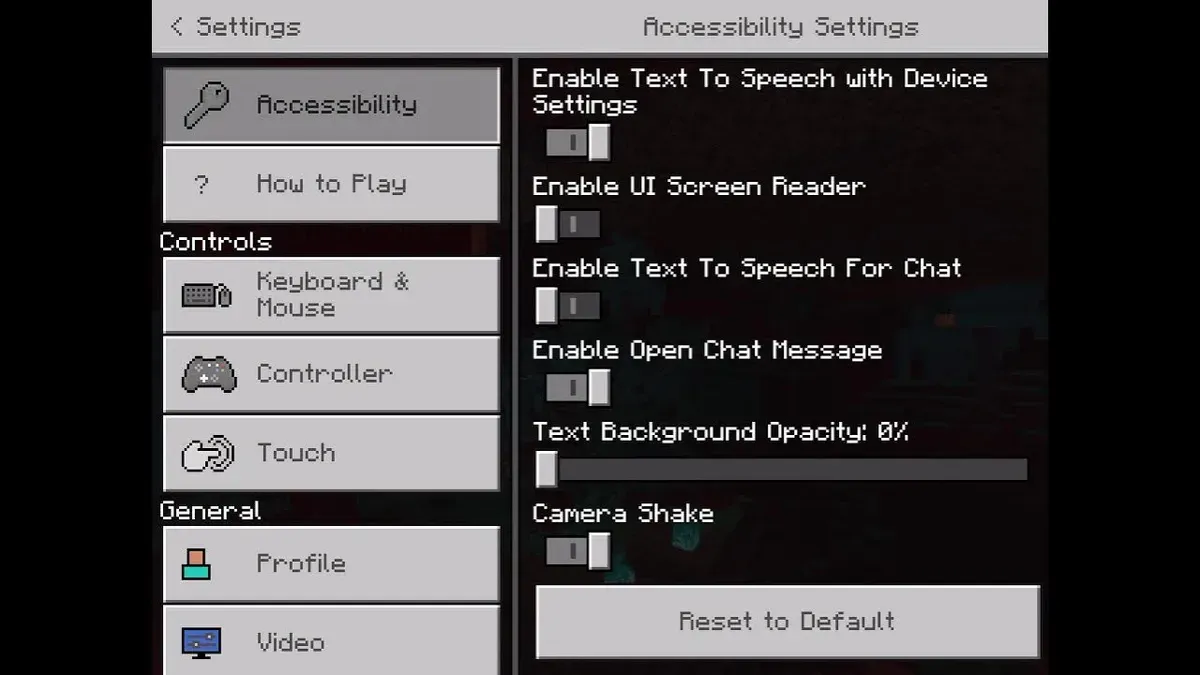
To change these settings, access the Microsoft account portal and follow this path: Privacy & online safety > Xbox privacy > Multiplayer & communications. Here, one can enable or restrict features such as cross-platform play, voice chat, text communication, and content sharing within Minecraft Bedrock Edition. For example, disabling cross-platform multiplayer at this level prevents the user from connecting with players on different devices.
This approach ensures consistent privacy settings across all platforms where Bedrock Edition is played, but it also means settings do not sync with Minecraft Java Edition or other versions. Users cannot adjust privacy preferences directly in the game interface; all relevant controls are managed via the Microsoft account dashboard. This setup emphasizes the importance of managing Xbox privacy settings to control Minecraft multiplayer and communication effectively.
Because Bedrock Edition supports cross-platform play, these Microsoft account privacy settings determine who can interact and share content, protecting players from unwanted communication or multiplayer sessions. Adjustments here take effect across all devices logged into the same Microsoft account, streamlining control for parents and players alike.
More detailed guidance and access to these settings are available through the Microsoft Account Privacy Dashboard.
How to change Minecraft account privacy settings for different platforms
Java Edition settings are primarily managed through the Minecraft Launcher on PC and the Microsoft account privacy dashboard. Players must access the Xbox settings within their Microsoft account to adjust multiplayer and communication permissions.
Bedrock Edition privacy settings are controlled through the Xbox privacy dashboard linked to the Microsoft account. This applies to Windows 10/11 and consoles, allowing centralized management of multiplayer, communication, and content sharing permissions.
Nintendo Switch requires a two-step process: configuring privacy controls through the Nintendo Switch Parental Controls app and adjusting Microsoft account privacy settings linked to the game. Both layers must permit multiplayer and communication to enable full interaction.
Education Edition uses a distinct approach with its Classroom Mode on Windows or Mac. This tool allows educators to manage student permissions, privacy, and digital safety within the educational environment, separate from standard Microsoft or platform privacy controls.
| Edition/Platform | Primary Privacy Management Tools | Settings Path |
|---|---|---|
| Minecraft Java Edition (PC) | Minecraft Launcher, Microsoft Account Privacy Dashboard | Microsoft account → Xbox settings → Multiplayer & Communication |
| Minecraft Bedrock Edition (Windows 10/11, Consoles) | Microsoft Account Xbox Privacy Dashboard | Microsoft account → Privacy & Online Safety → Xbox Privacy → Multiplayer & Communications |
| Minecraft on Nintendo Switch | Nintendo Switch Parental Controls App, Microsoft Account Privacy Dashboard | Switch Parental Controls → User Settings → Linked Microsoft Account Privacy |
| Minecraft Education Edition (Windows, Mac) | Classroom Mode | Education Edition app → Classroom Mode → Manage Student Permissions and Privacy |
For example, enabling multiplayer communication on Bedrock through Xbox privacy settings does not apply to the Java Edition on the same PC. Similarly, Nintendo Switch privacy controls must be managed both in the Parental Controls app and on the linked Microsoft account separately.
For a concrete scenario, a parent wanting to restrict multiplayer chat for a child playing Minecraft on Nintendo Switch must disable chat permissions in the Nintendo Switch Parental Controls app and confirm those restrictions are reflected in the Microsoft account privacy dashboard linked to the child's Minecraft profile. Omitting either step results in incomplete privacy enforcement.
Understanding these differences helps ensure privacy settings are correctly configured where they apply, avoiding false assumptions about cross-platform synchronization or single-location controls. Microsoft account privacy dashboard is the central hub for managing most Minecraft privacy settings.
How to fix Minecraft privacy settings when multiplayer or communication is blocked
If the Xbox privacy dashboard forbids multiplayer or chat, these features will not work regardless of in-game settings.
Another common cause is not linking Minecraft to a Microsoft account. Without this link, privacy and multiplayer controls cannot be accessed or modified, leaving the user unable to enable multiplayer or communication. Additionally, changes made on one platform do not carry over to others. Privacy settings must be reviewed and adjusted on every device and console where Minecraft is played.
These controls operate independently from Microsoft account settings and must be checked alongside them. For instance, if multiplayer is blocked on a Nintendo Switch, both the Nintendo Parental Controls app and the Microsoft account privacy settings need to permit multiplayer and communication.
| Symptom | Cause | Fix |
|---|---|---|
| Multiplayer blocked in Minecraft | Xbox privacy dashboard disallows multiplayer | Sign in to Microsoft account, go to Xbox privacy settings, and enable "Join multiplayer games" |
| No chat or communication features | Communication settings disabled in Microsoft privacy dashboard | Allow "You can communicate outside of Xbox Live" and "You can view and communicate with friends" in privacy settings |
| Multiplayer features missing or disabled | Minecraft not linked to Microsoft account | Link Minecraft profile to a Microsoft account to access privacy controls |
| Settings changed on one device not effective on another | Privacy settings are platform-specific and not synchronized | Review and update privacy controls on each console or device used |
| Multiplayer blocked on console | Console parental controls restrict multiplayer | Adjust console parental controls to allow multiplayer and communication |
On the Switch, multiplayer and chat remain blocked until both sets of controls permit them. This example shows why verifying all related controls is essential.
Console parental controls vary by device but generally require the parent to permit multiplayer and communication explicitly.
How to turn off Minecraft privacy settings for multiplayer and communication
Minecraft privacy settings cannot be completely disabled but can be adjusted to allow multiplayer access and communication. These changes are not made inside the game. Instead, they require visiting the Microsoft account privacy dashboard or the console's parental control tools. For example, enabling multiplayer and communication permissions in the Microsoft privacy dashboard grants the ability to join multiplayer worlds, participate in voice chat, and send text messages across platforms.
On Nintendo Switch, both the Nintendo Switch Parental Controls app and the Microsoft account settings must be updated. The Parental Controls app may impose extra restrictions that block multiplayer or communication regardless of Microsoft account permissions. To resolve this, open the Parental Controls app and allow multiplayer gaming and communication for the Minecraft user profile.
In the Microsoft account privacy dashboard, users must enable settings such as "You can join multiplayer games," "You can communicate outside of Xbox Live with voice and text," and any related content sharing permissions. Adjusting these settings loosens restrictions but increases exposure to online interactions and potential risks. Each platform requires these permissions to be set individually; privacy preferences do not sync automatically between devices or editions.
For example, a player blocked from multiplayer on Bedrock Edition due to privacy settings must log into their Microsoft account, navigate to the privacy dashboard, and toggle on multiplayer and communication options. On Switch, even if these permissions are enabled in Microsoft settings, the Parental Controls app must also permit multiplayer. This two-layer control ensures that privacy and safety settings are respected but requires careful coordination to allow full Minecraft online features.
Adjusting privacy settings in these dashboards is the only way to effectively relax restrictions. There are no in-game toggles for these controls. Understanding this separation prevents confusion and avoids futile attempts to change privacy options within Minecraft itself.
Why Minecraft privacy settings differ by platform and what that means
Java Edition on PC relies solely on Microsoft account privacy controls, which are accessed outside the game. Meanwhile, Bedrock Edition on consoles like Xbox or PlayStation uses Microsoft account settings combined with console-specific parental control layers. The Nintendo Switch requires managing both Nintendo Parental Controls and Microsoft account privacy settings. This layered system means privacy controls are fragmented rather than centralized.
For example, changing multiplayer permissions on a PC Java Edition Microsoft account does not affect Bedrock Edition settings on Xbox or Switch. Each platform enforces its own privacy rules independently. This separation often causes confusion when a player finds multiplayer or communication enabled on one device but blocked on another. The root cause is the lack of synchronization between Microsoft account settings and console or device parental controls.
A common misconception is expecting direct privacy control inside Minecraft menus. Most privacy adjustments happen through the Microsoft account privacy dashboard or console parental control apps, not the game interfaces. Another frequent mistake is using an unlinked Minecraft account, which restricts access to these privacy and multiplayer features. Understanding that privacy management is platform-specific and requires individual handling for each device or edition is critical to avoid frustration and ensure consistent multiplayer and communication experiences across all platforms.a few words
What to do after changing Minecraft privacy settings
After adjusting Minecraft privacy settings, verify that multiplayer and communication functions operate as intended on each device. Test joining a multiplayer session or sending messages in the game to confirm permissions are active. This step is crucial because privacy settings do not synchronize automatically across platforms or Minecraft editions, so changes on one device won't affect others.
Monitor gameplay for any unexpected blocks or error messages indicating restricted features. If issues appear, recheck the Microsoft Account Privacy Dashboard for any overlooked restrictions, and on Nintendo Switch, also review the Parental Controls app. These tools govern multiplayer and communication permissions and may need further adjustment.
Privacy settings can be readjusted at any time if they prove too restrictive or too permissive. For instance, if a child can access multiplayer unexpectedly, tighten communication and multiplayer permissions via the Microsoft dashboard or platform-specific parental controls. Conversely, if too many features are blocked, relax the settings accordingly.
Parents should schedule periodic reviews of linked accounts and parental control settings. Account changes, linked device updates, or platform software updates can alter or reset privacy controls without notice. Regular checks ensure the intended privacy level is maintained and help catch unintended permission changes early.
Keep in mind that software or account updates may reset privacy settings or impact how they behave. After such updates, repeat verification steps to confirm settings remain as desired. For example, a child’s Minecraft Java Edition privacy relies on Microsoft account settings, so revisiting the Microsoft Account Privacy Dashboard after an update ensures multiplayer and communication permissions persist as configured.
In summary, a checklist after changing settings includes: test multiplayer and communication on each device; watch for blocked features or error messages; adjust settings as needed; review linked accounts and parental controls regularly; and re-verify after updates. This disciplined follow-up maintains control over Minecraft multiplayer and communication privacy across platforms.Microsoft Account Privacy Dashboard
Documentation used
- Download Minecraft — Minecraft.net
- Homepage — education.minecraft.net
- Welcome to the official site of Minecraft — Minecraft.net
- Download — education.minecraft.net
See also: How to Manage and Troubleshoot Match.com Privacy Settings · How to Manage and Optimize LINE Privacy Settings for Stronger Protection