How to Manage and Optimize LINE Privacy Settings for Stronger Protection
Discover how to control LINE privacy settings to secure your account, limit unwanted contacts, and prevent data misuse with simple steps.

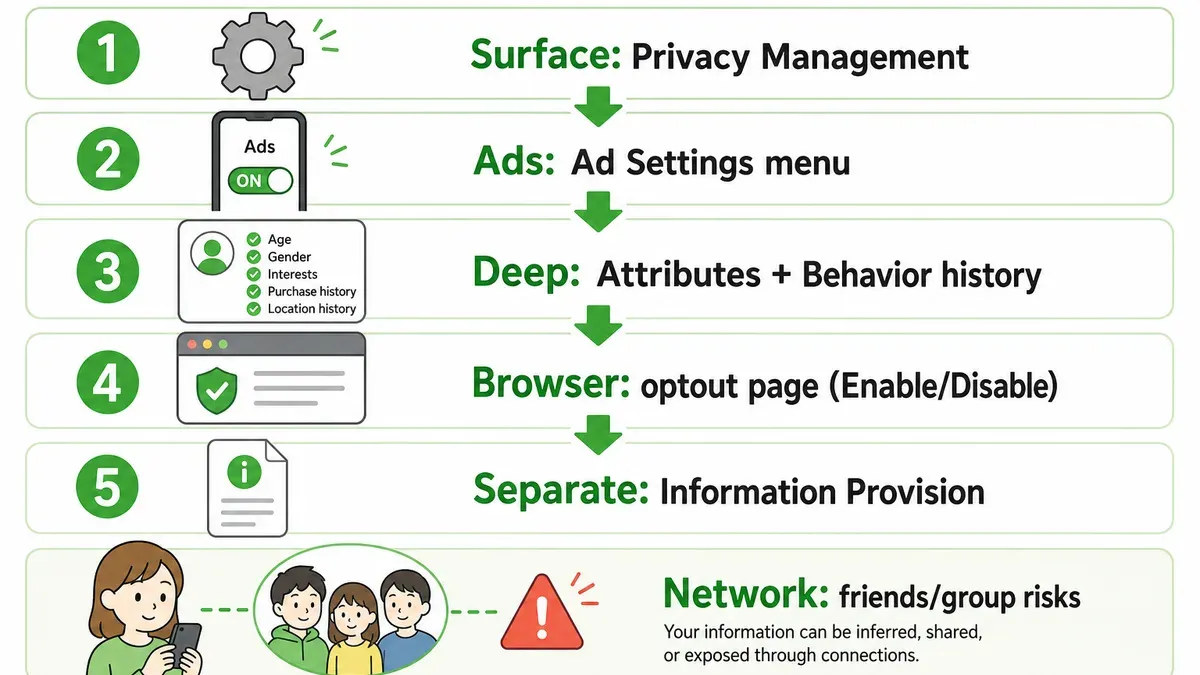
Most LINE users overlook the comprehensive controls found in the app’s Privacy Management section, which governs message reception from non-friends, app access to profile details, data sharing, advertising preferences, and photo information. This centralized hub is the key to effective Line privacy settings, yet many fail to configure it properly, leaving accounts vulnerable to spam, unauthorized access, or data misuse. Without activating features like Letter Sealing for end-to-end encryption or managing device logins, users expose themselves to risks that LINE’s built-in tools are designed to prevent. Understanding the exact settings and their order of activation is critical to maintaining control over personal information and communication security.
Settings, menu paths and limits here were checked against LINEみんなの使い方ガイド, 瘋先生 - 蘋果iPhone、iOS技術科技媒體, LINE Corporation (full list at the end) in November 2026.
Why does online privacy matter on LINE?
The app’s default configurations, if left unchanged, allow anyone who knows a user’s phone number to add them as a friend, increasing vulnerability to unwanted contacts and scam groups.
LINE’s Privacy Management section consolidates controls that govern message reception from non-friends, app access to profile information, data sharing, advertising preferences, and photo data usage. This centralization enables users to limit who can contact them and how their data is used across the app. For example, disabling “Allow Others to Add Me” and “Auto Add Friends” stops strangers from automatically connecting and reduces exposure to spam messages.
While This distinction highlights the importance of controlling data sharing preferences to prevent misuse or unwanted advertising.
Failing to manage these settings properly often results in a flood of unsolicited friend requests and spam messages. Users who keep the default friend addition settings open risk repeated exposure to scam groups, which can compromise account security and personal information.
LINE’s Privacy Management offers the tools necessary to regain control and protect communication from interception, spam, and data misuse.
How to access privacy settings in LINE
Privacy controls in LINE are centralized in the Privacy Management section, reachable directly from the Home screen. Tap the Profile icon or the menu button on the Home screen to open this section. It contains precise controls for message reception, app access, data sharing, advertising preferences, and photo data provision.
Within Privacy Management, navigate to sub-settings like App Access to Information to control which apps can access user data, Information Provision for managing data sharing with third parties, and Advertising Settings to limit personalized ads. Each path is Home → Profile icon or menu → Privacy Management → the specific subcategory.
Alternatively, message and friend request privacy settings are found via a separate route: go to Settings (gear icon) from the Home screen, then open Privacy Settings. Here, options like blocking messages, allowing friend invitations, and permitting ID adds are managed directly.
For example, to block spam messages, open Settings → Privacy Settings → Block Messages, then toggle the appropriate controls. Missing the correct menu risks leaving spam filters inactive or friend invitation controls too loose.
LINE’s official guide shows these menu paths clearly, ensuring users find each privacy control without confusion.
How should you set your LINE privacy settings for best protection?
Start by disabling 'Auto Add Friends' and 'Allow Others to Add Me' to block unsolicited contacts and spam. Then activate 'Block Messages' from non-friends; this stops unwanted messages from unknown users. For app access to profile data, choose either 'Deny' or 'Allow if Mutual Friends' based on comfort with sharing. If privacy is a priority, turn off interest-based ads that track web behavior and LINE internal identifiers.
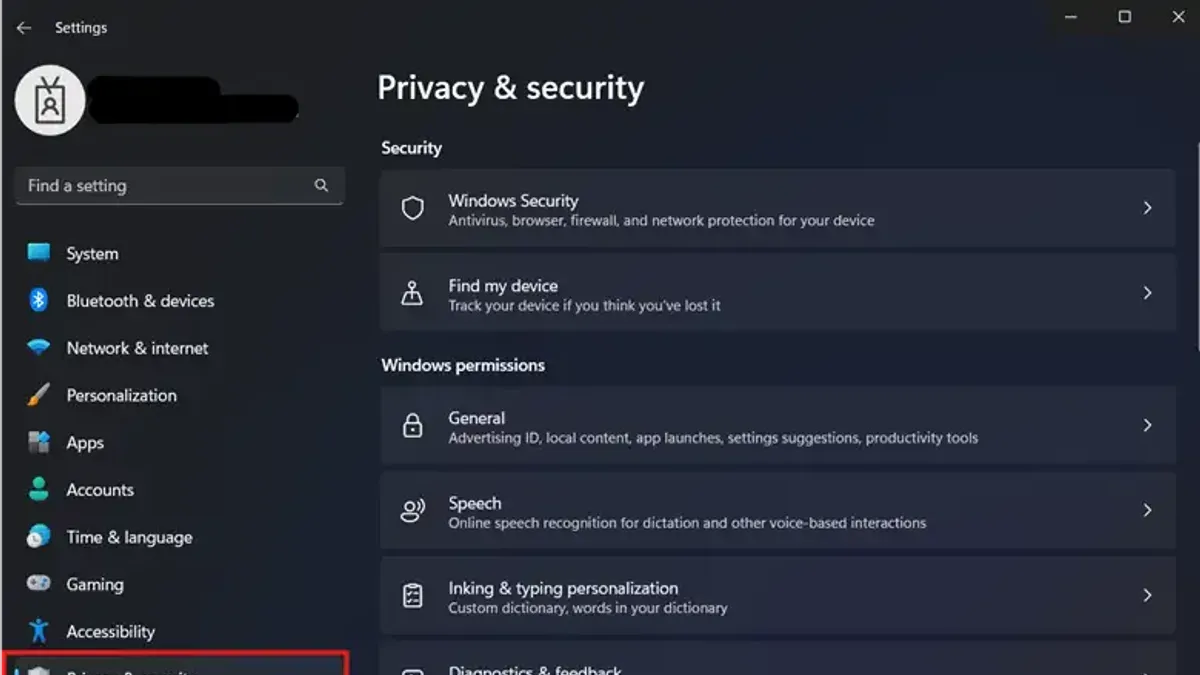
Enable Letter Sealing to apply AES-based end-to-end encryption for chats, groups up to 50 members, location messages, and calls. Protect the LINE app itself by activating Passcode Lock and pairing it with biometric options like Face ID or Touch ID. Regularly review logged-in devices and log out any unknown sessions to prevent unauthorized access.
| User Situation | Recommended Setting | Reason |
|---|---|---|
| Prevent strangers from adding or messaging | Disable 'Auto Add Friends', 'Allow Others to Add Me', enable 'Block Messages' from non-friends | Blocks spam and unsolicited contacts |
| Use LINE on multiple devices (PC/tablet) | Keep 'Allow Other Devices to Log In' enabled; monitor devices regularly | Maintains multi-device access with ongoing security checks |
| Maximize chat privacy and security | Enable Letter Sealing | Applies end-to-end encryption to protect communication content |
| Protect app from unauthorized access on phone | Enable Passcode Lock with biometric authentication | Prevents app-level breaches if phone is accessed |
| Limit third-party app profile access | Set app access to 'Deny' or 'Allow if Mutual Friends' | Controls data sharing based on trust level |
| Prioritize ad privacy | Turn off interest-based ads | Stops tracking through web and LINE identifiers |
For example, a user who wants to avoid spam but uses LINE on PC should disable automatic friend additions, block messages from non-friends, keep device login enabled, and regularly check device access. This setup blocks unwanted contacts while preserving multi-device use. Conversely, a user solely on mobile who values maximum privacy should disable automatic adds, block non-friend messages, enable Letter Sealing, and secure the app with a passcode lock.
Tip: Regular device login audits complement these settings by catching unauthorized access early.
Learn more about blocking spam and controlling app access
How to turn on privacy settings like Letter Sealing and Passcode Lock
Start by enabling Letter Sealing to secure message content with AES end-to-end encryption. In the LINE app, navigate to Settings → Privacy Settings → Letter Sealing, then toggle it on. This encrypts chats, group chats with up to 50 participants, location messages, and calls, preventing third-party access to conversation content.
Next, set up Passcode Lock to block unauthorized app access. Go to Settings → Privacy Settings → Passcode Lock and activate it. Users must create a numeric passcode, which is separate from the LINE account password. After enabling the passcode, link it with biometric authentication options like Face ID or Touch ID if the device supports them; this adds convenience without sacrificing security.
The order of activation matters: enable Letter Sealing before setting Passcode Lock. If Passcode Lock is set first, message encryption status may not update properly, potentially weakening protection. For example, activating Letter Sealing first ensures chats are encrypted before the app is locked behind a passcode, securing content even if the device is compromised.
These features combined protect communication content and app access effectively. Letter Sealing secures messages from interception, while Passcode Lock prevents unauthorized entry into the app itself. Together, they form a crucial foundation for controlling who can read and send messages on the account.
Tip: Regularly verify that both Letter Sealing and Passcode Lock remain enabled after app updates or device changes to maintain continuous protection.
Letter Sealing and Passcode Lock settings details
How to maintain privacy online with device login management
LINE users must regularly check which devices are logged into their account to detect unauthorized access swiftly. This can be done via Settings → My Account → Devices Logged In on the mobile app. If any unfamiliar device appears, it should be logged out immediately to stop further access.
Turning off Allow Other Devices to Log In enhances security by preventing new logins on PC, iPad, or Apple Watch apps. However, this disables access on these devices entirely, which is a trade-off unique to LINE’s multi-device system. Users must weigh convenience against security based on their needs.
After managing device logins, a follow-up audit is crucial. Checking again within a day or a week ensures no new unauthorized logins have occurred.
Disabling other device logins then blocks future unauthorized PC or tablet access, but the user sacrifices multi-device flexibility.
Tip: Schedule a weekly review of logged-in devices to maintain account security and catch unauthorized access early.
How should privacy be protected online beyond LINE’s built-in settings?
Enabling biometric locks like fingerprint or facial recognition on the device ensures that even if it is lost or stolen, unauthorized access to the app is prevented.
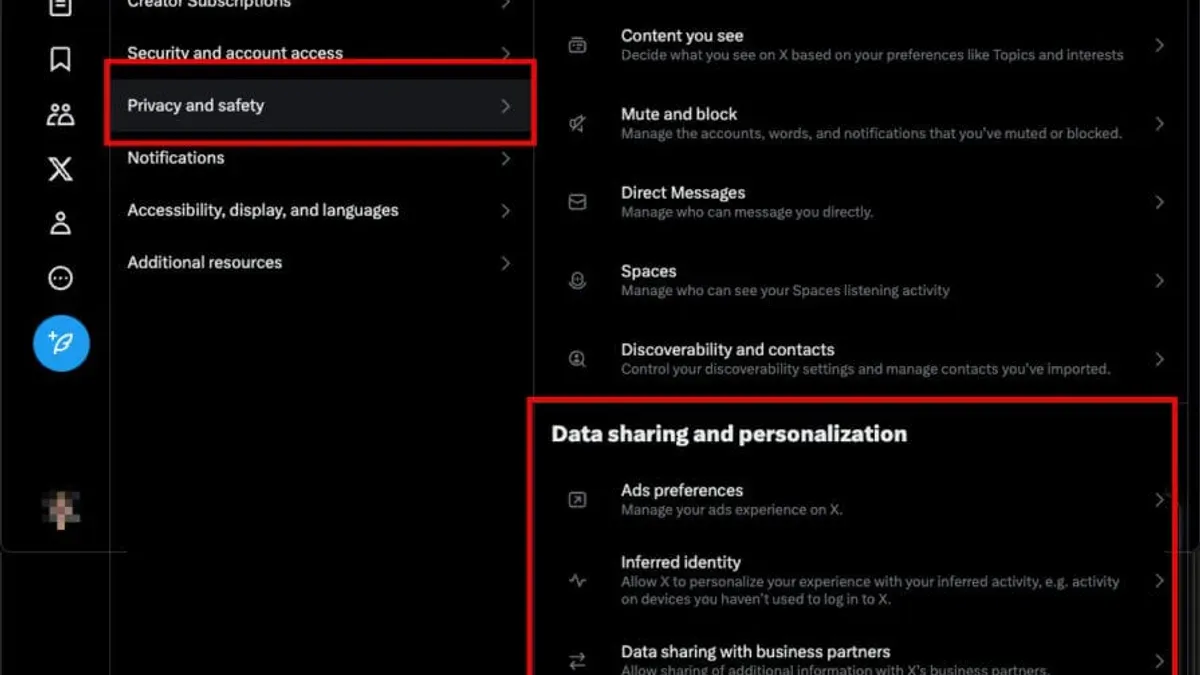
Malicious links or oversharing can expose sensitive data or invite social engineering attacks. Limit permissions granted to external apps connected to LINE by choosing to deny access or allow only mutual friends to view profile information. This reduces exposure to data misuse through third-party apps.
Updates often include security patches and new privacy features that address emerging threats. For example, Understanding this helps users decide which Official Accounts to interact with and when to grant consent for notification messages without adding them as friends.
Tip: Review external app permissions periodically under Privacy Management to revoke any that are no longer necessary or seem suspicious.
What common mistakes reduce LINE privacy and how to avoid them
Leaving the settings ‘Allow Others to Add Me’ and ‘Auto Add Friends’ enabled exposes the account to unwanted friend additions. Anyone with the user’s phone number can add them, increasing the risk of spam messages and inclusion in scam groups. For example, a user with these options enabled might suddenly receive messages from unknown contacts promoting phishing links or fraudulent schemes. The fix is to disable both settings in Privacy Management to block unsolicited friend requests and reduce spam.
Disabling ‘Allow Other Devices to Log In’ without considering the need for multi-device use cuts off access on PC, iPad, and Apple Watch apps. This setting stops all logins except from the primary phone. A user who disables this while relying on LINE on a tablet will find themselves locked out on that device. Before turning it off, confirm whether multi-device access is required; if so, keep it enabled and monitor device logins regularly.
Not enabling Letter Sealing leaves messages less protected because this AES-based end-to-end encryption secures chats, group messages, calls, and location sharing. Without it, message content is more vulnerable to interception. Users should enable Letter Sealing first to ensure conversations remain private and protected from unauthorized access.
Failing to check logged-in devices regularly invites unnoticed unauthorized access. Unknown devices can remain connected, allowing others to read messages or impersonate the user. A weekly review of devices listed under login management is essential. Remove any unfamiliar devices promptly to maintain account security.
| Symptom | Cause | Fix |
|---|---|---|
| Receiving spam and scam messages | ‘Allow Others to Add Me’ and ‘Auto Add Friends’ enabled | Disable both settings in Privacy Management |
| Inability to use LINE on PC or tablet | ‘Allow Other Devices to Log In’ disabled without multi-device use consideration | Enable the setting or confirm device needs before disabling |
| Message content not fully encrypted | Letter Sealing not enabled | Activate Letter Sealing in privacy settings |
| Unknown device access not detected | Skipping regular device login checks | Review and remove unknown devices weekly |
Tip: Regularly review all privacy settings after updates, as defaults may reset or change unexpectedly.
What LINE privacy settings do not cover and when to seek other solutions
LINE’s privacy controls secure communication and app access but do not address all security risks. Notably, the app does not analyze user chat content for service improvement, except for chats with Official Accounts where consent is given.
These threats can compromise account security despite strong app configurations. Users facing such risks should consider dedicated antivirus software and phishing detection tools to supplement LINE’s built-in protections.
Third-party security solutions and managed services are necessary to meet these higher standards and provide granular controls and audit capabilities.
If unauthorized access or data loss occurs, following LINE’s official recovery procedures and contacting support is essential. Privacy controls alone cannot reverse breaches or recover compromised data.
Even with all LINE privacy settings enabled, sensitive information can leak externally. This illustrates the need for layered security beyond what LINE’s app settings provide.
Official communication privacy terms clarify these limits and advise when to deploy external protections.
Frequently asked questions
How to go to privacy settings?
Open the LINE app and tap the gear icon to access Settings. Scroll to find the Privacy Management section, which centralizes controls for message reception, app access, data sharing, advertising preferences, and photo data provision. This section is the starting point for all privacy-related configurations.
How should you set your privacy settings?
Privacy settings should be configured based on user scenarios such as individual chat use, group communication needs, or multi-device usage. For example, enabling Letter Sealing is essential for end-to-end encryption, while disabling 'Allow Other Devices to Log In' enhances security by restricting access to PC, iPad, and Apple Watch apps. The decision matrix in the article details which settings align with specific situations and the facts that guide those choices.
What privacy settings should i use?
The settings depend on the desired balance between convenience and security. Activating Letter Sealing and Passcode Lock protects chats and app access. Managing device logins by disabling unnecessary multi-device access reduces unauthorized entry risks. Adjust message reception filters to block spam and limit data sharing to trusted contacts only.
References
- プライバシー管理設定の確認方法を知ろう|LINEみんなの使い方ガイド — LINEみんなの使い方ガイド
- 【LINE安全設定】教你10招提升LINE隱私、安全和防詐騙技巧 - 瘋先生 — 瘋先生 - 蘋果iPhone、iOS技術科技媒體
- Regarding Usage of Your Information - FAQ and Detailed Information — LINE Corporation
- LINE隱私設定完整教學|關閉8功能不怕帳號被盜和個資外洩 - 瘋先生 — 瘋先生 - 蘋果iPhone、iOS技術科技媒體
See also: How to Manage Kick Privacy Settings and Stream Access · Mastering Lemon8 Privacy Settings: Control Your Account and Data · Comprehensive Guide to WhatsApp Privacy Settings and How They Work · How to Master Viber Privacy Settings for Secure Messaging