How to Manage and Troubleshoot Match.com Privacy Settings
Discover how to manage and troubleshoot Match.com privacy settings to control profile visibility and secure your personal information effectively.

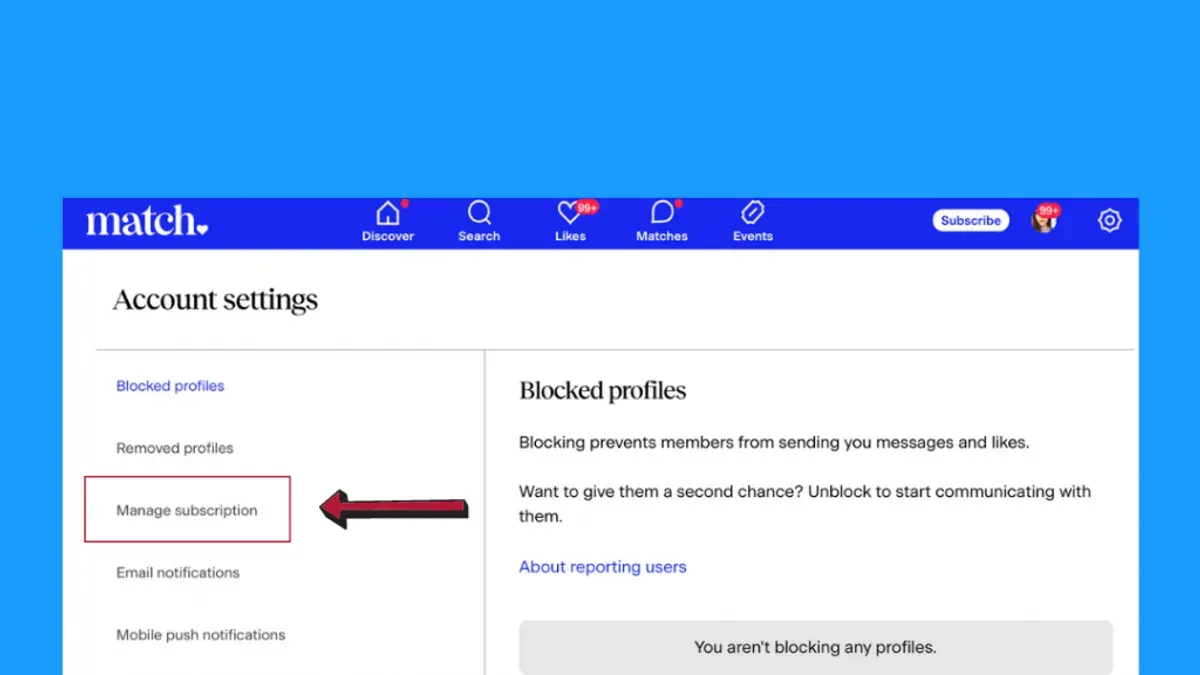
Match.com privacy settings center on controlling profile visibility and personal information exposure, with 'Invisible Mode' as the key feature for hiding profiles. This mode requires a paid subscription and prevents a user’s profile from appearing in searches or to other members unless they initiate contact. Additionally, users can adjust login and account preferences to enhance security and privacy, while troubleshooting guides address common login failures and site issues.
It also compares capabilities of free versus paid accounts and explains how to handle privacy concerns for different member statuses.
Match.com Privacy and Access at a Glance
- Common login errors include wrong password, account lockout, or server downtime, each with specific fixes.
- Free accounts have limited privacy controls and communication features compared to paid plans.
- Adjusting account preferences requires follow-up checks on login sessions and privacy settings to ensure effectiveness.
How do I hide my profile on Match.com?
To hide a profile on Match.com, the primary control is located within the account settings under the privacy section. Users should first log into their Match.com account and navigate to the top-right corner where the profile icon appears. Clicking this icon reveals a dropdown menu where the "Settings" option must be selected. Within Settings, locate and click on the "Privacy" tab to access profile visibility controls.
Activating Invisible Mode hides the profile from all users except those already matched. This means the profile will not appear in search results, recommendations, or visitor lists, effectively making the user invisible to new potential matches.
For more granular control, users can block specific members rather than hide the entire profile. This is done by visiting the profile of the member to block, selecting the "More" button (usually three dots), and choosing "Block" from the options.
When a profile is hidden via Invisible Mode, existing matches remain intact, but communication is limited to those matches only. If the profile is hidden manually by blocking individuals, those blocked cannot view or reach out, while the profile stays visible to others. The system does not notify blocked users or provide explicit feedback on profile invisibility.
For example, a user wanting full privacy should subscribe to a paid plan and enable Invisible Mode through Settings > Privacy > Invisible Mode toggle. This action conceals the profile from everyone except matched users. Alternatively, selectively blocking a former match prevents their access without hiding the profile from the rest of the community.
Why can't I log into Match.com?
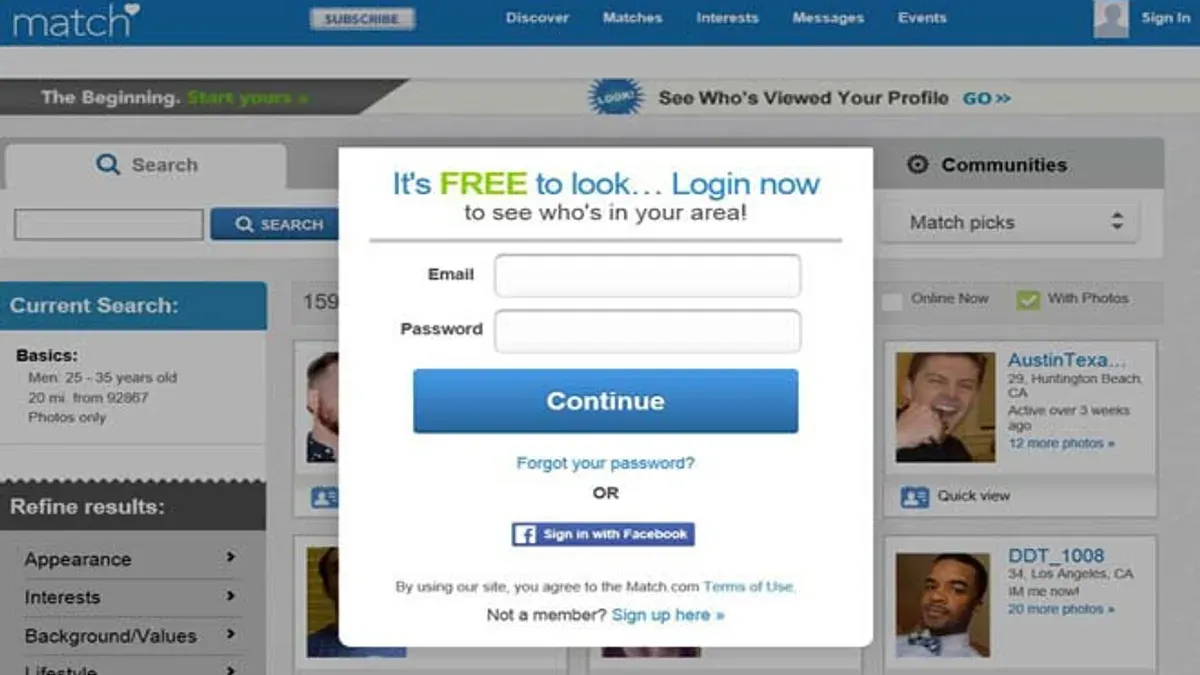
A common error message, “Incorrect email or password,” indicates a mismatch. In such cases, resetting the password through the “Forgot Password” link on the login page is the first corrective step. This process sends a reset link to the registered email, enabling password update and regaining access.
The message “Account temporarily locked due to multiple failed attempts” signals this status. Users must wait for the lockout period to expire, which usually lasts 15 to 30 minutes, or follow instructions in the lockout notification to verify their identity and unlock the account.
Login problems may also originate from server downtime or maintenance. When Match.com’s servers are unavailable, error messages like “Unable to connect to server” or “Service temporarily unavailable” appear. Checking Match.com’s official server status page or social media channels confirms if the issue is widespread. Server outages require waiting until service restoration, as local troubleshooting will not resolve these problems.
The following table matches common login symptoms with their causes and fixes:
| Login Symptom | Cause | Fix |
|---|---|---|
| Incorrect email or password | Wrong credentials entered | Use “Forgot Password” to reset password |
| Account temporarily locked due to multiple failed attempts | Security lockout from repeated login failures | Wait for lockout duration or follow unlock instructions |
| Unable to connect to server / Service temporarily unavailable | Match.com server downtime or maintenance | Check official status and wait for service restoration |
For example, a user repeatedly entering the wrong password will receive the lockout message after several tries. Attempting to log in during a scheduled maintenance window will result in server connection errors, which no local action can fix beyond confirming the outage and waiting.
Why is Match.com not working or down?
Determining if Match.com is experiencing an outage requires verifying the site’s server status. Third-party services like DownDetector or IsItDownRightNow track user reports and server responses, offering real-time insights into site availability. Checking these platforms confirms whether issues stem from a Match.com server problem or from local factors.
Local device issues can mimic outages. Interruptions caused by unstable internet connections, browser errors, or device settings should be ruled out before concluding the site is down. Clearing the browser cache, restarting the device, or switching networks helps isolate the problem.
When a site-wide outage occurs, it usually lasts from a few minutes up to several hours, depending on the cause. For example, a sudden server overload might resolve quickly, while maintenance or unexpected failures could extend downtime. During such periods, repeated login attempts or page refreshes often fail.
In the event of a confirmed outage, waiting is the primary response. Match.com’s support channels may provide updates or estimated resolution times if the downtime is prolonged.
This confirms a broader problem rather than a personal device glitch. Recognizing this distinction prevents unnecessary troubleshooting and directs attention to official updates and waiting for restoration.
How to use Match.com for free while managing privacy?
Free Match.com accounts grant access to basic features such as creating a profile, browsing matches, and receiving limited daily likes. Communication options, however, are restricted: free users cannot send or read messages. Privacy tools are similarly limited.
Despite these constraints, free users can still manage some privacy controls. Profile visibility can be adjusted to some extent by limiting the information shown in the public profile sections. Users can disable the option to show their profile in match suggestions, which reduces exposure without fully hiding the profile.
| Feature | Free Account | Paid Account |
|---|---|---|
| Profile Creation & Browsing | Yes | Yes |
| Sending/Receiving Messages | No | Yes |
| Invisible Mode (Profile Hiding) | No | Yes |
| Blocking/Reporting Users | Yes | Yes |
| Profile Visibility Control (Basic) | Limited | Full |
For example, a free user can prevent a specific person from viewing their profile by blocking them but cannot activate Invisible Mode to hide their total presence. To optimize privacy, free users should carefully adjust profile details and visibility settings under the privacy menu to restrict what appears publicly. Avoid sharing sensitive personal information in profile fields, as these remain accessible unless the account is paid and Invisible Mode is enabled.
Upgrading unlocks full privacy controls and messaging, providing a more secure and private experience.
How to contact Match.com for privacy or account issues?
The primary contact methods include email, phone, and live chat, each suited to different needs and urgency levels.
Email Support
Users can reach Match.com’s customer service via the email contact form at https://www.match.com/help/contactus.aspx. Filling out this form requires selecting the appropriate category, such as "Privacy Concerns" or "Account Issues," and providing detailed information about the problem. Including the registered email address, a description of the issue, and any relevant screenshots helps accelerate the resolution process.
Phone Support
For direct assistance, Match.com provides a customer service phone number: 1-800-926-2828. Calling this number connects to a support representative who can address privacy or account questions. Phone support generally operates during business hours, so contacting early improves the chance of immediate help.
Live Chat
Live chat is accessible through the Match.com Help Center at https://help.match.com/hc/en-us. This option allows real-time messaging with support agents, suitable for quick clarifications or troubleshooting. The chat window often appears after navigating to the help site and clicking the chat icon.
Before contacting support, prepare the account email, username, and a concise description of the problem. If the issue involves privacy settings or unauthorized access, gather screenshots of relevant pages or error messages. This preparation reduces back-and-forth and speeds up assistance.
If initial contact does not resolve the issue, request escalation to a specialized team or supervisor for privacy-related cases.
For example, a user concerned about unauthorized profile changes can call 1-800-926-2828, provide the account email and a screenshot of the changed settings, and ask for direct review and account lock options. Following the call, checking the email for confirmation and monitoring account activity for a week ensures the issue is fully addressed.
How to adjust Match.com login and account preferences for better privacy?
Begin by accessing the account settings through the profile menu, then selecting "Privacy & Settings." Within this section, locate "Login & Security" to manage devices and sessions. Match.com allows users to view active sessions, showing device types and locations. Ending unfamiliar or outdated sessions immediately revokes access from those devices, limiting unauthorized entry risks.
Notification preferences play a key role in minimizing data exposure. Under "Notifications," adjust settings to restrict alerts about profile views, messages, or matches. Disabling email or push notifications for certain activities reduces the chance of sensitive information appearing on shared or insecure devices.
Personal information visibility is adjustable via "Profile Settings." Users can control which details appear publicly, such as age, location, or relationship status. For example, setting location visibility to "Only Me" hides it from other members, enhancing privacy without disabling the profile entirely. Regularly reviewing these settings ensures profile data exposure matches current comfort levels.
After making changes, revisit these settings a day later to confirm updates have taken effect and check for any unexpected notifications. Weekly audits help maintain control, especially after password changes or when accessing Match.com from new devices.
For instance, a user concerned about unauthorized access might remove all saved devices except their current phone, disable non-essential notifications, and limit profile visibility to basic details. This combination reduces data leakage and strengthens login security without sacrificing core functionality.
How does Match.com handle privacy for married members?
This applies equally to all members, including those who are married or seeking discreet interactions.
To protect identity and profile visibility, Match.com offers specific controls. Married members or those in sensitive situations can activate Invisible Mode, which hides their profile from general searches and only allows visibility to selected matches. Additionally, the platform permits blocking and reporting users to prevent unwanted contact, crucial for maintaining discretion.
However, limitations exist. Invisible Mode is available only with paid subscriptions, restricting free users’ ability to fully conceal their presence. Also, even with privacy settings enabled, profile details may still be accessible to matches or through inadvertent exposure if login credentials are compromised. Members must weigh these risks when seeking privacy.
For example, a married member using Invisible Mode can browse and communicate without appearing in public searches, but if they share profile links or communicate openly, their identity could be exposed.
Review the 'Login Sessions' section under 'Account Settings' to confirm no unfamiliar devices remain connected. If unwanted access persists, reset the password and revoke all active sessions.
See also: How to Manage and Optimize LINE Privacy Settings for Stronger Protection · How to Manage Kick Privacy Settings and Stream Access · How to Recover and Secure a Hacked Match.com Account · How to Manage OkCupid Privacy Settings for Safe and Effective Dating